Apple iPad Air 11 (M3) (2025)

Apple iPad Air 11 (M3) (2025)

iPadOS 26

Use Apple Intelligence on your Apple iPad Air 11 (M3) (2025) iPadOS 26

Read help info

Apple Intelligence allows you to use many of your tablet's functions in a smarter and more efficient way. Here you can see some examples of Apple Intelligence usage. To use most of the Apple Intelligence functions, you need to activate your Apple Account and set up your tablet for internet.

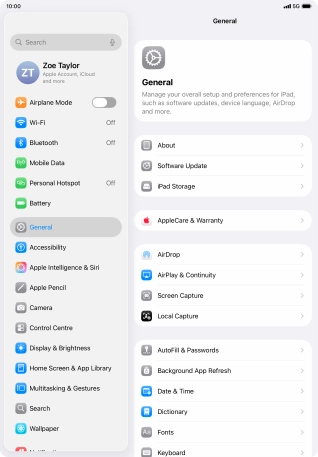
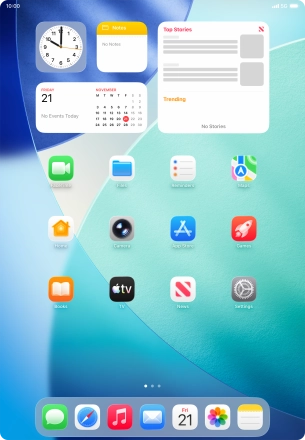
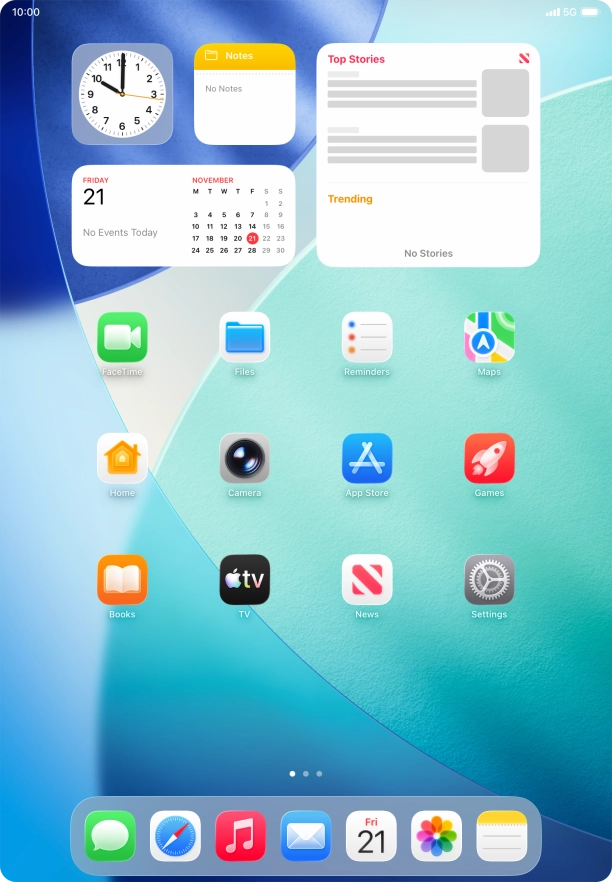
Press Settings.
Step 1 of 19

1. Turn on Apple Intelligence

Press Settings.
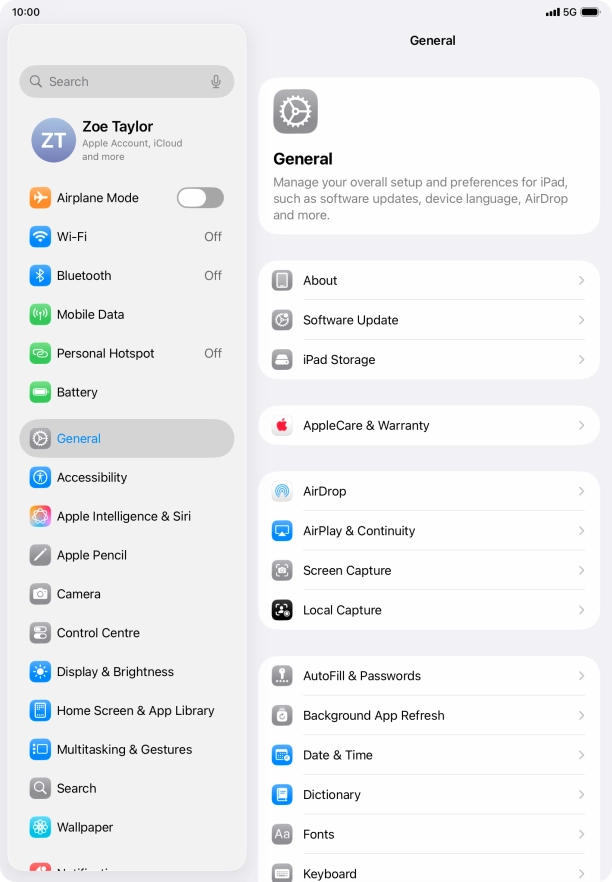
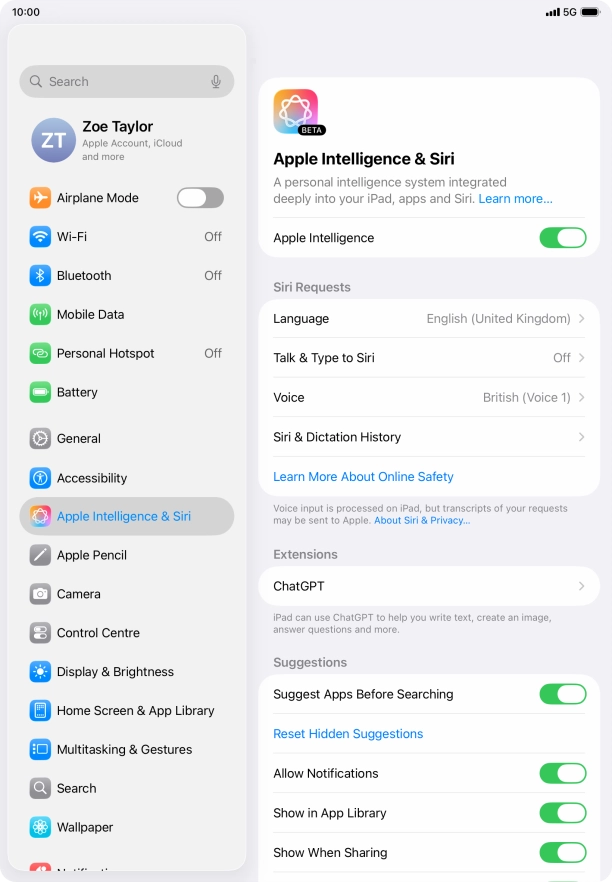
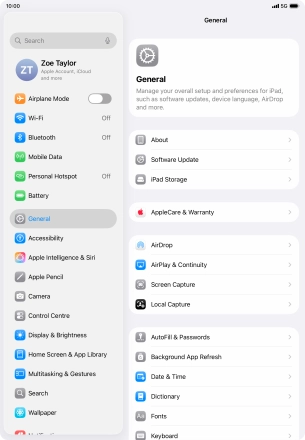
Press Apple Intelligence & Siri.
Step 2 of 19

1. Turn on Apple Intelligence

Press Apple Intelligence & Siri.

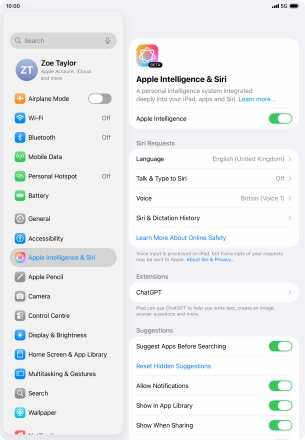
Press the indicator next to
Step 3 of 19

1. Turn on Apple Intelligence

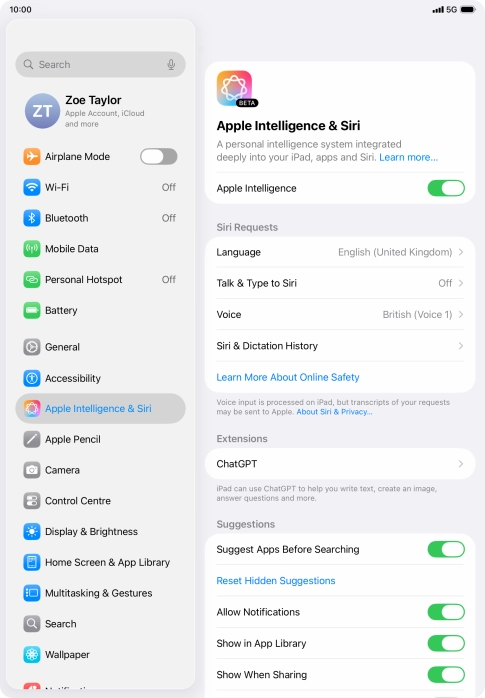
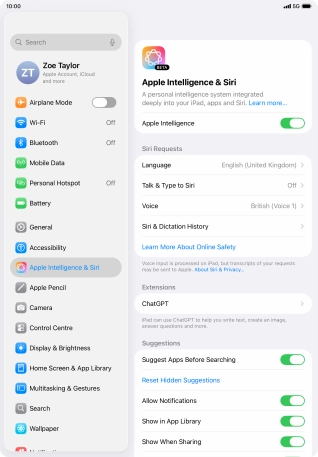
Press the indicator next to "Apple Intelligence" and follow the instructions on the screen to finish the activation.

Open Messages and select an existing conversation or create a new message.
Step 4 of 19

2. Use Genmoji

Open Messages and select an existing conversation or create a new message.

Press the add icon.
Step 5 of 19

2. Use Genmoji

Press the add icon.

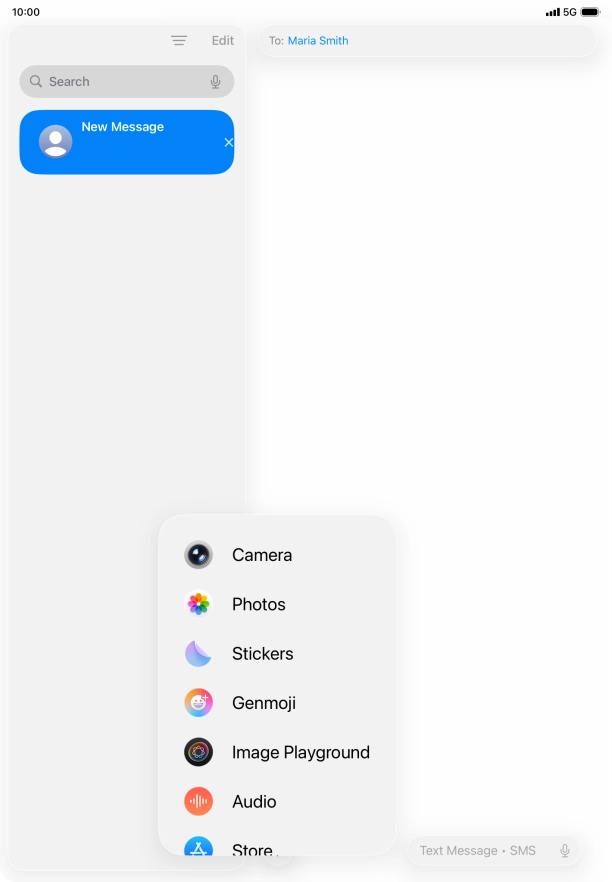
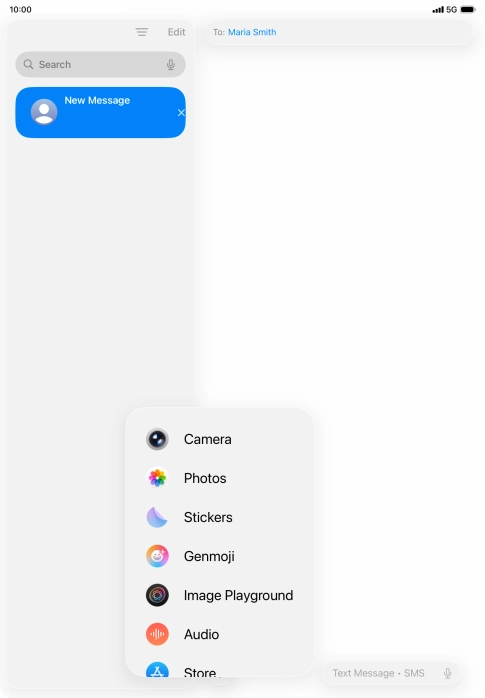
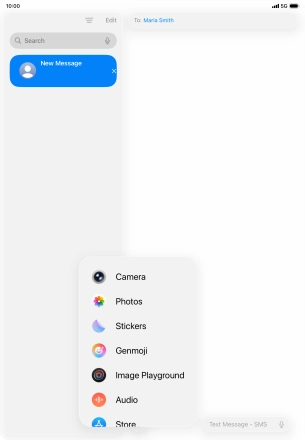
Press Genmoji.
Step 6 of 19

2. Use Genmoji

Press Genmoji.

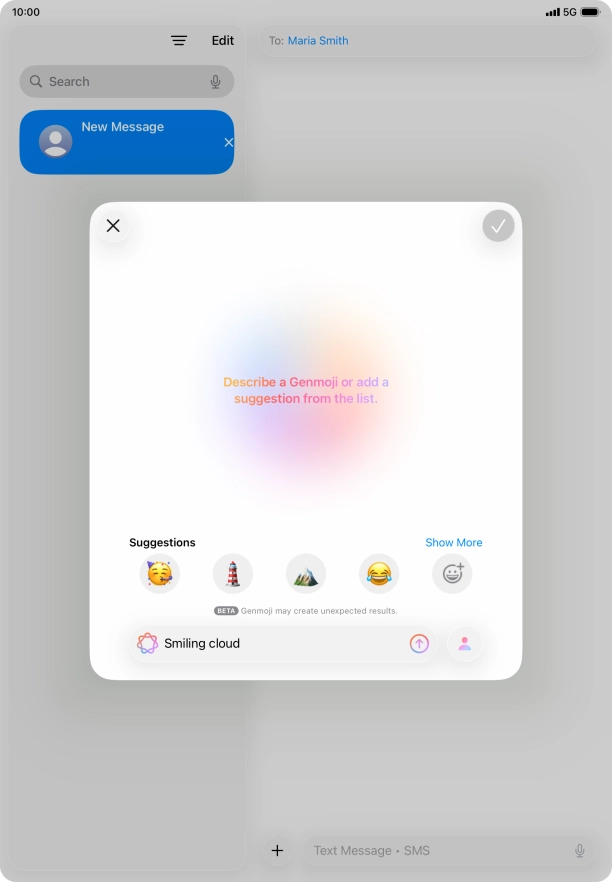
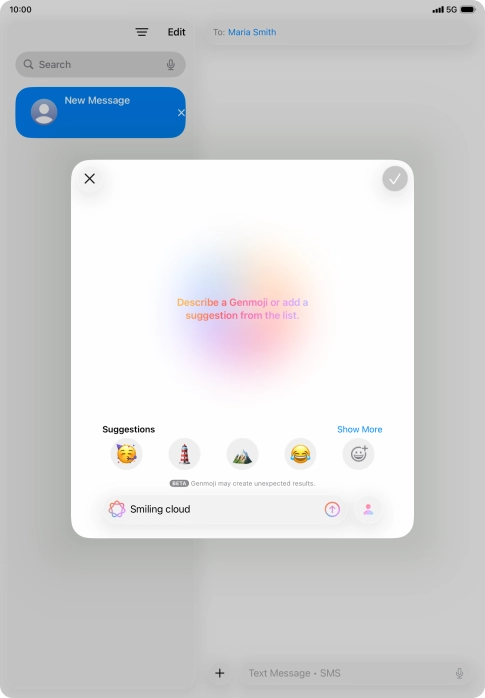
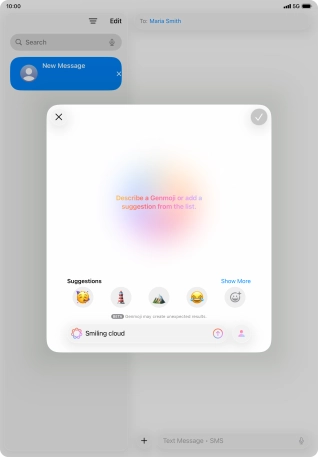
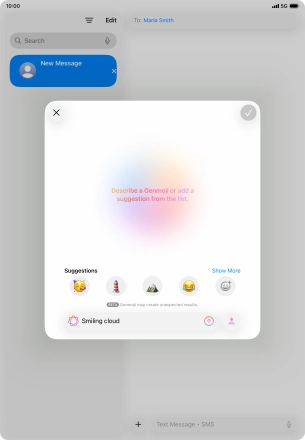
Write in your own words what you would like your Genmoji to look like, and press arrow up.
Step 7 of 19

2. Use Genmoji

Write in your own words what you would like your Genmoji to look like, and press arrow up.

You can use Apple Intelligence to generate specific emojis based on your own description.
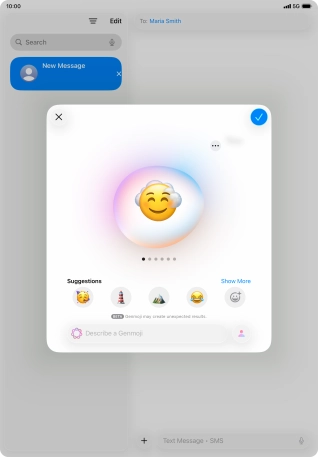
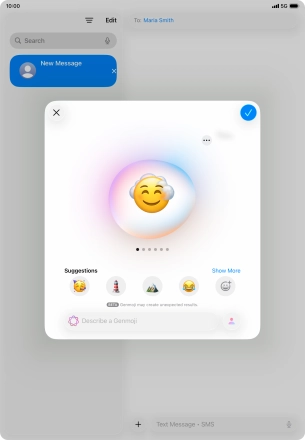
Slide your finger right or left on the screen to see the generated results.
Step 8 of 19

2. Use Genmoji

Slide your finger right or left on the screen to see the generated results.

To use the selected Genmoji in your message, press the confirm icon.
Step 9 of 19

2. Use Genmoji

To use the selected Genmoji in your message, press the confirm icon.

To access more functions for the selected Genmoji, press the menu icon and follow the instructions on the screen to use them.
Step 10 of 19

2. Use Genmoji

To access more functions for the selected Genmoji, press the menu icon and follow the instructions on the screen to use them.

Open a supported app, such as Notes, and key in the required text.
Step 11 of 19

3. Use Writing Tools

Open a supported app, such as Notes, and key in the required text.

Press the extended menu icon.
Step 12 of 19

3. Use Writing Tools

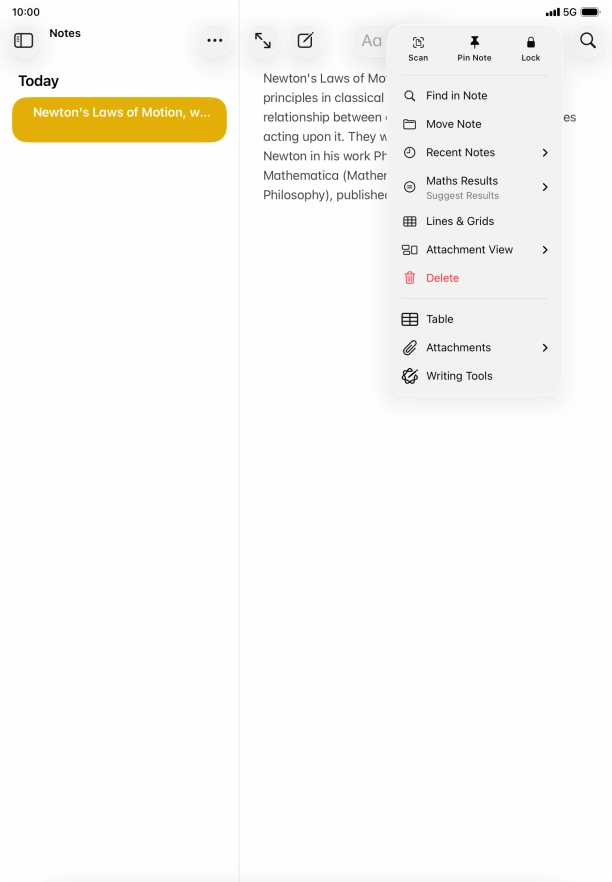
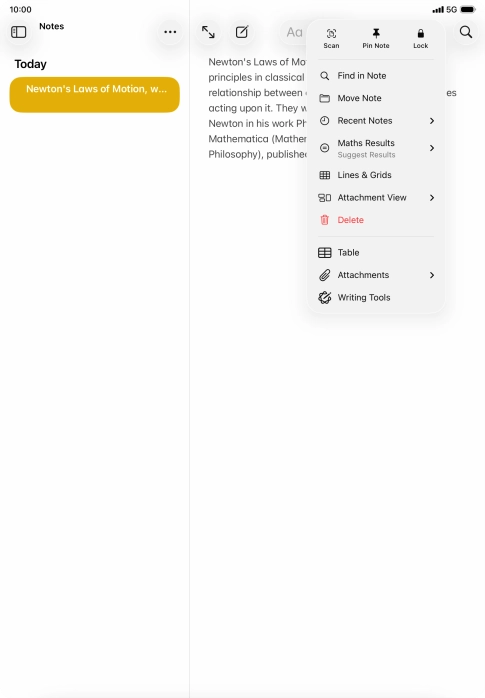
Press the extended menu icon.

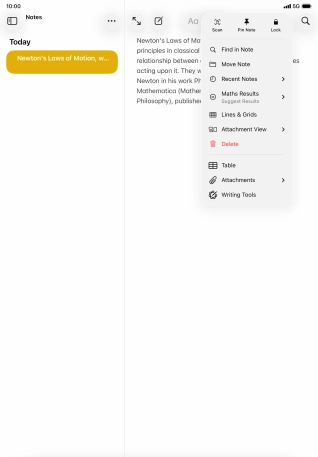
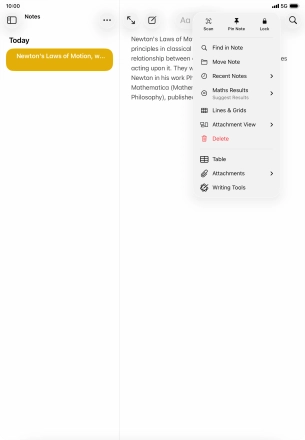
Press Writing Tools.
Step 13 of 19

3. Use Writing Tools

Press Writing Tools.

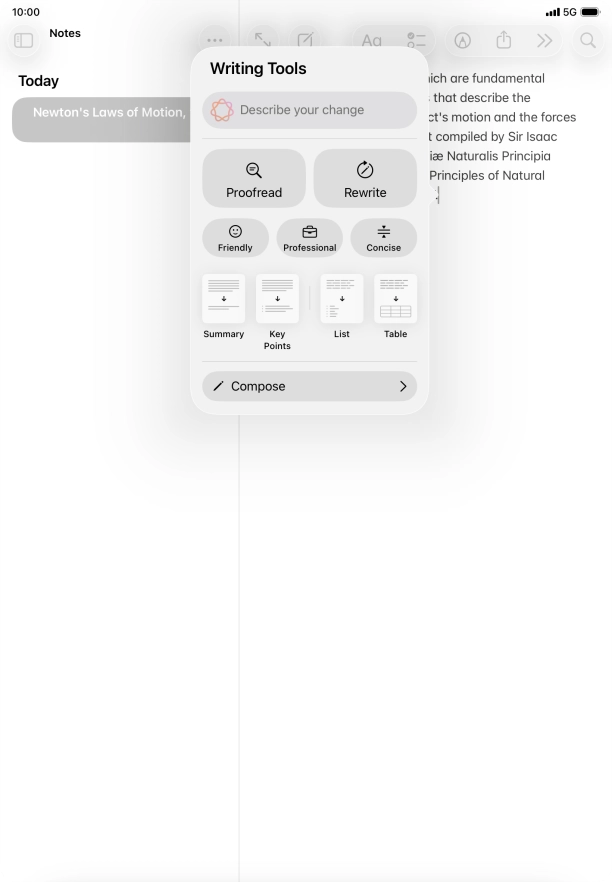
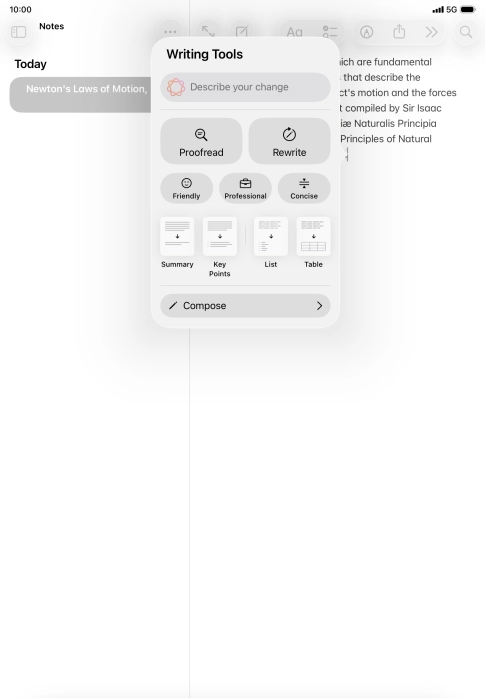
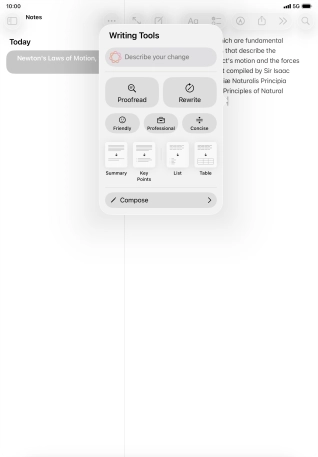
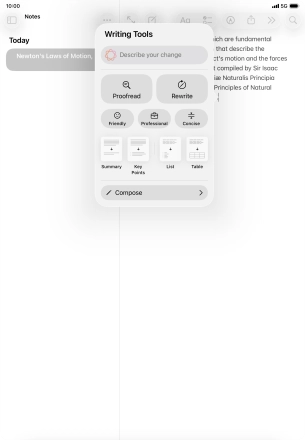
Press Describe your change and write in your own words how you would like the text to be rewritten. Follow the instructions on the screen to use the function.
Step 14 of 19

3. Use Writing Tools

Press Describe your change and write in your own words how you would like the text to be rewritten. Follow the instructions on the screen to use the function.

To check the text for grammatical and spelling errors, press Proofread and follow the instructions on the screen to use the function.
Step 15 of 19

3. Use Writing Tools

To check the text for grammatical and spelling errors, press Proofread and follow the instructions on the screen to use the function.

To perform an automatic rewrite of the text, press Rewrite and follow the instructions on the screen to use the function.
Step 16 of 19

3. Use Writing Tools

To perform an automatic rewrite of the text, press Rewrite and follow the instructions on the screen to use the function.

To change the writing style of the text, press the required writing style and follow the instructions on the screen to use the function.
Step 17 of 19

3. Use Writing Tools

To change the writing style of the text, press the required writing style and follow the instructions on the screen to use the function.

To format the text, press the required format and follow the instructions on the screen to use the function.
Step 18 of 19

3. Use Writing Tools

To format the text, press the required format and follow the instructions on the screen to use the function.

To generate a text using ChatGPT, press Compose and follow the instructions on the screen to use the function.
Step 19 of 19

3. Use Writing Tools

To generate a text using ChatGPT, press Compose and follow the instructions on the screen to use the function.

1. Turn on Apple Intelligence

Press Settings.
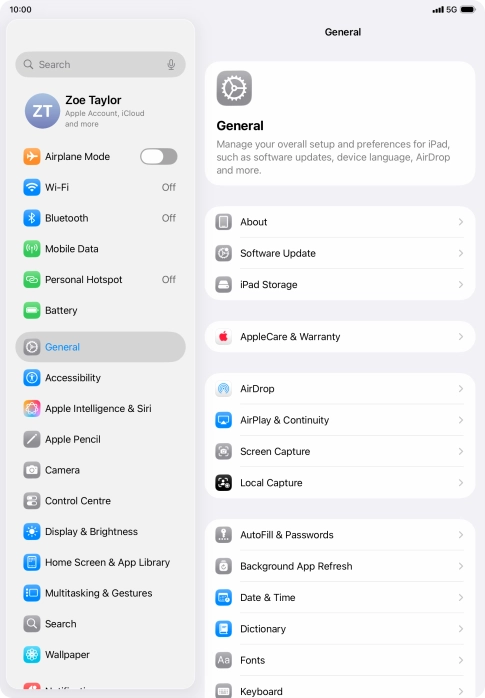
Press Apple Intelligence & Siri.
Press the indicator next to "Apple Intelligence" and follow the instructions on the screen to finish the activation.

2. Use Genmoji

Open Messages and select an existing conversation or create a new message.

Press the add icon.
Press Genmoji.
Write in your own words what you would like your Genmoji to look like, and press arrow up.
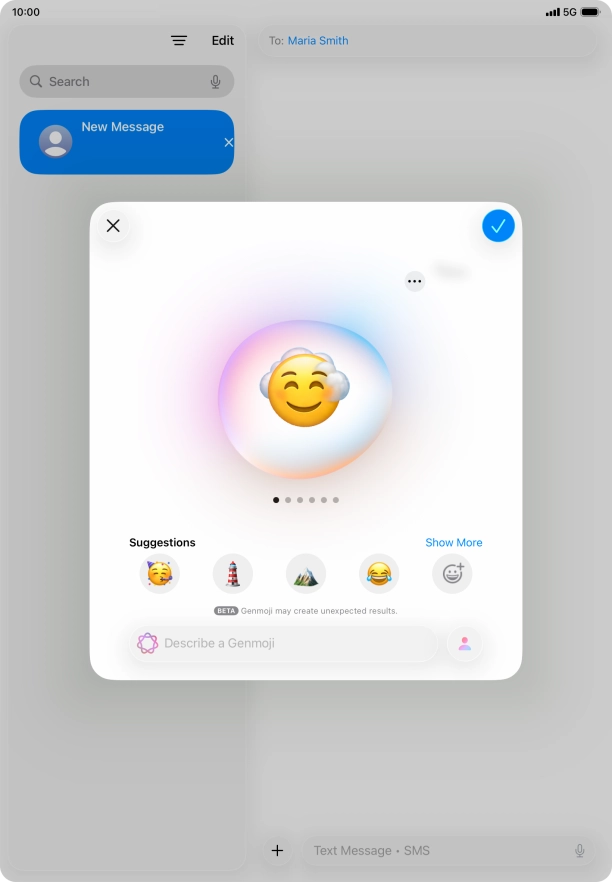
You can use Apple Intelligence to generate specific emojis based on your own description.
Slide your finger right or left on the screen to see the generated results.
To use the selected Genmoji in your message, press the confirm icon.
To access more functions for the selected Genmoji, press the menu icon and follow the instructions on the screen to use them.

3. Use Writing Tools

Open a supported app, such as Notes, and key in the required text.

Press the extended menu icon.
Press Writing Tools.
Press Describe your change and write in your own words how you would like the text to be rewritten. Follow the instructions on the screen to use the function.
To check the text for grammatical and spelling errors, press Proofread and follow the instructions on the screen to use the function.
To perform an automatic rewrite of the text, press Rewrite and follow the instructions on the screen to use the function.
To change the writing style of the text, press the required writing style and follow the instructions on the screen to use the function.
To format the text, press the required format and follow the instructions on the screen to use the function.
To generate a text using ChatGPT, press Compose and follow the instructions on the screen to use the function.

Thank you for your evaluation!

Get information on...

Or select...

Another device