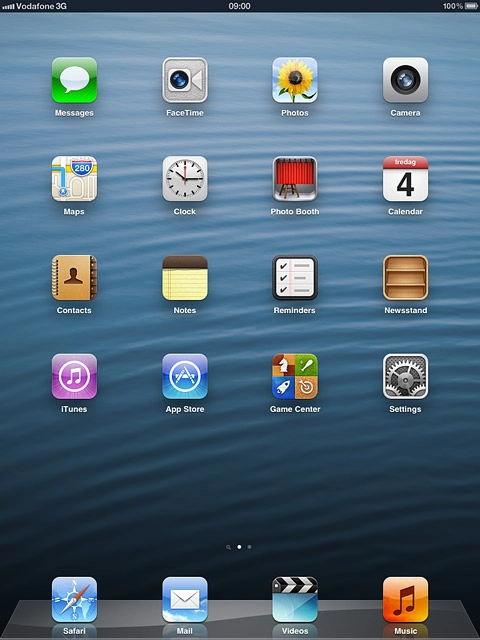
Find "Notifications"
Press Settings.
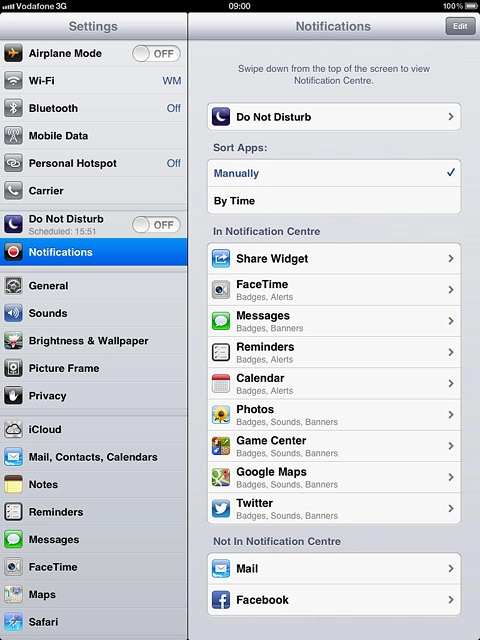
Find "Notifications"
Press Notifications.
Select option
Select one of the following options:
Select sort order for notifications, go to 2a.
Select settings for notifications, go to 2b.
Organise menu items, go to 2c.
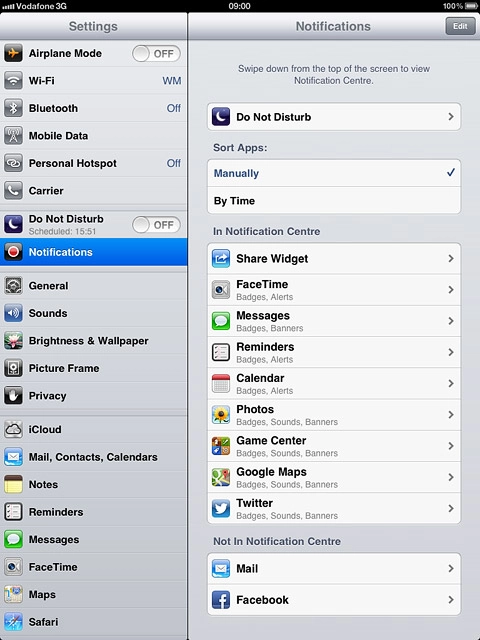
2a - Select sort order for notifications
Press Manually or By Time.
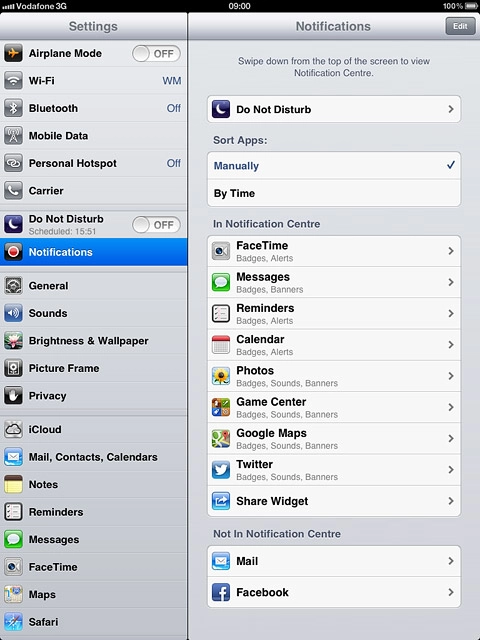
2b - Select settings for notifications
Press the required menu item.
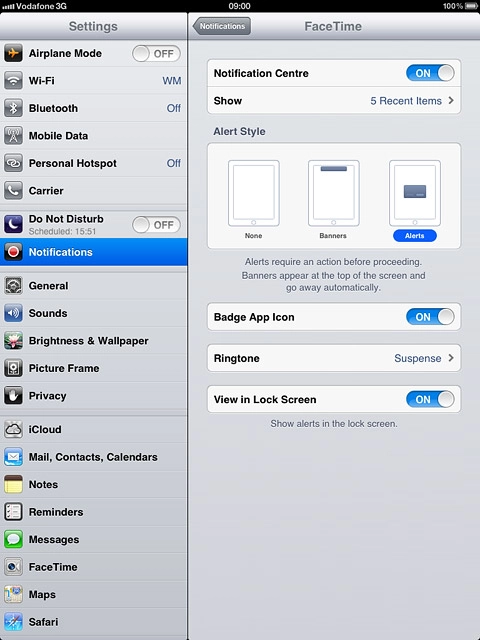
2b - Select settings for notifications
To turn display of notifications on or off:
Press the indicator next to Notification Centre.
Depending on the current setting, the function is turned on or off.
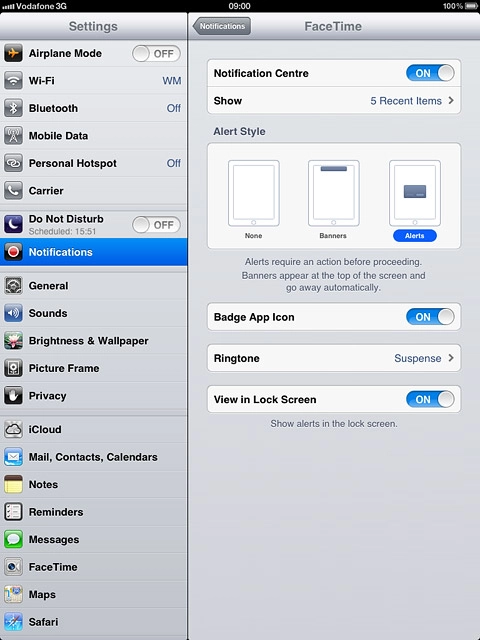
2b - Select settings for notifications
To select the number of notifications:
Press Show.
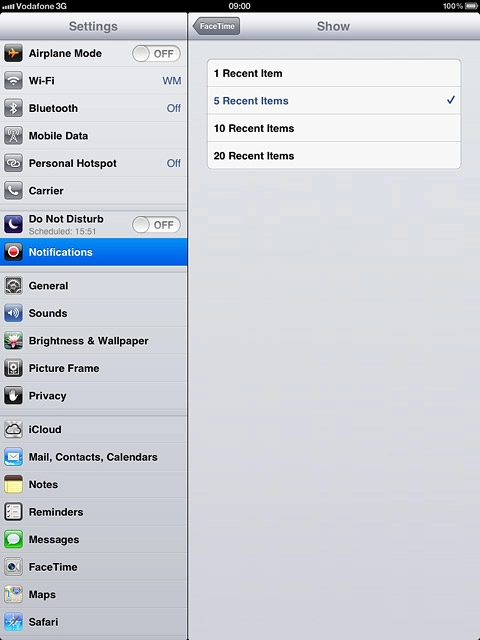
2b - Select settings for notifications
Press the required setting.
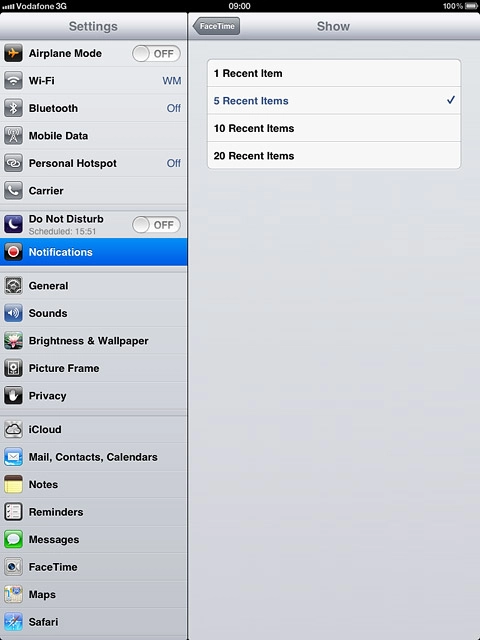
2b - Select settings for notifications
Press the field in the top left corner of the menu.
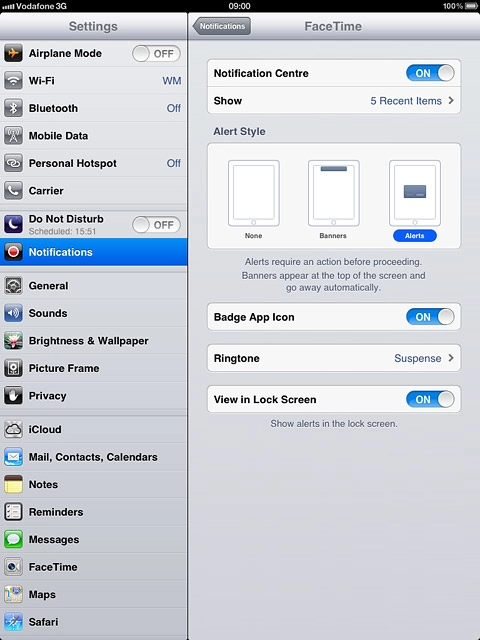
2b - Select settings for notifications
To change display format:
Press the required format below Alert Style.
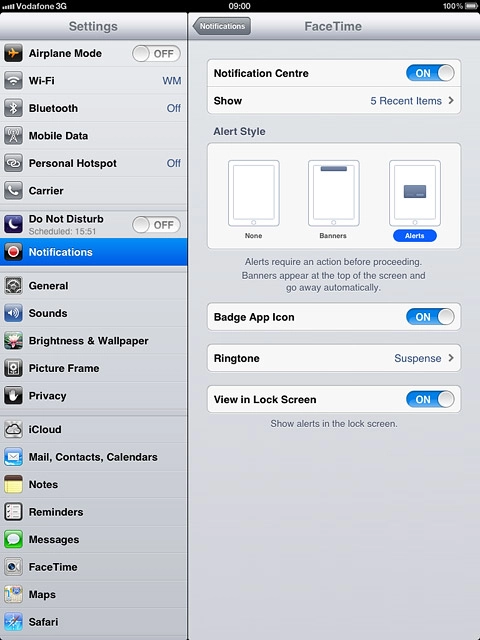
2b - Select settings for notifications
Depending on the menu item selected, more settings may be available. Follow the instructions on the display to select the required settings.
Press Notifications to save the settings.
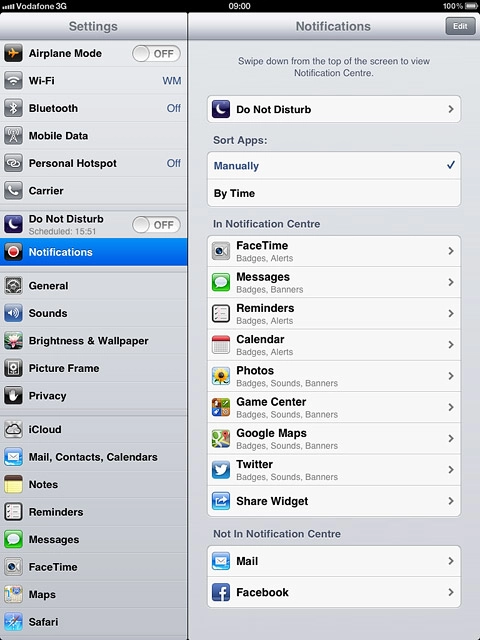
2c - Organise menu items
Press Edit.
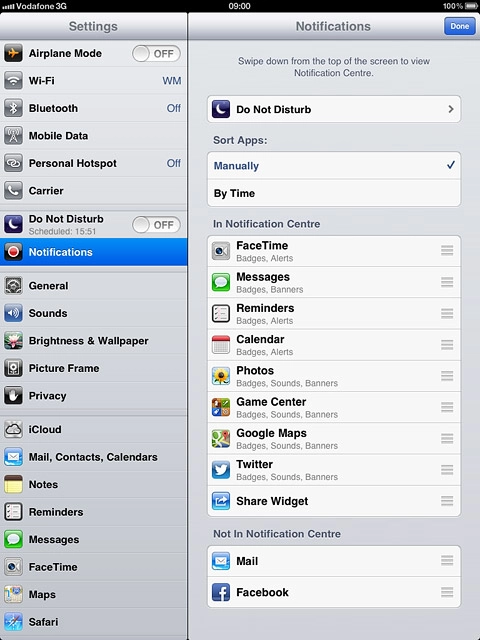
2c - Organise menu items
Press and hold the organise icon next to the required menu item.
Drag the menu item to the required position.
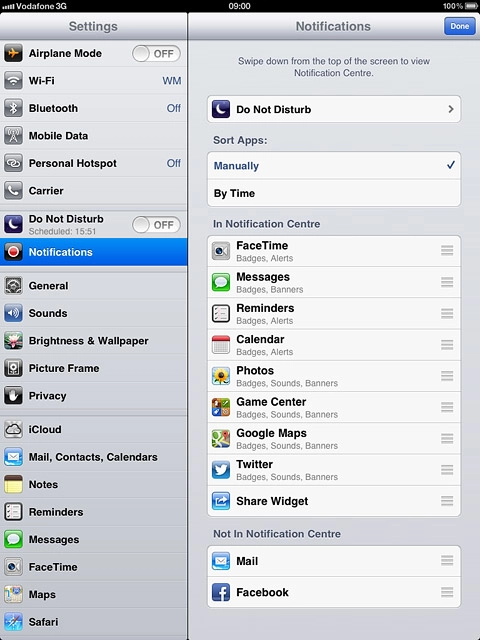
2c - Organise menu items
Press Done.
Use notifications
Press the Home key to return to standby mode.
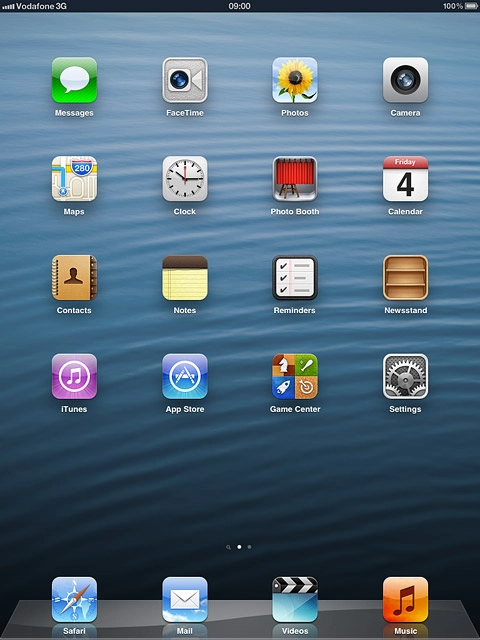
Use notifications
Press and drag the status bar downwards.
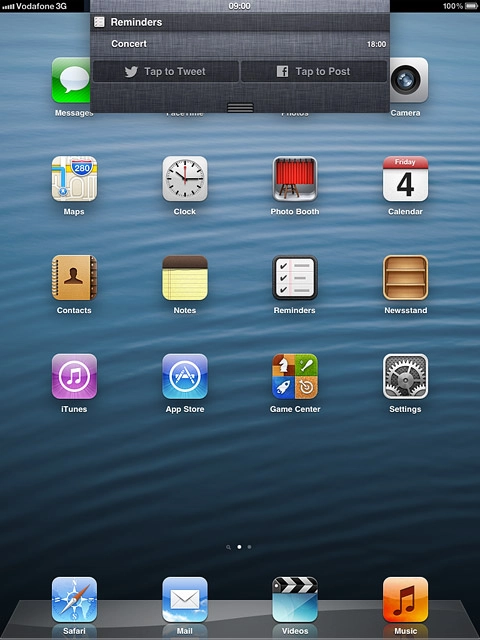
Use notifications
Press the required notification.
Follow the instructions on the display to use the selected function.
Exit
Press the Home key to return to standby mode.
Find "Notifications"
Select option
Select sort order for notifications, go to 2a.
Select settings for notifications, go to 2b.
Organise menu items, go to 2c.
2a - Select sort order for notifications
2b - Select settings for notifications
Press the indicator next to Notification Centre.
Depending on the current setting, the function is turned on or off.
Press Show.
Press the required format below Alert Style.
Press Notifications to save the settings.
2c - Organise menu items
Drag the menu item to the required position.
Use notifications
Follow the instructions on the display to use the selected function.
Exit
Thank you for your evaluation!

Thank you for your evaluation!