Apple iPhone 5 (iOS6)

Apple iPhone 5

Set up your phone for Exchange email - Apple iPhone 5 (iOS6)

Read help info

Follow these instructions to set up your phone for Exchange email.

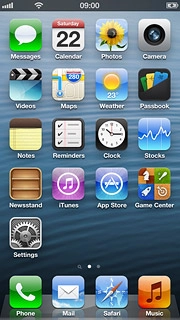
Press Settings.
Step 1 of 30

Find "Mail, Contacts, Calendars"

Press Settings.
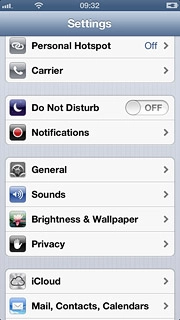
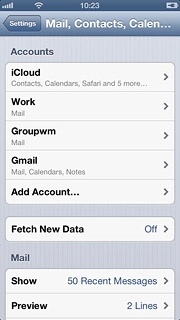
Press Mail, Contacts, Calendars.
Step 2 of 30

Find "Mail, Contacts, Calendars"

Press Mail, Contacts, Calendars.
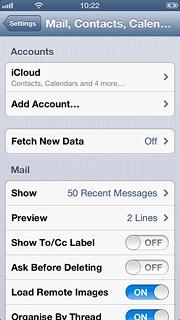
Press Add Account....
Step 3 of 30

Create new email account

Press Add Account....
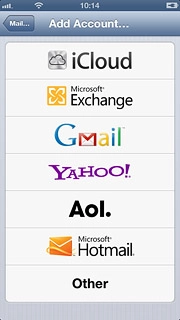
Press Microsoft Exchange.
Step 4 of 30

Create new email account

Press Microsoft Exchange.
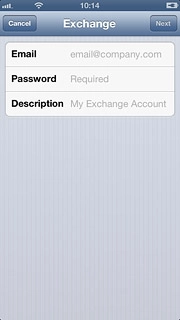
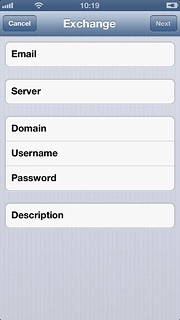
Press Email and key in your email address.
Step 5 of 30

Enter email address

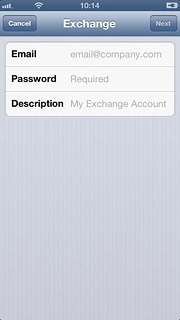
Press Email and key in your email address.

Press Password and key in your password for the server.
Step 6 of 30

Enter password

Press Password and key in your password for the server.

Press Description and key in the required name.
Step 7 of 30

Enter email account name

Press Description and key in the required name.

Press Next.
Step 8 of 30

Enter email account name

Press Next.

Press Server and key in the name of the required server.
Step 9 of 30

Enter server name

Press Server and key in the name of the required server.

Press Domain and key in the domain name.
Step 10 of 30

Enter domain name

Press Domain and key in the domain name.

Press Username and key in your username for the server.
Step 11 of 30

Enter username

Press Username and key in your username for the server.

Press Next.
Step 12 of 30

Enter username

Press Next.

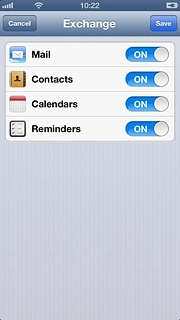
Press the indicator next to the required data type to turn synchronisation of the specific data types on or off.
Step 13 of 30

Select synchronisation settings

Press the indicator next to the required data type to turn synchronisation of the specific data types on or off.

Press Save.
Step 14 of 30

Select synchronisation settings

Press Save.

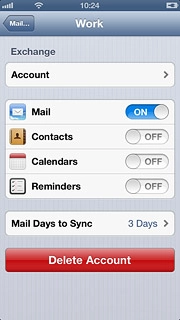
Press the name of the Exchange email account you've just set up.
Step 15 of 30

Turn security on or off

Press the name of the Exchange email account you've just set up.

Press Account.
Step 16 of 30

Turn security on or off

Press Account.

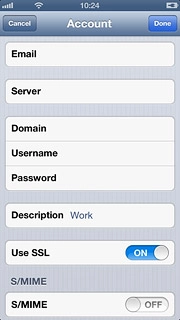
Press the indicator next to Use SSL.Depending on the current setting, security is turned on or off.
Step 17 of 30

Turn security on or off

Press the indicator next to Use SSL.
Depending on the current setting, security is turned on or off.

Press Done.
Step 18 of 30

Turn security on or off

Press Done.

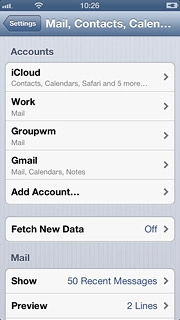
Press Mail....
Step 19 of 30

Turn security on or off

Press Mail....

Press Fetch New Data.
Step 20 of 30

Select setting for retrieval of new email messages

Press Fetch New Data.

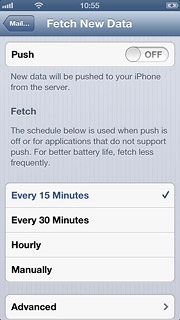
Press the indicator next to Push to turn the function on or off.
Step 21 of 30

Select setting for retrieval of new email messages

Press the indicator next to Push to turn the function on or off.

If you turn off Push:
Step 22 of 30

Select setting for retrieval of new email messages

If you turn off Push:

Press the required period or Manually.
Step 23 of 30

Select setting for retrieval of new email messages

Press the required period or Manually.

To select settings for a specific email account:Press Advanced.
Step 24 of 30

Select setting for retrieval of new email messages

To select settings for a specific email account:
Press Advanced.

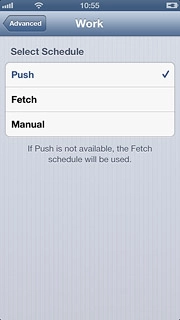
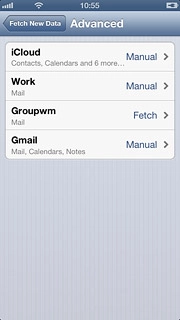
Press the required email account.
Step 25 of 30

Select setting for retrieval of new email messages

Press the required email account.

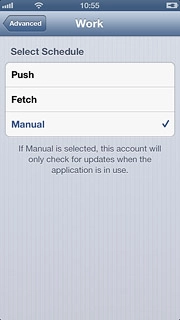
Press Push, Fetch or Manual.
Step 26 of 30

Select setting for retrieval of new email messages

Press Push, Fetch or Manual.

Press Advanced.
Step 27 of 30

Select setting for retrieval of new email messages

Press Advanced.

Press Fetch New Data.
Step 28 of 30

Select setting for retrieval of new email messages

Press Fetch New Data.

Press Mail... to save the settings.
Step 29 of 30

Save and exit

Press Mail... to save the settings.

Press the Home key to return to standby mode.
Step 30 of 30

Save and exit

Press the Home key to return to standby mode.

Find "Mail, Contacts, Calendars"

Press Settings.
Press Mail, Contacts, Calendars.

Create new email account

Press Add Account....
Press Microsoft Exchange.

Enter email address

Press Email and key in your email address.

Enter password

Press Password and key in your password for the server.
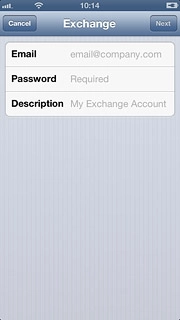
Enter email account name

Press Description and key in the required name.
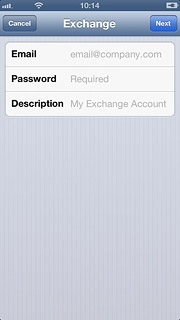
Press Next.

Enter server name

Press Server and key in the name of the required server.
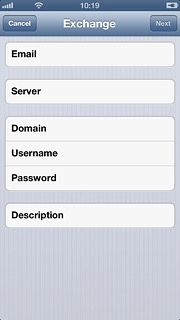
Enter domain name

Press Domain and key in the domain name.
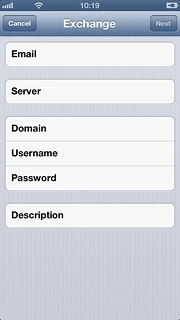
Enter username

Press Username and key in your username for the server.
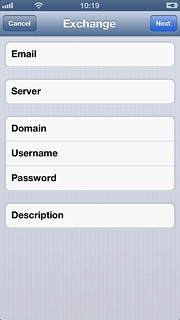
Press Next.

Select synchronisation settings

Press the indicator next to the required data type to turn synchronisation of the specific data types on or off.
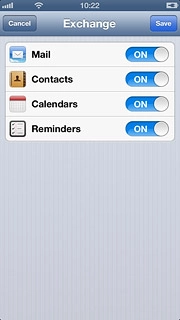
Press Save.

Turn security on or off

Press the name of the Exchange email account you've just set up.
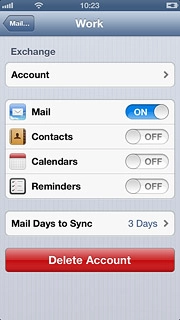
Press Account.
Press the indicator next to Use SSL.
Depending on the current setting, security is turned on or off.
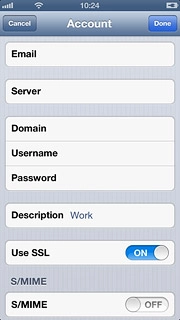
Press Done.
Press Mail....

Select setting for retrieval of new email messages

Press Fetch New Data.
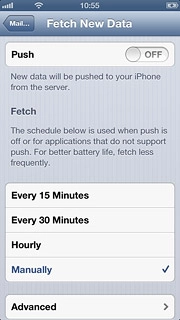
Press the indicator next to Push to turn the function on or off.
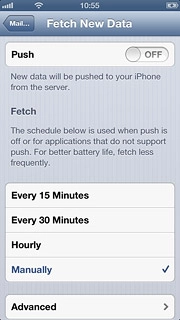
If you turn off Push:
Press the required period or Manually.
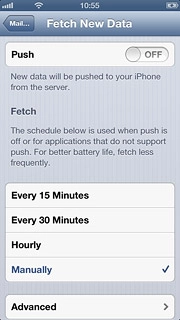
To select settings for a specific email account:
Press Advanced.
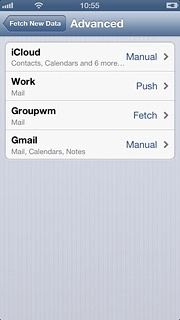
Press the required email account.
Press Push, Fetch or Manual.
Press Advanced.
Press Fetch New Data.

Save and exit

Press Mail... to save the settings.
Press the Home key to return to standby mode.

Thank you for your evaluation!

Get information on...

Or select...

Another device