Huawei MediaPad T1 8.0

Huawei MediaPad T1 8.0

Android 4.3

Cancel all diverts on your Huawei MediaPad T1 8.0 Android 4.3

Read help info

If you no longer wish to divert your calls, you need to cancel the diverts.

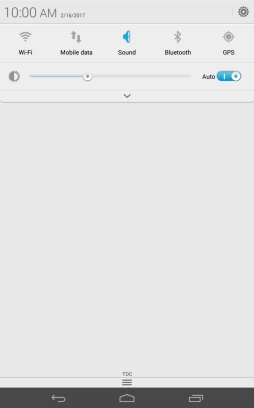
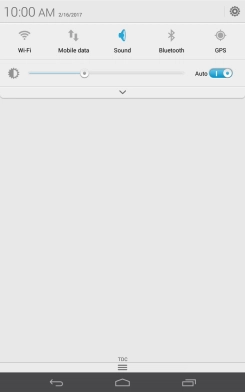
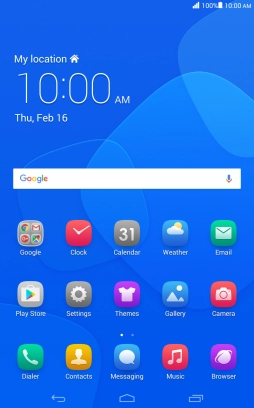
Slide your finger downwards starting from the top of the screen.
Step 1 of 7

1. Find "Call forwarding"

Slide your finger downwards starting from the top of the screen.
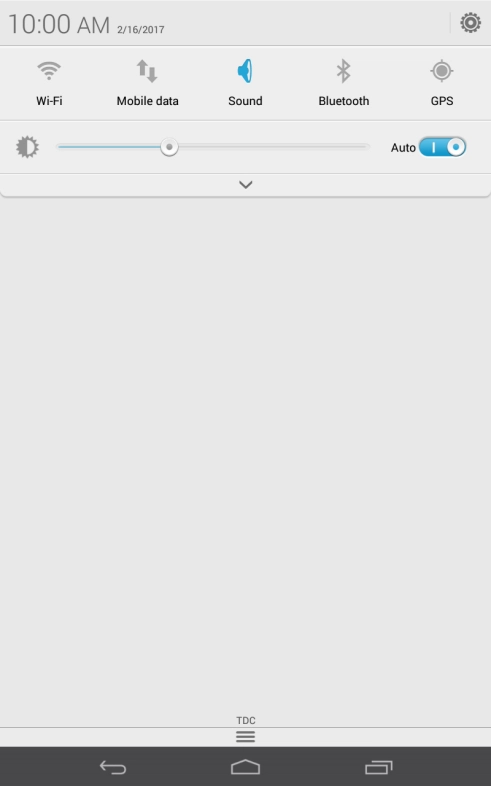
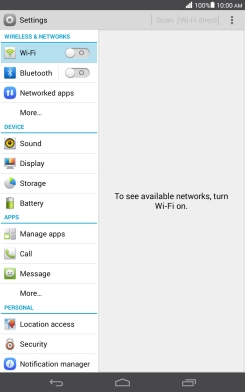
Press the settings icon.
Step 2 of 7

1. Find "Call forwarding"

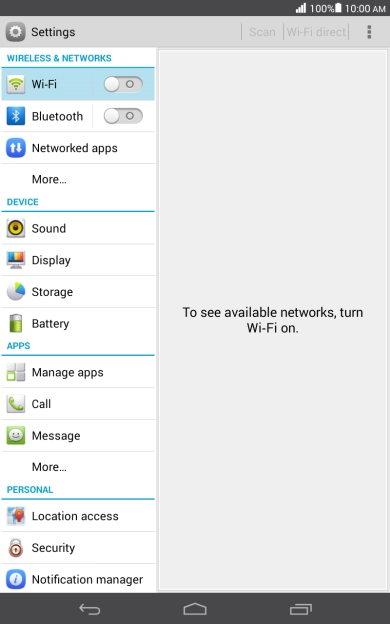
Press the settings icon.

Press Call.
Step 3 of 7

1. Find "Call forwarding"

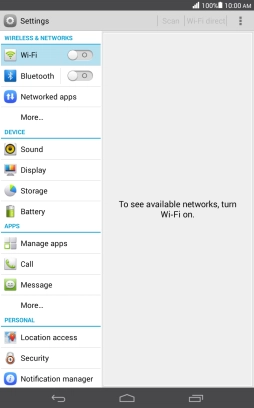
Press Call.

Press Call forwarding.
Step 4 of 7

1. Find "Call forwarding"

Press Call forwarding.

Press the required divert type.
Step 5 of 7

2. Cancel all diverts

Press the required divert type.

Press Disable.
Step 6 of 7

2. Cancel all diverts

Press Disable.

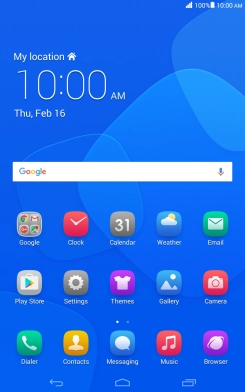
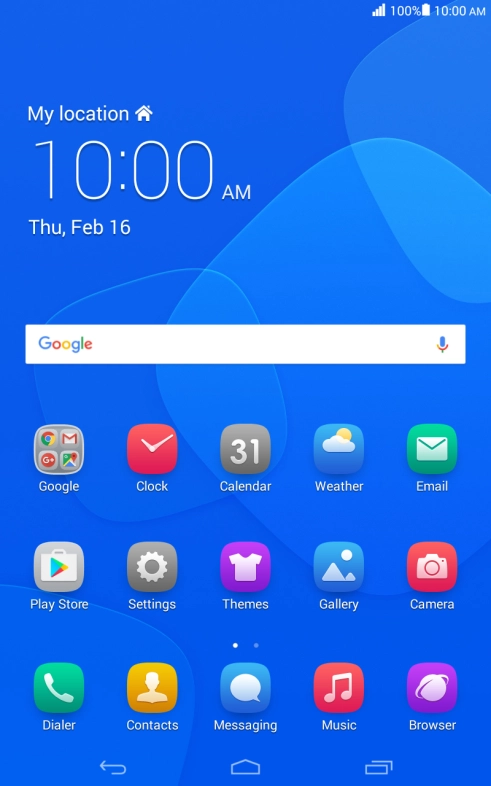
Press the Home key to return to the home screen.
Step 7 of 7

3. Return to the home screen

Press the Home key to return to the home screen.

1. Find "Call forwarding"

Slide your finger downwards starting from the top of the screen.
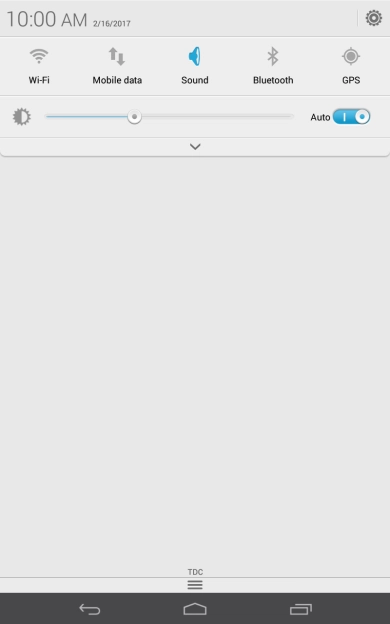
Press the settings icon.
Press Call.
Press Call forwarding.

2. Cancel all diverts

Press the required divert type.
Press Disable.

3. Return to the home screen

Press the Home key to return to the home screen.

Thank you for your evaluation!

Get information on...

Or select...

Another device