Samsung Galaxy Tab 2 10.1

Samsung Galaxy Tab 2 10.1

Connect to Wi-Fi network - Samsung Galaxy Tab 2 10.1

Read help info

You can use Wi-Fi for various functions on your device that require a data connection, such as internet access. Follow these instructions to establish a connection to a Wi-Fi network.

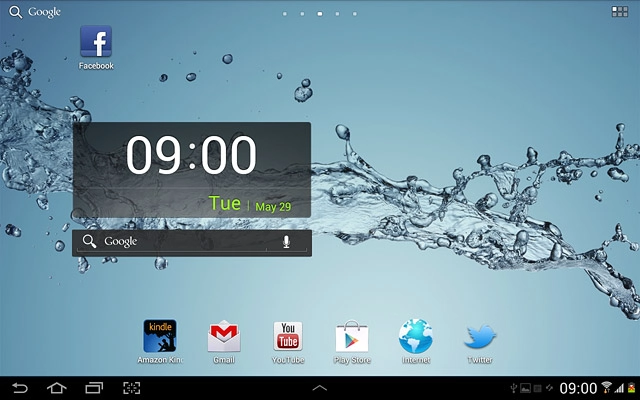
Press the menu icon.
Step 1 of 7

Find "Wi-Fi"

Press the menu icon.
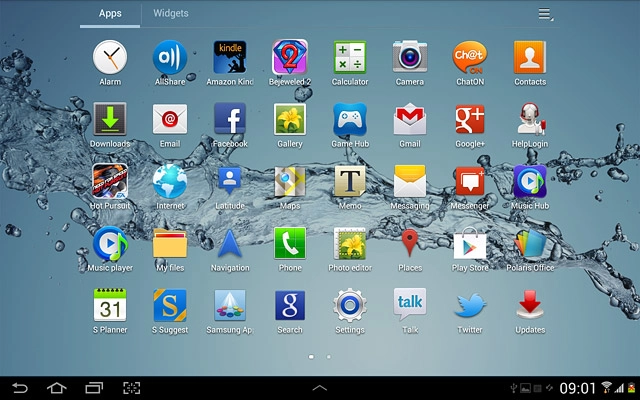
Press Settings.
Step 2 of 7

Find "Wi-Fi"

Press Settings.

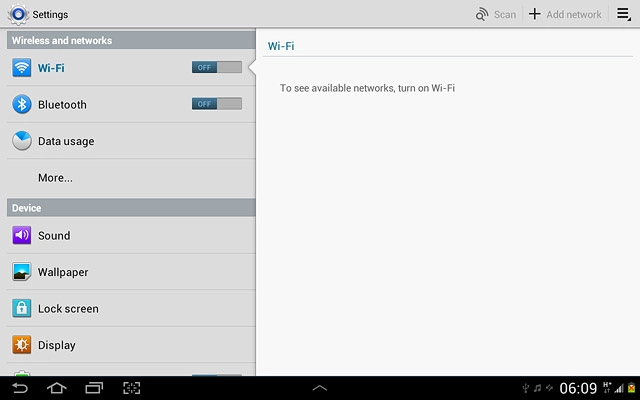
Press Wi-Fi.
Step 3 of 7

Find "Wi-Fi"

Press Wi-Fi.

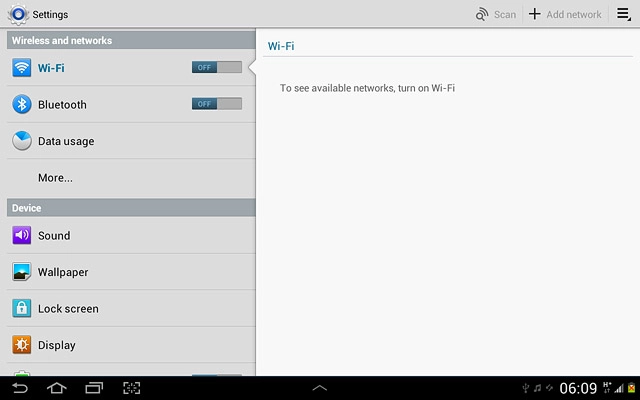
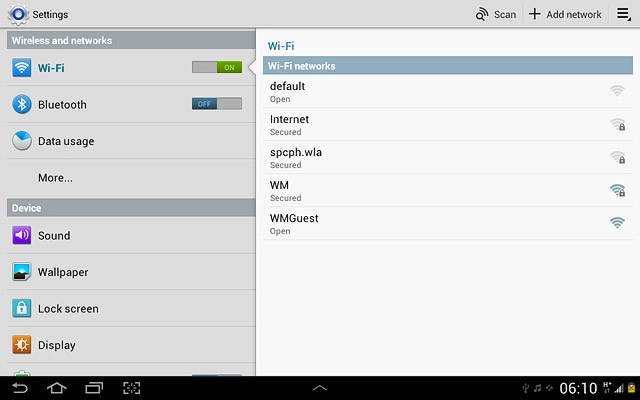
Press the field next to Wi-Fi to select ON
Step 4 of 7

Turn on Wi-Fi

Press the field next to Wi-Fi to select ON

A list of Wi-Fi networks within range is displayed.Press the required network.
Step 5 of 7

Connect to Wi-Fi network

A list of Wi-Fi networks within range is displayed.
Press the required network.
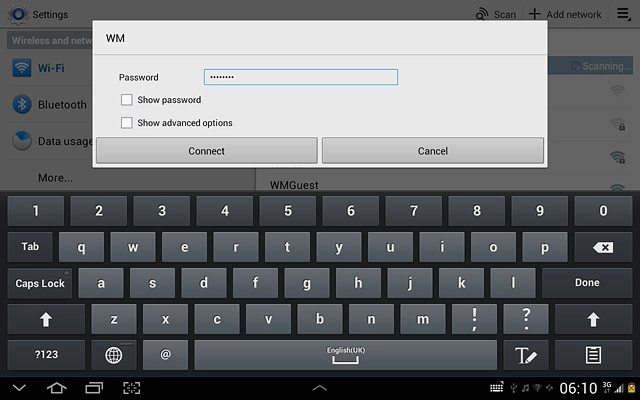
Follow the instructions on the display to select security settings, if required.Press Connect, if required.
Step 6 of 7

Connect to Wi-Fi network

Follow the instructions on the display to select security settings, if required.
Press Connect, if required.
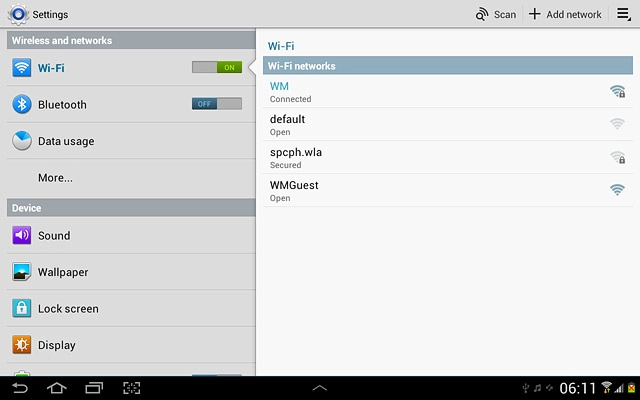
Press the home icon to return to standby mode.
Step 7 of 7

Exit

Press the home icon to return to standby mode.

Find "Wi-Fi"

Press the menu icon.
Press Settings.
Press Wi-Fi.

Turn on Wi-Fi

Press the field next to Wi-Fi to select ON

Connect to Wi-Fi network

A list of Wi-Fi networks within range is displayed.
Press the required network.
Follow the instructions on the display to select security settings, if required.
Press Connect, if required.

Exit

Press the home icon to return to standby mode.

Thank you for your evaluation!

Get information on...

Or select...

Another device