Samsung Galaxy Tab 2 10.1

Samsung Galaxy Tab 2 10.1

Create playlist - Samsung Galaxy Tab 2 10.1

Read help info

Follow these instructions to create a playlist.

Press the menu icon.
Step 1 of 8

Find "Music player"

Press the menu icon.
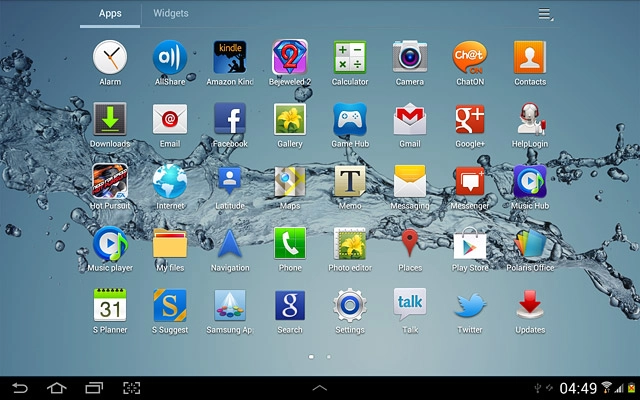
Press Music player.
Step 2 of 8

Find "Music player"

Press Music player.
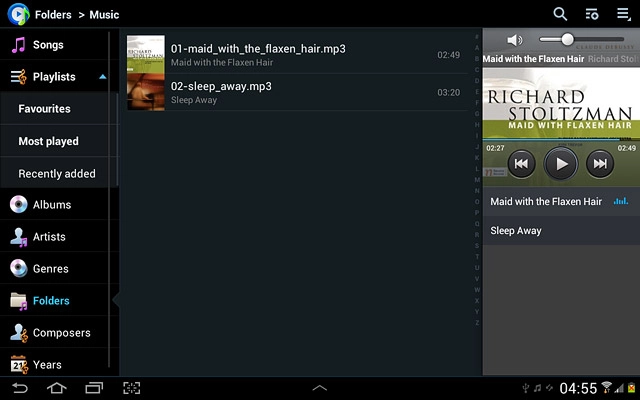
Press the create playlist icon.
Step 3 of 8

Create playlist

Press the create playlist icon.
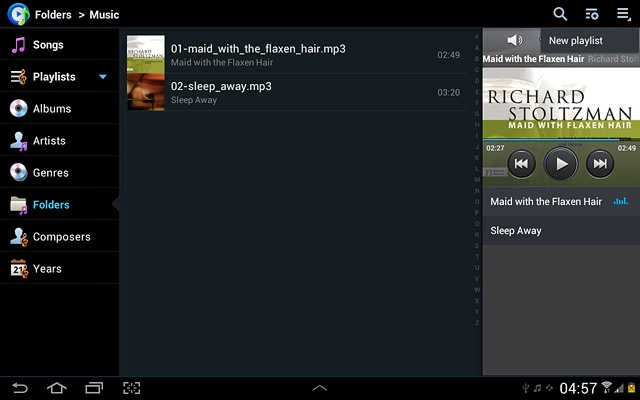
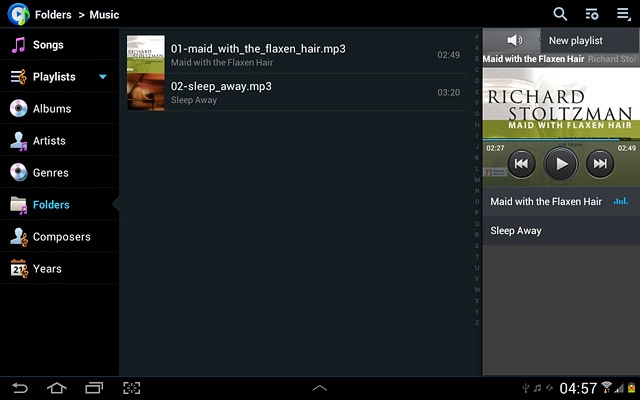
Press New playlist.
Step 4 of 8

Create playlist

Press New playlist.

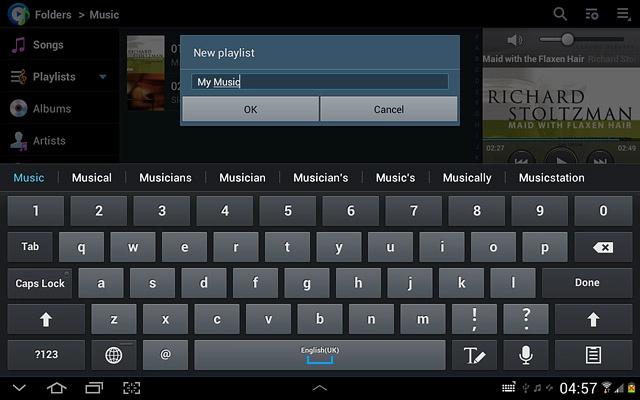
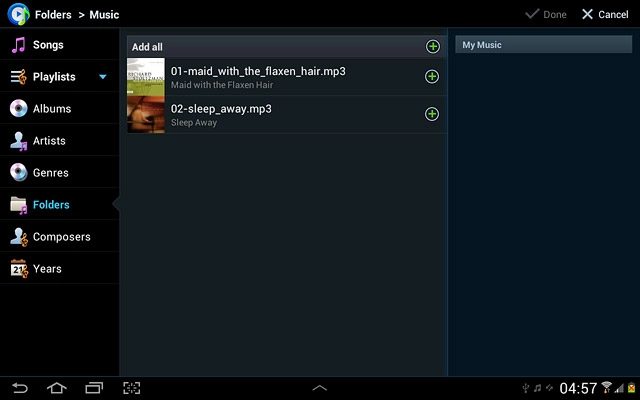
Key in a name for the playlist and press OK.
Step 5 of 8

Create playlist

Key in a name for the playlist and press OK.

Go to the required audio files.Press + next to the required audio files to add them.
Step 6 of 8

Add audio files to playlist

Go to the required audio files.
Press + next to the required audio files to add them.
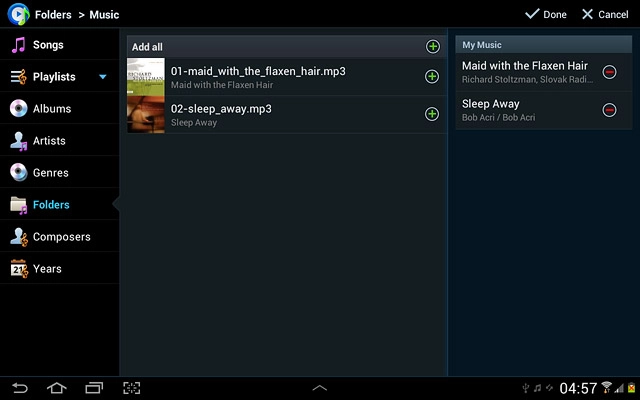
Press Done.
Step 7 of 8

Add audio files to playlist

Press Done.
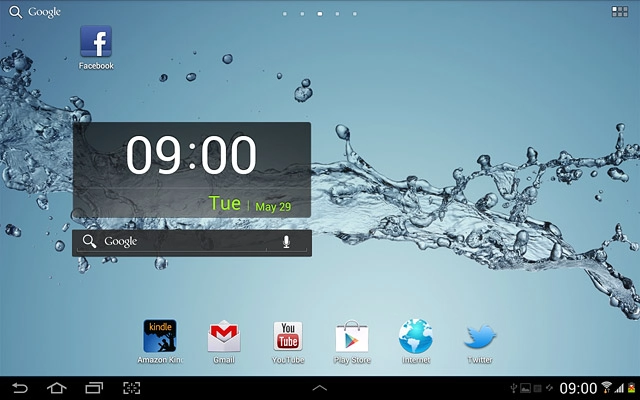
Press the home icon to return to standby mode.
Step 8 of 8

Exit

Press the home icon to return to standby mode.

Find "Music player"

Press the menu icon.
Press Music player.

Create playlist

Press the create playlist icon.
Press New playlist.
Key in a name for the playlist and press OK.

Add audio files to playlist

Go to the required audio files.
Press + next to the required audio files to add them.
Press Done.

Exit

Press the home icon to return to standby mode.

Thank you for your evaluation!

Get information on...

Or select...

Another device