Samsung Galaxy Tab A11+ 5G

Samsung Galaxy Tab A11+ 5G

Android 16

Turn use of lock code on your Samsung Galaxy Tab A11+ 5G Android 16 on or off

Read help info

The lock code protects the contents of your tablet from unauthorised use (such as pictures and messages). When the lock code is turned on, it needs to be used every time you turn on your tablet and when it has been in sleep mode.

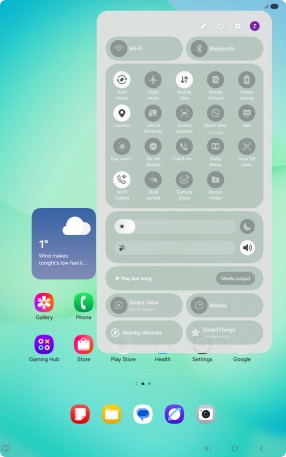
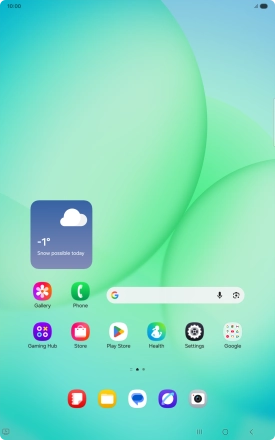
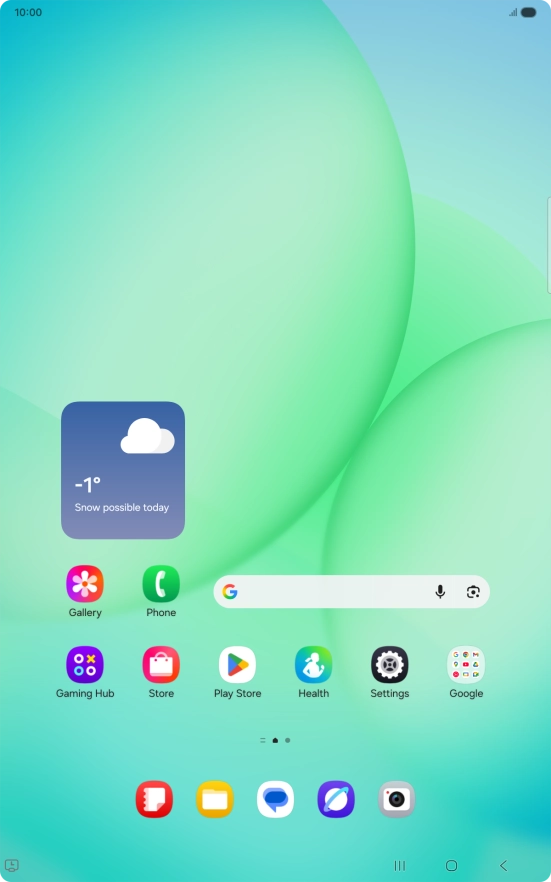
Slide your finger downwards starting from the top right side of the screen.
Step 1 of 12

1. Find "Screen lock and biometrics"

Slide your finger downwards starting from the top right side of the screen.
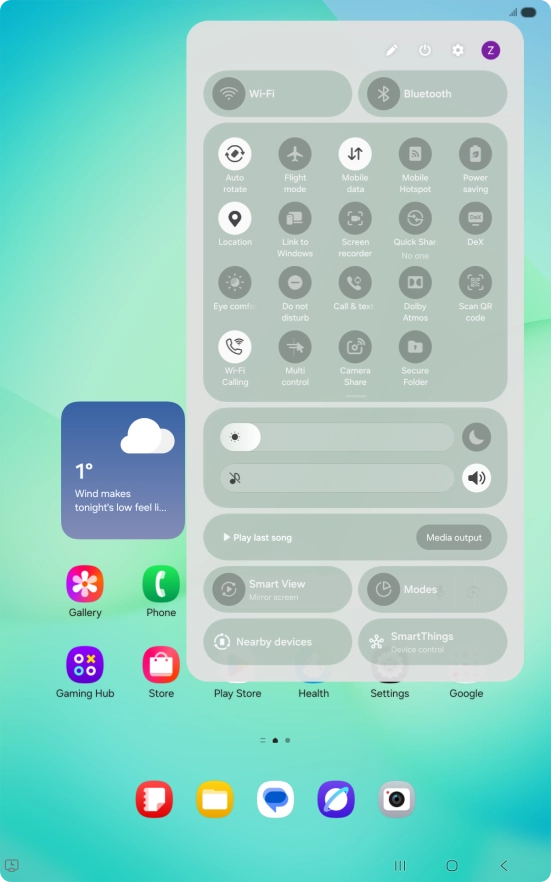
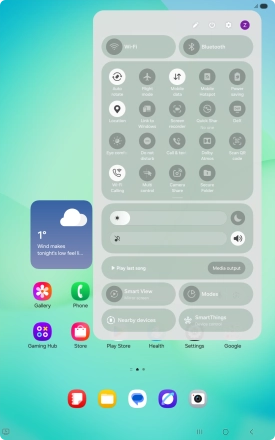
Press the settings icon.
Step 2 of 12

1. Find "Screen lock and biometrics"

Press the settings icon.

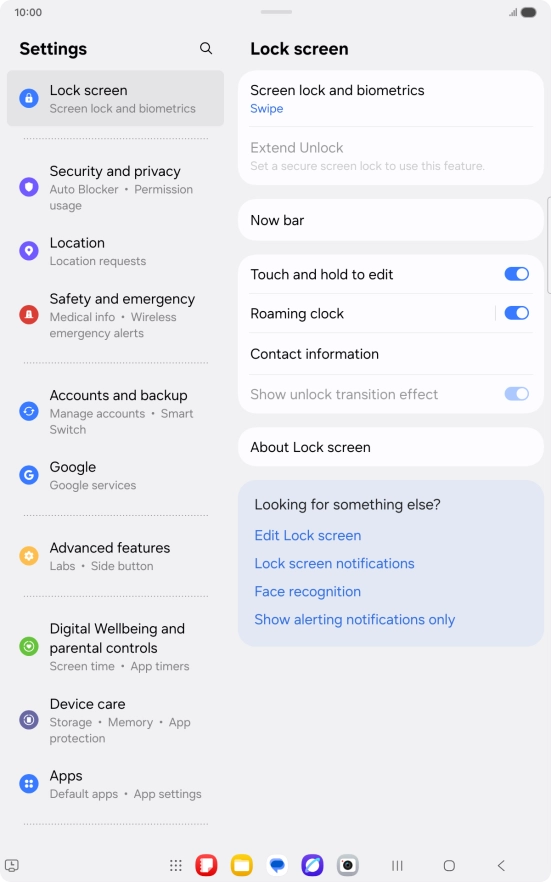
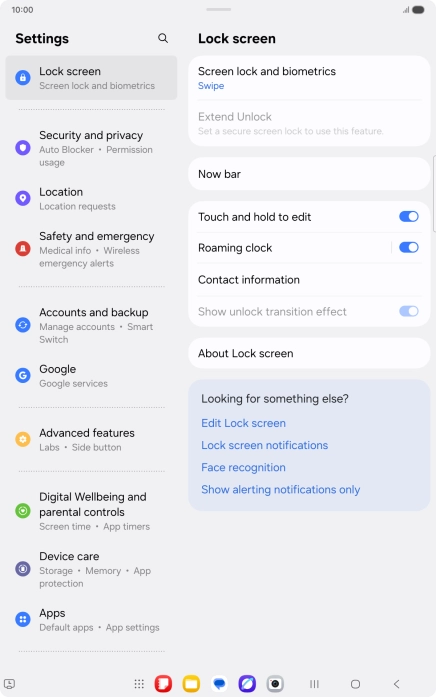
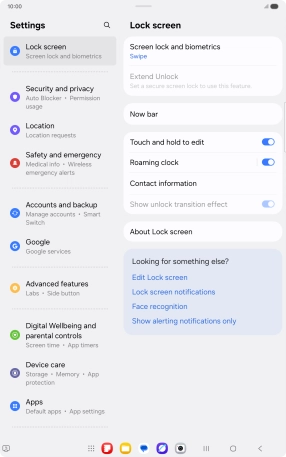
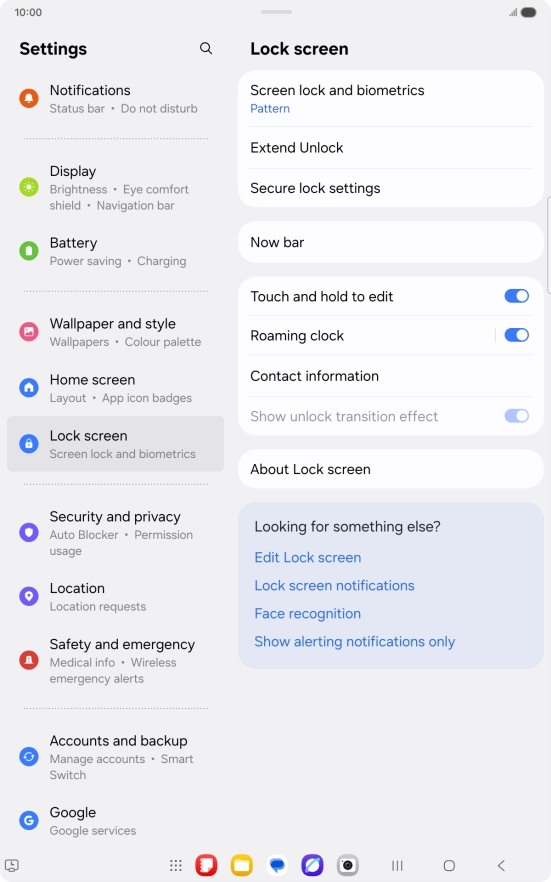
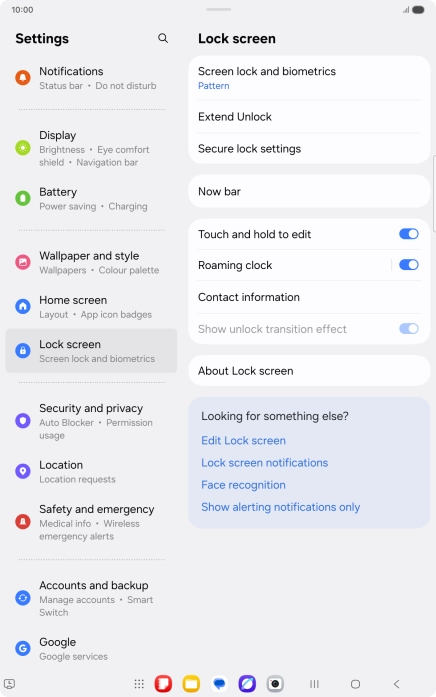
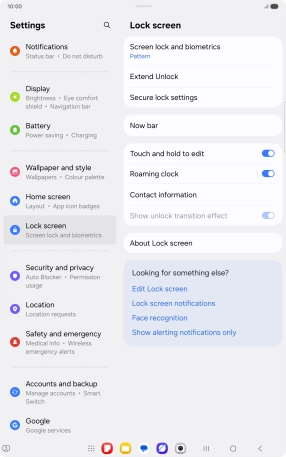
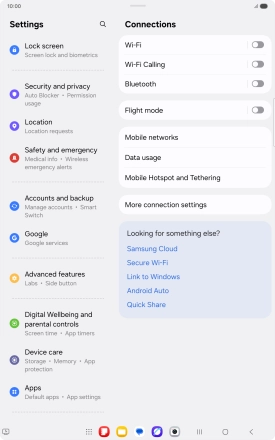
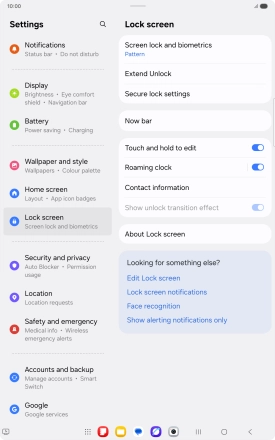
Press Lock screen.
Step 3 of 12

1. Find "Screen lock and biometrics"

Press Lock screen.

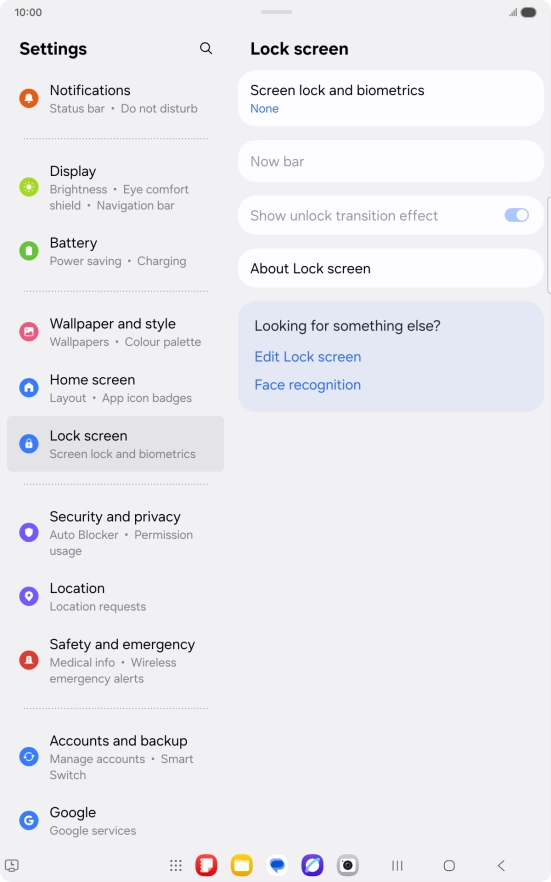
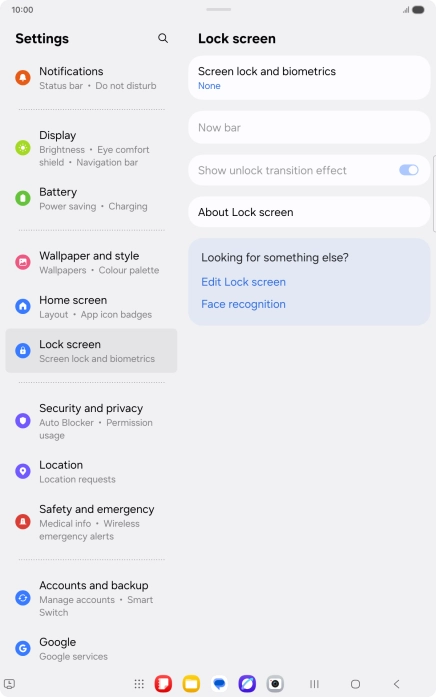
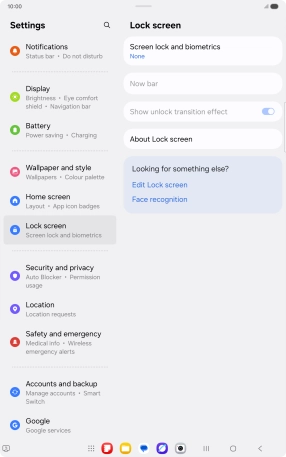
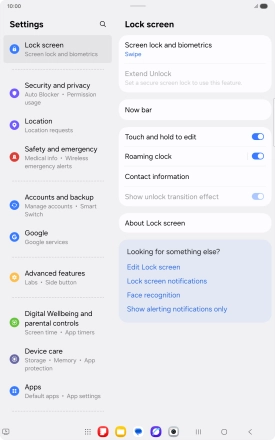
Press Screen lock and biometrics.
Step 4 of 12

1. Find "Screen lock and biometrics"

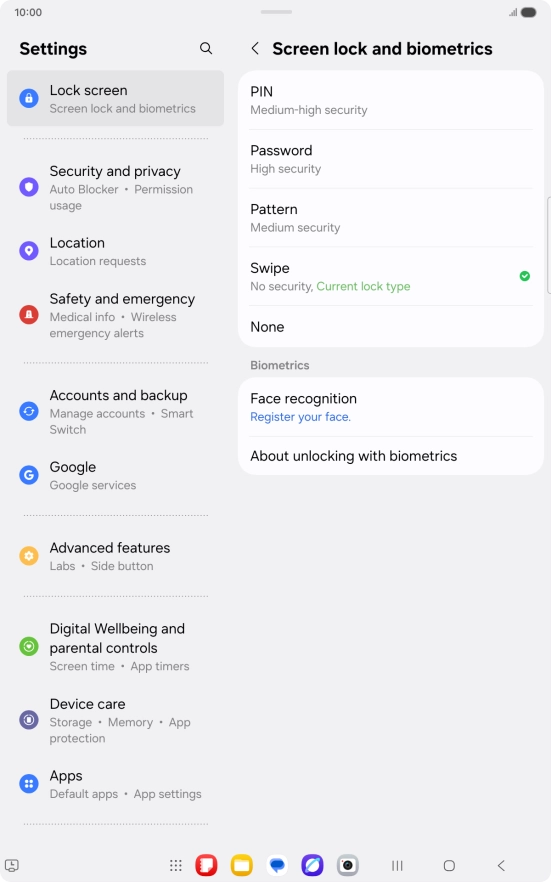
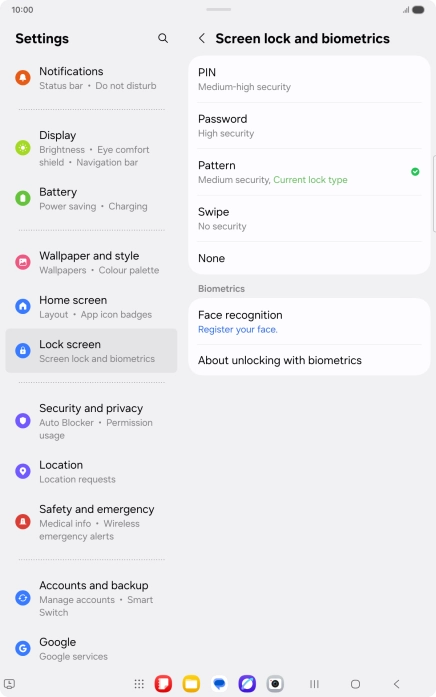
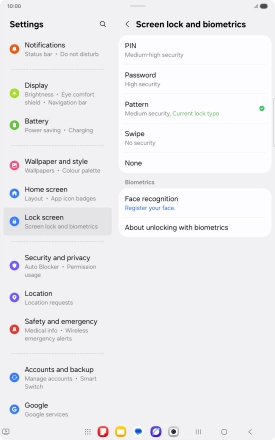
Press Screen lock and biometrics.

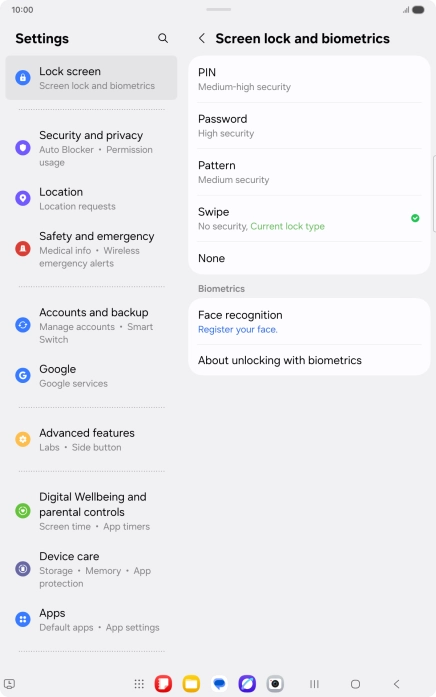
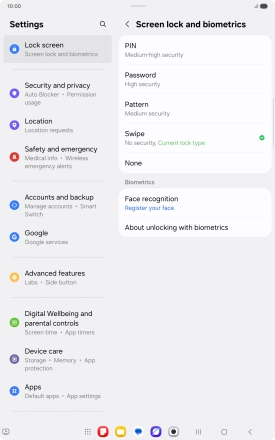
Press Pattern.
Step 5 of 12

2. Create lock code using a pattern

Press Pattern.

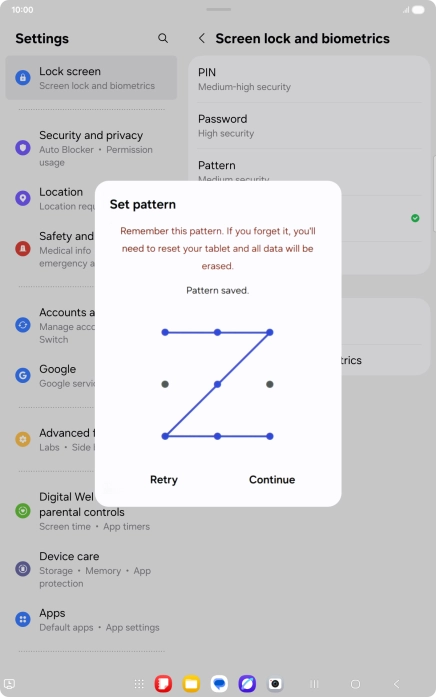
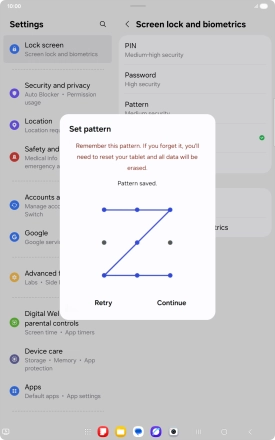
Slide your finger across the screen to connect at least four points and press Continue.
Step 6 of 12

2. Create lock code using a pattern

Slide your finger across the screen to connect at least four points and press Continue.

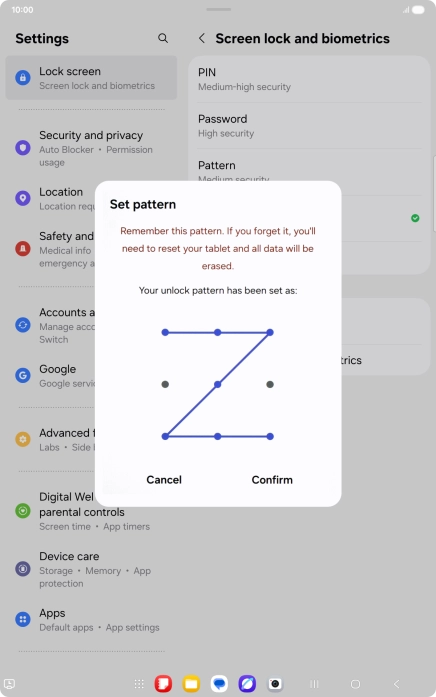
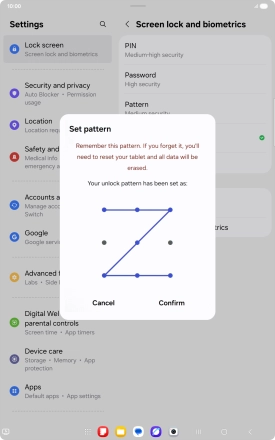
Repeat the selected lock code and press Confirm.
Step 7 of 12

2. Create lock code using a pattern

Repeat the selected lock code and press Confirm.

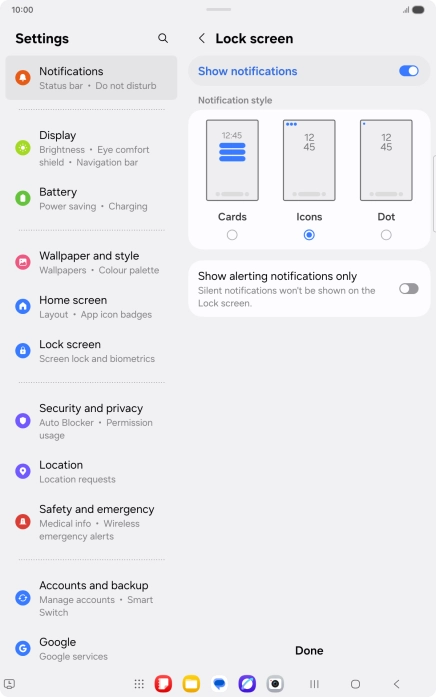
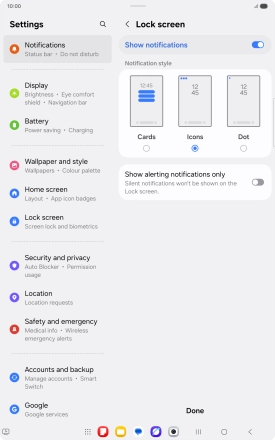
Press the required settings.
Step 8 of 12

2. Create lock code using a pattern

Press the required settings.

Press Done.
Step 9 of 12

2. Create lock code using a pattern

Press Done.

Press Screen lock and biometrics and key in the current lock code.
Step 10 of 12

3. Turn off use of lock code

Press Screen lock and biometrics and key in the current lock code.

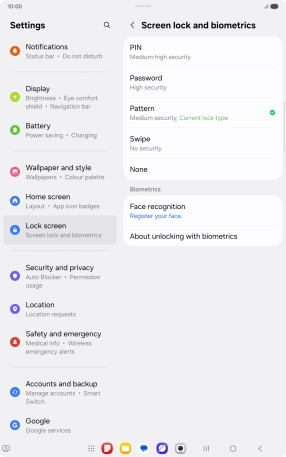
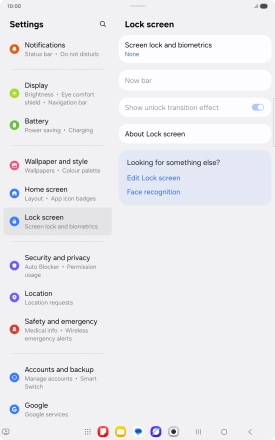
Press None.
Step 11 of 12

3. Turn off use of lock code

Press None.

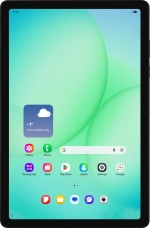
Press the Home key to return to the home screen.
Step 12 of 12

4. Return to the home screen

Press the Home key to return to the home screen.

1. Find "Screen lock and biometrics"

Slide your finger downwards starting from the top right side of the screen.
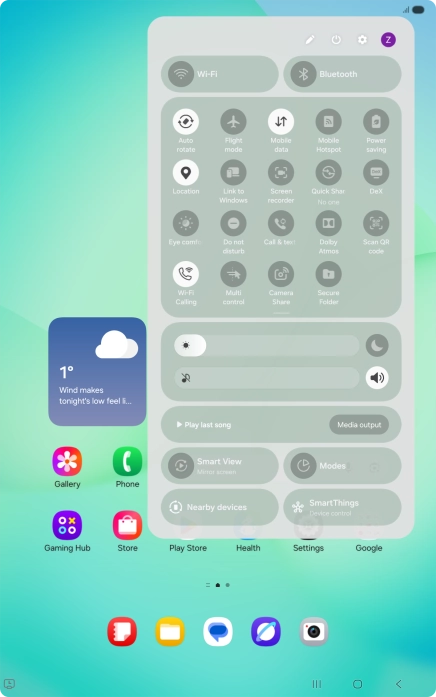
Press the settings icon.
Press Lock screen.
Press Screen lock and biometrics.

2. Create lock code using a pattern

Press Pattern.
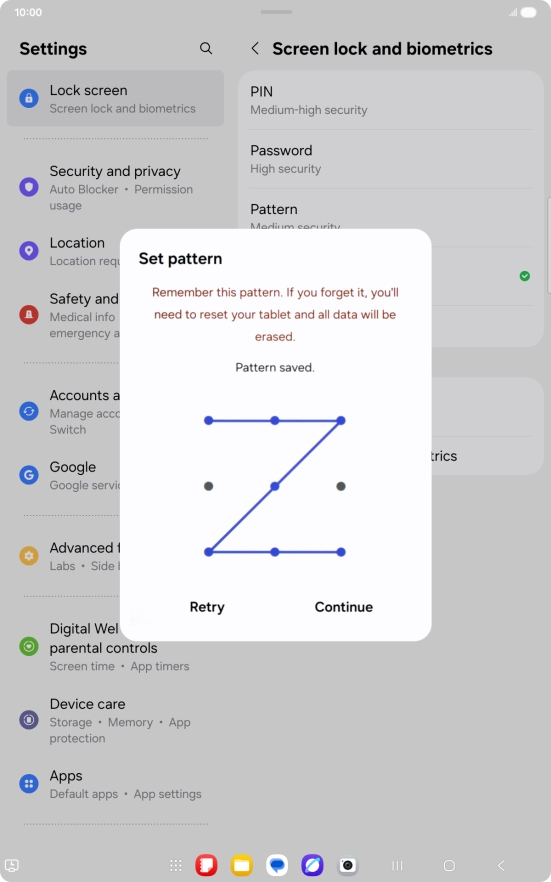
Slide your finger across the screen to connect at least four points and press Continue.
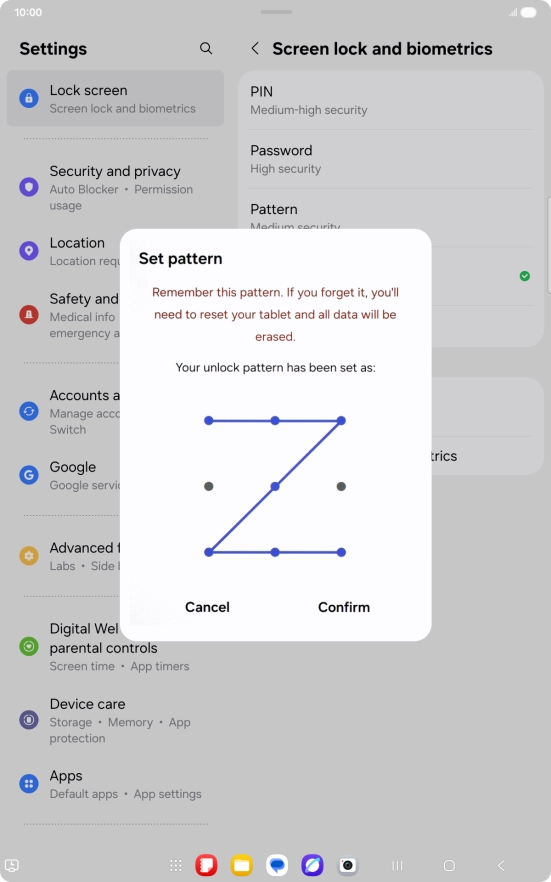
Repeat the selected lock code and press Confirm.
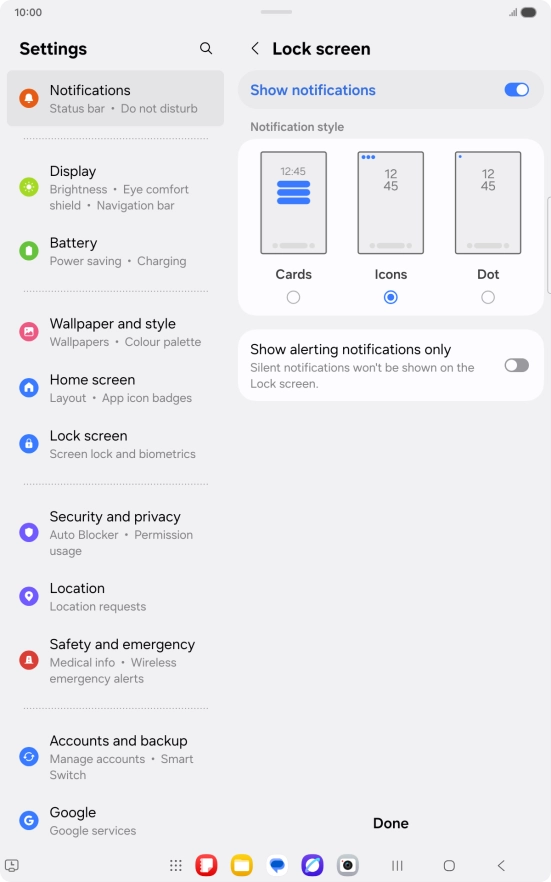
Press the required settings.
Press Done.

3. Turn off use of lock code

Press Screen lock and biometrics and key in the current lock code.
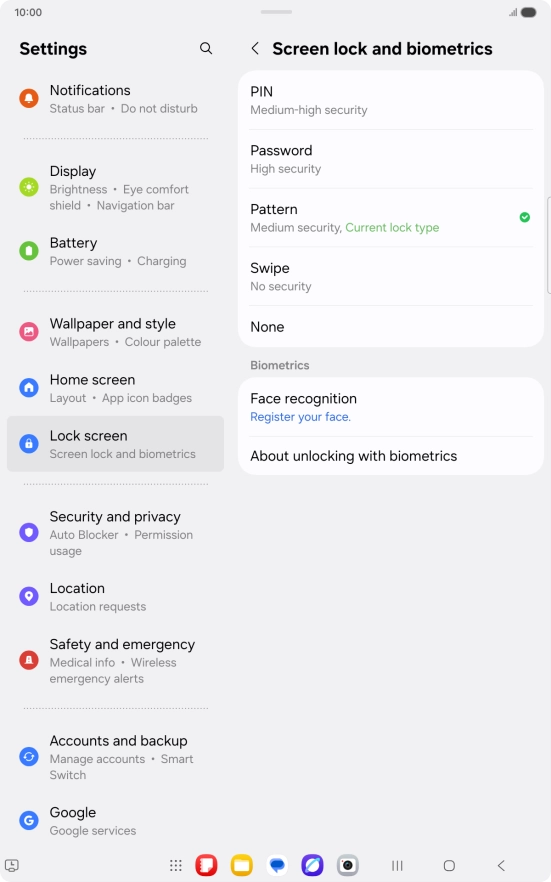
Press None.

4. Return to the home screen

Press the Home key to return to the home screen.

Thank you for your evaluation!

Get information on...

Or select...

Another device