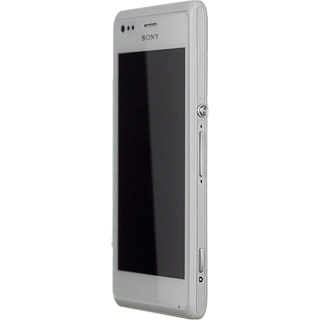
Sony Xperia M

Sony Xperia M

Use camera - Sony Xperia M

Read help info

When you take pictures using your phone's camera, you can select a number of settings to improve the quality of your pictures.

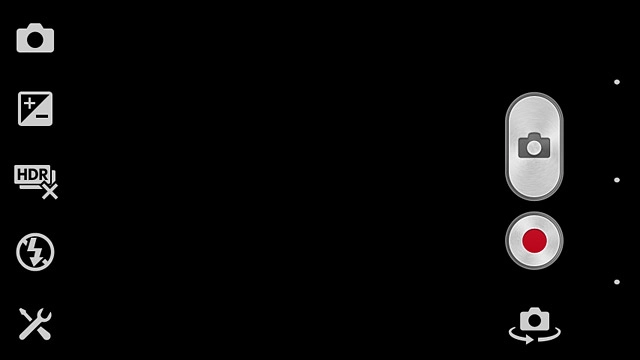
Press the Camera key.
Step 1 of 19

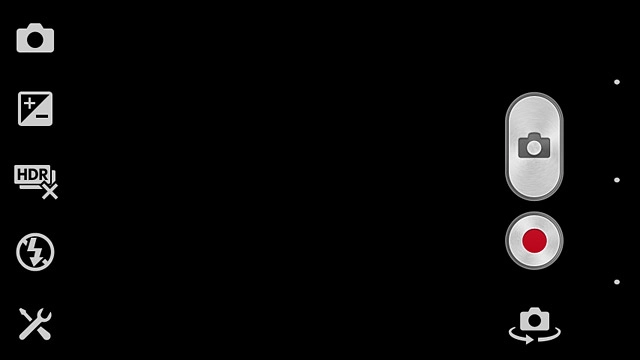
Turn on the camera

Press the Camera key.
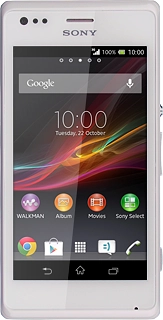
Sony Xperia M
Step 2 of 19

Select settings

The following steps describe how you:
Zoom in or out
Turn flash on or off
Select resolution
Turn geotagging on or off
Select memory

Press the upper or lower part of the Volume key.
Step 3 of 19

Zoom in or out

Press the upper or lower part of the Volume key.

Press the scene mode icon.
Step 4 of 19

Turn flash on or off

Press the scene mode icon.

Press Normal.
Step 5 of 19

Turn flash on or off

Press Normal.

Press the flash icon.
Step 6 of 19

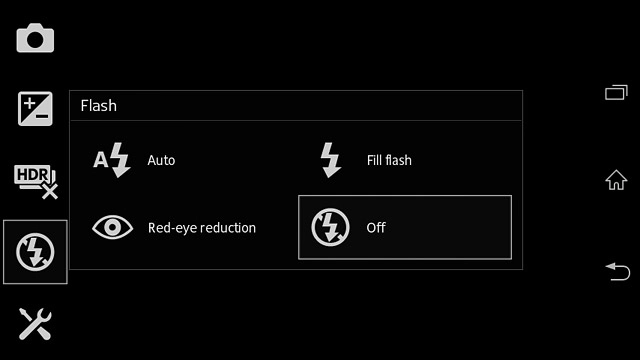
Turn flash on or off

Press the flash icon.

To turn on flash:Press Fill flash or Red-eye reduction.
Step 7 of 19

Turn flash on or off

To turn on flash:
Press Fill flash or Red-eye reduction.

To turn off flash:Press Off.
Step 8 of 19

Turn flash on or off

To turn off flash:
Press Off.

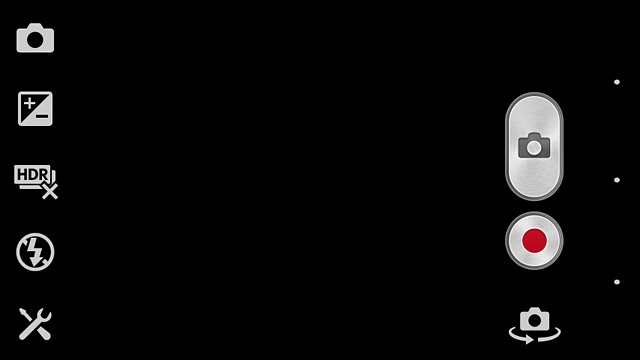
Press the settings icon.
Step 9 of 19

Select resolution

Press the settings icon.

Press Resolution.
Step 10 of 19

Select resolution

Press Resolution.

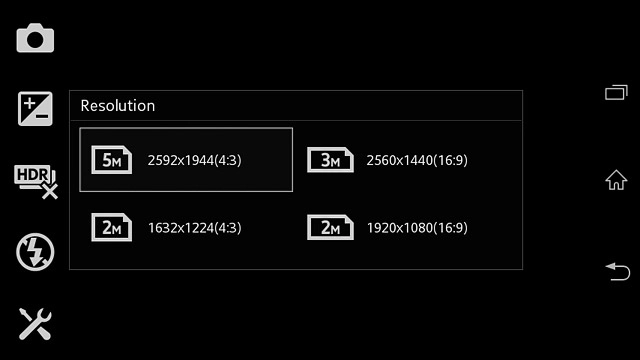
Press the required resolution.
Step 11 of 19

Select resolution

Press the required resolution.

Press the settings icon.
Step 12 of 19

Turn geotagging on or off

Press the settings icon.

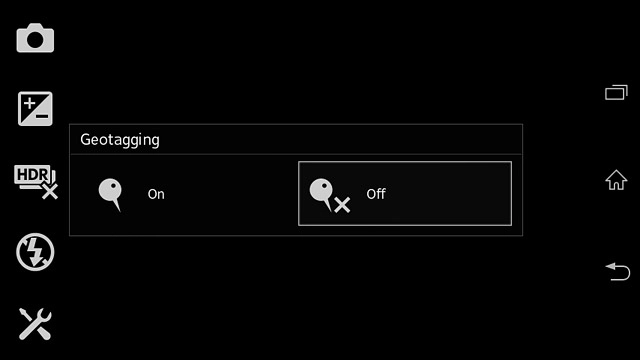
Press Geotagging.
Step 13 of 19

Turn geotagging on or off

Press Geotagging.

Press On or Off.
Step 14 of 19

Turn geotagging on or off

Press On or Off.

Press the settings icon.
Step 15 of 19

Select memory

Press the settings icon.

SD card is only available if you've inserted a memory card.
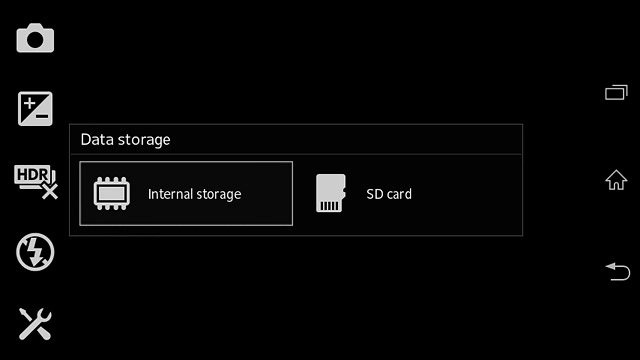
Press Data storage.
Step 16 of 19

Select memory

Press Data storage.

SD card is only available if you've inserted a memory card.
Press Internal storage or SD card.
Step 17 of 19

Select memory

Press Internal storage or SD card.

SD card is only available if you've inserted a memory card.
Point the camera lens at the required object and press the Camera key.The picture is saved automatically.
Step 18 of 19

Take a picture

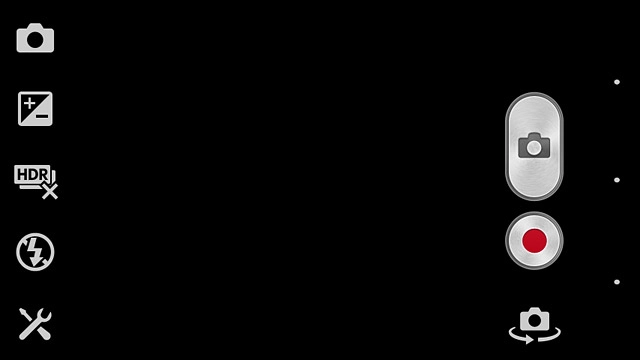
Point the camera lens at the required object and press the Camera key.
The picture is saved automatically.

Press the home icon to return to the home screen.
Step 19 of 19

Return to the home screen

Press the home icon to return to the home screen.

Turn on the camera

Press the Camera key.
Select settings

The following steps describe how you:
Zoom in or out
Turn flash on or off
Select resolution
Turn geotagging on or off
Select memory
Sony Xperia M

Zoom in or out

Press the upper or lower part of the Volume key.
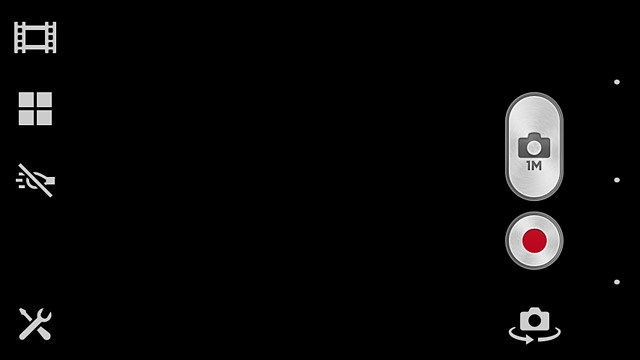
Turn flash on or off

Press the scene mode icon.
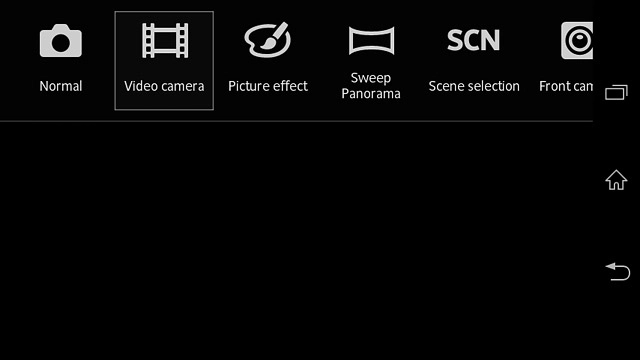
Press Normal.
Press the flash icon.
To turn on flash:
Press Fill flash or Red-eye reduction.
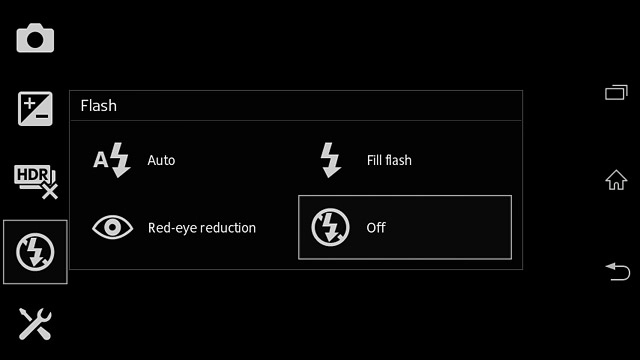
To turn off flash:
Press Off.

Select resolution

Press the settings icon.
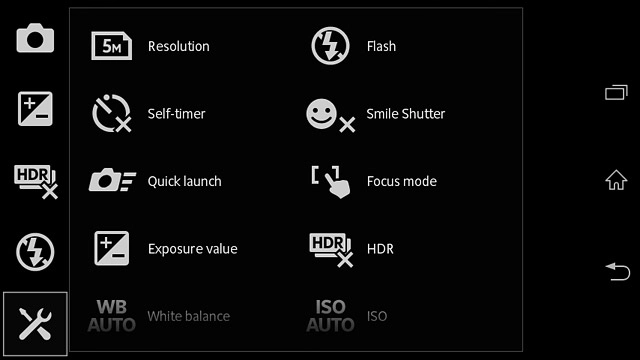
Press Resolution.
Press the required resolution.

Turn geotagging on or off

Press the settings icon.
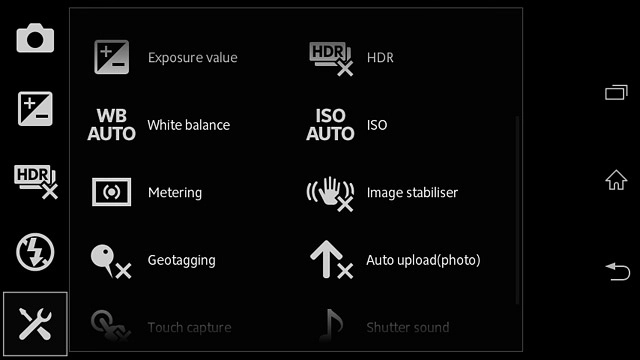
Press Geotagging.
Press On or Off.

Select memory

Press the settings icon.
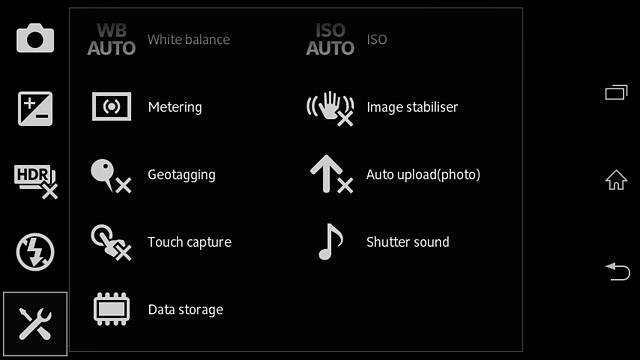
SD card is only available if you've inserted a memory card.
Press Data storage.
SD card is only available if you've inserted a memory card.
Press Internal storage or SD card.
SD card is only available if you've inserted a memory card.

Take a picture

Point the camera lens at the required object and press the Camera key.
The picture is saved automatically.
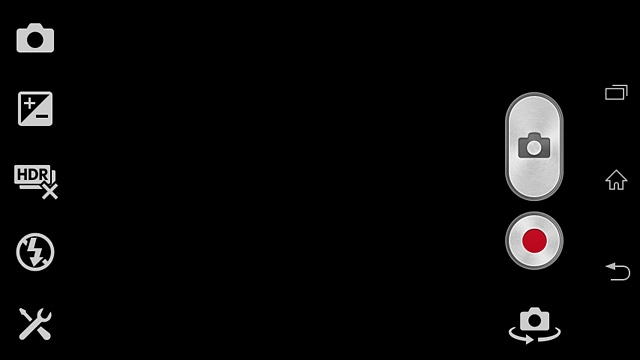
Return to the home screen

Press the home icon to return to the home screen.

Thank you for your evaluation!

Get information on...

Or select...

Another device