Sony Xperia miro

Sony Xperia miro

Activate Google account on phone - Sony Xperia miro

Read help info

A Google account gives you access to services such as Gmail, Google Play and Picasa on your phone. Follow these instructions to activate a Google account on your phone.
You need to set up your phone for internet to use this function. Click here for information on how to set up your phone for internet.

Press the menu icon.
Step 1 of 13

Find "ADD ACCOUNT"

Press the menu icon.
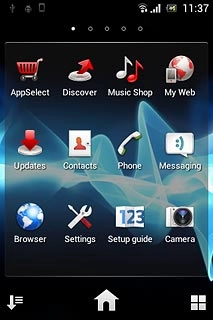
Press Settings.
Step 2 of 13

Find "ADD ACCOUNT"

Press Settings.

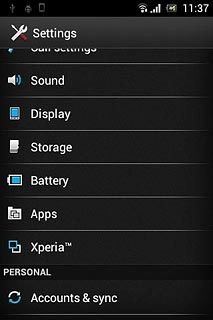
Press Accounts & sync.
Step 3 of 13

Find "ADD ACCOUNT"

Press Accounts & sync.
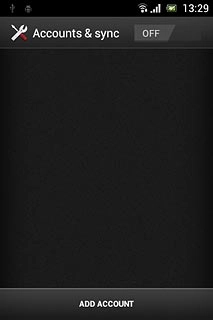
Press ADD ACCOUNT.
Step 4 of 13

Find "ADD ACCOUNT"

Press ADD ACCOUNT.
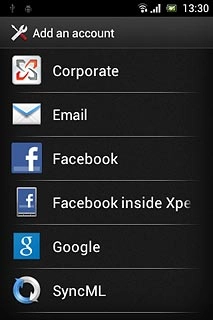
Press Google.
Step 5 of 13

Start activation

Press Google.

To create a new account: press New. Follow the instructions on the display to create a new account.
Press Existing.
Step 6 of 13

Start activation

Press Existing.

To create a new account: press New. Follow the instructions on the display to create a new account.
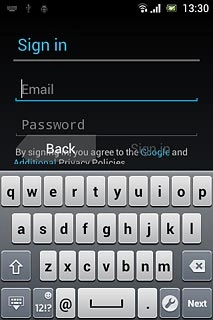
Press Email and key in the email address for your Google account.
Step 7 of 13

Activate Google account

Press Email and key in the email address for your Google account.

Press Password and key in the password for your Google account.
Step 8 of 13

Activate Google account

Press Password and key in the password for your Google account.

Press Sign in.Follow the instructions on the display to select settings for your Google account.
Step 9 of 13

Activate Google account

Press Sign in.
Follow the instructions on the display to select settings for your Google account.

Press the box next to Keep this phone backed up with my Google Account to turn backup on or off.
Step 10 of 13

Select backup settings

Press the box next to Keep this phone backed up with my Google Account to turn backup on or off.

When the box next to the menu item is ticked (V), the function is turned on.
Step 11 of 13

Select backup settings

When the box next to the menu item is ticked (V), the function is turned on.

Press Next.
Step 12 of 13

Select backup settings

Press Next.

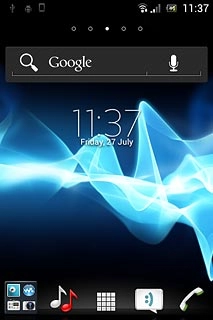
Press the Home key to return to standby mode.
Step 13 of 13

Exit

Press the Home key to return to standby mode.

Find "ADD ACCOUNT"

Press the menu icon.
Press Settings.
Press Accounts & sync.
Press ADD ACCOUNT.

Start activation

Press Google.
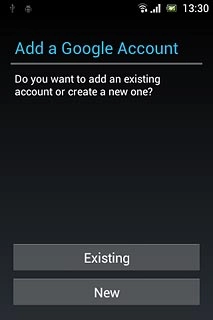
To create a new account: press New. Follow the instructions on the display to create a new account.
Press Existing.
To create a new account: press New. Follow the instructions on the display to create a new account.

Activate Google account

Press Email and key in the email address for your Google account.
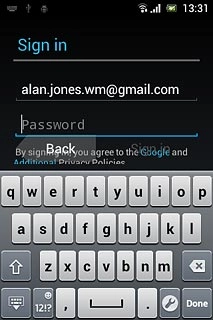
Press Password and key in the password for your Google account.
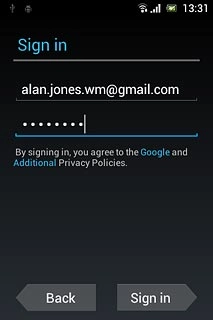
Press Sign in.
Follow the instructions on the display to select settings for your Google account.
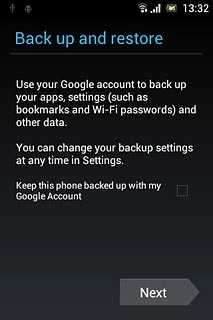
Select backup settings

Press the box next to Keep this phone backed up with my Google Account to turn backup on or off.
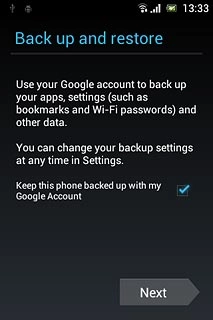
When the box next to the menu item is ticked (V), the function is turned on.
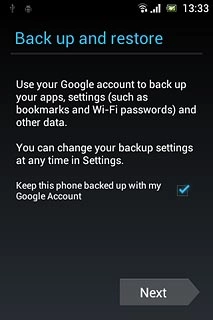
Press Next.

Exit

Press the Home key to return to standby mode.

Thank you for your evaluation!

Get information on...

Or select...

Another device