Sony Xperia Z3

Sony Xperia Z3

Turn use of phone lock code on or off - Sony Xperia Z3

Read help info

The phone lock code protects the contents of your phone from unauthorised use. When the phone lock code is turned on, it needs to be keyed in every time you turn on your phone and when it has been in sleep mode.

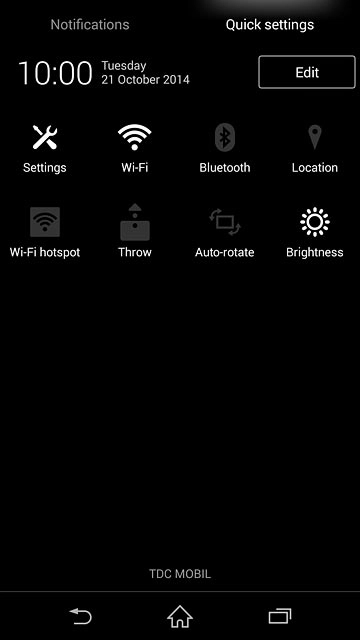
Slide two fingers down the display starting from the top edge of your phone.Press Settings.
Step 1 of 13

Find "Screen lock"

Slide two fingers down the display starting from the top edge of your phone.
Press Settings.
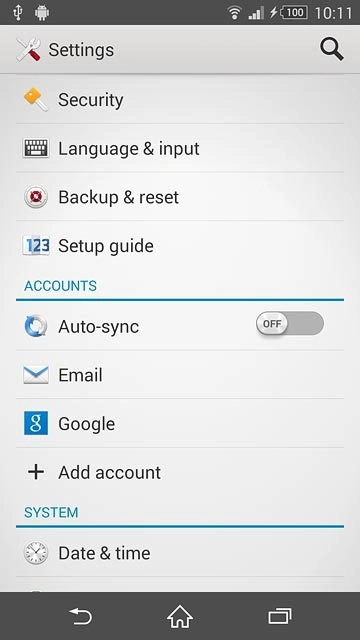
Press Security.
Step 2 of 13

Find "Screen lock"

Press Security.

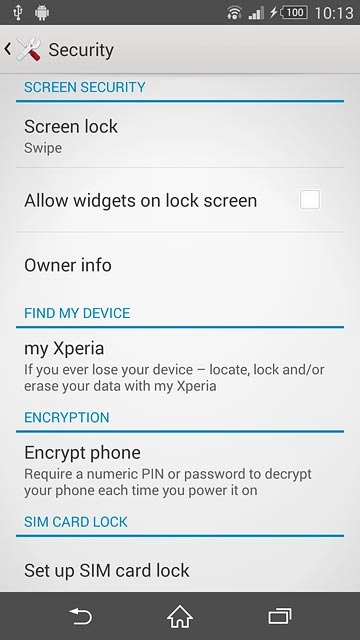
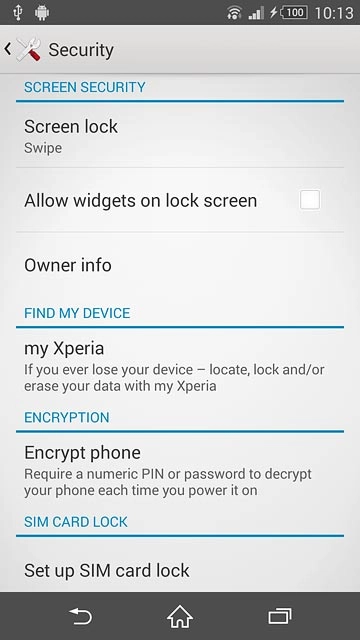
Press Screen lock.
Step 3 of 13

Find "Screen lock"

Press Screen lock.

Sony Xperia Z3
Step 4 of 13

Select option

You can create several types of phone lock codes. The following steps show two examples:
Create phone lock code using a pattern, go to 2a.
Create phone lock code using a PIN, go to 2b.
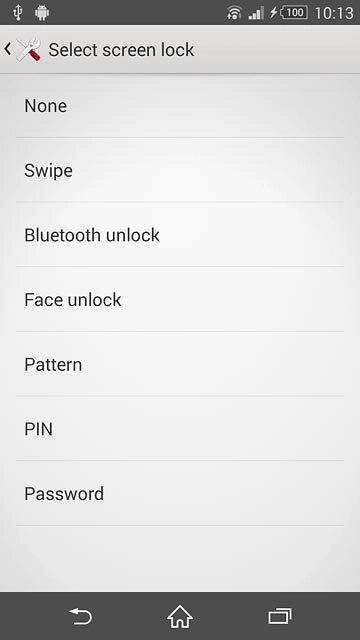
Press Pattern.
Step 5 of 13

2a - Create phone lock code using a pattern

Press Pattern.
Press and drag a point to connect at least four points.
Step 6 of 13

2a - Create phone lock code using a pattern

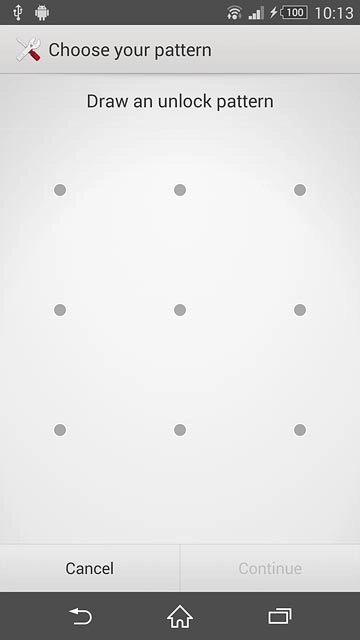
Press and drag a point to connect at least four points.
Press Continue.Repeat the selected phone lock code to confirm.
Step 7 of 13

2a - Create phone lock code using a pattern

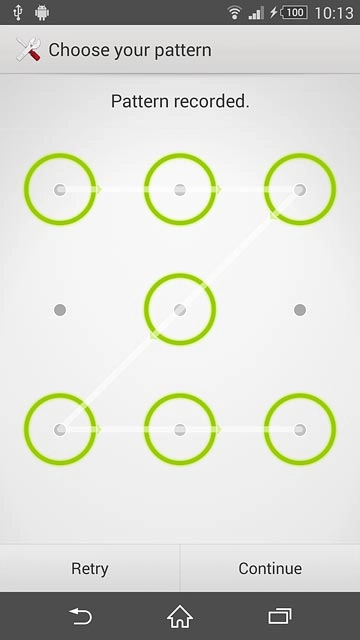
Press Continue.
Repeat the selected phone lock code to confirm.
Press Confirm.
Step 8 of 13

2a - Create phone lock code using a pattern

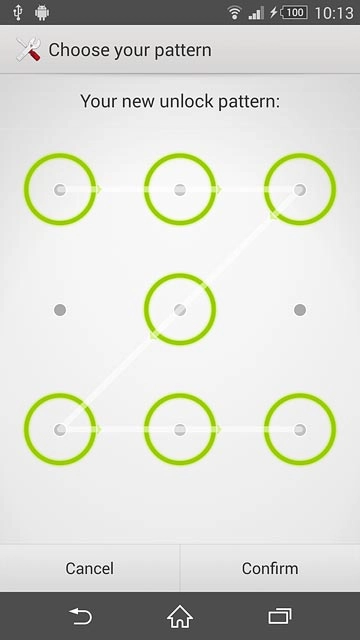
Press Confirm.
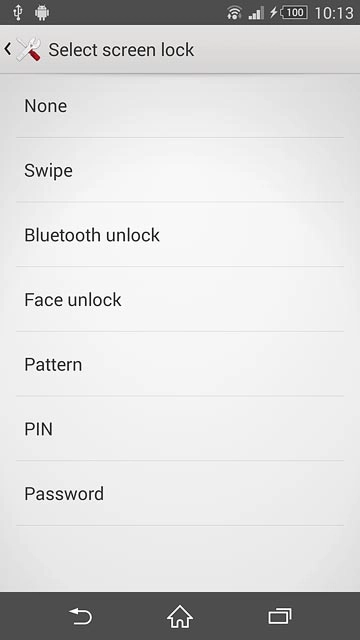
Press PIN.
Step 9 of 13

2b - Create phone lock code using a PIN

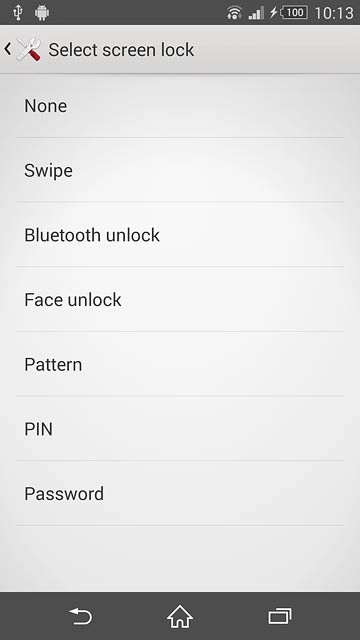
Press PIN.

Key in the required phone lock code and press Continue.
Step 10 of 13

2b - Create phone lock code using a PIN

Key in the required phone lock code and press Continue.

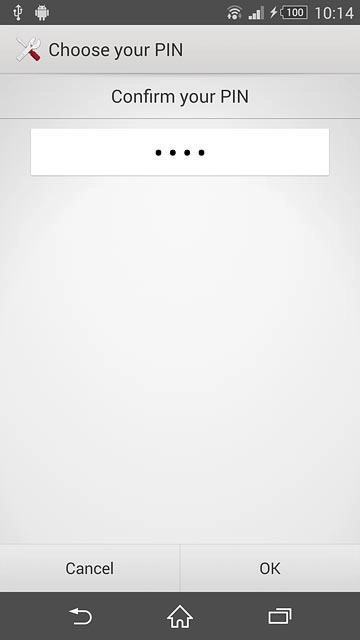
Key in the phone lock code again and press OK.
Step 11 of 13

2b - Create phone lock code using a PIN

Key in the phone lock code again and press OK.

Press None.
Step 12 of 13

Turn off use of phone lock code

Press None.
Press the home icon to return to the home screen.
Step 13 of 13

Return to the home screen

Press the home icon to return to the home screen.

Find "Screen lock"

Slide two fingers down the display starting from the top edge of your phone.
Press Settings.
Press Security.
Press Screen lock.

Select option

You can create several types of phone lock codes. The following steps show two examples:
Create phone lock code using a pattern, go to 2a.
Create phone lock code using a PIN, go to 2b.
Sony Xperia Z3

2a - Create phone lock code using a pattern

Press Pattern.
Press and drag a point to connect at least four points.
Press Continue.
Repeat the selected phone lock code to confirm.
Press Confirm.

2b - Create phone lock code using a PIN

Press PIN.
Key in the required phone lock code and press Continue.
Key in the phone lock code again and press OK.

Turn off use of phone lock code

Press None.

Return to the home screen

Press the home icon to return to the home screen.

Thank you for your evaluation!

Get information on...

Or select...

Another device