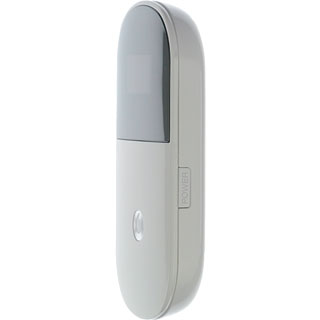
Write and send a text message - ZTE R205 / Leopard

Read help info

You can write and send text messages from your router to a phone number. Follow these instructions to write and send text messages.

Press and hold On/Off.
Step 1 of 14

Turn on your router

Press and hold On/Off.

Do the following in Mac OS X:Click the Wi-Fi icon.
Step 2 of 14

Connect to Wi-Fi hotspot

Do the following in Mac OS X:
Click the Wi-Fi icon.

You can see the Wi-Fi hotspot name and password by pressing On/Off twice in quick succession.
Click the name of your Wi-Fi hotspot.
Step 3 of 14

Connect to Wi-Fi hotspot

Click the name of your Wi-Fi hotspot.

You can see the Wi-Fi hotspot name and password by pressing On/Off twice in quick succession.
Key in the password for your Wi-Fi hotspot and click OK.A connection to the internet is established.
Step 4 of 14

Connect to Wi-Fi hotspot

Key in the password for your Wi-Fi hotspot and click OK.
A connection to the internet is established.

You can see the Wi-Fi hotspot name and password by pressing On/Off twice in quick succession.
Open a browser window.Key in 192.168.0.1 in the address bar and press Enter.Highlight the field next to Password and key in admin
Step 5 of 14

Connect to the router configuration page

Open a browser window.
Key in 192.168.0.1 in the address bar and press Enter.
Highlight the field next to Password and key in admin

Click Login.
Step 6 of 14

Connect to the router configuration page

Click Login.

If you're asked to key in your PIN:Highlight the field below Enter current PIN code and key in your PIN.
Step 7 of 14

Key in your PIN

If you're asked to key in your PIN:
Highlight the field below Enter current PIN code and key in your PIN.

Click Submit.
Step 8 of 14

Key in your PIN

Click Submit.

Click SMS.
Step 9 of 14

Find "Write"

Click SMS.

Click Write.
Step 10 of 14

Find "Write"

Click Write.

Highlight the field next to To and key in the required number.
Step 11 of 14

Add recipient

Highlight the field next to To and key in the required number.

Highlight the text input field and write the text message.
Step 12 of 14

Write the text message

Highlight the text input field and write the text message.

Click Send.
Step 13 of 14

Send the message

Click Send.

Click Logout.
Step 14 of 14

Exit

Click Logout.

Turn on your router

Press and hold On/Off.

Connect to Wi-Fi hotspot

Do the following in Mac OS X:
Click the Wi-Fi icon.
You can see the Wi-Fi hotspot name and password by pressing On/Off twice in quick succession.
Click the name of your Wi-Fi hotspot.
You can see the Wi-Fi hotspot name and password by pressing On/Off twice in quick succession.
Key in the password for your Wi-Fi hotspot and click OK.
A connection to the internet is established.
You can see the Wi-Fi hotspot name and password by pressing On/Off twice in quick succession.

Connect to the router configuration page

Open a browser window.
Key in 192.168.0.1 in the address bar and press Enter.
Highlight the field next to Password and key in admin
Click Login.

Key in your PIN

If you're asked to key in your PIN:
Highlight the field below Enter current PIN code and key in your PIN.
Click Submit.

Find "Write"

Click SMS.
Click Write.

Add recipient

Highlight the field next to To and key in the required number.

Write the text message

Highlight the text input field and write the text message.

Send the message

Click Send.

Exit

Click Logout.

Thank you for your evaluation!

Get information on...

Or select...

Another device