Apple iPad Pro 11

Apple iPad Pro 11

Use Face ID on your Apple iPad Pro 11 iOS 12.1

Read help info

You can set your tablet to use face recognition as lock code or to authorise iTunes and App Store purchases.

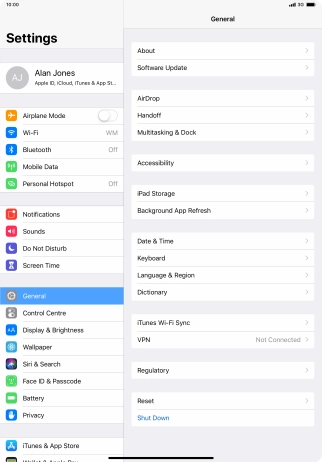
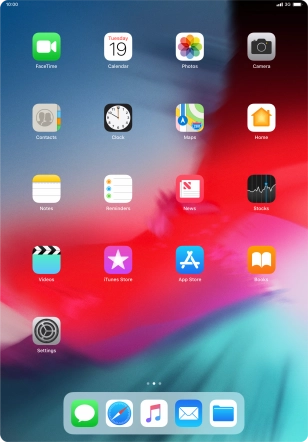
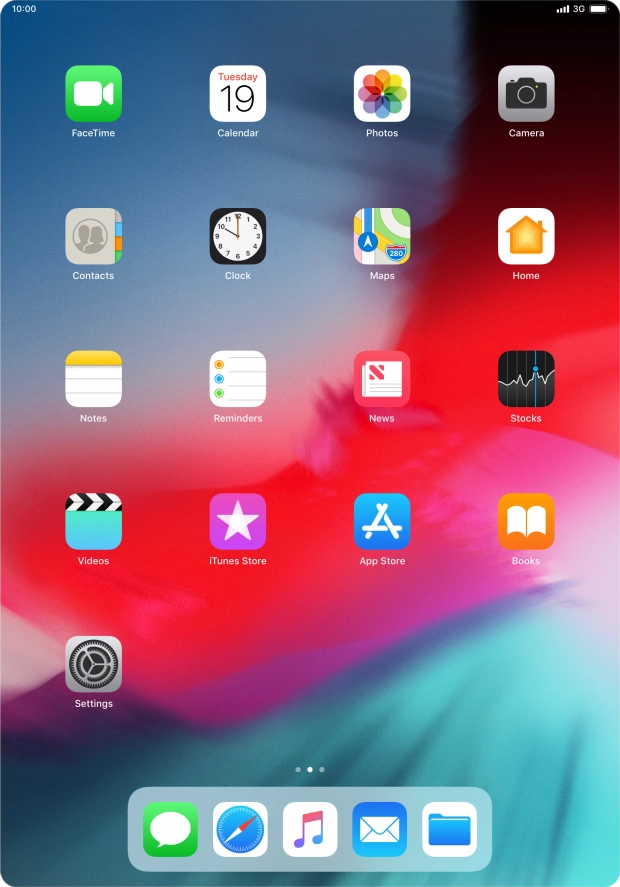
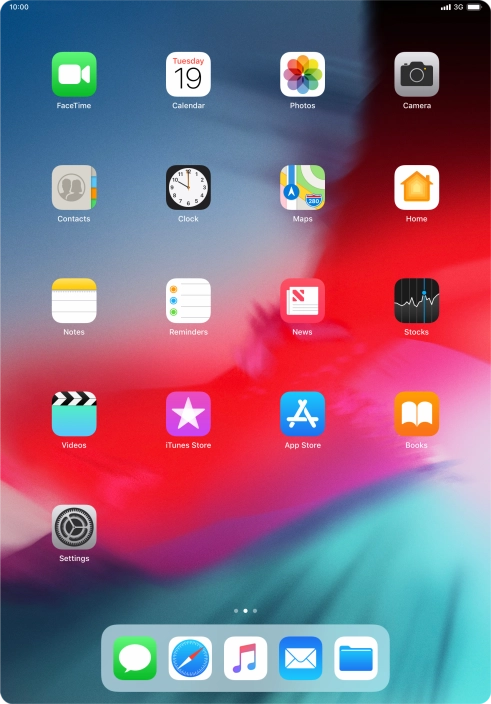
Press Settings.
Step 1 of 9

1. Find "Face ID & Passcode"

Press Settings.
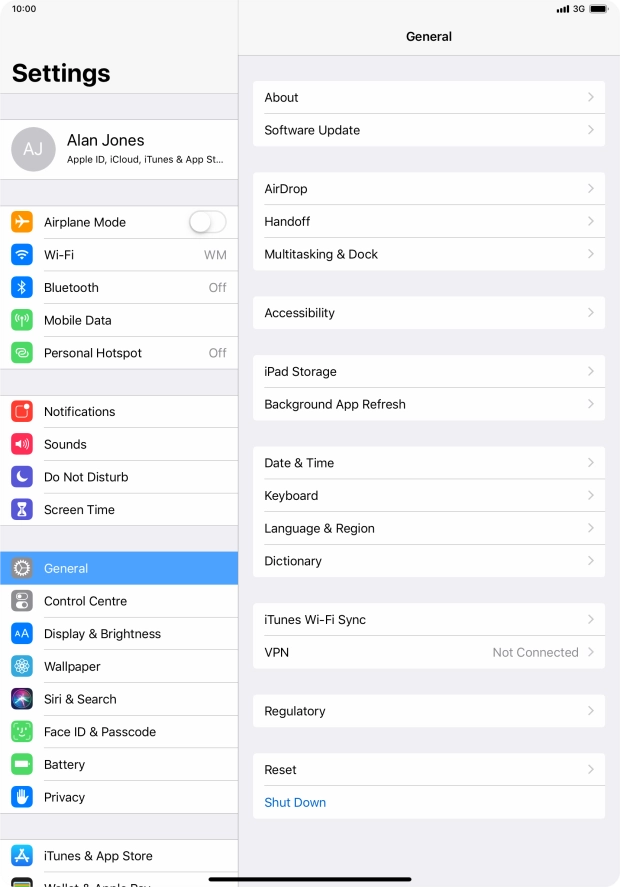
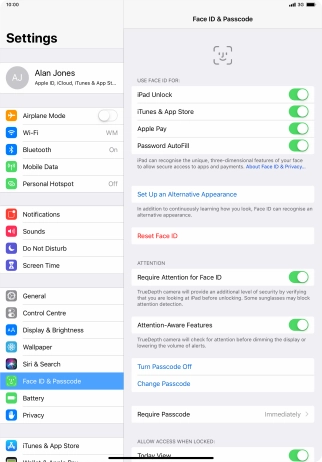
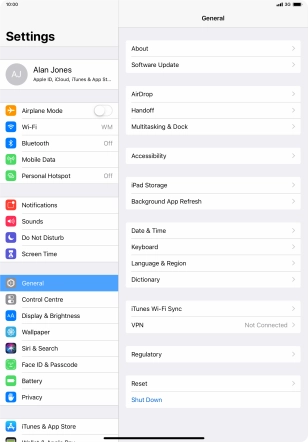
Press Face ID & Passcode.
Step 2 of 9

1. Find "Face ID & Passcode"

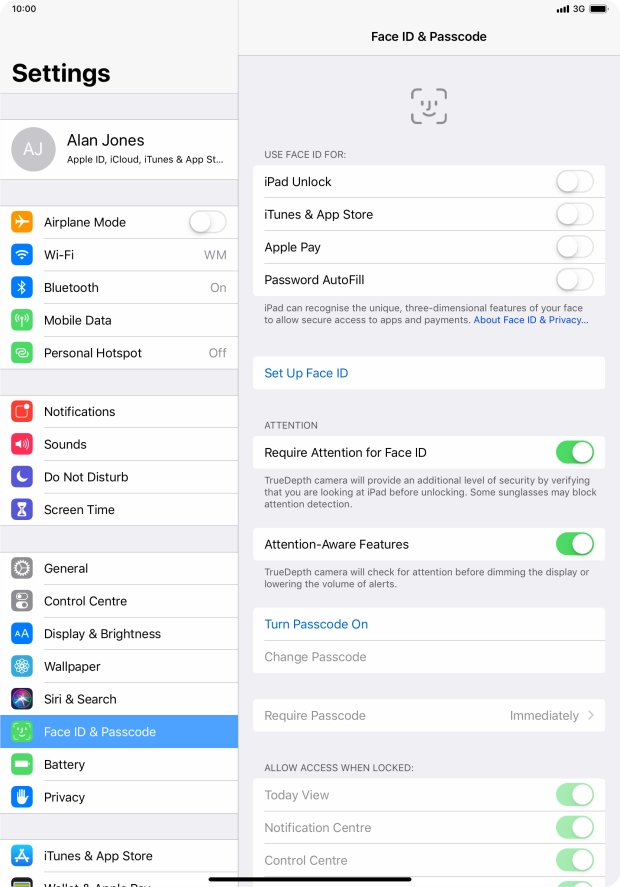
Press Face ID & Passcode.

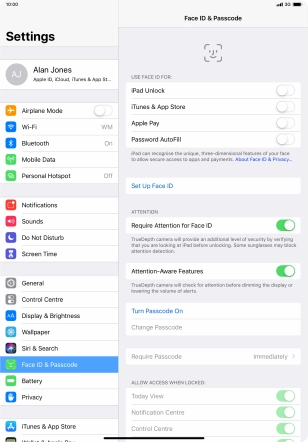
Press Set Up Face ID.
Step 3 of 9

2. Add Face ID

Press Set Up Face ID.

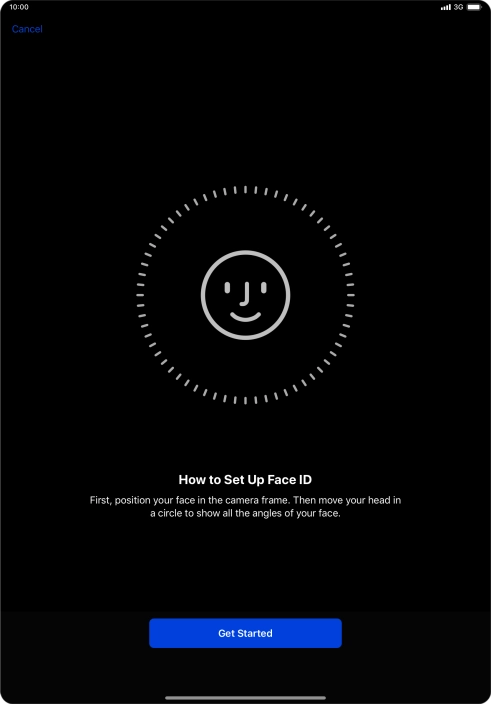
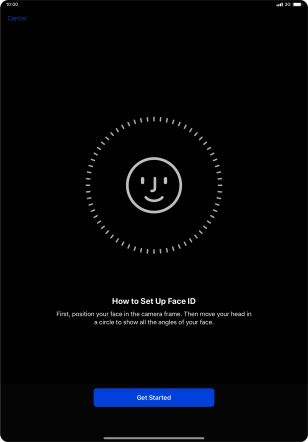
Press Get Started and follow the instructions on the screen to set up Face ID.
Step 4 of 9

2. Add Face ID

Press Get Started and follow the instructions on the screen to set up Face ID.

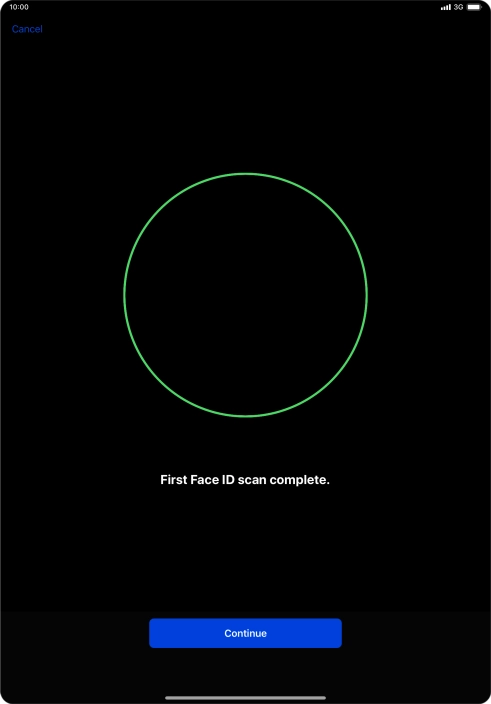
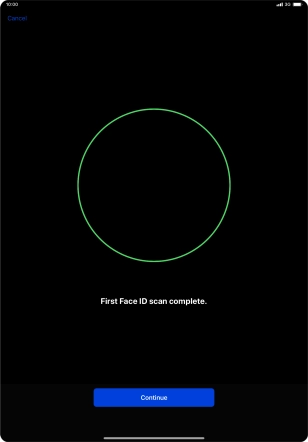
Press Continue.
Step 5 of 9

2. Add Face ID

Press Continue.

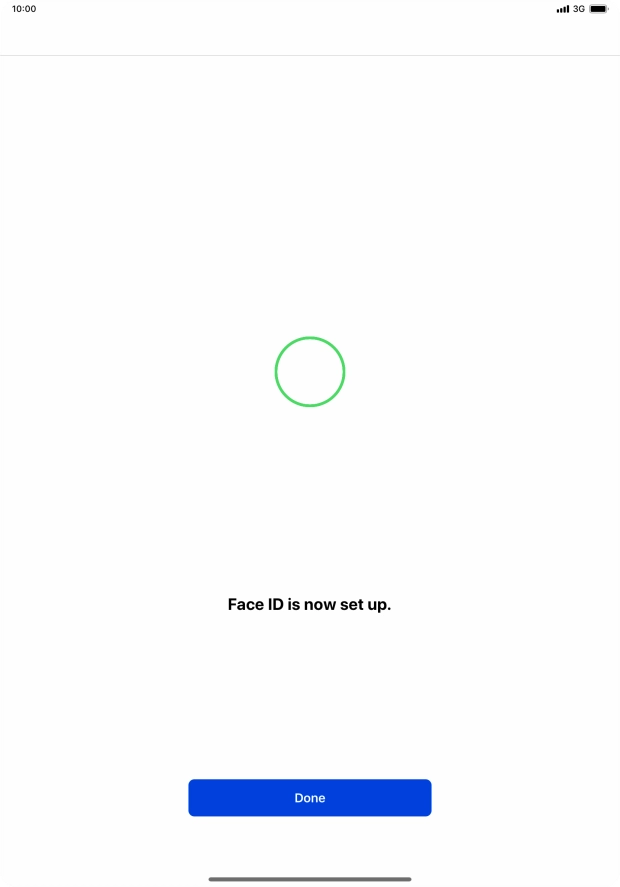
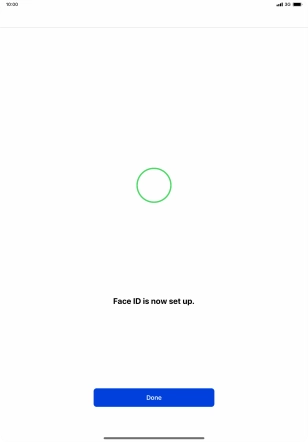
Press Done. If you haven't previously selected a lock code, key in a code of your own choice twice.
Step 6 of 9

2. Add Face ID

Press Done. If you haven't previously selected a lock code, key in a code of your own choice twice.

Press the indicator next to
Step 7 of 9

3. Select Face ID settings

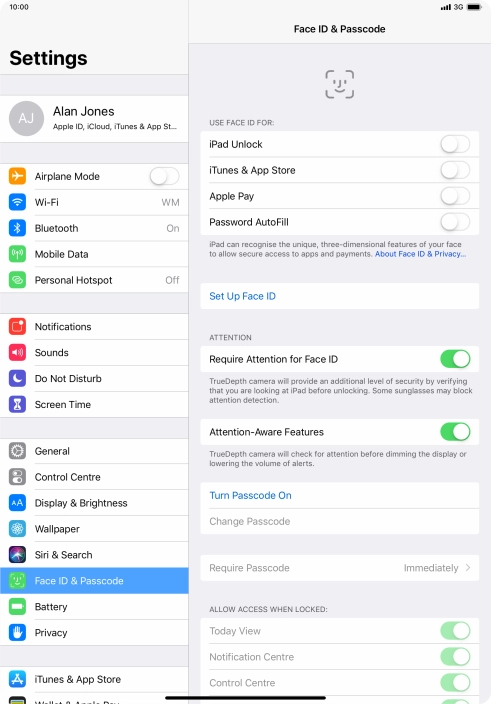
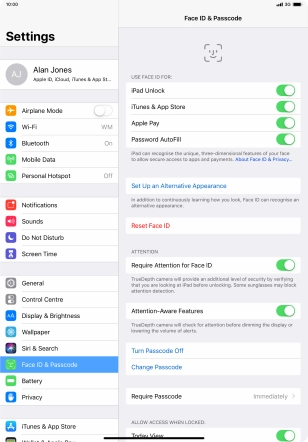
Press the indicator next to "iPad Unlock" to turn the function on or off.

If you turn on the function, you can use your Face ID to turn off the lock code.
Press the indicator next to
Step 8 of 9

3. Select Face ID settings

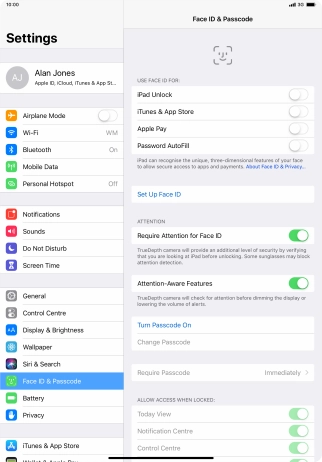
Press the indicator next to "iTunes & App Store" to turn the function on or off.

If you turn on the function, you can use your Face ID to authorise iTunes and App Store purchases.
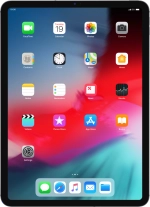
Slide your finger upwards starting from the bottom of the screen to return to the home screen.
Step 9 of 9

4. Return to the home screen

Slide your finger upwards starting from the bottom of the screen to return to the home screen.

1. Find "Face ID & Passcode"

Press Settings.
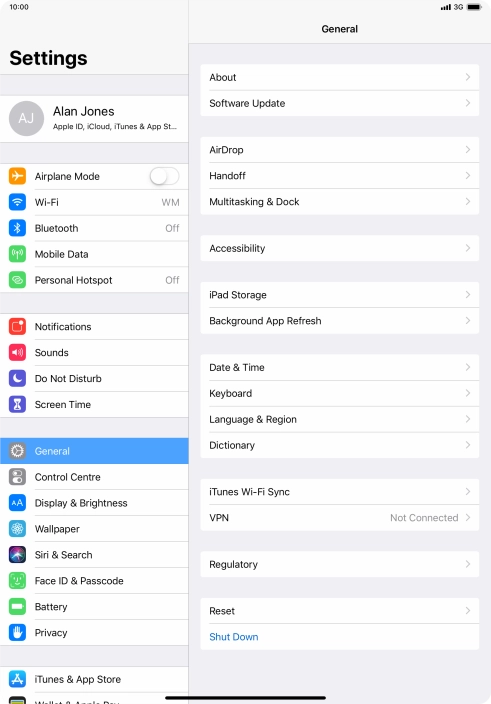
Press Face ID & Passcode.

2. Add Face ID

Press Set Up Face ID.
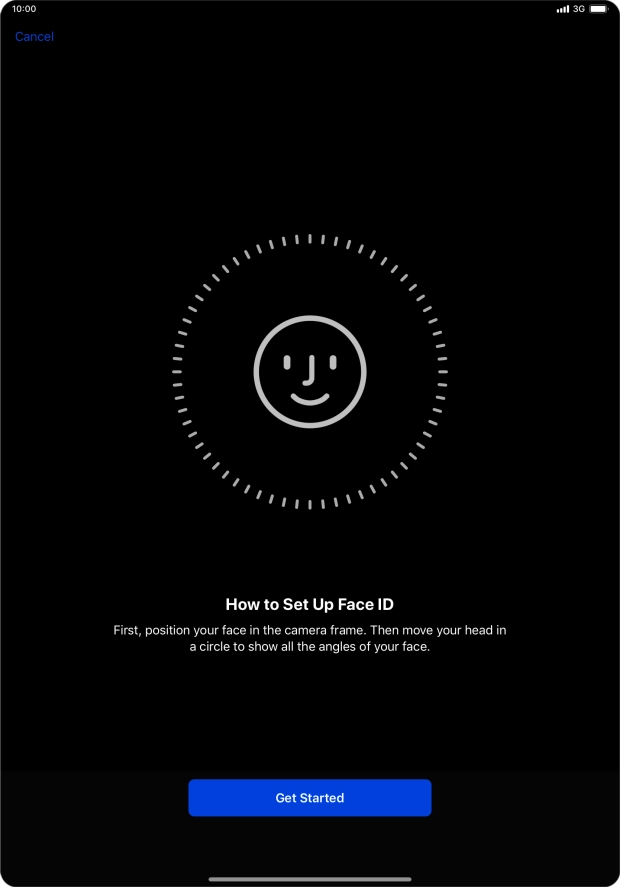
Press Get Started and follow the instructions on the screen to set up Face ID.
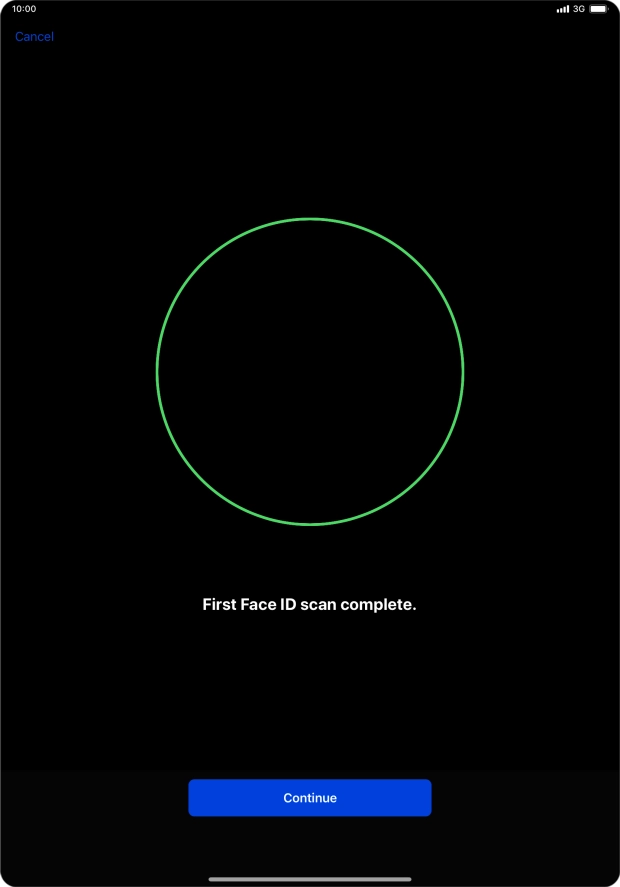
Press Continue.
Press Done. If you haven't previously selected a lock code, key in a code of your own choice twice.
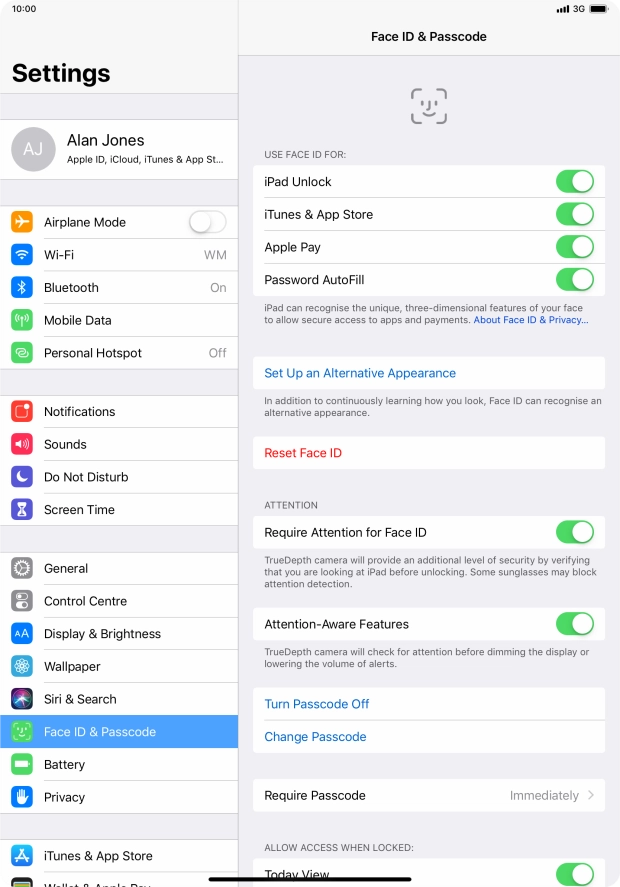
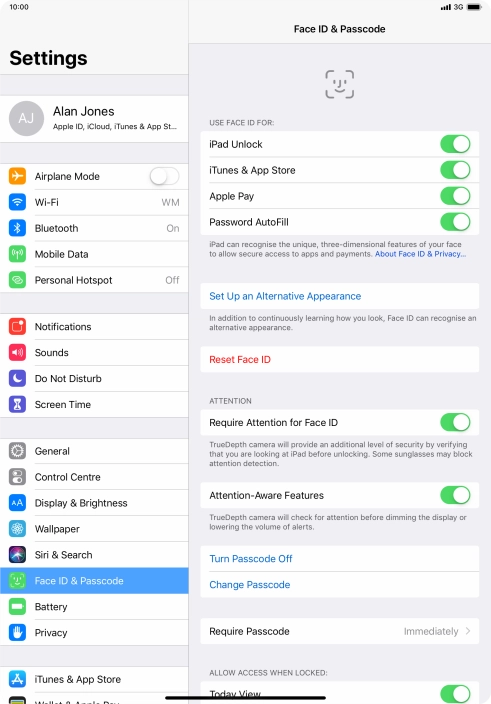
3. Select Face ID settings

Press the indicator next to "iPad Unlock" to turn the function on or off.
If you turn on the function, you can use your Face ID to turn off the lock code.
Press the indicator next to "iTunes & App Store" to turn the function on or off.
If you turn on the function, you can use your Face ID to authorise iTunes and App Store purchases.

4. Return to the home screen

Slide your finger upwards starting from the bottom of the screen to return to the home screen.

Thank you for your evaluation!

Get information on...

Or select...

Another device