Apple iPhone 17 Pro

Apple iPhone 17 Pro

iOS 27

Use notifications on your Apple iPhone 17 Pro iOS 27

Read help info

You can set your phone to display notifications about missed calls, new messages and appointments in the status bar at the top of the screen.

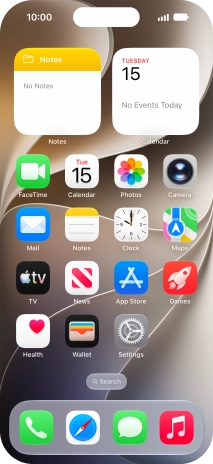
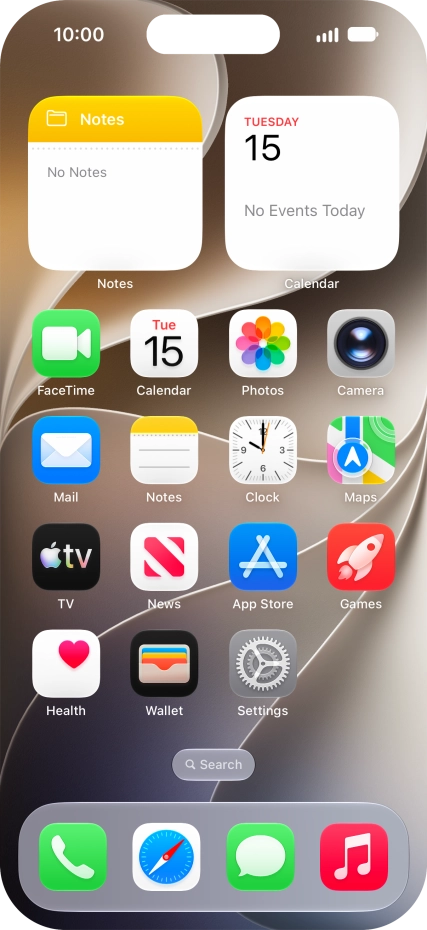
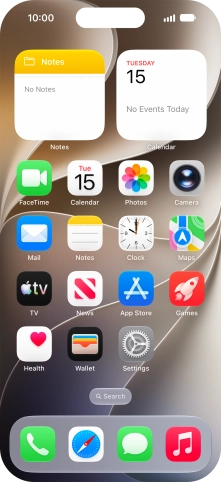
Press Settings.
Step 1 of 33

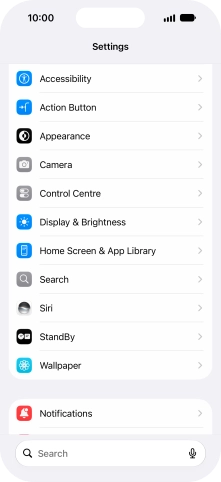
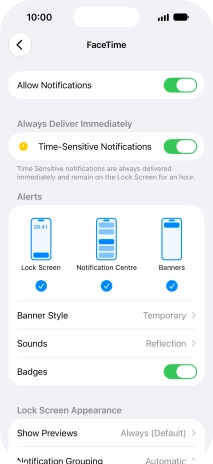
1. Find "Notifications"

Press Settings.
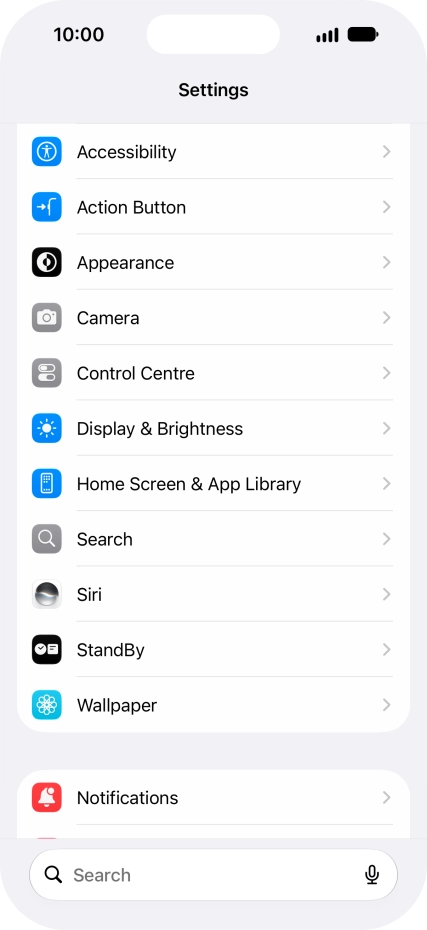
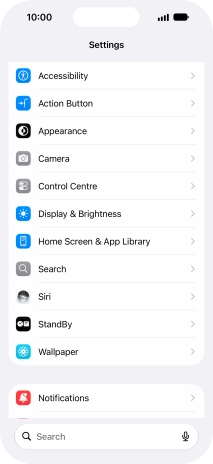
Press Notifications.
Step 2 of 33

1. Find "Notifications"

Press Notifications.

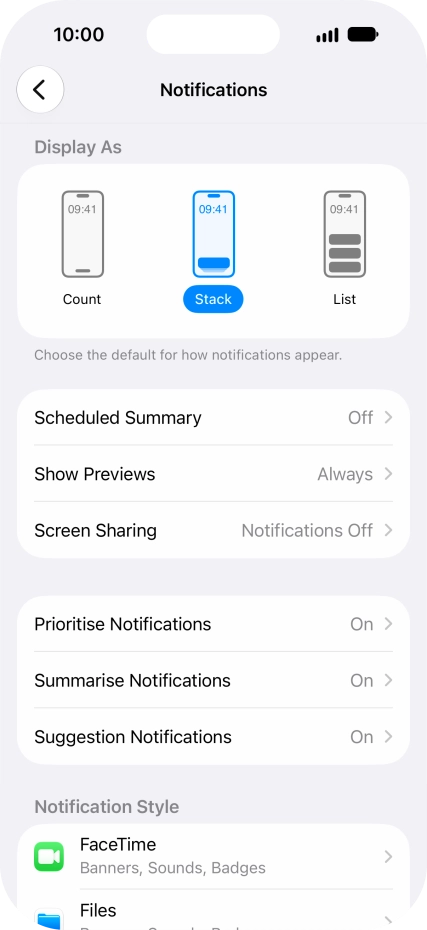
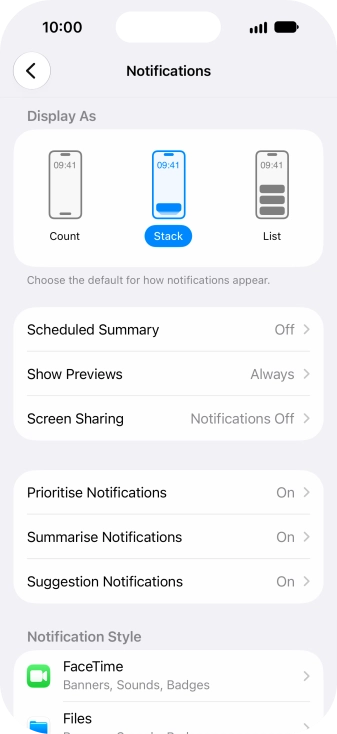
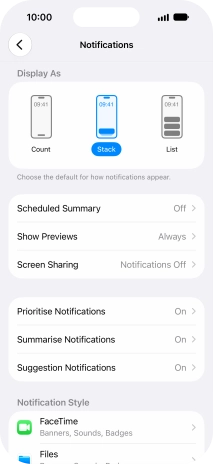
Press Scheduled Summary.
Step 3 of 33

2. Set notification summary

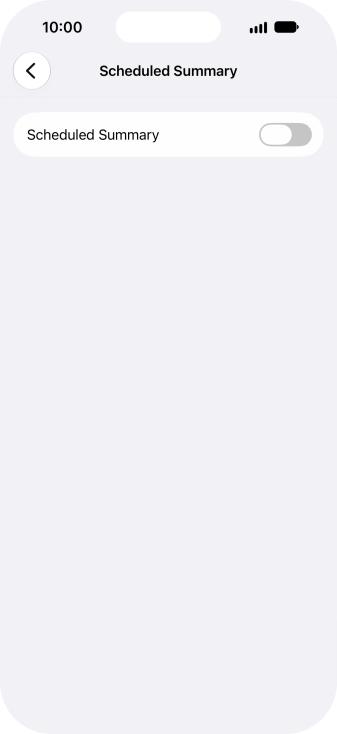
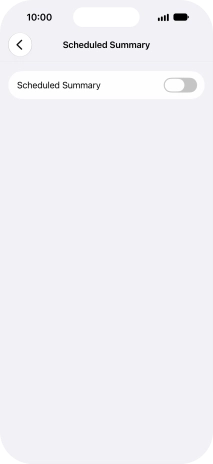
Press Scheduled Summary.

Press the indicator next to
Step 4 of 33

2. Set notification summary

Press the indicator next to "Scheduled Summary" to turn on the function and follow the instructions on the screen to set the notification summary.

You can set your phone to give you a personalised notification summary at a time of your choosing.
Press arrow left.
Step 5 of 33

2. Set notification summary

Press arrow left.

Press Show Previews.
Step 6 of 33

3. Select setting for notification preview

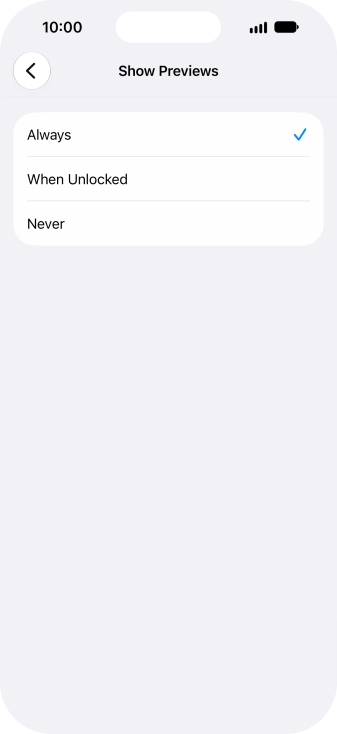
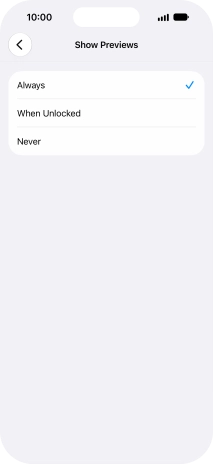
Press Show Previews.

To select notification preview on the lock screen, press Always.
Step 7 of 33

3. Select setting for notification preview

To select notification preview on the lock screen, press Always.

To select notification preview only when your phone is unlocked, press When Unlocked.
Step 8 of 33

3. Select setting for notification preview

To select notification preview only when your phone is unlocked, press When Unlocked.

To turn off notification preview, press Never.
Step 9 of 33

3. Select setting for notification preview

To turn off notification preview, press Never.

Press arrow left.
Step 10 of 33

3. Select setting for notification preview

Press arrow left.

Press Screen Sharing.
Step 11 of 33

4. Turn notifications during screen sharing on or off

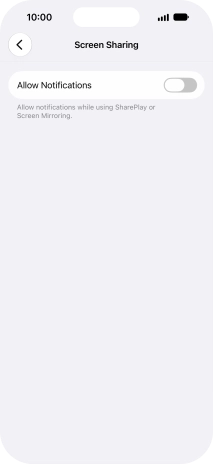
Press Screen Sharing.

Press the indicator next to
Step 12 of 33

4. Turn notifications during screen sharing on or off

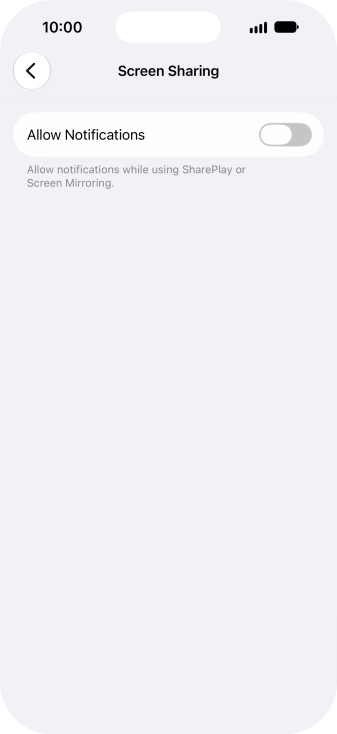
Press the indicator next to "Allow Notifications" to turn the function on or off.

You can turn display of notifications when using SharePlay or Screen Mirroring on or off.
Press arrow left.
Step 13 of 33

4. Turn notifications during screen sharing on or off

Press arrow left.

Press Prioritise Notifications.
Step 14 of 33

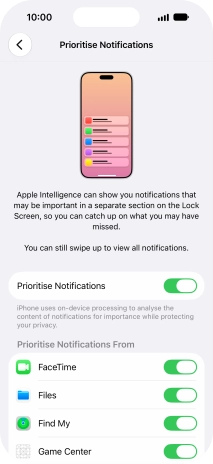
5. Turn prioritised notifications on or off

Press Prioritise Notifications.

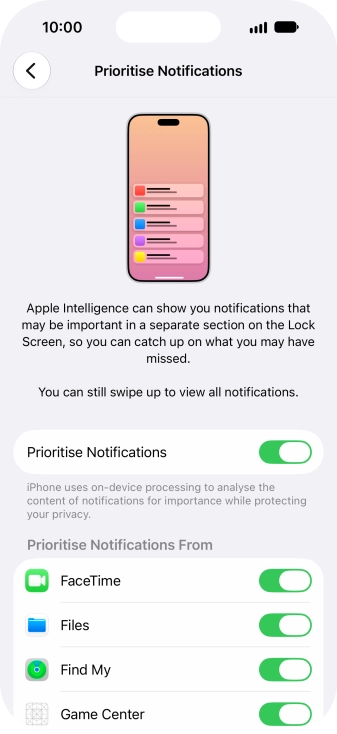
You can use Apple Intelligence to prioritise important and time-sensitive notifications. High priority notifications appear at the top of the notification list.
Press the indicator next to
Step 15 of 33

5. Turn prioritised notifications on or off

Press the indicator next to "Prioritise Notifications" to turn the function on or off.

If you turn on the function, follow the instructions on the screen to select more settings.
Step 16 of 33

5. Turn prioritised notifications on or off

If you turn on the function, follow the instructions on the screen to select more settings.

Press arrow left.
Step 17 of 33

5. Turn prioritised notifications on or off

Press arrow left.

Press Summarise Notifications.
Step 18 of 33

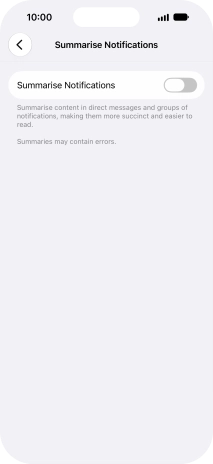
6. Turn notification summaries on or off

Press Summarise Notifications.

You can use Apple Intelligence to summarise notifications so you can quickly see the information that is most important to you.
Press the indicator next to
Step 19 of 33

6. Turn notification summaries on or off

Press the indicator next to "Summarise Notifications" to turn the function on or off.

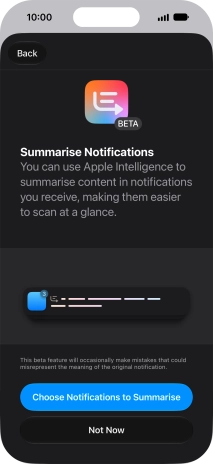
If you turn on the function, follow the instructions on the screen to select more settings.
Step 20 of 33

6. Turn notification summaries on or off

If you turn on the function, follow the instructions on the screen to select more settings.

Press arrow left.
Step 21 of 33

6. Turn notification summaries on or off

Press arrow left.

Press Suggestion Notifications.
Step 22 of 33

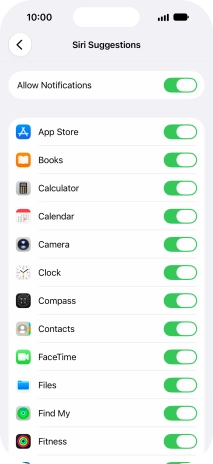
7. Turn Siri suggestions on or off

Press Suggestion Notifications.

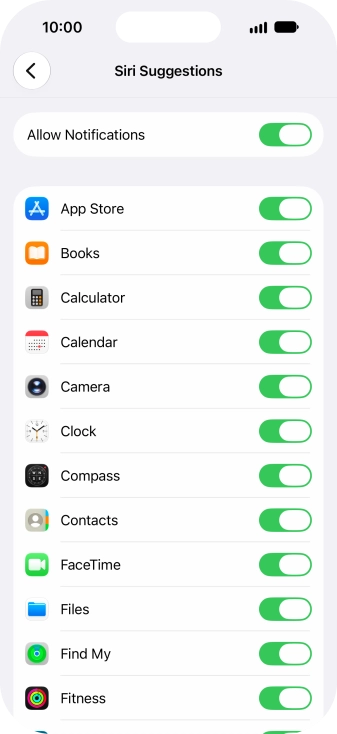
You can use Siri to suggest actions across different apps.
Press the indicator next to
Step 23 of 33

7. Turn Siri suggestions on or off

Press the indicator next to "Allow Notifications" to turn the function on or off.

Press the indicators next to the required applications to turn Siri suggestions for each application on or off.
Step 24 of 33

7. Turn Siri suggestions on or off

Press the indicators next to the required applications to turn Siri suggestions for each application on or off.

Press the required application.
Step 25 of 33

8. Turn notifications on or off

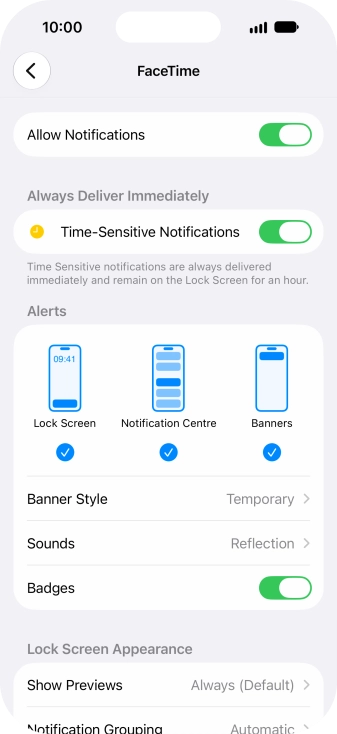
Press the required application.

Press the indicator next to
Step 26 of 33

8. Turn notifications on or off

Press the indicator next to "Allow Notifications" to turn notifications for the selected application on or off.

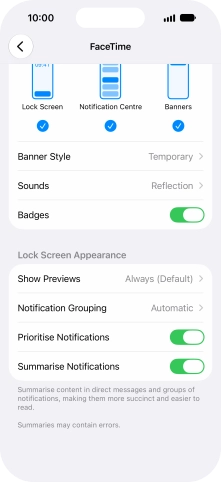
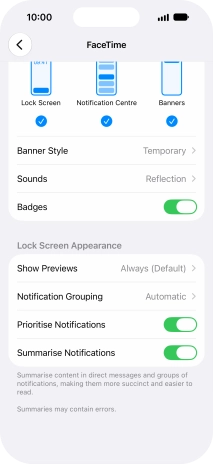
Press Notification Grouping.
Step 27 of 33

9. Turn grouping of notifications on or off

Press Notification Grouping.

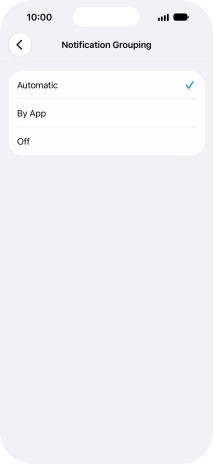
This function enables you to select whether notifications should be grouped or be displayed individually.
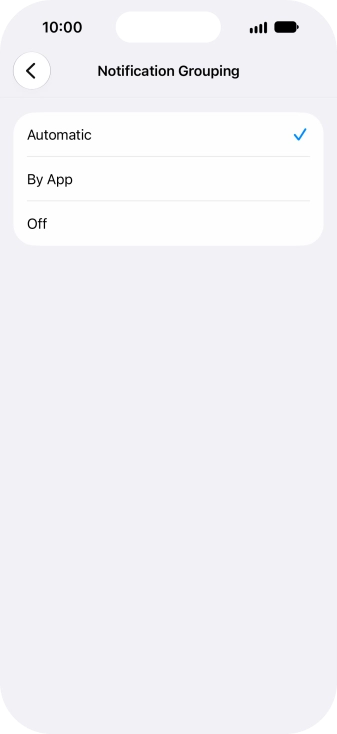
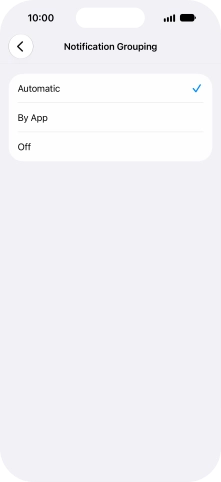
Press the required setting.
Step 28 of 33

9. Turn grouping of notifications on or off

Press the required setting.

Press arrow left.
Step 29 of 33

9. Turn grouping of notifications on or off

Press arrow left.

Slide your finger upwards starting from the bottom of the screen to return to the home screen.
Step 30 of 33

10. Return to the home screen

Slide your finger upwards starting from the bottom of the screen to return to the home screen.

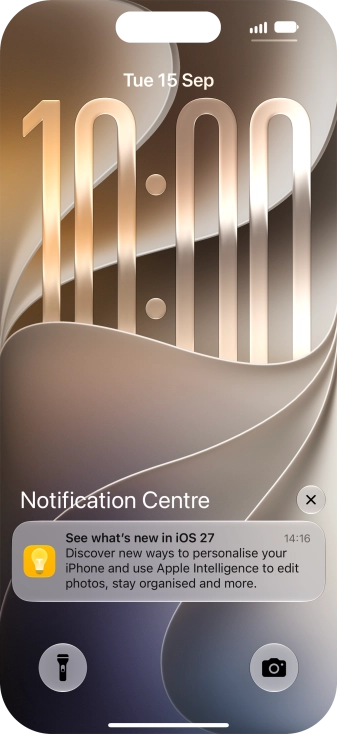
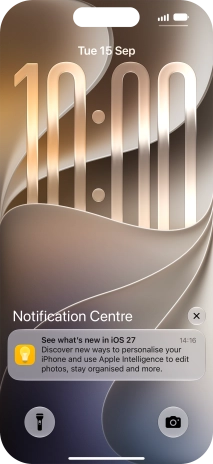
Slide your finger downwards starting from the top of the screen.
Step 31 of 33

11. Use notifications

Slide your finger downwards starting from the top of the screen.

Press the required notification and follow the instructions on the screen to use the selected function.
Step 32 of 33

11. Use notifications

Press the required notification and follow the instructions on the screen to use the selected function.

Slide your finger upwards starting from the bottom of the screen to return to the home screen.
Step 33 of 33

12. Return to the home screen

Slide your finger upwards starting from the bottom of the screen to return to the home screen.

1. Find "Notifications"

Press Settings.
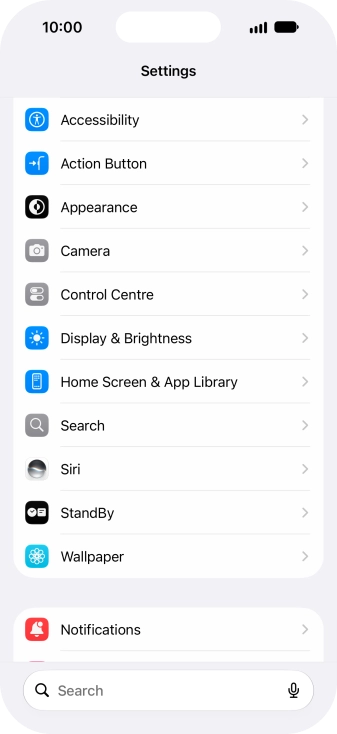
Press Notifications.

2. Set notification summary

Press Scheduled Summary.
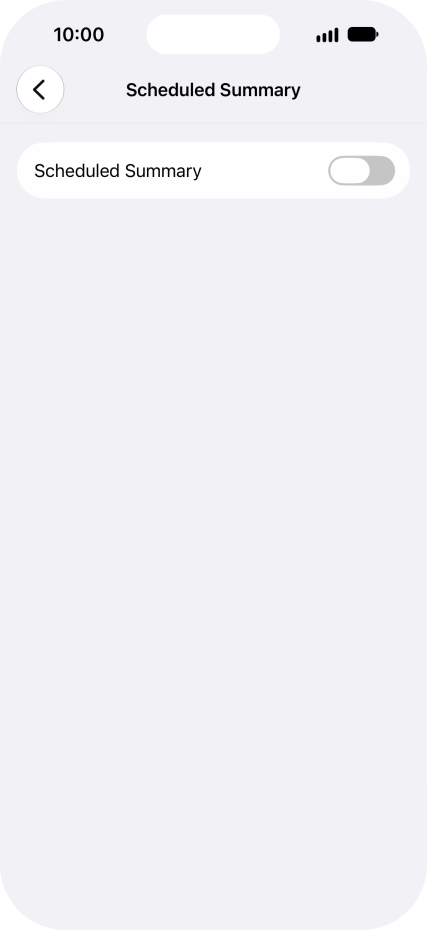
Press the indicator next to "Scheduled Summary" to turn on the function and follow the instructions on the screen to set the notification summary.
You can set your phone to give you a personalised notification summary at a time of your choosing.
Press arrow left.

3. Select setting for notification preview

Press Show Previews.
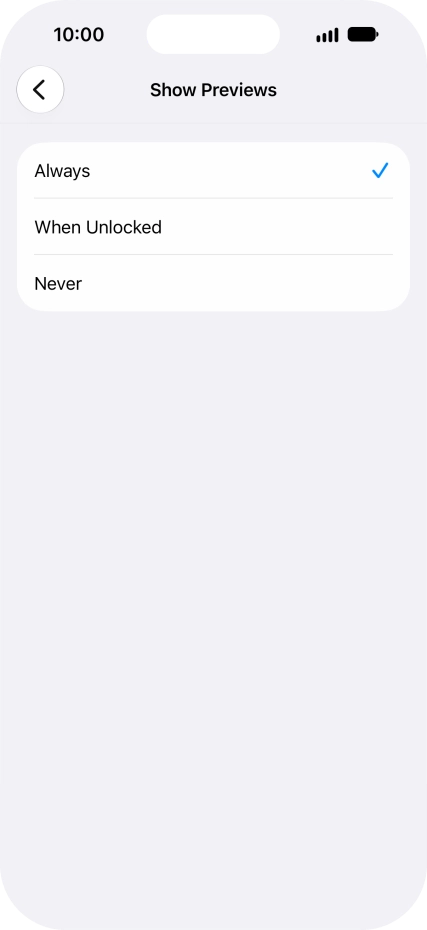
To select notification preview on the lock screen, press Always.
To select notification preview only when your phone is unlocked, press When Unlocked.
To turn off notification preview, press Never.
Press arrow left.

4. Turn notifications during screen sharing on or off

Press Screen Sharing.
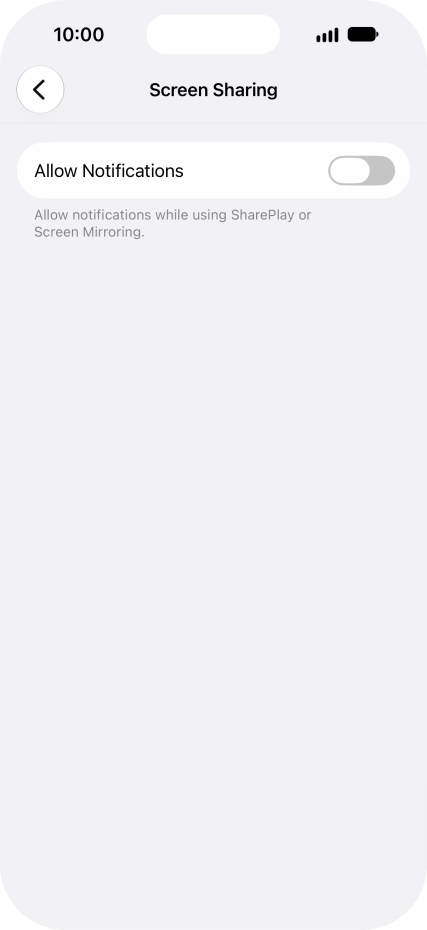
Press the indicator next to "Allow Notifications" to turn the function on or off.
You can turn display of notifications when using SharePlay or Screen Mirroring on or off.
Press arrow left.

5. Turn prioritised notifications on or off

Press Prioritise Notifications.
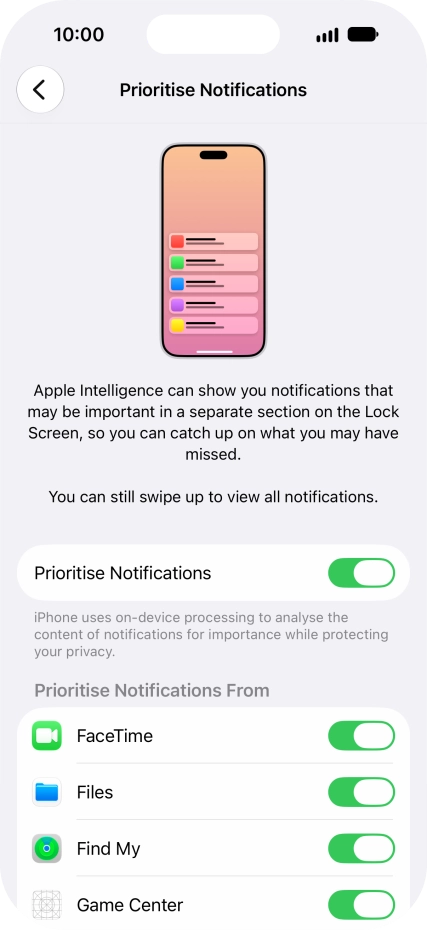
You can use Apple Intelligence to prioritise important and time-sensitive notifications. High priority notifications appear at the top of the notification list.
Press the indicator next to "Prioritise Notifications" to turn the function on or off.
If you turn on the function, follow the instructions on the screen to select more settings.
Press arrow left.

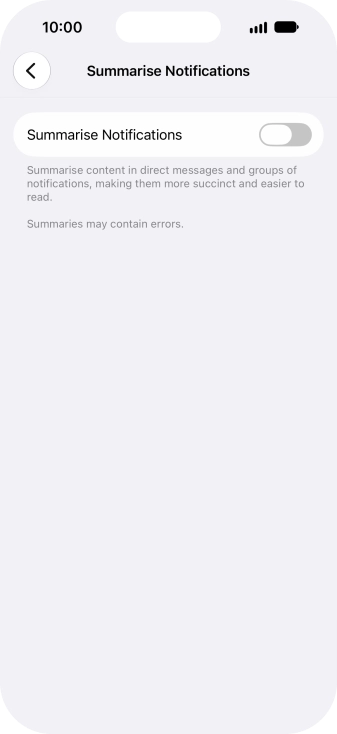
6. Turn notification summaries on or off

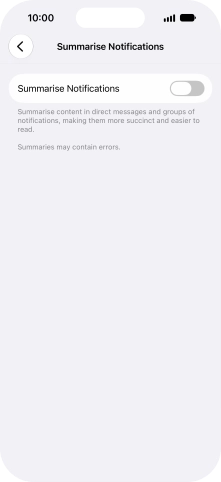
Press Summarise Notifications.
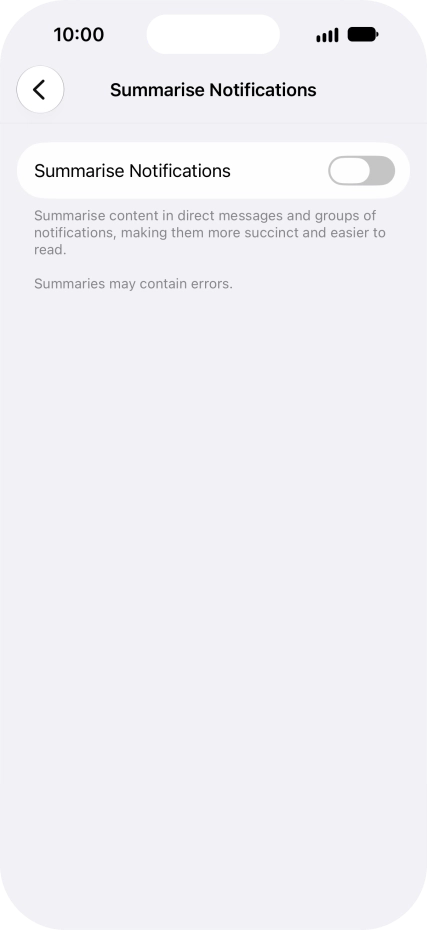
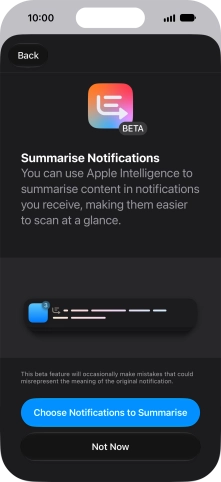
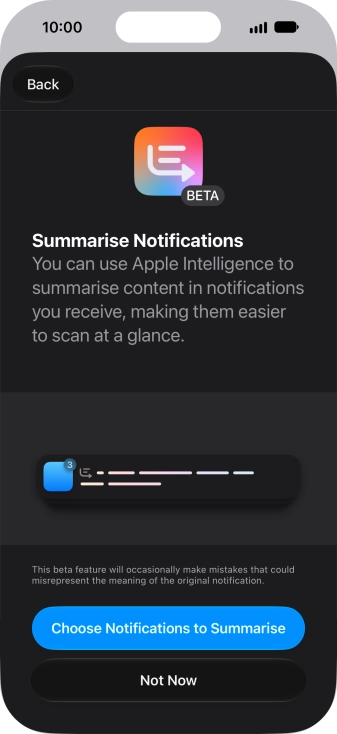
You can use Apple Intelligence to summarise notifications so you can quickly see the information that is most important to you.
Press the indicator next to "Summarise Notifications" to turn the function on or off.
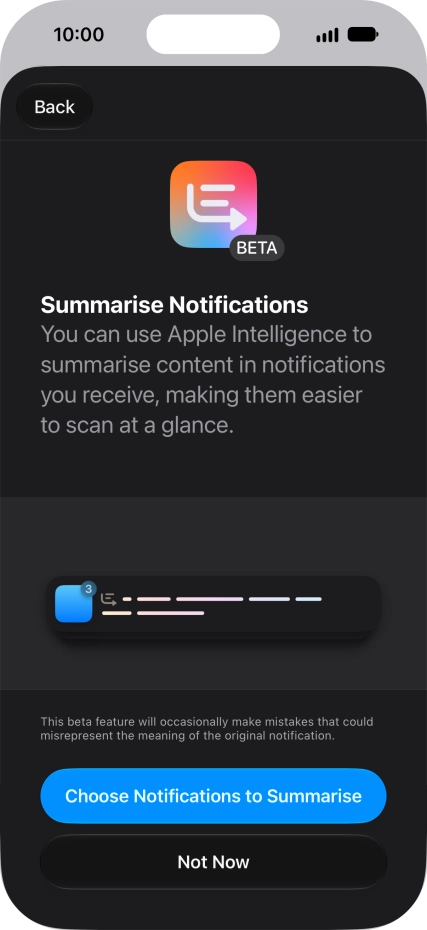
If you turn on the function, follow the instructions on the screen to select more settings.
Press arrow left.

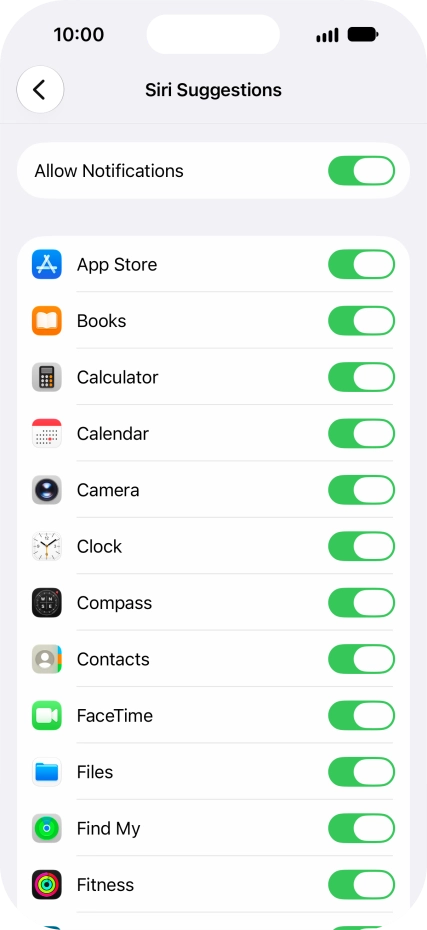
7. Turn Siri suggestions on or off

Press Suggestion Notifications.
You can use Siri to suggest actions across different apps.
Press the indicator next to "Allow Notifications" to turn the function on or off.
Press the indicators next to the required applications to turn Siri suggestions for each application on or off.

8. Turn notifications on or off

Press the required application.
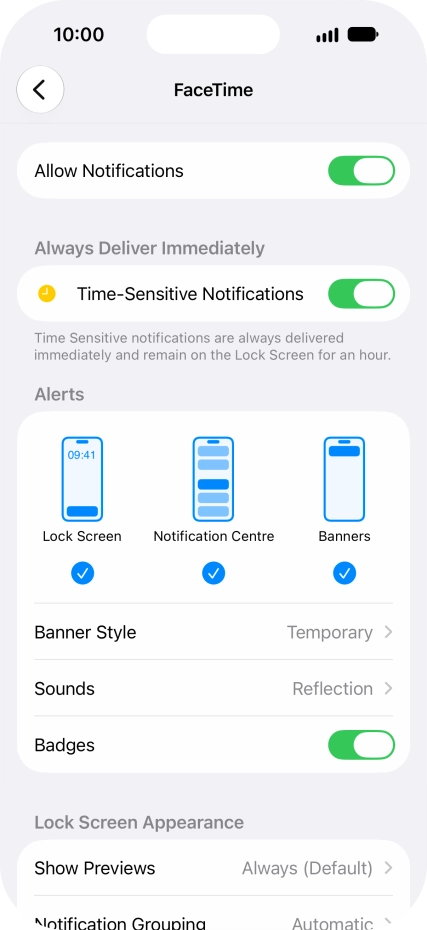
Press the indicator next to "Allow Notifications" to turn notifications for the selected application on or off.
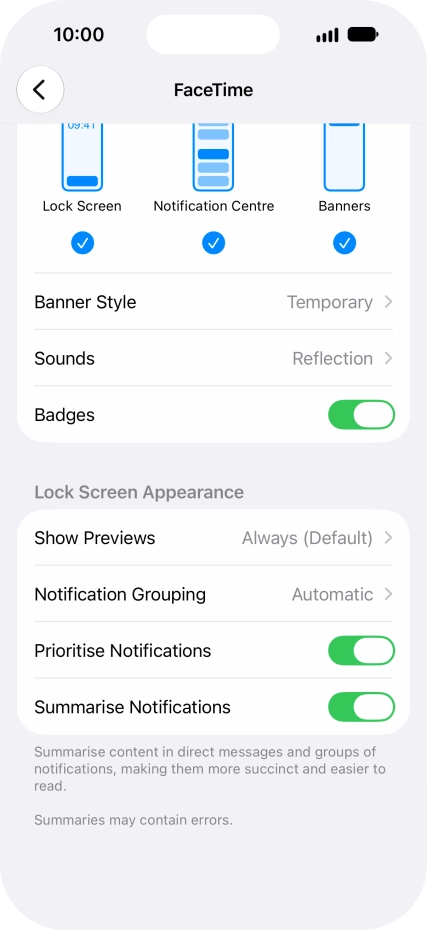
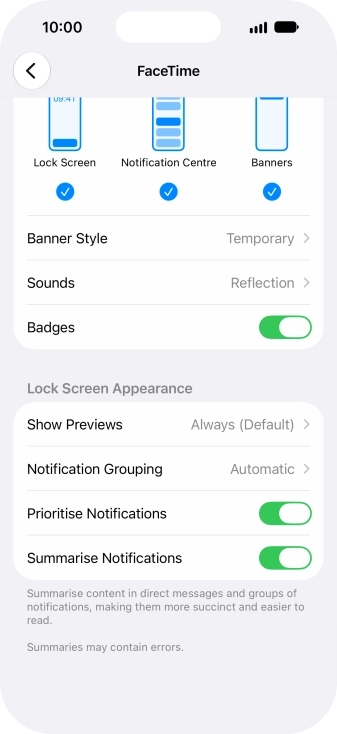
9. Turn grouping of notifications on or off

Press Notification Grouping.
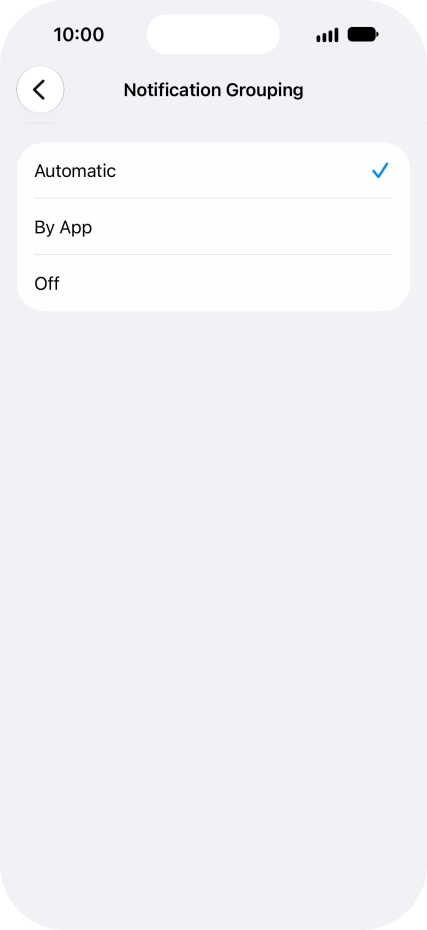
This function enables you to select whether notifications should be grouped or be displayed individually.
Press the required setting.
Press arrow left.

10. Return to the home screen

Slide your finger upwards starting from the bottom of the screen to return to the home screen.

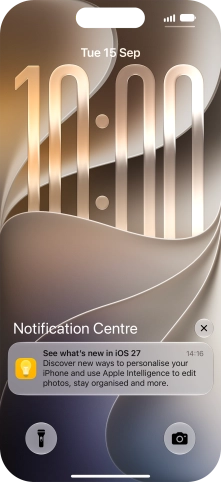
11. Use notifications

Slide your finger downwards starting from the top of the screen.
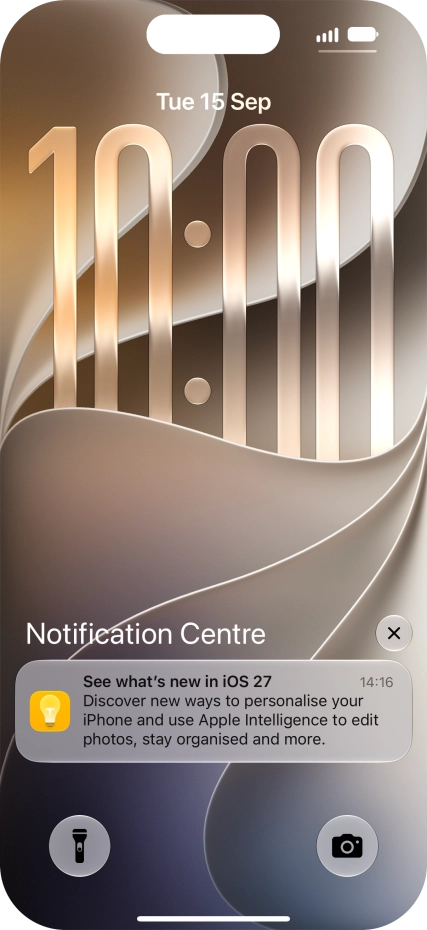
Press the required notification and follow the instructions on the screen to use the selected function.
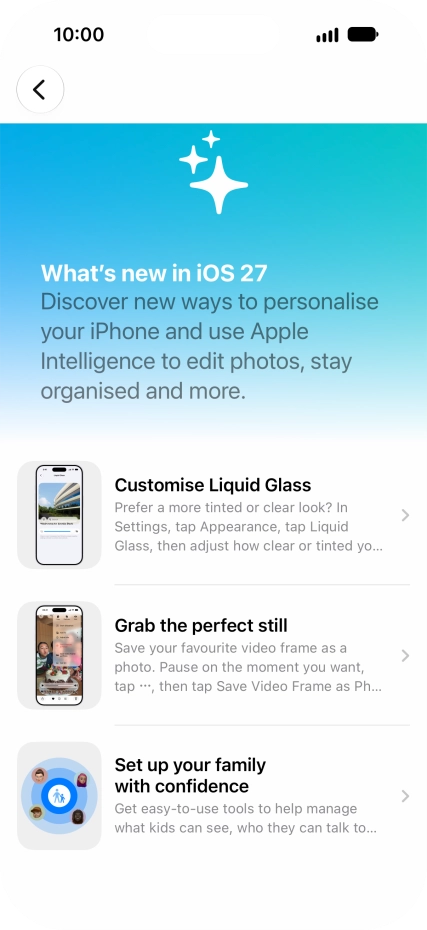
12. Return to the home screen

Slide your finger upwards starting from the bottom of the screen to return to the home screen.

Thank you for your evaluation!

Get information on...

Or select...

Another device