Apple iPhone 17 Pro

Apple iPhone 17 Pro

iOS 27

Select FaceTime settings on your Apple iPhone 17 Pro iOS 27

Read help info

You can make a video call to another device which supports FaceTime. To select settings for FaceTime, you need to activate your Apple Account on your phone.

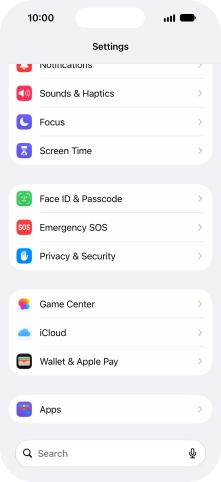
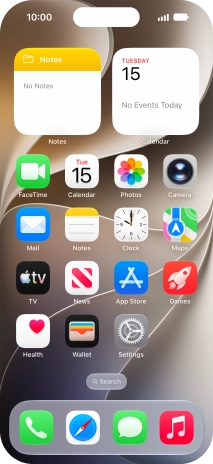
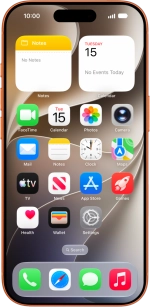
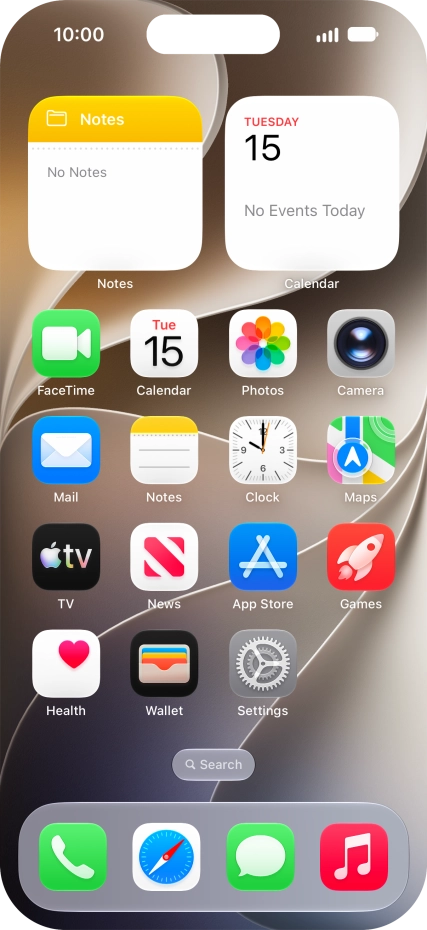
Press Settings.
Step 1 of 22

1. Find "FaceTime"

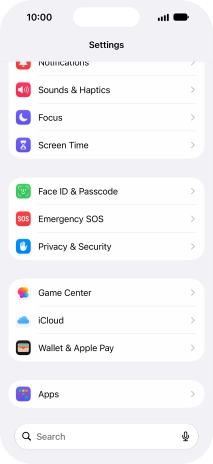
Press Settings.
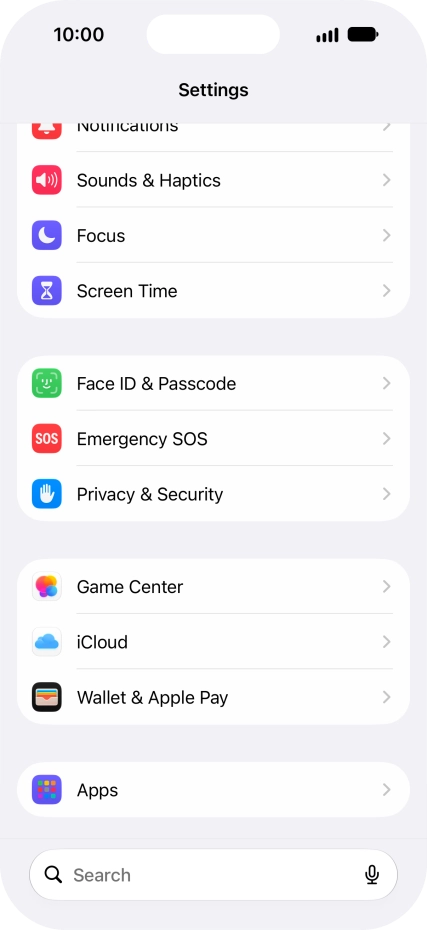
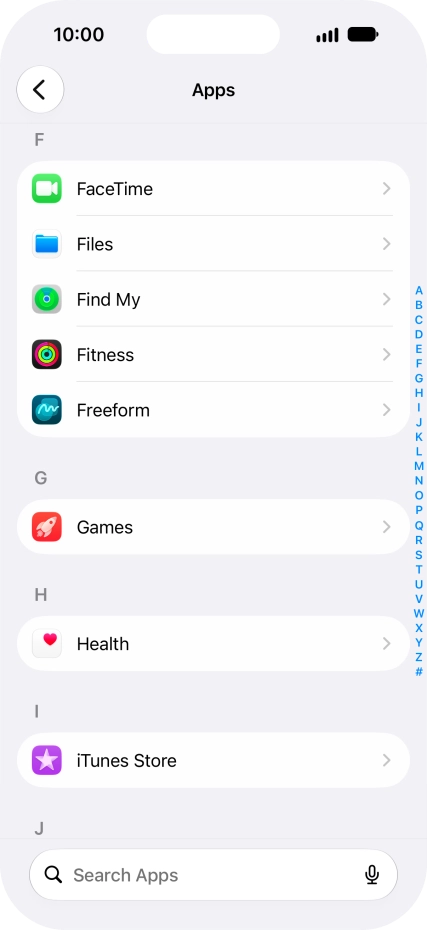
Press Apps.
Step 2 of 22

1. Find "FaceTime"

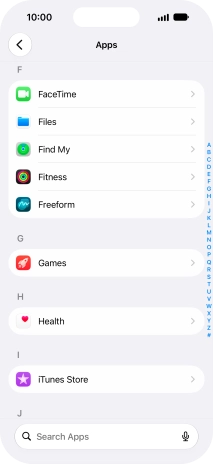
Press Apps.

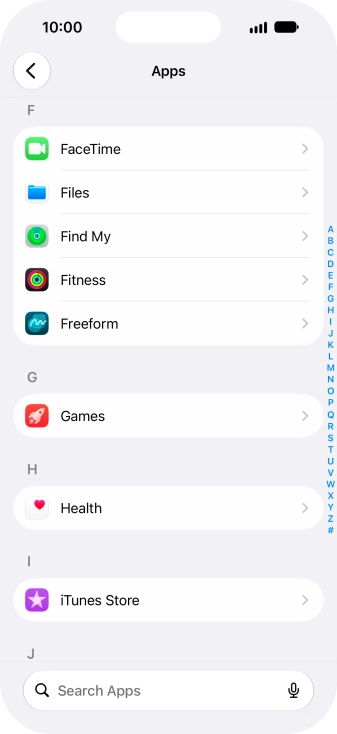
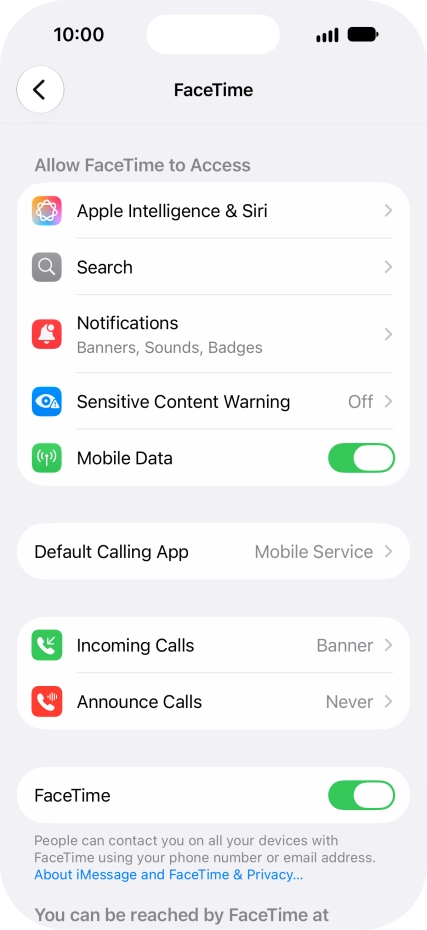
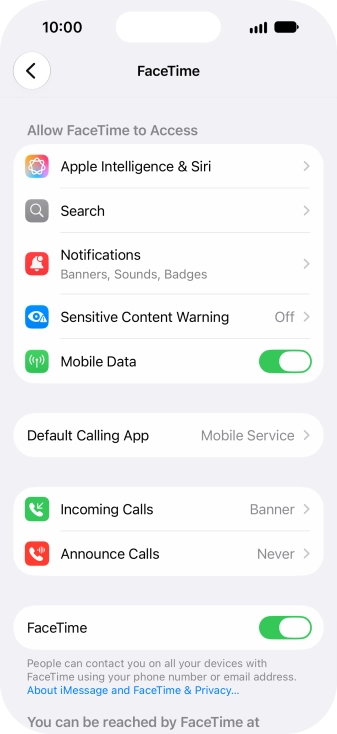
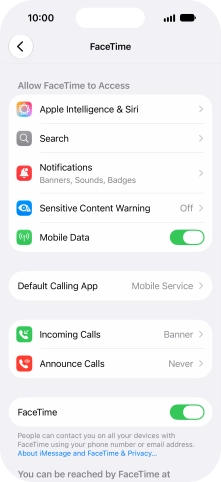
Press FaceTime.
Step 3 of 22

1. Find "FaceTime"

Press FaceTime.

Press the indicator next to
Step 4 of 22

2. Turn FaceTime on or off

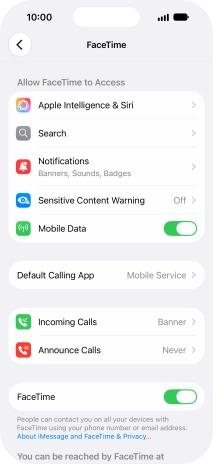
Press the indicator next to "FaceTime" to turn the function on or off.

Press the required setting below
Step 5 of 22

3. Select FaceTime permissions

Press the required setting below "Allow FaceTime to Access" and follow the instructions on the screen to allow access for specific apps and functions.

Press the required setting below
Step 6 of 22

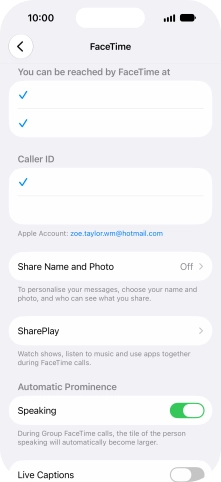
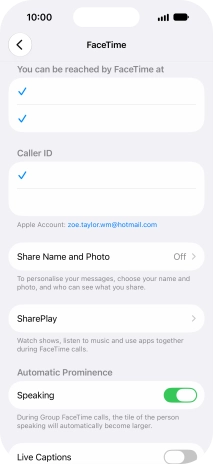
4. Select setting for how you would like to be contacted by others

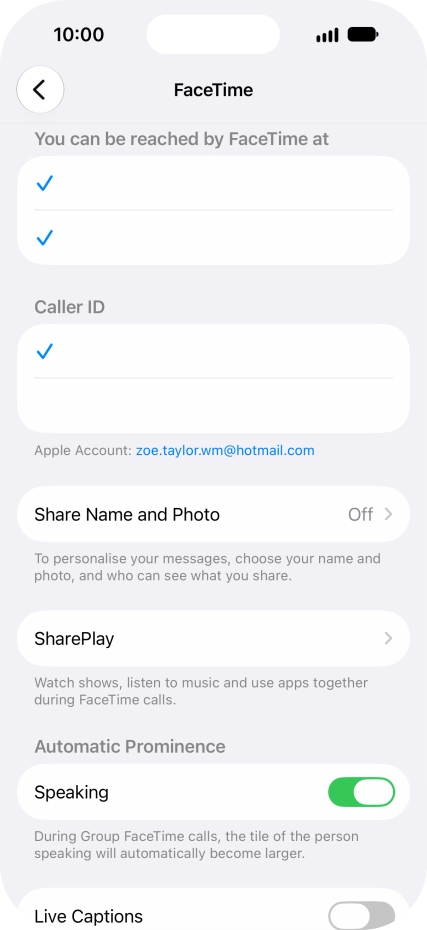
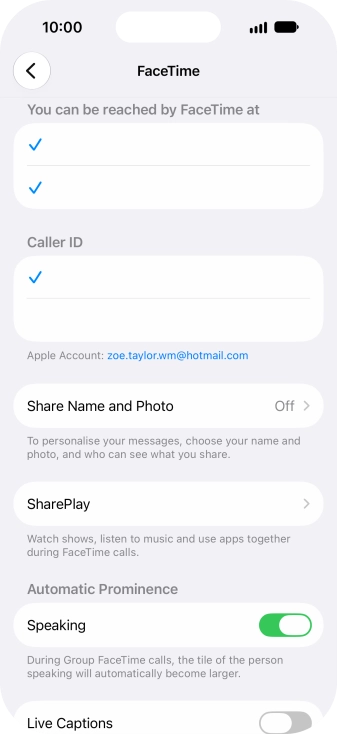
Press the required setting below "You can be reached by FaceTime at".

You can select the email addresses and phone numbers others can use to contact you using FaceTime.
Press the required setting below
Step 7 of 22

5. Select caller ID

Press the required setting below "Caller ID".

You can select which phone number or email address to be displayed when you call others using FaceTime.
Press SharePlay.
Step 8 of 22

6. Turn SharePlay on or off

Press SharePlay.

Using SharePlay, you can share your screen, watch films and listen to music with others during a FaceTime call.
Press the indicator next to
Step 9 of 22

6. Turn SharePlay on or off

Press the indicator next to "SharePlay" to turn the function on or off.

Press arrow left.
Step 10 of 22

6. Turn SharePlay on or off

Press arrow left.

Press the indicator next to
Step 11 of 22

7. Turn display of big picture of speaker on or off

Press the indicator next to "Speaking" to turn the function on or off.

You can set FaceTime to display a big picture of the person currently speaking.
Press the indicator next to
Step 12 of 22

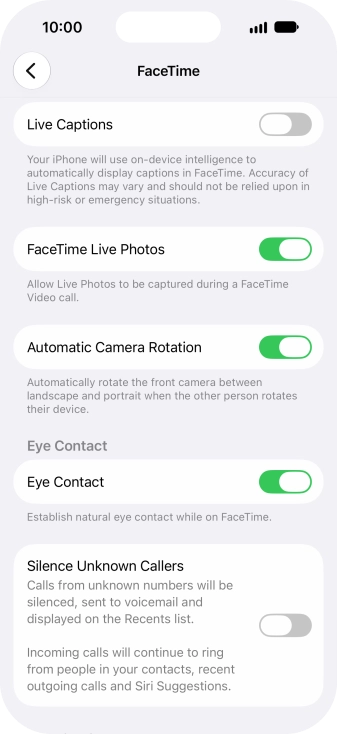
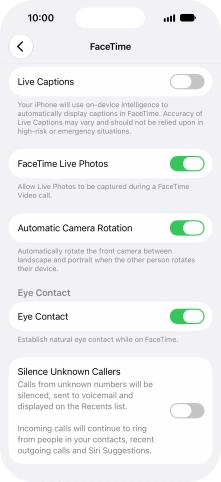
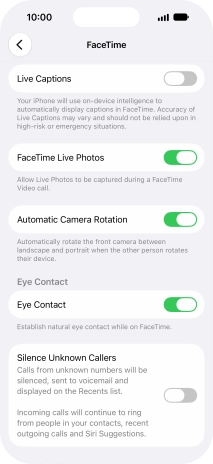
8. Turn Live Captions on or off

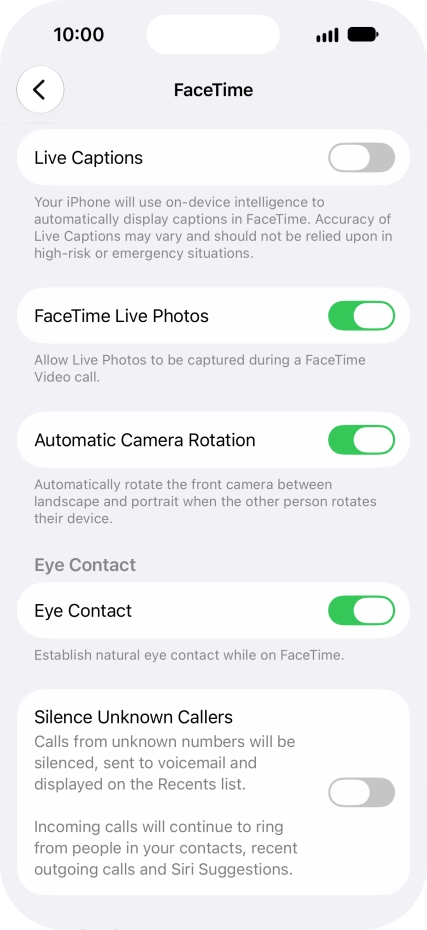
Press the indicator next to "Live Captions" to turn the function on or off.

You can set your phone to generate captions during a FaceTime call.
Press the indicator next to
Step 13 of 22

9. Turn FaceTime Live Photos on or off

Press the indicator next to "FaceTime Live Photos" to turn the function on or off.

With Live Photos, the camera takes a series of pictures of the conversation within a number of seconds allowing you to save an animated version of the screen.
Press the indicator next to
Step 14 of 22

10. Turn eye contact during conversation on or off

Press the indicator next to "Eye Contact" to turn the function on or off.

You can set FaceTime to establish natural eye contact during the conversation when you look at the screen instead of the camera.
Press the indicator next to
Step 15 of 22

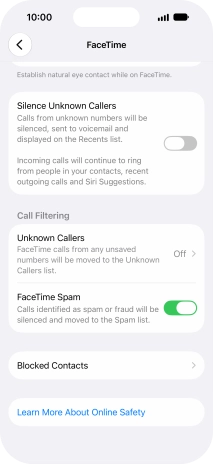
11. Block or unblock unknown callers

Press the indicator next to "Silence Unknown Callers" to turn the function on or off.

You can set your phone to ignore calls from people not saved in your address book.
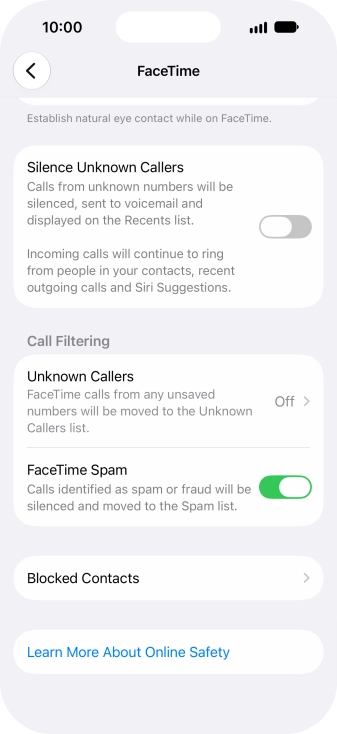
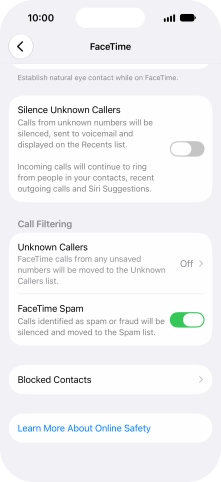
Press Unknown Callers.
Step 16 of 22

12. Filter calls from unknown numbers

Press Unknown Callers.

Press the required setting to turn the function on or off.
Step 17 of 22

12. Filter calls from unknown numbers

Press the required setting to turn the function on or off.

Press arrow left.
Step 18 of 22

12. Filter calls from unknown numbers

Press arrow left.

Press the indicator next to
Step 19 of 22

13. Turn filtering of spam calls on or off

Press the indicator next to "FaceTime Spam" to turn the function on or off.

Press Blocked Contacts.
Step 20 of 22

14. Block contact

Press Blocked Contacts.

Press Add Blocked Contact and follow the instructions on the screen to block a contact.
Step 21 of 22

14. Block contact

Press Add Blocked Contact and follow the instructions on the screen to block a contact.

If you don't want to receive FaceTime calls from certain contacts, you can block them.
Slide your finger upwards starting from the bottom of the screen to return to the home screen.
Step 22 of 22

15. Return to the home screen

Slide your finger upwards starting from the bottom of the screen to return to the home screen.

1. Find "FaceTime"

Press Settings.
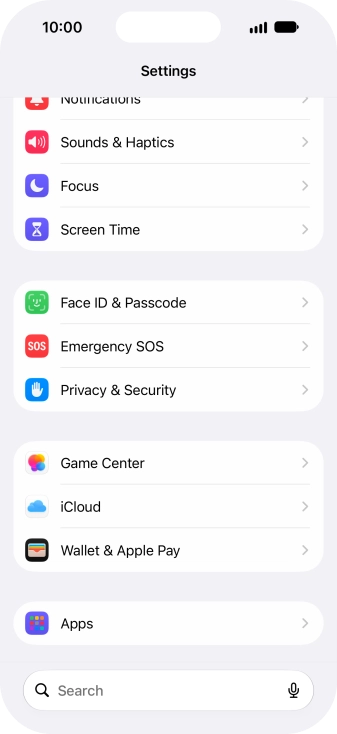
Press Apps.
Press FaceTime.

2. Turn FaceTime on or off

Press the indicator next to "FaceTime" to turn the function on or off.

3. Select FaceTime permissions

Press the required setting below "Allow FaceTime to Access" and follow the instructions on the screen to allow access for specific apps and functions.
4. Select setting for how you would like to be contacted by others

Press the required setting below "You can be reached by FaceTime at".
You can select the email addresses and phone numbers others can use to contact you using FaceTime.

5. Select caller ID

Press the required setting below "Caller ID".
You can select which phone number or email address to be displayed when you call others using FaceTime.

6. Turn SharePlay on or off

Press SharePlay.

Using SharePlay, you can share your screen, watch films and listen to music with others during a FaceTime call.
Press the indicator next to "SharePlay" to turn the function on or off.
Press arrow left.

7. Turn display of big picture of speaker on or off

Press the indicator next to "Speaking" to turn the function on or off.
You can set FaceTime to display a big picture of the person currently speaking.

8. Turn Live Captions on or off

Press the indicator next to "Live Captions" to turn the function on or off.
You can set your phone to generate captions during a FaceTime call.

9. Turn FaceTime Live Photos on or off

Press the indicator next to "FaceTime Live Photos" to turn the function on or off.
With Live Photos, the camera takes a series of pictures of the conversation within a number of seconds allowing you to save an animated version of the screen.

10. Turn eye contact during conversation on or off

Press the indicator next to "Eye Contact" to turn the function on or off.
You can set FaceTime to establish natural eye contact during the conversation when you look at the screen instead of the camera.

11. Block or unblock unknown callers

Press the indicator next to "Silence Unknown Callers" to turn the function on or off.
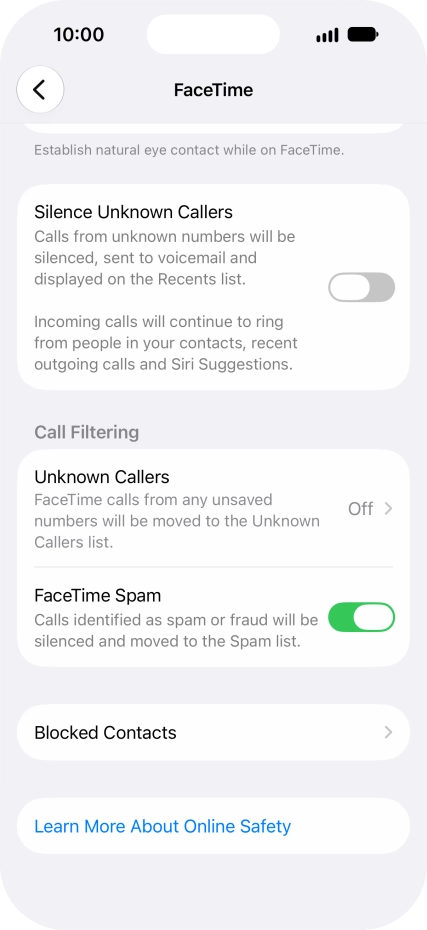
You can set your phone to ignore calls from people not saved in your address book.

12. Filter calls from unknown numbers

Press Unknown Callers.

Press the required setting to turn the function on or off.
Press arrow left.

13. Turn filtering of spam calls on or off

Press the indicator next to "FaceTime Spam" to turn the function on or off.

14. Block contact

Press Blocked Contacts.

Press Add Blocked Contact and follow the instructions on the screen to block a contact.
If you don't want to receive FaceTime calls from certain contacts, you can block them.

15. Return to the home screen

Slide your finger upwards starting from the bottom of the screen to return to the home screen.

Thank you for your evaluation!

Get information on...

Or select...

Another device