Apple iPhone 17 Pro

Apple iPhone 17 Pro

iOS 27

Select Siri AI settings on your Apple iPhone 17 Pro iOS 27

Read help info

You can use Siri AI to answer your questions in an informative way, perform tasks and interact with apps on your phone. To use Siri AI, you need to activate your Apple Account on your phone.

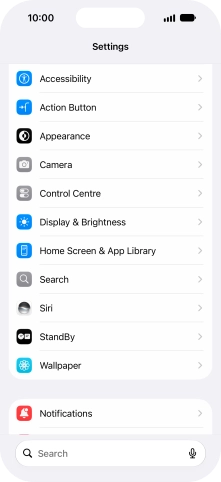
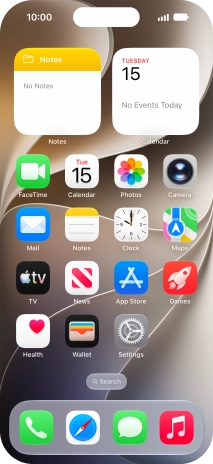
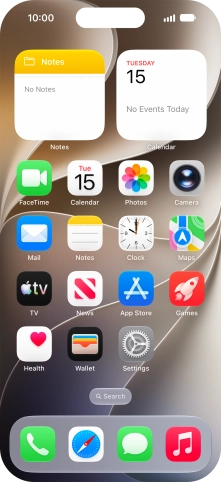
Press Settings.
Step 1 of 17

1. Find "Siri"

Press Settings.
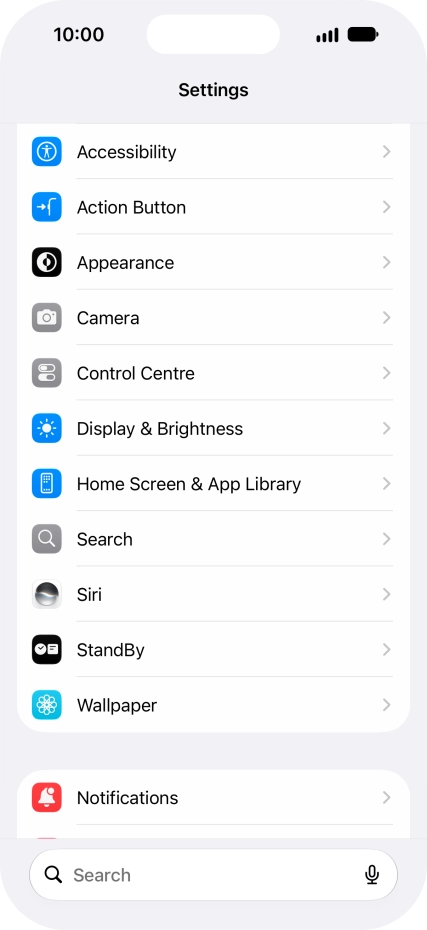
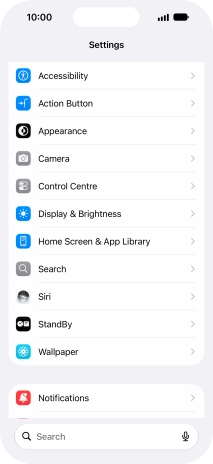
Press Siri.
Step 2 of 17

1. Find "Siri"

Press Siri.

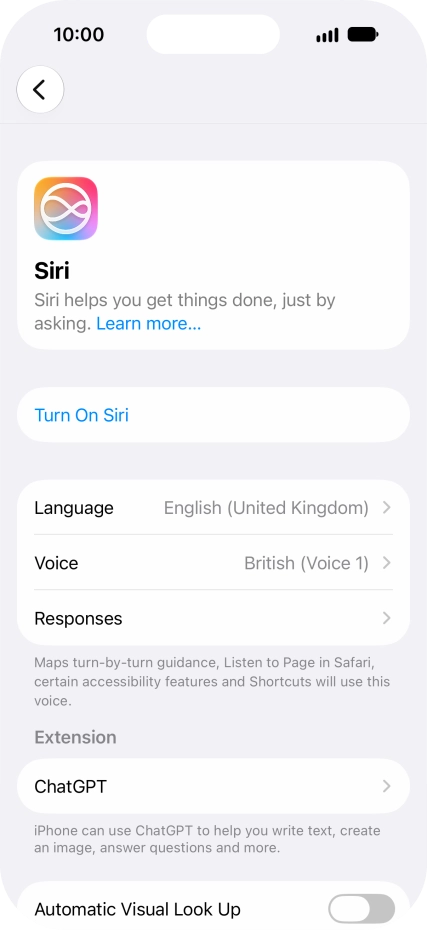
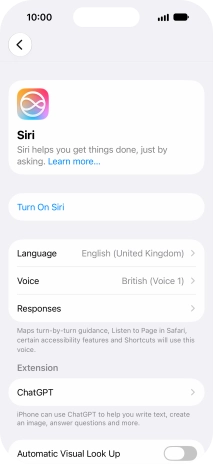
If it's the first time you use Siri AI, press Turn On Siri.
Step 3 of 17

2. Turn on Siri AI

If it's the first time you use Siri AI, press Turn On Siri.

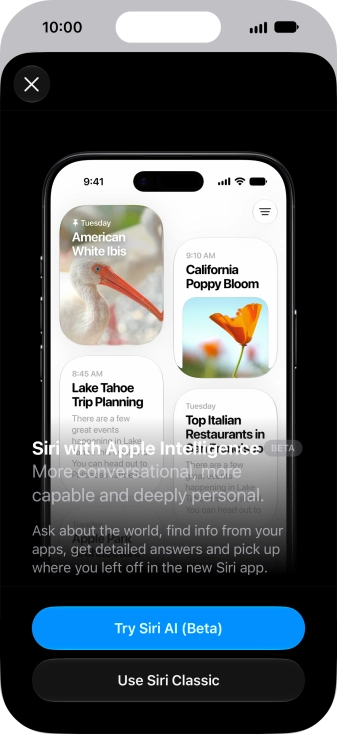
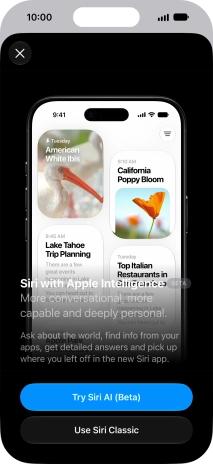
Press Try Siri AI and follow the instructions on the screen to turn on the function.
Step 4 of 17

2. Turn on Siri AI

Press Try Siri AI and follow the instructions on the screen to turn on the function.

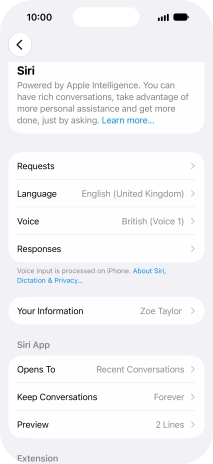
Press Requests.
Step 5 of 17

3. Turn automatic activation of Siri on or off

Press Requests.

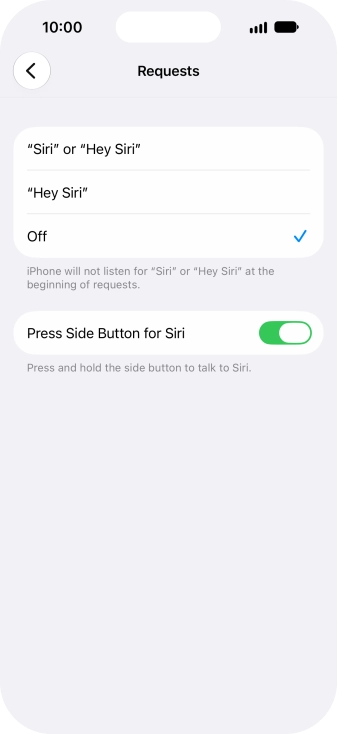
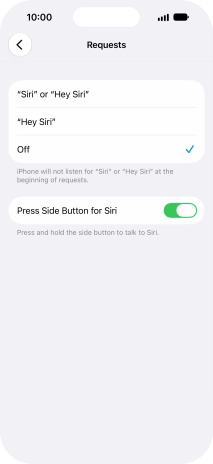
Press the required setting to turn the function on or off. If you turn on the function, you need to follow the instructions on the screen to set up Siri to recognise your voice.
Step 6 of 17

3. Turn automatic activation of Siri on or off

Press the required setting to turn the function on or off. If you turn on the function, you need to follow the instructions on the screen to set up Siri to recognise your voice.

Press the indicator next to
Step 7 of 17

3. Turn automatic activation of Siri on or off

Press the indicator next to "Press Side Button for Siri" to turn activation using the Side button on or off.

Press arrow left.
Step 8 of 17

3. Turn automatic activation of Siri on or off

Press arrow left.

Press Language and follow the instructions on the screen to select the required language.
Step 9 of 17

4. Select language

Press Language and follow the instructions on the screen to select the required language.

Press Voice and follow the instructions on the screen to select the required accent and voice.
Step 10 of 17

5. Select accent and voice

Press Voice and follow the instructions on the screen to select the required accent and voice.

Press Responses and follow the instructions on the screen to select the required settings.
Step 11 of 17

6. Turn voice feedback on or off

Press Responses and follow the instructions on the screen to select the required settings.

Press Your Information.
Step 12 of 17

7. Select phone owner

Press Your Information.

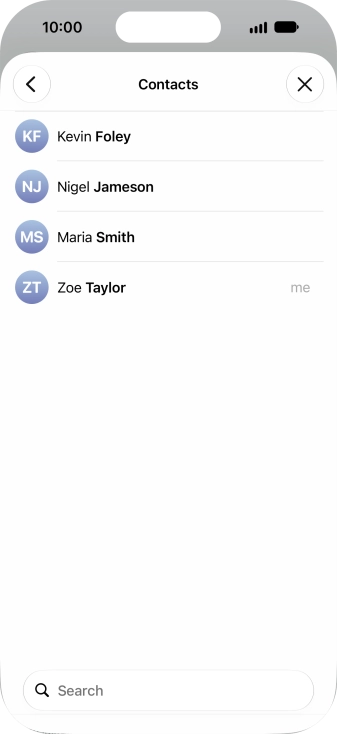
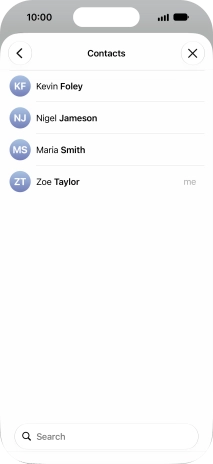
Press the required contact.
Step 13 of 17

7. Select phone owner

Press the required contact.

When you select yourself as the owner of the phone, your phone uses your information for different voice control functions such as navigation to your home address. Before you can select yourself as the owner of the phone, you need to create yourself as a contact in the address book.
Press the required category below
Step 14 of 17

8. Select settings for Siri AI app

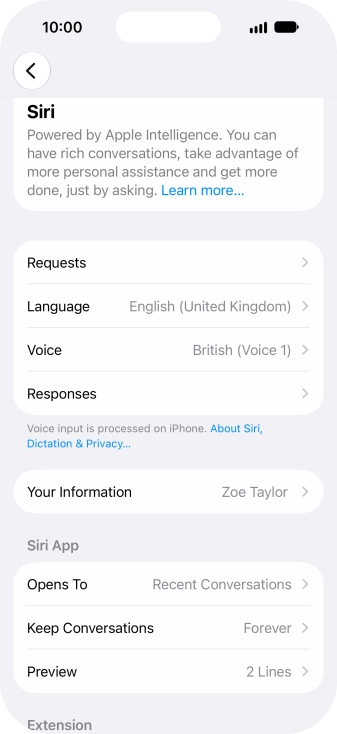
Press the required category below "Siri App" and follow the instructions on the screen to select the required settings.

You can select different settings for the Siri AI app, e.g., for viewing and storing conversations.
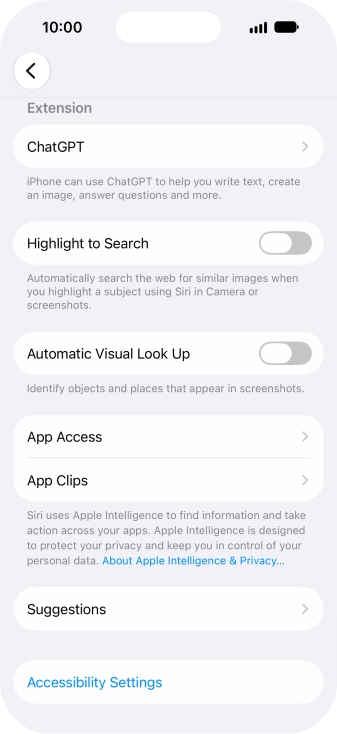
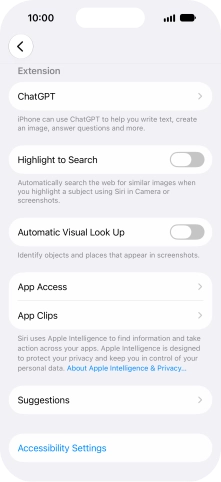
Press ChatGPT and follow the instructions on the screen to turn use of ChatGPT on or off.
Step 15 of 17

9. Turn use of ChatGPT on or off

Press ChatGPT and follow the instructions on the screen to turn use of ChatGPT on or off.

Follow the instructions on the screen to select more settings for Siri AI.
Step 16 of 17

10. Select more settings

Follow the instructions on the screen to select more settings for Siri AI.

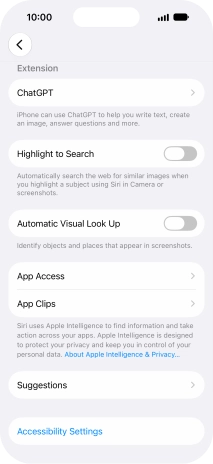
You can select more settings for Siri AI, e.g., automatic identification of objects and information retrieval from pictures, as well as receiving suggestions for actions across different apps.
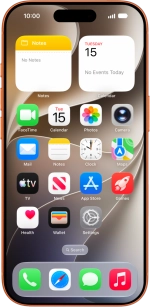
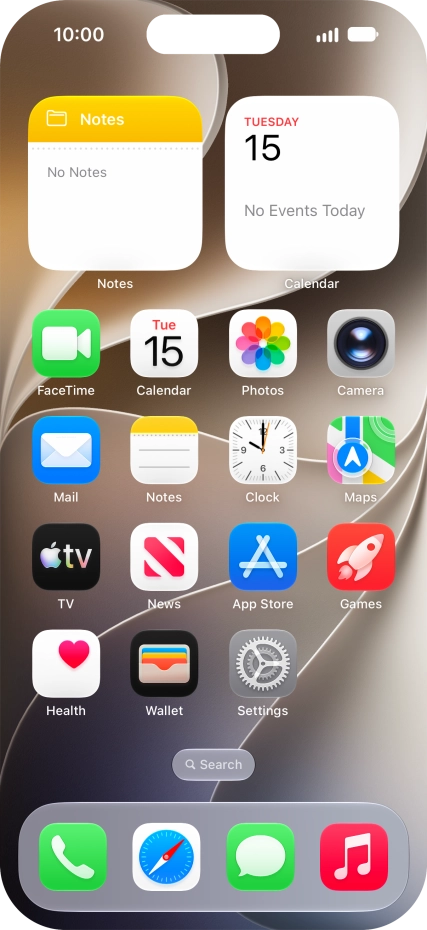
Slide your finger upwards starting from the bottom of the screen to return to the home screen.
Step 17 of 17

11. Return to the home screen

Slide your finger upwards starting from the bottom of the screen to return to the home screen.

1. Find "Siri"

Press Settings.
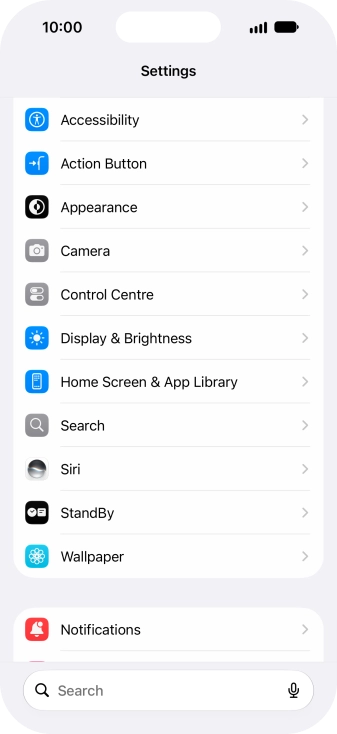
Press Siri.

2. Turn on Siri AI

If it's the first time you use Siri AI, press Turn On Siri.
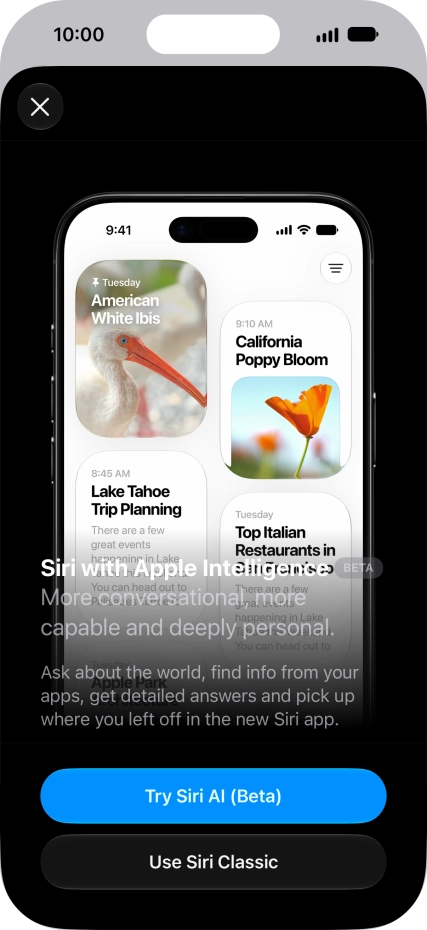
Press Try Siri AI and follow the instructions on the screen to turn on the function.
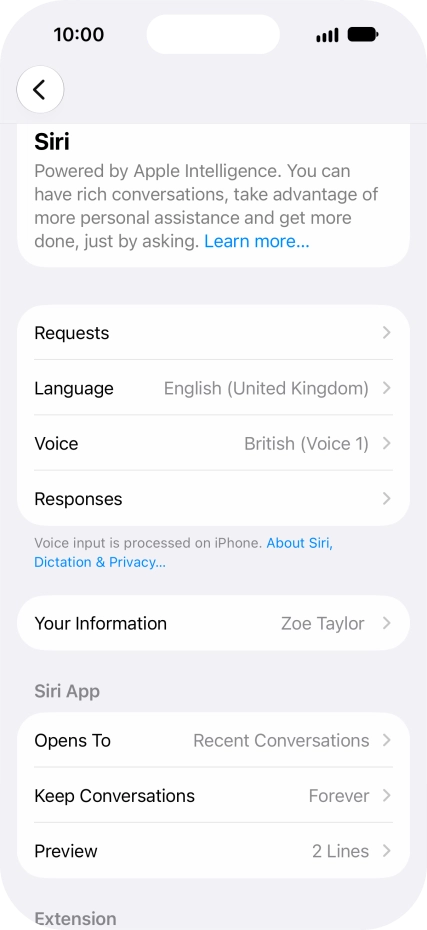
3. Turn automatic activation of Siri on or off

Press Requests.
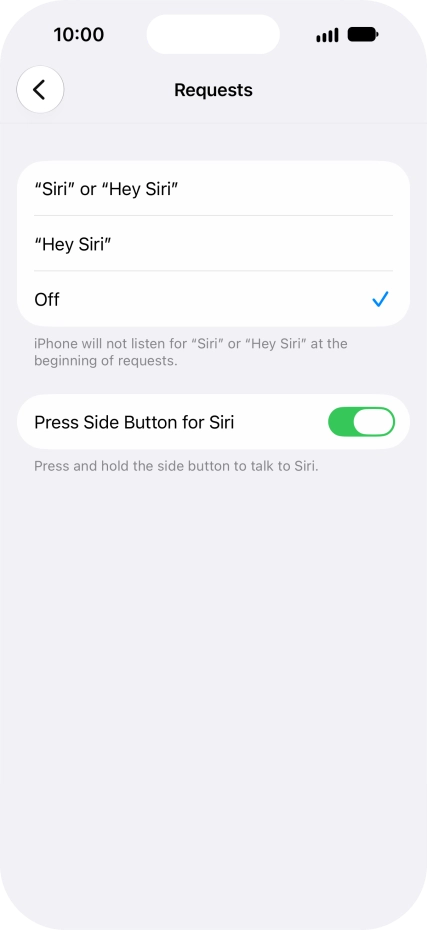
Press the required setting to turn the function on or off. If you turn on the function, you need to follow the instructions on the screen to set up Siri to recognise your voice.
Press the indicator next to "Press Side Button for Siri" to turn activation using the Side button on or off.
Press arrow left.

4. Select language

Press Language and follow the instructions on the screen to select the required language.

5. Select accent and voice

Press Voice and follow the instructions on the screen to select the required accent and voice.

6. Turn voice feedback on or off

Press Responses and follow the instructions on the screen to select the required settings.

7. Select phone owner

Press Your Information.
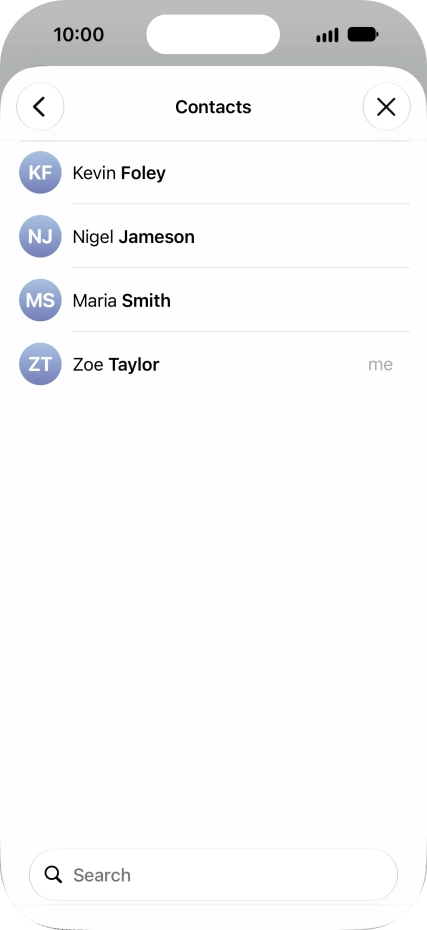
Press the required contact.
When you select yourself as the owner of the phone, your phone uses your information for different voice control functions such as navigation to your home address. Before you can select yourself as the owner of the phone, you need to create yourself as a contact in the address book.

8. Select settings for Siri AI app

Press the required category below "Siri App" and follow the instructions on the screen to select the required settings.
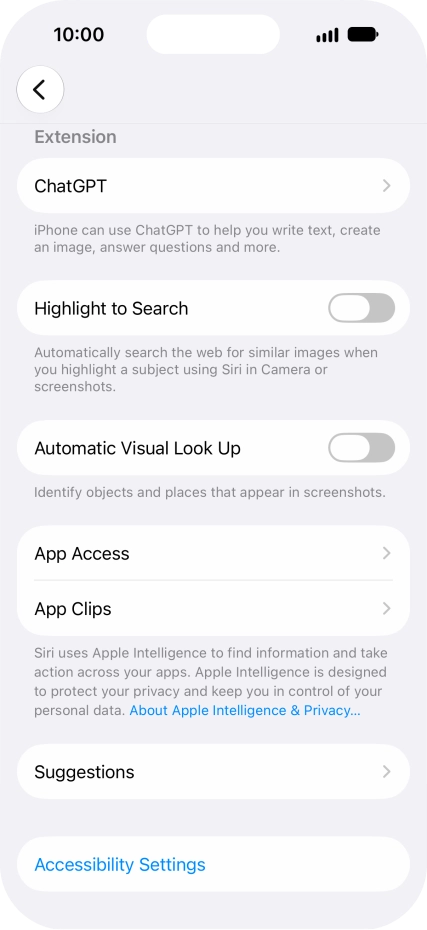
You can select different settings for the Siri AI app, e.g., for viewing and storing conversations.

9. Turn use of ChatGPT on or off

Press ChatGPT and follow the instructions on the screen to turn use of ChatGPT on or off.

10. Select more settings

Follow the instructions on the screen to select more settings for Siri AI.
You can select more settings for Siri AI, e.g., automatic identification of objects and information retrieval from pictures, as well as receiving suggestions for actions across different apps.

11. Return to the home screen

Slide your finger upwards starting from the bottom of the screen to return to the home screen.

Thank you for your evaluation!

Get information on...

Or select...

Another device