Apple Watch Series 12

Apple Watch Series 12

watchOS 27

Turn GPS on your Apple Watch Series 12 watchOS 27 on or off

Read help info

Your Apple Watch can determine your geographical position using GPS (Global Positioning System). The information about your location can be used by a number of applications on your Apple Watch such as navigation, SOS function or weather forecast.

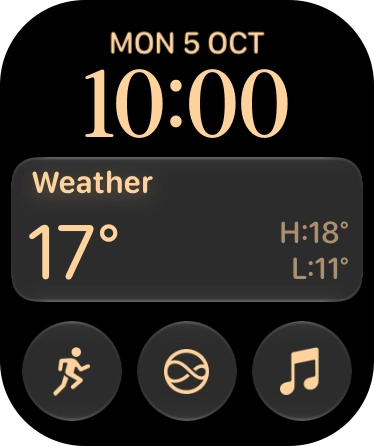
Press the Digital Crown.
Step 1 of 7

1. Find "Location Services"

Press the Digital Crown.

Slide your finger upwards on the screen.
Step 2 of 7

1. Find "Location Services"

Slide your finger upwards on the screen.

Press the settings icon.
Step 3 of 7

1. Find "Location Services"

Press the settings icon.

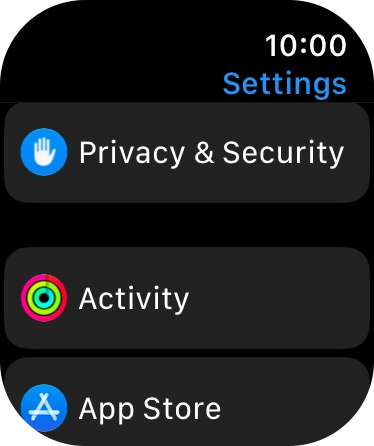
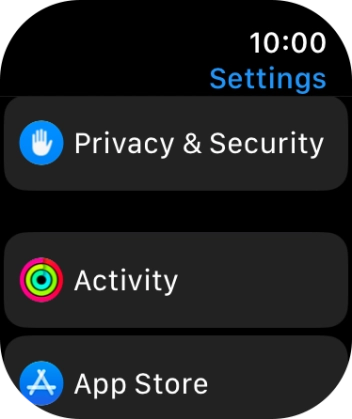
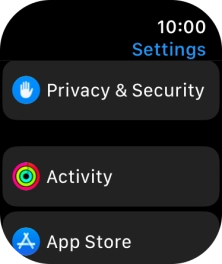
Press Privacy & Security.
Step 4 of 7

1. Find "Location Services"

Press Privacy & Security.

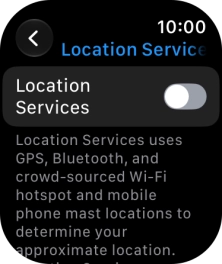
Press Location Services.
Step 5 of 7

1. Find "Location Services"

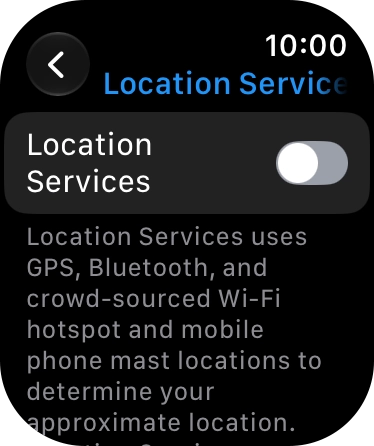
Press Location Services.

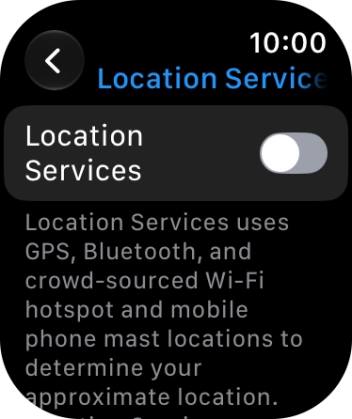
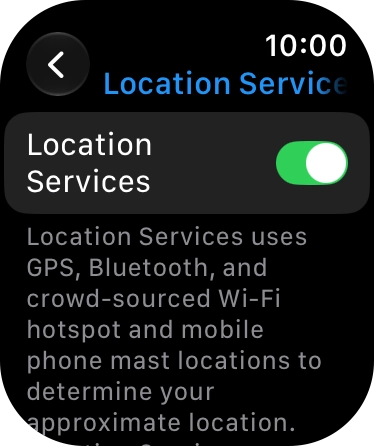
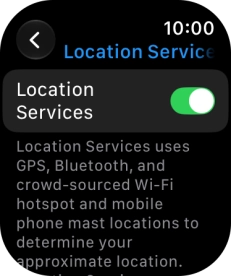
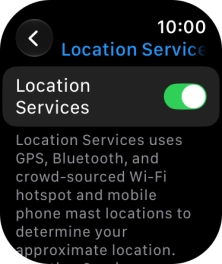
Press the indicator next to
Step 6 of 7

2. Turn GPS on or off

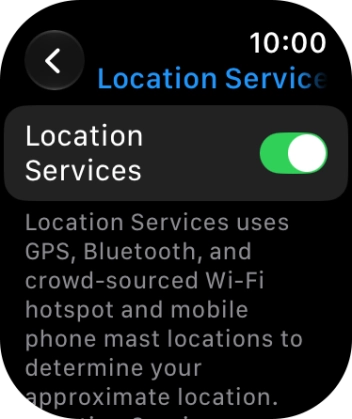
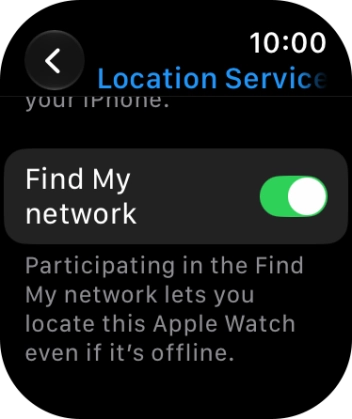
Press the indicator next to "Location Services" to turn the function on or off.

If you turn on the function, your Apple Watch can find your position using GPS. If you turn off the function, you can't use any GPS functions on your Apple Watch.
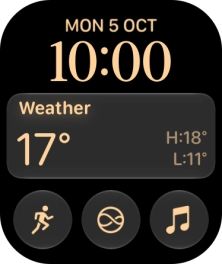
Press the Digital Crown several times to return to standby mode.
Step 7 of 7

3. Return to the home screen

Press the Digital Crown several times to return to standby mode.

1. Find "Location Services"

Press the Digital Crown.

Slide your finger upwards on the screen.

Press the settings icon.
Press Privacy & Security.
Press Location Services.

2. Turn GPS on or off

Press the indicator next to "Location Services" to turn the function on or off.
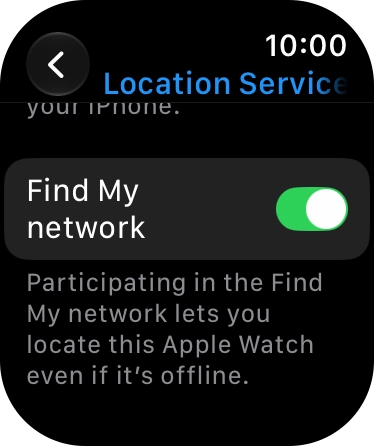
If you turn on the function, your Apple Watch can find your position using GPS. If you turn off the function, you can't use any GPS functions on your Apple Watch.

3. Return to the home screen

Press the Digital Crown several times to return to standby mode.

Thank you for your evaluation!

Get information on...

Or select...

Another device