Apple Watch Series 12

Apple Watch Series 12

watchOS 27

Personalise the home screen on your Apple Watch Series 12 watchOS 27

Read help info

You can change many home screen settings, such as the watch face.

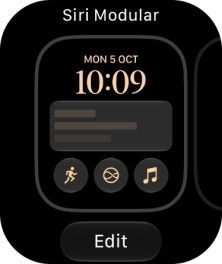
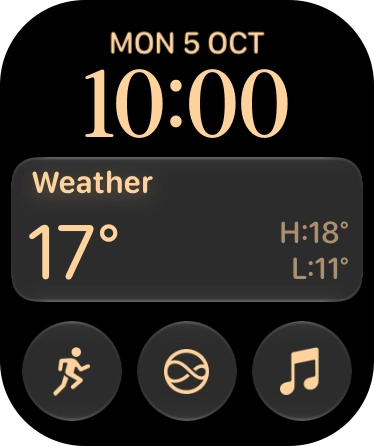
Hard press the watch face.
Step 1 of 16

1. Add new watch face

Hard press the watch face.
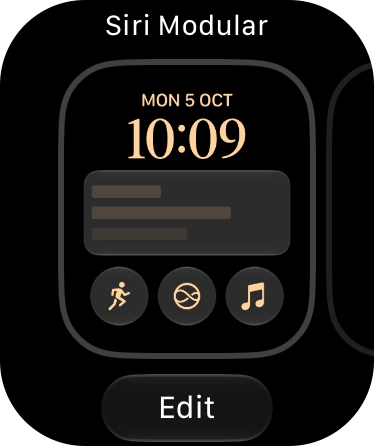
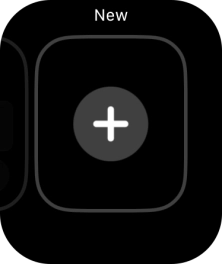
Slide your finger left on the screen.
Step 2 of 16

1. Add new watch face

Slide your finger left on the screen.

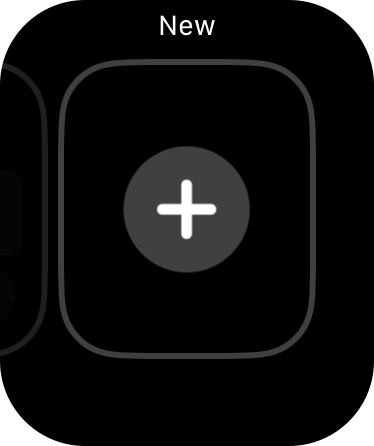
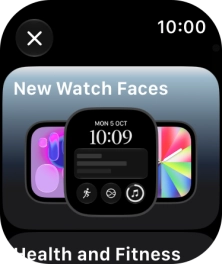
Press the add icon.
Step 3 of 16

1. Add new watch face

Press the add icon.

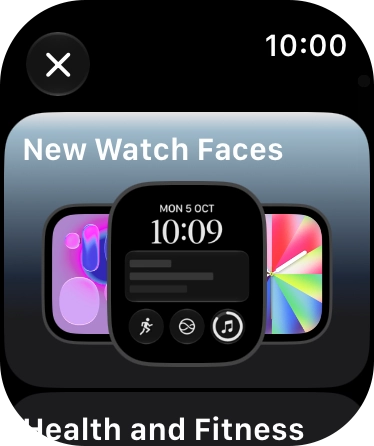
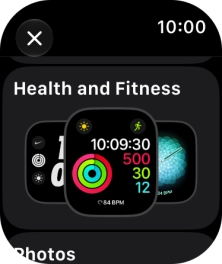
Turn the Digital Crown to see the different categories.
Step 4 of 16

1. Add new watch face

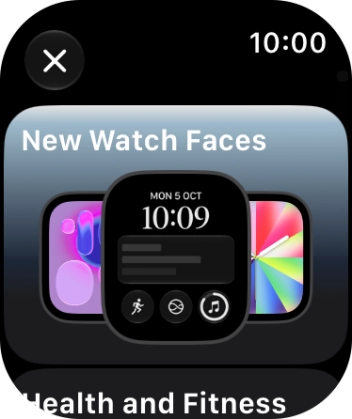
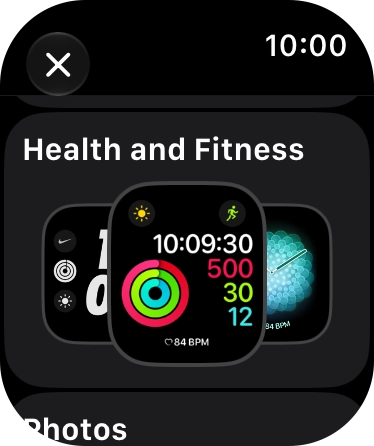
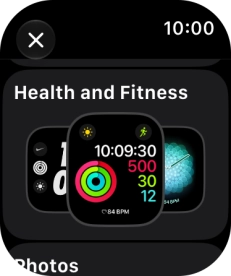
Turn the Digital Crown to see the different categories.

Press the required category.
Step 5 of 16

1. Add new watch face

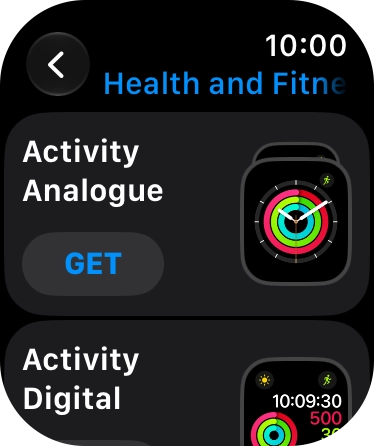
Press the required category.

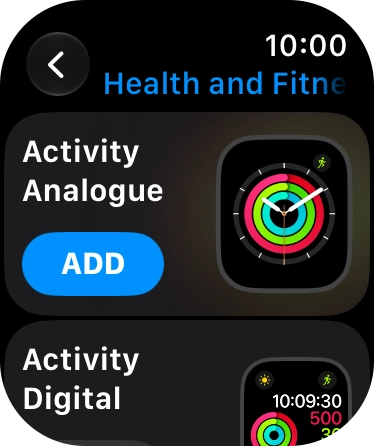
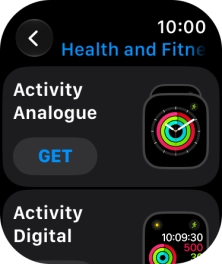
Press GET next to the required watch face.
Step 6 of 16

1. Add new watch face

Press GET next to the required watch face.

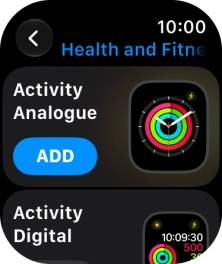
Press ADD.
Step 7 of 16

1. Add new watch face

Press ADD.

Press the Digital Crown twice to return to the home screen.
Step 8 of 16

1. Add new watch face

Press the Digital Crown twice to return to the home screen.

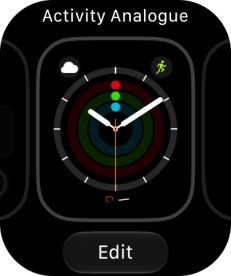
Hard press the watch face.
Step 9 of 16

2. Change watch face

Hard press the watch face.

Slide your finger right or left on the screen to change between the watch faces added.
Step 10 of 16

2. Change watch face

Slide your finger right or left on the screen to change between the watch faces added.

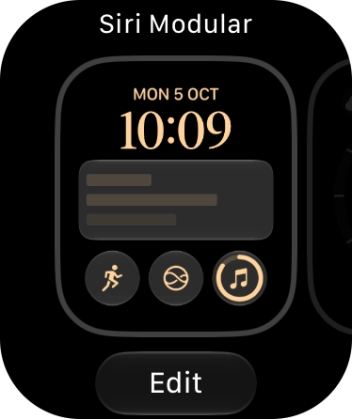
Press the required watch face.
Step 11 of 16

2. Change watch face

Press the required watch face.

Hard press the watch face.
Step 12 of 16

3. Personalise watch design

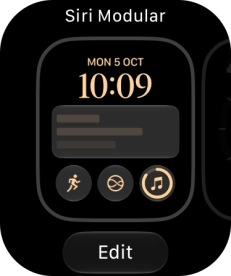
Hard press the watch face.

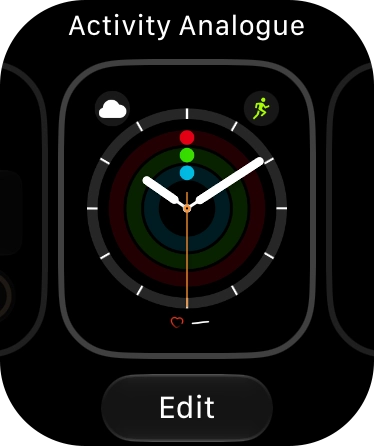
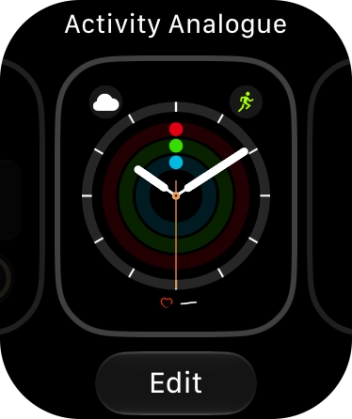
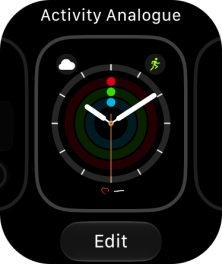
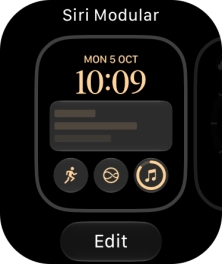
Press Edit.
Step 13 of 16

3. Personalise watch design

Press Edit.

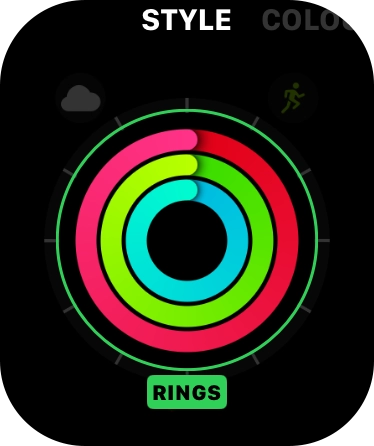
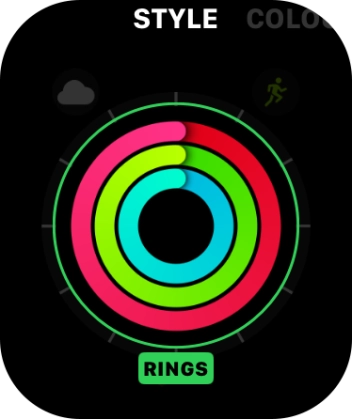
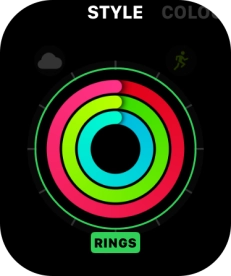
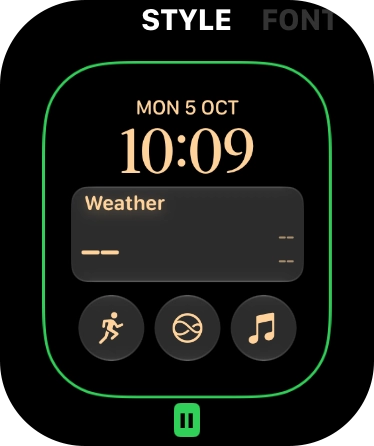
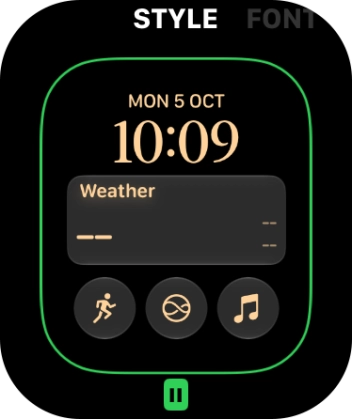
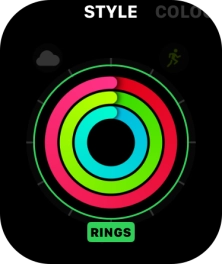
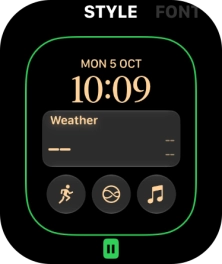
Turn the Digital Crown to change between the different designs.
Step 14 of 16

3. Personalise watch design

Turn the Digital Crown to change between the different designs.

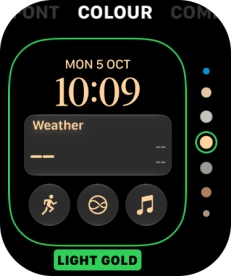
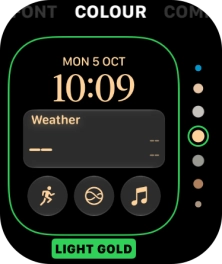
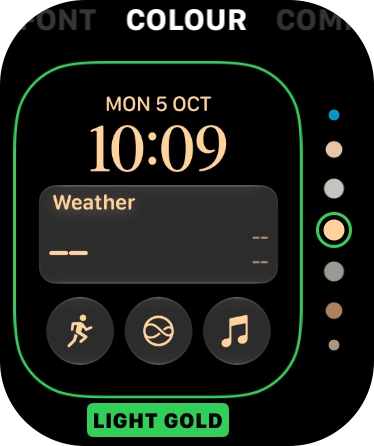
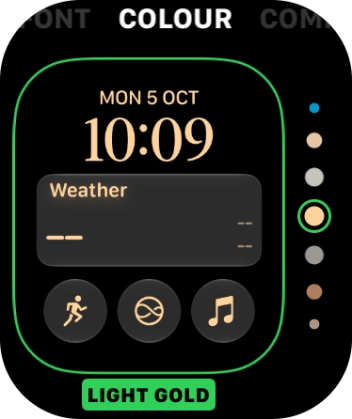
Slide your finger left starting from the right side of the screen to see more customisation options.
Step 15 of 16

3. Personalise watch design

Slide your finger left starting from the right side of the screen to see more customisation options.

Press the Digital Crown twice to return to the home screen.
Step 16 of 16

4. Return to the home screen

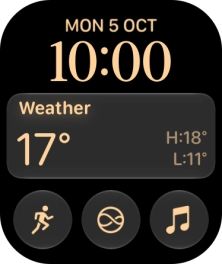
Press the Digital Crown twice to return to the home screen.

1. Add new watch face

Hard press the watch face.
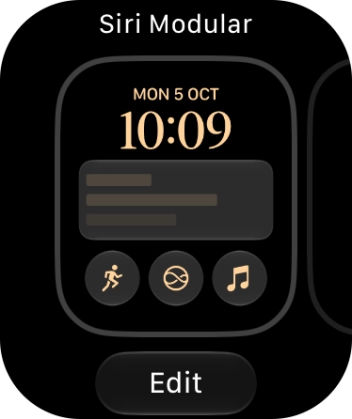
Slide your finger left on the screen.
Press the add icon.
Turn the Digital Crown to see the different categories.
Press the required category.
Press GET next to the required watch face.
Press ADD.
Press the Digital Crown twice to return to the home screen.

2. Change watch face

Hard press the watch face.
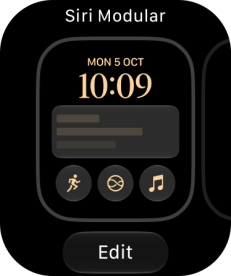
Slide your finger right or left on the screen to change between the watch faces added.
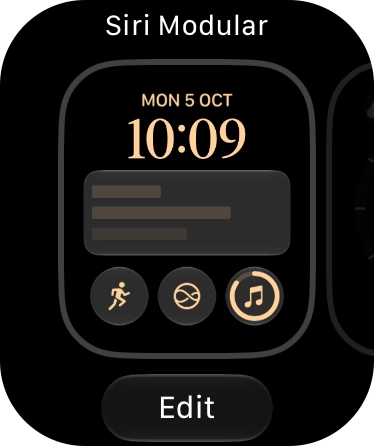
Press the required watch face.

3. Personalise watch design

Hard press the watch face.
Press Edit.
Turn the Digital Crown to change between the different designs.
Slide your finger left starting from the right side of the screen to see more customisation options.
4. Return to the home screen

Press the Digital Crown twice to return to the home screen.

Thank you for your evaluation!

Get information on...

Or select...

Another device