Apple Watch Series 12

Apple Watch Series 12

watchOS 27

Select SOS function settings on your Apple Watch Series 12 watchOS 27

Read help info

You can choose your own settings for the SOS function on your Apple Watch so that, e.g., a message is sent to your emergency contacts about your location when the SOS function is activated.

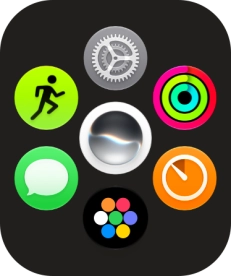
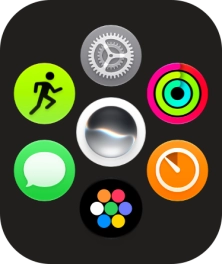
Press the Digital Crown.
Step 1 of 11

1. Find "SOS"

Press the Digital Crown.
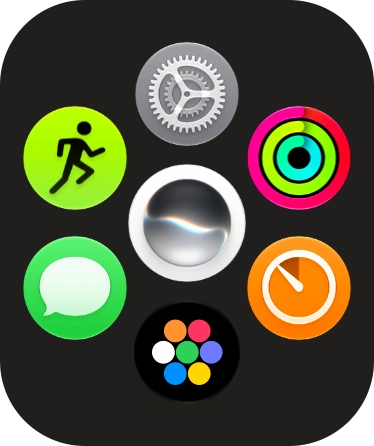
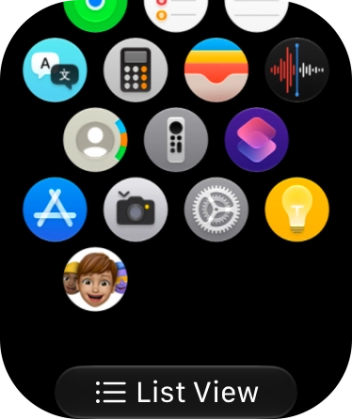
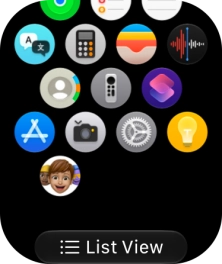
Slide your finger upwards on the screen.
Step 2 of 11

1. Find "SOS"

Slide your finger upwards on the screen.

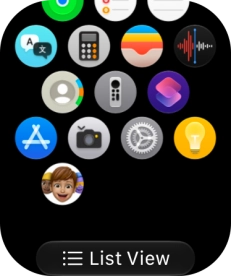
Press the settings icon.
Step 3 of 11

1. Find "SOS"

Press the settings icon.

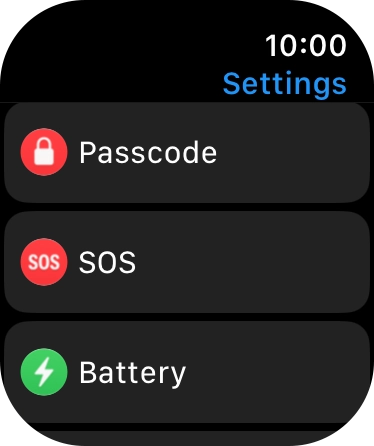
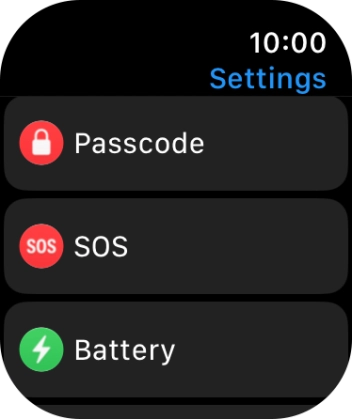
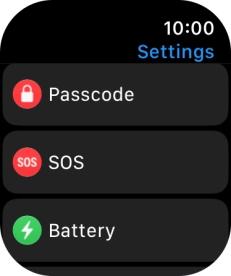
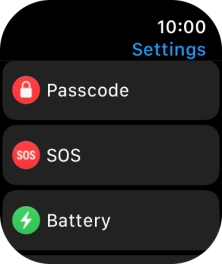
Press SOS.
Step 4 of 11

1. Find "SOS"

Press SOS.

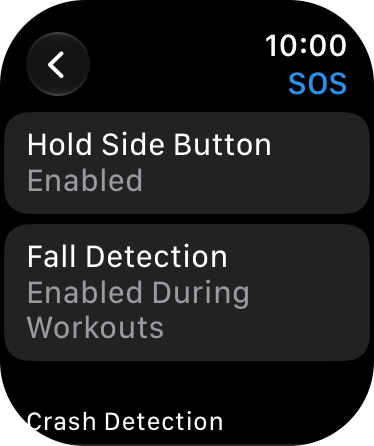
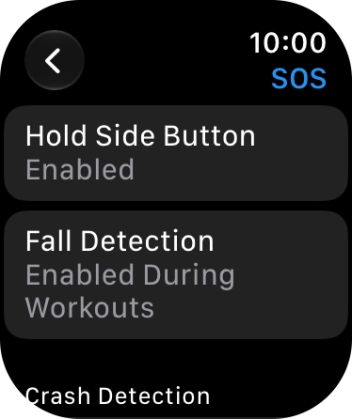
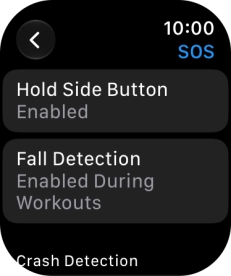
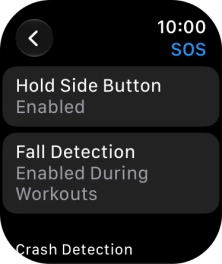
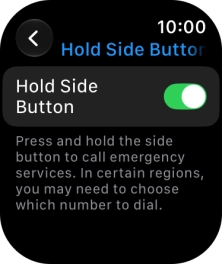
Press Hold Side Button.
Step 5 of 11

2. Turn emergency call shortcut on or off

Press Hold Side Button.

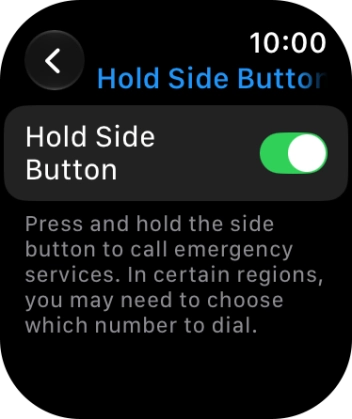
Press the indicator next to
Step 6 of 11

2. Turn emergency call shortcut on or off

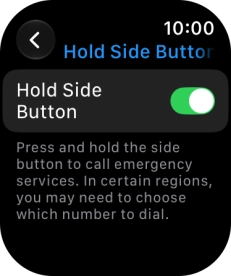
Press the indicator next to "Hold Side Button" to turn the function on or off.

Press arrow left.
Step 7 of 11

2. Turn emergency call shortcut on or off

Press arrow left.

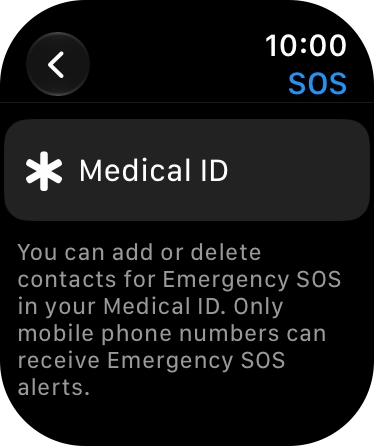
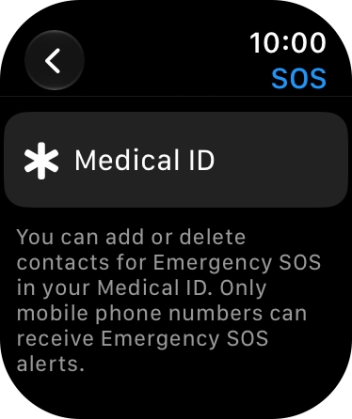
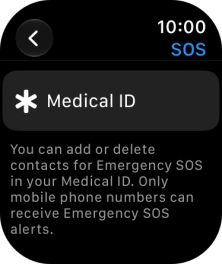
Press Medical ID.
Step 8 of 11

3. Set emergency contacts and info

Press Medical ID.

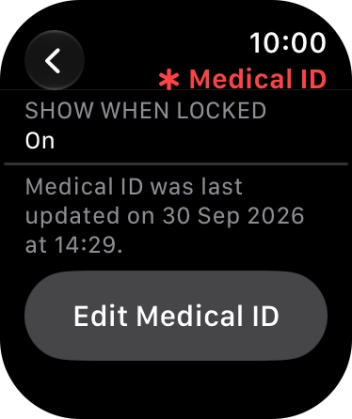
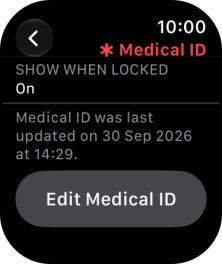
Press Edit Medical ID.
Step 9 of 11

3. Set emergency contacts and info

Press Edit Medical ID.

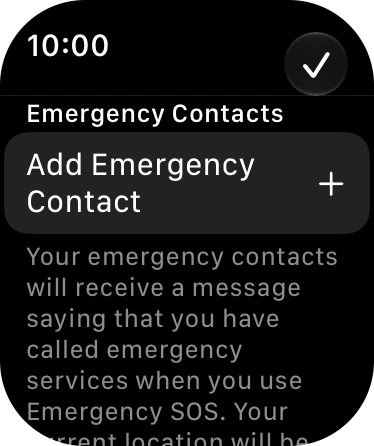
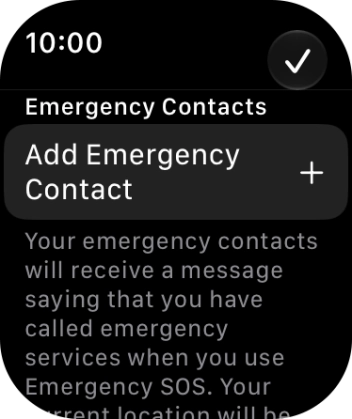
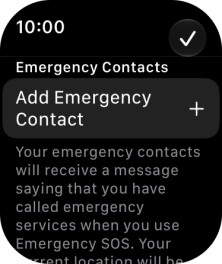
Press Add Emergency Contact and follow the instructions on the screen to key in your emergency info and emergency contacts.
Step 10 of 11

3. Set emergency contacts and info

Press Add Emergency Contact and follow the instructions on the screen to key in your emergency info and emergency contacts.

If you've added emergency contacts, they will automatically receive a message with your location if an emergency call is made from your Apple Watch. If you add your emergency info, it will be displayed on your Apple Watch lock screen.
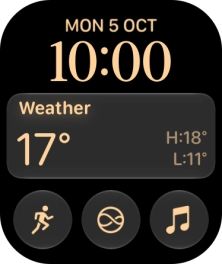
Press the Digital Crown several times to return to standby mode.
Step 11 of 11

4. Return to the home screen

Press the Digital Crown several times to return to standby mode.

1. Find "SOS"

Press the Digital Crown.
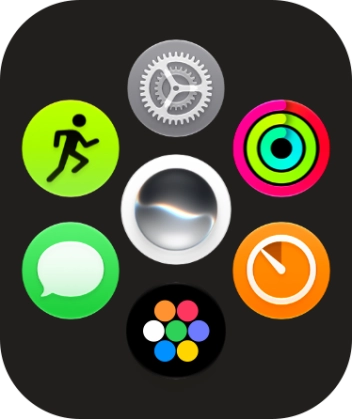
Slide your finger upwards on the screen.
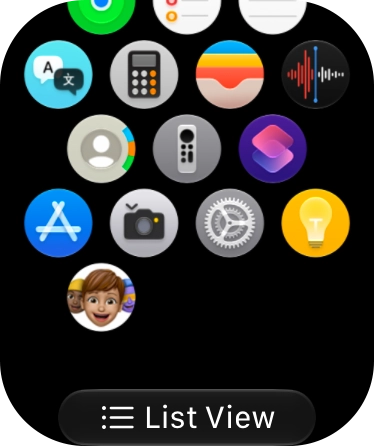
Press the settings icon.
Press SOS.

2. Turn emergency call shortcut on or off

Press Hold Side Button.
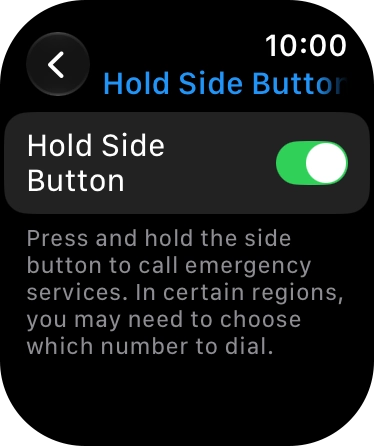
Press the indicator next to "Hold Side Button" to turn the function on or off.
Press arrow left.

3. Set emergency contacts and info

Press Medical ID.
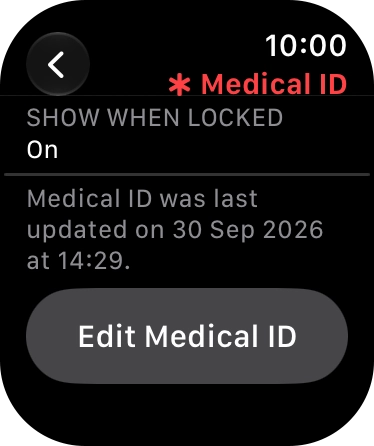
Press Edit Medical ID.
Press Add Emergency Contact and follow the instructions on the screen to key in your emergency info and emergency contacts.
If you've added emergency contacts, they will automatically receive a message with your location if an emergency call is made from your Apple Watch. If you add your emergency info, it will be displayed on your Apple Watch lock screen.

4. Return to the home screen

Press the Digital Crown several times to return to standby mode.

Thank you for your evaluation!

Get information on...

Or select...

Another device