Apple Watch Series 12

Apple Watch Series 12

watchOS 27

Connect to a Wi-Fi network on your Apple Watch Series 12 watchOS 27

Read help info

You can use Wi-Fi as an alternative to the mobile network when establishing an internet connection. This way your Apple Watch doesn't use mobile data.

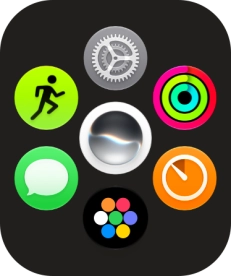
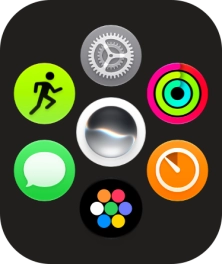
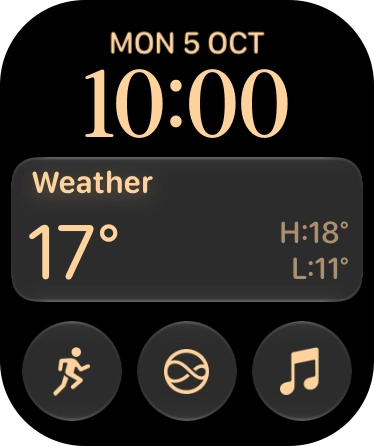
Press the Digital Crown.
Step 1 of 8

1. Find "Wi-Fi"

Press the Digital Crown.
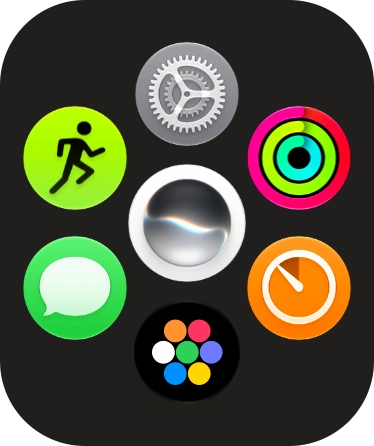
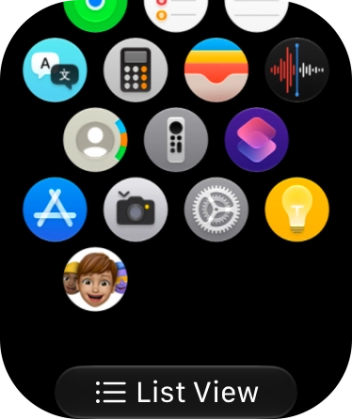
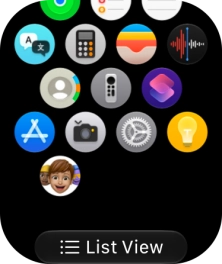
Slide your finger upwards on the screen.
Step 2 of 8

1. Find "Wi-Fi"

Slide your finger upwards on the screen.

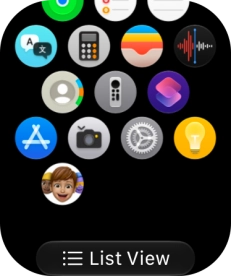
Press the settings icon.
Step 3 of 8

1. Find "Wi-Fi"

Press the settings icon.

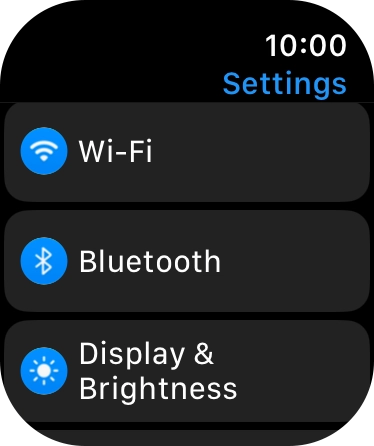
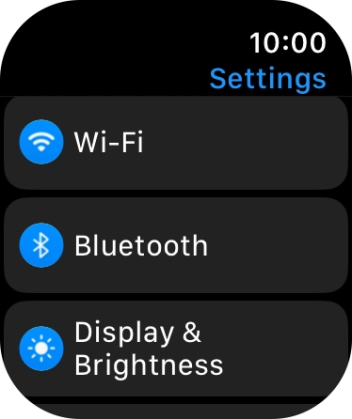
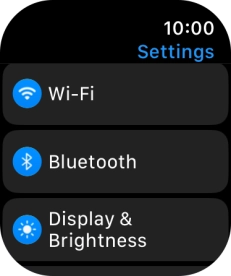
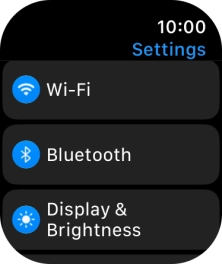
Press Wi-Fi.
Step 4 of 8

1. Find "Wi-Fi"

Press Wi-Fi.

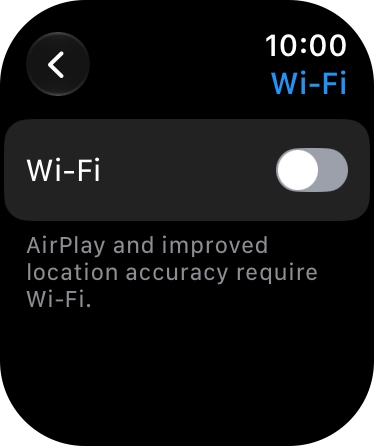
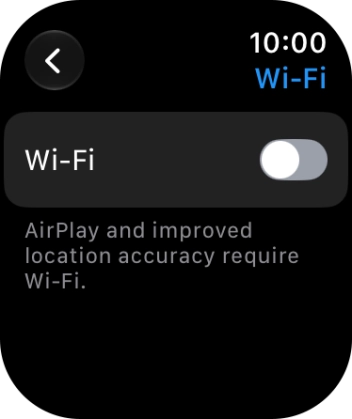
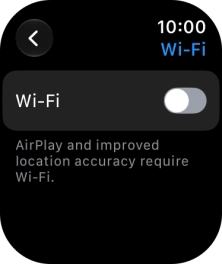
Press the indicator next to
Step 5 of 8

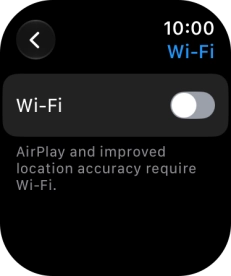
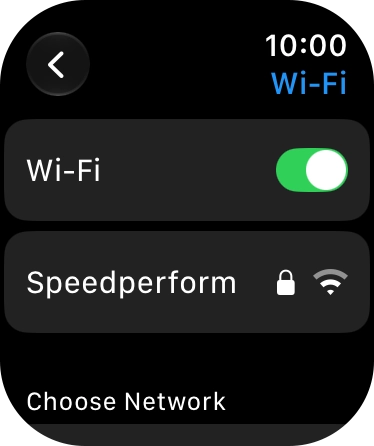
2. Turn on Wi-Fi

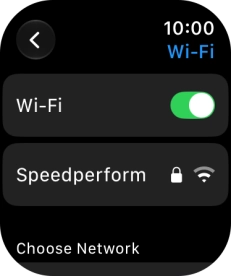
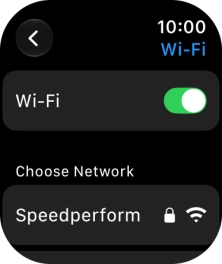
Press the indicator next to "Wi-Fi" to turn on the function.

Press the required Wi-Fi network.
Step 6 of 8

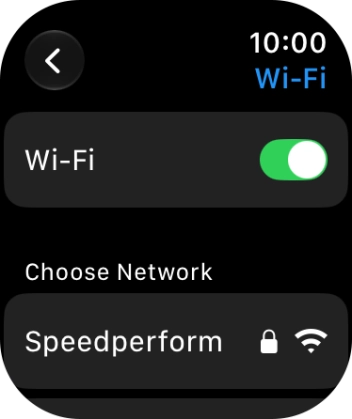
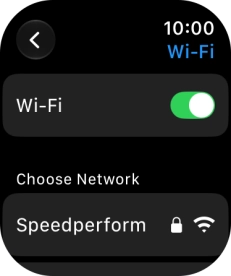
3. Connect to a Wi-Fi network

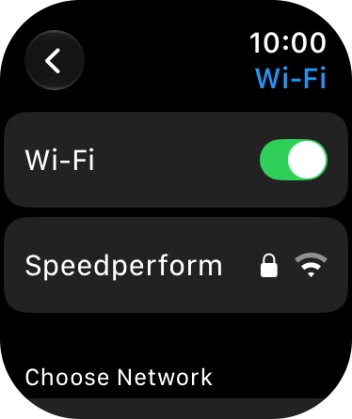
Press the required Wi-Fi network.

If the Wi-Fi network is password protected, a lock icon is displayed next to the name of the Wi-Fi network. You can get the password from the network provider or administrator.
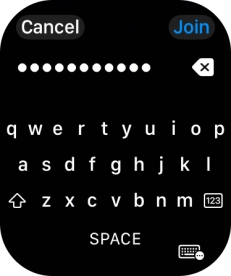
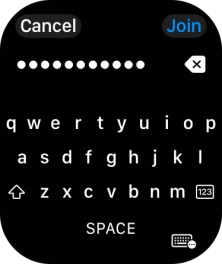
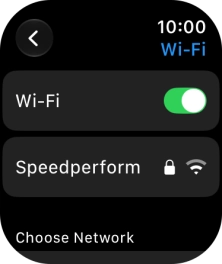
Key in the password for the Wi-Fi network and press Join.
Step 7 of 8

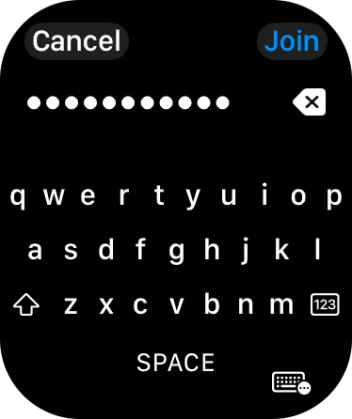
3. Connect to a Wi-Fi network

Key in the password for the Wi-Fi network and press Join.

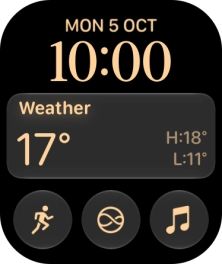
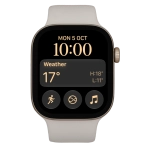
Press the Digital Crown several times to return to standby mode.
Step 8 of 8

4. Return to the home screen

Press the Digital Crown several times to return to standby mode.

1. Find "Wi-Fi"

Press the Digital Crown.
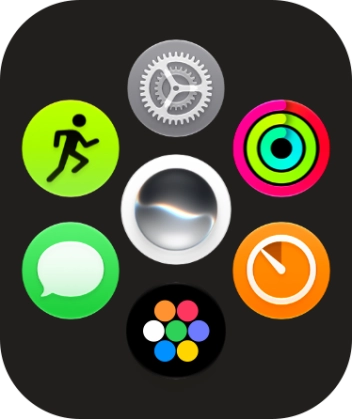
Slide your finger upwards on the screen.
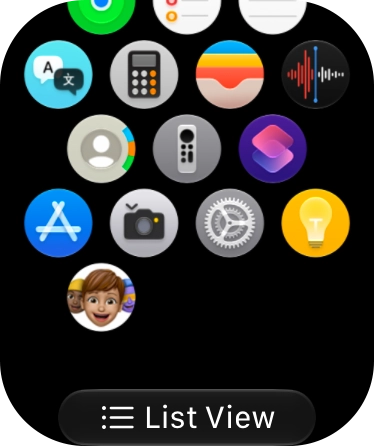
Press the settings icon.
Press Wi-Fi.

2. Turn on Wi-Fi

Press the indicator next to "Wi-Fi" to turn on the function.
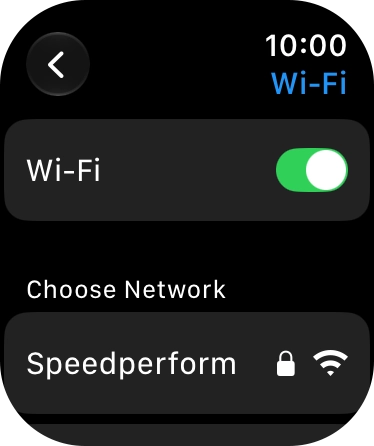
3. Connect to a Wi-Fi network

Press the required Wi-Fi network.
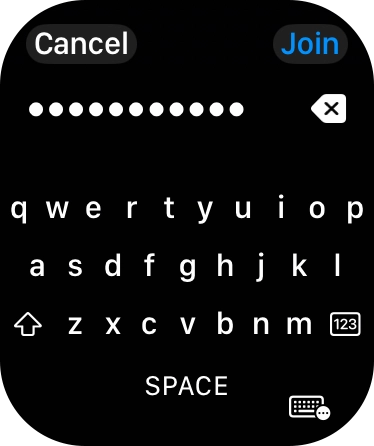
If the Wi-Fi network is password protected, a lock icon is displayed next to the name of the Wi-Fi network. You can get the password from the network provider or administrator.
Key in the password for the Wi-Fi network and press Join.
4. Return to the home screen

Press the Digital Crown several times to return to standby mode.

Thank you for your evaluation!

Get information on...

Or select...

Another device