Apple Watch Series 12

Apple Watch Series 12

watchOS 27

Select accessibility settings on your Apple Watch Series 12 watchOS 27

Read help info

You can select various help function settings for screen, sound and interaction making it easier to use the Apple Watch functions.

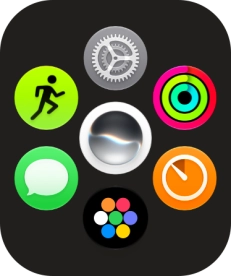
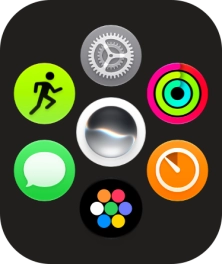
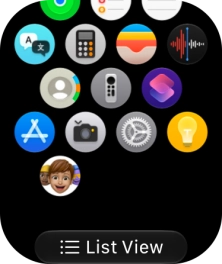
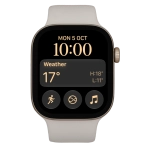
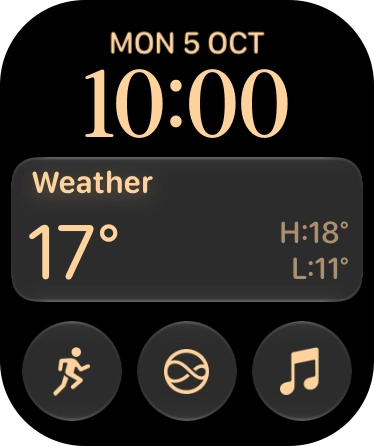
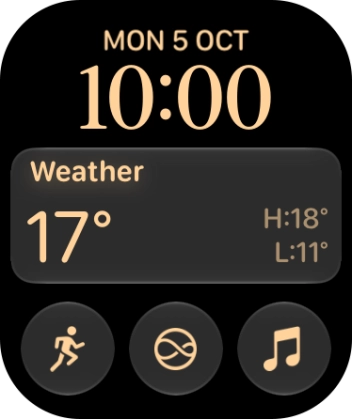
Press the Digital Crown.
Step 1 of 11

1. Find "Accessibility"

Press the Digital Crown.
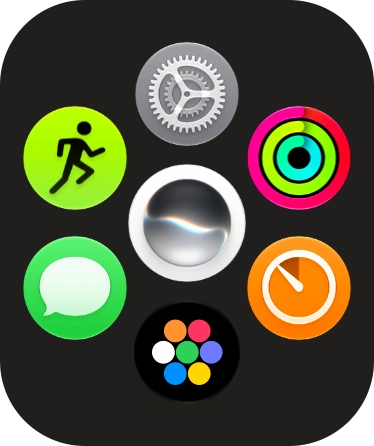
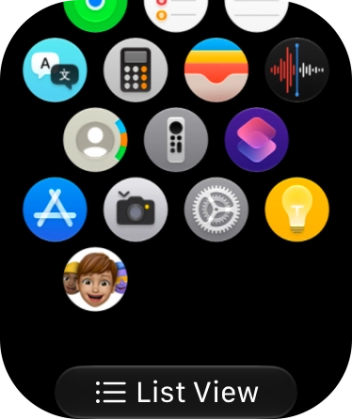
Slide your finger upwards on the screen.
Step 2 of 11

1. Find "Accessibility"

Slide your finger upwards on the screen.

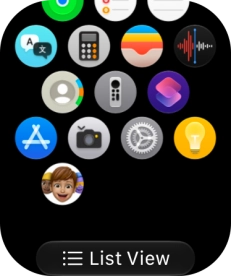
Press the settings icon.
Step 3 of 11

1. Find "Accessibility"

Press the settings icon.

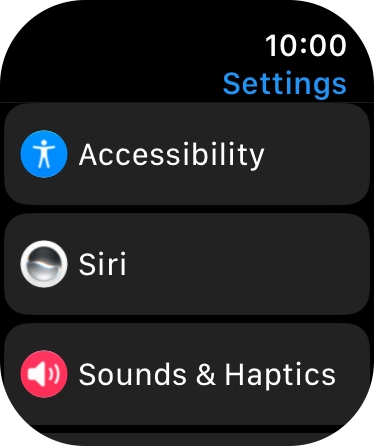
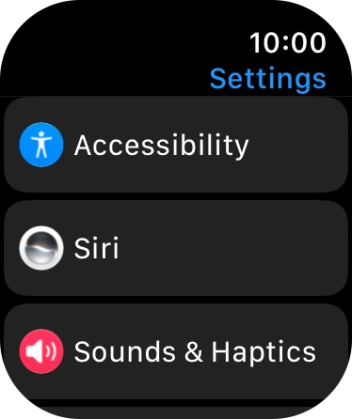
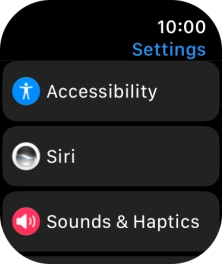
Press Accessibility.
Step 4 of 11

1. Find "Accessibility"

Press Accessibility.

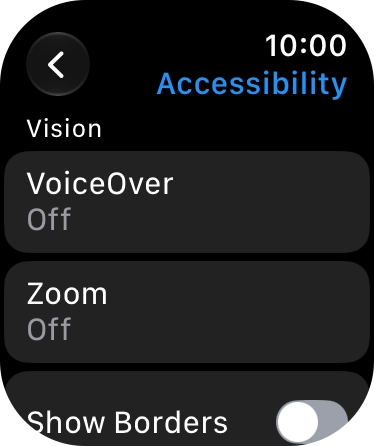
Press the required category below
Step 5 of 11

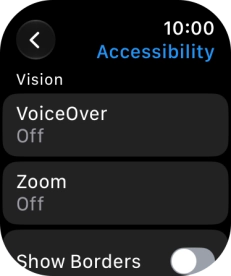
2. Select vision settings

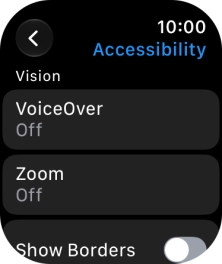
Press the required category below "Vision" and follow the instructions on the screen to select the required settings.

You can select different settings for screen customisation, such as change contrast, colour and font size making it easier to use the Apple Watch screen.
Press the required category below
Step 6 of 11

3. Select motor settings

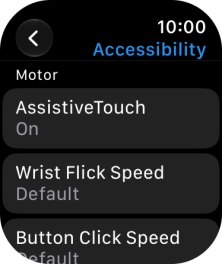
Press the required category below "Motor" and follow the instructions on the screen to select the required settings.

You can select different settings for phone interaction control, such as AssistiveTouch and automatic call answering making it easier to navigate your phone.
Press the required category below
Step 7 of 11

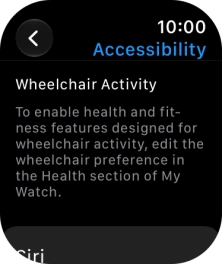
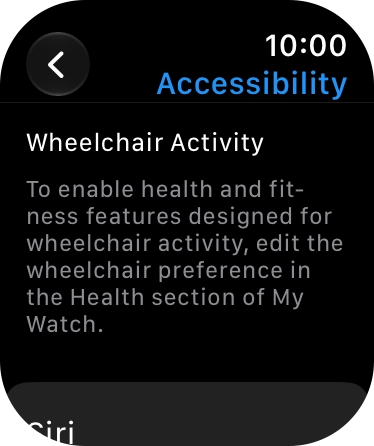
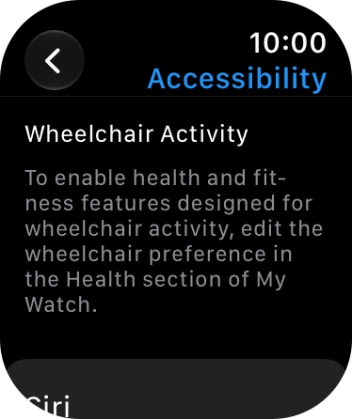
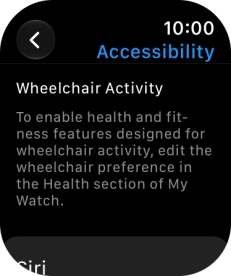
4. Select settings for wheelchair use

Press the required category below "Wheelchair Activity" and follow the instructions on the screen to select the required settings.

You can select settings for wheelchair use for the health and fitness functions on your Apple Watch.
Press the required category below
Step 8 of 11

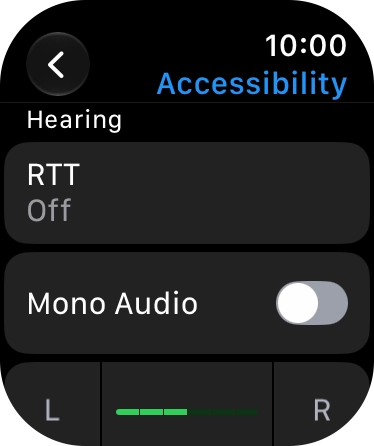
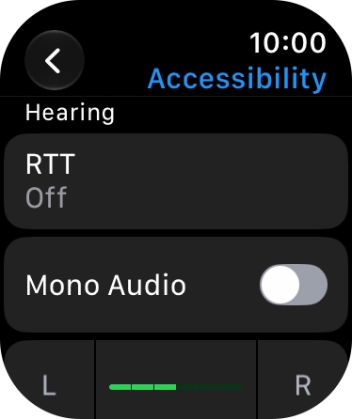
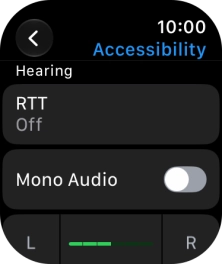
5. Select hearing settings

Press the required category below "Hearing" and follow the instructions on the screen to select the required settings.

You can select different settings for sound assistance on your Apple Watch, such as use of hearing aids with your Apple Watch and loud volume notification when using a headset.
Press the required category below
Step 9 of 11

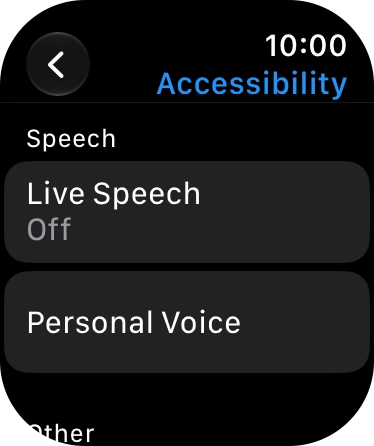
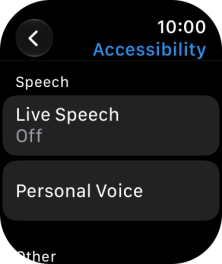
6. Select speech settings

Press the required category below "Speech" and follow the instructions on the screen to select the required settings.

You can select different spoken assistance settings on your Apple Watch, such as Live Speech and Personal Voice, which make it easier for people with speech difficulties to communicate with others during voice calls.
Press the required category below
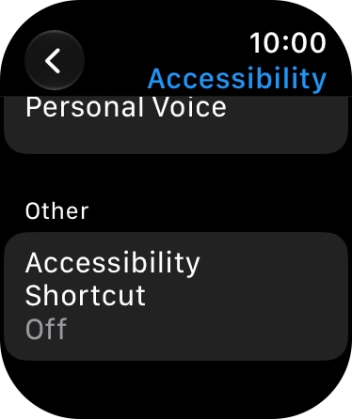
Step 10 of 11

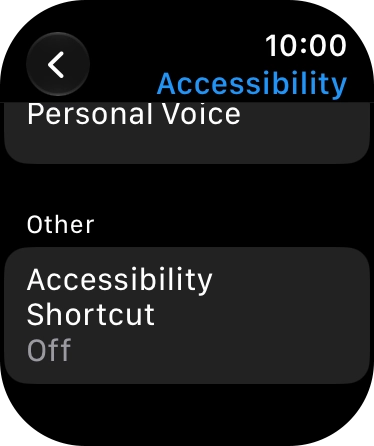
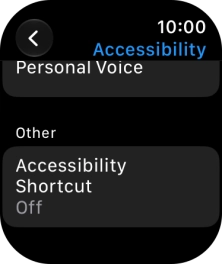
7. Select more settings

Press the required category below "Other" and follow the instructions on the screen to select the required settings.

You can select additional settings for accessibility features, such as creating a shortcut to the accessibility features.
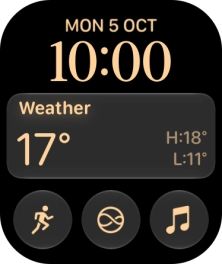
Press the Digital Crown several times to return to standby mode.
Step 11 of 11

8. Return to the home screen

Press the Digital Crown several times to return to standby mode.

1. Find "Accessibility"

Press the Digital Crown.
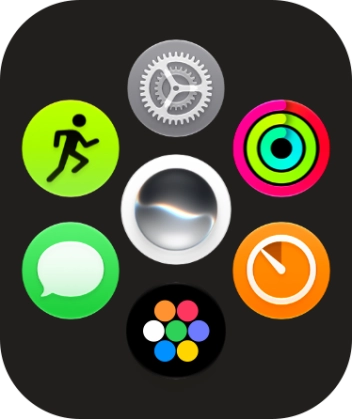
Slide your finger upwards on the screen.
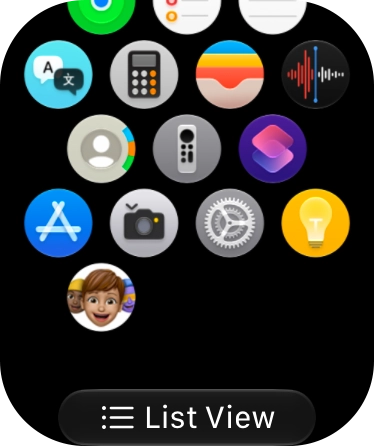
Press the settings icon.
Press Accessibility.

2. Select vision settings

Press the required category below "Vision" and follow the instructions on the screen to select the required settings.
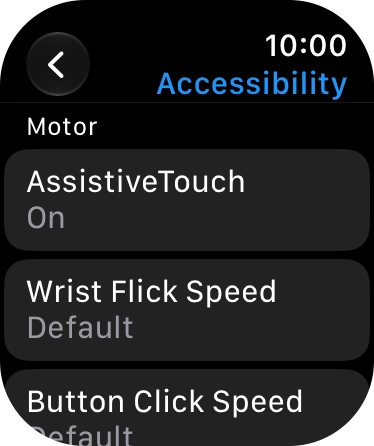
You can select different settings for screen customisation, such as change contrast, colour and font size making it easier to use the Apple Watch screen.

3. Select motor settings

Press the required category below "Motor" and follow the instructions on the screen to select the required settings.
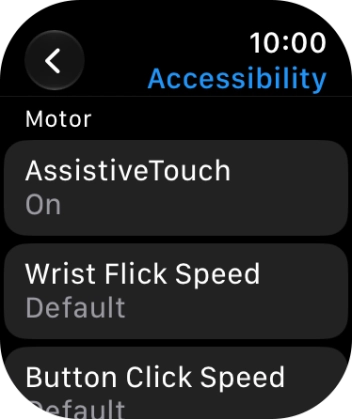
You can select different settings for phone interaction control, such as AssistiveTouch and automatic call answering making it easier to navigate your phone.

4. Select settings for wheelchair use

Press the required category below "Wheelchair Activity" and follow the instructions on the screen to select the required settings.
You can select settings for wheelchair use for the health and fitness functions on your Apple Watch.

5. Select hearing settings

Press the required category below "Hearing" and follow the instructions on the screen to select the required settings.
You can select different settings for sound assistance on your Apple Watch, such as use of hearing aids with your Apple Watch and loud volume notification when using a headset.

6. Select speech settings

Press the required category below "Speech" and follow the instructions on the screen to select the required settings.
You can select different spoken assistance settings on your Apple Watch, such as Live Speech and Personal Voice, which make it easier for people with speech difficulties to communicate with others during voice calls.

7. Select more settings

Press the required category below "Other" and follow the instructions on the screen to select the required settings.
You can select additional settings for accessibility features, such as creating a shortcut to the accessibility features.

8. Return to the home screen

Press the Digital Crown several times to return to standby mode.

Thank you for your evaluation!

Get information on...

Or select...

Another device