Apple Watch Series 12

Apple Watch Series 12

watchOS 27

Select Siri AI settings on your Apple Watch Series 12 watchOS 27

Read help info

You can use Siri AI to answer your questions in an informative way, perform tasks and interact with apps on your Apple Watch. To use Siri AI with your Apple Watch, you need to turn on Siri AI on your phone.

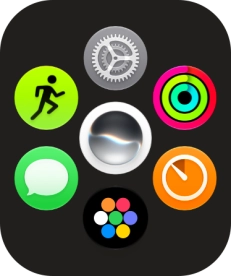
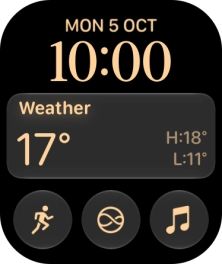
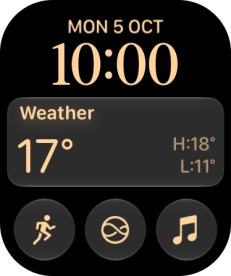
Press the Digital Crown.
Step 1 of 17

1. Find "Siri"

Press the Digital Crown.
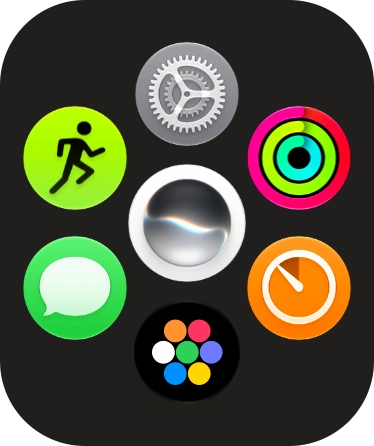
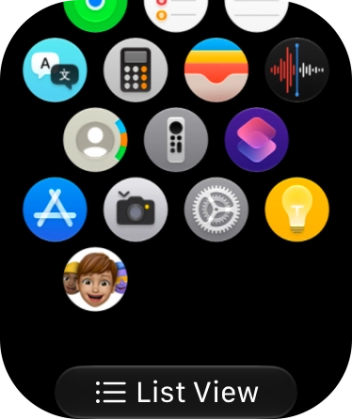
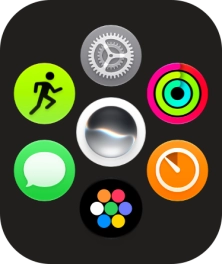
Slide your finger upwards on the screen.
Step 2 of 17

1. Find "Siri"

Slide your finger upwards on the screen.

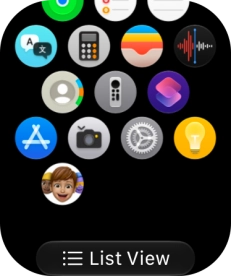
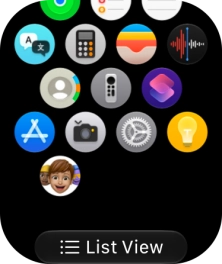
Press the settings icon.
Step 3 of 17

1. Find "Siri"

Press the settings icon.

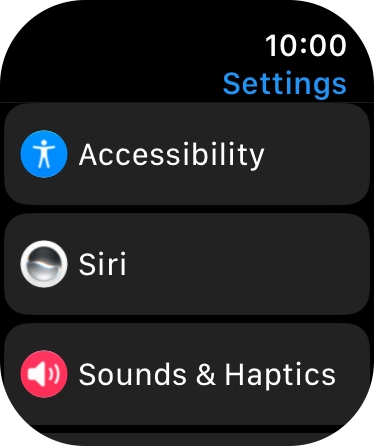
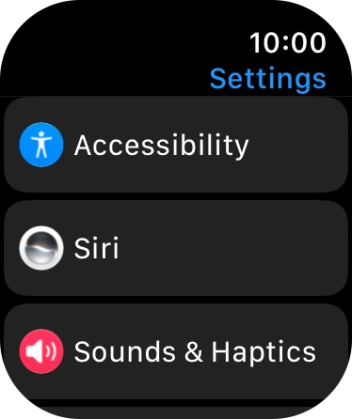
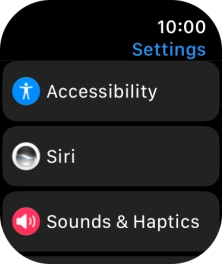
Press Siri.
Step 4 of 17

1. Find "Siri"

Press Siri.

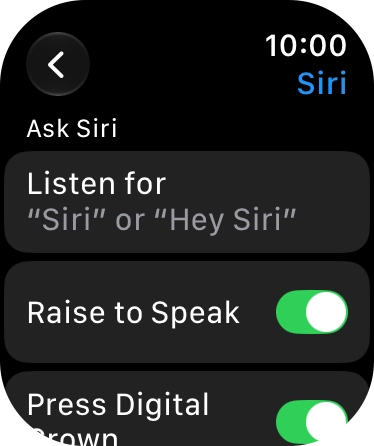
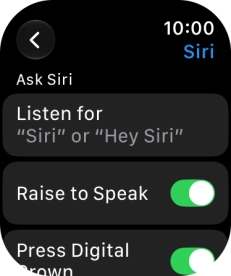
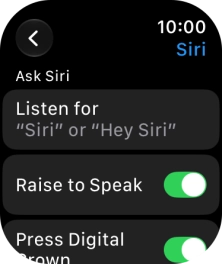
Press Listen for.
Step 5 of 17

2. Turn automatic activation on or off

Press Listen for.

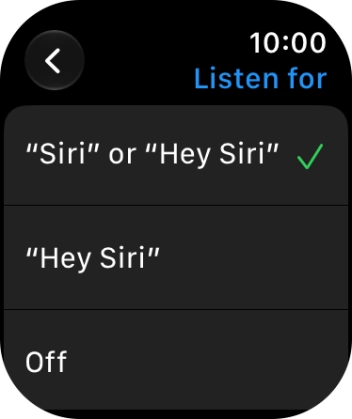
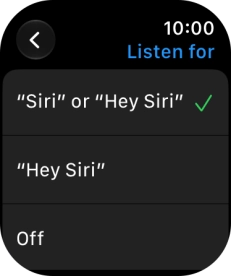
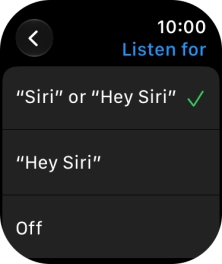
Press the required setting to turn the function on or off.
Step 6 of 17

2. Turn automatic activation on or off

Press the required setting to turn the function on or off.

If you turn on the function, you can activate Siri by saying "Siri" or "Hey Siri" when the screen on your Apple Watch is turned on.
Press arrow left.
Step 7 of 17

2. Turn automatic activation on or off

Press arrow left.

Press the indicator next to
Step 8 of 17

3. Turn Raise To Speak on or off

Press the indicator next to "Raise to Speak" to turn the function on or off.

If you turn on the function, you can turn on Siri by holding your Apple Watch to your mouth.
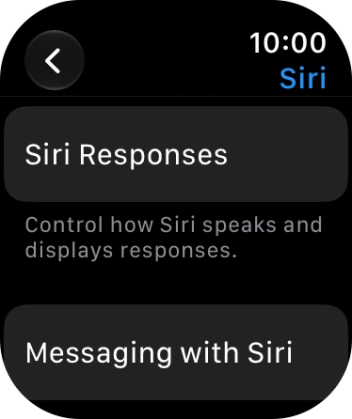
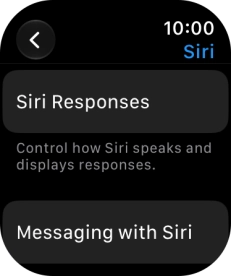
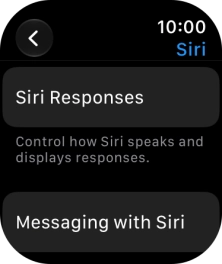
Press Siri Responses.
Step 9 of 17

4. Turn voice feedback on or off

Press Siri Responses.

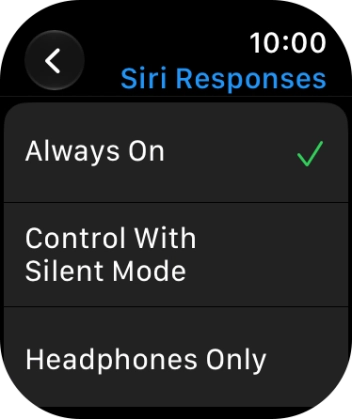
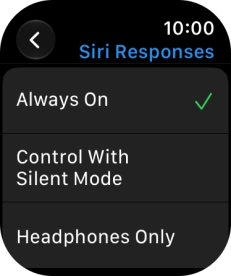
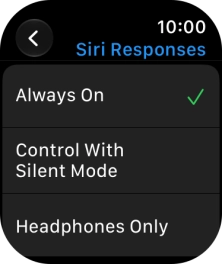
Press the required setting.
Step 10 of 17

4. Turn voice feedback on or off

Press the required setting.

Press arrow left.
Step 11 of 17

4. Turn voice feedback on or off

Press arrow left.

Press arrow left.
Step 12 of 17

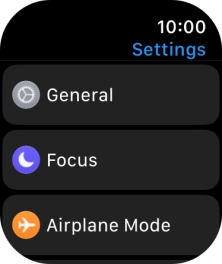
5. Turn on dictation

Press arrow left.

When dictation is turned on, you can reply to messages and email messages using voice input.
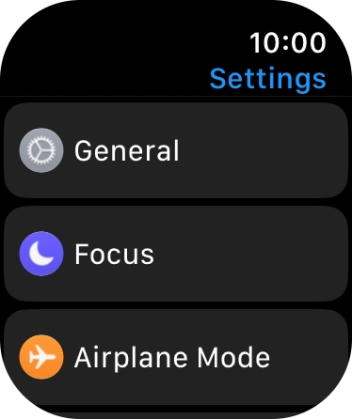
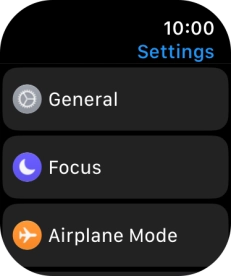
Press General.
Step 13 of 17

5. Turn on dictation

Press General.

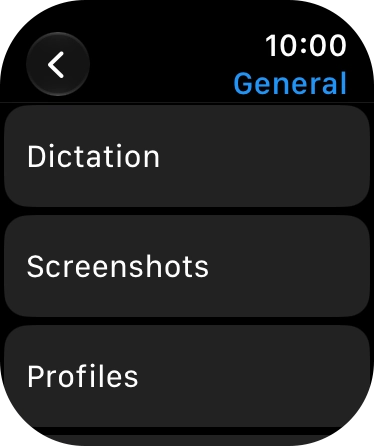
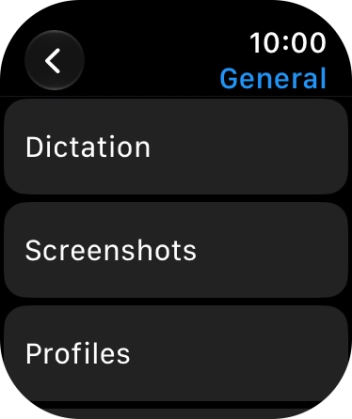
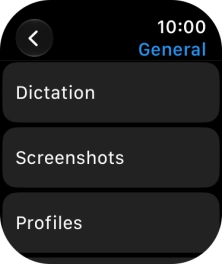
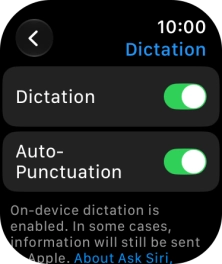
Press Dictation.
Step 14 of 17

5. Turn on dictation

Press Dictation.

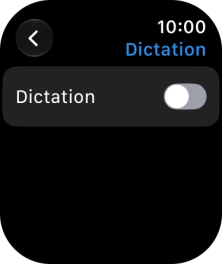
Press the indicator next to
Step 15 of 17

5. Turn on dictation

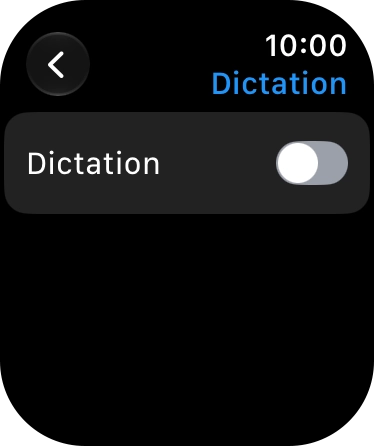
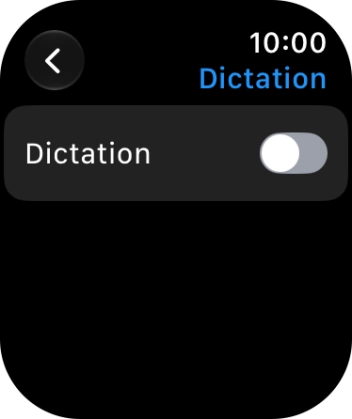
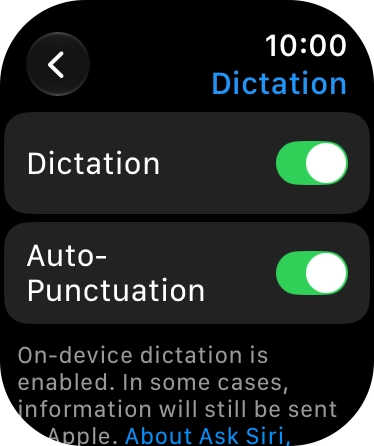
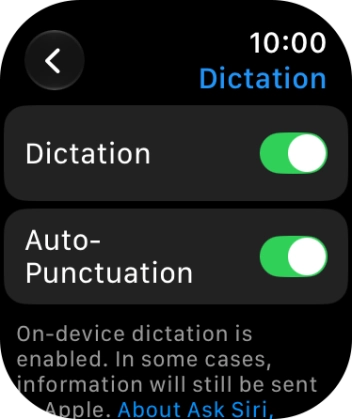
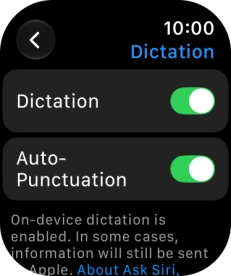
Press the indicator next to "Dictation" to turn on the function.

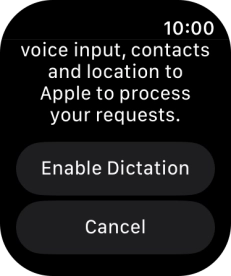
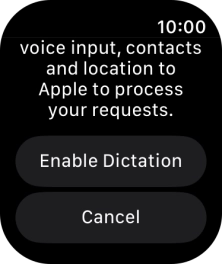
Press Enable Dictation.
Step 16 of 17

5. Turn on dictation

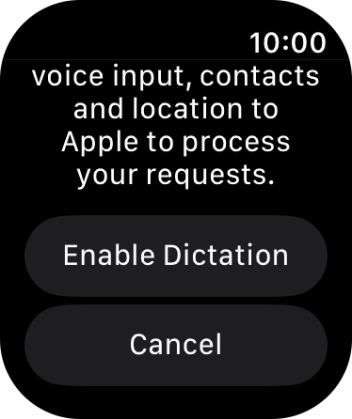
Press Enable Dictation.

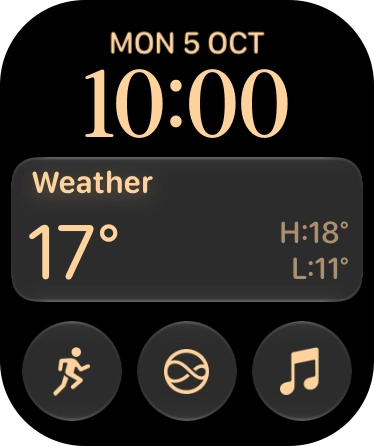
Press the Digital Crown several times to return to standby mode.
Step 17 of 17

6. Return to the home screen

Press the Digital Crown several times to return to standby mode.

1. Find "Siri"

Press the Digital Crown.
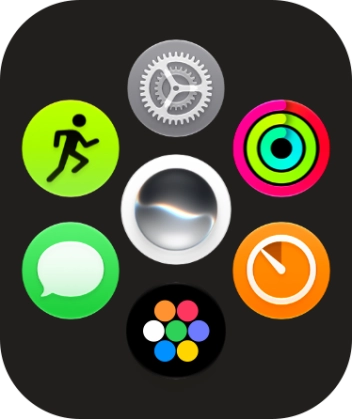
Slide your finger upwards on the screen.
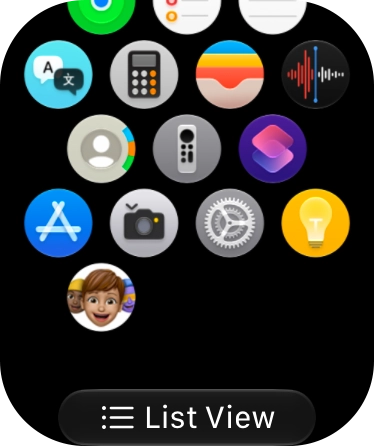
Press the settings icon.
Press Siri.

2. Turn automatic activation on or off

Press Listen for.
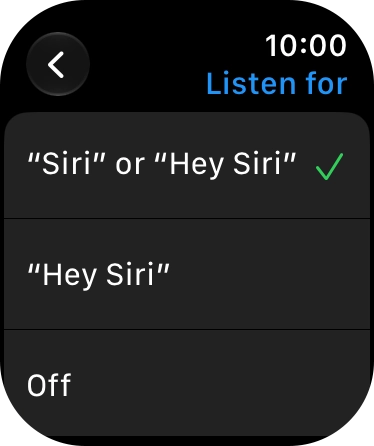
Press the required setting to turn the function on or off.
If you turn on the function, you can activate Siri by saying "Siri" or "Hey Siri" when the screen on your Apple Watch is turned on.
Press arrow left.

3. Turn Raise To Speak on or off

Press the indicator next to "Raise to Speak" to turn the function on or off.
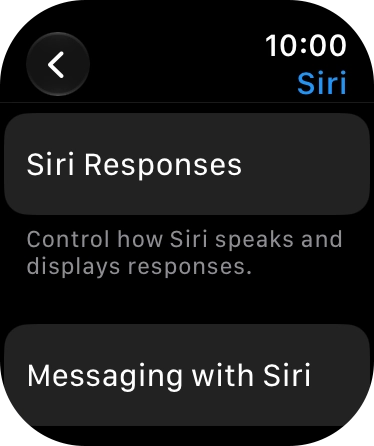
If you turn on the function, you can turn on Siri by holding your Apple Watch to your mouth.

4. Turn voice feedback on or off

Press Siri Responses.
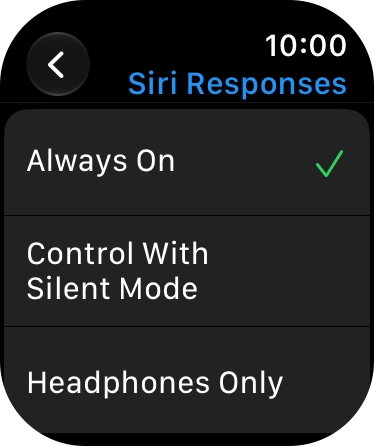
Press the required setting.
Press arrow left.

5. Turn on dictation

Press arrow left.
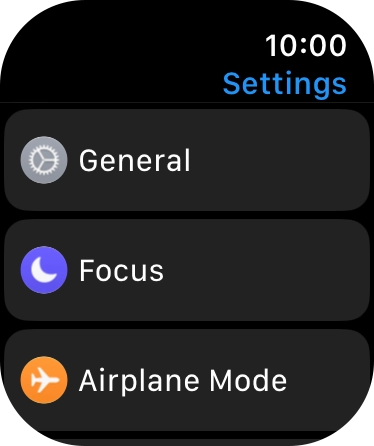
When dictation is turned on, you can reply to messages and email messages using voice input.
Press General.
Press Dictation.
Press the indicator next to "Dictation" to turn on the function.
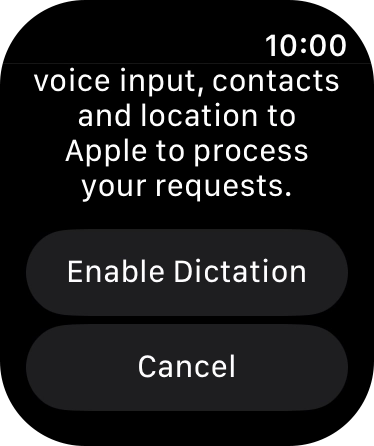
Press Enable Dictation.

6. Return to the home screen

Press the Digital Crown several times to return to standby mode.

Thank you for your evaluation!

Get information on...

Or select...

Another device