1. Use Siri AI for voice control
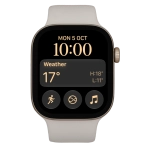
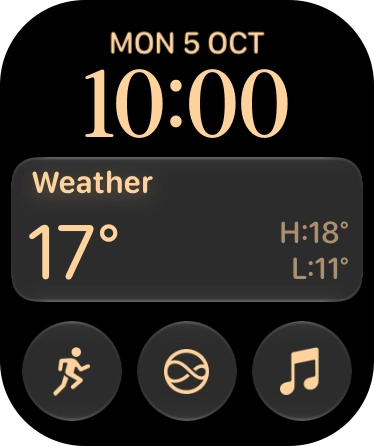
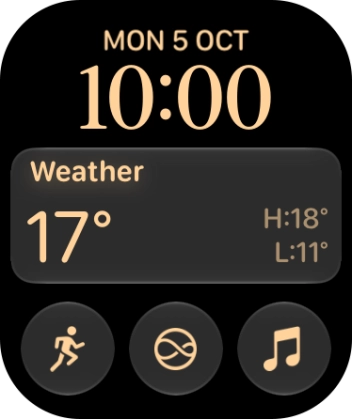
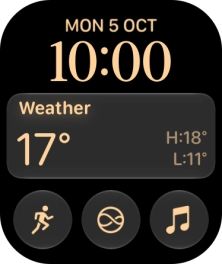
Press and hold the Digital Crown to turn on Siri AI.
![Say, in your own words, what you would like your Apple Watch to do. WHAT'S THE WEATHER LIKE? CALL [contact], PLAY [song or playlist] or SET AN ALARM.](https://cdn.sp-selfservice.com/ml/7121026-f-8023bc70-df01-4287-bd19-af5a03a4c497.png?width=446&height=534 "Say, in your own words, what you would like your Apple Watch to do. WHAT'S THE WEATHER LIKE? CALL [contact], PLAY [song or playlist] or SET AN ALARM.")
![Say, in your own words, what you would like your Apple Watch to do. WHAT'S THE WEATHER LIKE? CALL [contact], PLAY [song or playlist] or SET AN ALARM.](https://cdn.sp-selfservice.com/ml/7121026-f-8023bc70-df01-4287-bd19-af5a03a4c497.png?width=352&height=422 "Say, in your own words, what you would like your Apple Watch to do. WHAT'S THE WEATHER LIKE? CALL [contact], PLAY [song or playlist] or SET AN ALARM.")
![Say, in your own words, what you would like your Apple Watch to do. WHAT'S THE WEATHER LIKE? CALL [contact], PLAY [song or playlist] or SET AN ALARM.](https://cdn.sp-selfservice.com/ml/7121026-f-8023bc70-df01-4287-bd19-af5a03a4c497.png?width=232&height=276 "Say, in your own words, what you would like your Apple Watch to do. WHAT'S THE WEATHER LIKE? CALL [contact], PLAY [song or playlist] or SET AN ALARM.")
1. Use Siri AI for voice control
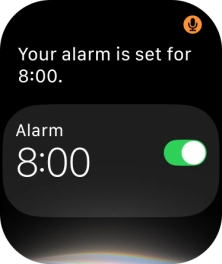
Say, in your own words, what you would like your Apple Watch to do. WHAT'S THE WEATHER LIKE? CALL [contact], PLAY [song or playlist] or SET AN ALARM.
![If an app is open on your Apple Watch, such as Messages, you can also use the functions available here, e.g.: REPLY [text].](https://cdn.sp-selfservice.com/ml/7121026-f-239e655e-fd6f-4823-883b-fd1540cc3569.png?width=446&height=534 "If an app is open on your Apple Watch, such as Messages, you can also use the functions available here, e.g.: REPLY [text].")
![If an app is open on your Apple Watch, such as Messages, you can also use the functions available here, e.g.: REPLY [text].](https://cdn.sp-selfservice.com/ml/7121026-f-239e655e-fd6f-4823-883b-fd1540cc3569.png?width=352&height=422 "If an app is open on your Apple Watch, such as Messages, you can also use the functions available here, e.g.: REPLY [text].")
![If an app is open on your Apple Watch, such as Messages, you can also use the functions available here, e.g.: REPLY [text].](https://cdn.sp-selfservice.com/ml/7121026-f-239e655e-fd6f-4823-883b-fd1540cc3569.png?width=232&height=276 "If an app is open on your Apple Watch, such as Messages, you can also use the functions available here, e.g.: REPLY [text].")
1. Use Siri AI for voice control
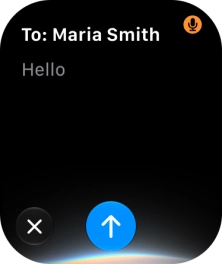
If an app is open on your Apple Watch, such as Messages, you can also use the functions available here, e.g.: REPLY [text].
1. Use Siri AI for voice control
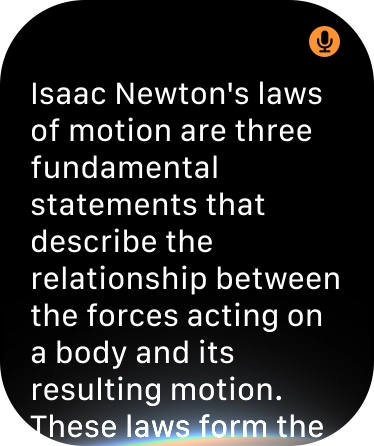
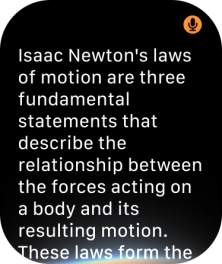
Ask questions or ask Siri to find information on the internet.
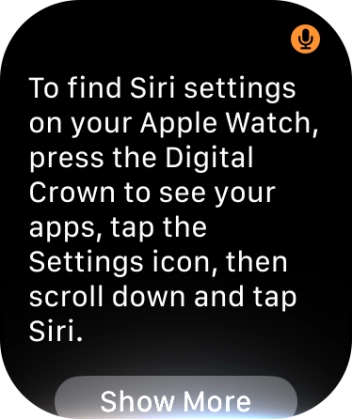
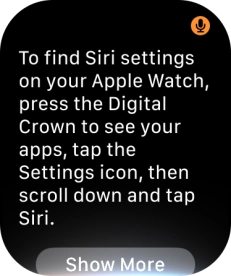
1. Use Siri AI for voice control
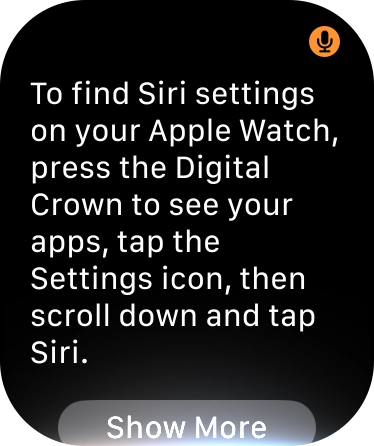
Ask questions about functions and settings on your Apple Watch.
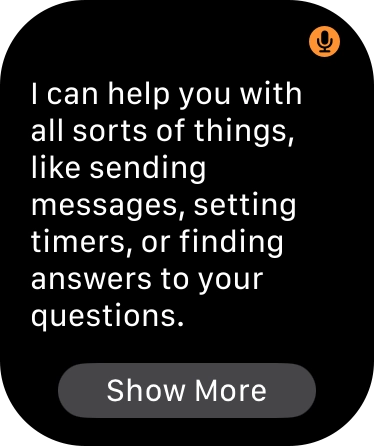
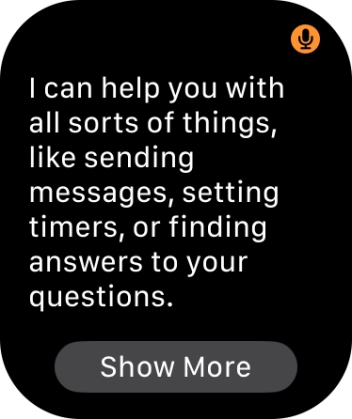
1. Use Siri AI for voice control
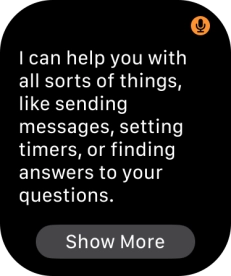
Say "What can you do" for more examples.
2. Use Siri AI app
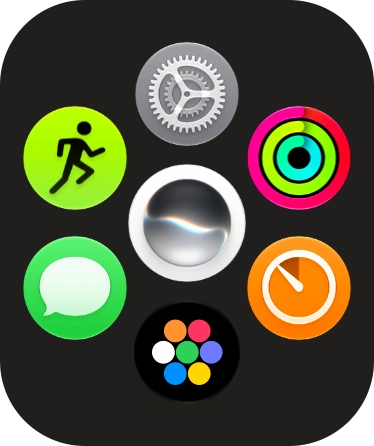
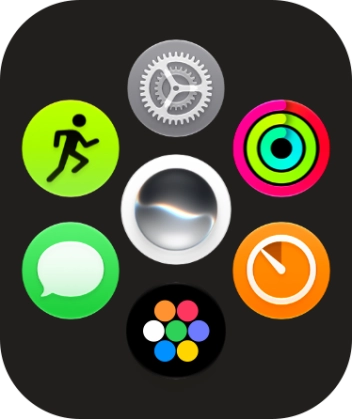
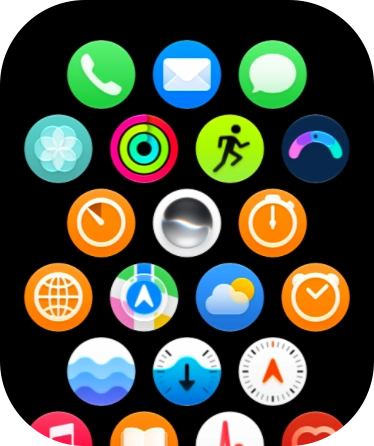
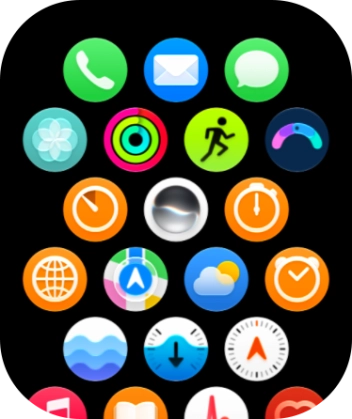
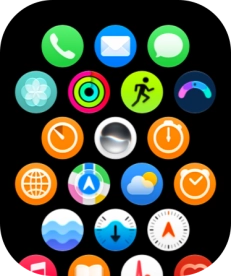
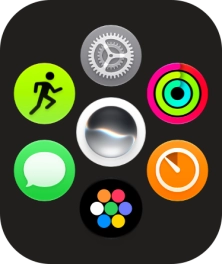
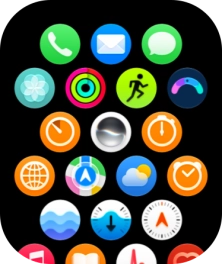
Press the Digital Crown.
2. Use Siri AI app
Slide your finger upwards on the screen.
2. Use Siri AI app
Press the Siri AI icon.
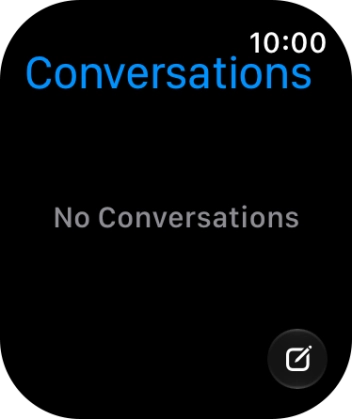
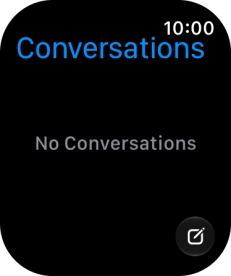
2. Use Siri AI app
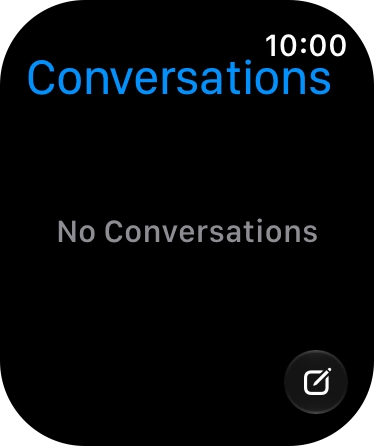
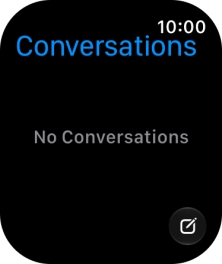
Press the new conversation icon.
2. Use Siri AI app
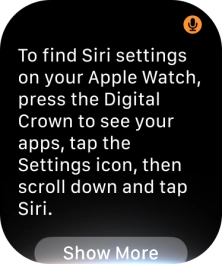
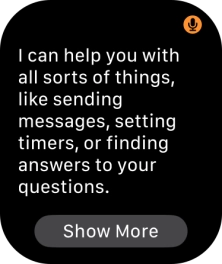
Say the required question and wait for the answer from Siri.
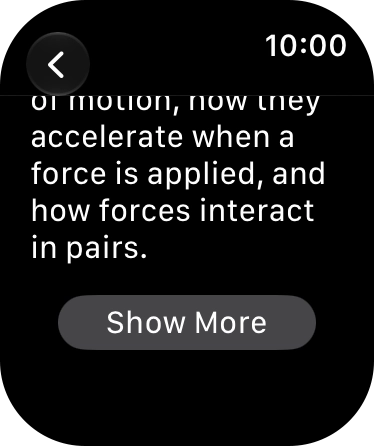
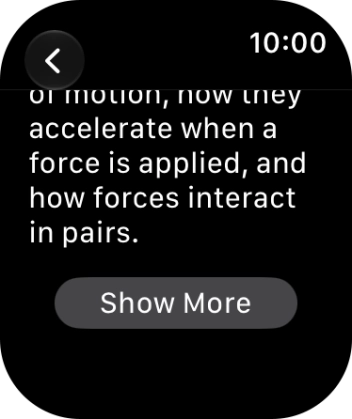
2. Use Siri AI app
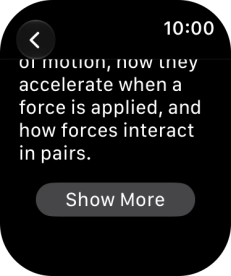
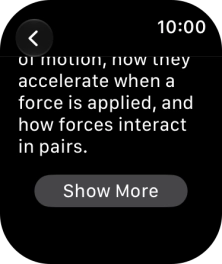
Press Show More for further information.


2. Use Siri AI app
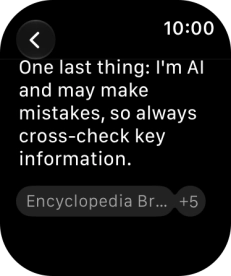
Press arrow left to leave the conversation.
2. Use Siri AI app
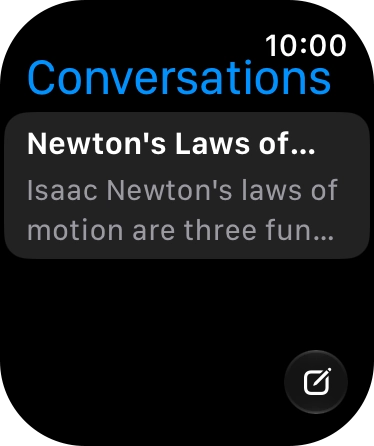
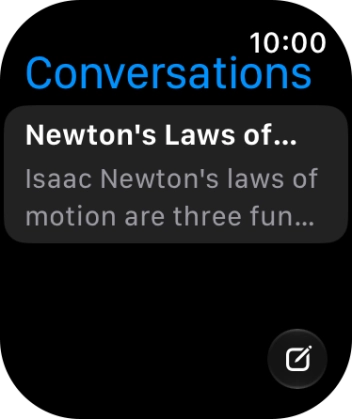
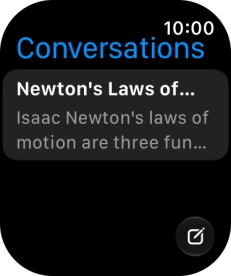
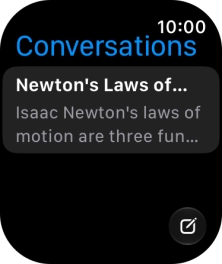
Press the required conversation to return to the conversation.
2. Use Siri AI app
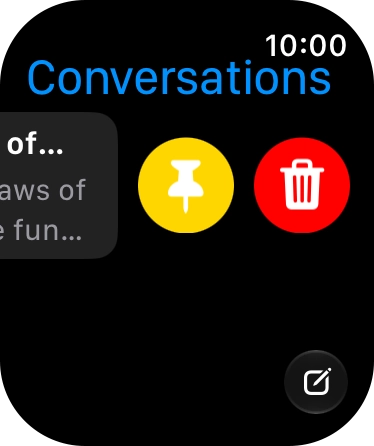
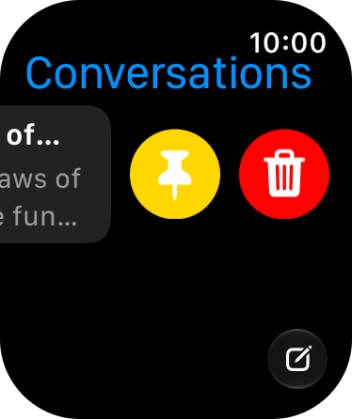
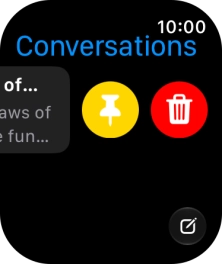
Slide your finger left on the conversation.
2. Use Siri AI app
Press the pin conversation icon to pin the conversation to the list of conversations.
2. Use Siri AI app
Press the delete icon and follow the instructions on the screen to delete the conversation.
3. Return to the home screen
Press the Digital Crown to return to the home screen.
1. Use Siri AI for voice control
2. Use Siri AI app

3. Return to the home screen
Thank you for your evaluation!

Thank you for your evaluation!