Apple Watch Series 12

Apple Watch Series 12

watchOS 27

I can't play music on my Apple Watch Series 12 watchOS 27

Cause 1 of 5: No audio files have been transferred to your Apple Watch

You can transfer your audio files from your phone to your Apple Watch.

Solution: Transfer audio files from your phone to your Apple Watch.

Step 1 of 19

Transfer audio files

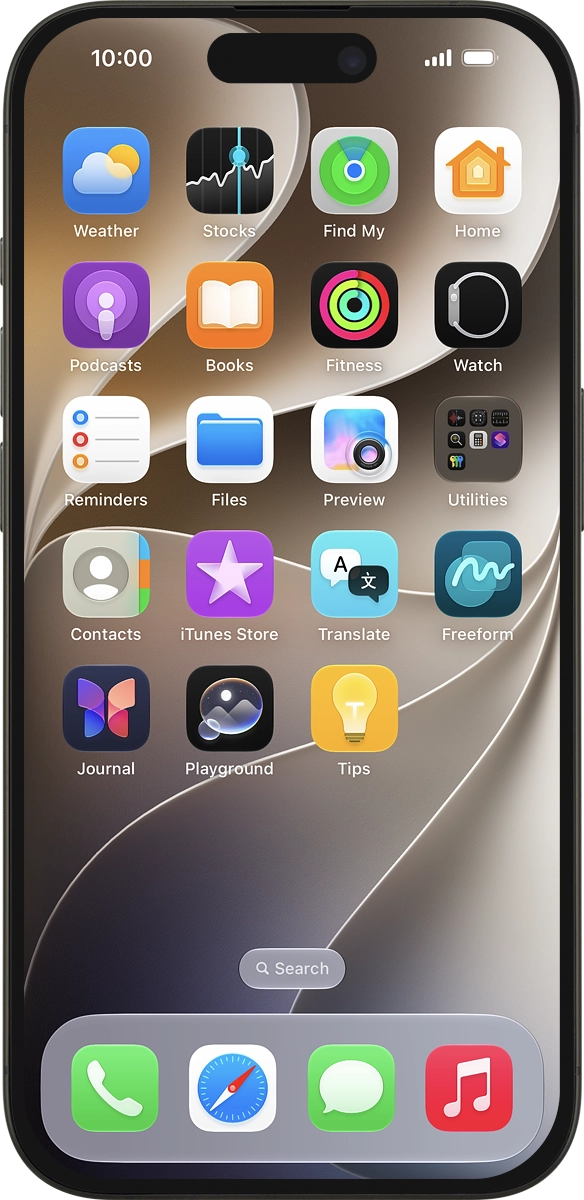
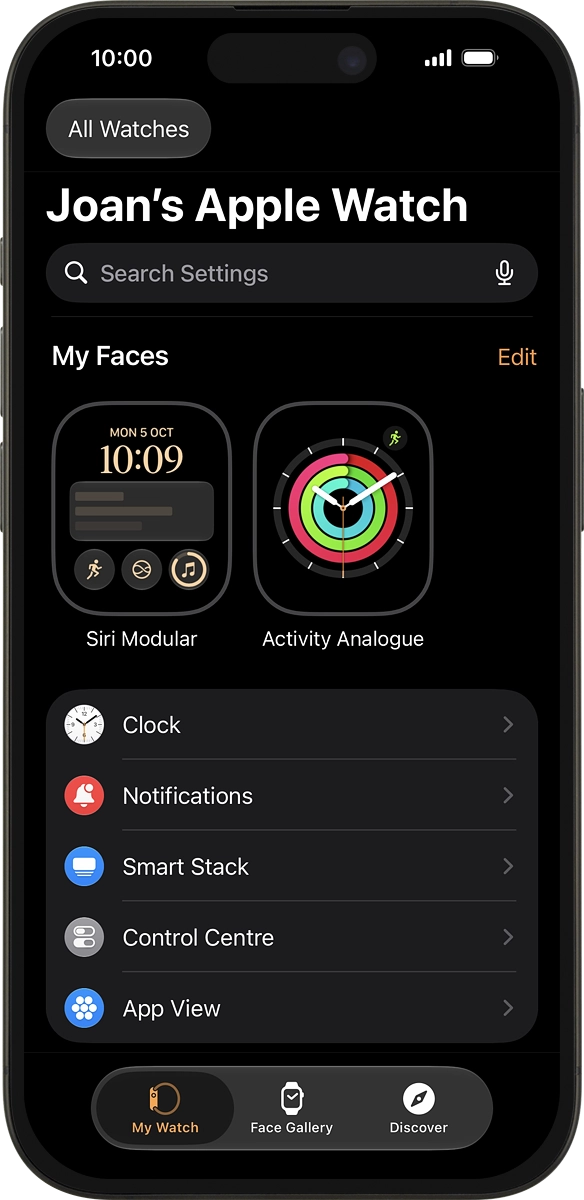
On your phone: Press Watch.
Step 2 of 19

Transfer audio files

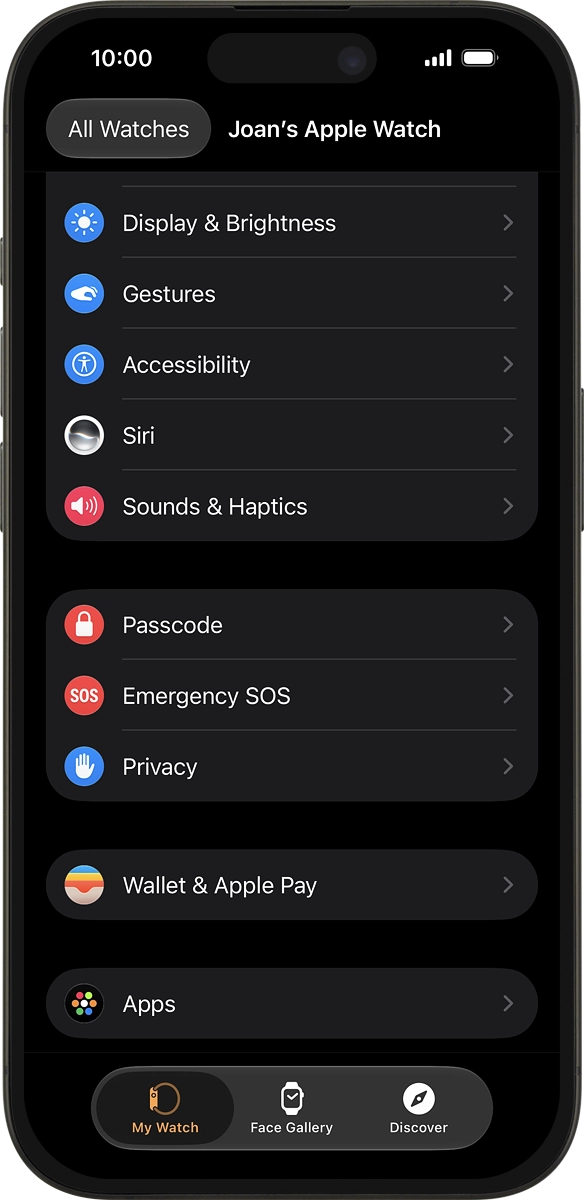
On your phone: Press My Watch.
Step 3 of 19

Transfer audio files

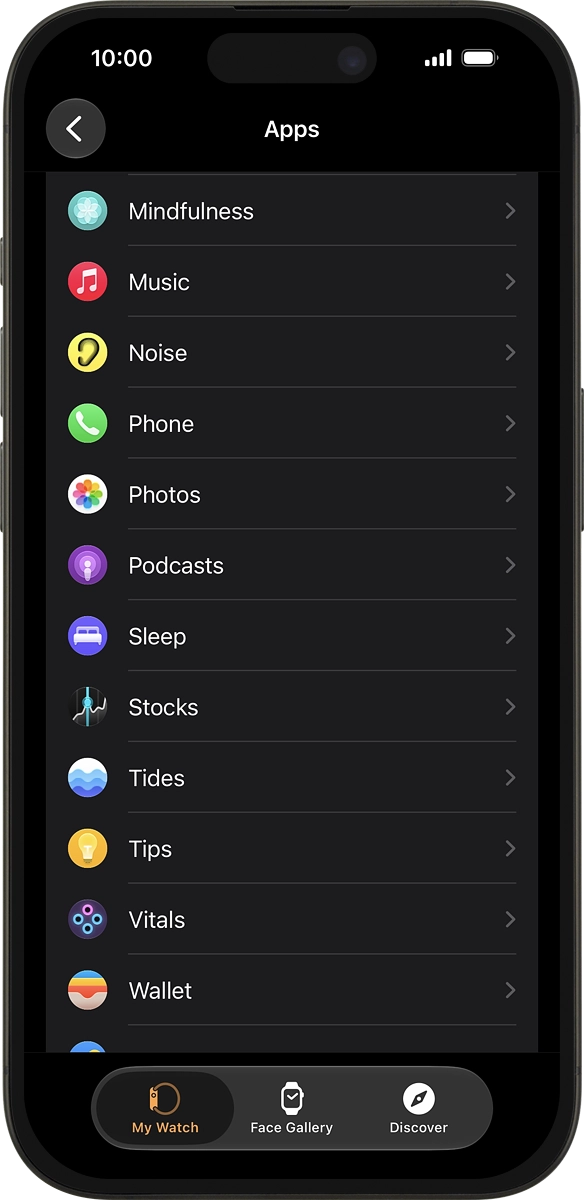
On your phone: Press Apps.
Step 4 of 19

Transfer audio files

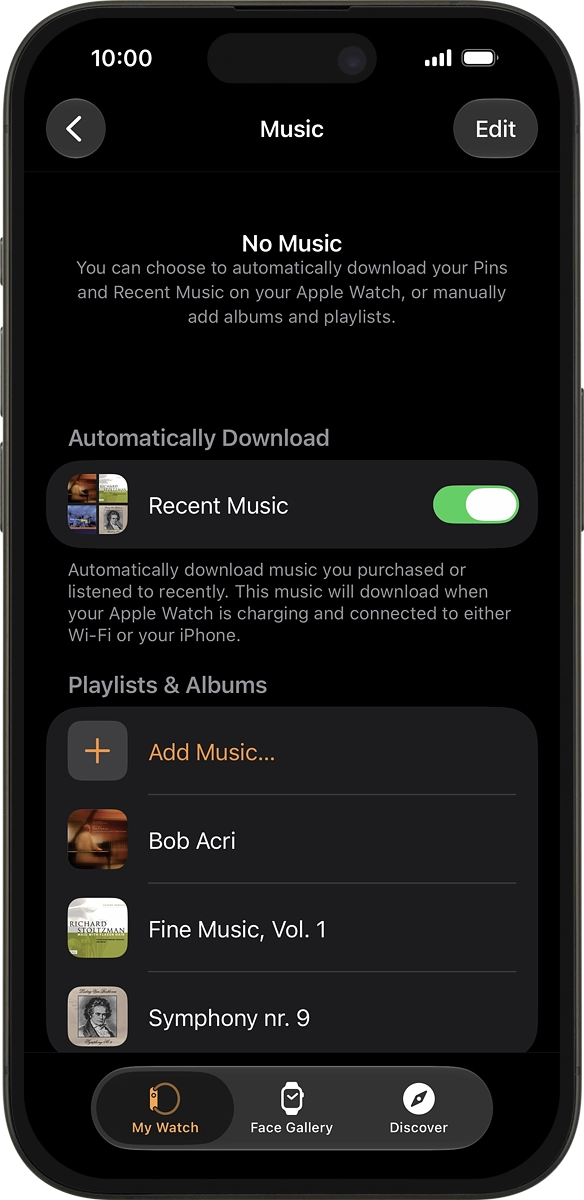
On your phone: Press Music.
Step 5 of 19

Transfer audio files

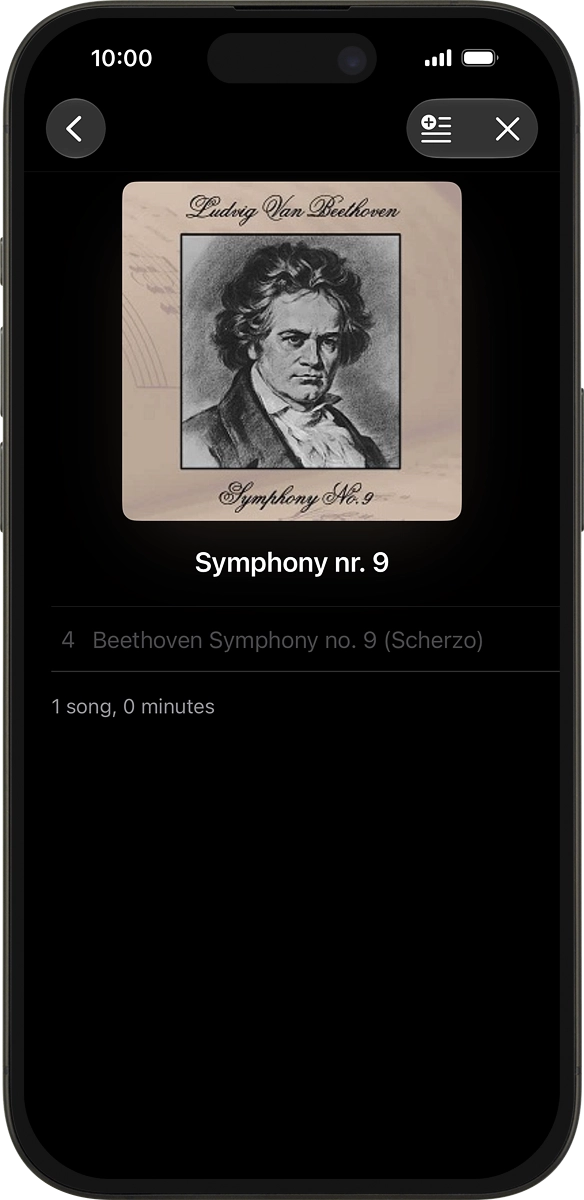
On your phone: Press Add Music... and go to the required playlist or album.
Step 6 of 19

Transfer audio files

On your phone: Press the add icon to transfer the audio files to your Apple Watch.
Step 7 of 19

Open music player

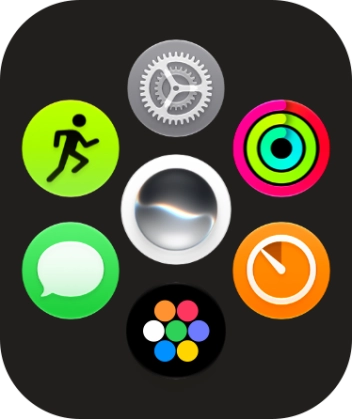
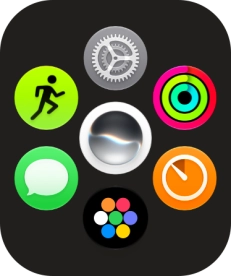
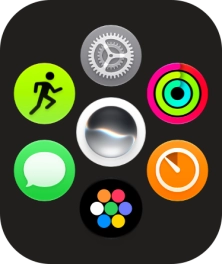
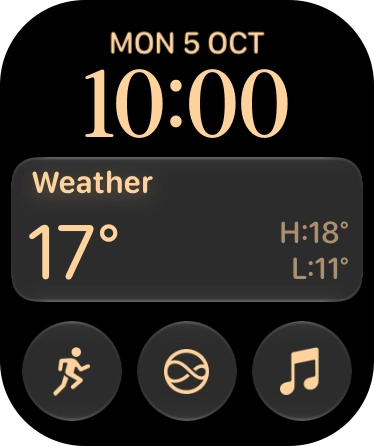
Press the Digital Crown.

Step 8 of 19

Open music player

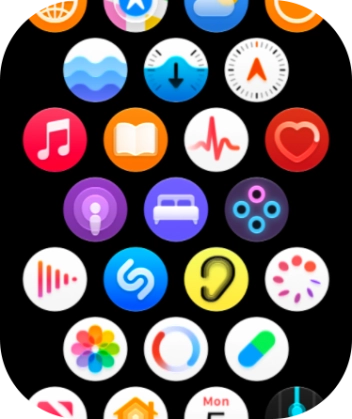
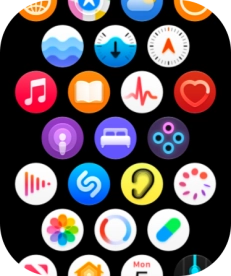
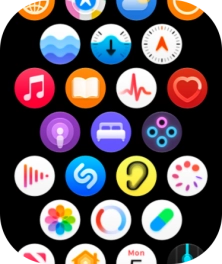
Slide your finger upwards on the screen.

Step 9 of 19

Open music player

Press the music player icon.

Step 10 of 19

Play audio file

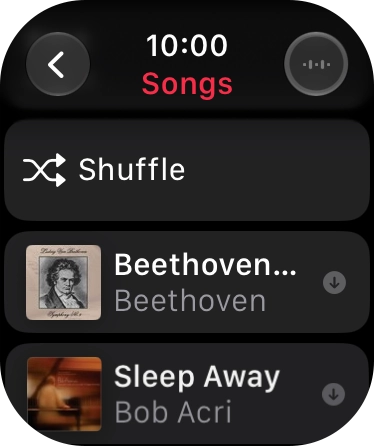
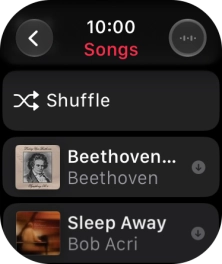
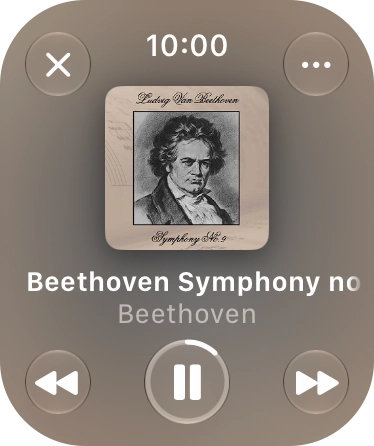
Go to the required category or playlist and press the required audio file.

Step 11 of 19

Select volume

Turn the Digital Crown to select the required volume.

Step 12 of 19

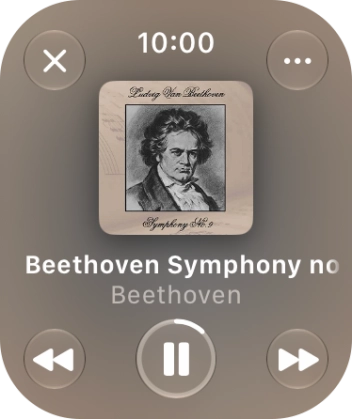
Go to the next or previous audio file

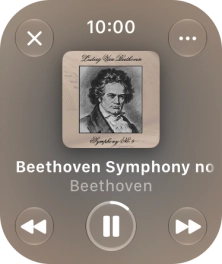
Press arrow right to go to the next audio file.

Step 13 of 19

Go to the next or previous audio file

Press arrow left twice to go to the previous audio file.

Step 14 of 19

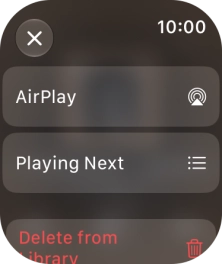
Turn shuffle on or off

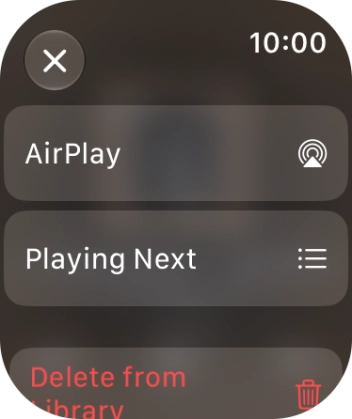
Press the menu icon.

Step 15 of 19

Turn shuffle on or off

Press Playing Next.

Step 16 of 19

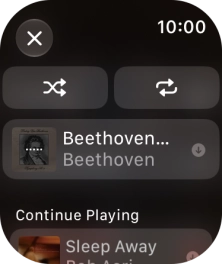
Turn shuffle on or off

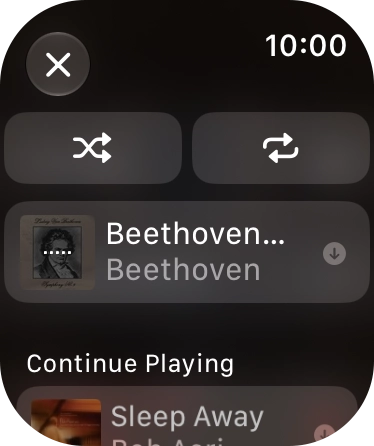
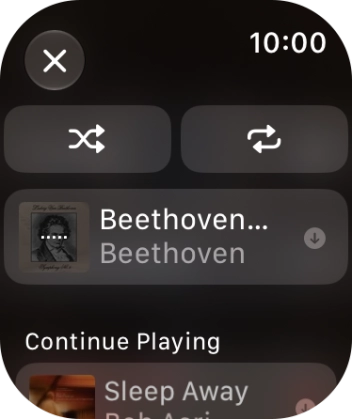
Press the shuffle icon to turn the function on or off.

Step 17 of 19

Turn repeat on or off

Press the repeat icon to turn the function on or off.

Step 18 of 19

Turn repeat on or off

Press the close icon.

Step 19 of 19

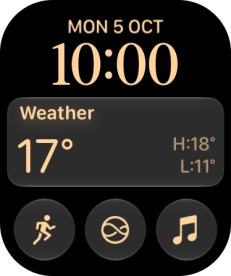
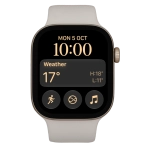
Return to the home screen

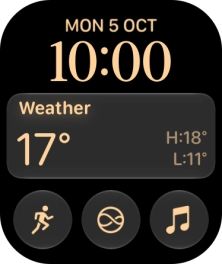
Press the Digital Crown several times to return to standby mode.

1 Transfer audio files

On your phone: Press Watch.
On your phone: Press My Watch.
On your phone: Press Apps.
On your phone: Press Music.
On your phone: Press Add Music... and go to the required playlist or album.
On your phone: Press the add icon to transfer the audio files to your Apple Watch.
The audio files are automatically synchronised with your Apple Watch when it's charging.

2 Open music player

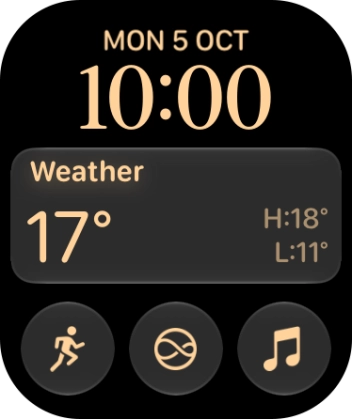
Press the Digital Crown.
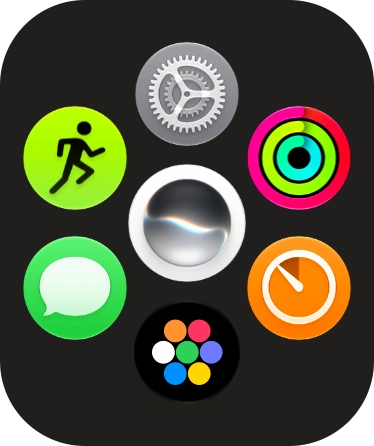
Slide your finger upwards on the screen.
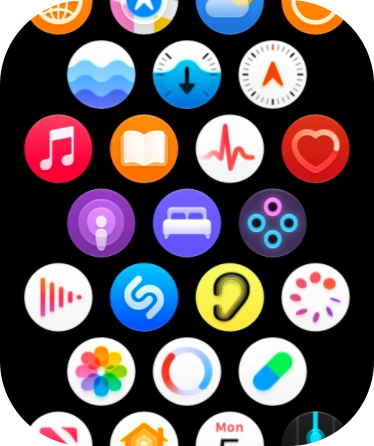
Press the music player icon.

3 Play audio file

Go to the required category or playlist and press the required audio file.
4 Select volume

Turn the Digital Crown to select the required volume.

5 Go to the next or previous audio file

Press arrow right to go to the next audio file.
Press arrow left twice to go to the previous audio file.

6 Turn shuffle on or off

Press the menu icon.
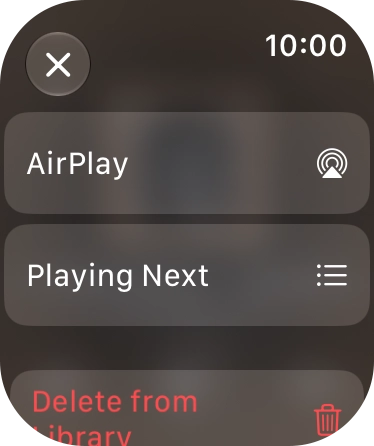
Press Playing Next.
Press the shuffle icon to turn the function on or off.

7 Turn repeat on or off

Press the repeat icon to turn the function on or off.
You can choose whether you want the music player to repeat one or more audio files.
Press the close icon.

8 Return to the home screen

Press the Digital Crown several times to return to standby mode.

Did this solve the problem?

Yes - All solved No - Go to next cause

Get information on...

Or select...

Another device