Huawei Mate 8

Huawei Mate 8

Android 6.0

Turn call barring on your Huawei Mate 8 Android 6.0 on or off

Read help info

You can block certain types of calls such as incoming calls when you're abroad.

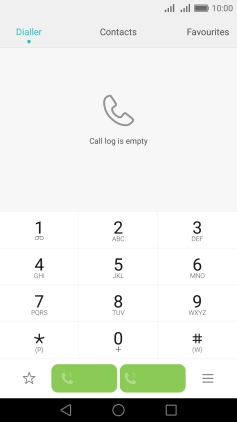
Press the phone icon.
Step 1 of 10

1. Find "Call barring"

Press the phone icon.
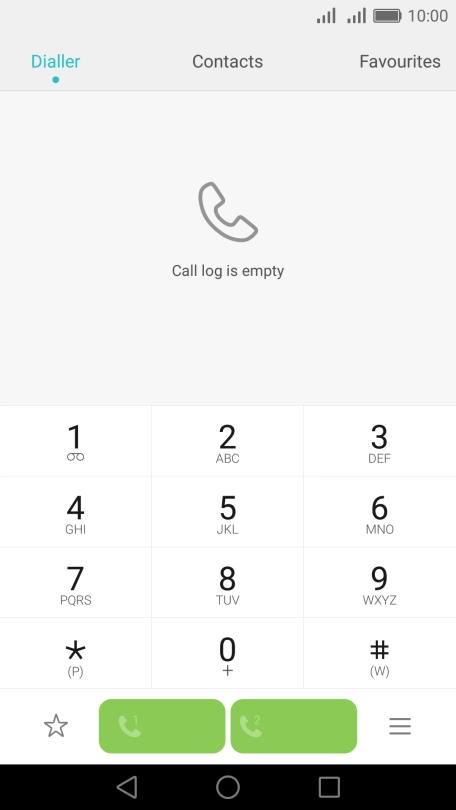
Press the menu icon.
Step 2 of 10

1. Find "Call barring"

Press the menu icon.

Press Settings.
Step 3 of 10

1. Find "Call barring"

Press Settings.

Press Additional settings.
Step 4 of 10

1. Find "Call barring"

Press Additional settings.

Press Call barring.
Step 5 of 10

1. Find "Call barring"

Press Call barring.

Press the required barring type.
Step 6 of 10

2. Turn on call barring

Press the required barring type.

Key in your barring password and press OK. The default barring password is 0000.
0000
Step 7 of 10

2. Turn on call barring

Key in your barring password and press OK. The default barring password is 0000.

Press Deactivate all.
Step 8 of 10

3. Turn off call barring

Press Deactivate all.

Key in your barring password and press OK. The default barring password is 0000.
0000
Step 9 of 10

3. Turn off call barring

Key in your barring password and press OK. The default barring password is 0000.

Press the Home key to return to the home screen.
Step 10 of 10

4. Return to the home screen

Press the Home key to return to the home screen.

1. Find "Call barring"

Press the phone icon.
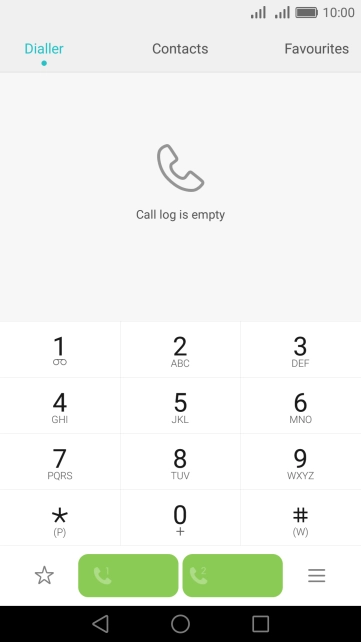
Press the menu icon.
Press Settings.
Press Additional settings.
Press Call barring.

2. Turn on call barring

Press the required barring type.
Key in your barring password and press OK. The default barring password is 0000.
0000

3. Turn off call barring

Press Deactivate all.
Key in your barring password and press OK. The default barring password is 0000.
0000

4. Return to the home screen

Press the Home key to return to the home screen.

Thank you for your evaluation!

Get information on...

Or select...

Another device