Huawei MediaPad T1 8.0

Huawei MediaPad T1 8.0

Android 4.3

Set date and time on your Huawei MediaPad T1 8.0 Android 4.3

Read help info

It's important that the date and time are correct as some tablet functions won't work.

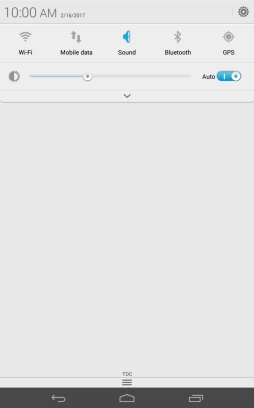
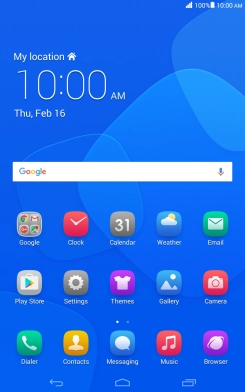
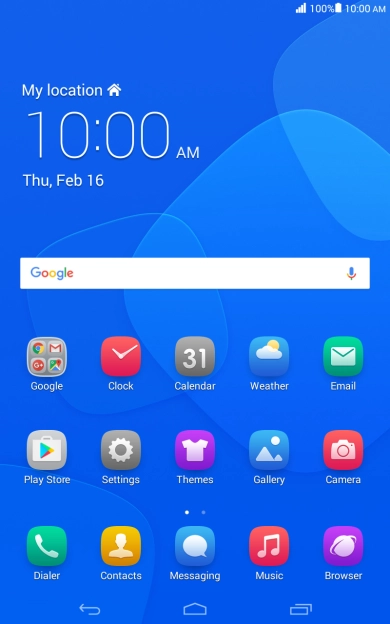
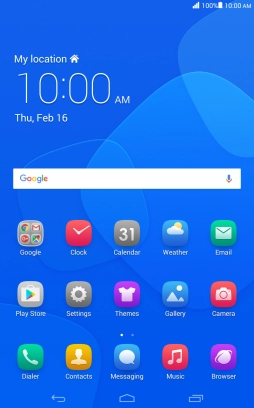
Slide your finger downwards starting from the top of the screen.
Step 1 of 6

1. Find "Date and time"

Slide your finger downwards starting from the top of the screen.
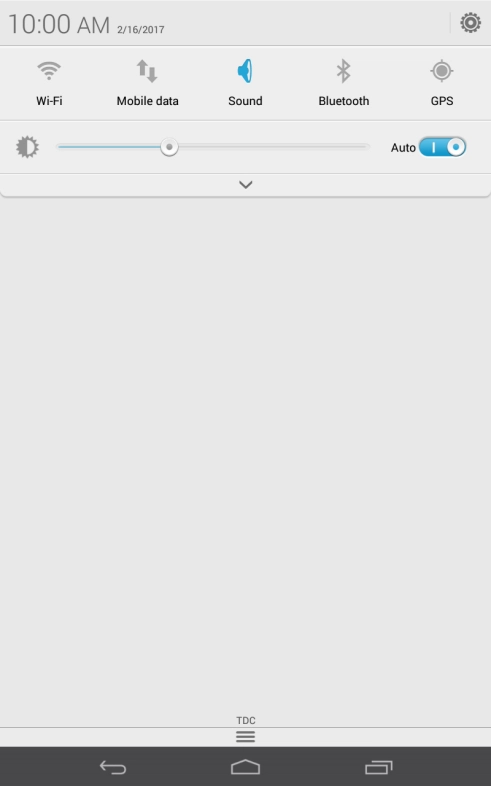
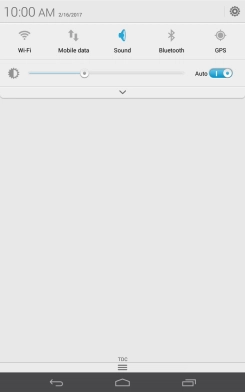
Press the settings icon.
Step 2 of 6

1. Find "Date and time"

Press the settings icon.

Press Date and time.
Step 3 of 6

1. Find "Date and time"

Press Date and time.

Press the indicator next to
Step 4 of 6

2. Turn on automatic date and time update

Press the indicator next to "Automatic date & time" to turn on the function.

Press the indicator next to
Step 5 of 6

2. Turn on automatic date and time update

Press the indicator next to "Automatic time zone" to turn on the function.

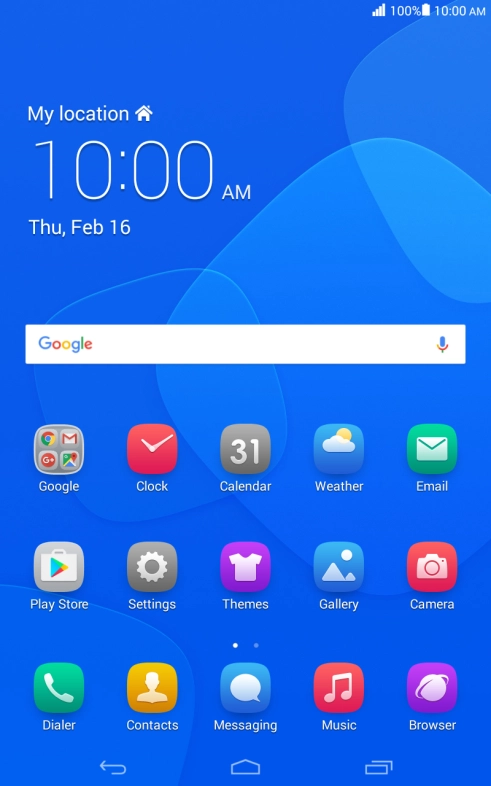
Press the Home key to return to the home screen.
Step 6 of 6

3. Return to the home screen

Press the Home key to return to the home screen.

1. Find "Date and time"

Slide your finger downwards starting from the top of the screen.
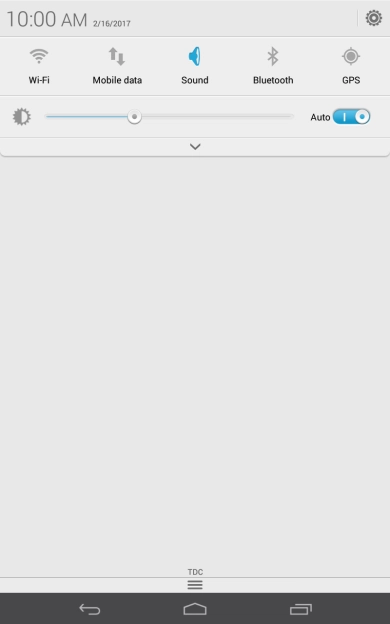
Press the settings icon.
Press Date and time.

2. Turn on automatic date and time update

Press the indicator next to "Automatic date & time" to turn on the function.
Press the indicator next to "Automatic time zone" to turn on the function.

3. Return to the home screen

Press the Home key to return to the home screen.

Thank you for your evaluation!

Get information on...

Or select...

Another device