Motorola Moto G56 5G

Motorola Moto G56 5G

Android 15

Set up your Motorola Moto G56 5G Android 15 for internet

Read help info

The internet connection is shared by many functions on your phone such as internet browsing, receiving email messages and installing apps. You can access the internet as soon as you've inserted your SIM. If this isn't the case, you can set up your phone for internet manually.

Slide two fingers downwards starting from the top of the screen.
Step 1 of 17

1. Find "Access point names"

Slide two fingers downwards starting from the top of the screen.

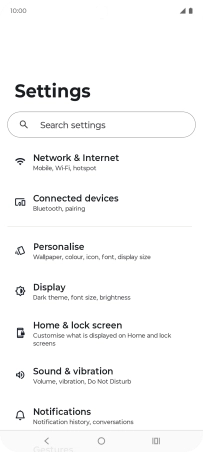
Press the settings icon.
Step 2 of 17

1. Find "Access point names"

Press the settings icon.

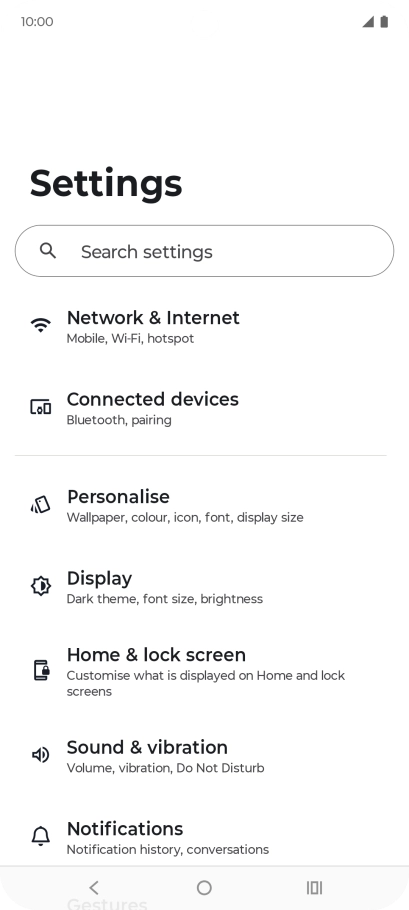
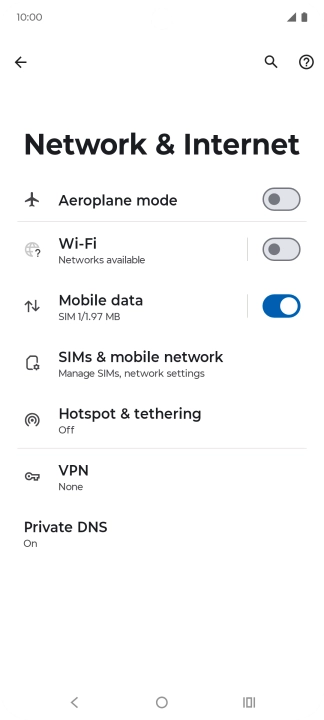
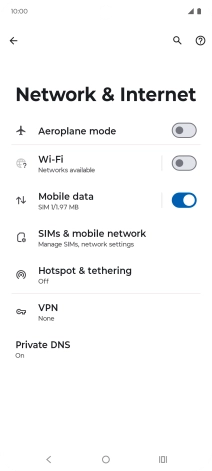
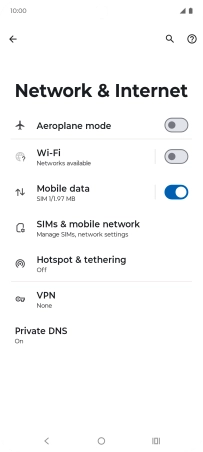
Press Network & Internet.
Step 3 of 17

1. Find "Access point names"

Press Network & Internet.

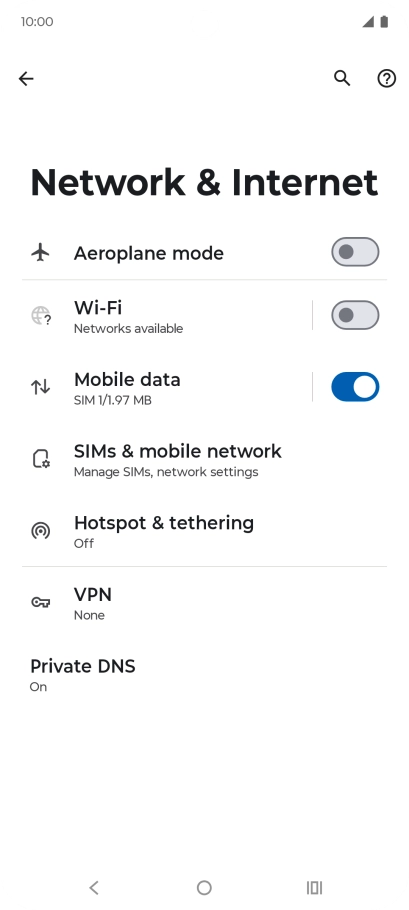
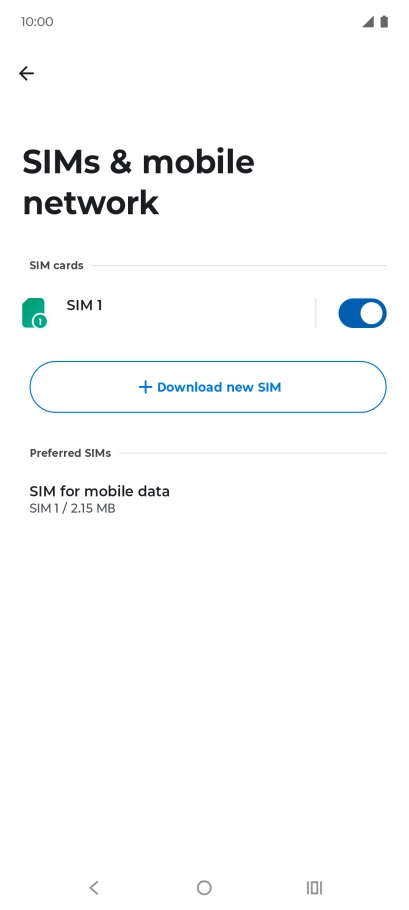
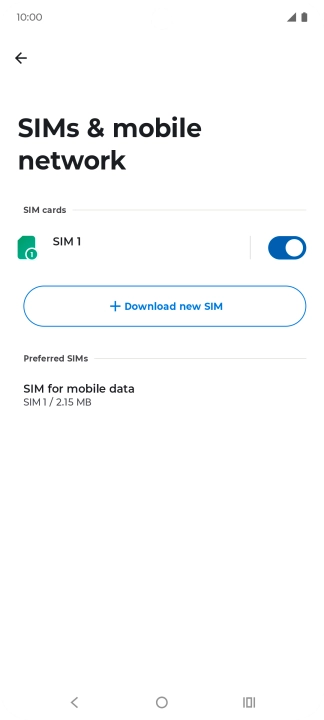
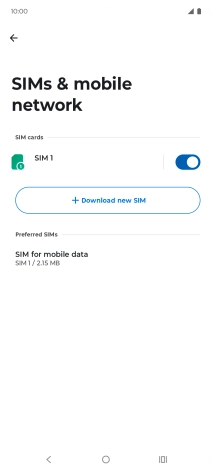
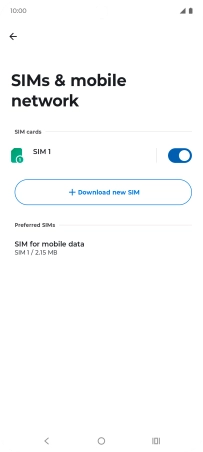
Press SIMs & mobile network.
Step 4 of 17

1. Find "Access point names"

Press SIMs & mobile network.

Press the name of the SIM.
Step 5 of 17

1. Find "Access point names"

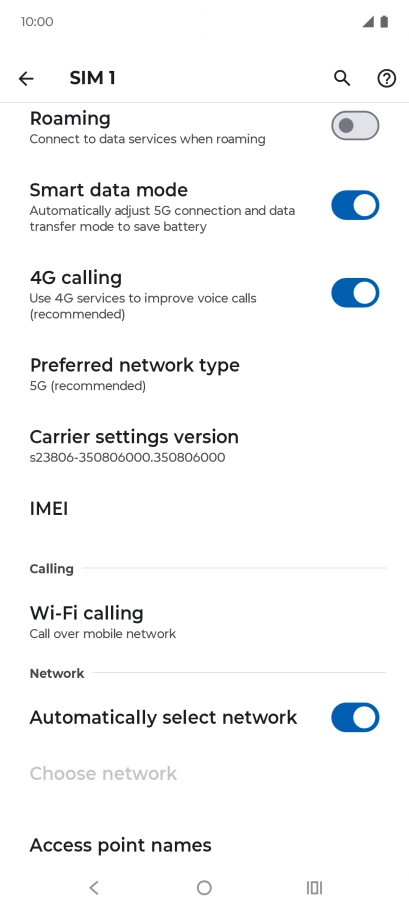
Press the name of the SIM.

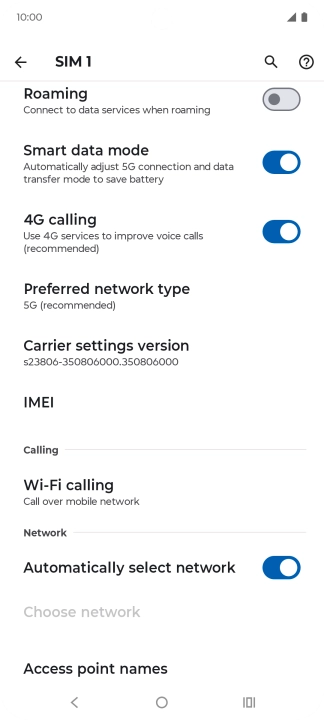
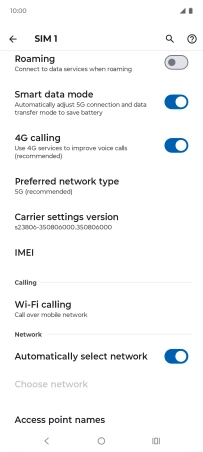
Press Access point names.
Step 6 of 17

1. Find "Access point names"

Press Access point names.

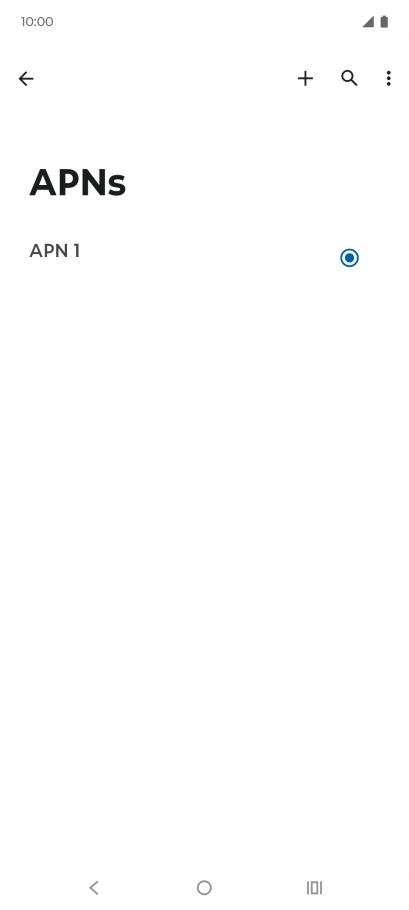
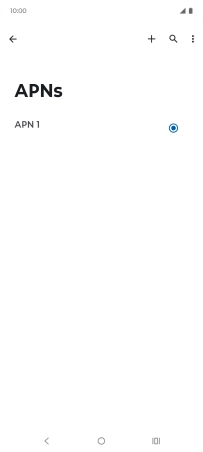
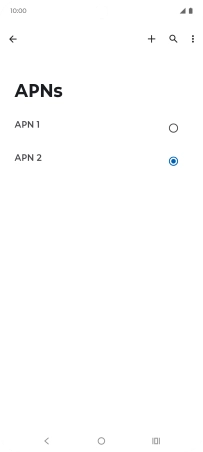
Press the new data connection icon.
Step 7 of 17

2. Create new data connection

Press the new data connection icon.

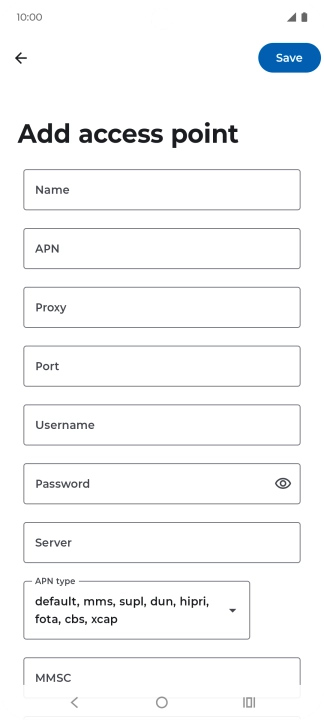
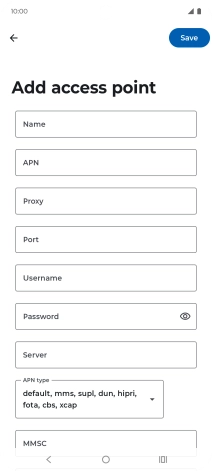
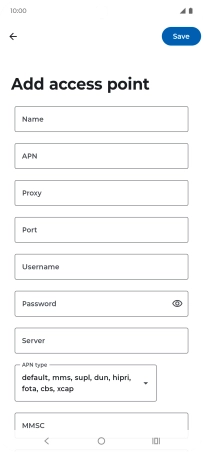
Press Name and key in Vodafone Internet.
Vodafone Internet
Step 8 of 17

3. Enter a name for the connection

Press Name and key in Vodafone Internet.

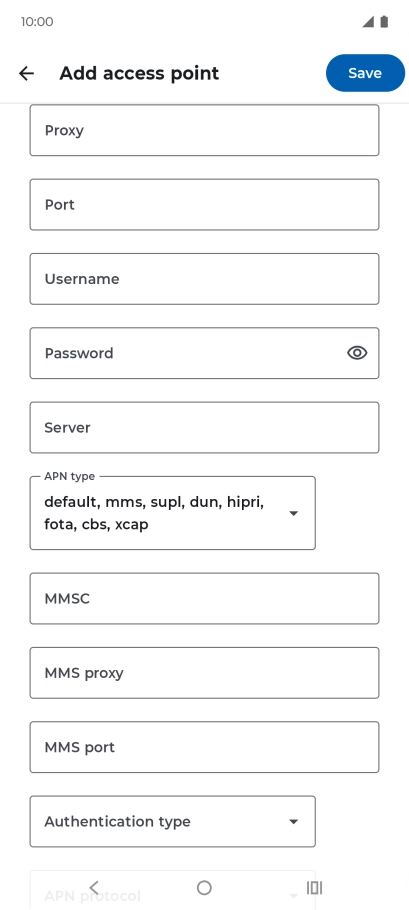
Press APN and key in live.vodafone.com.
live.vodafone.com
Step 9 of 17

4. Enter APN

Press APN and key in live.vodafone.com.

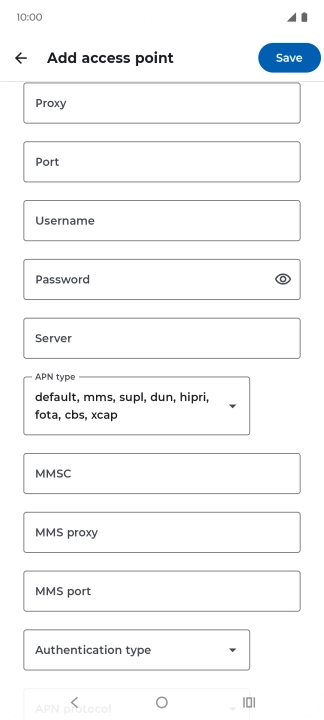
Press the drop down list below
Step 10 of 17

5. Select APN type

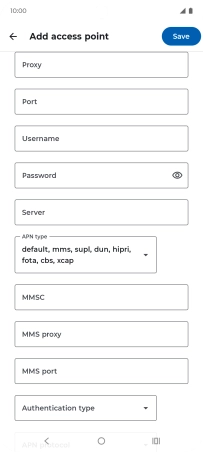
Press the drop down list below "APN type".

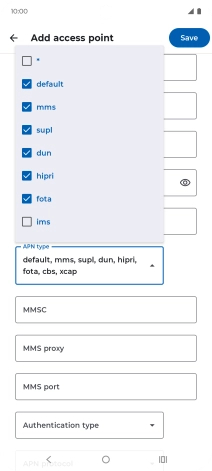
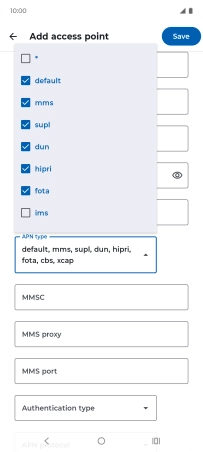
Press default to turn on the setting.
Step 11 of 17

5. Select APN type

Press default to turn on the setting.

Press the drop down list below
Step 12 of 17

5. Select APN type

Press the drop down list below "APN type".

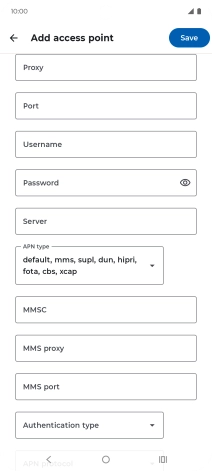
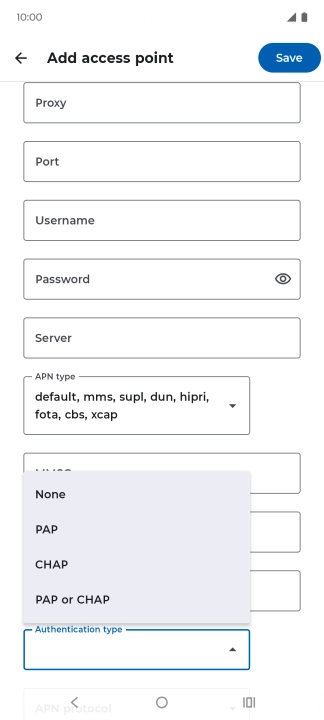
Press Authentication type.
Step 13 of 17

6. Select authentication type

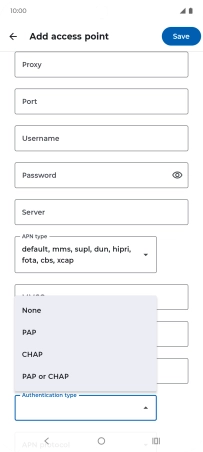
Press Authentication type.

Press PAP.
Step 14 of 17

6. Select authentication type

Press PAP.

Press Save.
Step 15 of 17

7. Save data connection

Press Save.

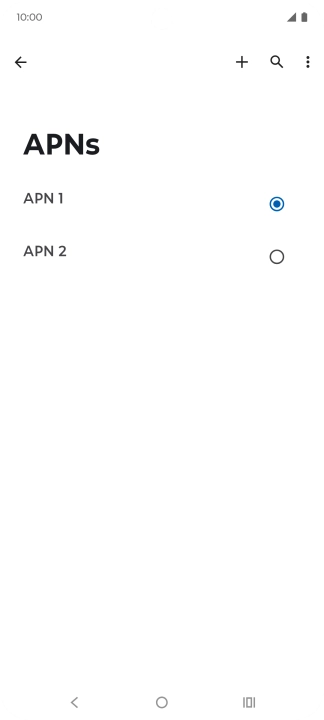
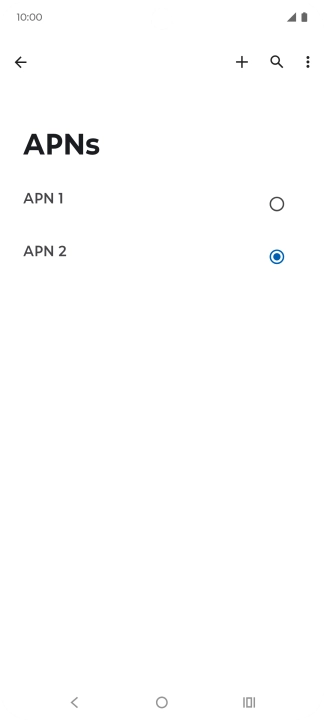
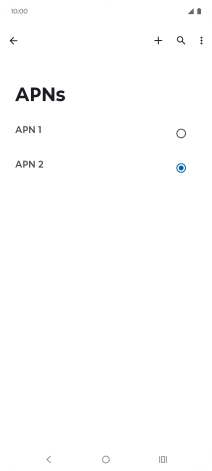
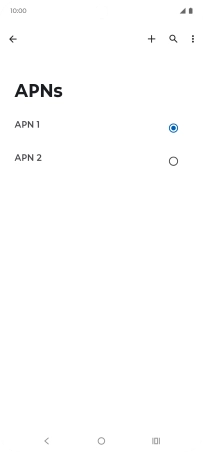
Press the field next to the data connection to activate it.
Step 16 of 17

7. Save data connection

Press the field next to the data connection to activate it.

Press the Home key to return to the home screen.
Step 17 of 17

8. Return to the home screen

Press the Home key to return to the home screen.

1. Find "Access point names"

Slide two fingers downwards starting from the top of the screen.
Press the settings icon.
Press Network & Internet.
Press SIMs & mobile network.
Press the name of the SIM.
Press Access point names.

2. Create new data connection

Press the new data connection icon.
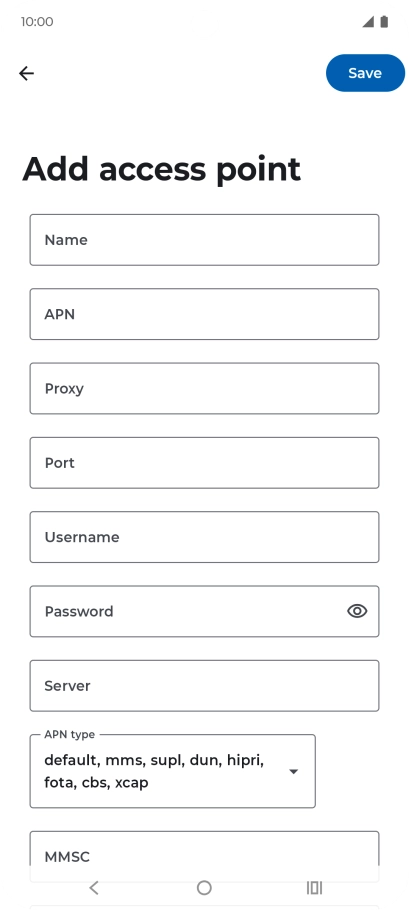
3. Enter a name for the connection

Press Name and key in Vodafone Internet.
Vodafone Internet

4. Enter APN

Press APN and key in live.vodafone.com.
live.vodafone.com

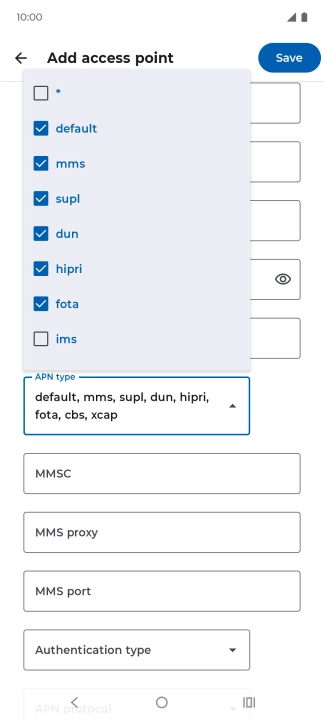
5. Select APN type

Press the drop down list below "APN type".
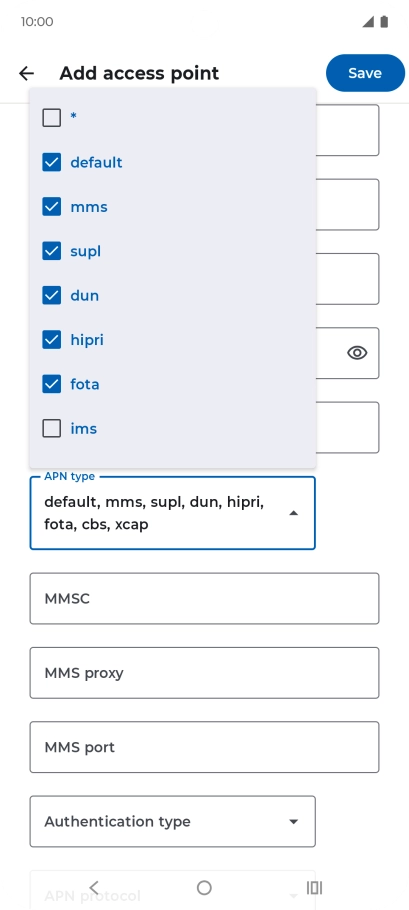
Press default to turn on the setting.
Press the drop down list below "APN type".
6. Select authentication type

Press Authentication type.
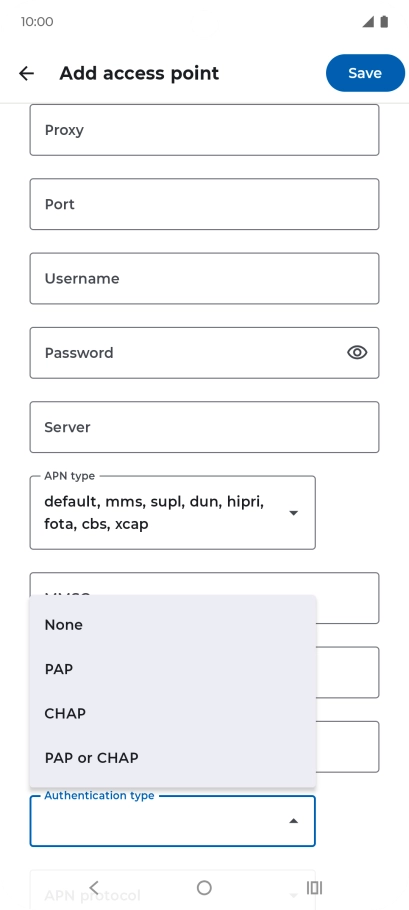
Press PAP.

7. Save data connection

Press Save.
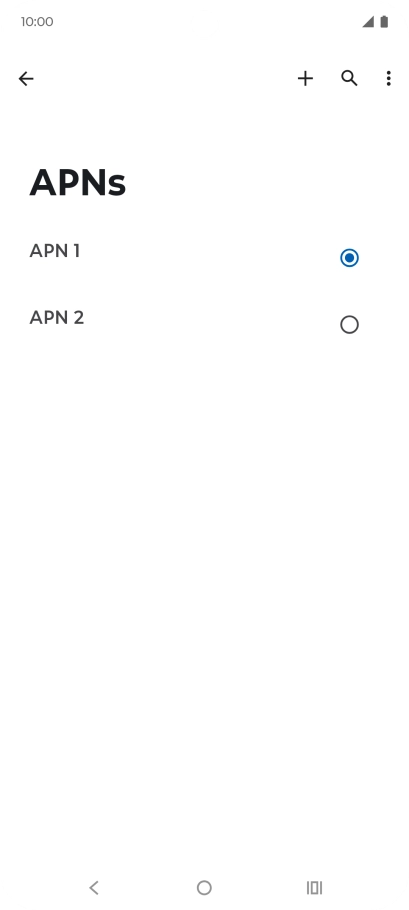
Press the field next to the data connection to activate it.
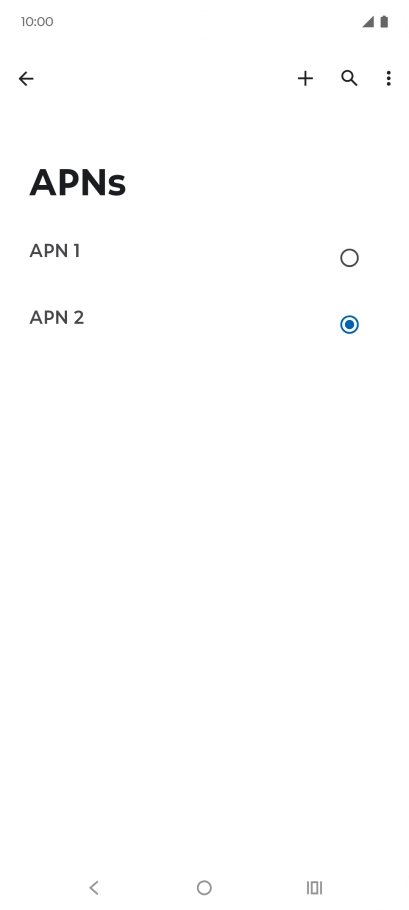
8. Return to the home screen

Press the Home key to return to the home screen.

Thank you for your evaluation!

Get information on...

Or select...

Another device