Nokia E7

Nokia E7

Write and send an email message - Nokia E7

Read help info

Follow these instructions to write and send an email message.
To send email messages from your phone, you need to set up your phone for email messaging.
Click here to set up your phone for POP3 email.
Click here to set up your phone for web-based email.
Click here to set up your phone for Exchange email.

Press the Menu key.
Step 1 of 21

Find "Mail"

Press the Menu key.
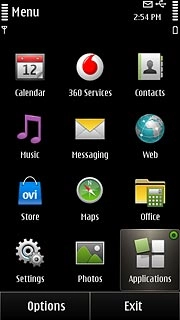
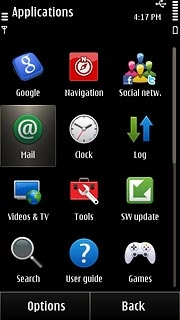
Press Applications.
Step 2 of 21

Find "Mail"

Press Applications.

Press Mail.
Step 3 of 21

Find "Mail"

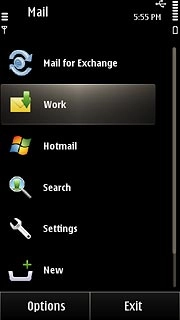
Press Mail.

Press the required email account.
Step 4 of 21

Create email message

Press the required email account.
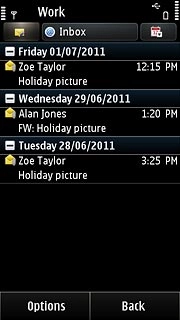
Press the new email message icon.
Step 5 of 21

Create email message

Press the new email message icon.
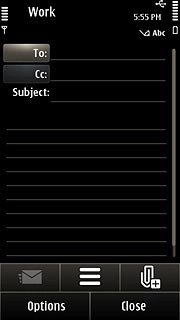
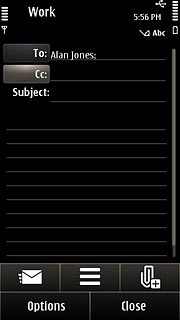
Press To.
Step 6 of 21

Select recipient

Press To.

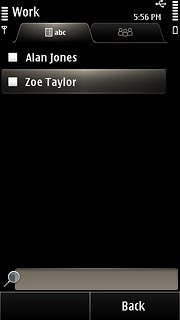
Press the required contacts.
Step 7 of 21

Select recipient

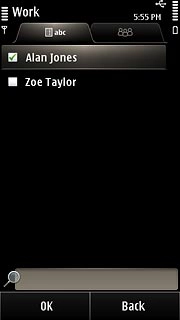
Press the required contacts.

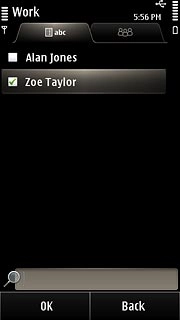
When the box next to a contact is ticked (V), the contact is selected.
Step 8 of 21

Select recipient

When the box next to a contact is ticked (V), the contact is selected.

Press OK.To add more recipients.
Step 9 of 21

Select recipient

Press OK.
To add more recipients.

Press Cc.
Step 10 of 21

Select recipient

Press Cc.

Press the required contacts.
Step 11 of 21

Select recipient

Press the required contacts.

When the box next to a contact is ticked (V), the contact is selected.
Step 12 of 21

Select recipient

When the box next to a contact is ticked (V), the contact is selected.

Press OK.
Step 13 of 21

Select recipient

Press OK.

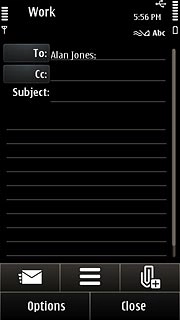
Press the field next to Subject.Key in a subject for the email message.
Step 14 of 21

Enter subject

Press the field next to Subject.
Key in a subject for the email message.

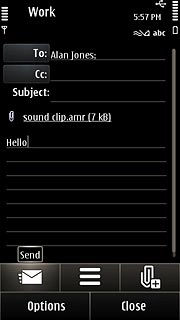
Press the text input field.Write the text for your email message.
Step 15 of 21

Write the text

Press the text input field.
Write the text for your email message.

Click here for information on how to write text.
Press the attachment icon.
Step 16 of 21

Attach file

Press the attachment icon.

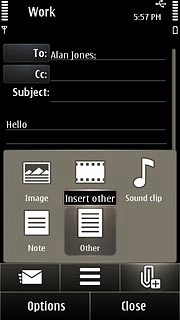
Press the required file type.
Step 17 of 21

Attach file

Press the required file type.

If you select Other:Go to the required folder.
Step 18 of 21

Attach file

If you select Other:
Go to the required folder.

Press the required file.
Step 19 of 21

Attach file

Press the required file.

Press the send icon.
Step 20 of 21

Send the email message

Press the send icon.

Press the Menu key to return to standby mode.
Step 21 of 21

Exit

Press the Menu key to return to standby mode.

Find "Mail"

Press the Menu key.
Press Applications.
Press Mail.

Create email message

Press the required email account.
Press the new email message icon.

Select recipient

Press To.
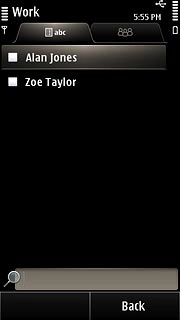
Press the required contacts.
When the box next to a contact is ticked (V), the contact is selected.
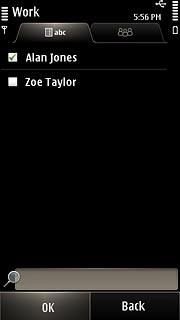
Press OK.
To add more recipients.
Press Cc.
Press the required contacts.
When the box next to a contact is ticked (V), the contact is selected.
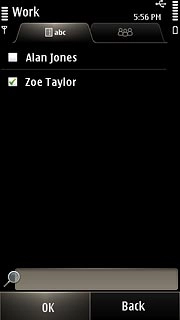
Press OK.

Enter subject

Press the field next to Subject.
Key in a subject for the email message.
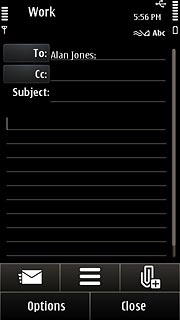
Write the text

Press the text input field.
Write the text for your email message.
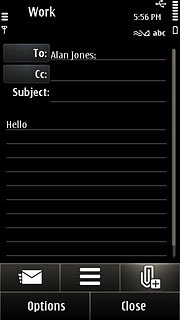
Click here for information on how to write text.

Attach file

Press the attachment icon.
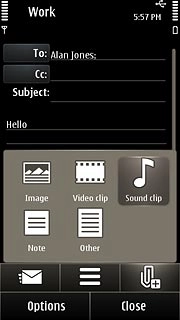
Press the required file type.
If you select Other:
Go to the required folder.
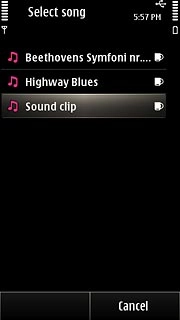
Press the required file.

Send the email message

Press the send icon.

Exit

Press the Menu key to return to standby mode.

Thank you for your evaluation!

Get information on...

Or select...

Another device