OPPO A6x 5G

OPPO A6x 5G

Android 15

Select ring tone on your OPPO A6x 5G Android 15

Read help info

You can select the ring tone you want to hear when you get a call.

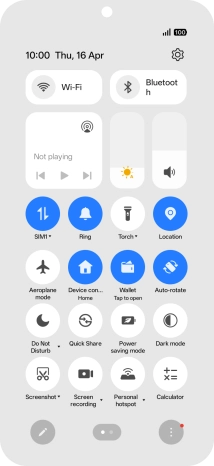
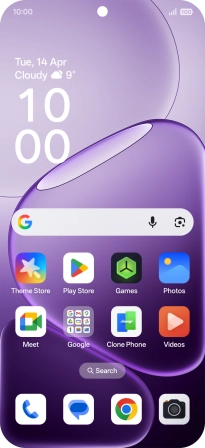
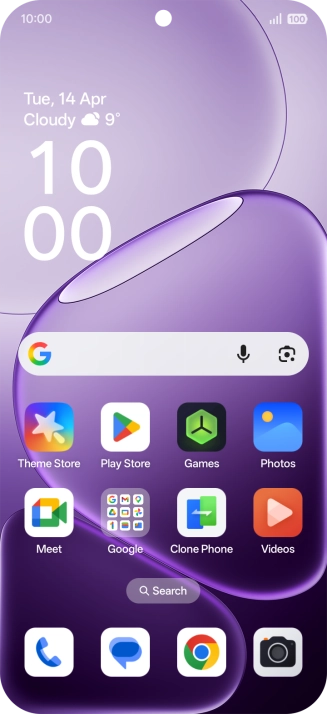
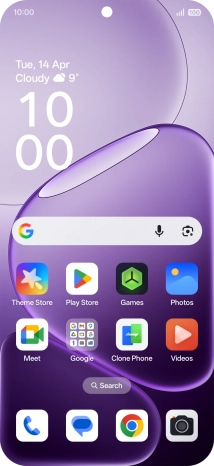
Slide your finger downwards starting from the top right side of the screen.
Step 1 of 9

1. Find "Ringtone"

Slide your finger downwards starting from the top right side of the screen.
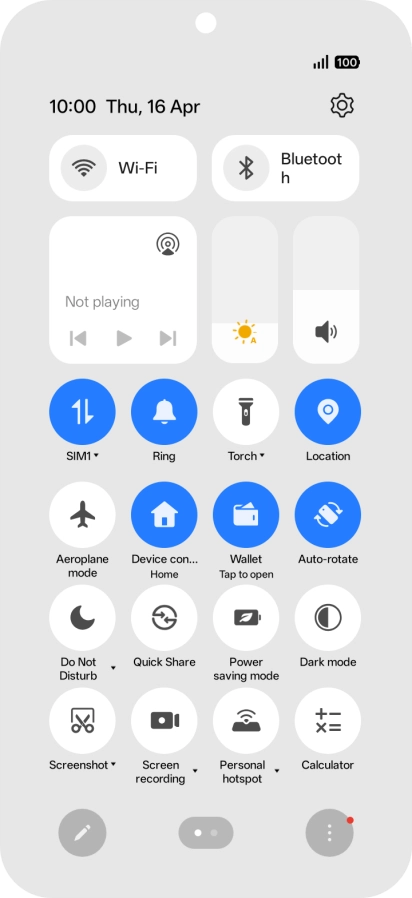
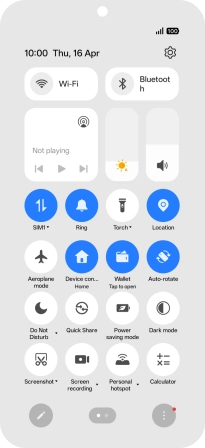
Press the settings icon.
Step 2 of 9

1. Find "Ringtone"

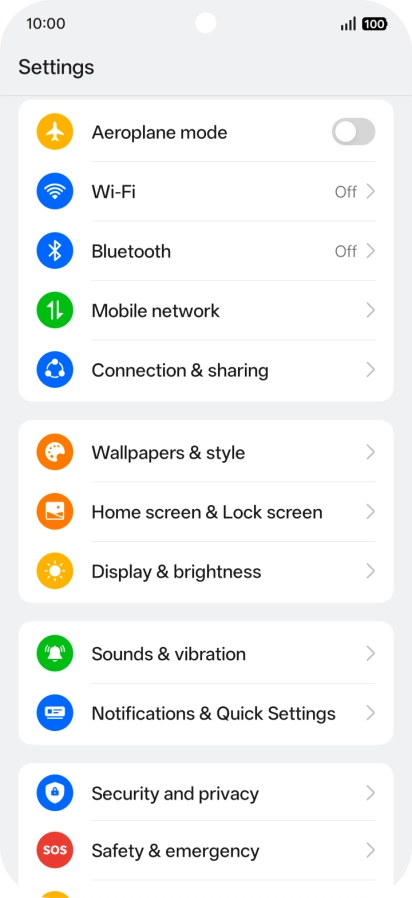
Press the settings icon.

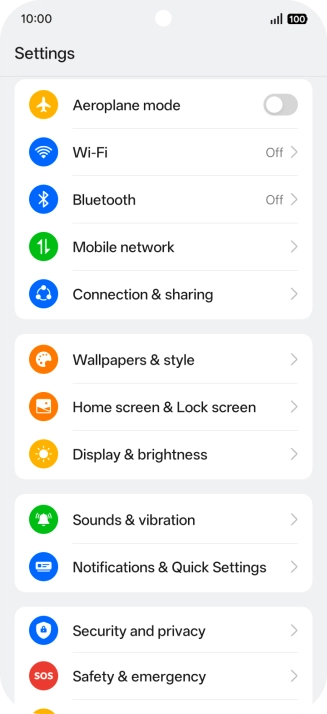
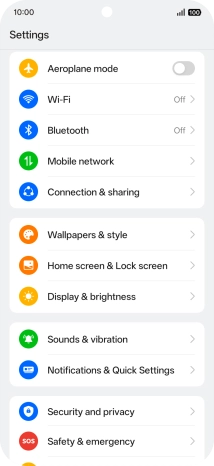
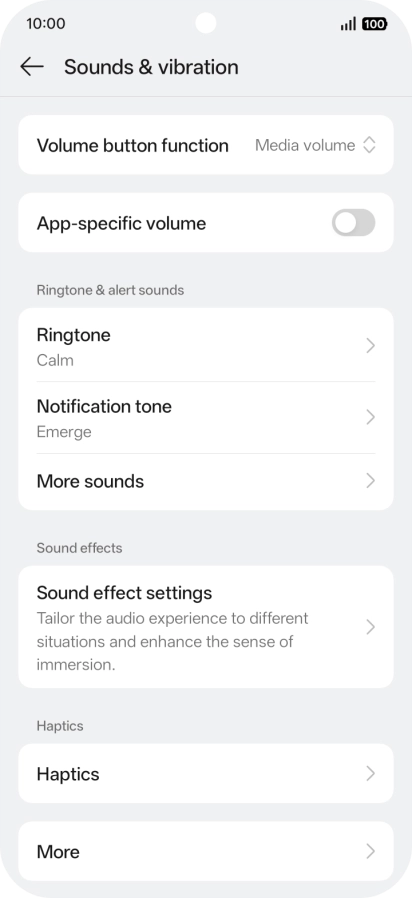
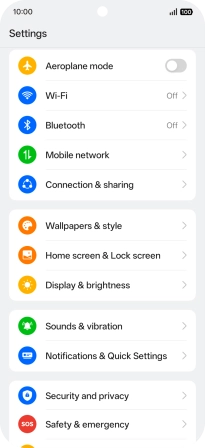
Press Sounds & vibration.
Step 3 of 9

1. Find "Ringtone"

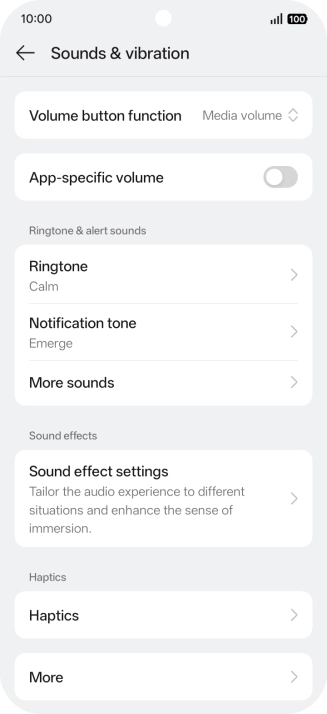
Press Sounds & vibration.

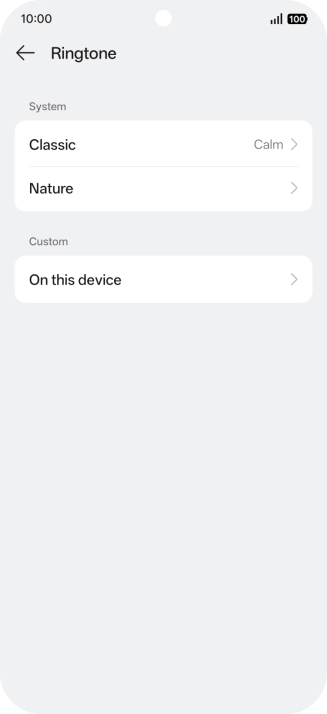
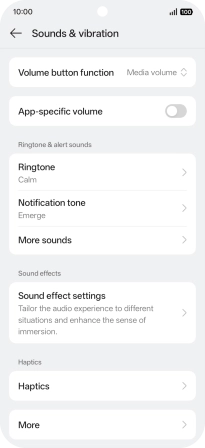
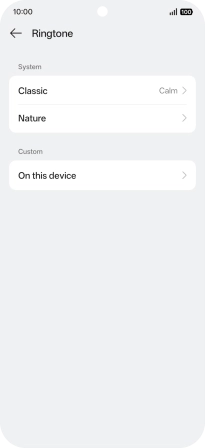
Press Ringtone.
Step 4 of 9

1. Find "Ringtone"

Press Ringtone.

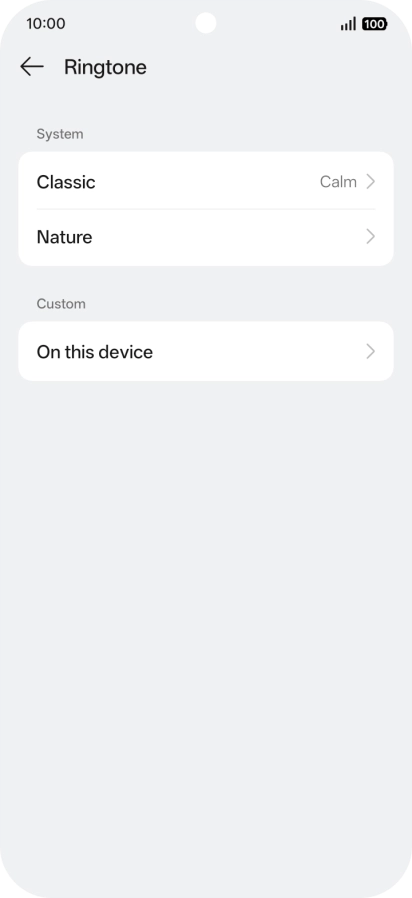
Press the required category.
Step 5 of 9

2. Select ring tone

Press the required category.

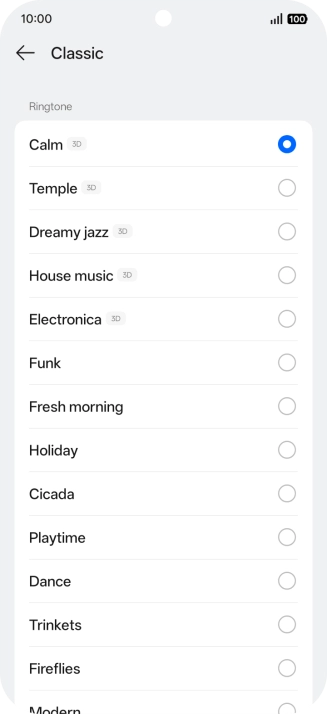
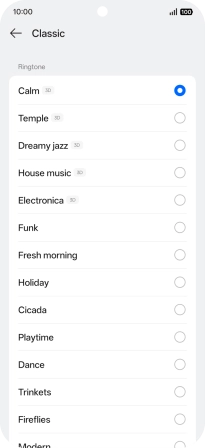
Press the required ring tones to hear them.
Step 6 of 9

2. Select ring tone

Press the required ring tones to hear them.

Once you've found a ring tone you like, press arrow left.
Step 7 of 9

2. Select ring tone

Once you've found a ring tone you like, press arrow left.

To use a different ring tone than the default ones, press On this device and follow the instructions on the screen to select the required ring tone.
Step 8 of 9

2. Select ring tone

To use a different ring tone than the default ones, press On this device and follow the instructions on the screen to select the required ring tone.

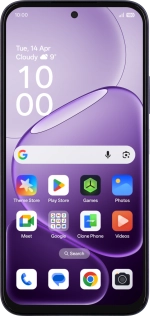
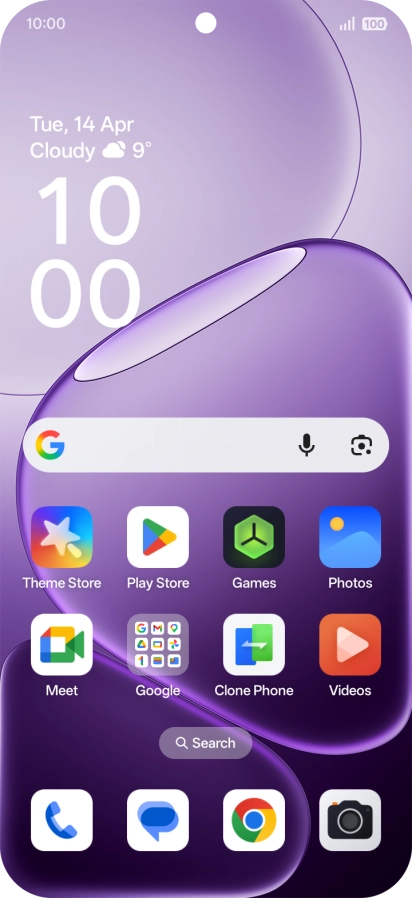
Slide your finger upwards starting from the bottom of the screen to return to the home screen.
Step 9 of 9

3. Return to the home screen

Slide your finger upwards starting from the bottom of the screen to return to the home screen.

1. Find "Ringtone"

Slide your finger downwards starting from the top right side of the screen.
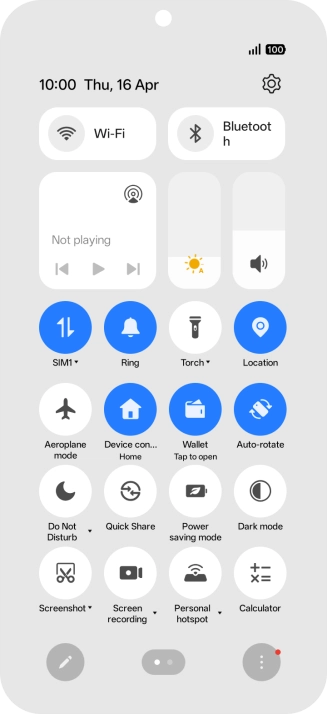
Press the settings icon.
Press Sounds & vibration.
Press Ringtone.

2. Select ring tone

Press the required category.
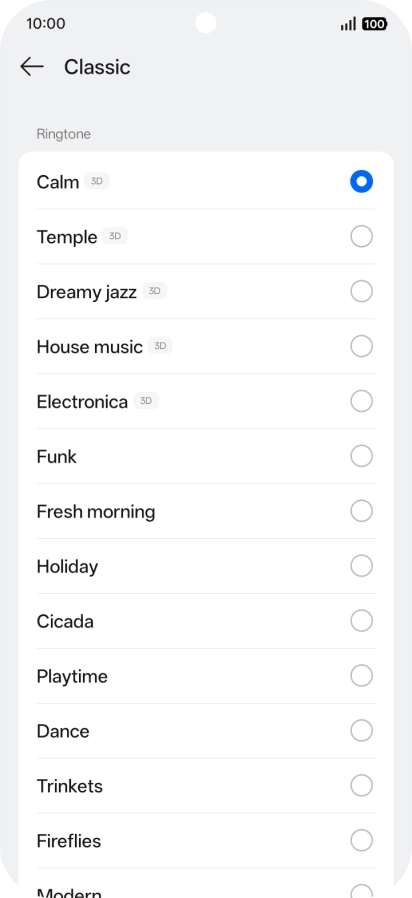
Press the required ring tones to hear them.
Once you've found a ring tone you like, press arrow left.
To use a different ring tone than the default ones, press On this device and follow the instructions on the screen to select the required ring tone.

3. Return to the home screen

Slide your finger upwards starting from the bottom of the screen to return to the home screen.

Thank you for your evaluation!

Get information on...

Or select...

Another device