OPPO A6x 5G

OPPO A6x 5G

Android 15

Turn use of phone lock code on your OPPO A6x 5G Android 15 on or off

Read help info

The phone lock code prevents others from accessing the contents of your phone (such as pictures and messages). When the phone lock code is turned on, it needs to be used every time you turn on your phone and when it has been in sleep mode.

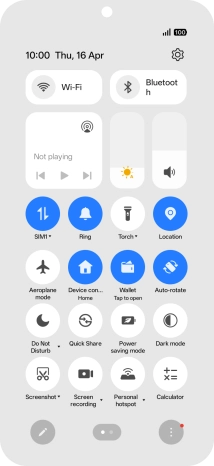
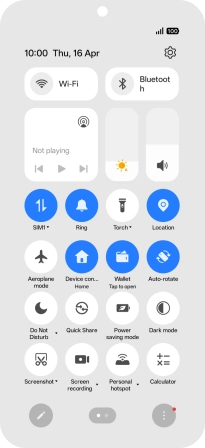
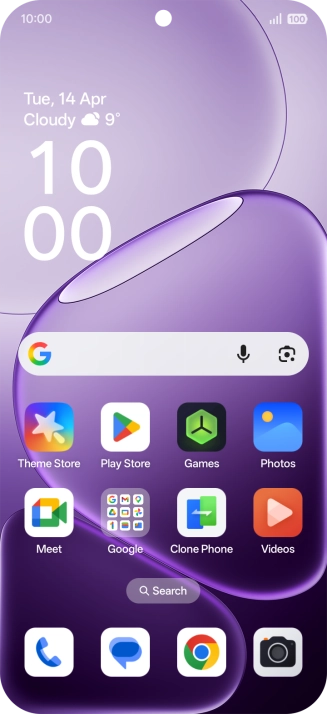
Slide your finger downwards starting from the top right side of the screen.
Step 1 of 18

1. Find "Device unlock"

Slide your finger downwards starting from the top right side of the screen.
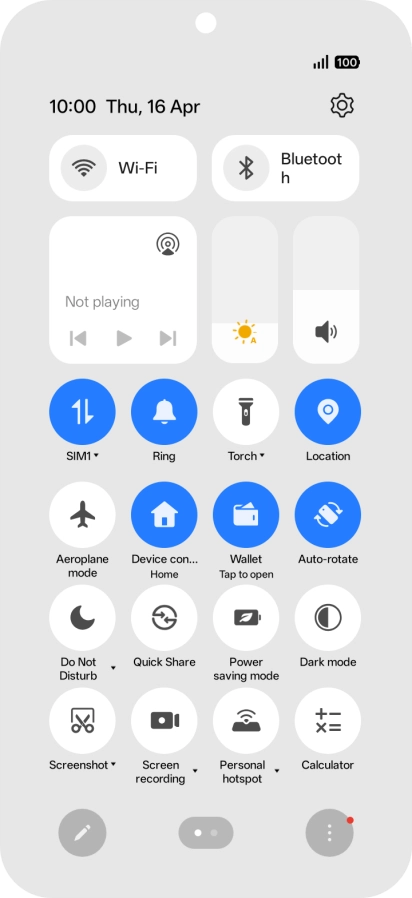
Press the settings icon.
Step 2 of 18

1. Find "Device unlock"

Press the settings icon.

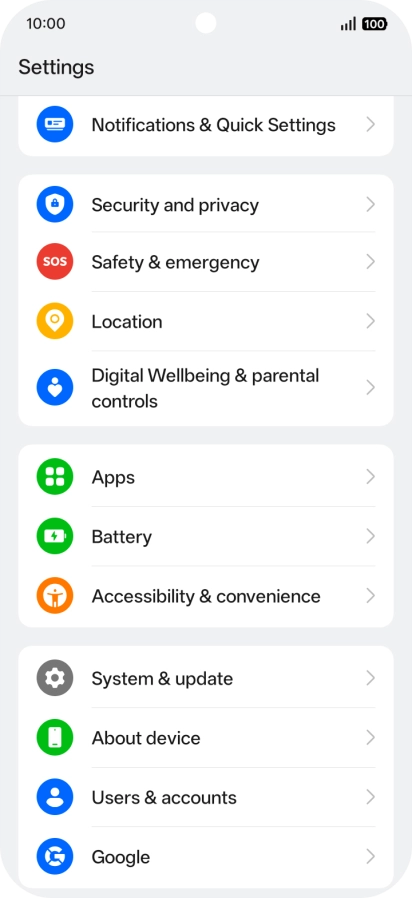
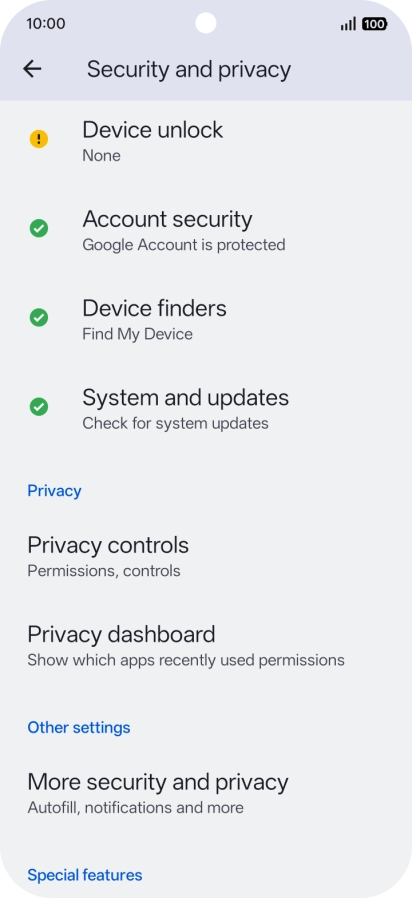
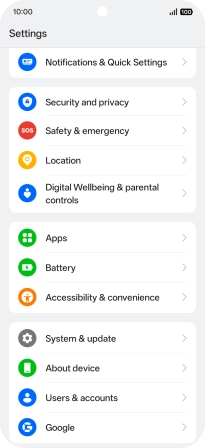
Press Security and privacy.
Step 3 of 18

1. Find "Device unlock"

Press Security and privacy.

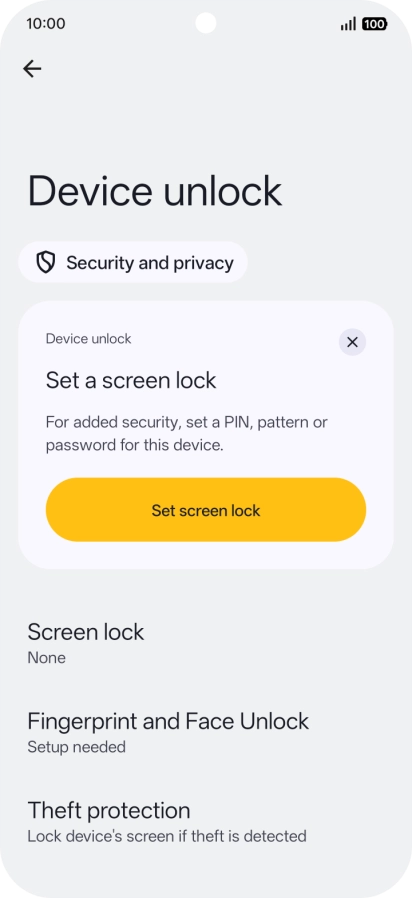
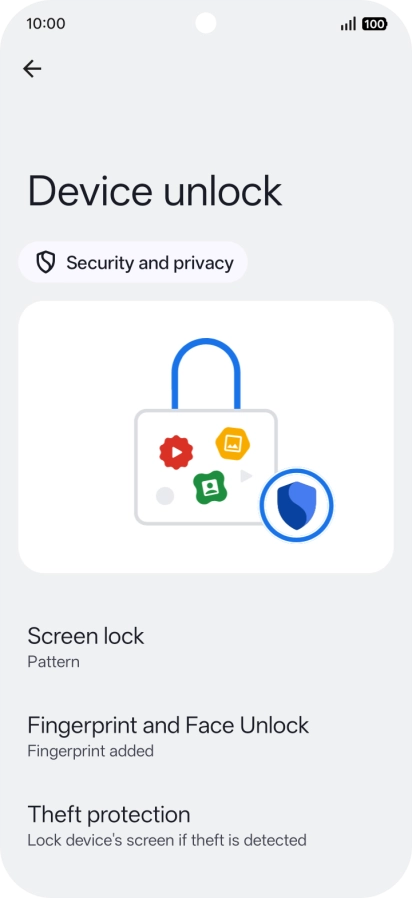
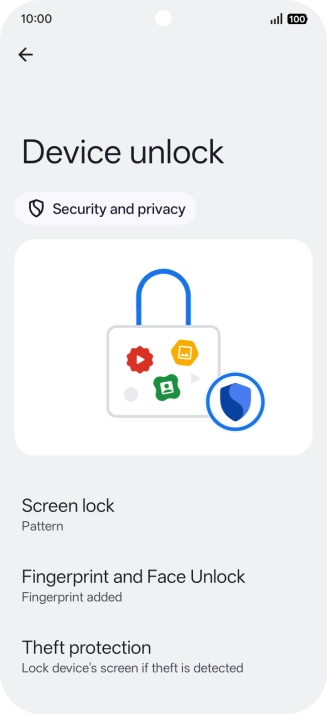
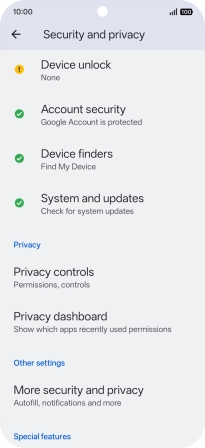
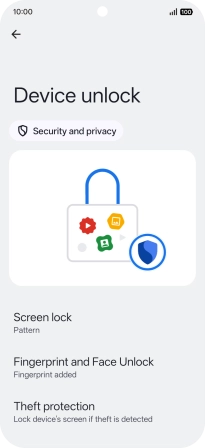
Press Device unlock.
Step 4 of 18

1. Find "Device unlock"

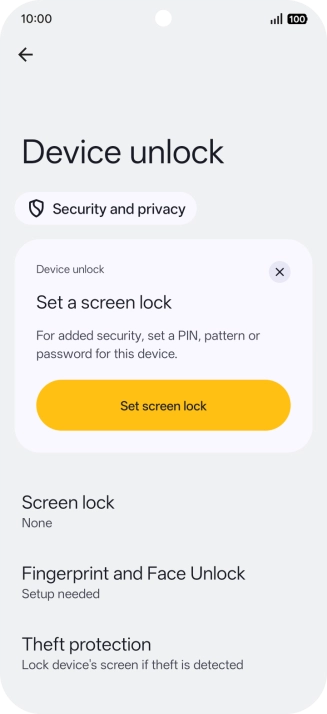
Press Device unlock.

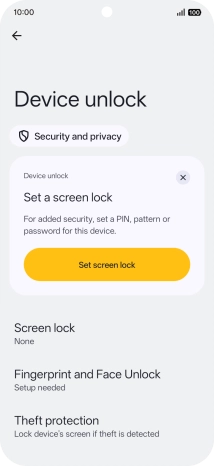
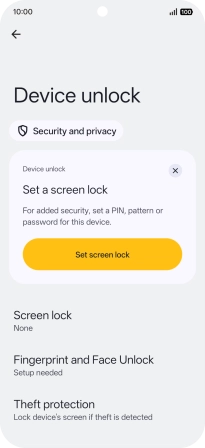
Press Fingerprint and Face Unlock.
Step 5 of 18

2. Create phone lock code using a fingerprint

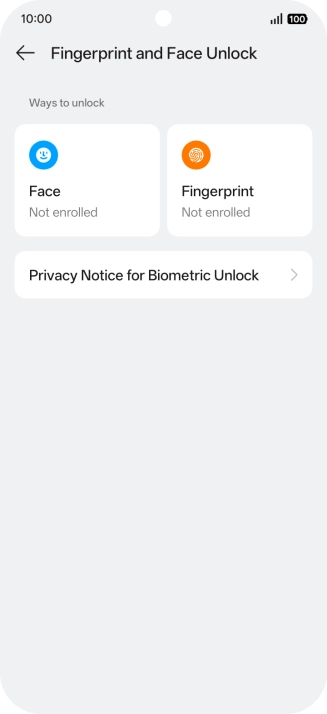
Press Fingerprint and Face Unlock.

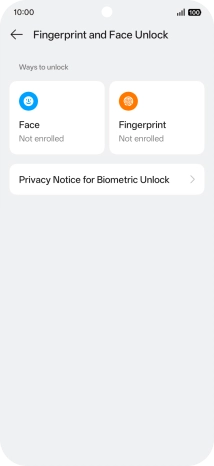
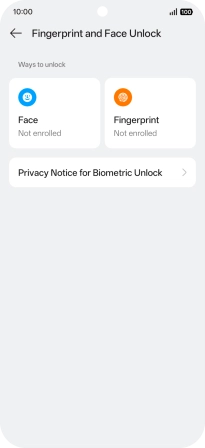
Press Fingerprint.
Step 6 of 18

2. Create phone lock code using a fingerprint

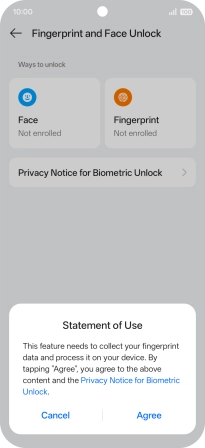
Press Fingerprint.

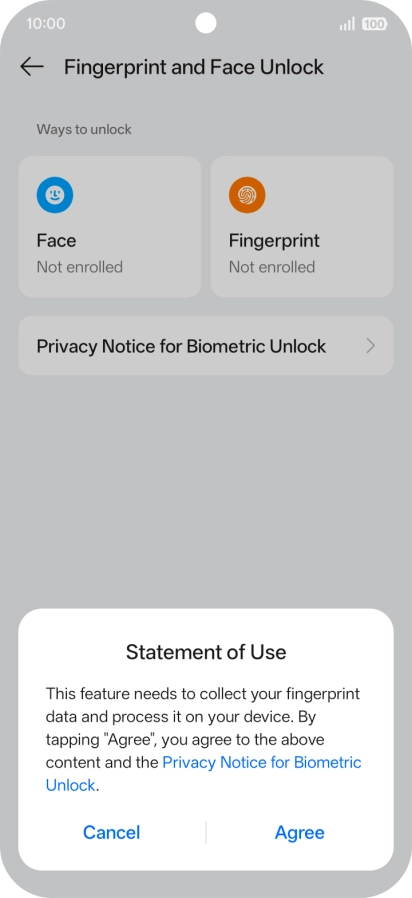
Press Agree.
Step 7 of 18

2. Create phone lock code using a fingerprint

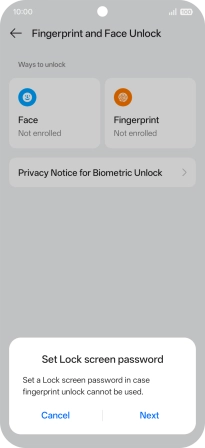
Press Agree.

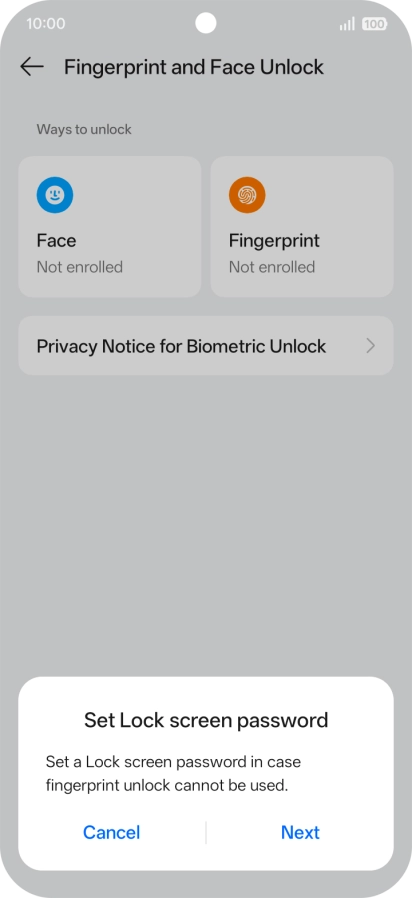
Press Next.
Step 8 of 18

2. Create phone lock code using a fingerprint

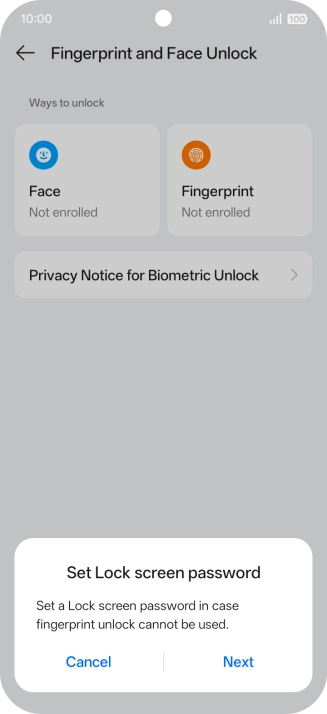
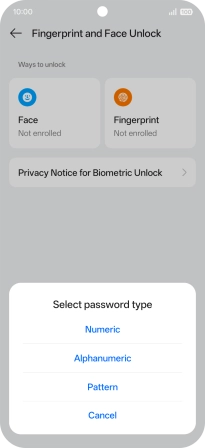
Press Next.

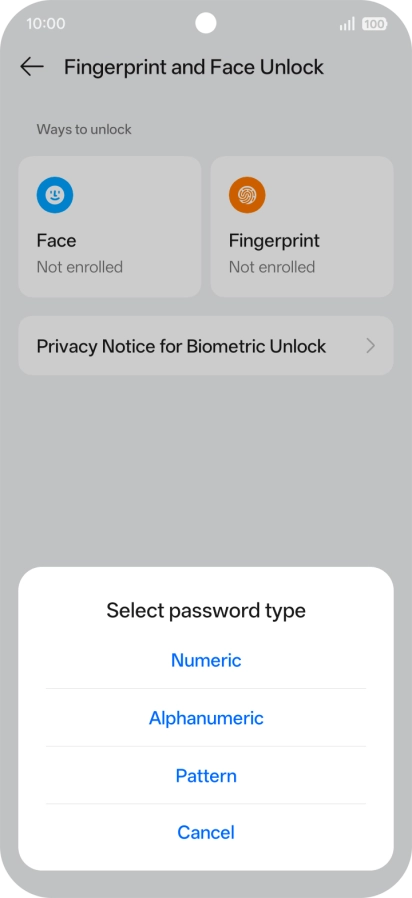
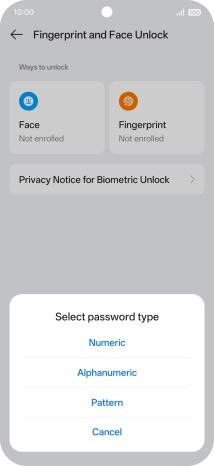
Press the required phone lock code.
Step 9 of 18

2. Create phone lock code using a fingerprint

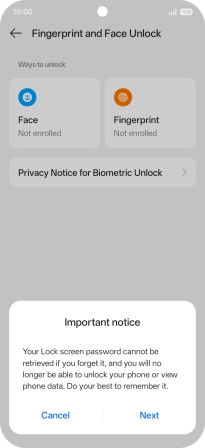
Press the required phone lock code.

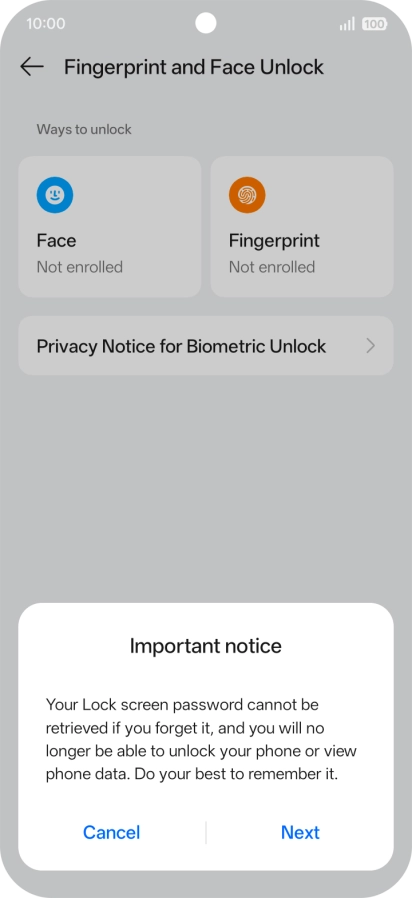
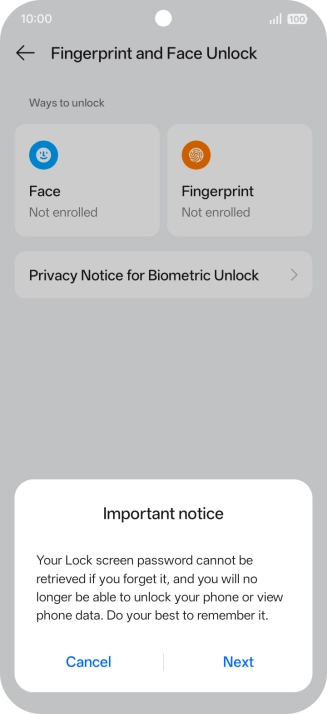
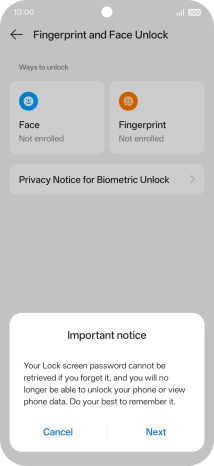
Press Next and follow the instructions on the screen to create an additional phone lock code.
Step 10 of 18

2. Create phone lock code using a fingerprint

Press Next and follow the instructions on the screen to create an additional phone lock code.

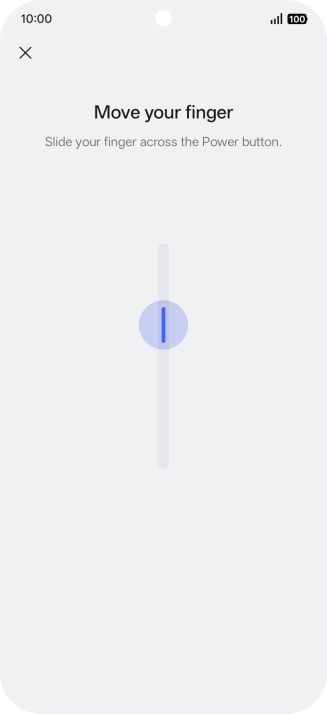
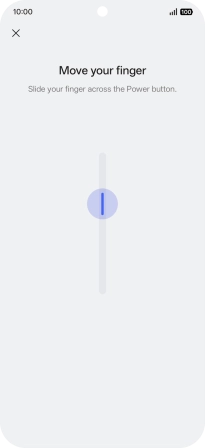
Follow the instructions on the screen to create the phone lock code using your fingerprint.
Step 11 of 18

2. Create phone lock code using a fingerprint

Follow the instructions on the screen to create the phone lock code using your fingerprint.

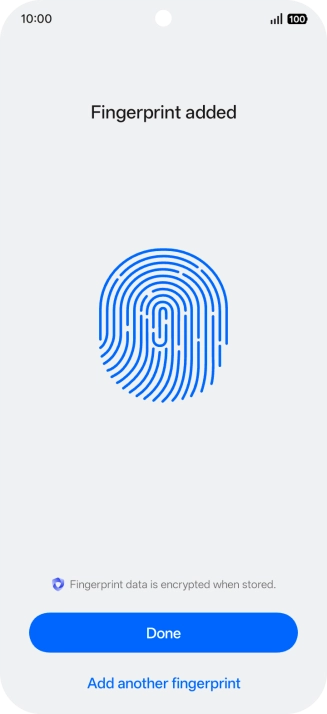
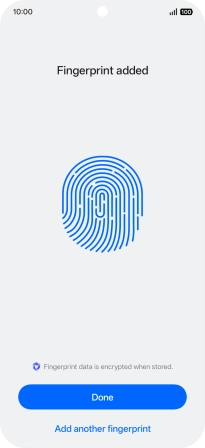
Press Done.
Step 12 of 18

2. Create phone lock code using a fingerprint

Press Done.

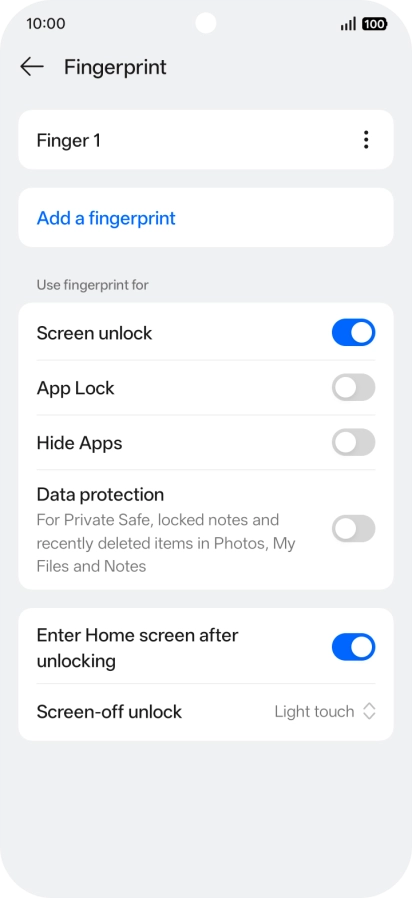
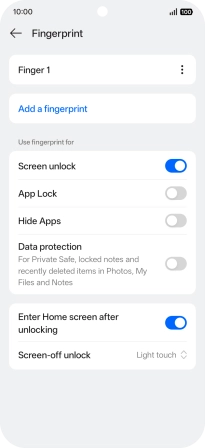
Press the required setting.
Step 13 of 18

2. Create phone lock code using a fingerprint

Press the required setting.

Press arrow left twice.
Step 14 of 18

2. Create phone lock code using a fingerprint

Press arrow left twice.

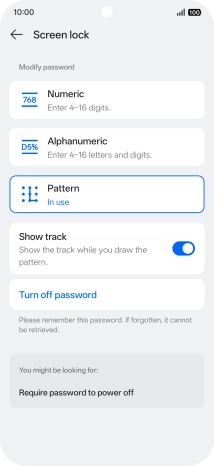
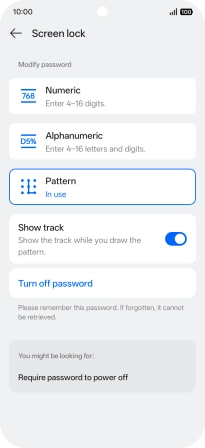
Press Screen lock and key in the additional phone lock code you created earlier.
Step 15 of 18

3. Turn off use of phone lock code

Press Screen lock and key in the additional phone lock code you created earlier.

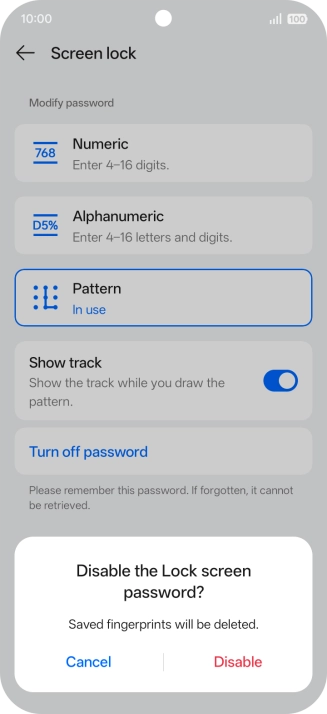
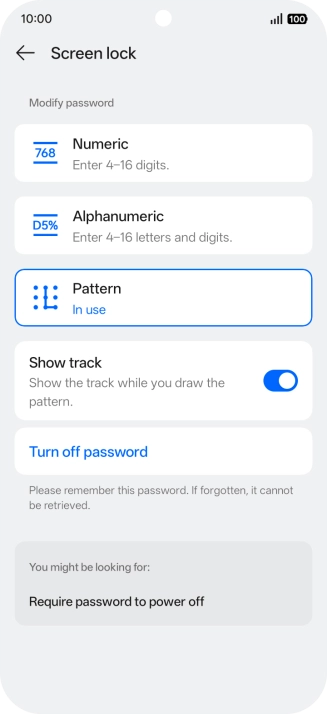
Press Turn off password.
Step 16 of 18

3. Turn off use of phone lock code

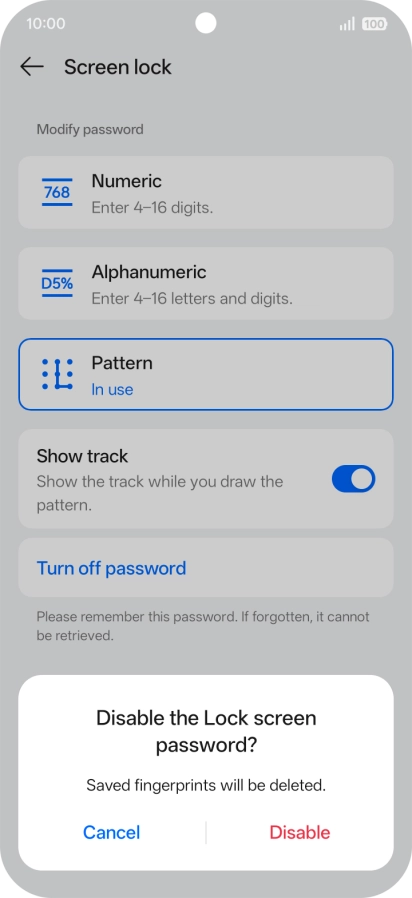
Press Turn off password.

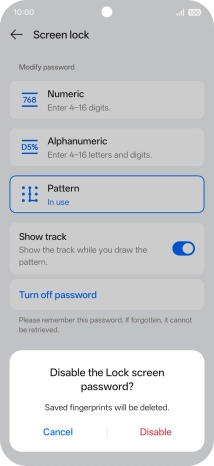
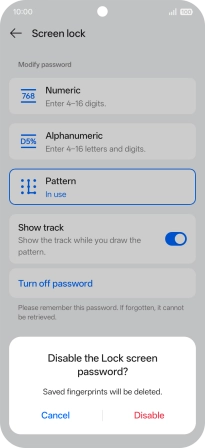
Press Disable and key in the additional phone lock code you created earlier.
Step 17 of 18

3. Turn off use of phone lock code

Press Disable and key in the additional phone lock code you created earlier.

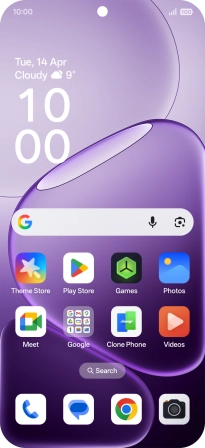
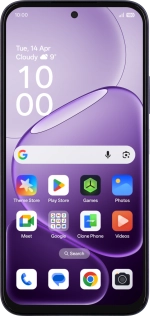
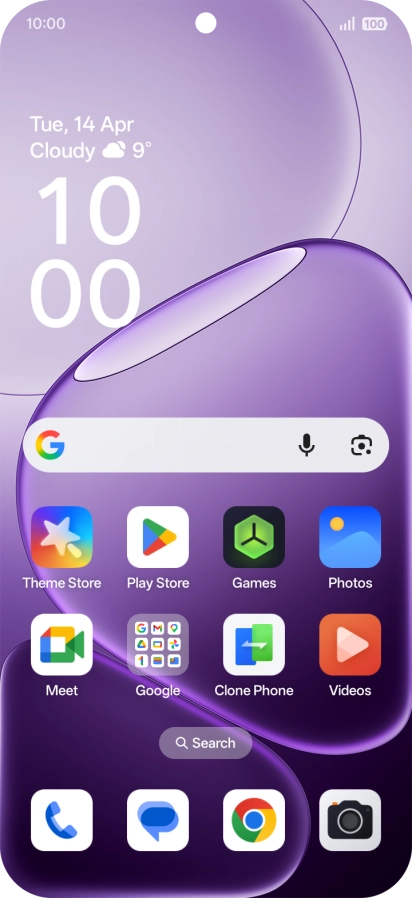
Slide your finger upwards starting from the bottom of the screen to return to the home screen.
Step 18 of 18

4. Return to the home screen

Slide your finger upwards starting from the bottom of the screen to return to the home screen.

1. Find "Device unlock"

Slide your finger downwards starting from the top right side of the screen.
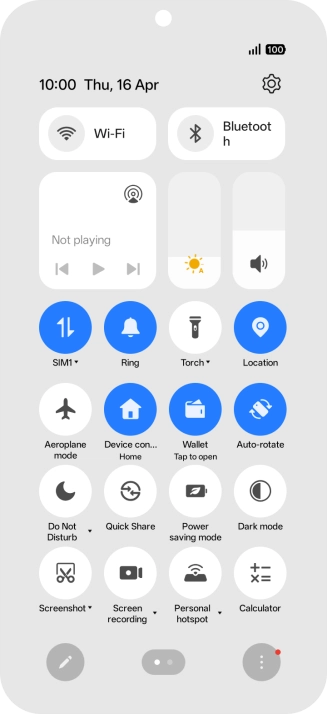
Press the settings icon.
Press Security and privacy.
Press Device unlock.

2. Create phone lock code using a fingerprint

Press Fingerprint and Face Unlock.
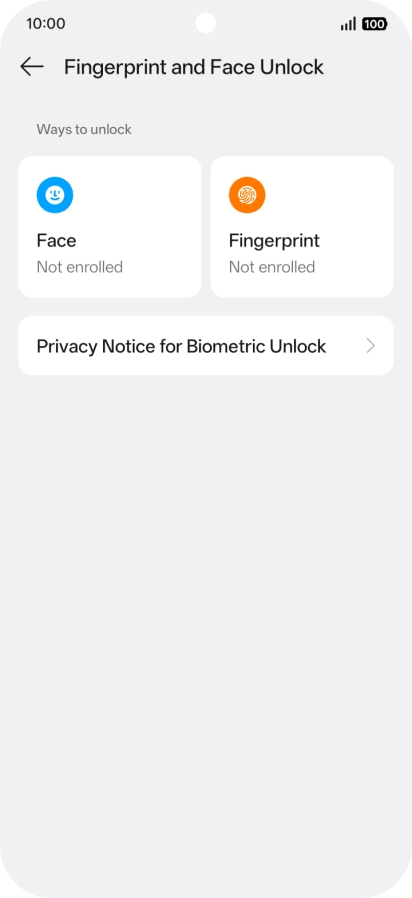
Press Fingerprint.
Press Agree.
Press Next.
Press the required phone lock code.
Press Next and follow the instructions on the screen to create an additional phone lock code.
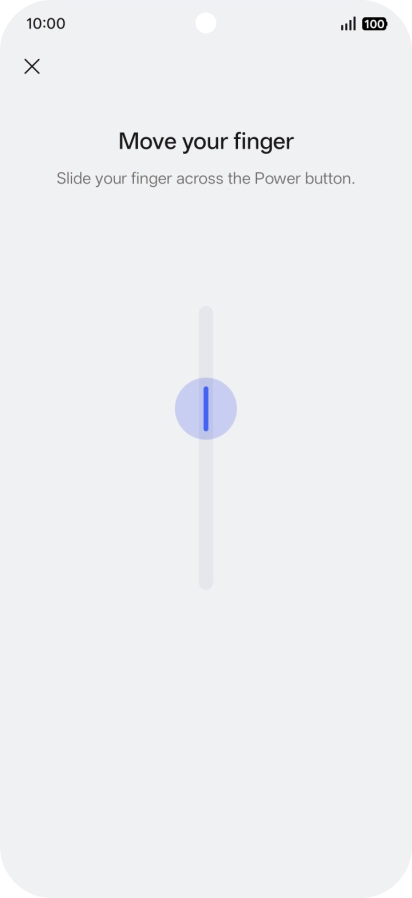
Follow the instructions on the screen to create the phone lock code using your fingerprint.
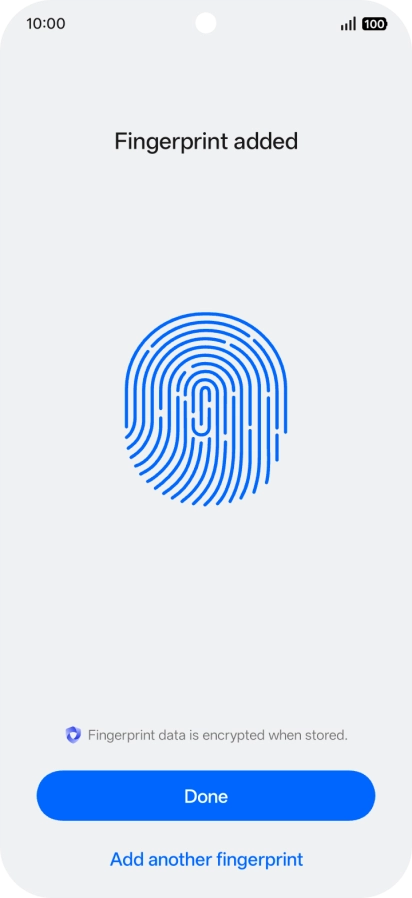
Press Done.
Press the required setting.
Press arrow left twice.

3. Turn off use of phone lock code

Press Screen lock and key in the additional phone lock code you created earlier.
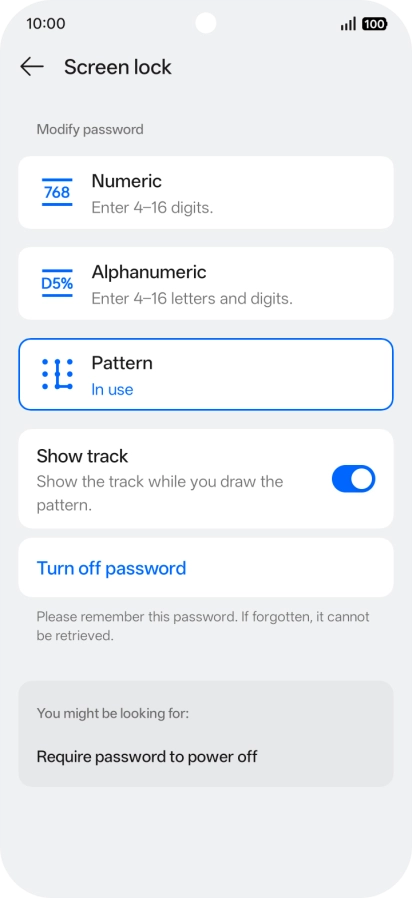
Press Turn off password.
Press Disable and key in the additional phone lock code you created earlier.
4. Return to the home screen

Slide your finger upwards starting from the bottom of the screen to return to the home screen.

Thank you for your evaluation!

Get information on...

Or select...

Another device