OPPO A6x 5G

OPPO A6x 5G

Android 15

Turn automatic use of mobile data on your OPPO A6x 5G Android 15 on or off

Read help info

You can set your phone to use mobile data automatically when the connection to the Wi-Fi network is weak. To turn automatic use of mobile data on or off, you need to turn on mobile data.

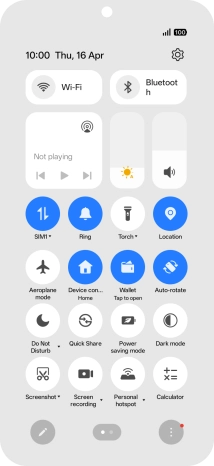
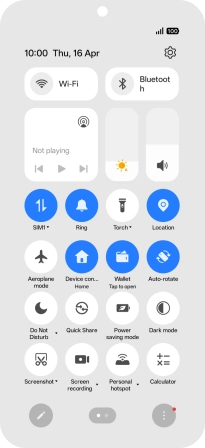
Slide your finger downwards starting from the top right side of the screen.
Step 1 of 8

1. Find "Wi-Fi"

Slide your finger downwards starting from the top right side of the screen.
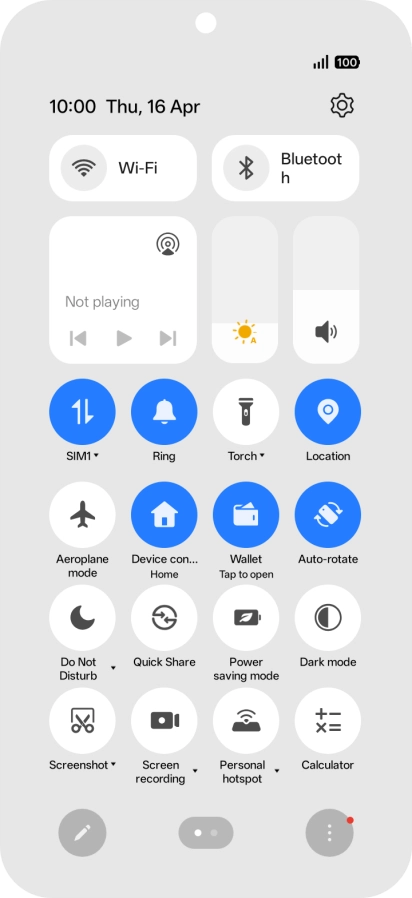
Press the settings icon.
Step 2 of 8

1. Find "Wi-Fi"

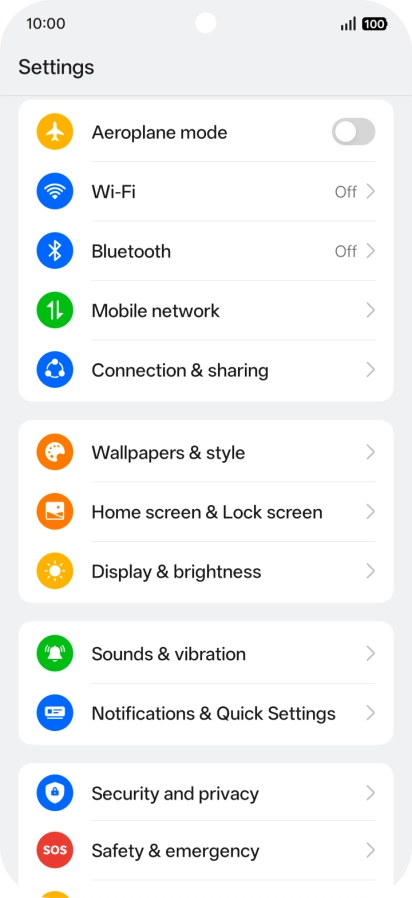
Press the settings icon.

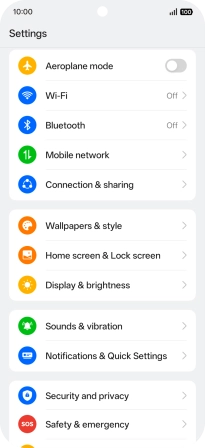
Press Wi-Fi.
Step 3 of 8

1. Find "Wi-Fi"

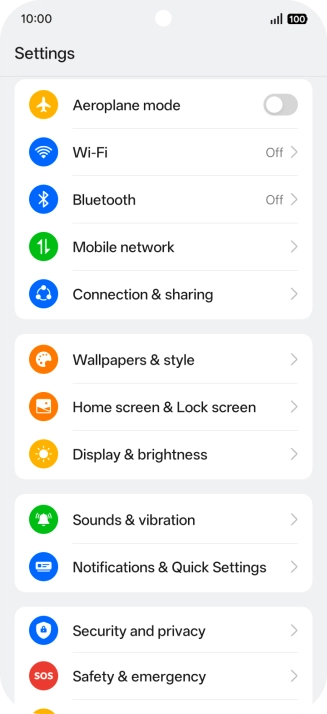
Press Wi-Fi.

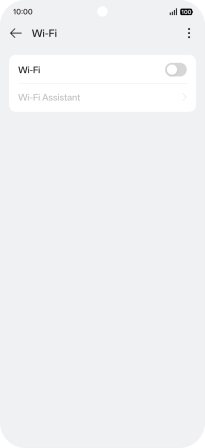
Press the indicator next to
Step 4 of 8

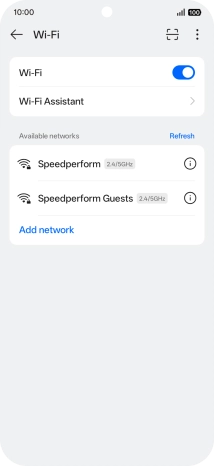
2. Turn on Wi-Fi

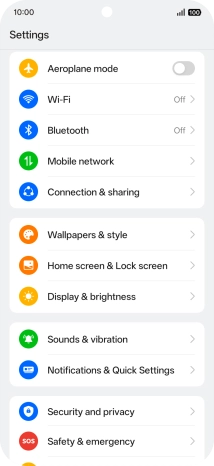
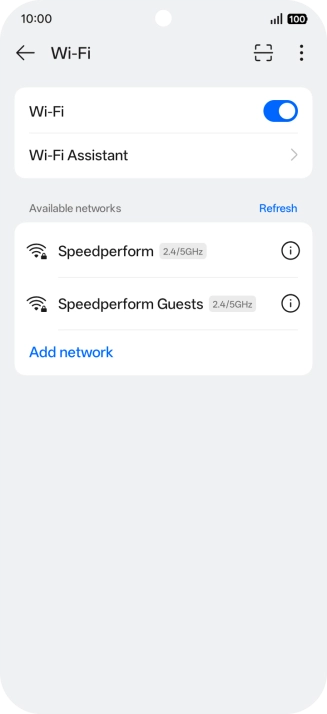
Press the indicator next to "Wi-Fi" to turn on the function.

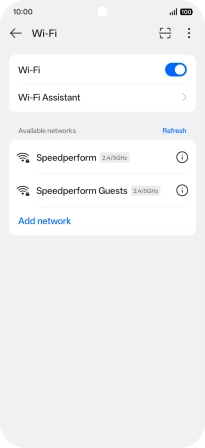
Press Wi-Fi Assistant.
Step 5 of 8

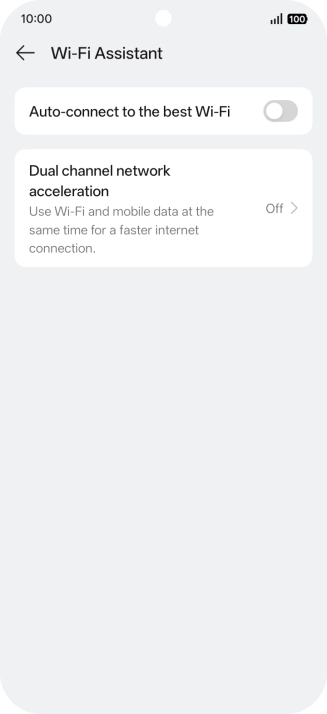
3. Turn automatic use of mobile data on or off

Press Wi-Fi Assistant.

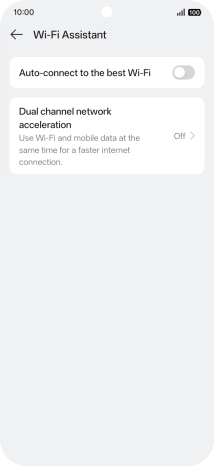
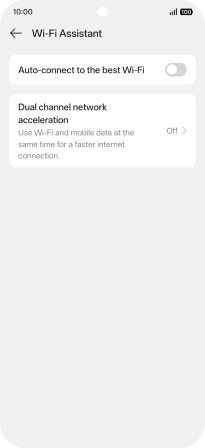
Press the indicator next to
Step 6 of 8

3. Turn automatic use of mobile data on or off

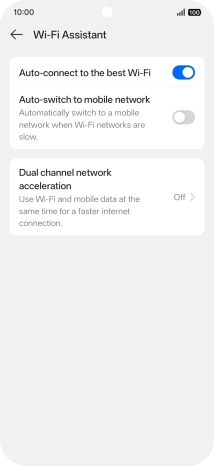
Press the indicator next to "Auto-connect to the best Wi-Fi" to turn on the function.

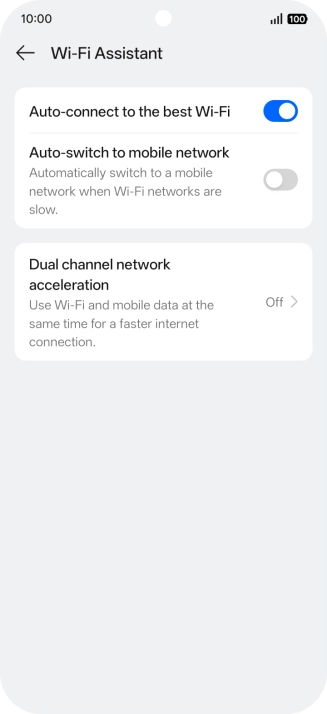
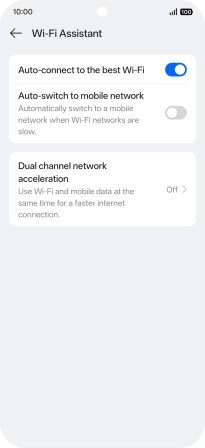
Press the indicator next to
Step 7 of 8

3. Turn automatic use of mobile data on or off

Press the indicator next to "Auto-switch to mobile network" to turn the function on or off.

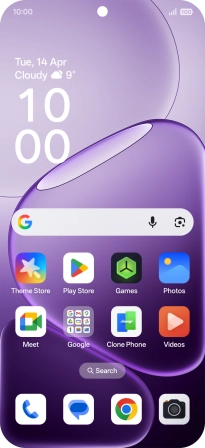
Slide your finger upwards starting from the bottom of the screen to return to the home screen.
Step 8 of 8

4. Return to the home screen

Slide your finger upwards starting from the bottom of the screen to return to the home screen.

1. Find "Wi-Fi"

Slide your finger downwards starting from the top right side of the screen.
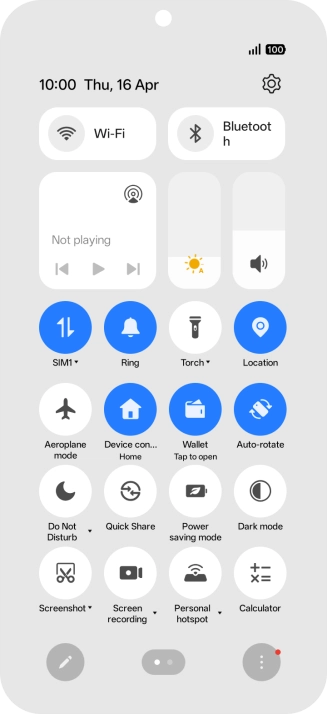
Press the settings icon.
Press Wi-Fi.

2. Turn on Wi-Fi

Press the indicator next to "Wi-Fi" to turn on the function.
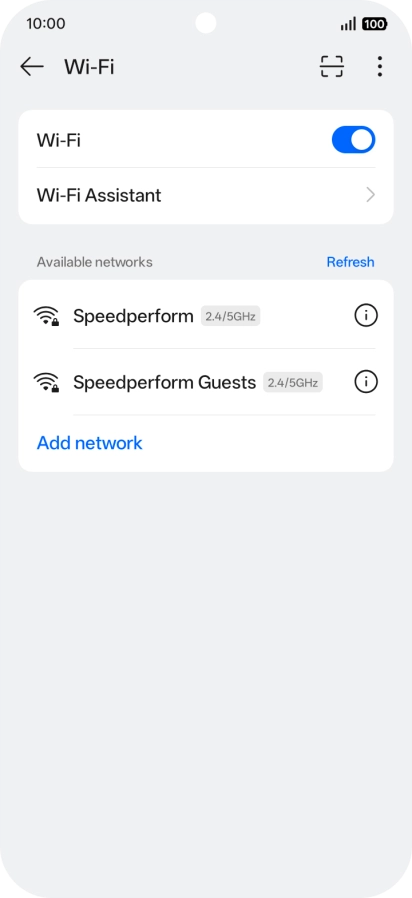
3. Turn automatic use of mobile data on or off

Press Wi-Fi Assistant.
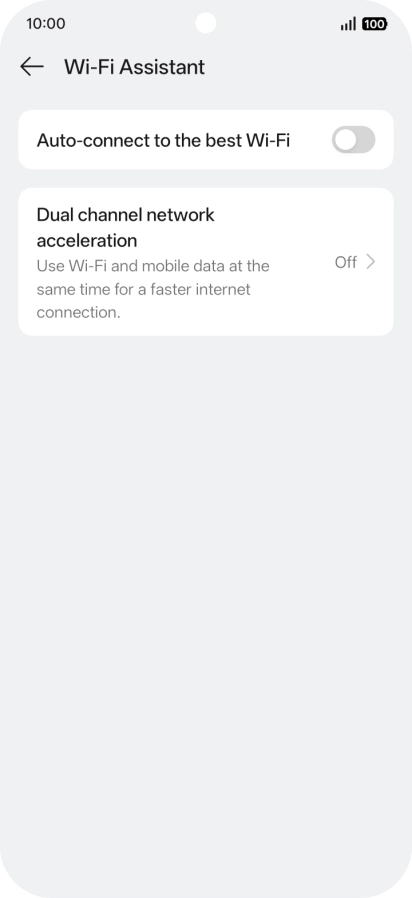
Press the indicator next to "Auto-connect to the best Wi-Fi" to turn on the function.
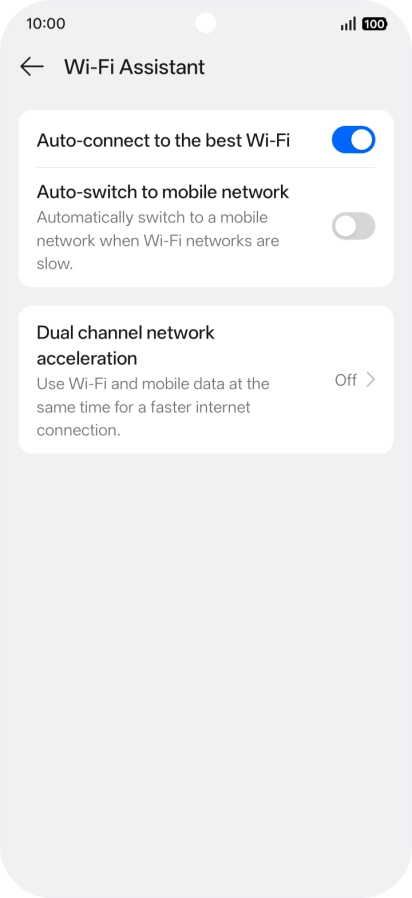
Press the indicator next to "Auto-switch to mobile network" to turn the function on or off.

4. Return to the home screen

Slide your finger upwards starting from the bottom of the screen to return to the home screen.

Thank you for your evaluation!

Get information on...

Or select...

Another device