OPPO A6x 5G

OPPO A6x 5G

Android 15

Activate your OPPO A6x 5G Android 15

Read help info

You need to activate your phone before using it for the first time and after a factory reset. To use mobile network services on your phone, you need to insert your SIM into your phone.

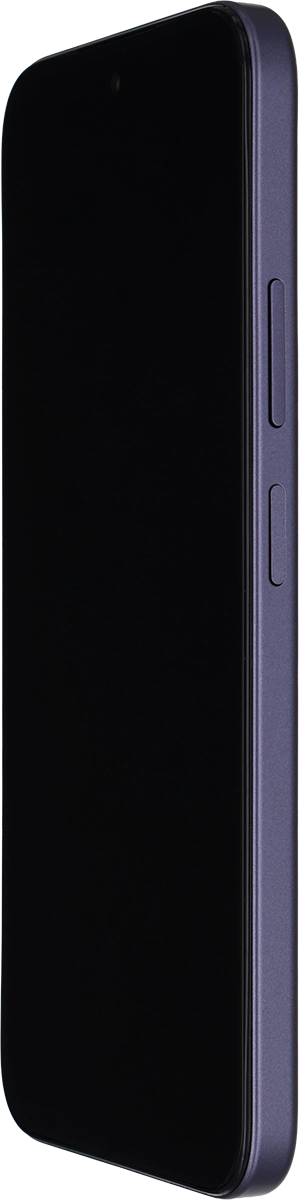
Press the Side key.
Step 1 of 13

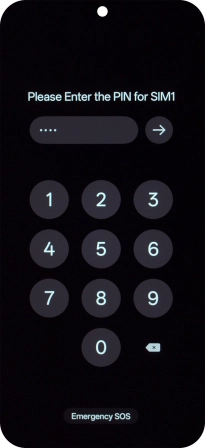
1. Enter your PIN

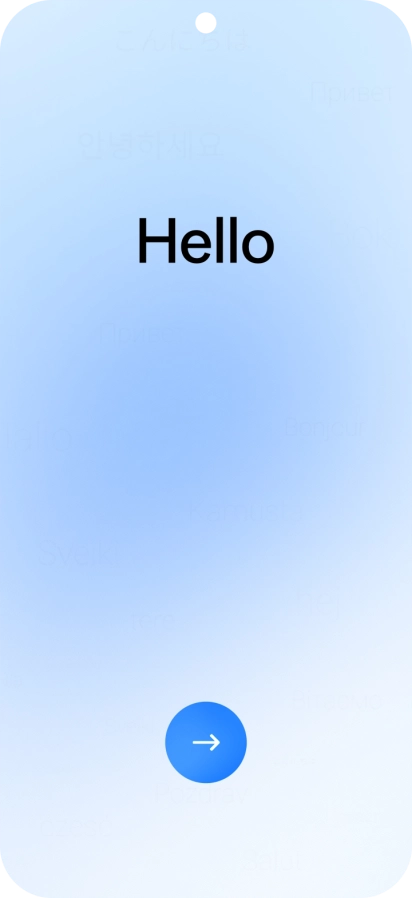
Press the Side key.
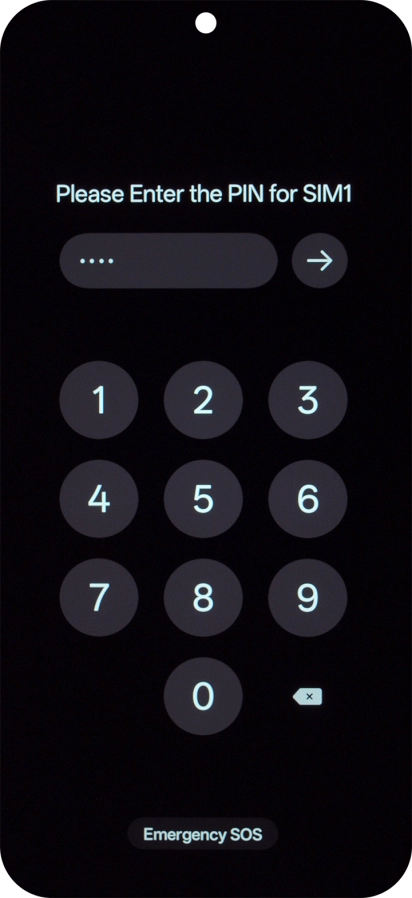
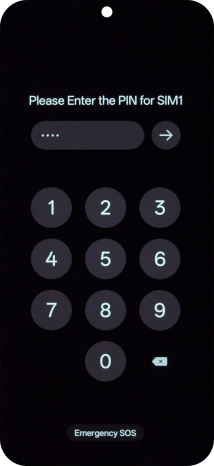
If your SIM is locked, key in your PIN and press arrow right.
Step 2 of 13

1. Enter your PIN

If your SIM is locked, key in your PIN and press arrow right.

If an incorrect PIN is entered three times in a row, your SIM will be blocked. To unblock your SIM, you'll need to key in your PUK. The PUK can be obtained by contacting customer services. Please note: If you key in the wrong PUK ten times in a row, your SIM will be blocked permanently. In this case, you need a new SIM from Vodafone.
Press arrow right.
Step 3 of 13

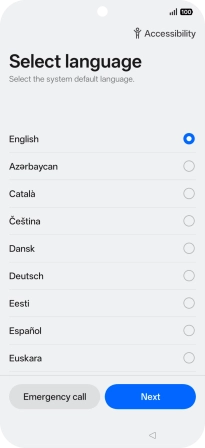
2. Select language

Press arrow right.

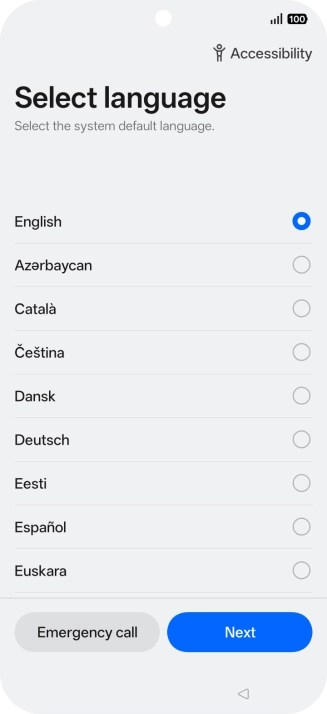
Press the required language.
Step 4 of 13

2. Select language

Press the required language.

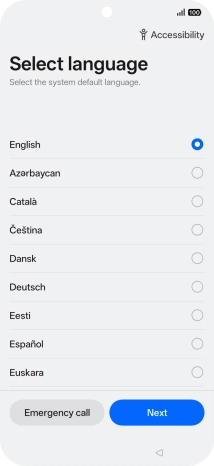
Press Next.
Step 5 of 13

2. Select language

Press Next.

Press the required country or area.
Step 6 of 13

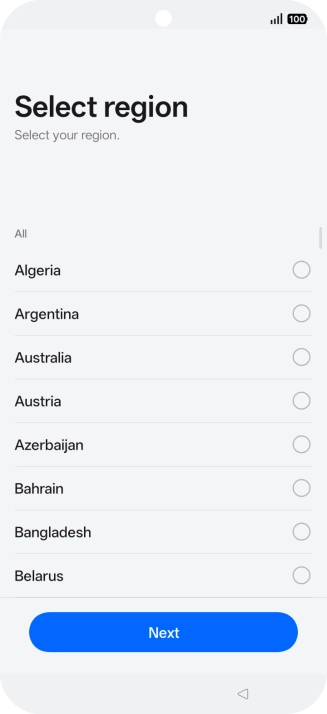
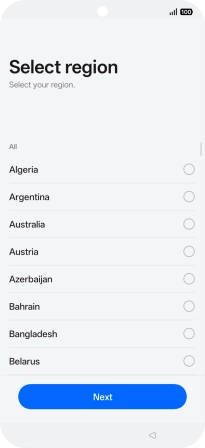
3. Select country or region

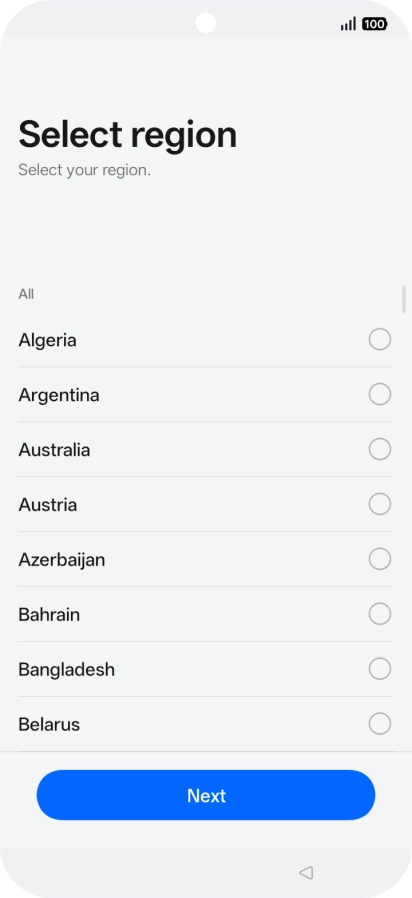
Press the required country or area.

Press Next.
Step 7 of 13

3. Select country or region

Press Next.

Press Next.
Step 8 of 13

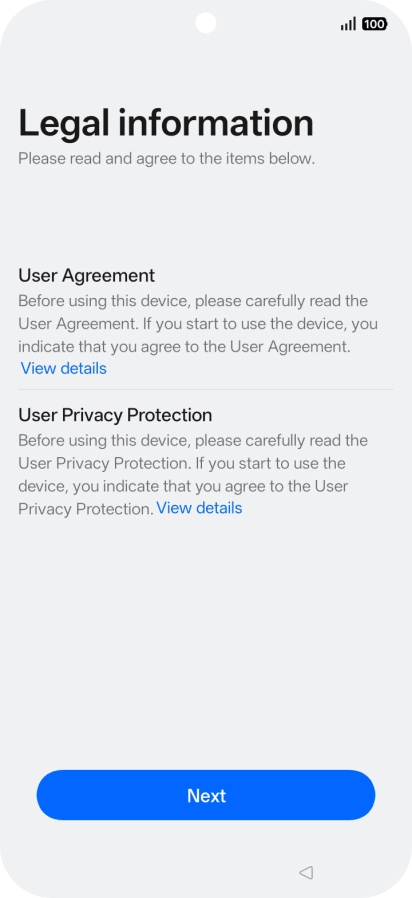
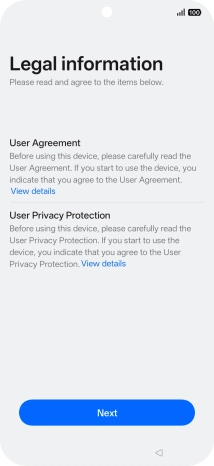
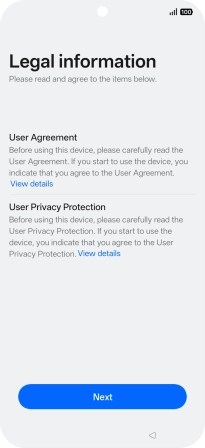
4. Accept the terms and conditions

Press Next.

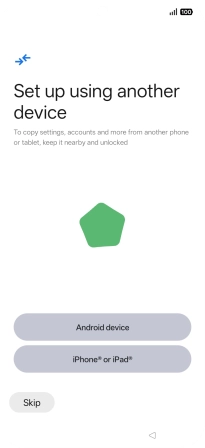
Press Skip.
Step 9 of 13

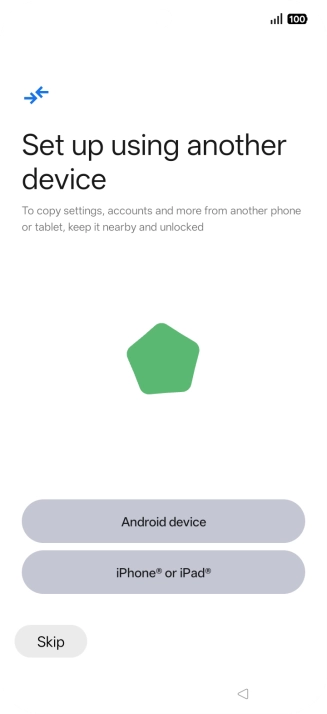
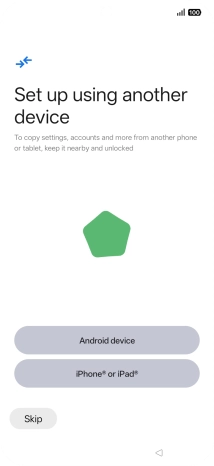
5. Set up your phone as a new phone

Press Skip.

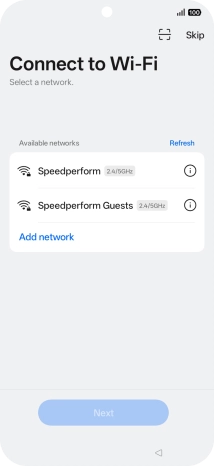
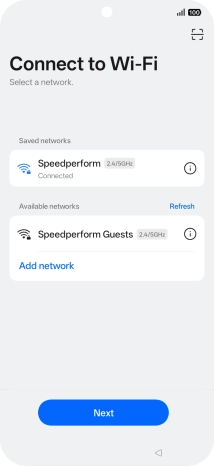
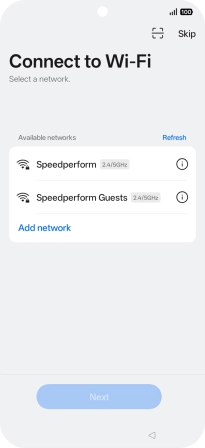
Press the required Wi-Fi network.
Step 10 of 13

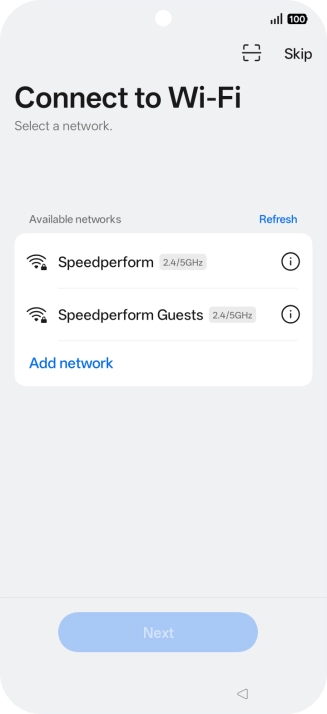
6. Select Wi-Fi network

Press the required Wi-Fi network.

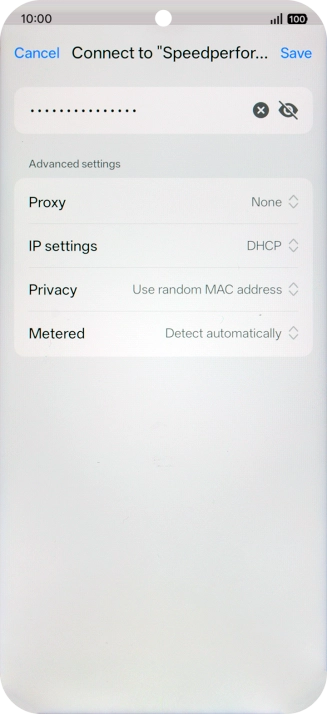
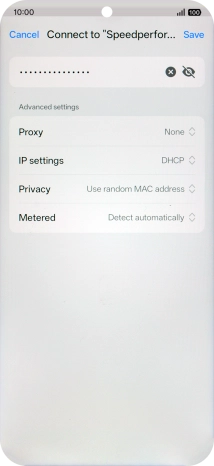
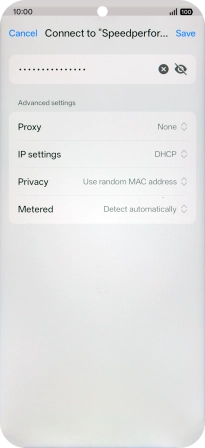
Key in the password for the Wi-Fi network and press Save.
Step 11 of 13

6. Select Wi-Fi network

Key in the password for the Wi-Fi network and press Save.

If there are no available Wi-Fi networks, you can use the mobile network instead.
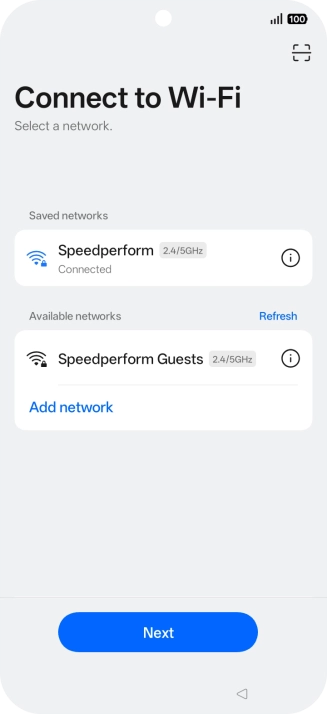
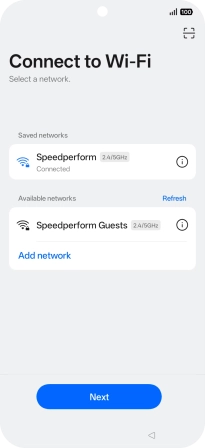
Press Next.
Step 12 of 13

6. Select Wi-Fi network

Press Next.

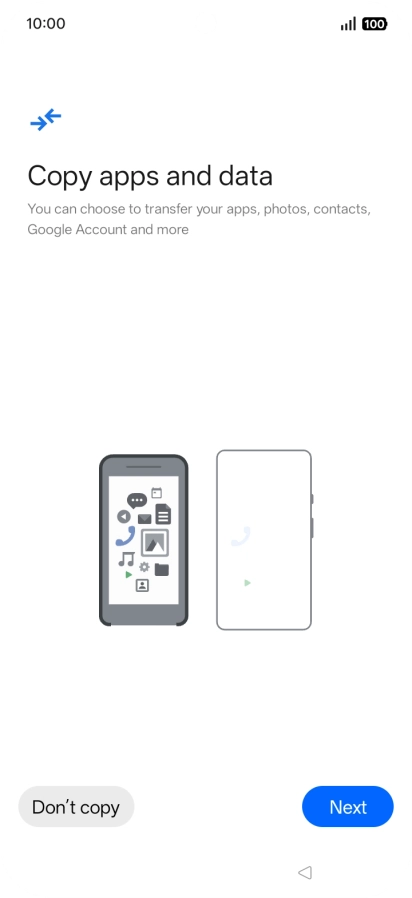
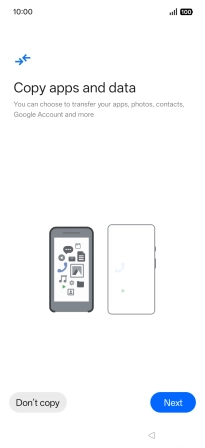
Press Don't copy and follow the instructions on the screen to finish the activation.
Step 13 of 13

7. Finish activation

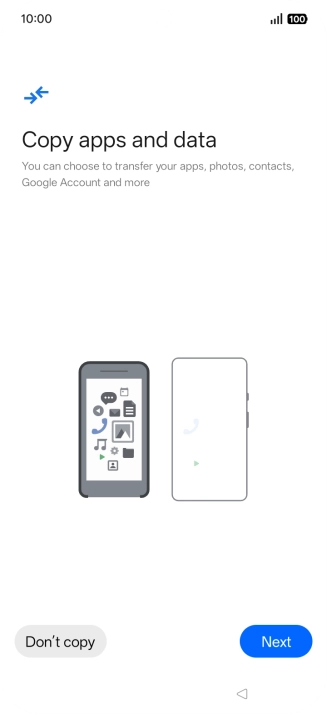
Press Don't copy and follow the instructions on the screen to finish the activation.

You can also transfer content from another phone or restore the content of a Google One backup.

1. Enter your PIN

Press the Side key.
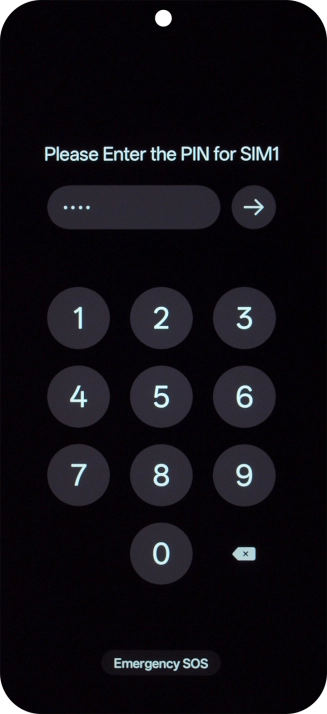
If your SIM is locked, key in your PIN and press arrow right.
If an incorrect PIN is entered three times in a row, your SIM will be blocked. To unblock your SIM, you'll need to key in your PUK. The PUK can be obtained by contacting customer services. Please note: If you key in the wrong PUK ten times in a row, your SIM will be blocked permanently. In this case, you need a new SIM from Vodafone.

2. Select language

Press arrow right.
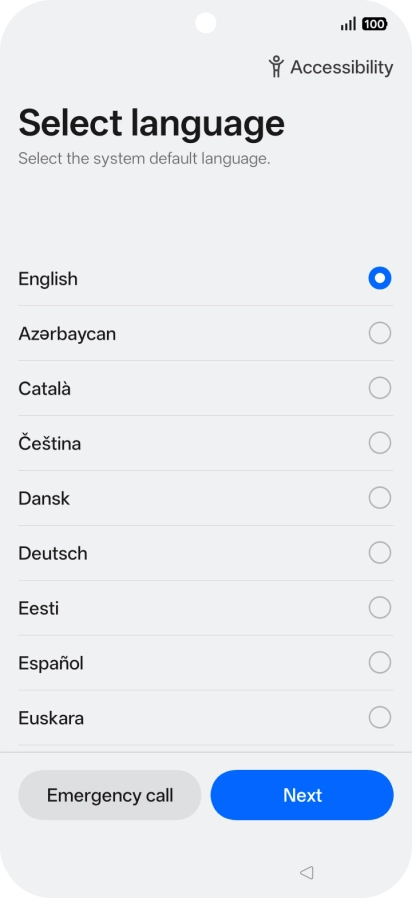
Press the required language.
Press Next.

3. Select country or region

Press the required country or area.
Press Next.

4. Accept the terms and conditions

Press Next.
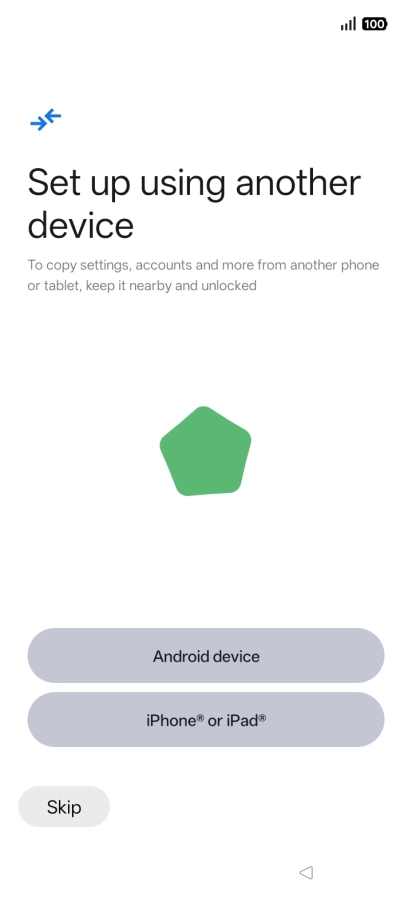
5. Set up your phone as a new phone

Press Skip.
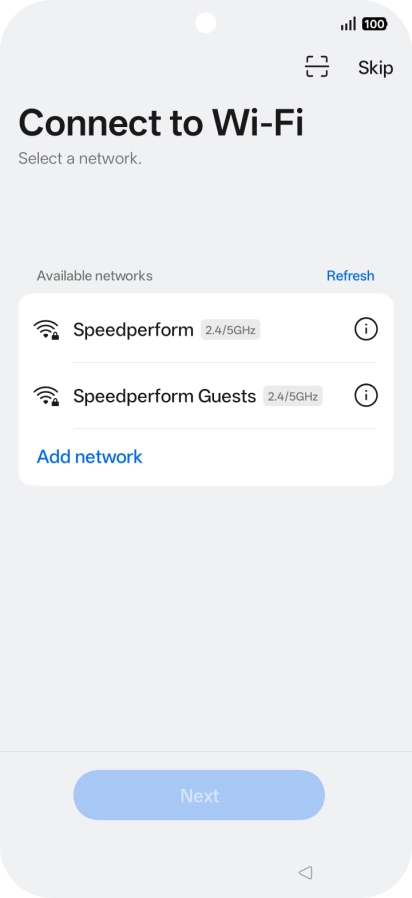
6. Select Wi-Fi network

Press the required Wi-Fi network.
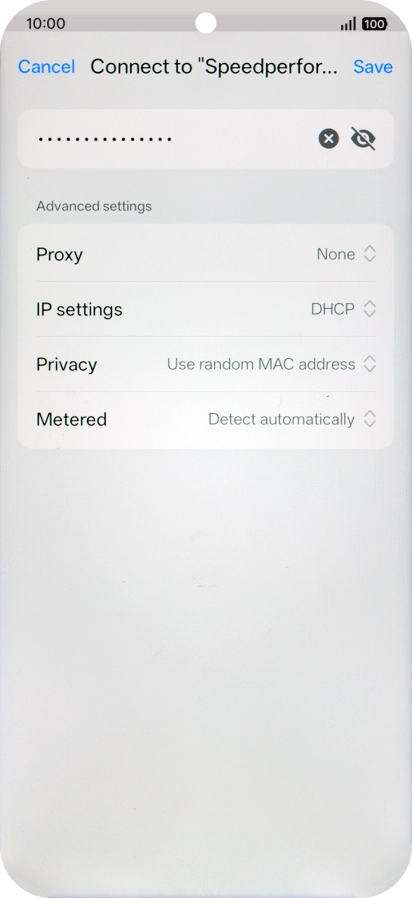
Key in the password for the Wi-Fi network and press Save.
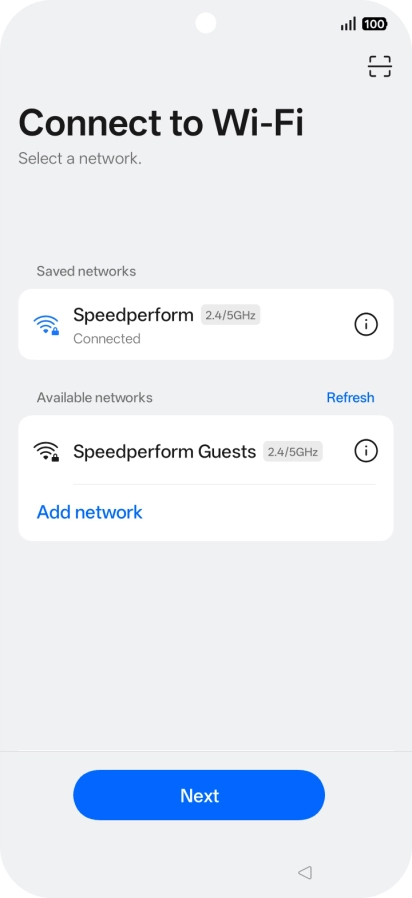
If there are no available Wi-Fi networks, you can use the mobile network instead.
Press Next.

7. Finish activation

Press Don't copy and follow the instructions on the screen to finish the activation.
You can also transfer content from another phone or restore the content of a Google One backup.

Thank you for your evaluation!

Get information on...

Or select...

Another device