OPPO Find X5 Pro 5G

OPPO Find X5 Pro 5G

Android 12.0

Turn Wi-Fi calling on your OPPO Find X5 Pro 5G Android 12.0 on or off

Read help info

When Wi-Fi calling is turned on, you can make and answer calls using a Wi-Fi network when you're in an area with little or no network coverage. To turn on Wi-Fi calling, you need to establish a connection to a Wi-Fi network and select 4G (LTE) as network mode.

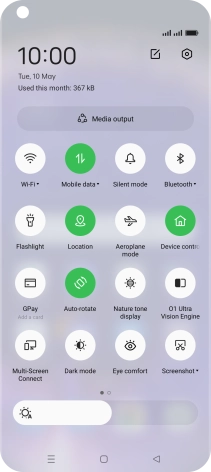
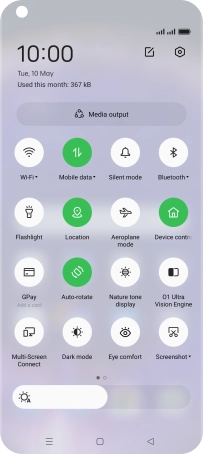
Slide two fingers downwards starting from the top of the screen.
Step 1 of 7

1. Find "Wi-Fi Calling"

Slide two fingers downwards starting from the top of the screen.
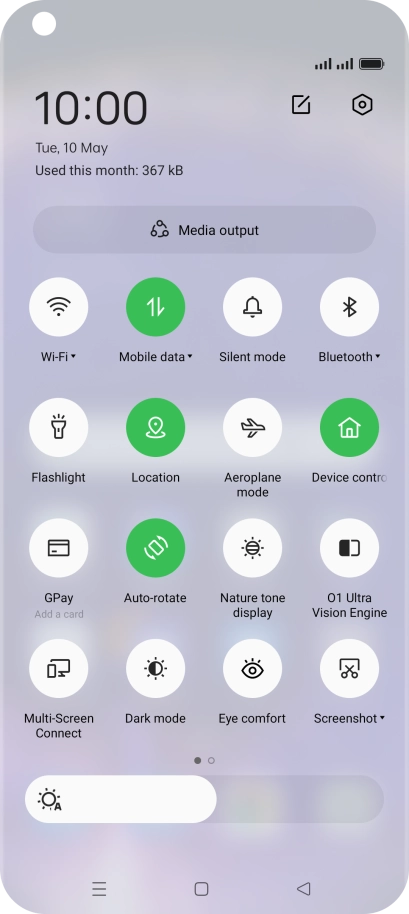
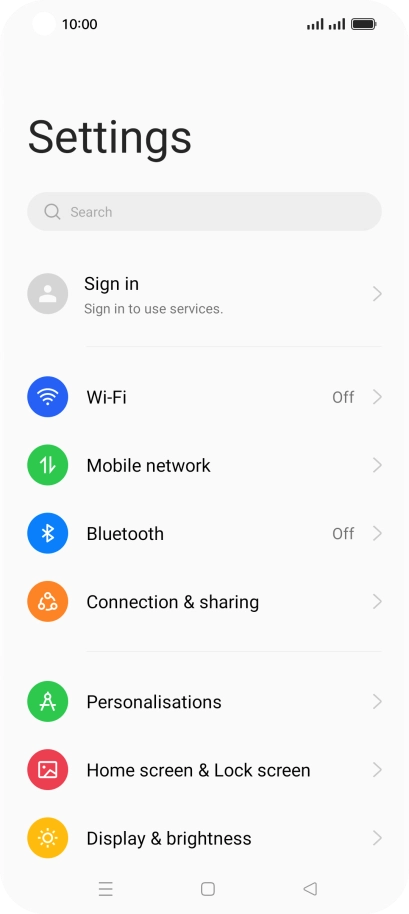
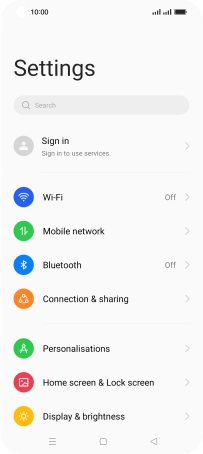
Press the settings icon.
Step 2 of 7

1. Find "Wi-Fi Calling"

Press the settings icon.

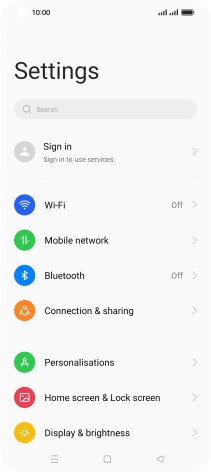
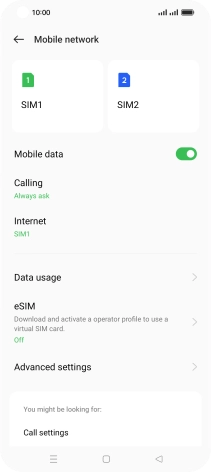
Press Mobile network.
Step 3 of 7

1. Find "Wi-Fi Calling"

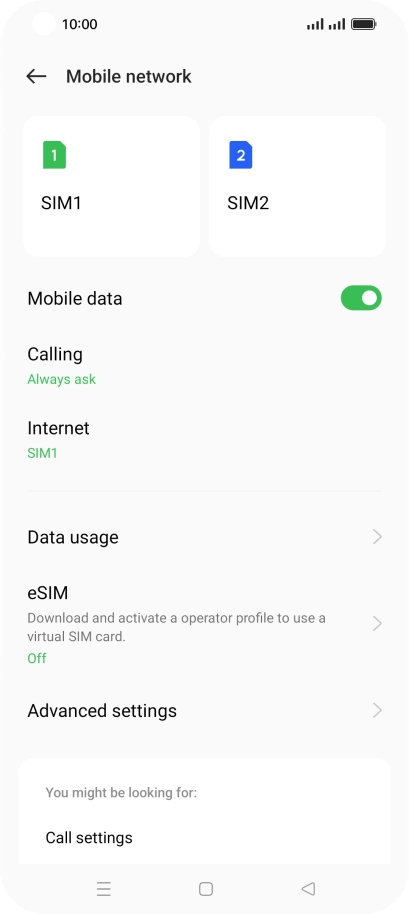
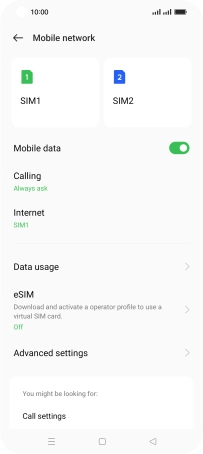
Press Mobile network.

Press the name of the SIM.
Step 4 of 7

1. Find "Wi-Fi Calling"

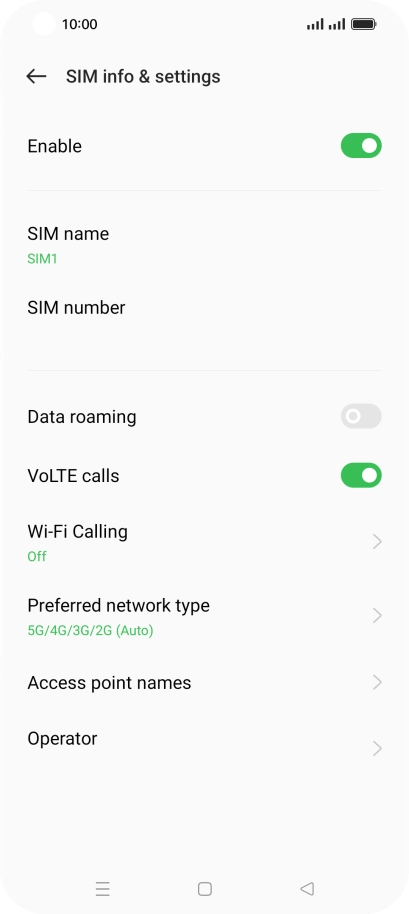
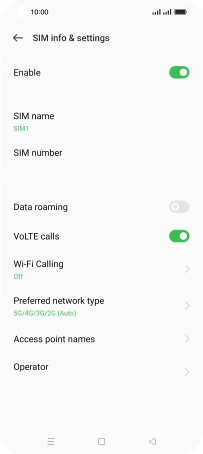
Press the name of the SIM.

Press Wi-Fi Calling.
Step 5 of 7

1. Find "Wi-Fi Calling"

Press Wi-Fi Calling.

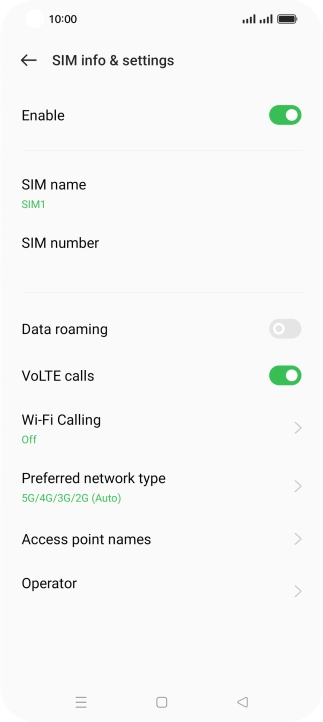
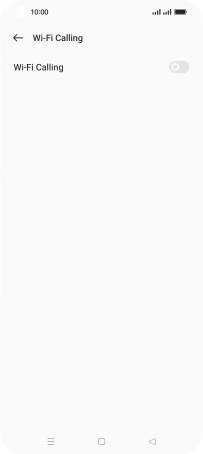
Press the indicator next to
Step 6 of 7

2. Turn Wi-Fi calling on or off

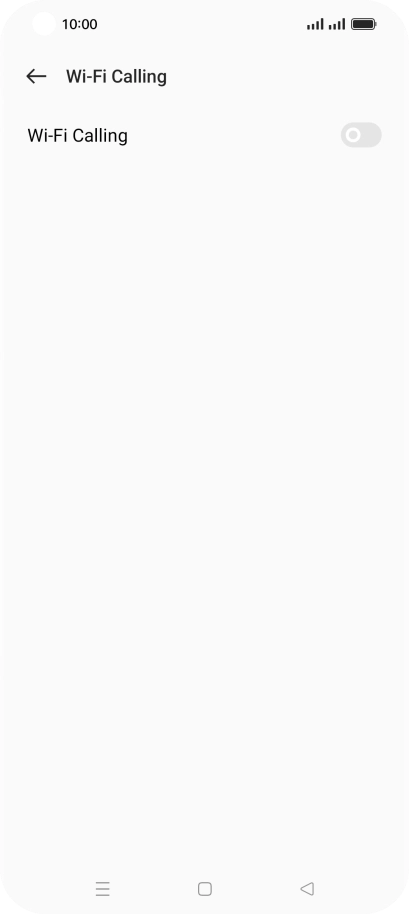
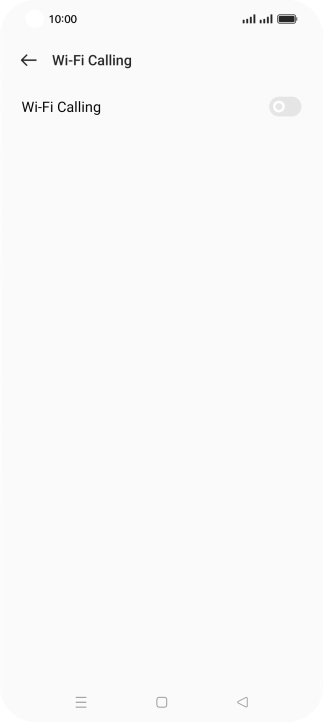
Press the indicator next to "Wi-Fi Calling" to turn the function on or off.

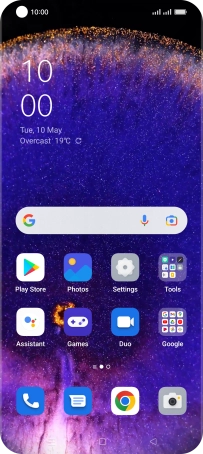
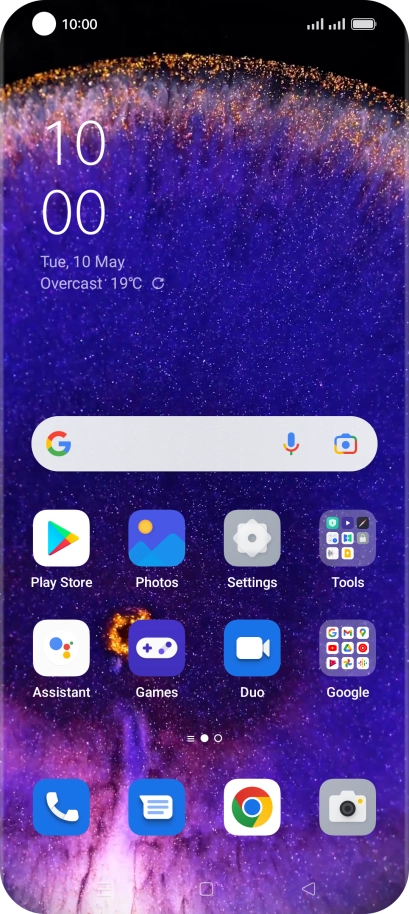
Press the Home key to return to the home screen.
Step 7 of 7

3. Return to the home screen

Press the Home key to return to the home screen.

1. Find "Wi-Fi Calling"

Slide two fingers downwards starting from the top of the screen.
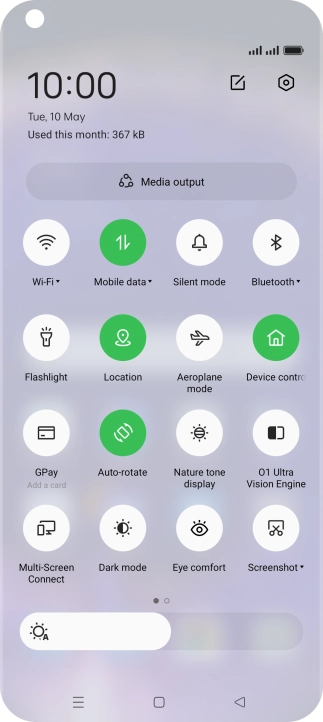
Press the settings icon.
Press Mobile network.
Press the name of the SIM.
Press Wi-Fi Calling.

2. Turn Wi-Fi calling on or off

Press the indicator next to "Wi-Fi Calling" to turn the function on or off.

3. Return to the home screen

Press the Home key to return to the home screen.

Thank you for your evaluation!

Get information on...

Or select...

Another device