Samsung Galaxy S10+

Samsung Galaxy S10+

Android 9.0

Turn notifications on your Samsung Galaxy S10+ Android 9.0 on or off

Read help info

When you turn on notifications, you will be notified about various events such as new email messages, messages from social networks and calendar appointments.

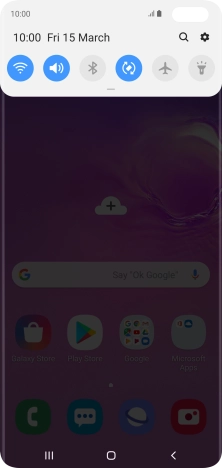
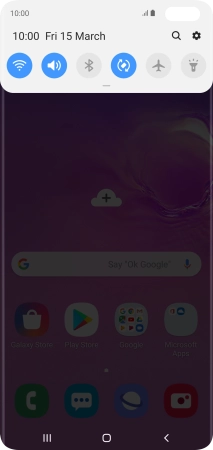
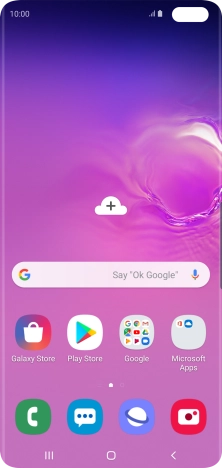
Slide your finger downwards starting from the top of the screen.
Step 1 of 6

1. Find "Notifications"

Slide your finger downwards starting from the top of the screen.
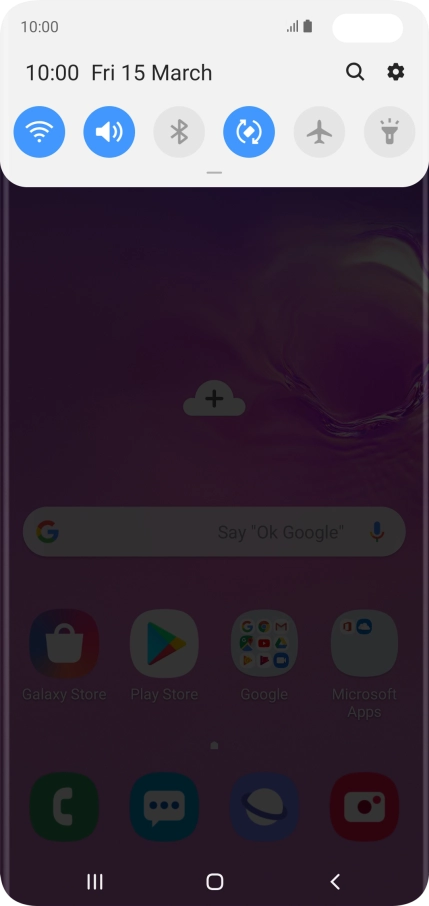
Press the settings icon.
Step 2 of 6

1. Find "Notifications"

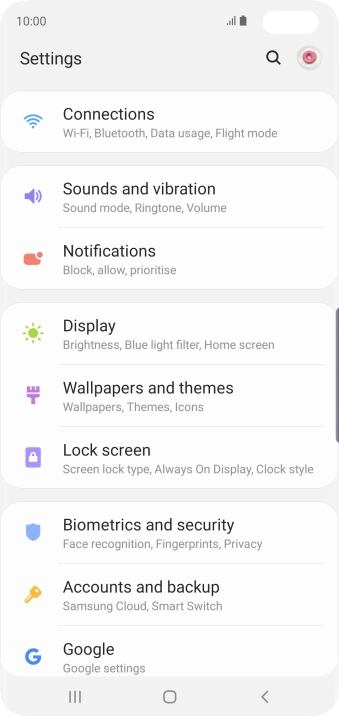
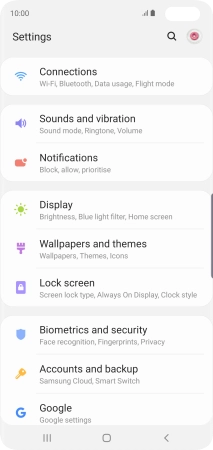
Press the settings icon.

Press Notifications.
Step 3 of 6

1. Find "Notifications"

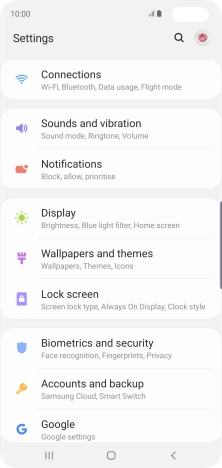
Press Notifications.

Press See all.
Step 4 of 6

2. Turn notifications on or off

Press See all.

Press the indicator next to the required app to turn the function on or off.
Step 5 of 6

2. Turn notifications on or off

Press the indicator next to the required app to turn the function on or off.

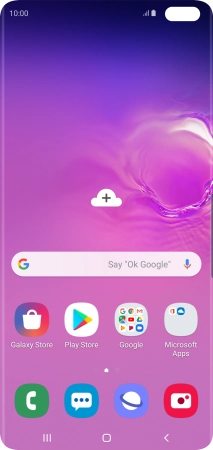
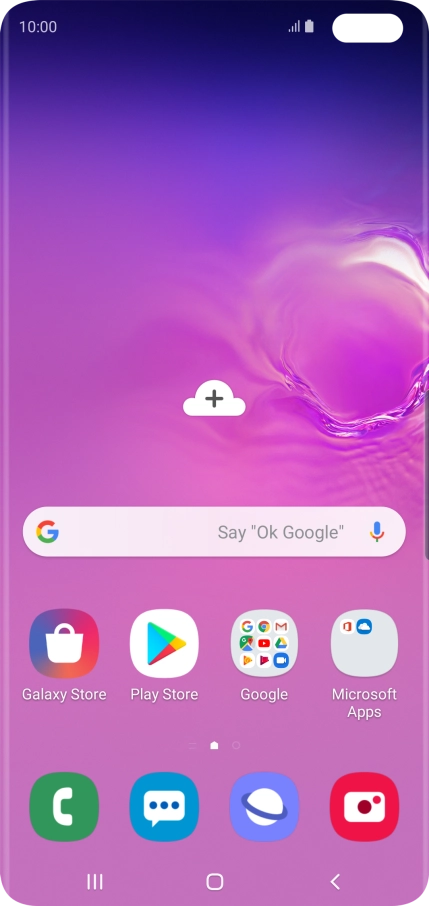
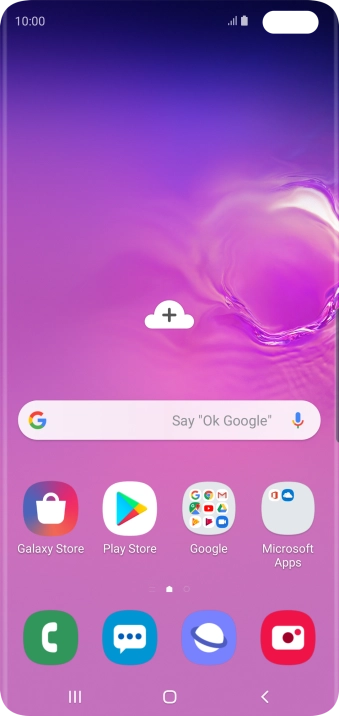
Press the Home key to return to the home screen.
Step 6 of 6

3. Return to the home screen

Press the Home key to return to the home screen.

1. Find "Notifications"

Slide your finger downwards starting from the top of the screen.
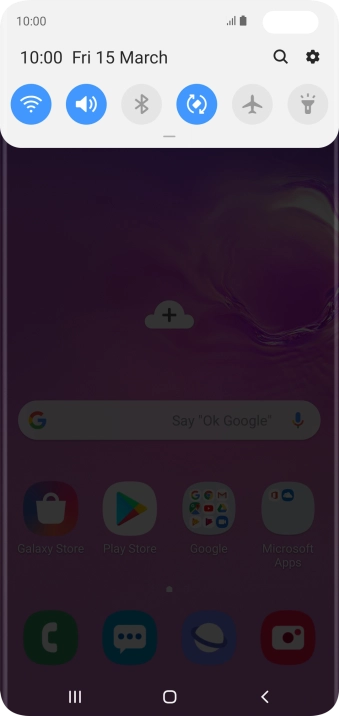
Press the settings icon.
Press Notifications.

2. Turn notifications on or off

Press See all.
Press the indicator next to the required app to turn the function on or off.

3. Return to the home screen

Press the Home key to return to the home screen.

Thank you for your evaluation!

Get information on...

Or select...

Another device