Samsung Galaxy Tab 2 7.0

Samsung Galaxy Tab 2 7.0

Set up your device for Exchange email - Samsung Galaxy Tab 2 7.0

Read help info

Follow these instructions to set up your device for Exchange email.

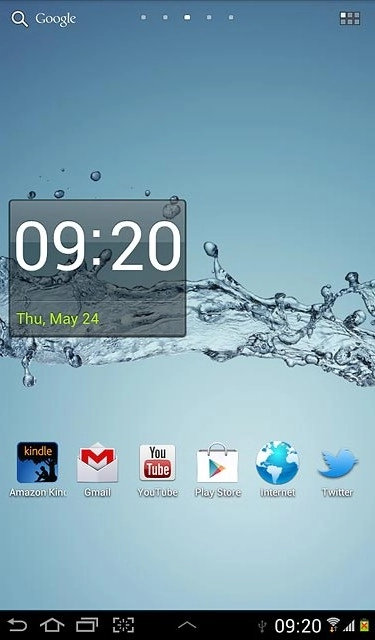
Press the menu icon.
Step 1 of 65

Find "Access Point Names"

Press the menu icon.
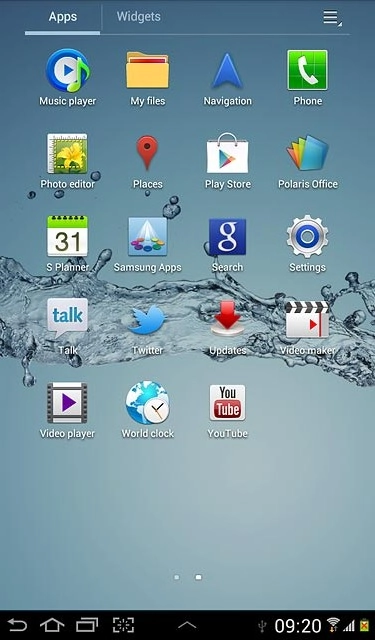
Press Settings.
Step 2 of 65

Find "Access Point Names"

Press Settings.
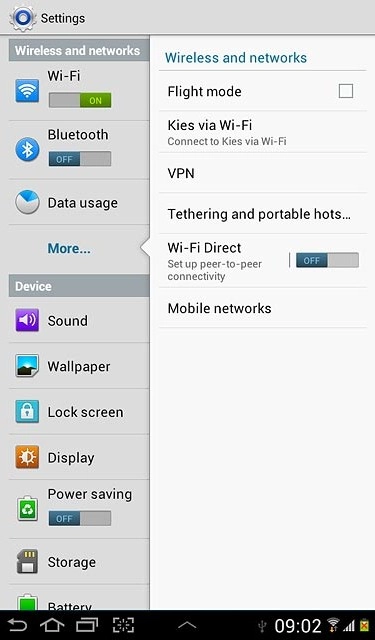
Press More....
Step 3 of 65

Find "Access Point Names"

Press More....
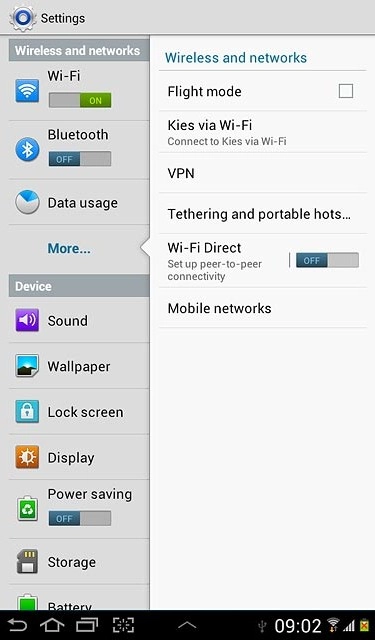
Press Mobile networks.
Step 4 of 65

Find "Access Point Names"

Press Mobile networks.
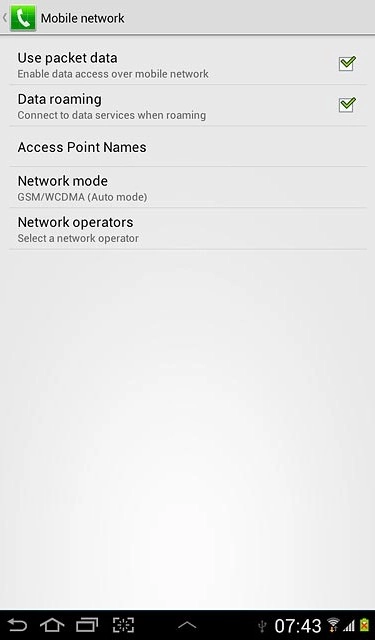
Press Access Point Names.
Step 5 of 65

Find "Access Point Names"

Press Access Point Names.
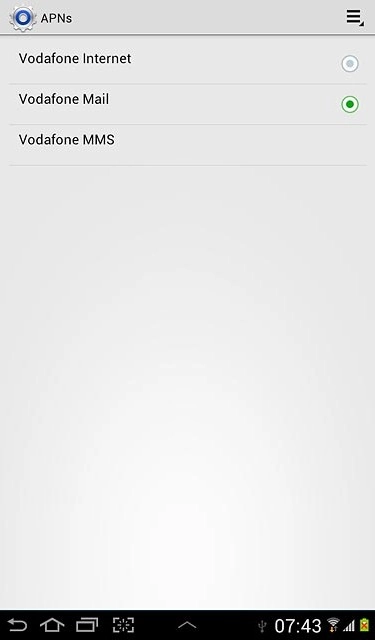
Press the settings icon.
Step 6 of 65

Create new data connection

Press the settings icon.
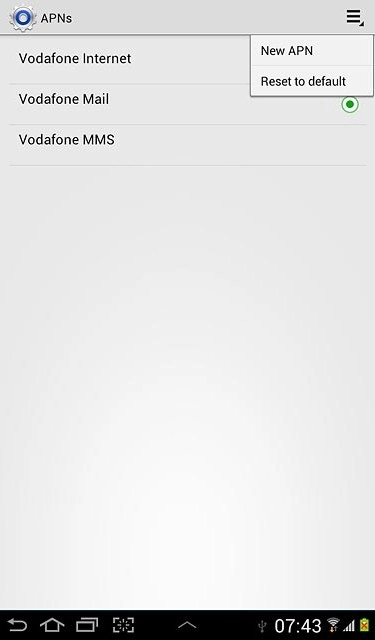
Press New APN.
Step 7 of 65

Create new data connection

Press New APN.
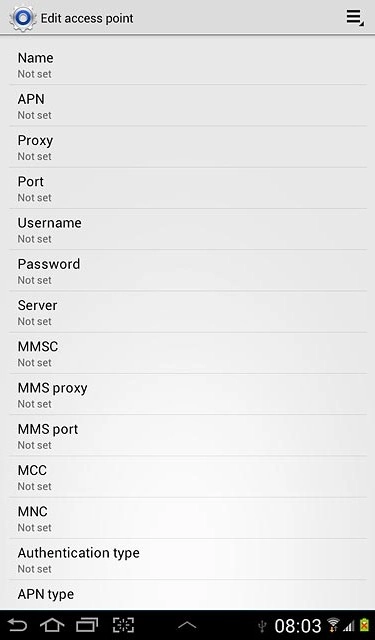
Press Name.
Step 8 of 65

Enter data connection name

Press Name.
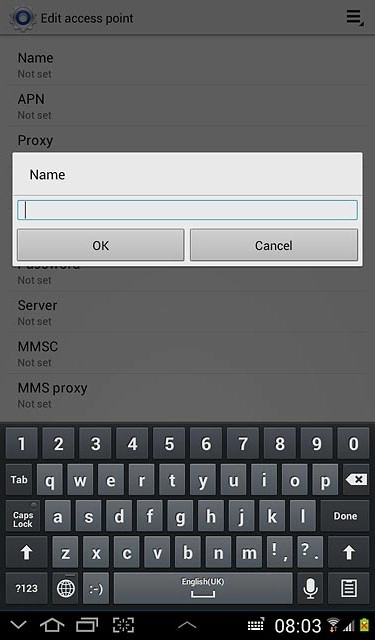
Key in Vodafone Mail and press OK.
Step 9 of 65

Enter data connection name

Key in Vodafone Mail and press OK.
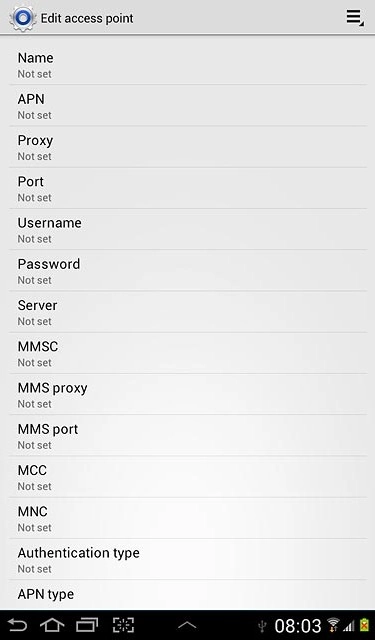
Press APN.
Step 10 of 65

Enter APN

Press APN.

An APN is used to establish a data connection.
Key in live.vodafone.com and press OK.
Step 11 of 65

Enter APN

Key in live.vodafone.com and press OK.

An APN is used to establish a data connection.
Press MCC.
Step 12 of 65

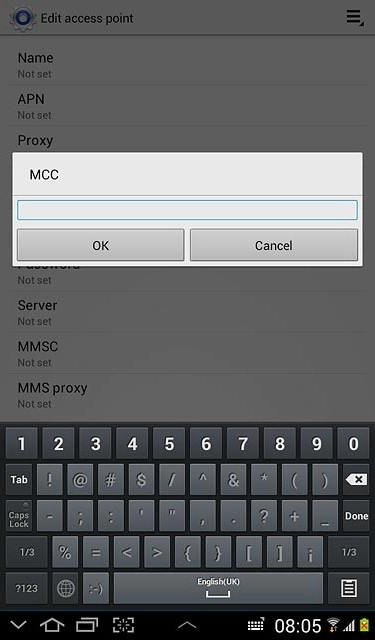
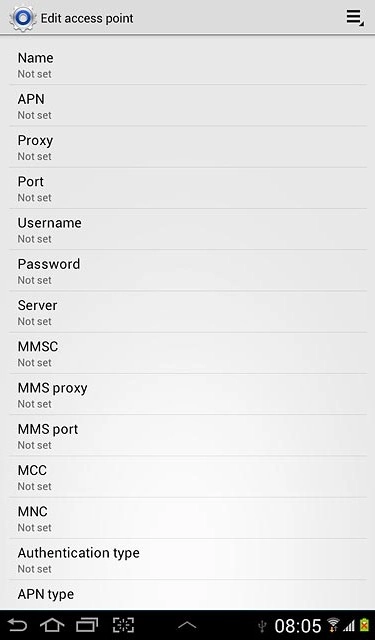
Enter country code

Press MCC.

Key in 505 and press OK.
Step 13 of 65

Enter country code

Key in 505 and press OK.

Press MNC.
Step 14 of 65

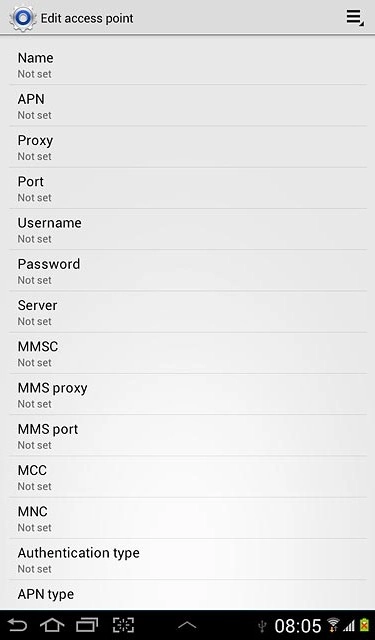
Enter network code

Press MNC.

Key in 03 and press OK.
Step 15 of 65

Enter network code

Key in 03 and press OK.

Press Authentication type.
Step 16 of 65

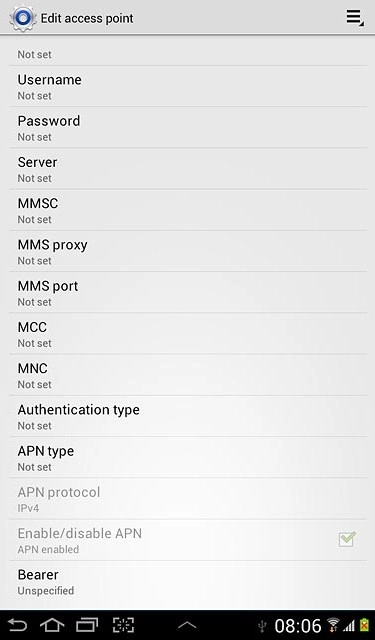
Select authentication type

Press Authentication type.

Press PAP.
Step 17 of 65

Select authentication type

Press PAP.

Press APN type.
Step 18 of 65

Select APN type

Press APN type.

Press Internet.
Step 19 of 65

Select APN type

Press Internet.

Press the settings icon.
Step 20 of 65

Save and activate data connection

Press the settings icon.

Press Save.
Step 21 of 65

Save and activate data connection

Press Save.

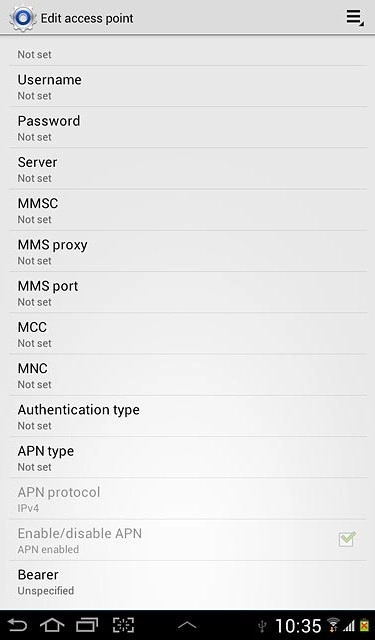
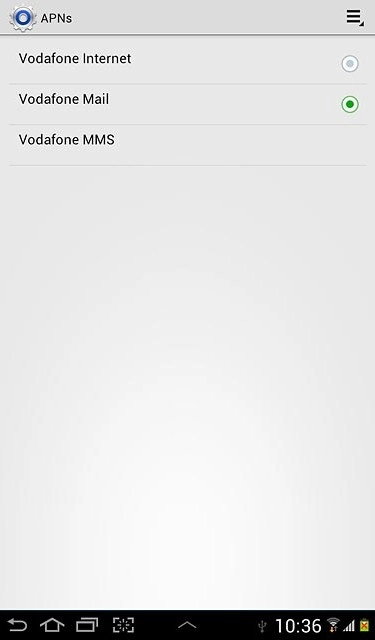
Press the field next to Vodafone Mail to fill in the field.
Step 22 of 65

Save and activate data connection

Press the field next to Vodafone Mail to fill in the field.

Press the home icon to return to standby mode.
Step 23 of 65

Save and activate data connection

Press the home icon to return to standby mode.

Press the menu icon.
Step 24 of 65

Find "Email"

Press the menu icon.

If email accounts have been created already, press the settings icon. Press Settings. Press Add account.
Press Email.
Step 25 of 65

Find "Email"

Press Email.

If email accounts have been created already, press the settings icon. Press Settings. Press Add account.
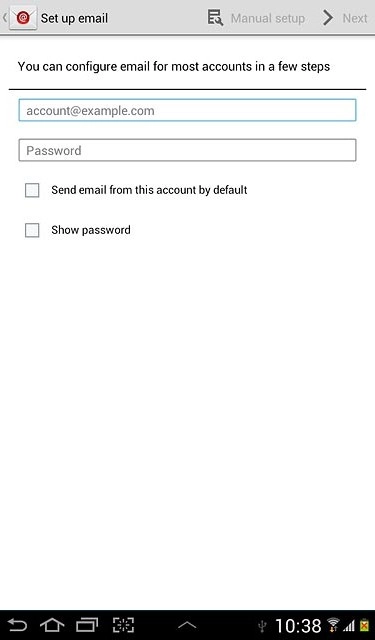
Press account@example.com and key in your email address.
Step 26 of 65

Enter email address

Press account@example.com and key in your email address.

Press Password and key in your password.
Step 27 of 65

Enter password

Press Password and key in your password.

Press Manual setup.
Step 28 of 65

Enter password

Press Manual setup.

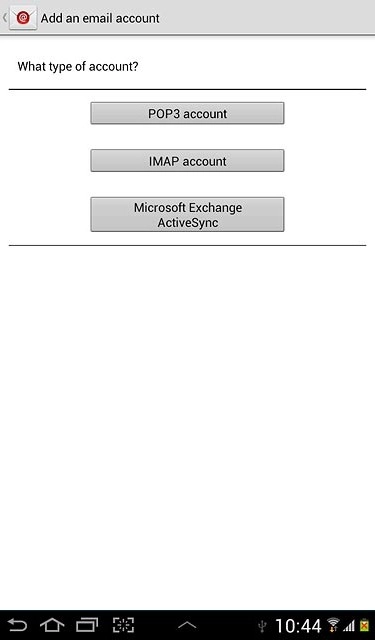
Press Microsoft Exchange ActiveSync.
Step 29 of 65

Select server type

Press Microsoft Exchange ActiveSync.

Press the field below Domain\user name and key in the domain and username separated by a
Step 30 of 65

Enter domain and username

Press the field below Domain\user name and key in the domain and username separated by a "\".

Press the field below Exchange server and key in the server address.
Step 31 of 65

Enter server address

Press the field below Exchange server and key in the server address.

Press Use secure connection (SSL) to turn SSL encryption on or off.
Step 32 of 65

Turn SSL encryption on or off

Press Use secure connection (SSL) to turn SSL encryption on or off.

When the box next to the menu item is ticked (V), the function is turned on.
Step 33 of 65

Turn SSL encryption on or off

When the box next to the menu item is ticked (V), the function is turned on.

Press Use client certificate to turn the function on or off.
Step 34 of 65

Turn client certificate on or off

Press Use client certificate to turn the function on or off.

When the box next to the menu item is ticked (V), the function is turned on.
Step 35 of 65

Turn client certificate on or off

When the box next to the menu item is ticked (V), the function is turned on.

If you turn on the function:Press Client certificate and follow the instructions on the display to install the required certificate.
Step 36 of 65

Turn client certificate on or off

If you turn on the function:
Press Client certificate and follow the instructions on the display to install the required certificate.

Press Next.
Step 37 of 65

Turn client certificate on or off

Press Next.

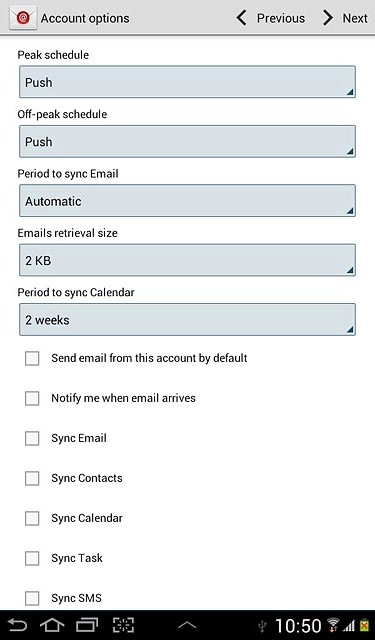
Press the drop down list below Peak schedule.
Step 38 of 65

Select synchronisation interval

Press the drop down list below Peak schedule.

Press Push, Manual or the required frequency.
Step 39 of 65

Select synchronisation interval

Press Push, Manual or the required frequency.

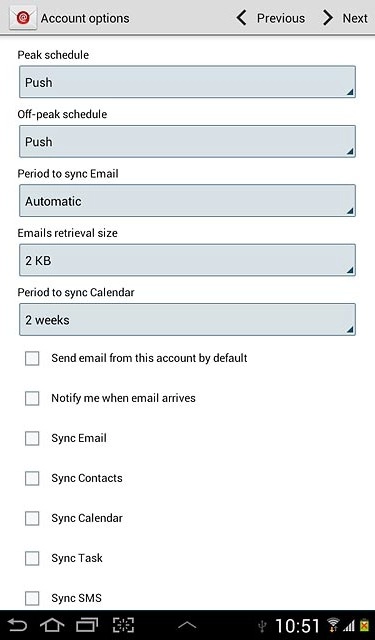
Press the drop down list below Off-peak schedule.
Step 40 of 65

Select synchronisation interval

Press the drop down list below Off-peak schedule.

Press Push, Manual or the required frequency.Please note:Each time your device connects to the server to synchronise, data charges will apply.
Step 41 of 65

Select synchronisation interval

Press Push, Manual or the required frequency.
Please note:
Each time your device connects to the server to synchronise, data charges will apply.

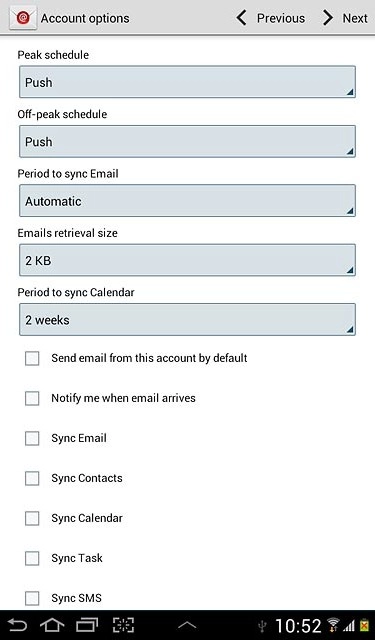
Press the drop down list below Period to sync Email.
Step 42 of 65

Select settings for synchronising new email messages

Press the drop down list below Period to sync Email.

Press the required setting.
Step 43 of 65

Select settings for synchronising new email messages

Press the required setting.

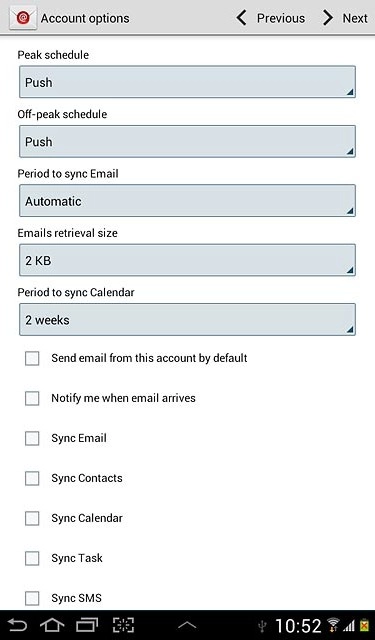
Press the drop down list below Emails retrieval size.
Step 44 of 65

Select settings for synchronising new email messages

Press the drop down list below Emails retrieval size.

Press the required setting.
Step 45 of 65

Select settings for synchronising new email messages

Press the required setting.

Press the drop down list below Period to sync Calendar.
Step 46 of 65

Select settings for synchronisation of calendar

Press the drop down list below Period to sync Calendar.

Press the required setting.
Step 47 of 65

Select settings for synchronisation of calendar

Press the required setting.

Press Notify me when email arrives to turn the function on or off.
Step 48 of 65

Turn email message notification on or off

Press Notify me when email arrives to turn the function on or off.

When the box next to the menu item is ticked (V), the function is turned on.
Step 49 of 65

Turn email message notification on or off

When the box next to the menu item is ticked (V), the function is turned on.

Press Sync Email to turn the function on or off.
Step 50 of 65

Turn automatic synchronisation of email messages on or off

Press Sync Email to turn the function on or off.

When the box next to the menu item is ticked (V), the function is turned on.
Step 51 of 65

Turn automatic synchronisation of email messages on or off

When the box next to the menu item is ticked (V), the function is turned on.

Press Sync Contacts to turn the function on or off.
Step 52 of 65

Turn automatic synchronisation of contacts on or off

Press Sync Contacts to turn the function on or off.

When the box next to the menu item is ticked (V), the function is turned on.
Step 53 of 65

Turn automatic synchronisation of contacts on or off

When the box next to the menu item is ticked (V), the function is turned on.

Press Sync Calendar to turn the function on or off.
Step 54 of 65

Turn automatic synchronisation of calendar on or off

Press Sync Calendar to turn the function on or off.

When the box next to the menu item is ticked (V), the function is turned on.
Step 55 of 65

Turn automatic synchronisation of calendar on or off

When the box next to the menu item is ticked (V), the function is turned on.

Press Sync Task to turn the function on or off.
Step 56 of 65

Turn automatic synchronisation of tasks on or off

Press Sync Task to turn the function on or off.

When the box next to the menu item is ticked (V), the function is turned on.
Step 57 of 65

Turn automatic synchronisation of tasks on or off

When the box next to the menu item is ticked (V), the function is turned on.

Press Sync SMS to turn the function on or off.
Step 58 of 65

Turn automatic synchronisation of text messages on or off

Press Sync SMS to turn the function on or off.

When the box next to the menu item is ticked (V), the function is turned on.
Step 59 of 65

Turn automatic synchronisation of text messages on or off

When the box next to the menu item is ticked (V), the function is turned on.

Press Automatically download attachments when connected to Wi-Fi to turn the function on or off.
Step 60 of 65

Turn automatic retrieval of attachments when connected to a Wi-Fi network on or off

Press Automatically download attachments when connected to Wi-Fi to turn the function on or off.

When the box next to the menu item is ticked (V), the function is turned on.
Step 61 of 65

Turn automatic retrieval of attachments when connected to a Wi-Fi network on or off

When the box next to the menu item is ticked (V), the function is turned on.

Press Next.
Step 62 of 65

Turn automatic retrieval of attachments when connected to a Wi-Fi network on or off

Press Next.

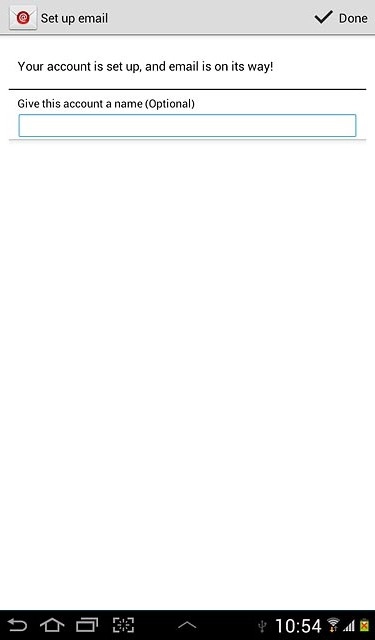
Press the field below Give this account a name (Optional) and key in the required name.
Step 63 of 65

Enter account name

Press the field below Give this account a name (Optional) and key in the required name.

Press Done.
Step 64 of 65

Finish setup

Press Done.

Press the home icon to return to standby mode.
Step 65 of 65

Exit

Press the home icon to return to standby mode.

Find "Access Point Names"

Press the menu icon.
Press Settings.
Press More....
Press Mobile networks.
Press Access Point Names.

Create new data connection

Press the settings icon.
Press New APN.

Enter data connection name

Press Name.
Key in Vodafone Mail and press OK.

Enter APN

Press APN.
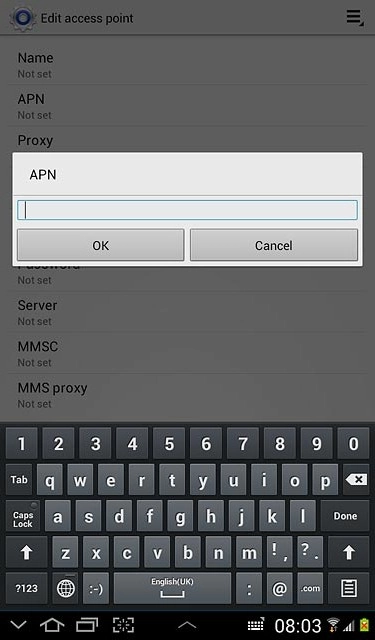
An APN is used to establish a data connection.
Key in live.vodafone.com and press OK.
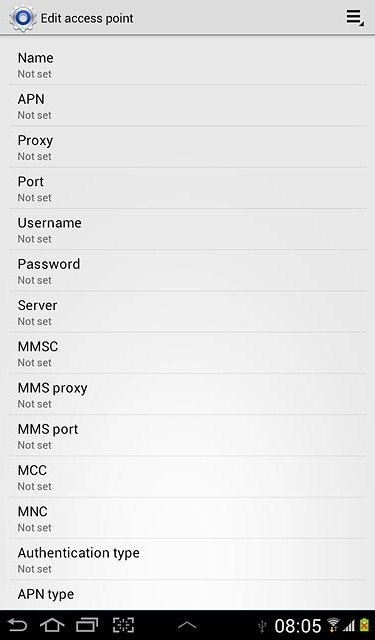
An APN is used to establish a data connection.

Enter country code

Press MCC.
Key in 505 and press OK.

Enter network code

Press MNC.
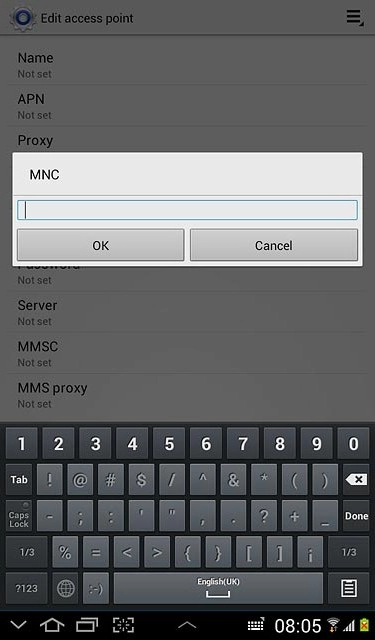
Key in 03 and press OK.

Select authentication type

Press Authentication type.
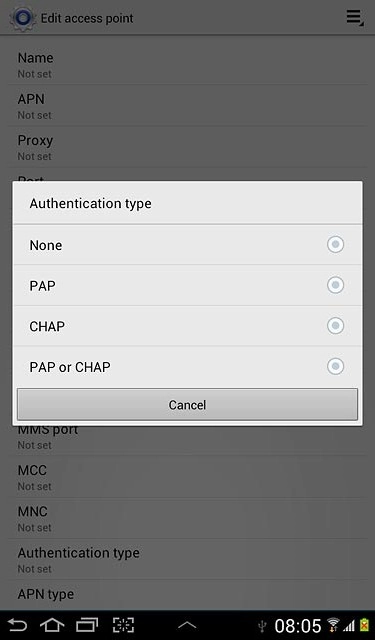
Press PAP.

Select APN type

Press APN type.
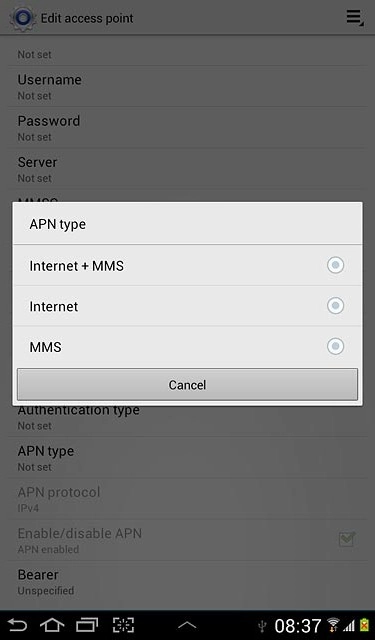
Press Internet.

Save and activate data connection

Press the settings icon.
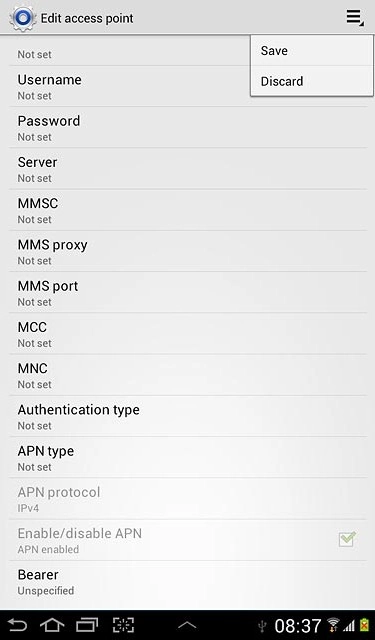
Press Save.
Press the field next to Vodafone Mail to fill in the field.
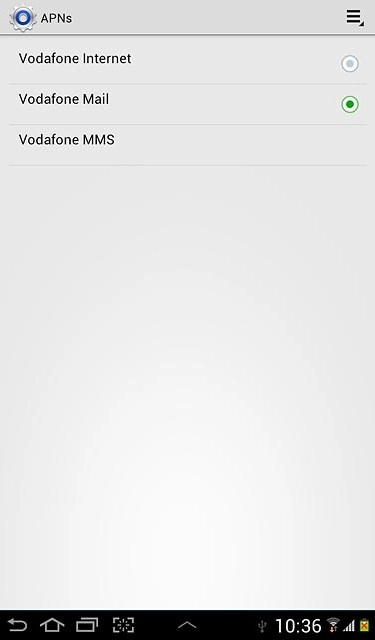
Press the home icon to return to standby mode.
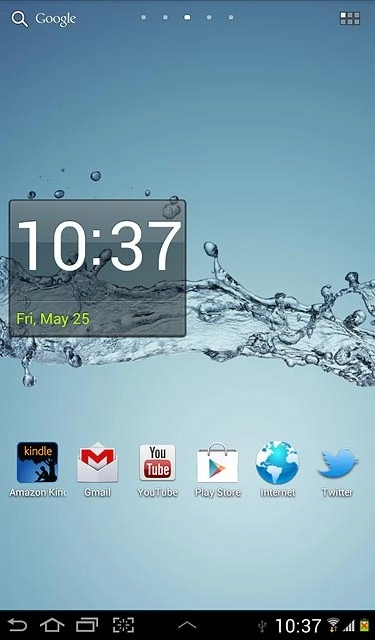
Find "Email"

Press the menu icon.
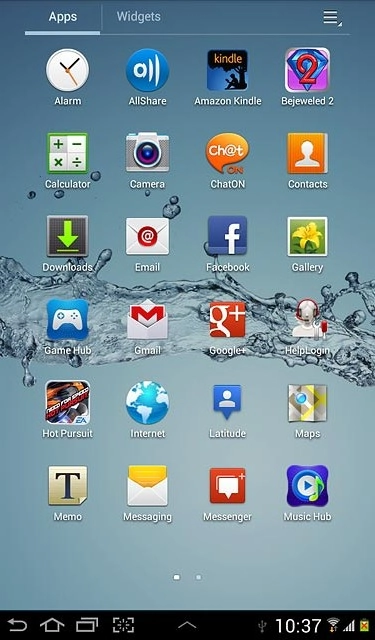
If email accounts have been created already, press the settings icon. Press Settings. Press Add account.
Press Email.
If email accounts have been created already, press the settings icon. Press Settings. Press Add account.

Enter email address

Press account@example.com and key in your email address.
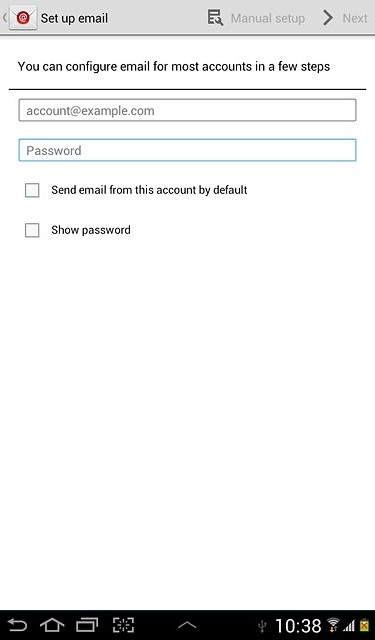
Enter password

Press Password and key in your password.
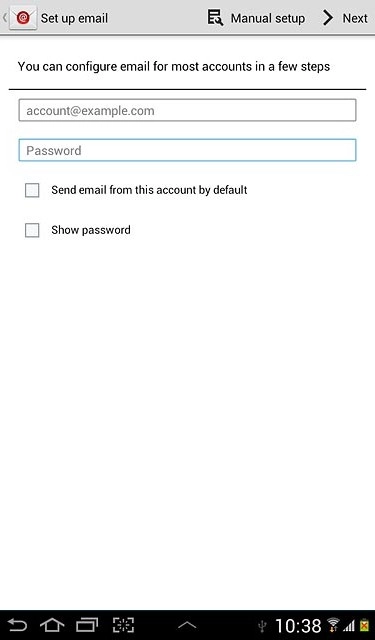
Press Manual setup.

Select server type

Press Microsoft Exchange ActiveSync.
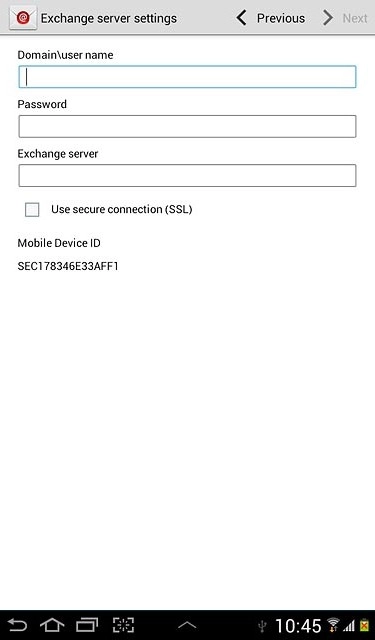
Enter domain and username

Press the field below Domain\user name and key in the domain and username separated by a "\".
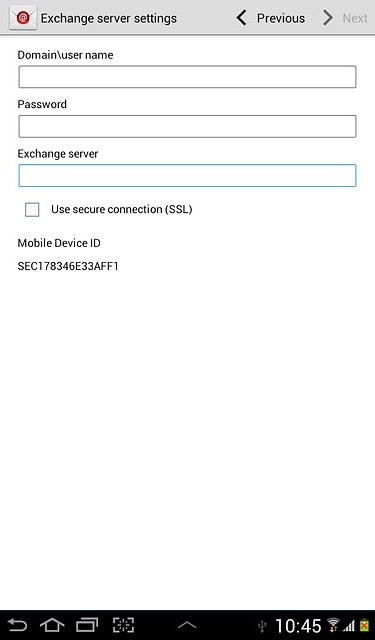
Enter server address

Press the field below Exchange server and key in the server address.
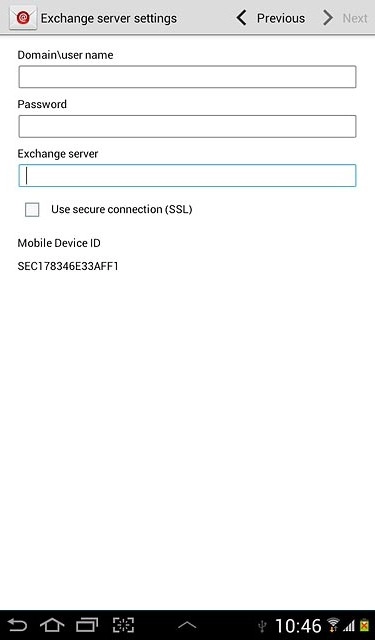
Turn SSL encryption on or off

Press Use secure connection (SSL) to turn SSL encryption on or off.
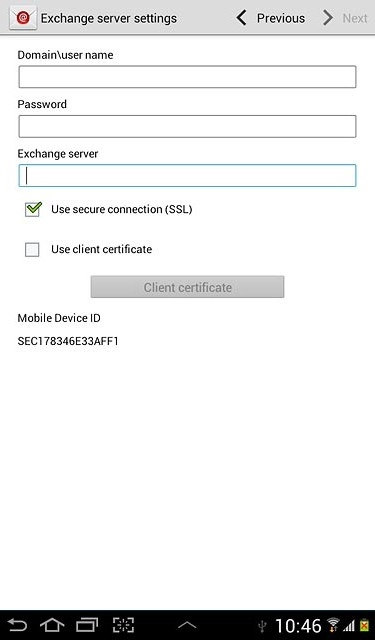
When the box next to the menu item is ticked (V), the function is turned on.
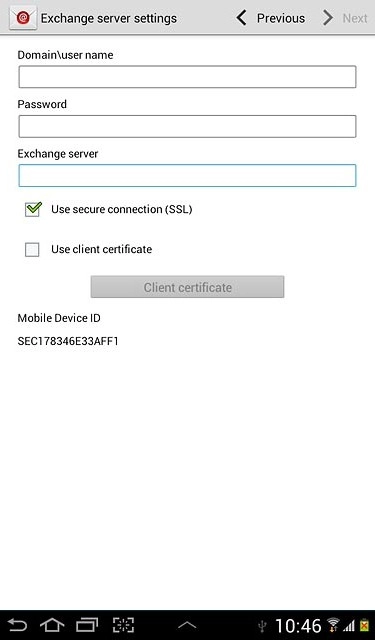
Turn client certificate on or off

Press Use client certificate to turn the function on or off.
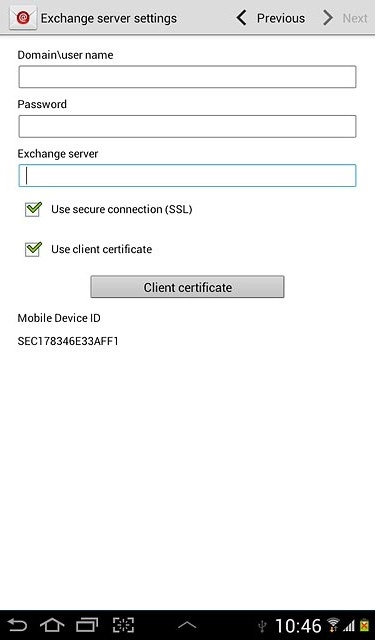
When the box next to the menu item is ticked (V), the function is turned on.
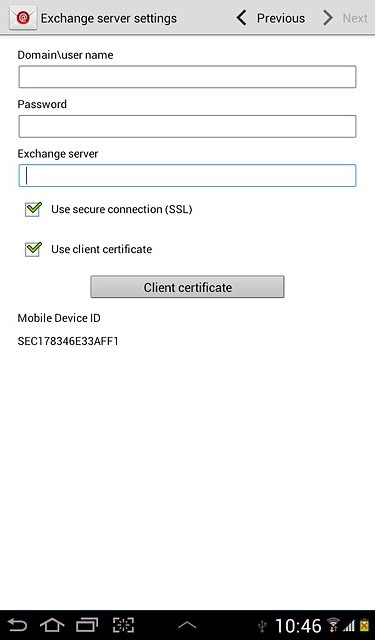
If you turn on the function:
Press Client certificate and follow the instructions on the display to install the required certificate.
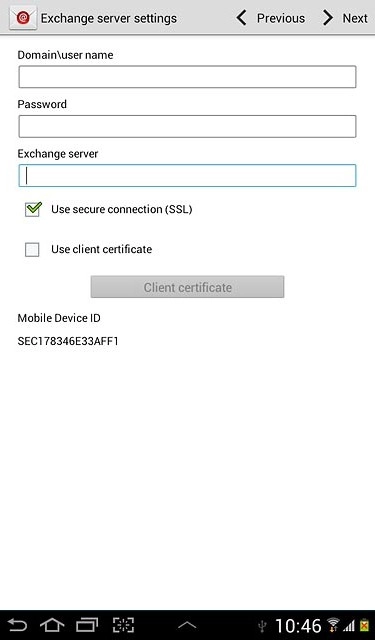
Press Next.

Select synchronisation interval

Press the drop down list below Peak schedule.
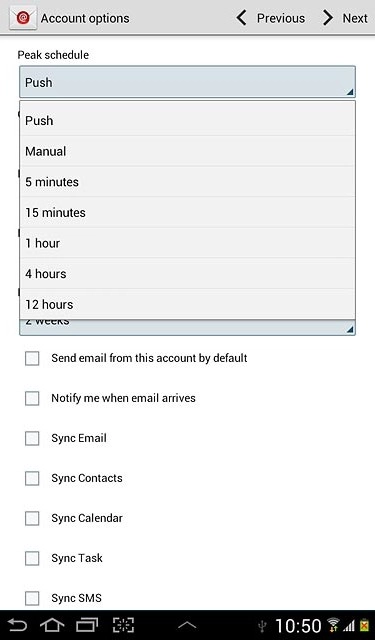
Press Push, Manual or the required frequency.
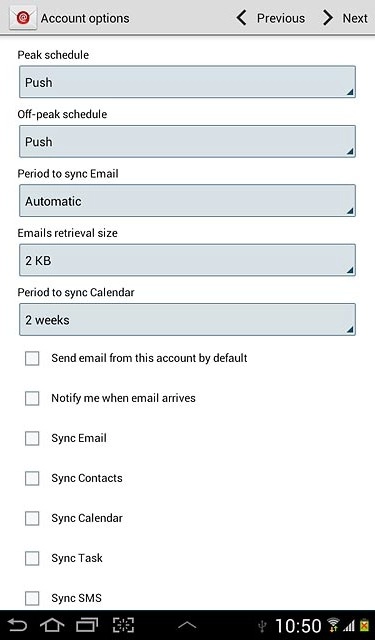
Press the drop down list below Off-peak schedule.
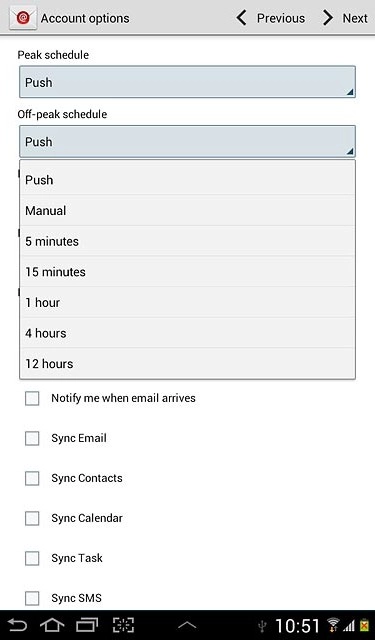
Press Push, Manual or the required frequency.
Please note:
Each time your device connects to the server to synchronise, data charges will apply.
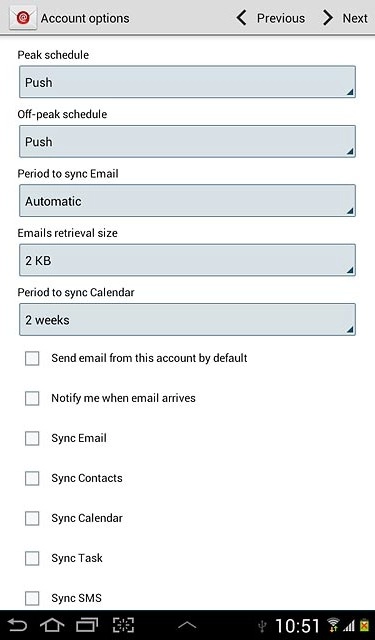
Select settings for synchronising new email messages

Press the drop down list below Period to sync Email.
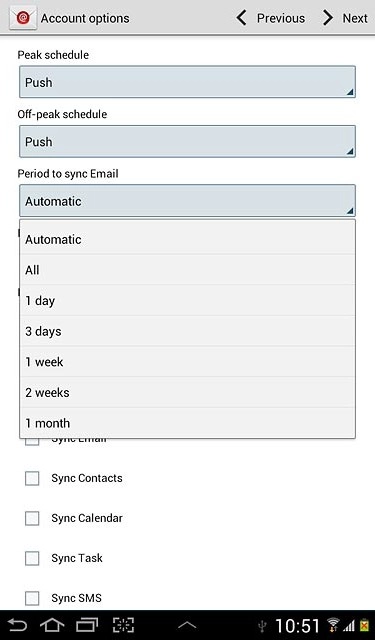
Press the required setting.
Press the drop down list below Emails retrieval size.
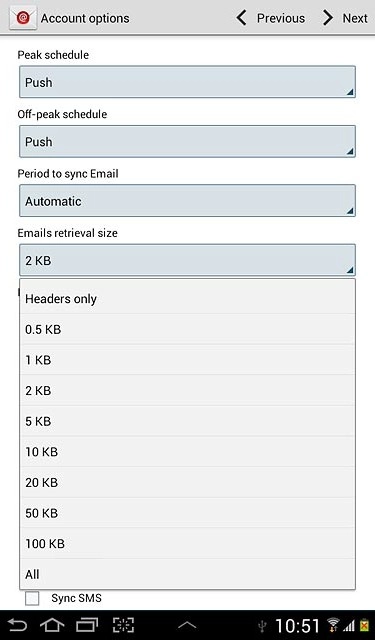
Press the required setting.

Select settings for synchronisation of calendar

Press the drop down list below Period to sync Calendar.
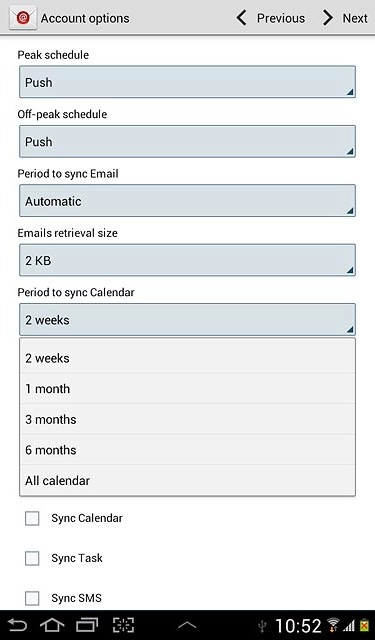
Press the required setting.

Turn email message notification on or off

Press Notify me when email arrives to turn the function on or off.
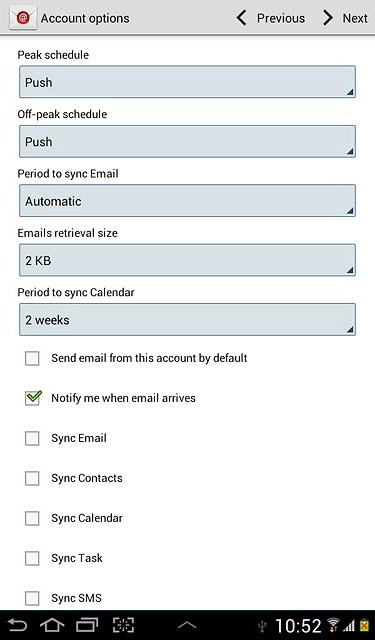
When the box next to the menu item is ticked (V), the function is turned on.
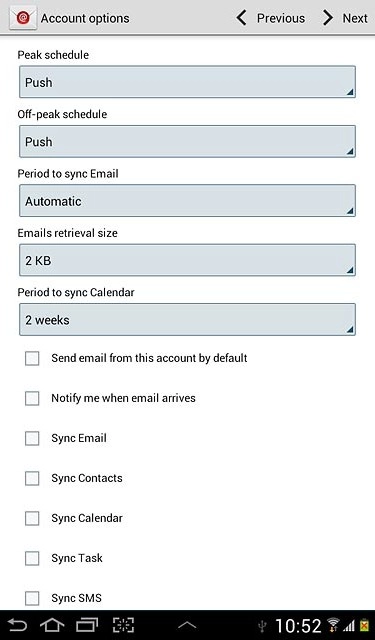
Turn automatic synchronisation of email messages on or off

Press Sync Email to turn the function on or off.
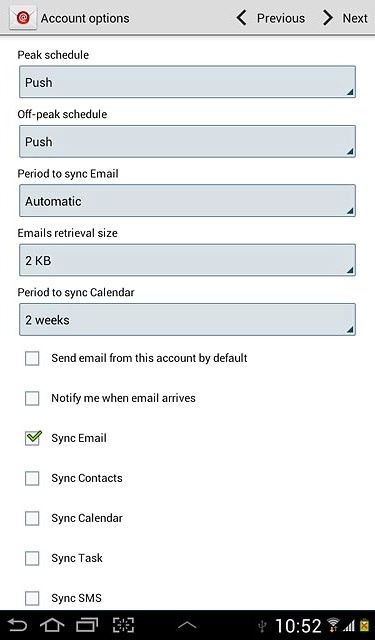
When the box next to the menu item is ticked (V), the function is turned on.
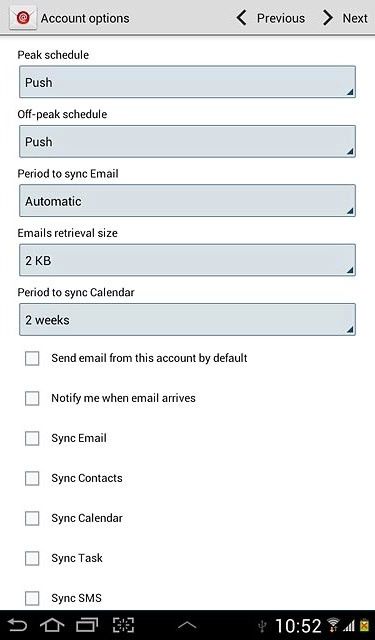
Turn automatic synchronisation of contacts on or off

Press Sync Contacts to turn the function on or off.
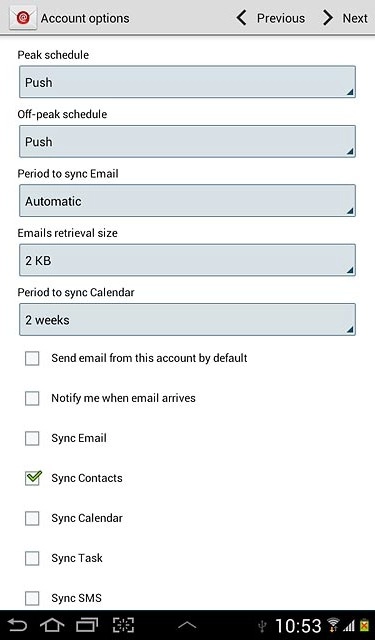
When the box next to the menu item is ticked (V), the function is turned on.
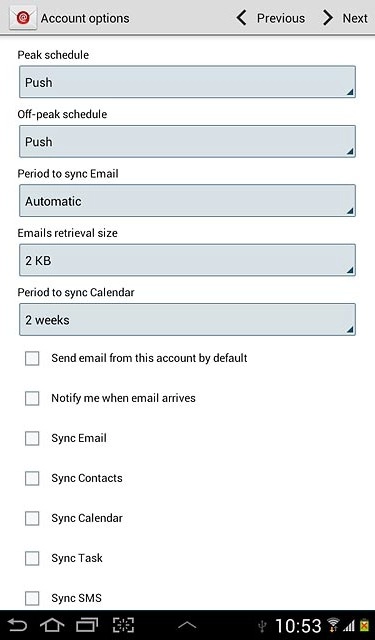
Turn automatic synchronisation of calendar on or off

Press Sync Calendar to turn the function on or off.
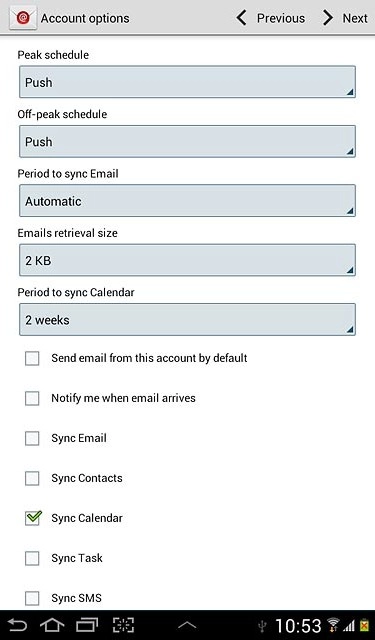
When the box next to the menu item is ticked (V), the function is turned on.
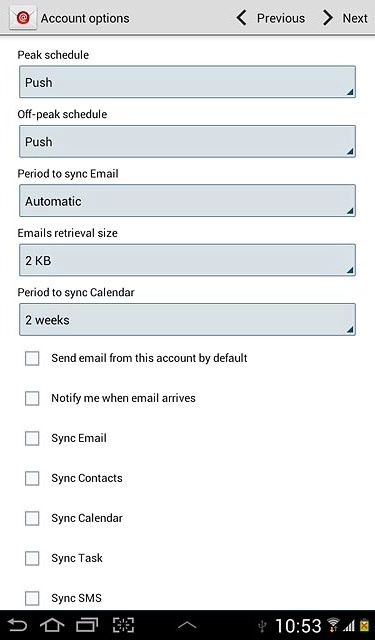
Turn automatic synchronisation of tasks on or off

Press Sync Task to turn the function on or off.
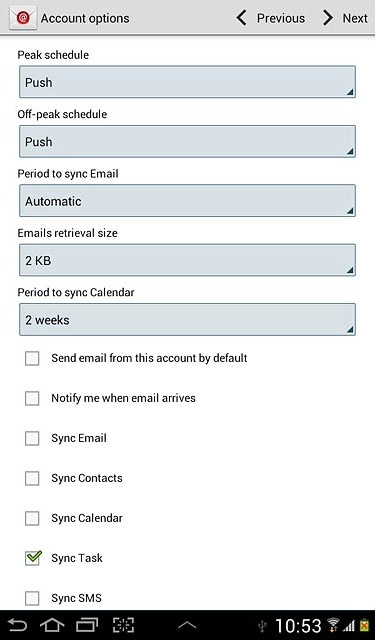
When the box next to the menu item is ticked (V), the function is turned on.
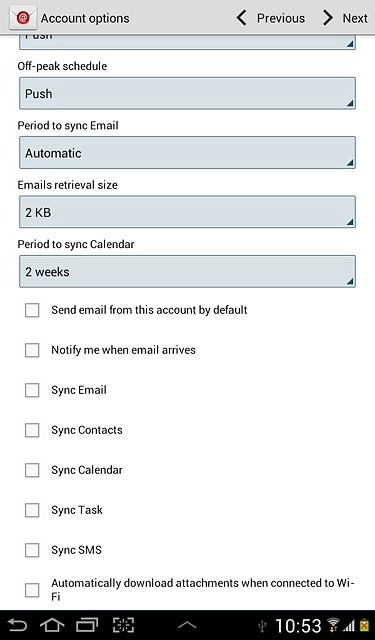
Turn automatic synchronisation of text messages on or off

Press Sync SMS to turn the function on or off.
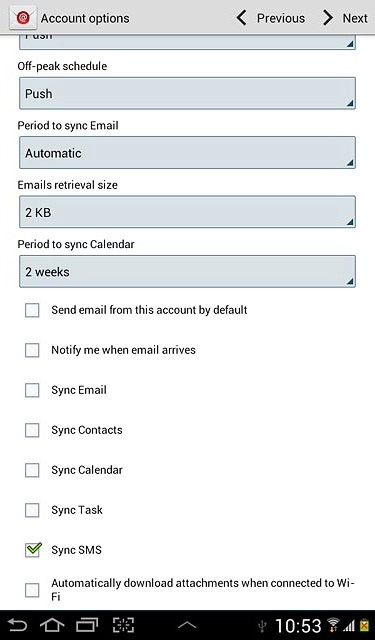
When the box next to the menu item is ticked (V), the function is turned on.
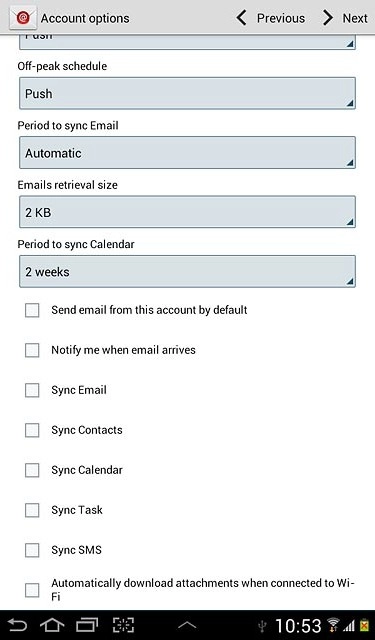
Turn automatic retrieval of attachments when connected to a Wi-Fi network on or off

Press Automatically download attachments when connected to Wi-Fi to turn the function on or off.
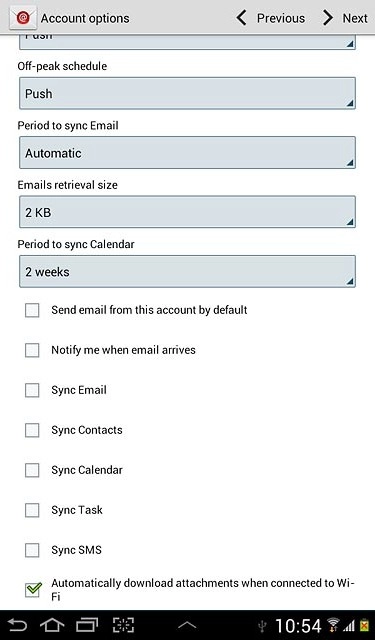
When the box next to the menu item is ticked (V), the function is turned on.
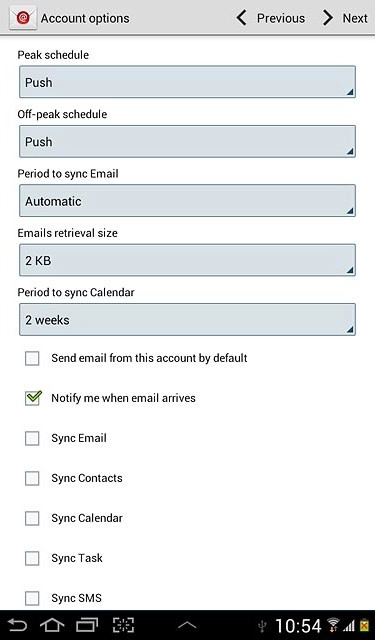
Press Next.

Enter account name

Press the field below Give this account a name (Optional) and key in the required name.
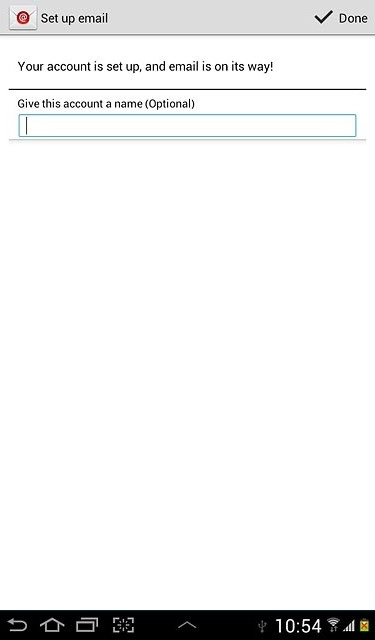
Finish setup

Press Done.
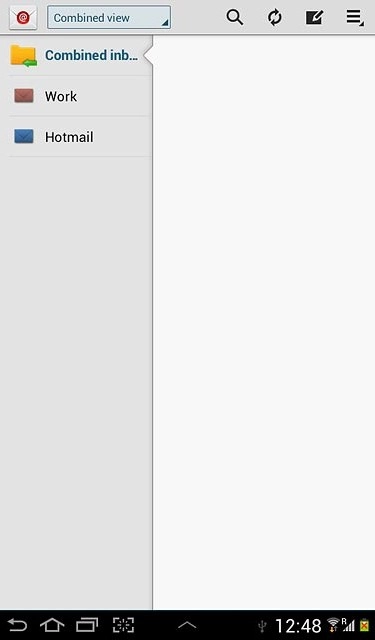
Exit

Press the home icon to return to standby mode.

Thank you for your evaluation!

Get information on...

Or select...

Another device