
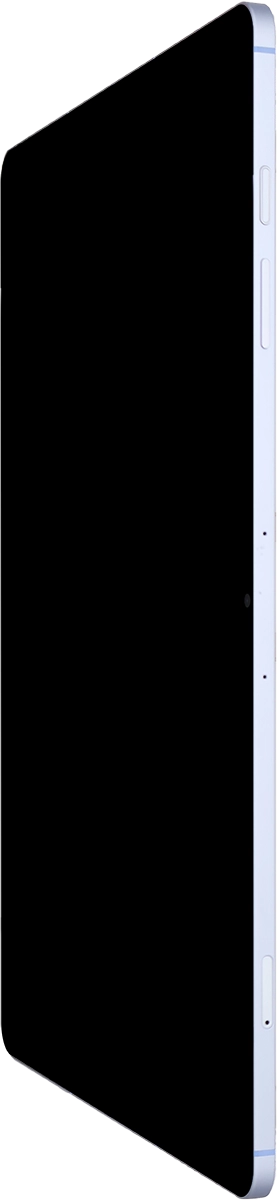
Step 1 of 2
1. Take screenshot
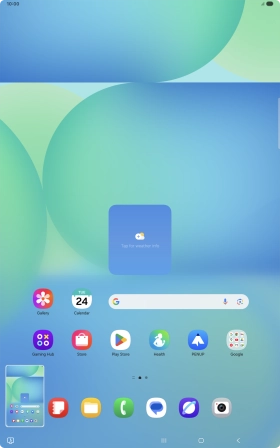
At the same time, press the Side key and the lower part of the Volume key to take a screenshot.
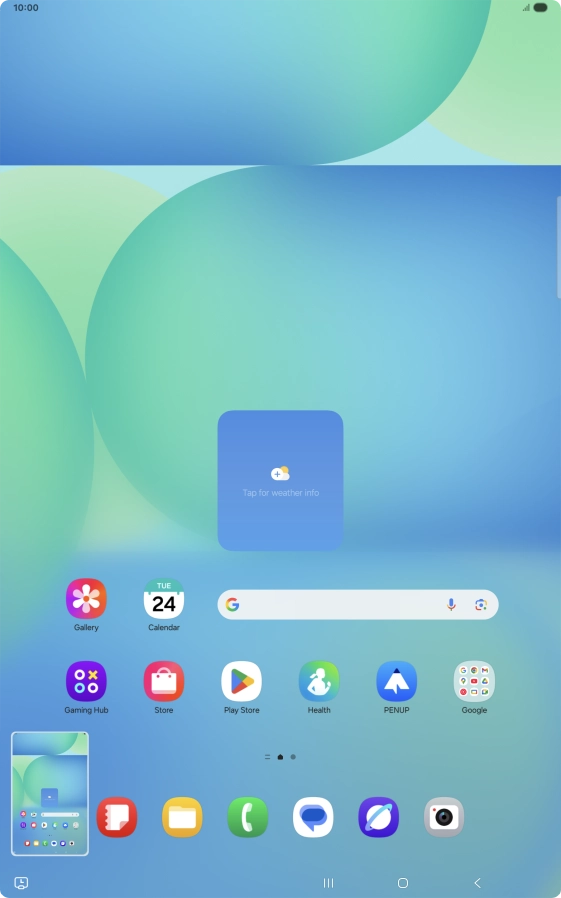
Step 2 of 2
1. Take screenshot
To edit your screenshot, press the screenshot and follow the instructions on the screen to make the required changes.
The picture is saved in the tablet gallery.
1. Take screenshot
At the same time, press the Side key and the lower part of the Volume key to take a screenshot.
To edit your screenshot, press the screenshot and follow the instructions on the screen to make the required changes.
The picture is saved in the tablet gallery.
How would you rate your experience?
Thank you for your evaluation!

Do you have any additional feedback?
Thank you for your evaluation!