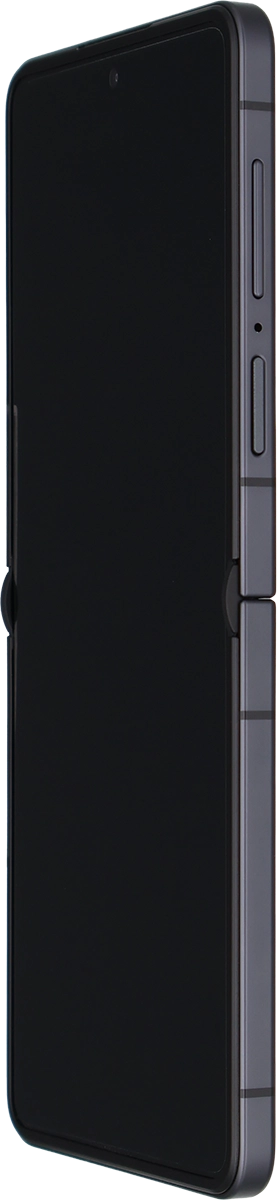
Samsung Galaxy Z Flip8

Samsung Galaxy Z Flip8

Android 17

Activate your Samsung Galaxy Z Flip8 Android 17

Read help info

You need to activate your phone before using it for the first time and after a factory reset. To use mobile network services on your phone, you need to insert your SIM into your phone.

Press the Side key.
Step 1 of 14

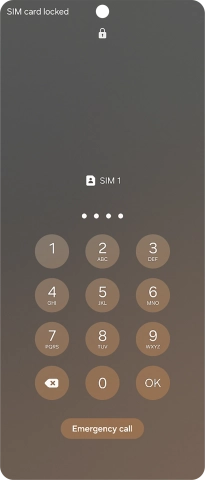
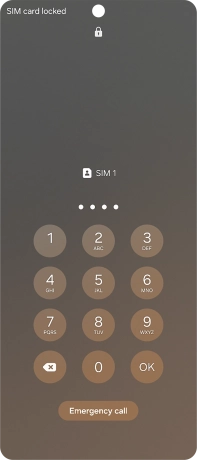
1. Enter your PIN

Press the Side key.
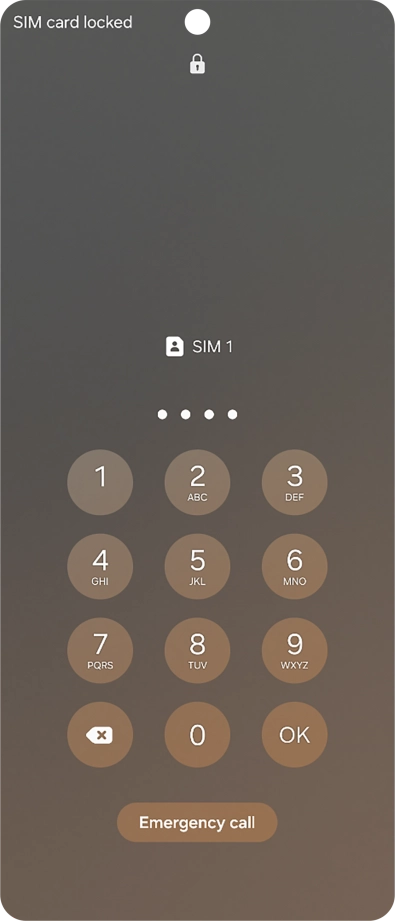
If your SIM is locked, key in your PIN and press OK.
Step 2 of 14

1. Enter your PIN

If your SIM is locked, key in your PIN and press OK.

If an incorrect PIN is entered three times in a row, your SIM will be blocked. To unblock your SIM, you'll need to key in your PUK. The PUK can be obtained by contacting customer services. Please note: If you key in the wrong PUK ten times in a row, your SIM will be blocked permanently. In this case, you need a new SIM from Vodafone.
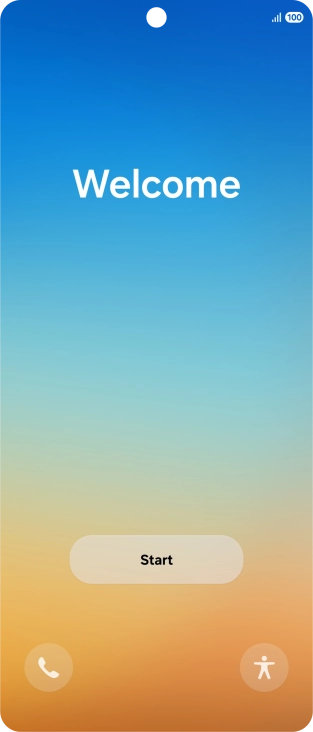
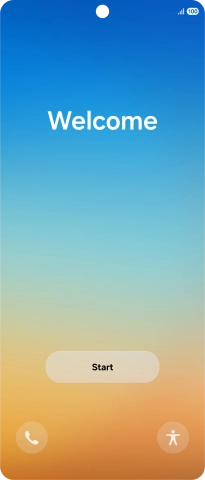
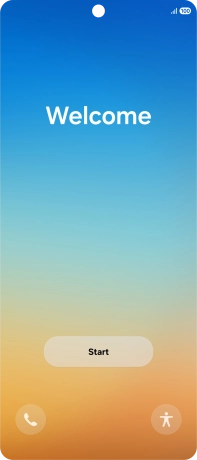
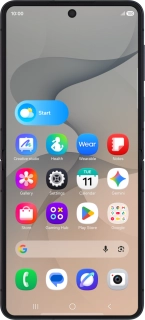
Press Start.
Step 3 of 14

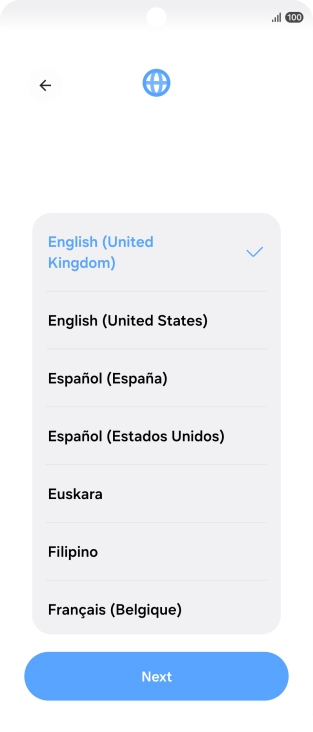
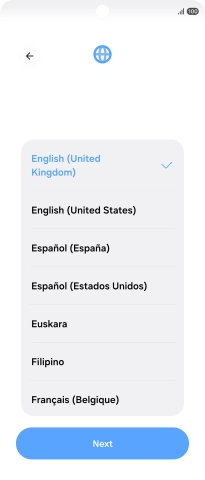
2. Select language

Press Start.

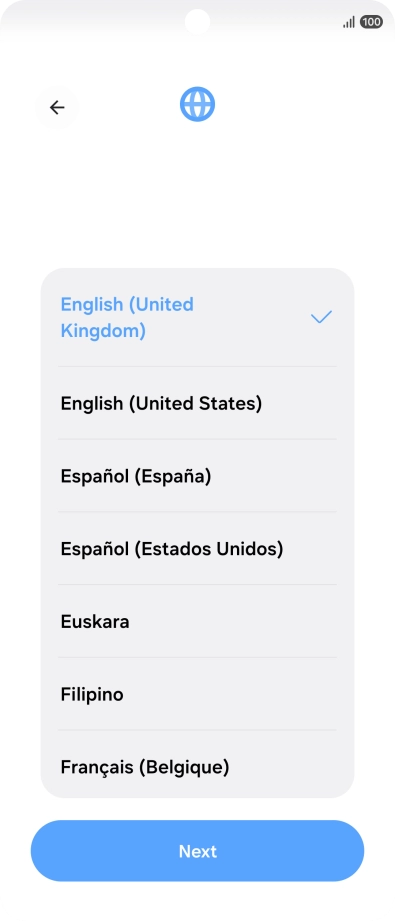
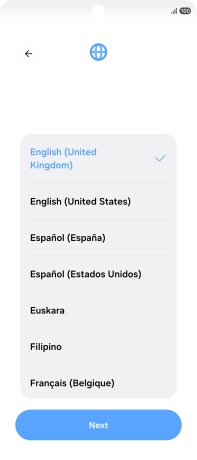
Press the required language.
Step 4 of 14

2. Select language

Press the required language.

Press Next.
Step 5 of 14

2. Select language

Press Next.

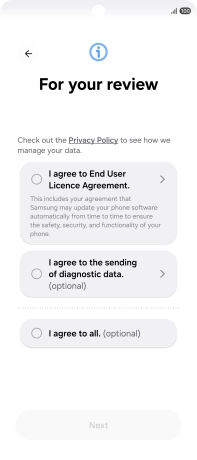
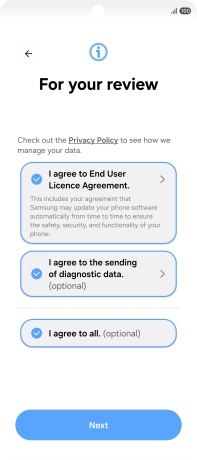
Press the fields next to the required settings to select them.
Step 6 of 14

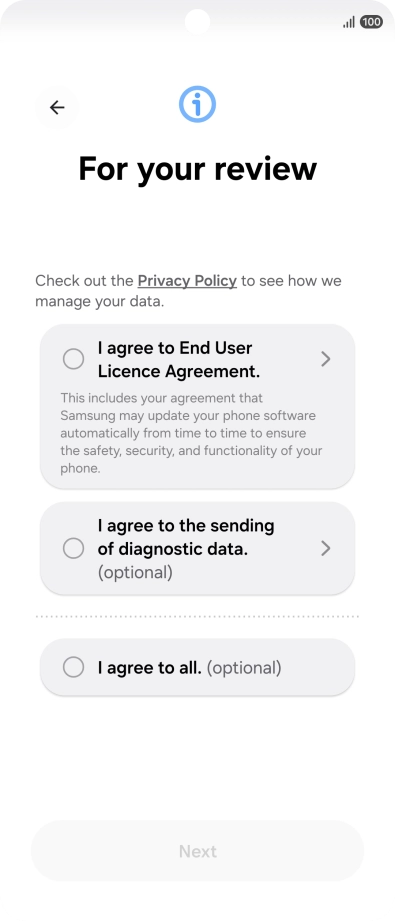
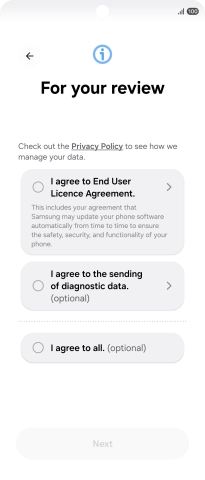
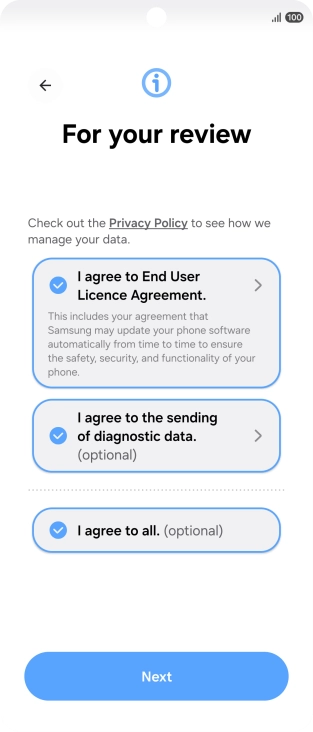
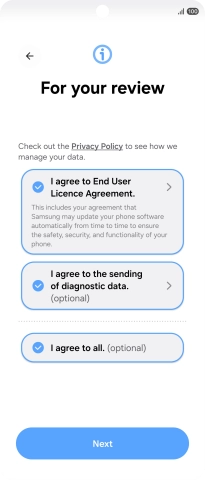
3. Select general settings

Press the fields next to the required settings to select them.

Press Next.
Step 7 of 14

3. Select general settings

Press Next.

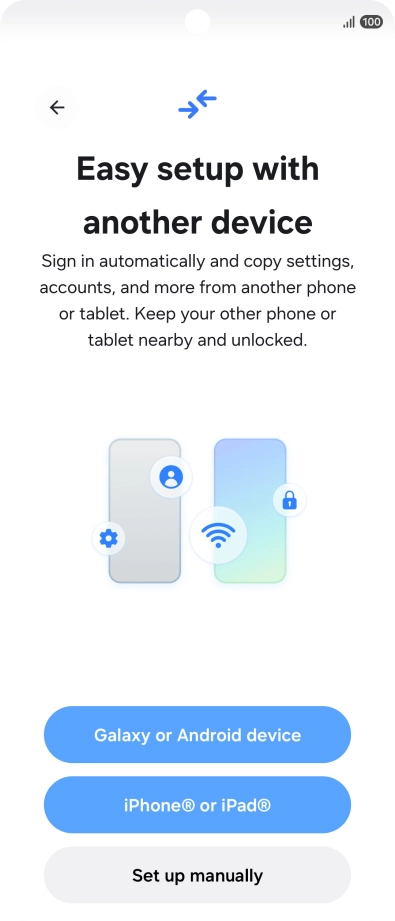
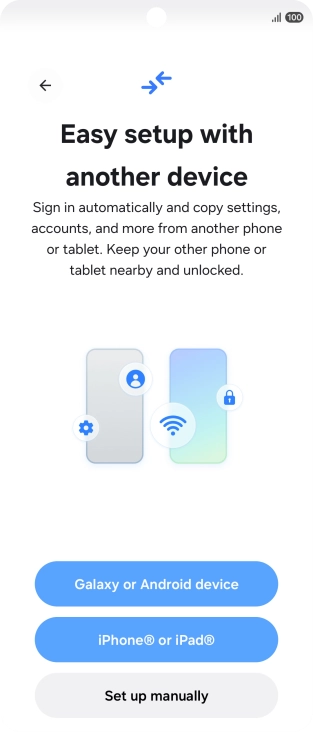
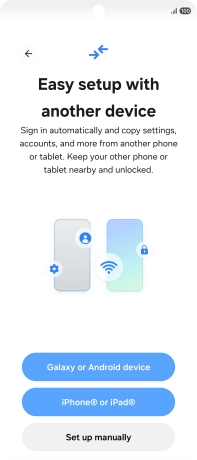
Press the required setting to transfer content from another device or press Set up manually.
Step 8 of 14

3. Select general settings

Press the required setting to transfer content from another device or press Set up manually.

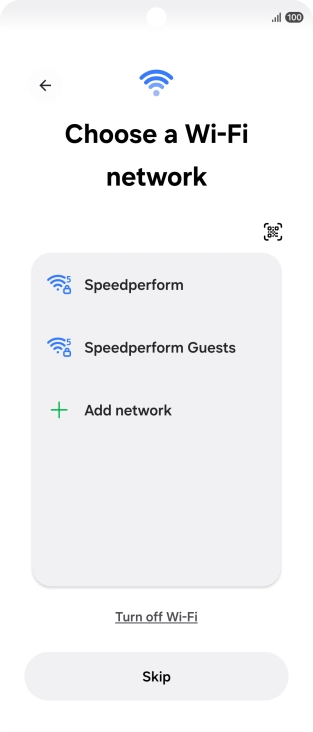
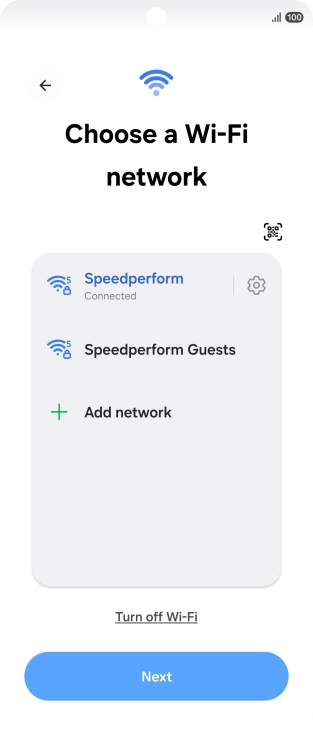
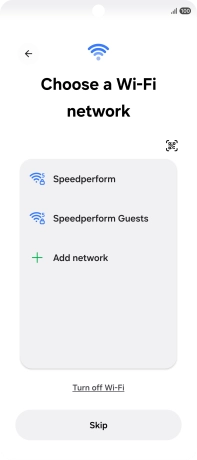
Press the required Wi-Fi network.
Step 9 of 14

4. Select Wi-Fi network

Press the required Wi-Fi network.

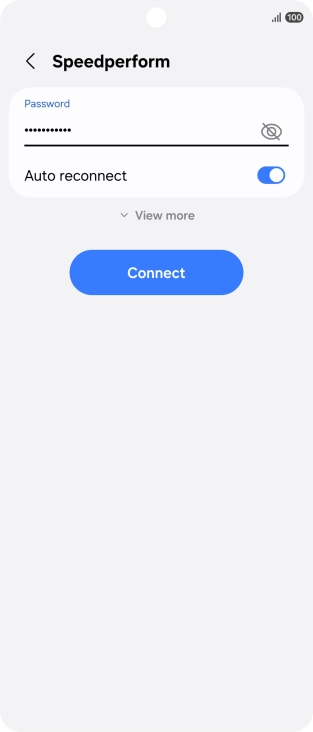
Key in the password for the Wi-Fi network and press Connect.
Step 10 of 14

4. Select Wi-Fi network

Key in the password for the Wi-Fi network and press Connect.

If there are no available Wi-Fi networks, you can use the mobile network instead.
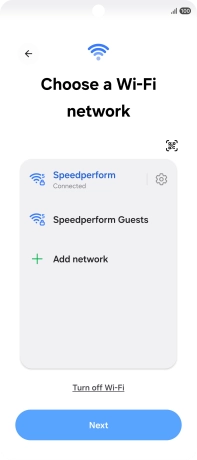
Press Next.
Step 11 of 14

4. Select Wi-Fi network

Press Next.

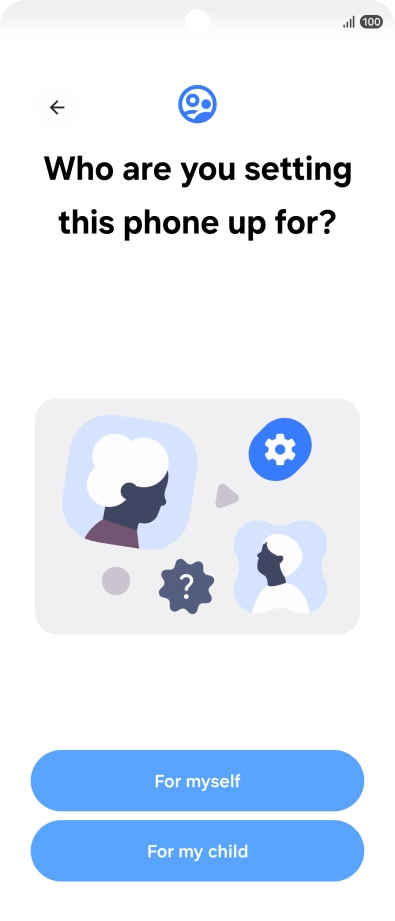
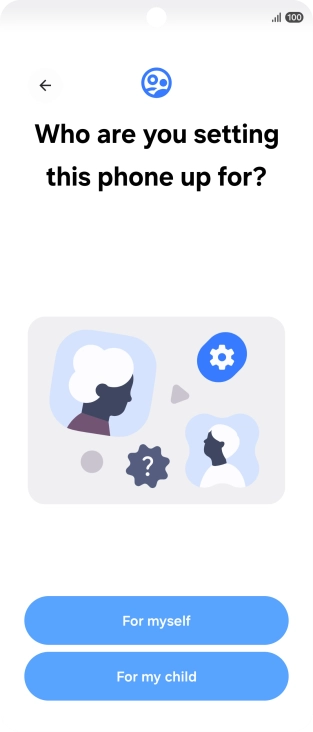
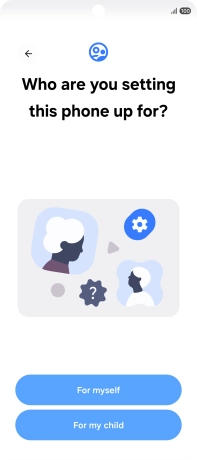
Press For myself.
Step 12 of 14

5. Set up the phone for your own use

Press For myself.

If the phone will be used by a child, follow the instructions on the screen to set up the phone for the child.
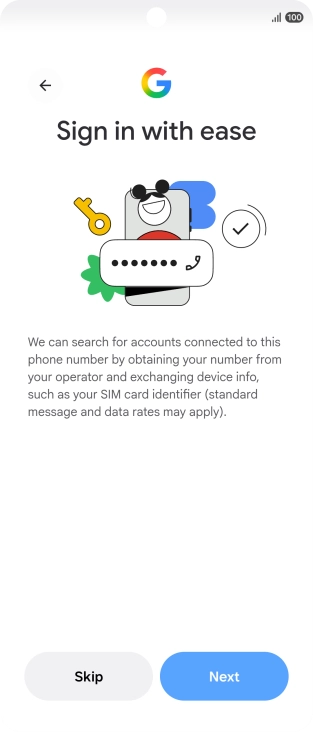
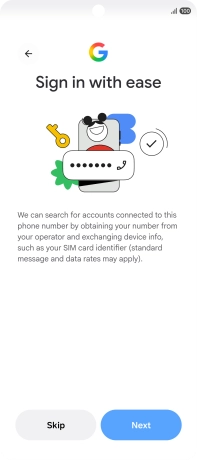
Press the required setting.
Step 13 of 14

5. Set up the phone for your own use

Press the required setting.

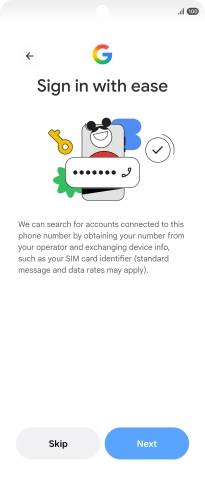
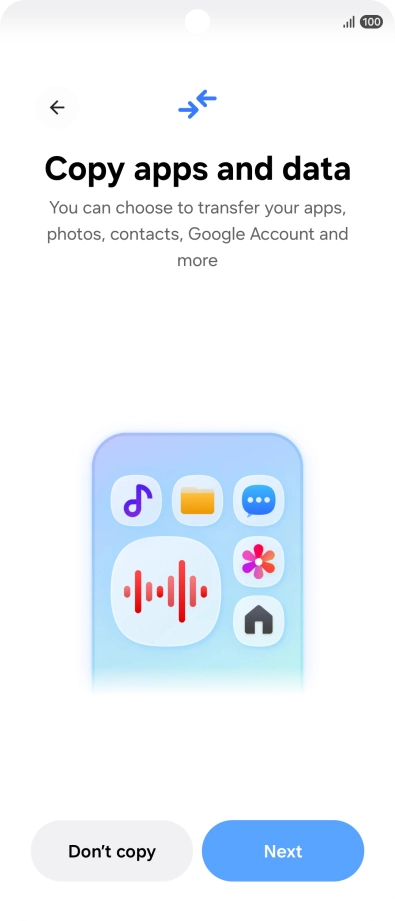
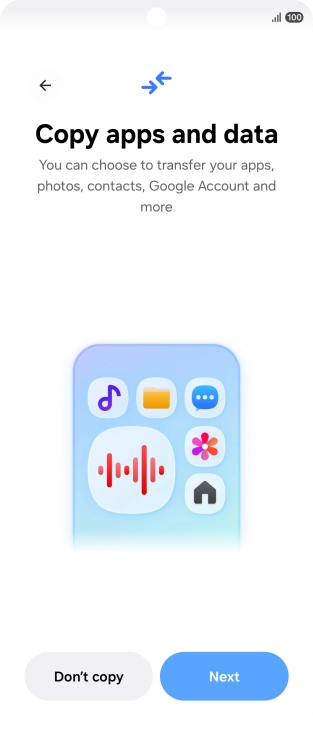
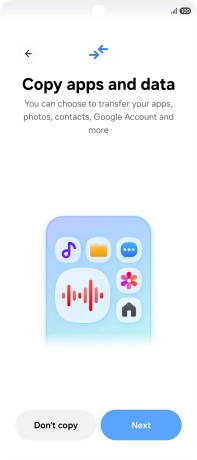
Press Don't copy and follow the instructions on the screen to finish the activation.
Step 14 of 14

6. Set up your phone as a new phone

Press Don't copy and follow the instructions on the screen to finish the activation.

You can also transfer content from another phone or restore the content of a Google One backup.

1. Enter your PIN

Press the Side key.
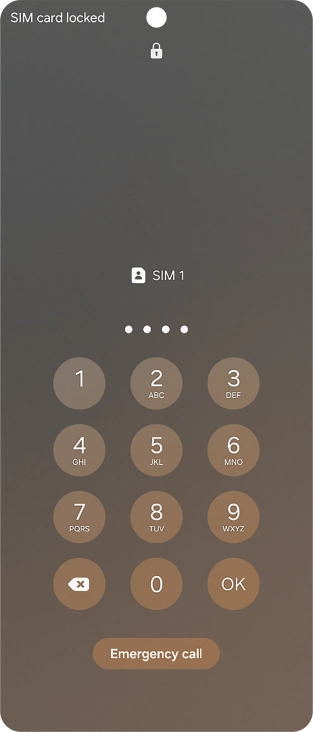
If your SIM is locked, key in your PIN and press OK.
If an incorrect PIN is entered three times in a row, your SIM will be blocked. To unblock your SIM, you'll need to key in your PUK. The PUK can be obtained by contacting customer services. Please note: If you key in the wrong PUK ten times in a row, your SIM will be blocked permanently. In this case, you need a new SIM from Vodafone.

2. Select language

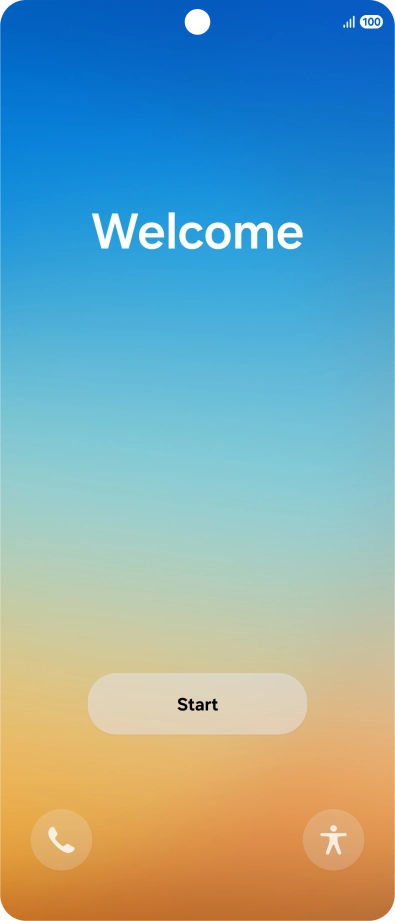
Press Start.
Press the required language.
Press Next.

3. Select general settings

Press the fields next to the required settings to select them.
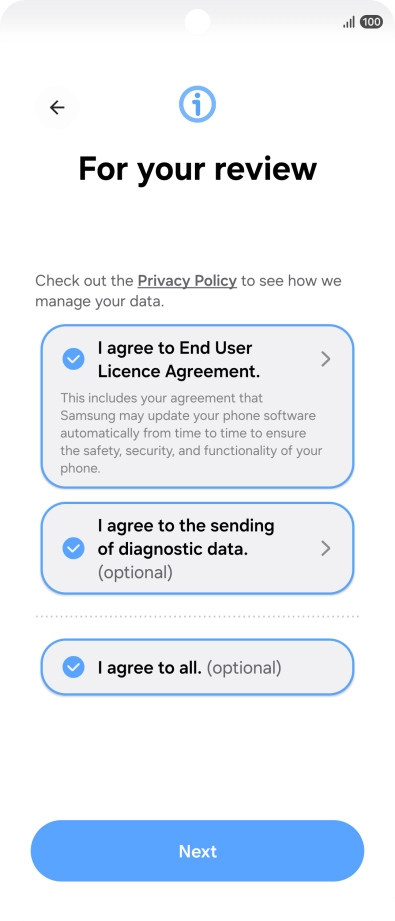
Press Next.
Press the required setting to transfer content from another device or press Set up manually.
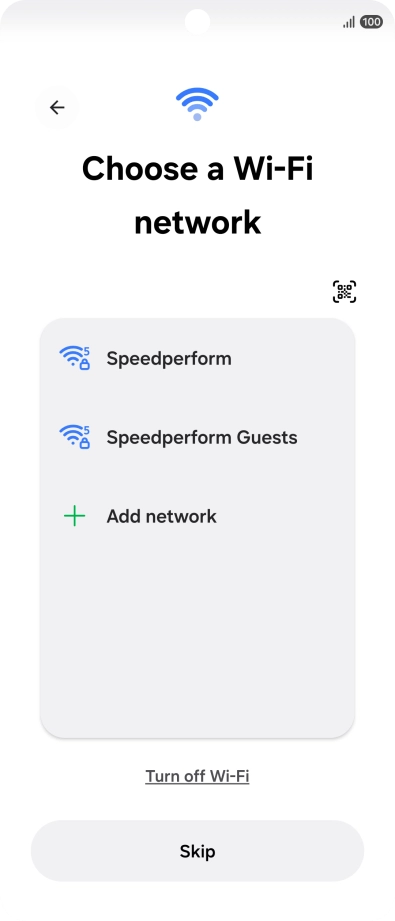
4. Select Wi-Fi network

Press the required Wi-Fi network.
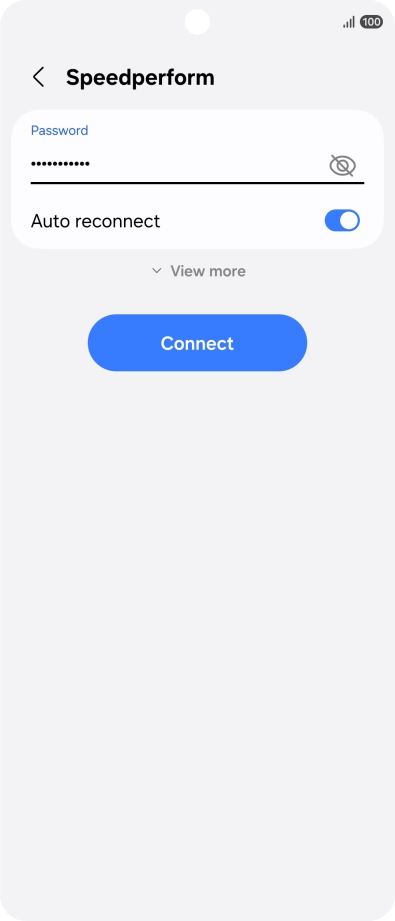
Key in the password for the Wi-Fi network and press Connect.
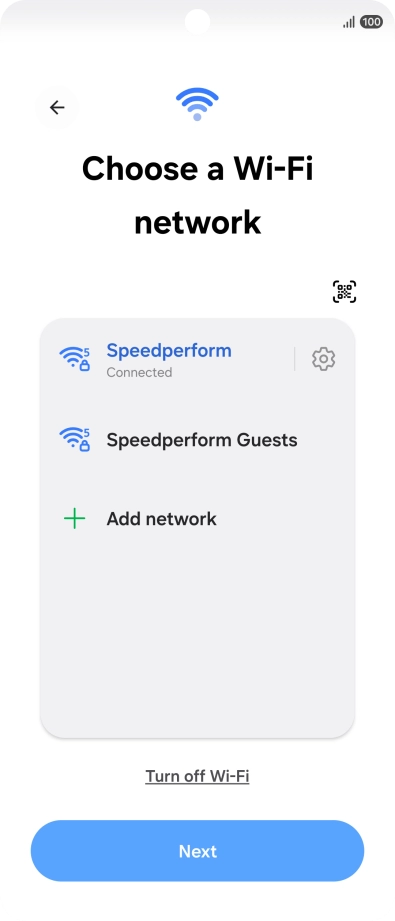
If there are no available Wi-Fi networks, you can use the mobile network instead.
Press Next.

5. Set up the phone for your own use

Press For myself.
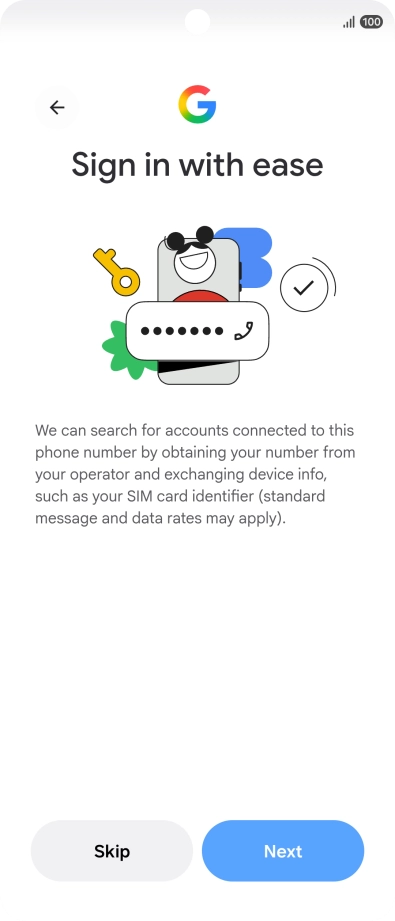
If the phone will be used by a child, follow the instructions on the screen to set up the phone for the child.
Press the required setting.

6. Set up your phone as a new phone

Press Don't copy and follow the instructions on the screen to finish the activation.
You can also transfer content from another phone or restore the content of a Google One backup.

Thank you for your evaluation!

Get information on...

Or select...

Another device