Samsung Note

Samsung Note

Copy contacts between phone and SIM - Samsung Note

Read help info

You can copy contacts between your SIM and your phone. This is useful if you change SIM or phone, as it saves you from keying in all the information again. Follow these instructions to copy contacts between your SIM and your phone.

Press Contacts.
Step 1 of 16

Find "Import/Export"

Press Contacts.

Press the Contacts tab.
Step 2 of 16

Find "Import/Export"

Press the Contacts tab.

Press the Menu key.
Step 3 of 16

Find "Import/Export"

Press the Menu key.

Press Import/Export.
Step 4 of 16

Find "Import/Export"

Press Import/Export.
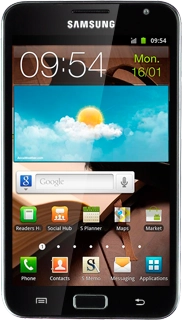
Samsung Note
Step 5 of 16

Choose option

Choose one of the following options:
Copy contacts from your SIM to your phone, go to 2a.
Copy contacts from your phone to your SIM, go to 2b.

Press Import from SIM card.
Step 6 of 16

2a - Copy contacts from your SIM to your phone

Press Import from SIM card.

Press the required phone book.
Step 7 of 16

2a - Copy contacts from your SIM to your phone

Press the required phone book.

Press Select all.
Step 8 of 16

2a - Copy contacts from your SIM to your phone

Press Select all.

When the box next to a contact is ticked (V), the contact is selected.
Step 9 of 16

2a - Copy contacts from your SIM to your phone

When the box next to a contact is ticked (V), the contact is selected.

Press Import.
Step 10 of 16

2a - Copy contacts from your SIM to your phone

Press Import.

Press Export to SIM card.
Step 11 of 16

2b - Copy contacts from your phone to your SIM

Press Export to SIM card.

Press Select all.
Step 12 of 16

2b - Copy contacts from your phone to your SIM

Press Select all.

When the box next to a contact is ticked (V), the contact is selected.
Step 13 of 16

2b - Copy contacts from your phone to your SIM

When the box next to a contact is ticked (V), the contact is selected.

Press Export.
Step 14 of 16

2b - Copy contacts from your phone to your SIM

Press Export.

Press OK to confirm.
Step 15 of 16

2b - Copy contacts from your phone to your SIM

Press OK to confirm.

Press the Home key to return to standby mode.
Step 16 of 16

Exit

Press the Home key to return to standby mode.

Find "Import/Export"

Press Contacts.
Press the Contacts tab.
Press the Menu key.
Press Import/Export.

Choose option

Choose one of the following options:
Copy contacts from your SIM to your phone, go to 2a.
Copy contacts from your phone to your SIM, go to 2b.
Samsung Note

2a - Copy contacts from your SIM to your phone

Press Import from SIM card.
Press the required phone book.
Press Select all.
When the box next to a contact is ticked (V), the contact is selected.
Press Import.

2b - Copy contacts from your phone to your SIM

Press Export to SIM card.
Press Select all.
When the box next to a contact is ticked (V), the contact is selected.
Press Export.
Press OK to confirm.

Exit

Press the Home key to return to standby mode.

Thank you for your evaluation!

Get information on...

Or select...

Another device