Samsung Note

Samsung Note

Transfer audio files from computer to phone - Samsung Note

Read help info

Follow these instructions to transfer audio files from your computer to your phone.

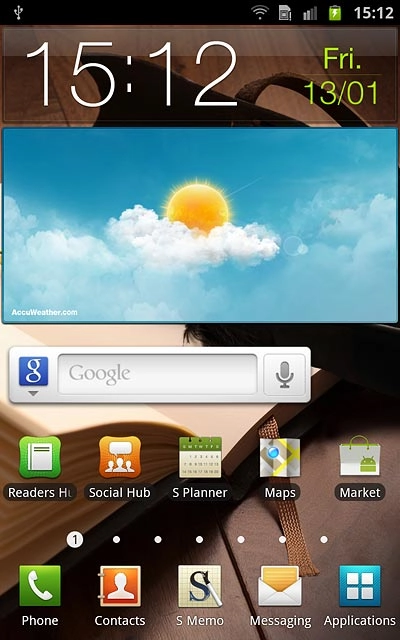
Press Applications.
Step 1 of 8

Find "USB utilities"

Press Applications.
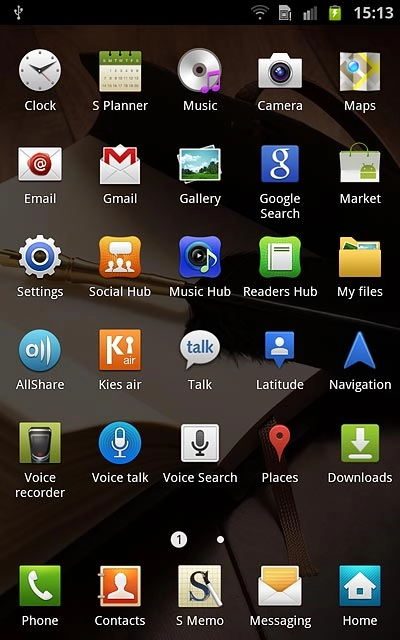
Press Settings.
Step 2 of 8

Find "USB utilities"

Press Settings.

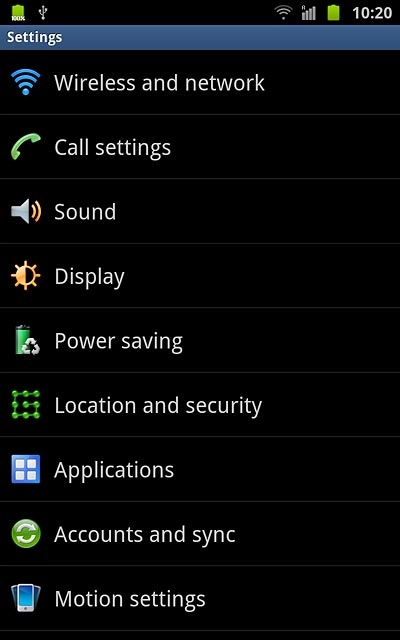
Press Wireless and network.
Step 3 of 8

Find "USB utilities"

Press Wireless and network.
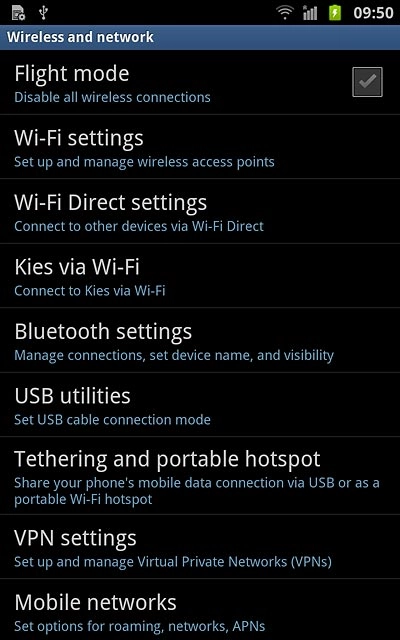
Press USB utilities.
Step 4 of 8

Find "USB utilities"

Press USB utilities.
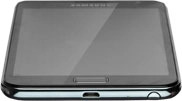
Connect the data cable to the socket and to your computer's USB port.
Step 5 of 8

Connect phone and computer

Connect the data cable to the socket and to your computer's USB port.

Start a file manager on your computer and find your phone in the computer's file system.
Step 6 of 8

Transfer audio files

Start a file manager on your computer and find your phone in the computer's file system.

Go to the required folder in your computer's file system.
Step 7 of 8

Transfer audio files

Go to the required folder in your computer's file system.

Highlight the required audio file and move or copy it to your phone.
Step 8 of 8

Transfer audio files

Highlight the required audio file and move or copy it to your phone.

Find "USB utilities"

Press Applications.
Press Settings.
Press Wireless and network.
Press USB utilities.

Connect phone and computer

Connect the data cable to the socket and to your computer's USB port.
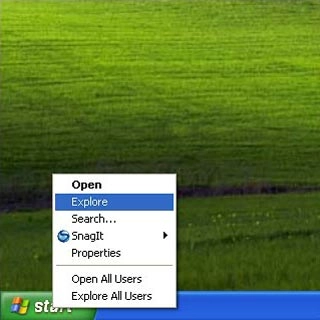
Transfer audio files

Start a file manager on your computer and find your phone in the computer's file system.
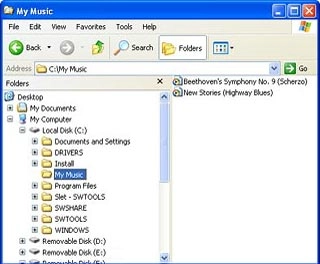
Go to the required folder in your computer's file system.
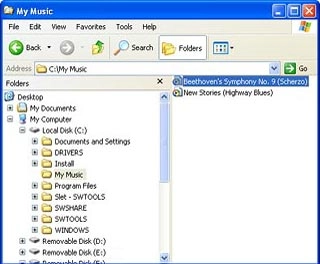
Highlight the required audio file and move or copy it to your phone.

Thank you for your evaluation!

Get information on...

Or select...

Another device