Sony Xperia Z2

Sony Xperia Z2

Cancel all diverts - Sony Xperia Z2

Read help info

If you no longer wish to divert your calls to your voicemail or another number, you need to cancel the diverts.

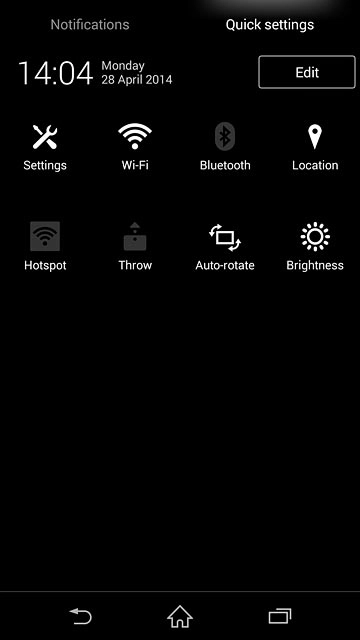
Slide two fingers down the display starting from the top edge of your phone.Press Settings.
Step 1 of 10

Find "Call Forwarding"

Slide two fingers down the display starting from the top edge of your phone.
Press Settings.
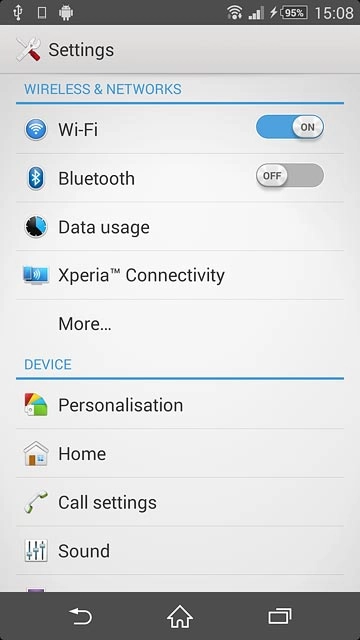
Press Call settings.
Step 2 of 10

Find "Call Forwarding"

Press Call settings.
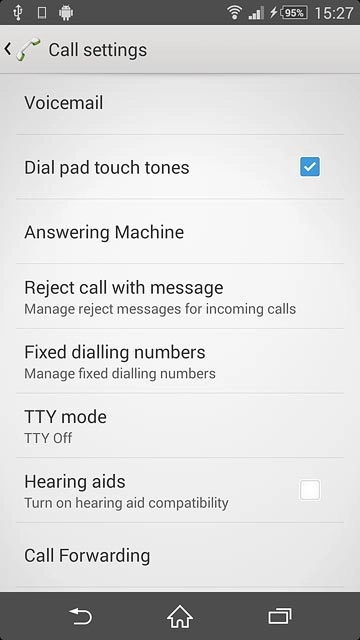
Press Call Forwarding.
Step 3 of 10

Find "Call Forwarding"

Press Call Forwarding.
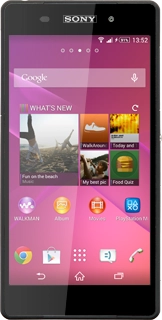
Sony Xperia Z2
Step 4 of 10

Cancel all diverts

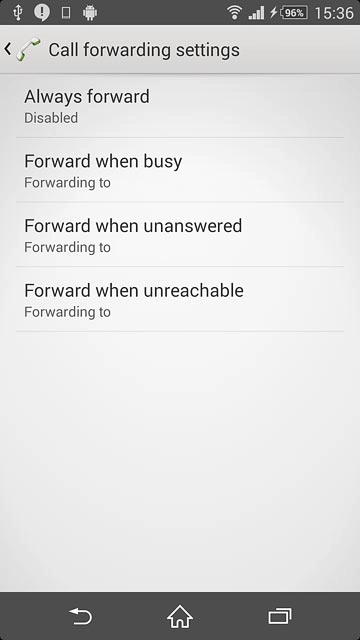
The current settings are displayed.
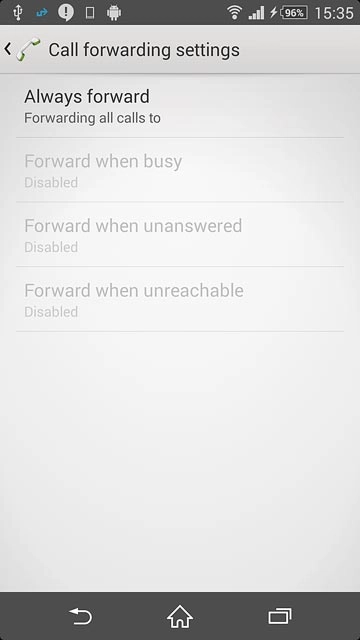
Press one of the following options:Always forward
Step 5 of 10

Cancel all diverts

Press one of the following options:
Always forward
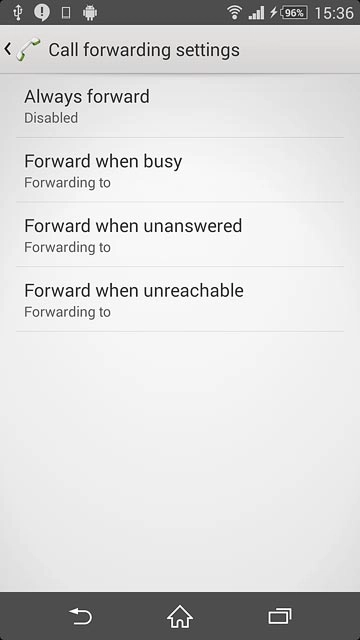
Forward when busy
Step 6 of 10

Cancel all diverts

Forward when busy

Forward when unanswered
Step 7 of 10

Cancel all diverts

Forward when unanswered
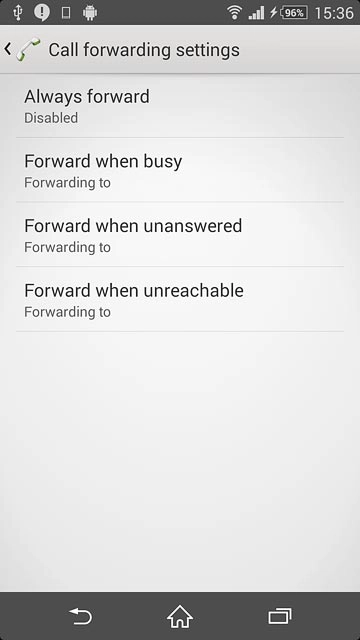
Forward when unreachable
Step 8 of 10

Cancel all diverts

Forward when unreachable
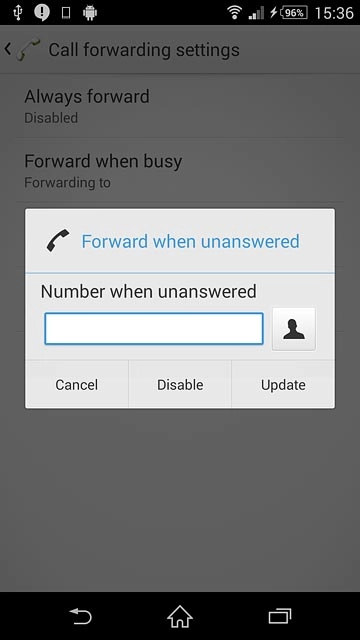
Press Disable.Repeat until all diverts have been cancelled.
Step 9 of 10

Cancel all diverts

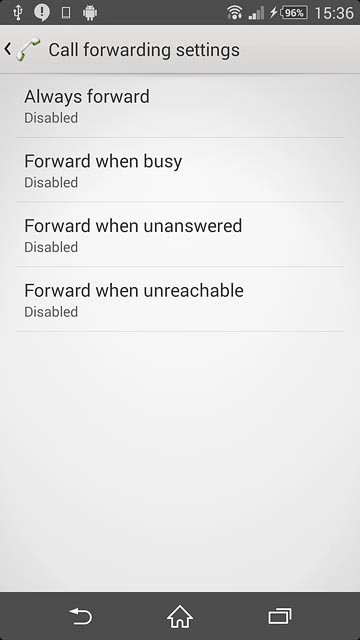
Press Disable.
Repeat until all diverts have been cancelled.

Press the home icon to return to the home screen.
Step 10 of 10

Return to the home screen

Press the home icon to return to the home screen.

Find "Call Forwarding"

Slide two fingers down the display starting from the top edge of your phone.
Press Settings.
Press Call settings.
Press Call Forwarding.

Cancel all diverts

The current settings are displayed.
Sony Xperia Z2
Press one of the following options:
Always forward
Forward when busy
Forward when unanswered
Forward when unreachable
Press Disable.
Repeat until all diverts have been cancelled.

Return to the home screen

Press the home icon to return to the home screen.

Thank you for your evaluation!

Get information on...

Or select...

Another device