Sony Xperia Z2

Sony Xperia Z2

Connect to Wi-Fi network - Sony Xperia Z2

Read help info

You can use Wi-Fi as an alternative to the mobile network when establishing an internet connection. This way your phone doesn't use mobile data.

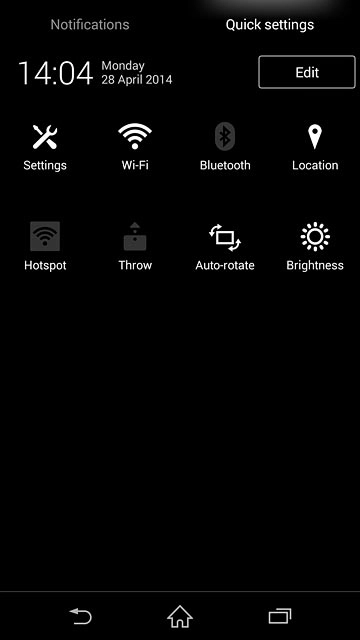
Slide two fingers down the display starting from the top edge of your phone.Press Settings.
Step 1 of 6

Find "Wi-Fi"

Slide two fingers down the display starting from the top edge of your phone.
Press Settings.
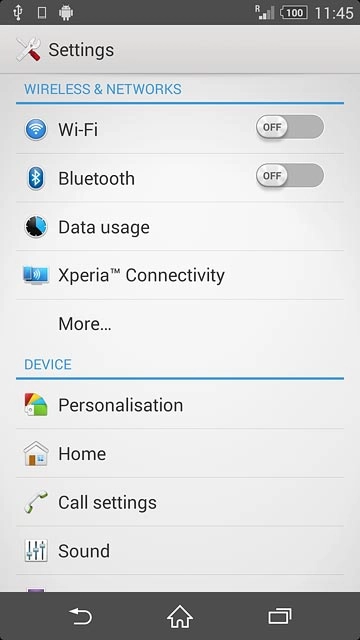
Press Wi-Fi.
Step 2 of 6

Find "Wi-Fi"

Press Wi-Fi.

Press the indicator next to
Step 3 of 6

Turn on Wi-Fi

Press the indicator next to "Wi-Fi" until the function is turned on.
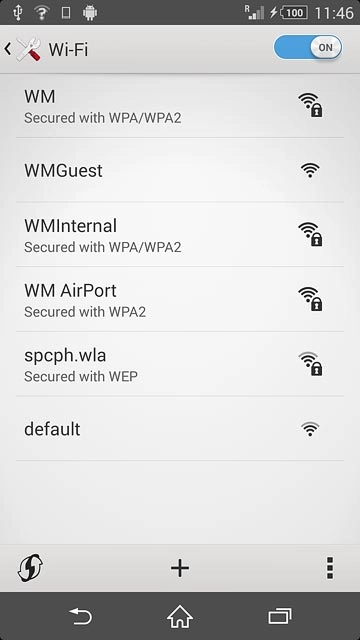
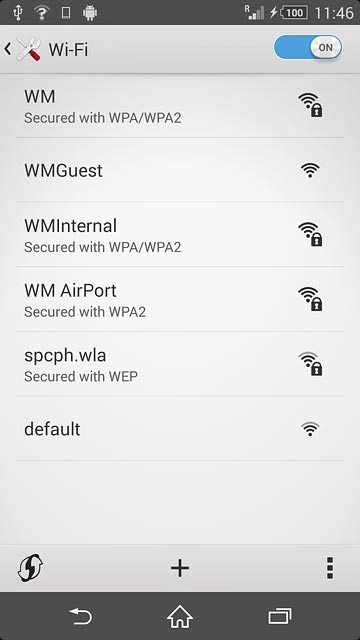
A list of Wi-Fi networks within range is displayed.Press the required Wi-Fi network.
Step 4 of 6

Connect to Wi-Fi network

A list of Wi-Fi networks within range is displayed.
Press the required Wi-Fi network.
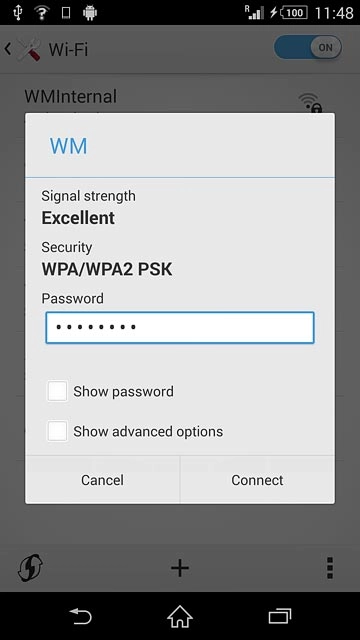
Follow the instructions on the display to select security settings, if required.Press Connect.
Step 5 of 6

Connect to Wi-Fi network

Follow the instructions on the display to select security settings, if required.
Press Connect.
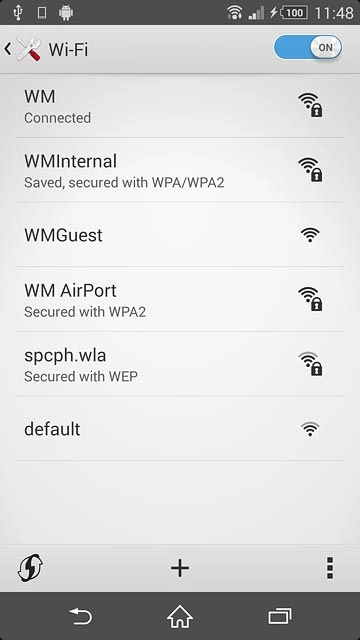
Press the home icon to return to the home screen.
Step 6 of 6

Return to the home screen

Press the home icon to return to the home screen.

Find "Wi-Fi"

Slide two fingers down the display starting from the top edge of your phone.
Press Settings.
Press Wi-Fi.

Turn on Wi-Fi

Press the indicator next to "Wi-Fi" until the function is turned on.

Connect to Wi-Fi network

A list of Wi-Fi networks within range is displayed.
Press the required Wi-Fi network.
Follow the instructions on the display to select security settings, if required.
Press Connect.

Return to the home screen

Press the home icon to return to the home screen.

Thank you for your evaluation!

Get information on...

Or select...

Another device