Vodafone Pocket WiFi® 6 CM52 5G

Vodafone Pocket WiFi® 6 CM52 5G

Select network mode on your Vodafone Pocket WiFi® 6 CM52 5G Windows 11

Read help info

There may be different network modes available depending on where you are. The network mode influences the data speeds your router can achieve. Remember, you need to establish a connection to the router web interface.

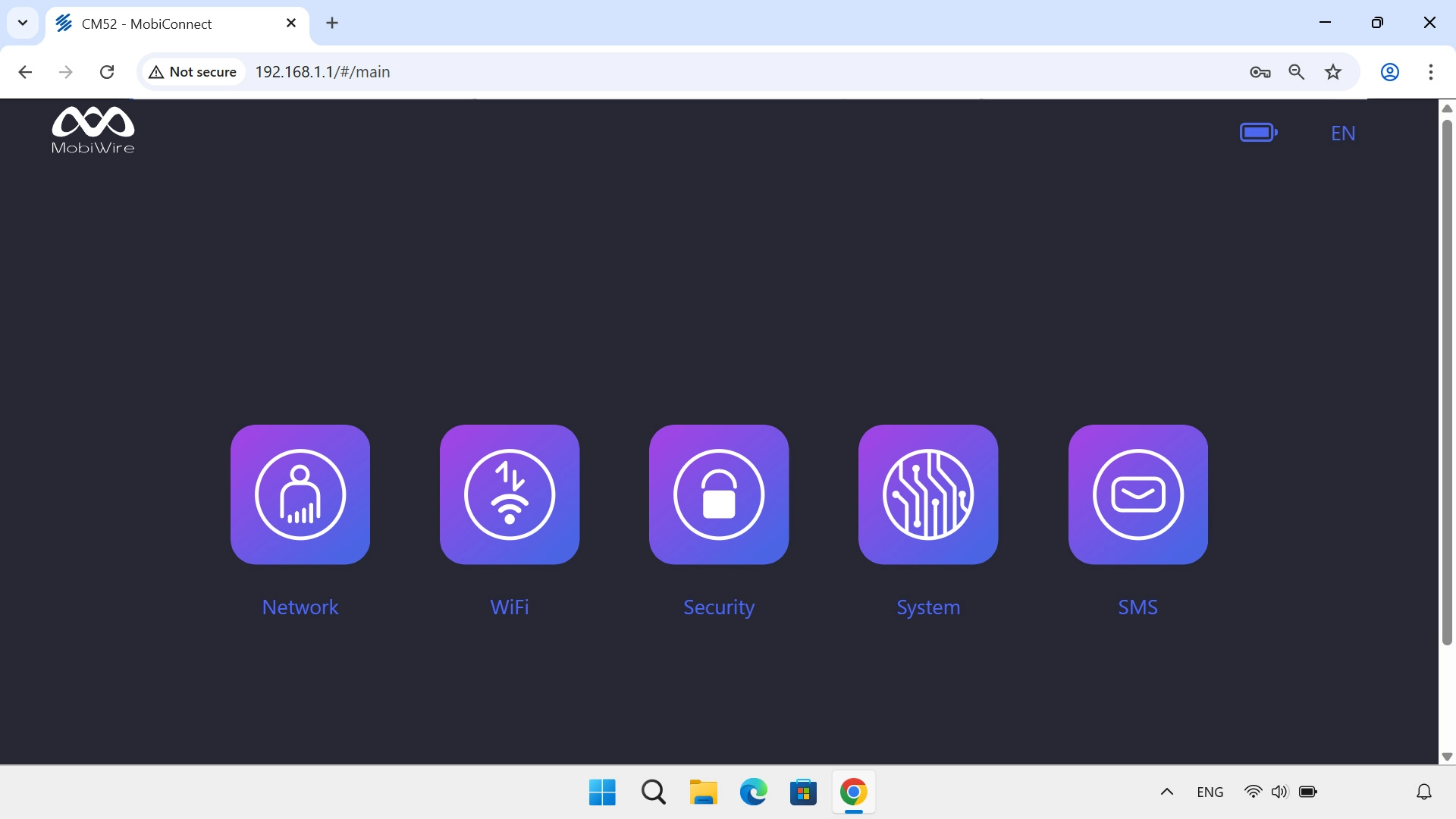
Click Network.
Step 1 of 5

1. Find "Mobile Network"

Click Network.
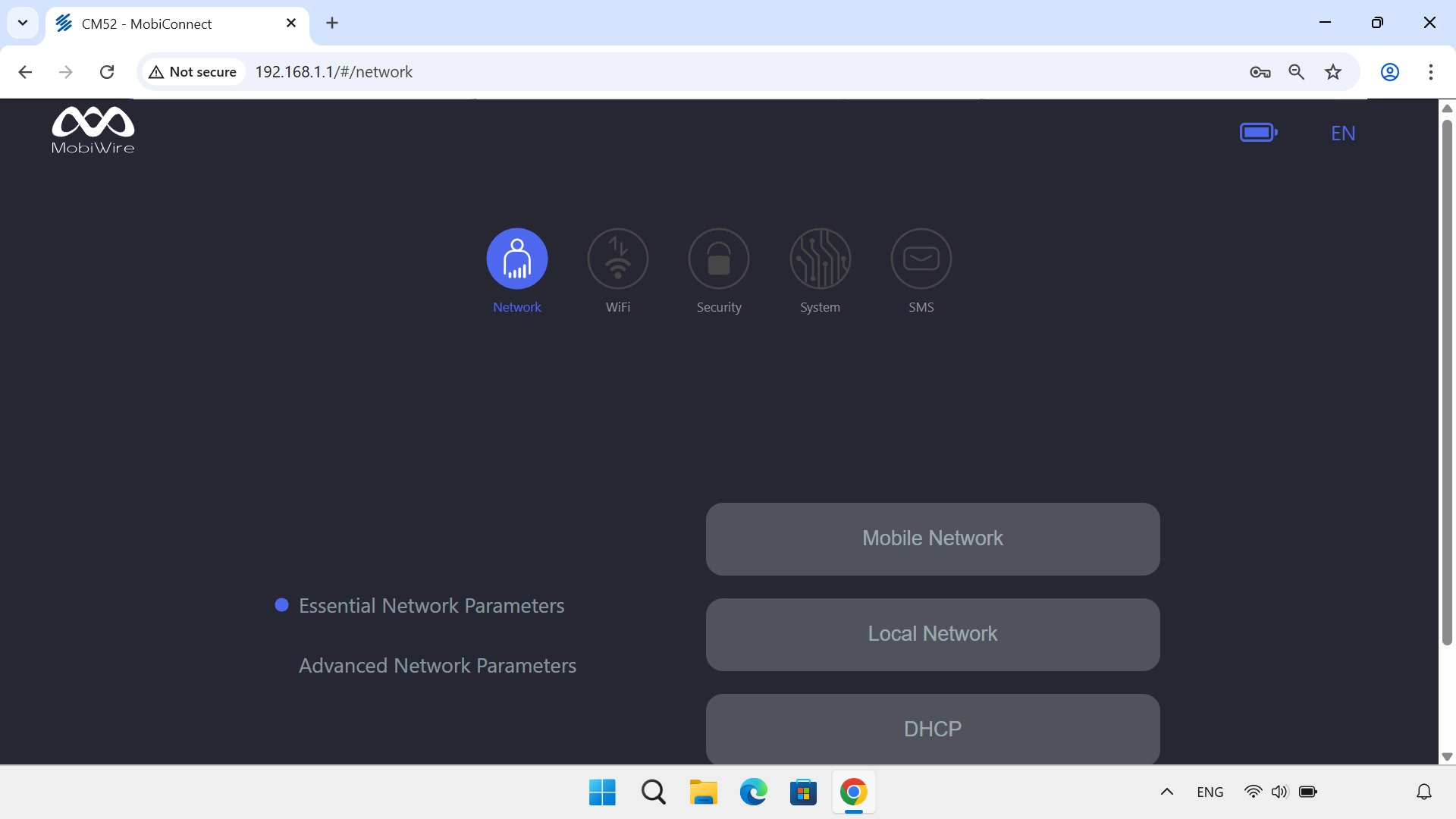
Click Mobile Network.
Step 2 of 5

1. Find "Mobile Network"

Click Mobile Network.
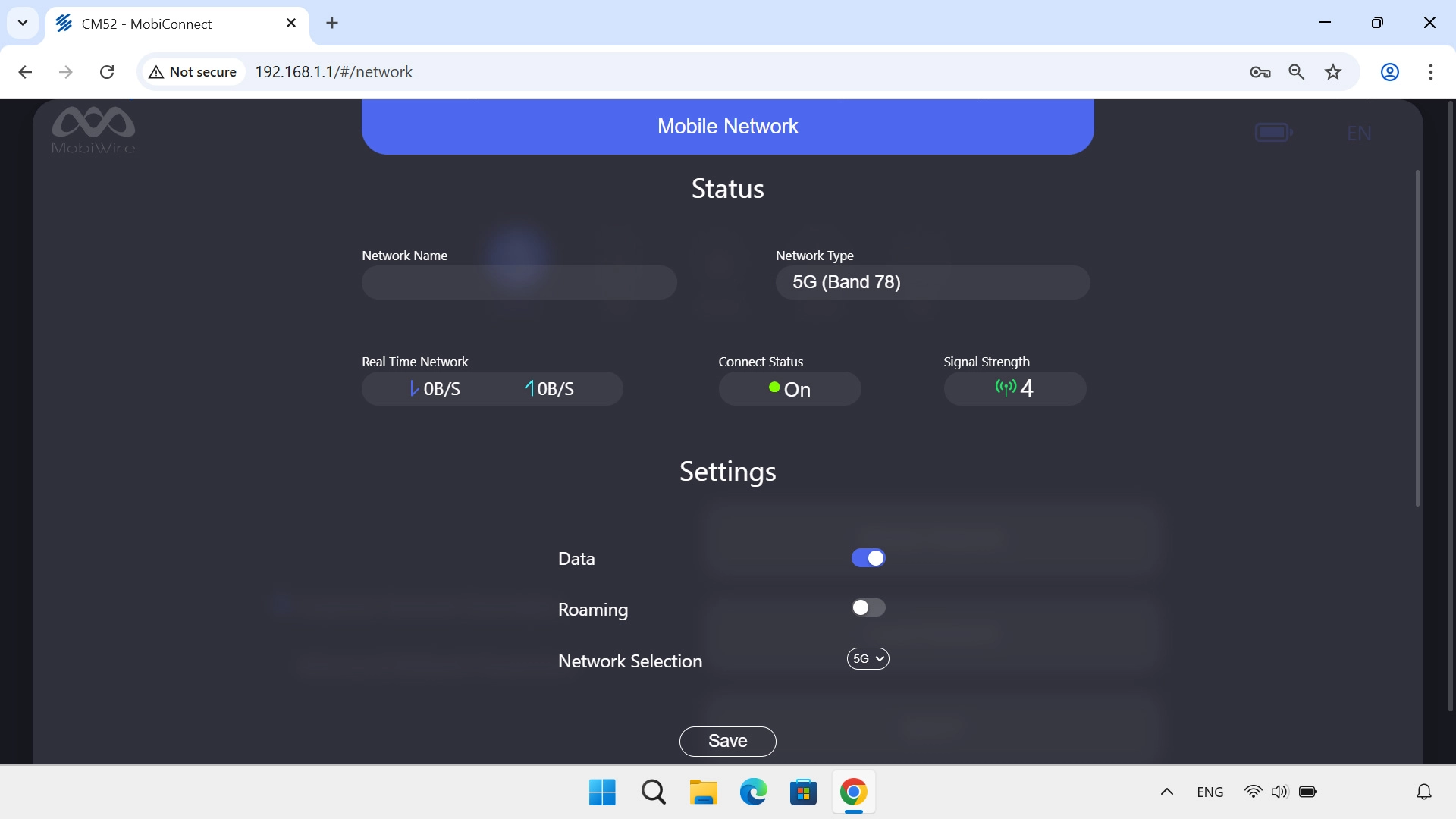
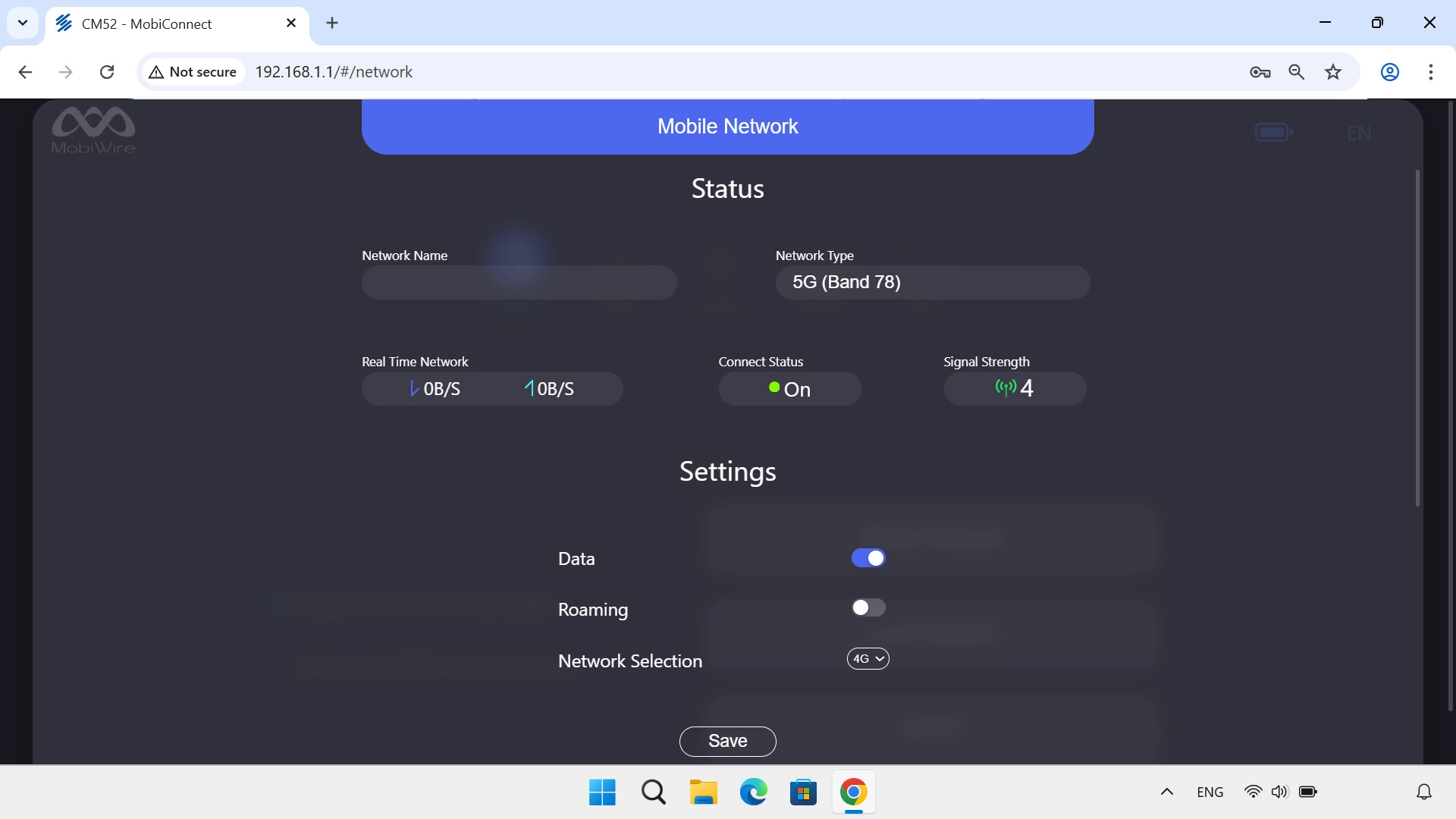
Click the drop down list next to
Step 3 of 5

2. Select network mode

Click the drop down list next to "Network Selection".

Click the required setting.
Step 4 of 5

2. Select network mode

Click the required setting.

There may be different network modes available depending on where you are. If you set your router to "5G", it will always find the network with the highest data speed and best signal.
Click Save.
Step 5 of 5

2. Select network mode

Click Save.

1. Find "Mobile Network"

Click Network.
Click Mobile Network.

2. Select network mode

Click the drop down list next to "Network Selection".
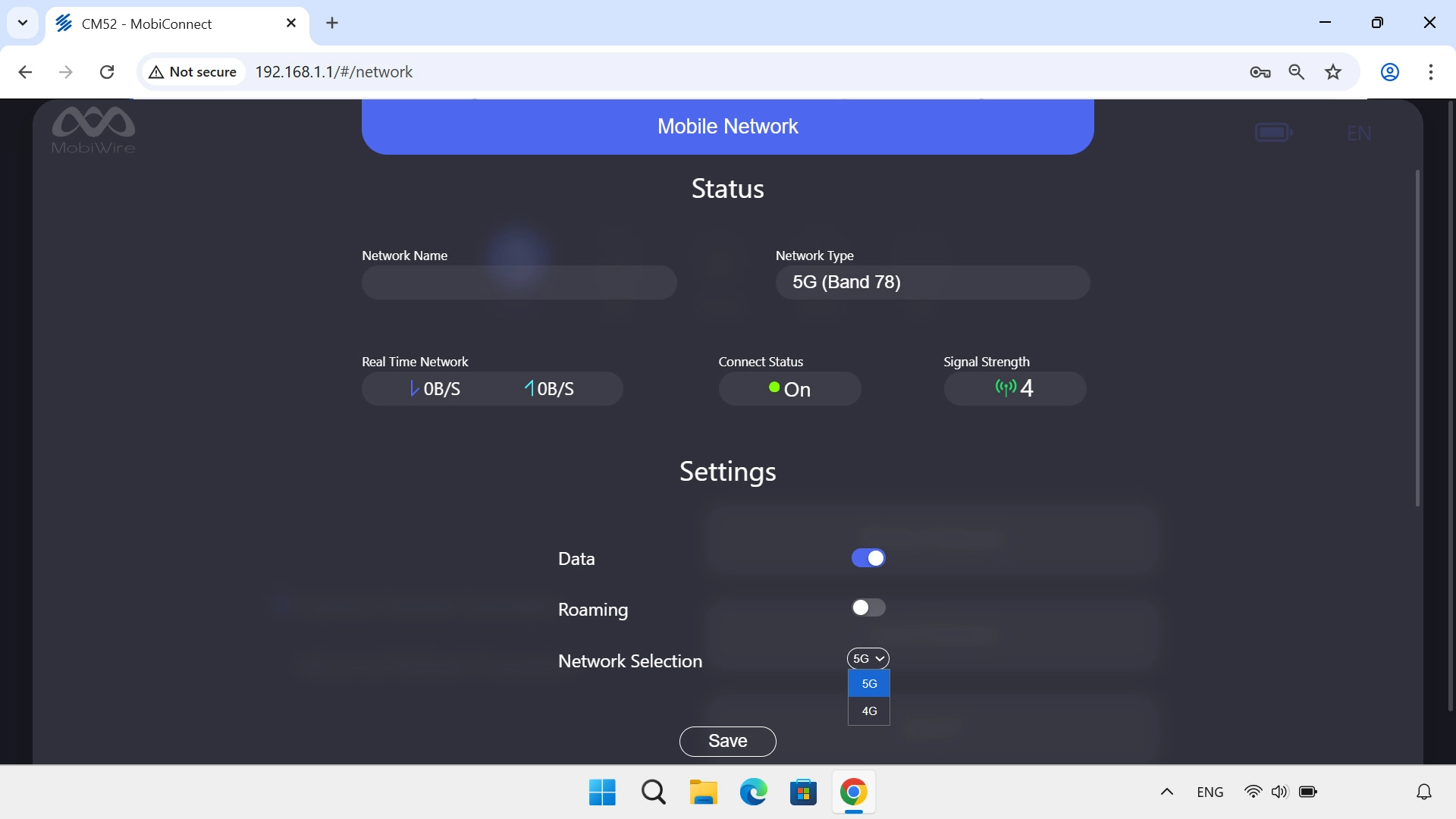
Click the required setting.
There may be different network modes available depending on where you are. If you set your router to "5G", it will always find the network with the highest data speed and best signal.
Click Save.

Thank you for your evaluation!

Get information on...

Or select...

Another device