Vodafone Pocket WiFi® 6 CM52 5G

Vodafone Pocket WiFi® 6 CM52 5G

Select network on your Vodafone Pocket WiFi® 6 CM52 5G Windows 11

Read help info

You can set your router to select a network automatically or you can select a network manually. If you select a network manually, your router will lose network connection when the selected network is out of reach. Remember, you need to establish a connection to the router web interface.

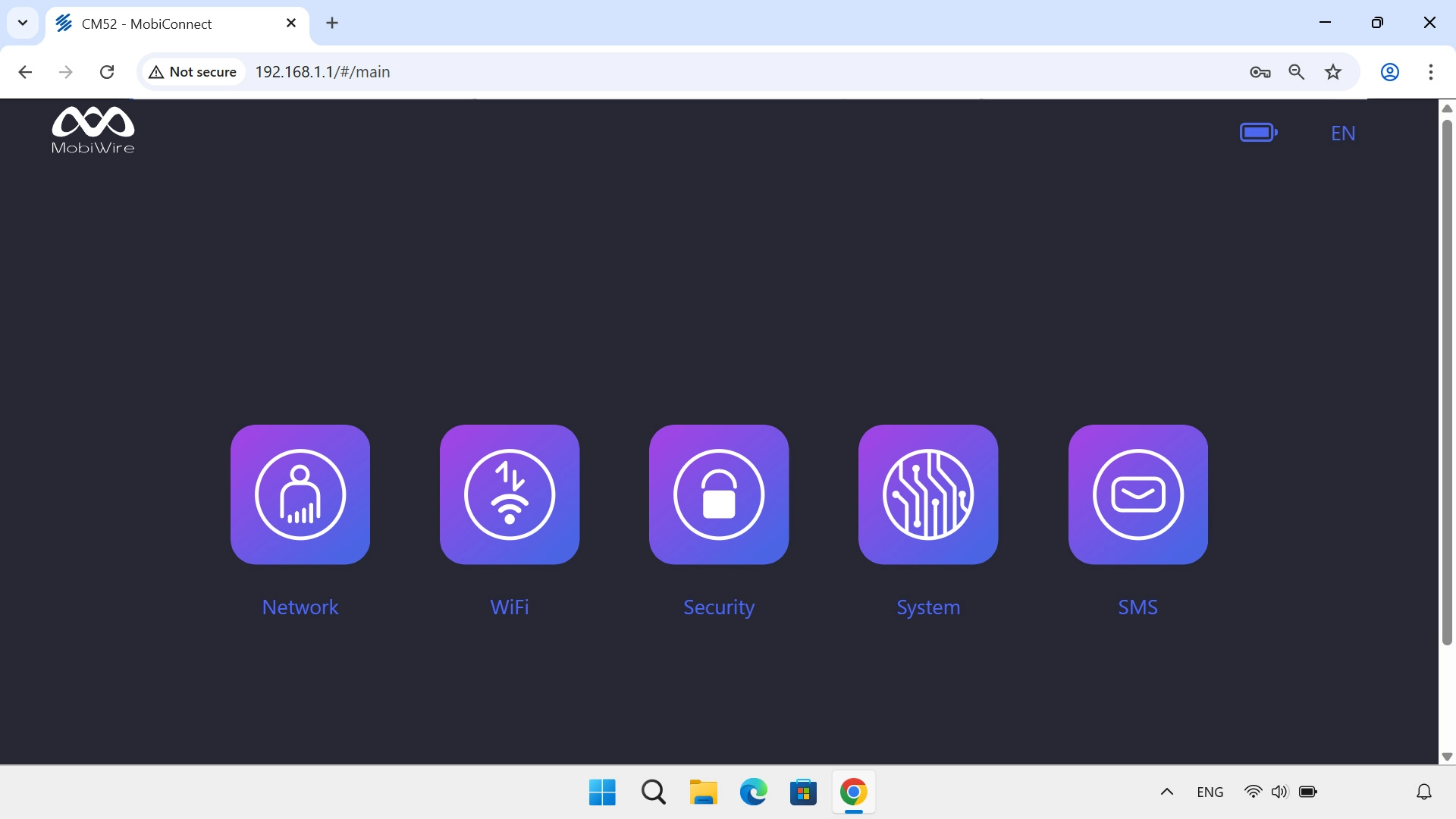
Click Network.
Step 1 of 7

1. Find "Mobile Network"

Click Network.
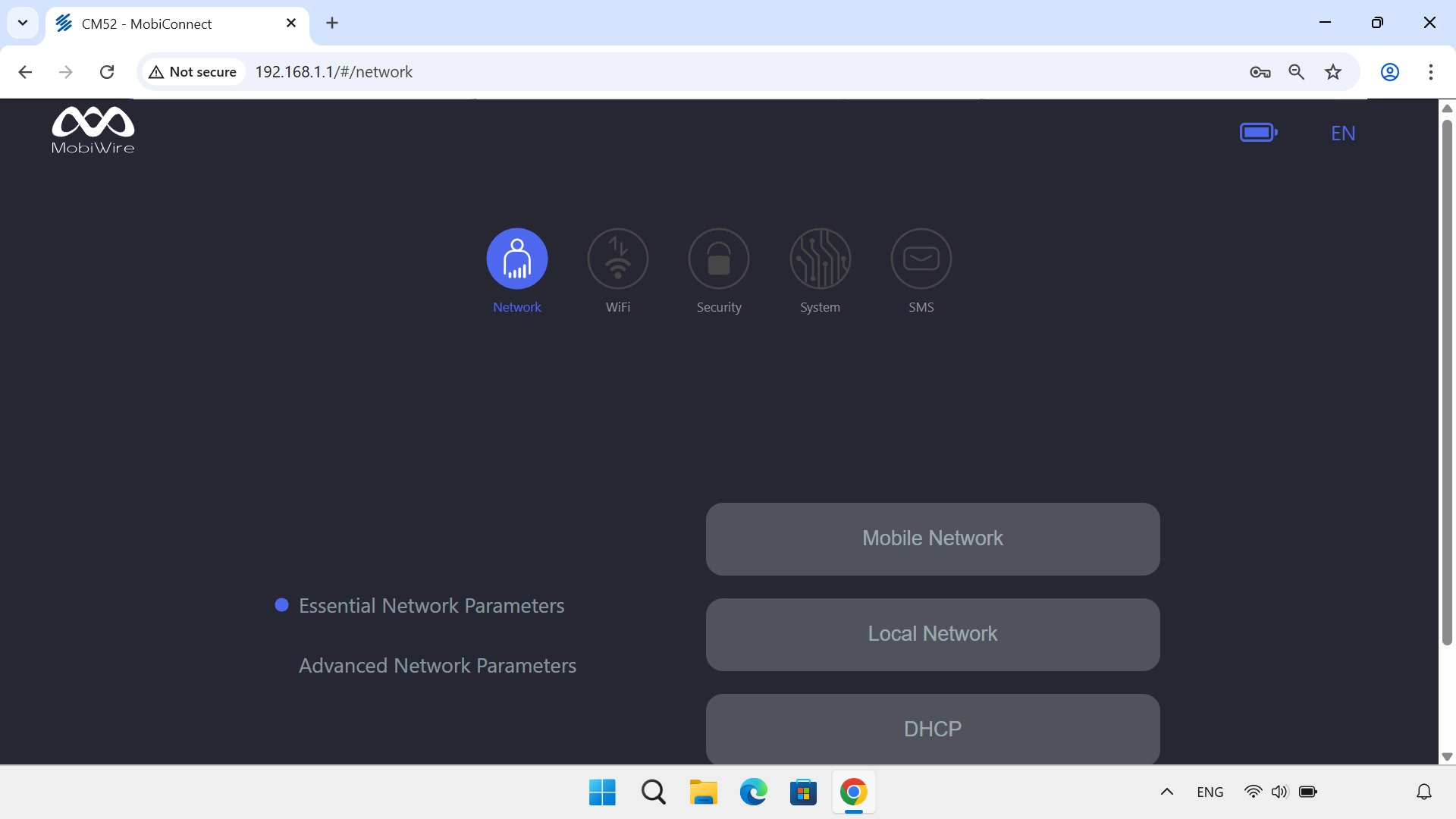
Click Mobile Network.
Step 2 of 7

1. Find "Mobile Network"

Click Mobile Network.
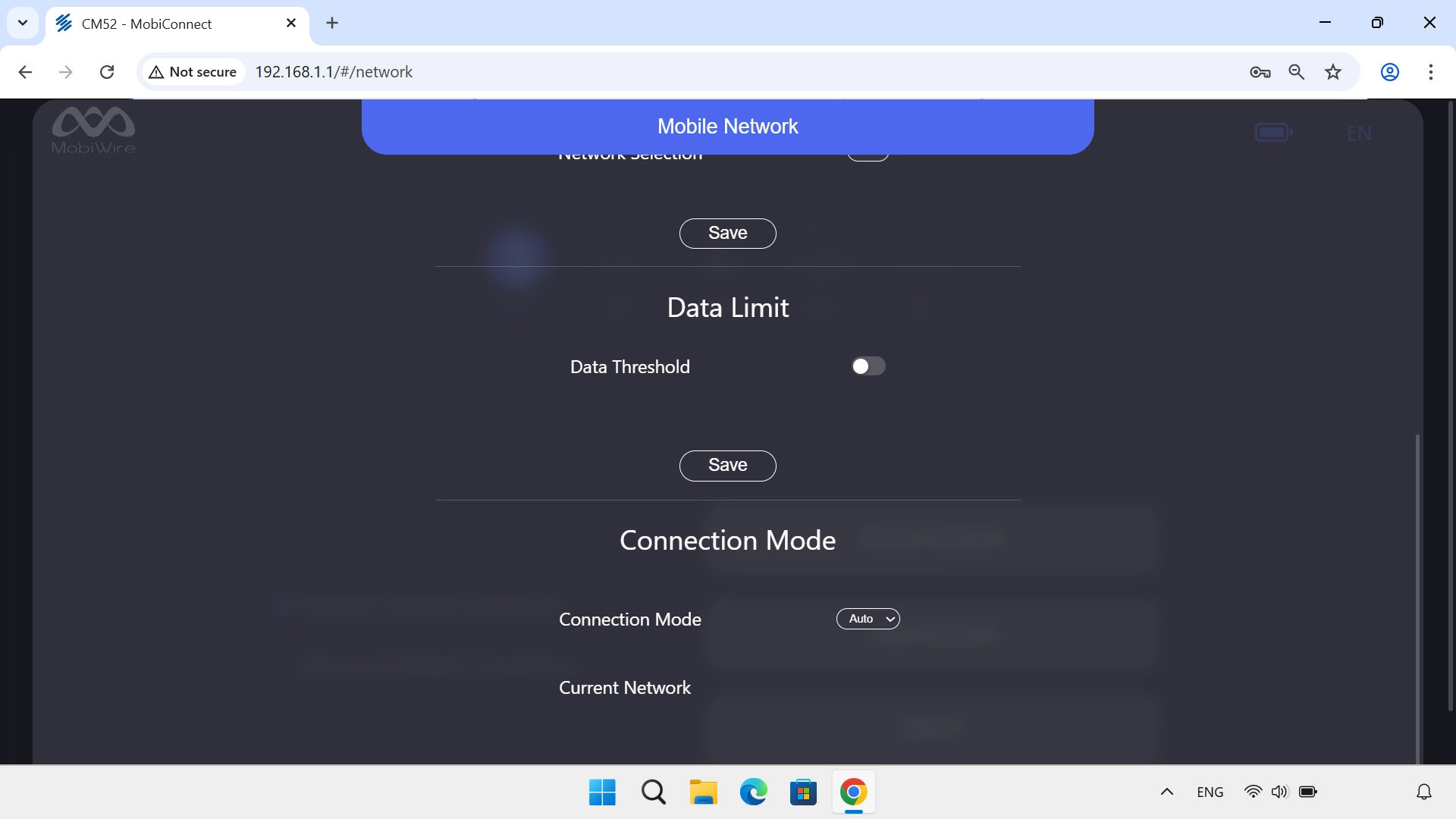
Click the drop down list next to
Step 3 of 7

2. Select network manually

Click the drop down list next to "Connection Mode".

Click Manual and wait while your router searches for available networks.
Step 4 of 7

2. Select network manually

Click Manual and wait while your router searches for available networks.

Click the required network.
Step 5 of 7

2. Select network manually

Click the required network.

Click the drop down list next to
Step 6 of 7

3. Select network automatically

Click the drop down list next to "Connection Mode".

Click Auto.
Step 7 of 7

3. Select network automatically

Click Auto.

1. Find "Mobile Network"

Click Network.
Click Mobile Network.

2. Select network manually

Click the drop down list next to "Connection Mode".
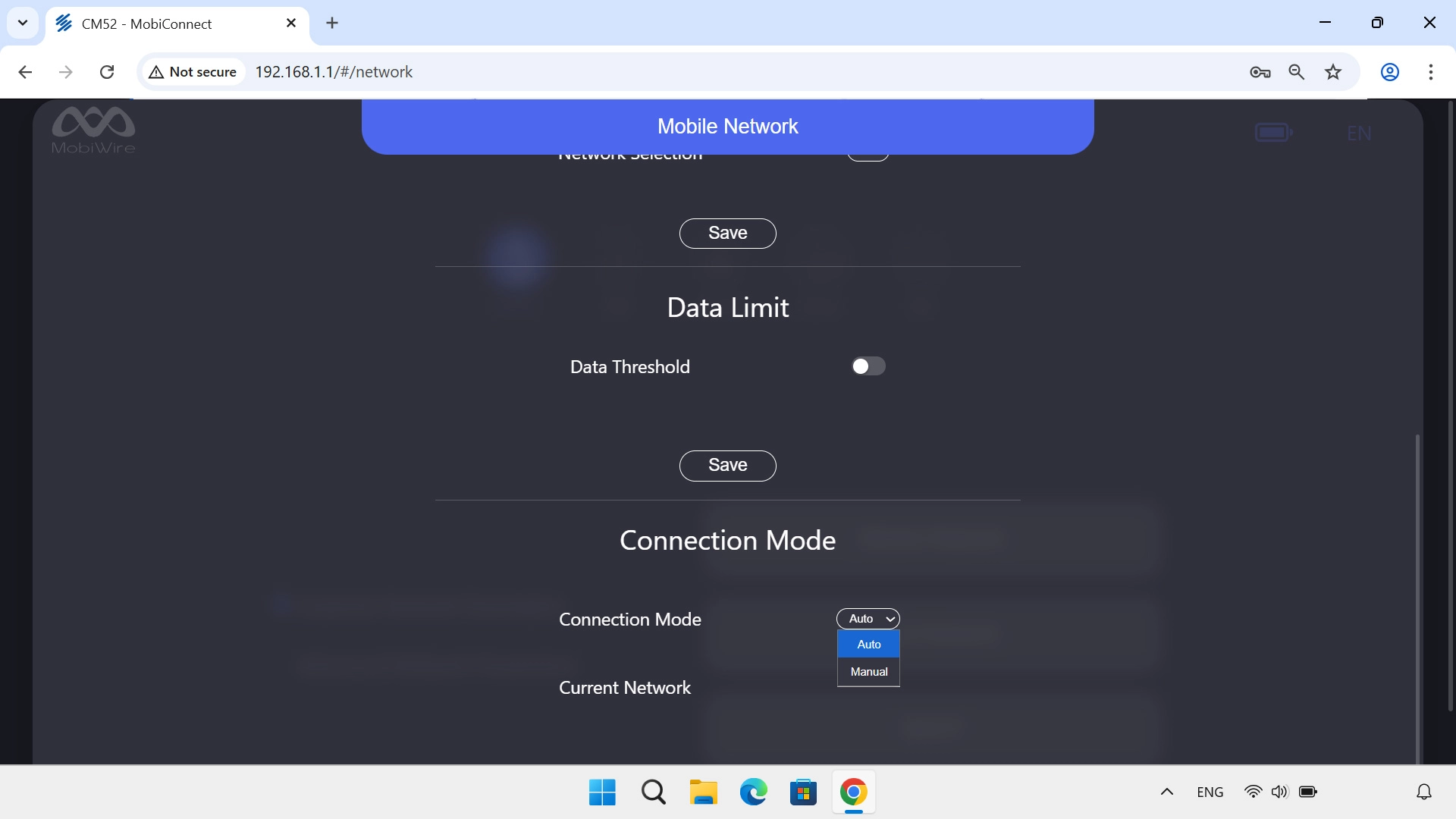
Click Manual and wait while your router searches for available networks.
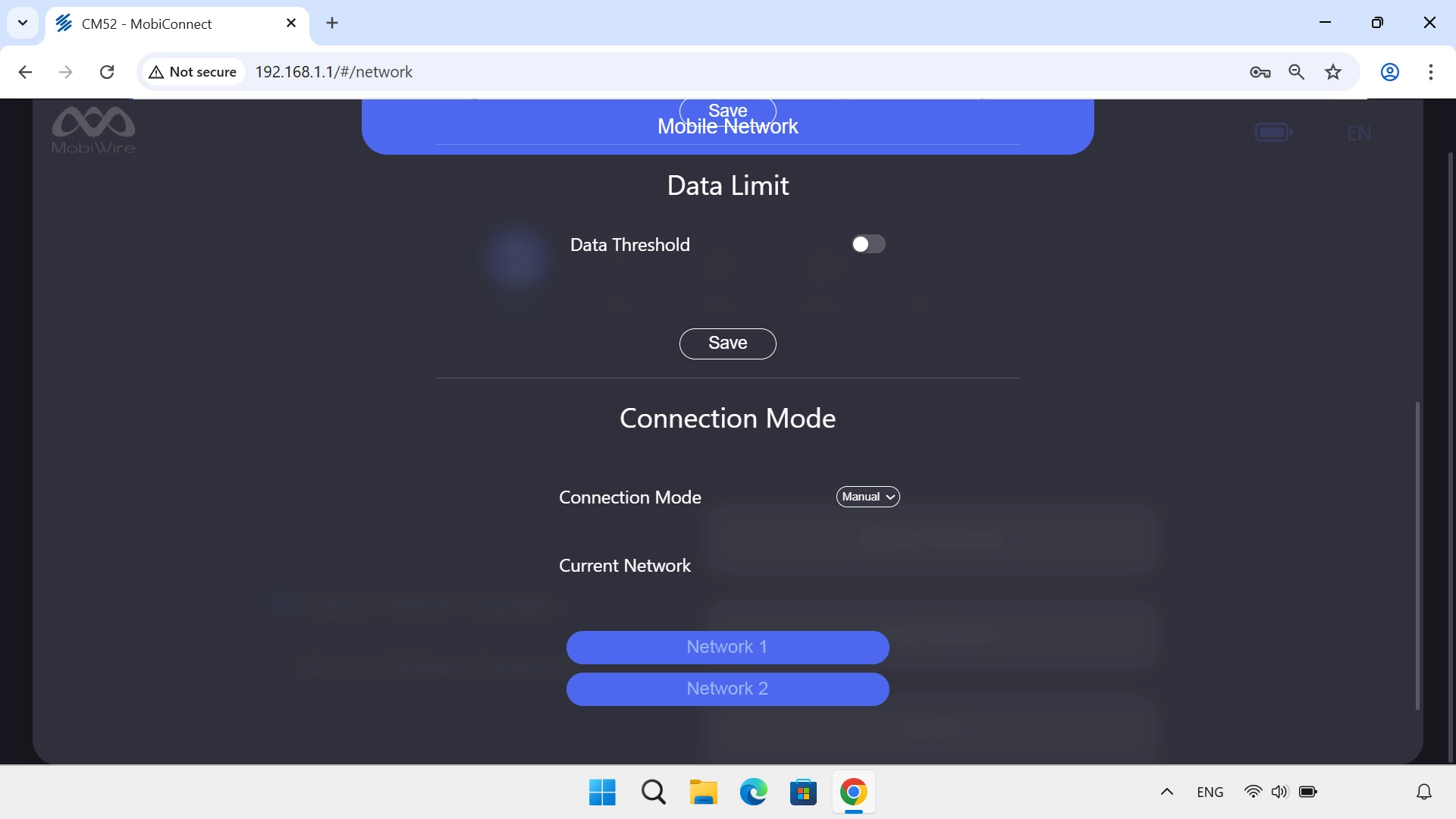
Click the required network.

3. Select network automatically

Click the drop down list next to "Connection Mode".
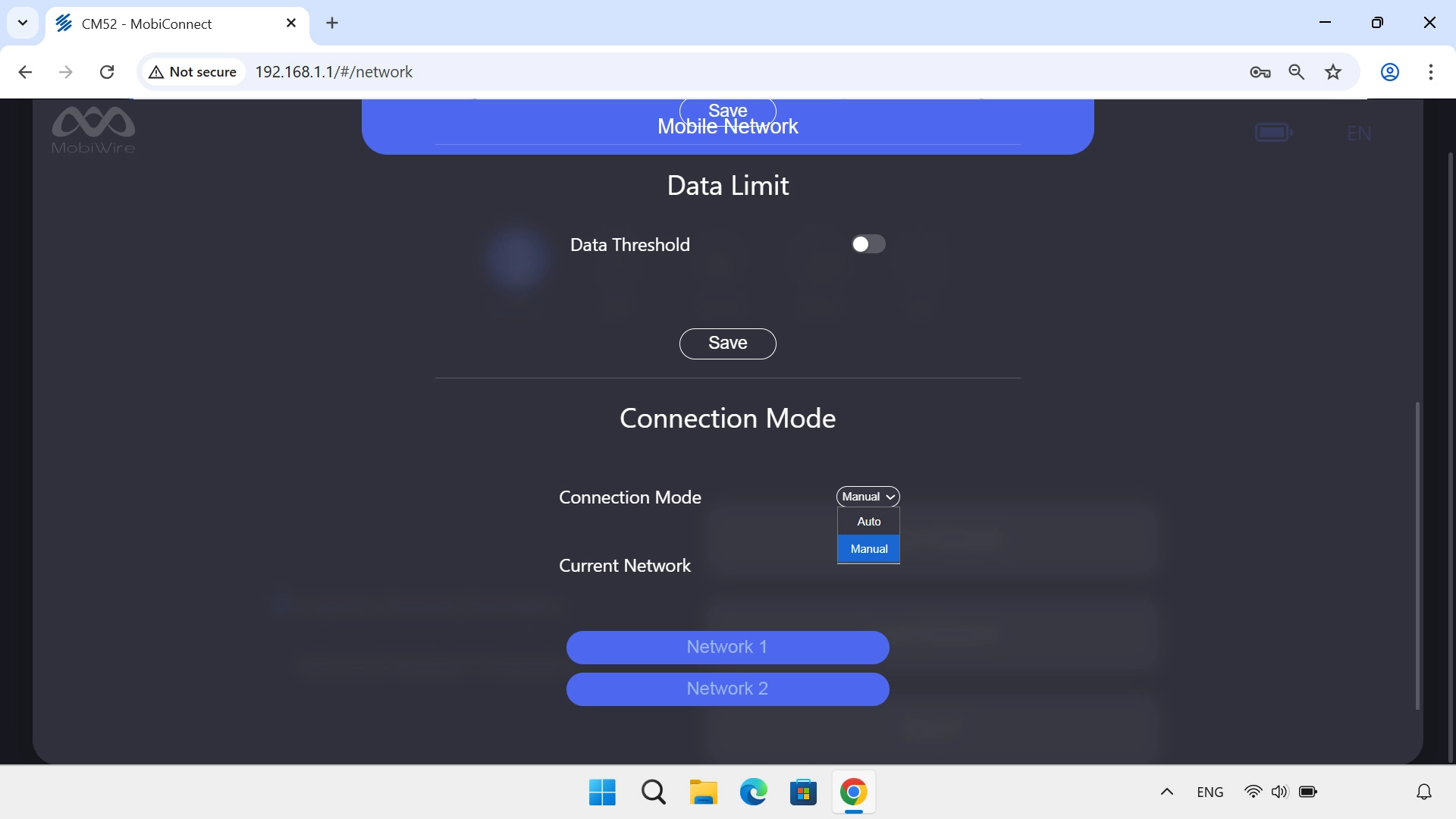
Click Auto.

Thank you for your evaluation!

Get information on...

Or select...

Another device