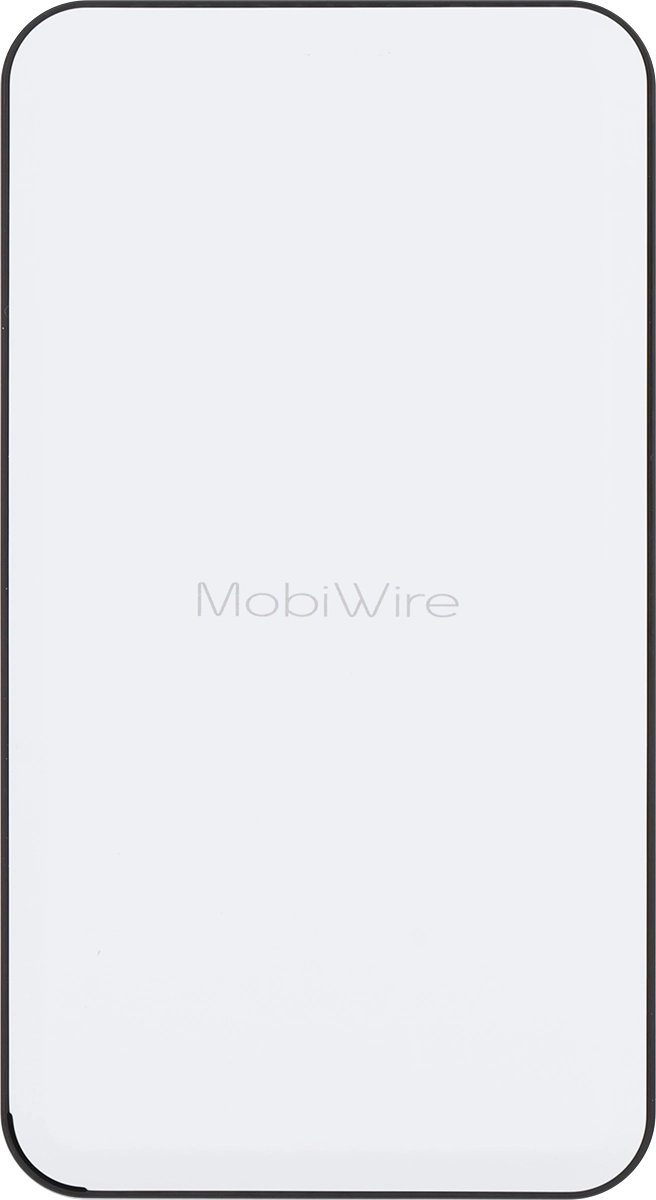
Vodafone Pocket WiFi® 6 CM52 5G

Vodafone Pocket WiFi® 6 CM52 5G

I can't turn on my Vodafone Pocket WiFi® 6 CM52 5G Windows 11

Cause 2 of 3: Your router isn't assembled correctly

To turn on your router, it needs to be assembled correctly.

Solution: See how to assemble the router correctly.

Step 1 of 25

Remove back cover

Turn the back of your router towards you. Take hold of the bottom left corner of the back cover and remove it.
Step 2 of 25

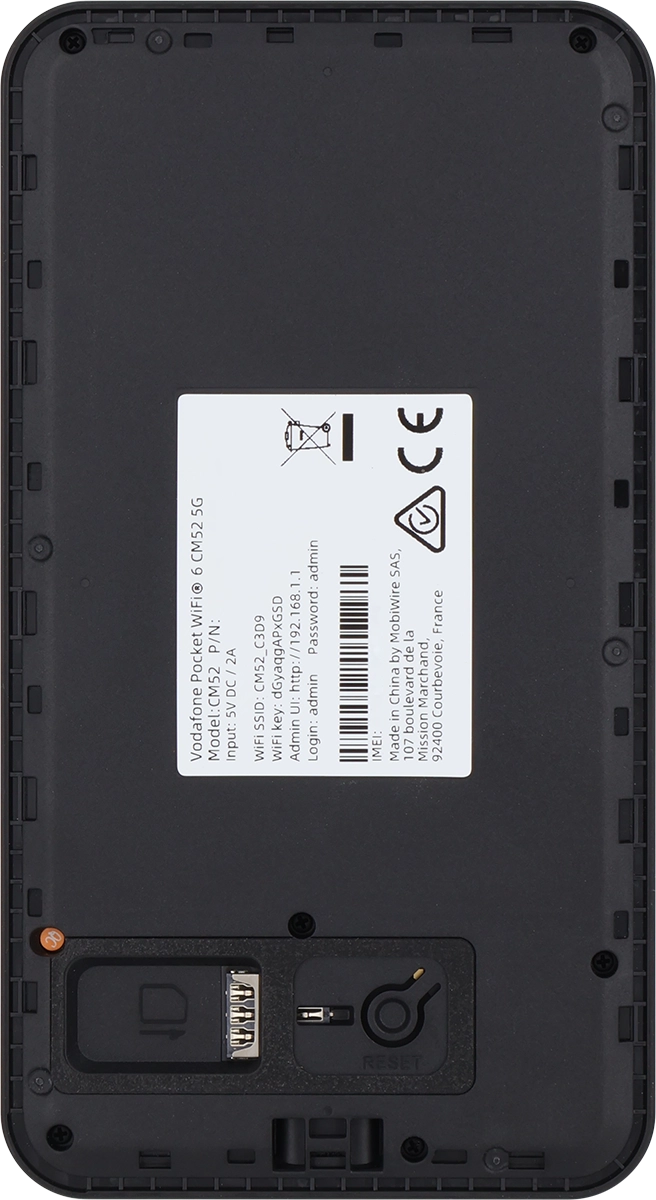
Insert SIM

Place your SIM as illustrated next to the SIM holder.
Step 3 of 25

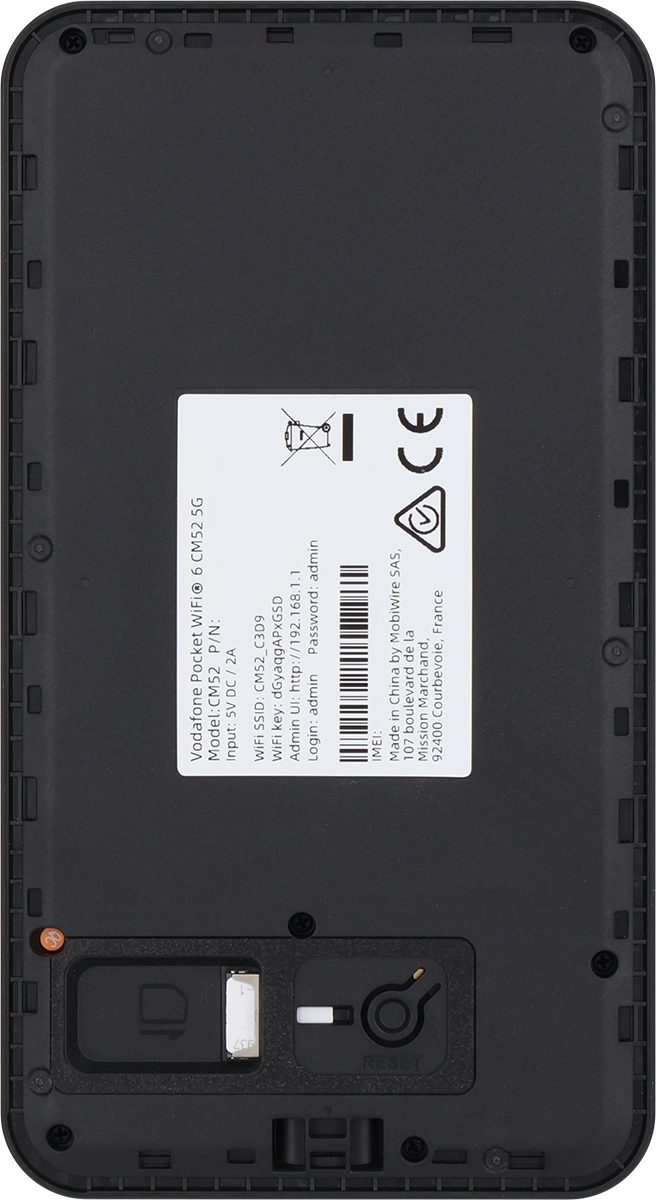
Insert SIM

Slide your SIM into the SIM holder.

Step 4 of 25

Replace back cover

Place the back cover on your router and press it into place.

Step 5 of 25

Turn on your router

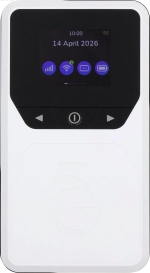
Press and hold On/Off until your router is turned on.

Step 6 of 25

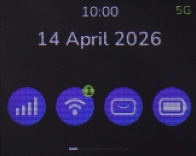
See the router login information

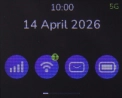
Press the Left function key the necessary number of times to select "WiFi 5G".

Step 7 of 25

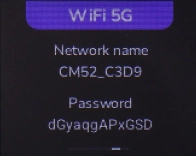
See the router login information

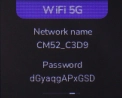
The login information is displayed.

Step 8 of 25

See the router login information

You can also find the login information on the inside of your router.

Step 9 of 25

Establish a connection to the internet

Do the following on your computer: Click the menu field.

Step 10 of 25

Establish a connection to the internet

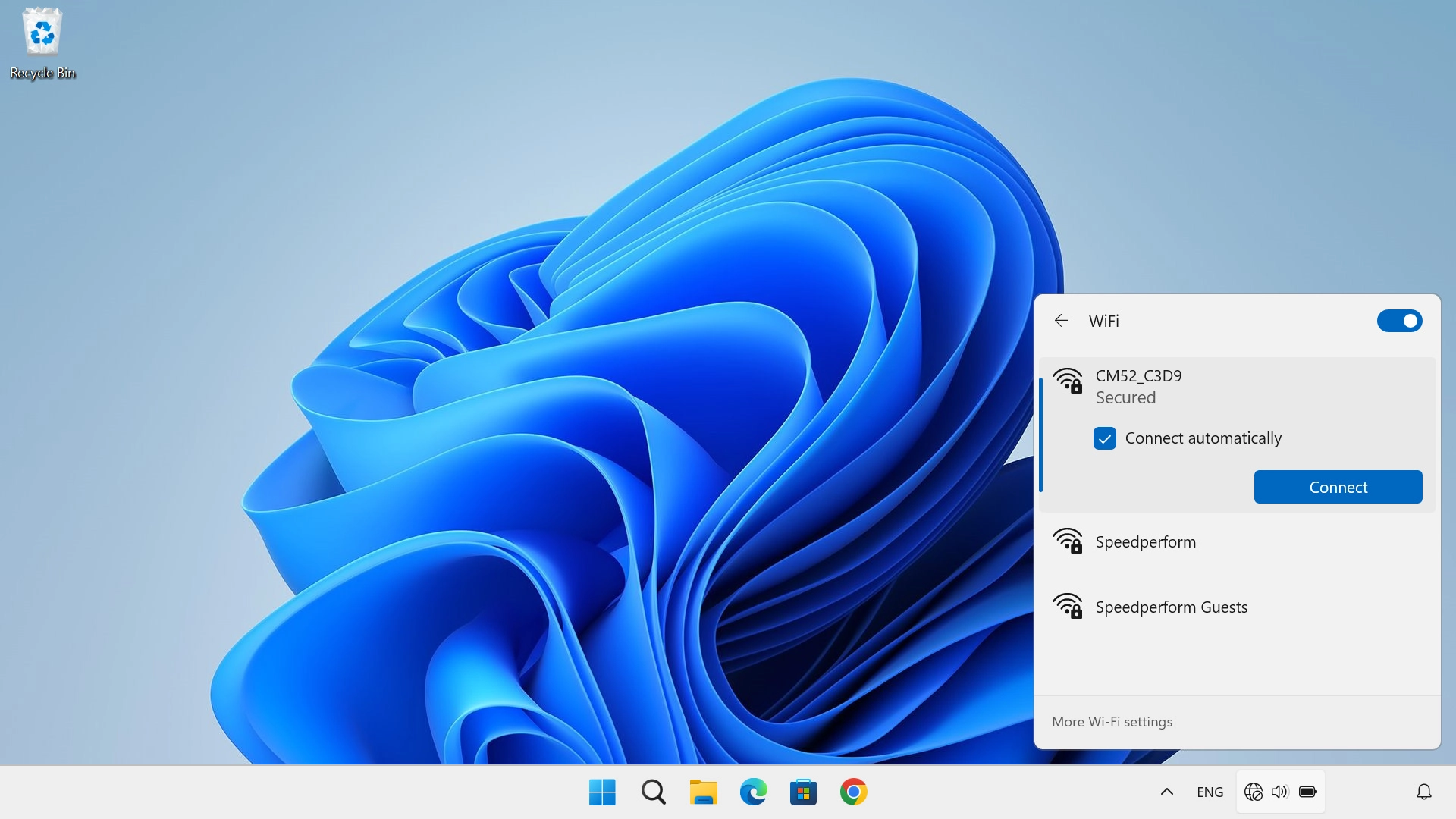
Click arrow right next to the Wi-Fi icon.

Step 11 of 25

Establish a connection to the internet

Click the name of your Wi-Fi hotspot.

Step 12 of 25

Establish a connection to the internet

Click Connect.

Step 13 of 25

Establish a connection to the internet

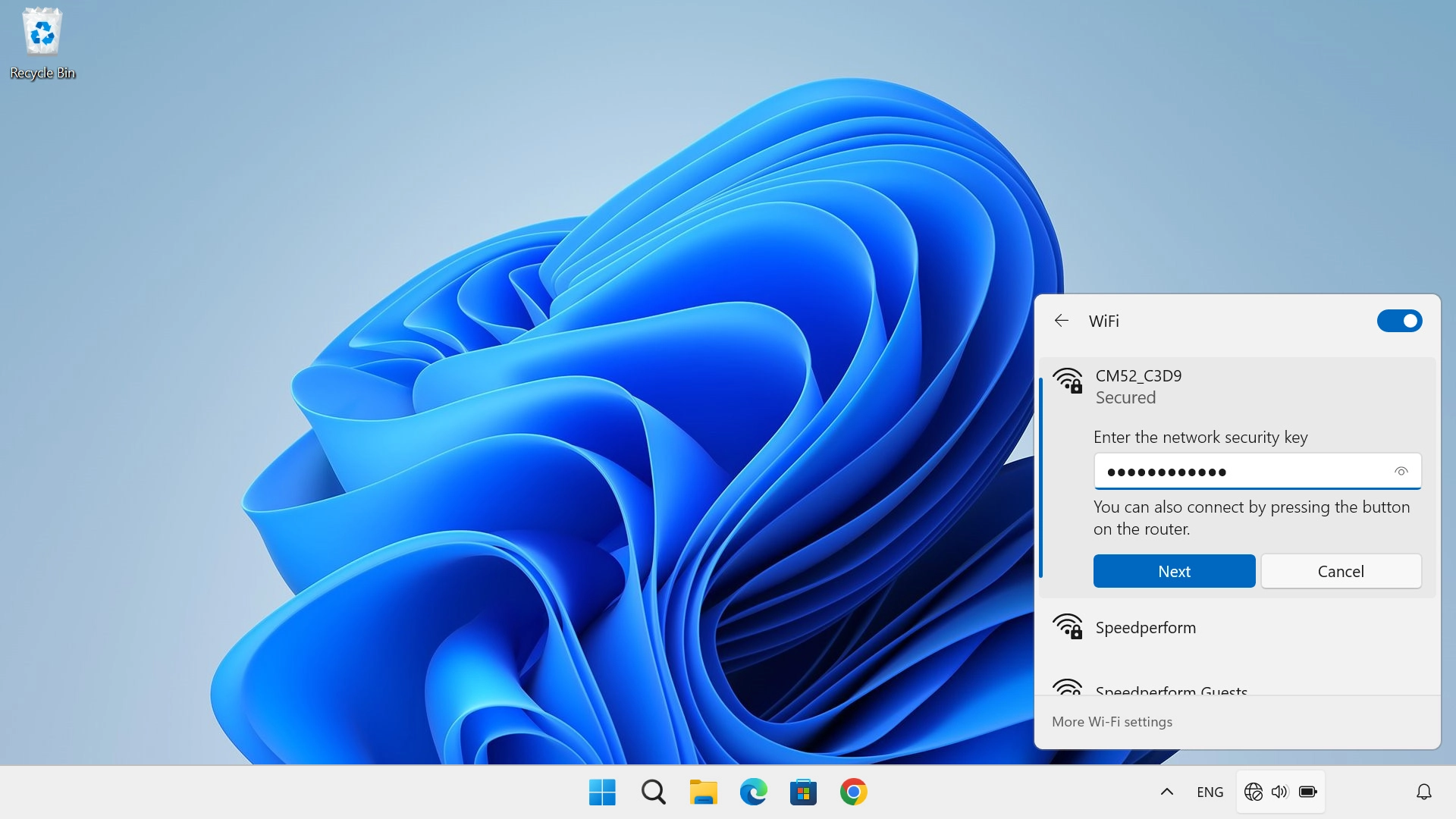
Key in the Wi-Fi password for your Wi-Fi hotspot and click Next.

Step 14 of 25

Start configuration of your router

Open an internet browser on your computer and go to 192.168.1.1.

Step 15 of 25

Enter your PIN

If your SIM is PIN protected, key in your PIN and click Save.

Step 16 of 25

Create new password for the router web interface

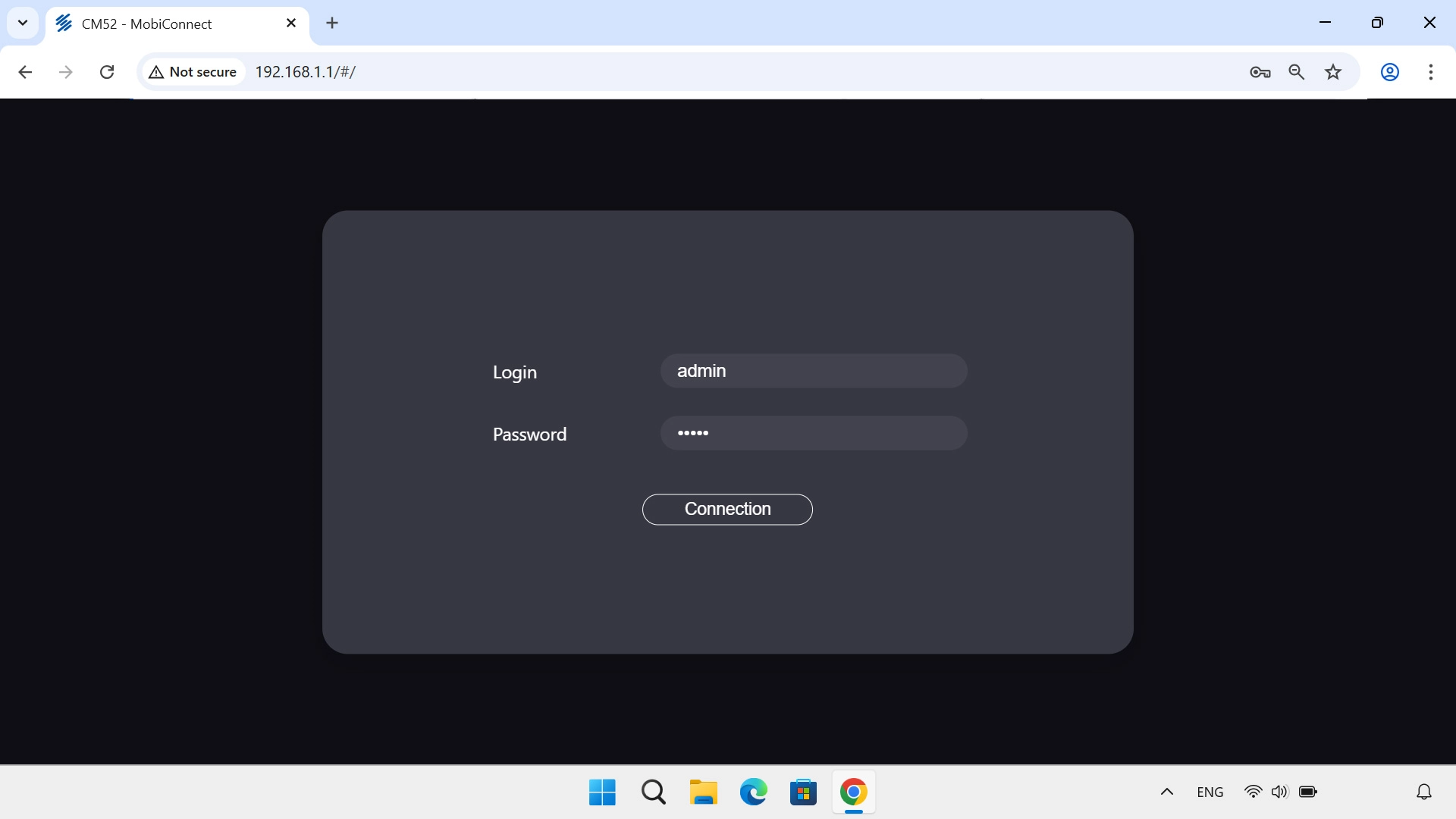
Click the field next to "Login" and key in the username for your router.

Step 17 of 25

Create new password for the router web interface

Click the field next to "Password" and key in the password for your router.

Step 18 of 25

Create new password for the router web interface

Click Connection.

Step 19 of 25

Create new password for the router web interface

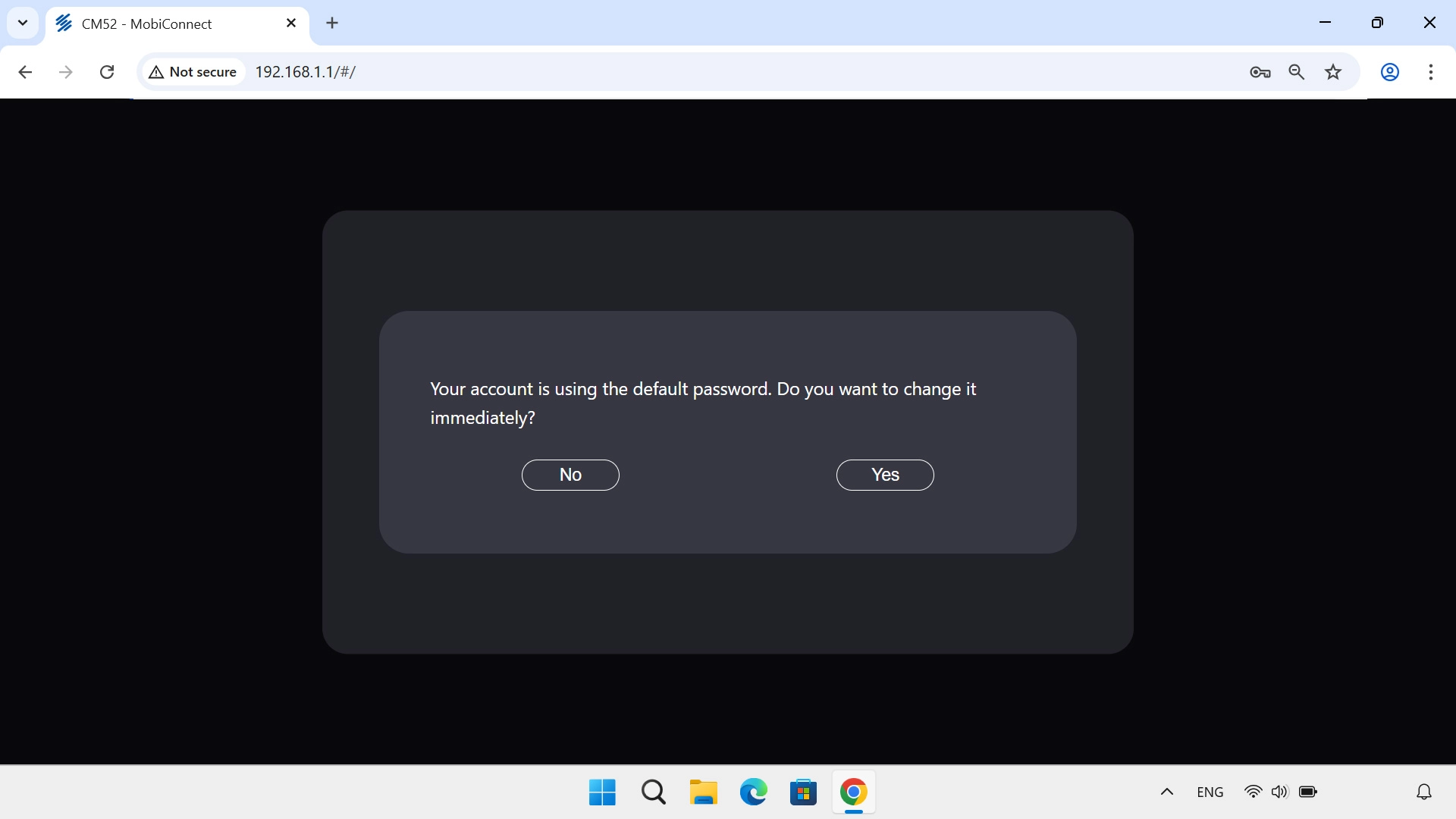
Click Yes.

Step 20 of 25

Create new password for the router web interface

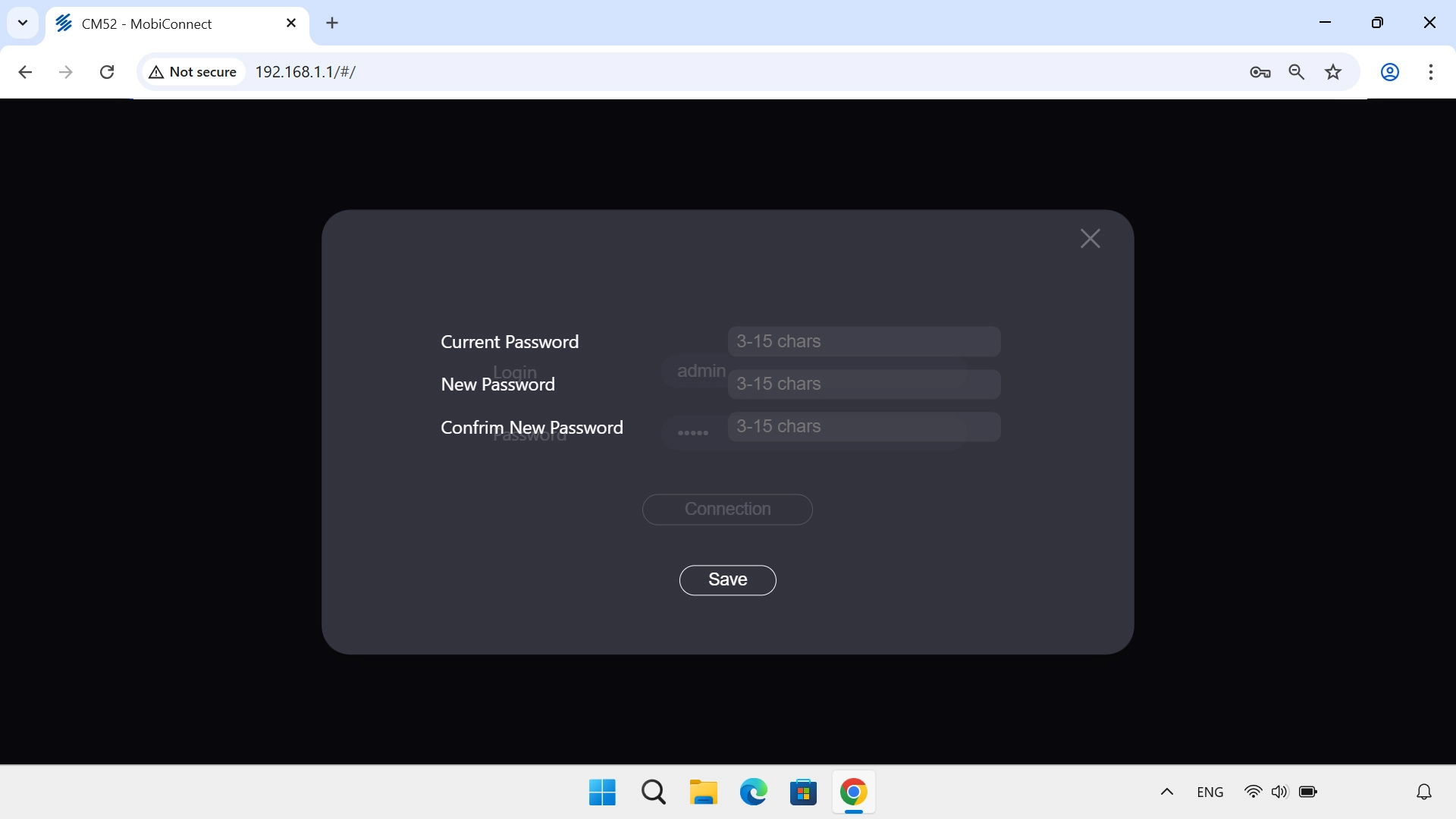
Click the field next to "Current Password" and key in the current password.

Step 21 of 25

Create new password for the router web interface

Click the field next to "New Password" and key in the required password.

Step 22 of 25

Create new password for the router web interface

Click the field next to "Confirm New Password" and key in the selected password again.

Step 23 of 25

Create new password for the router web interface

Click Save.

Step 24 of 25

Establish a connection to your router's web interface

Click the field next to "Password" and key in the new password.

Step 25 of 25

Establish a connection to your router's web interface

Click Connection.

1 Remove back cover

Turn the back of your router towards you. Take hold of the bottom left corner of the back cover and remove it.

2 Insert SIM

Place your SIM as illustrated next to the SIM holder.
Please note that your router only supports nano SIMs.
Slide your SIM into the SIM holder.

3 Replace back cover

Place the back cover on your router and press it into place.

4 Turn on your router

Press and hold On/Off until your router is turned on.
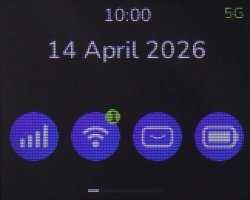
5 See the router login information

Press the Left function key the necessary number of times to select "WiFi 5G".
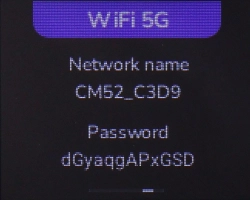
The login information is displayed.
You can also find the login information on the inside of your router.
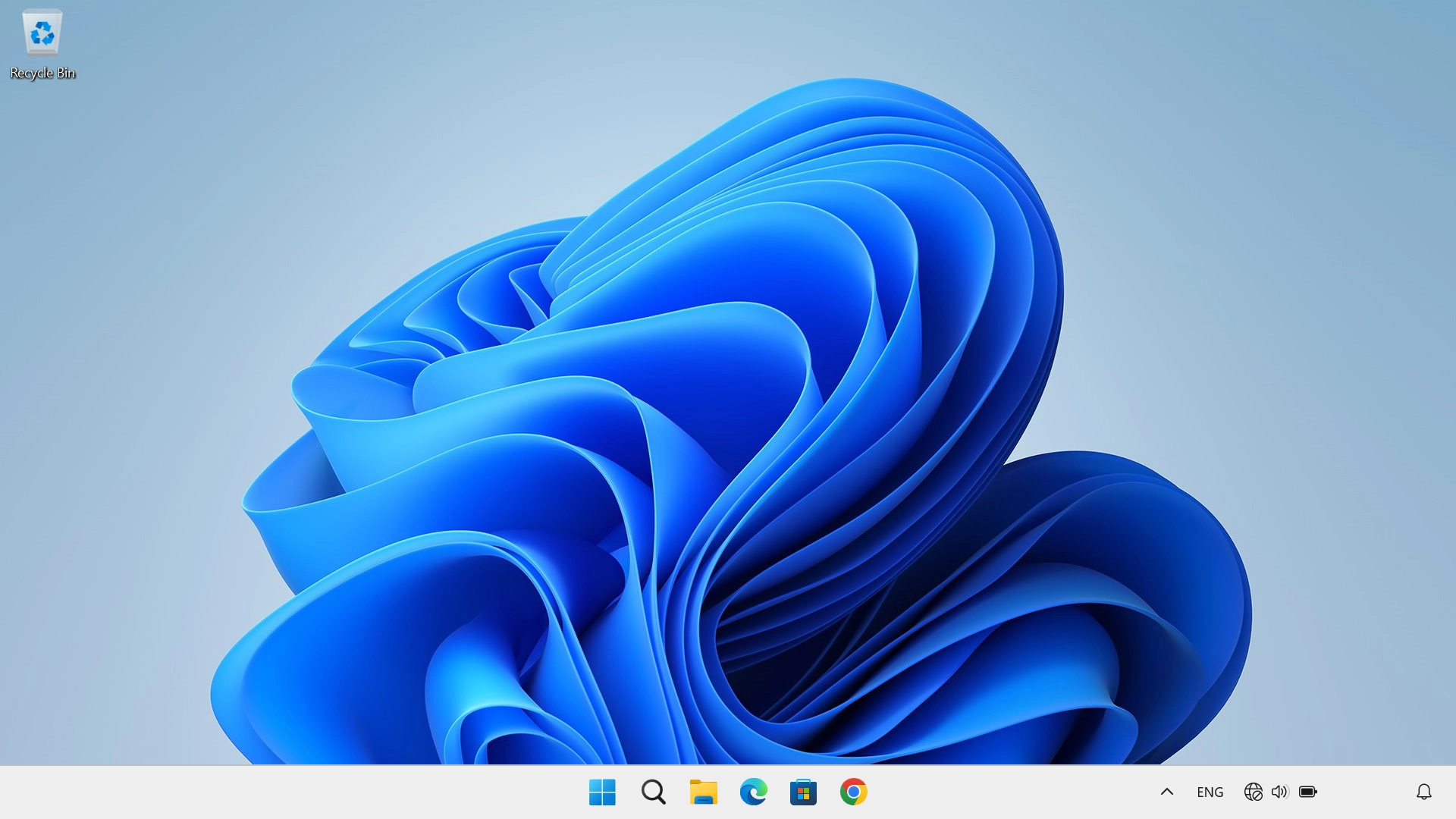
6 Establish a connection to the internet

Do the following on your computer: Click the menu field.
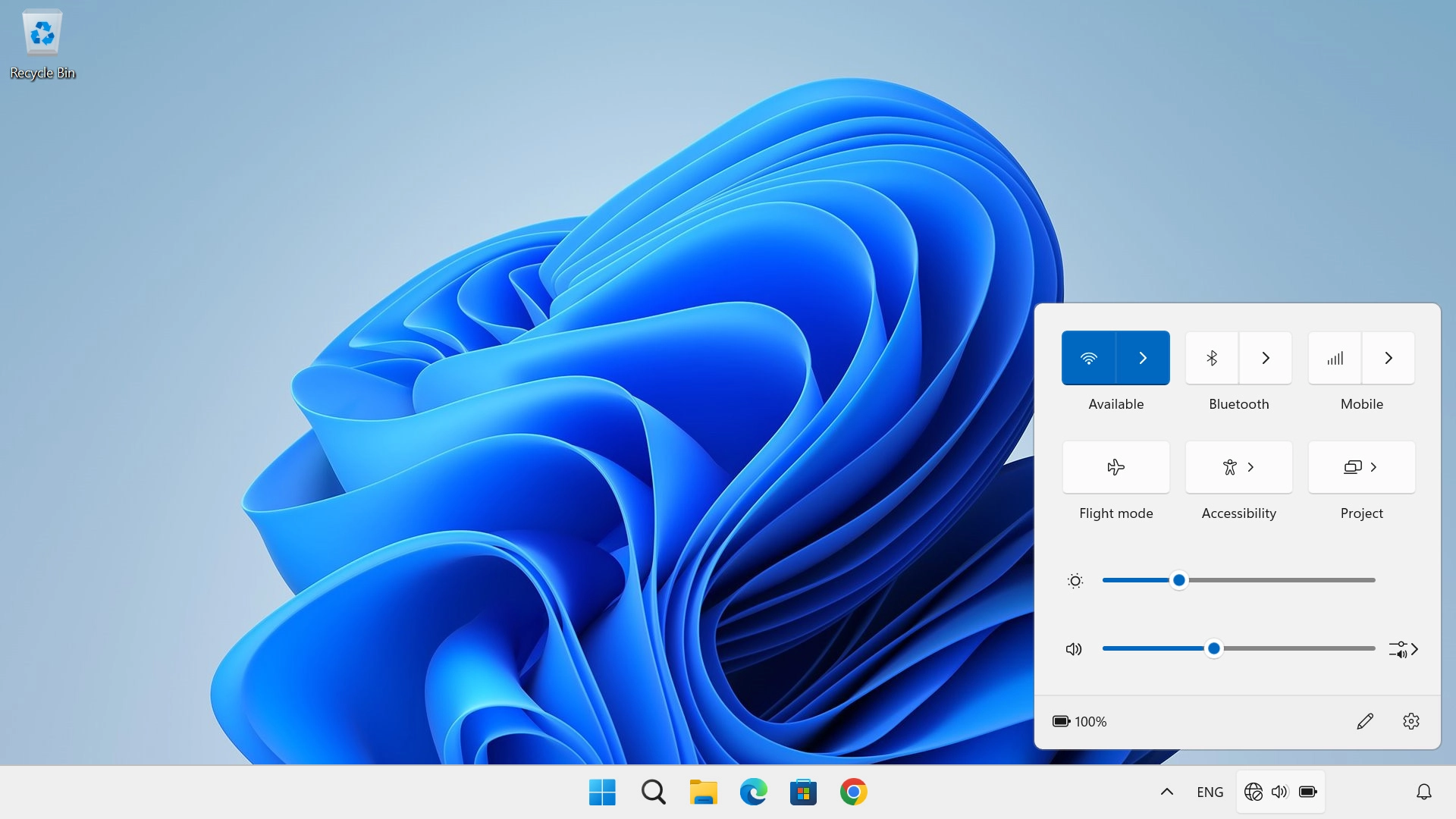
Click arrow right next to the Wi-Fi icon.
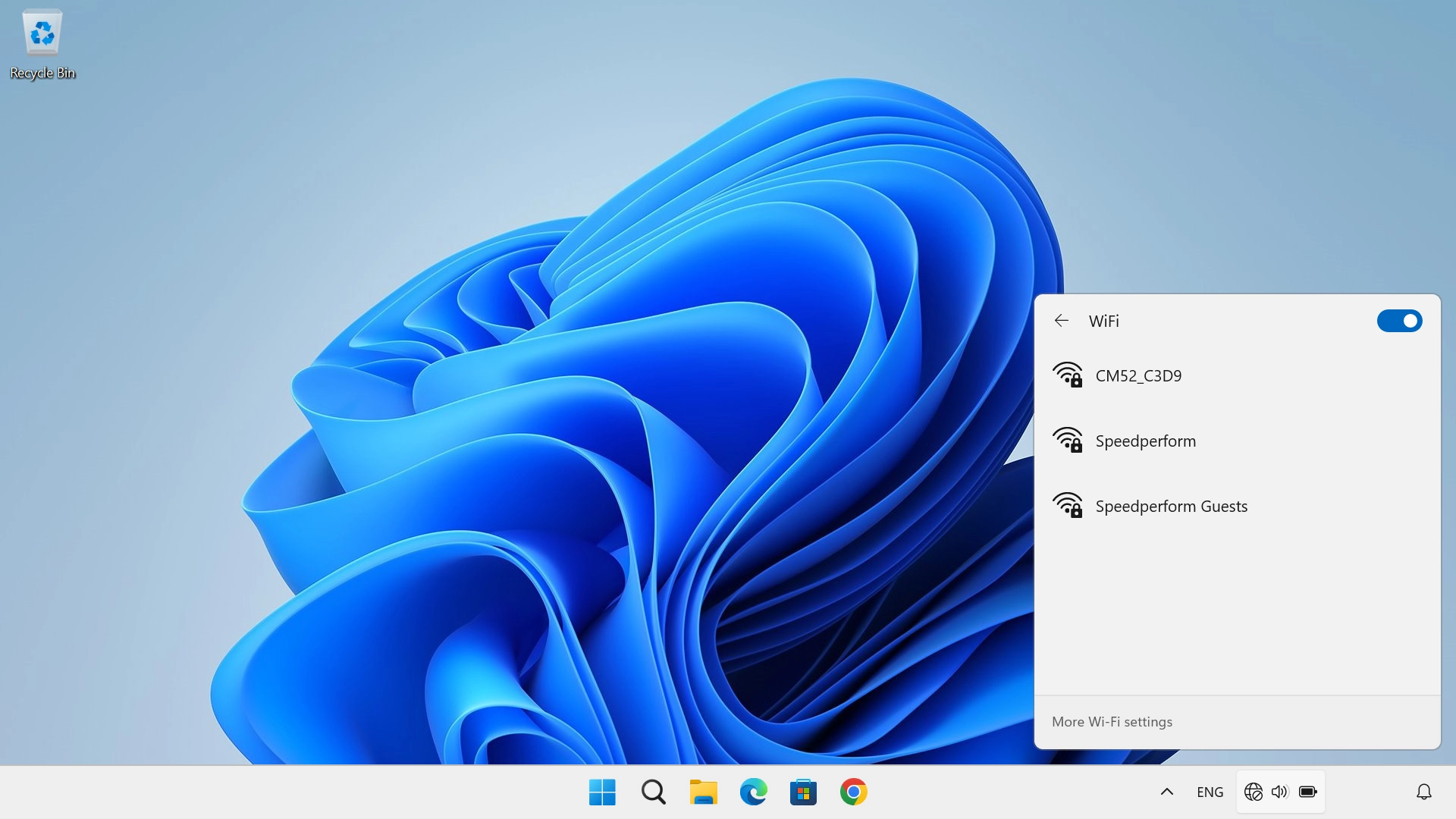
Click the name of your Wi-Fi hotspot.
Click Connect.
Key in the Wi-Fi password for your Wi-Fi hotspot and click Next.
7 Start configuration of your router

Open an internet browser on your computer and go to 192.168.1.1.
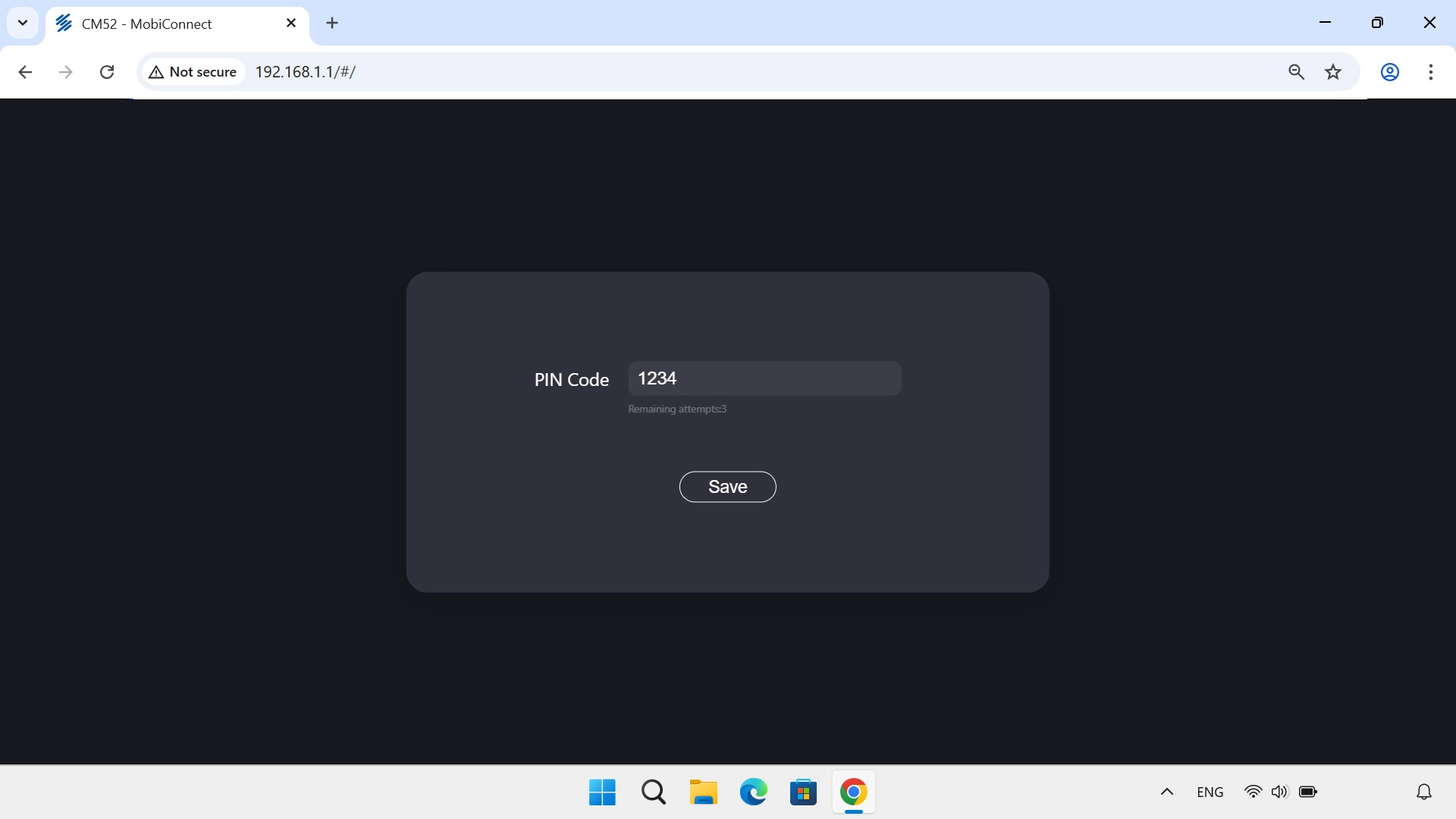
8 Enter your PIN

If your SIM is PIN protected, key in your PIN and click Save.
If an incorrect PIN is entered three times in a row, your SIM will be blocked. To unblock your SIM, you'll need to key in your PUK. The PUK can be obtained by contacting customer services. Please note: If you key in the wrong PUK ten times in a row, your SIM will be blocked permanently. In this case, you need a new SIM from Vodafone.

9 Create new password for the router web interface

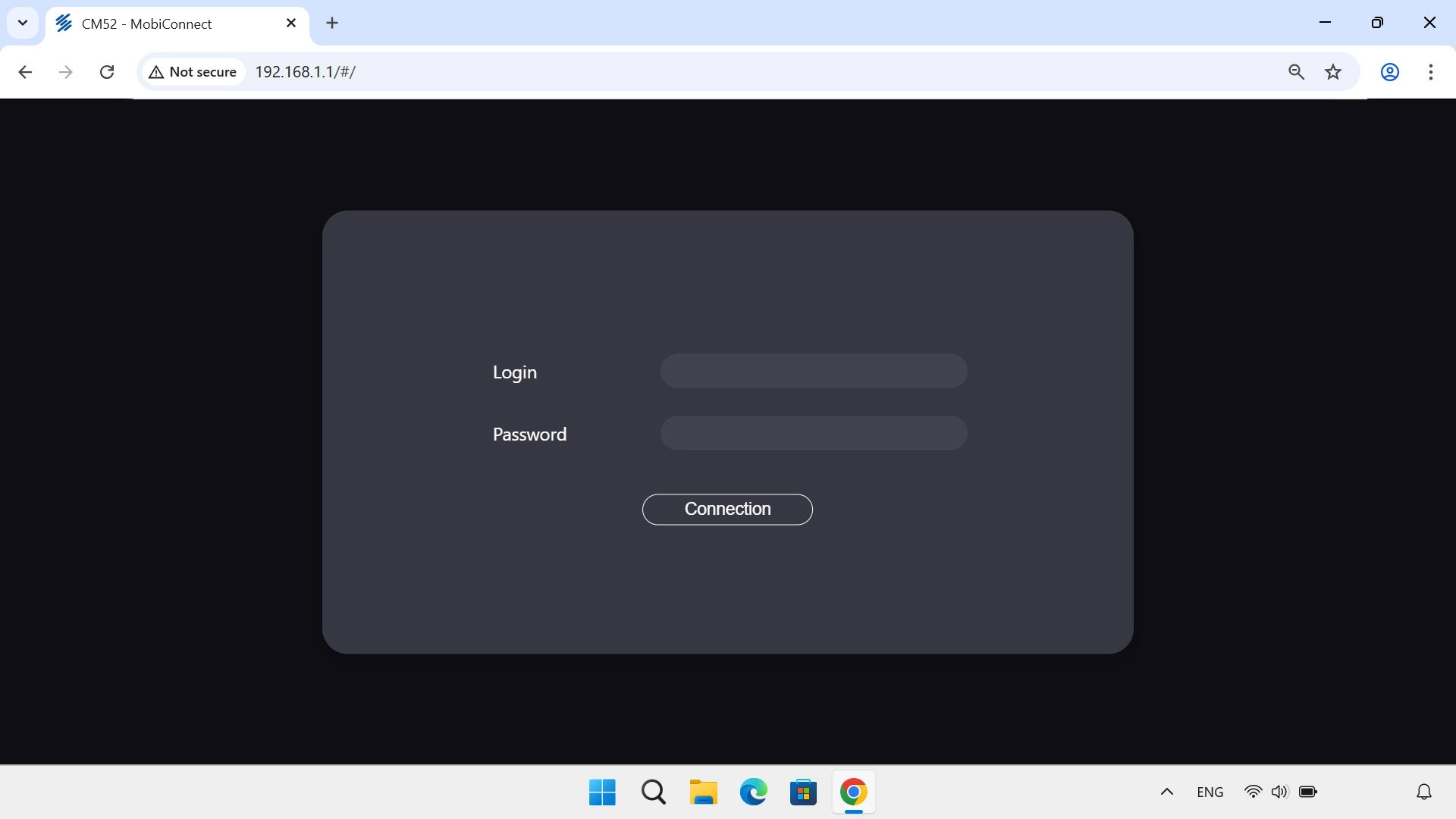
Click the field next to "Login" and key in the username for your router.
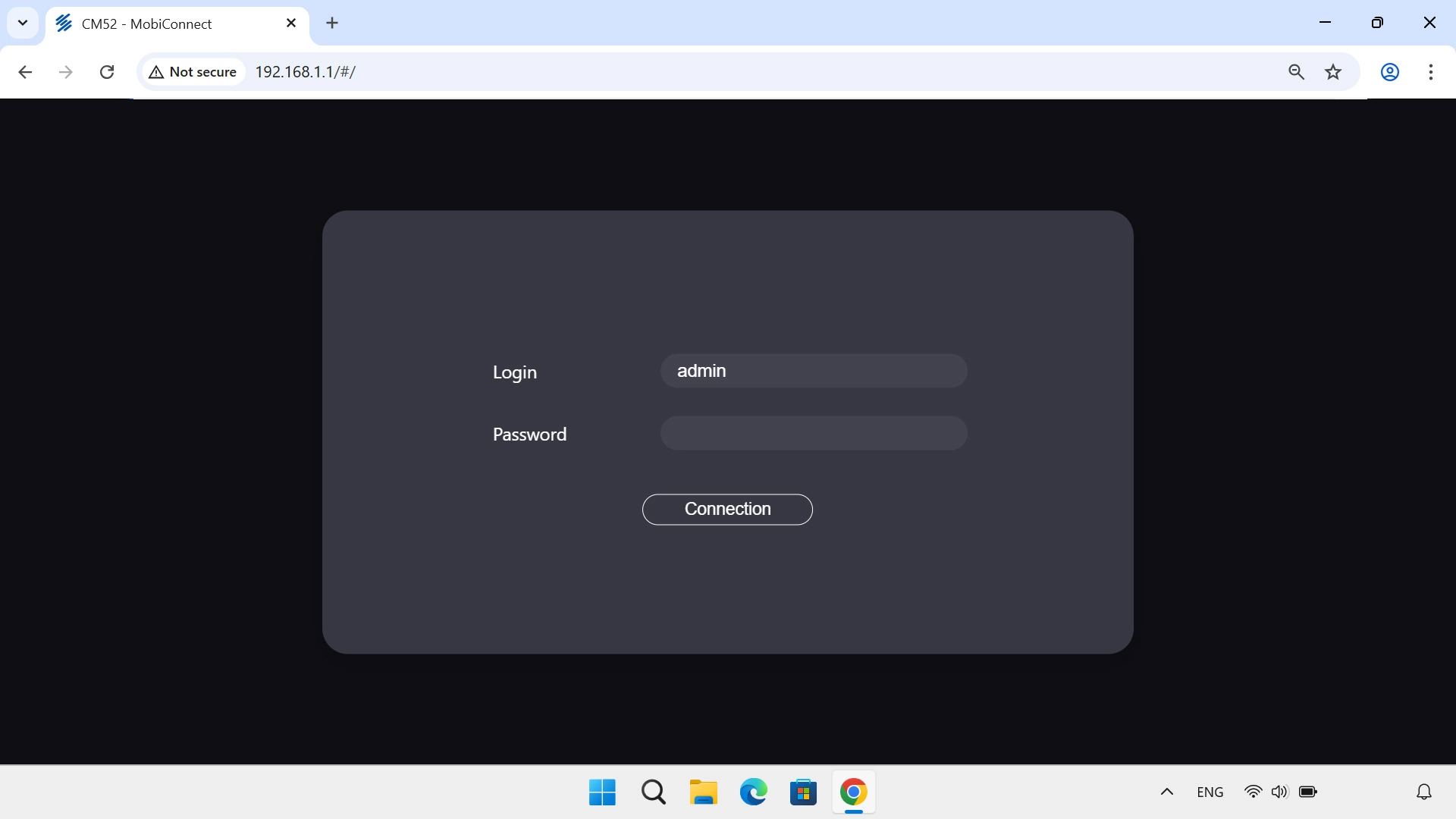
You can see the default login information inside the router, and on your router’s screen, by pressing the Function keys the required number of times to select “Website”.
Click the field next to "Password" and key in the password for your router.
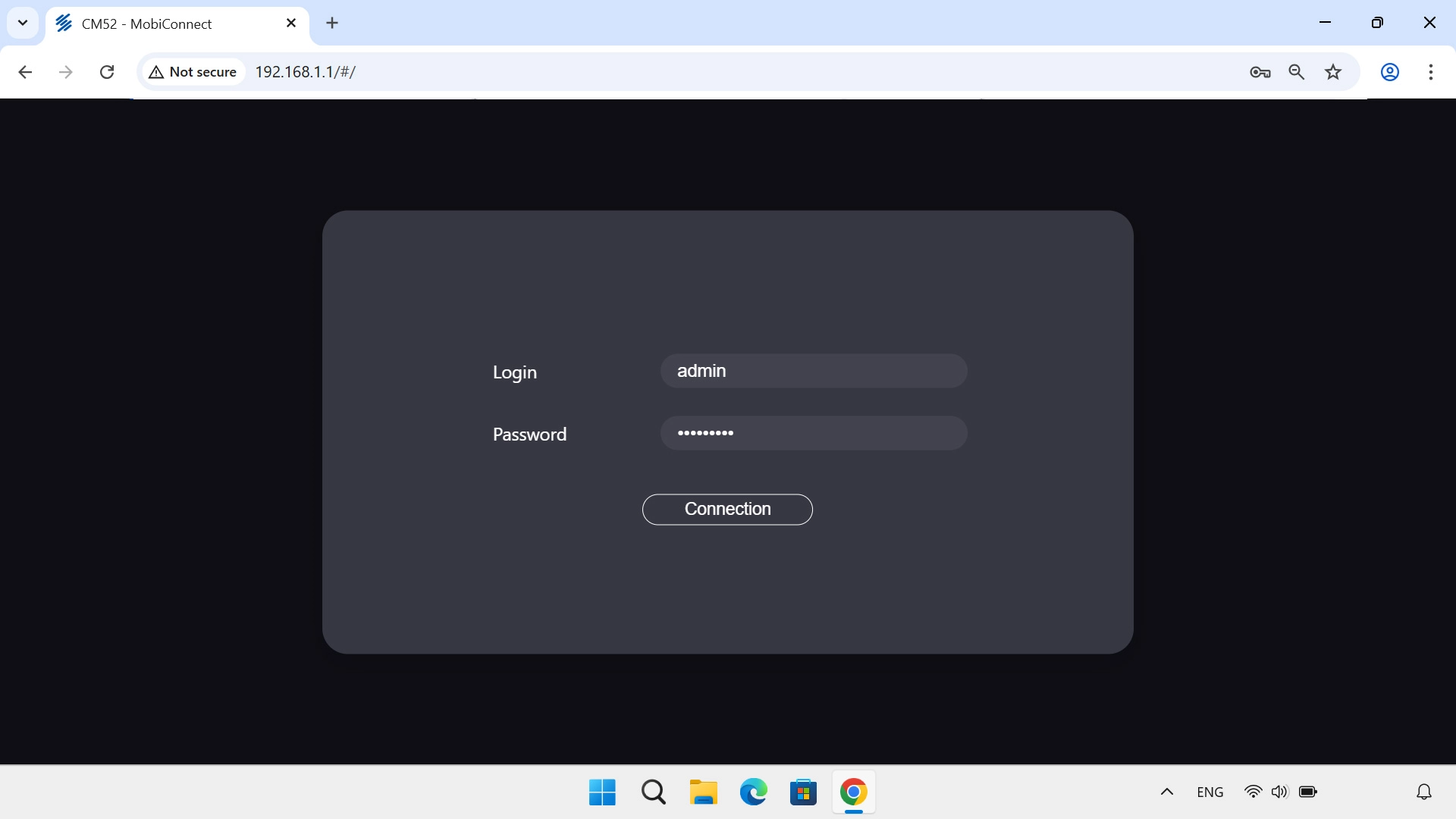
Click Connection.
Click Yes.
For security reasons, it's recommend that you change your router's default password.
Click the field next to "Current Password" and key in the current password.
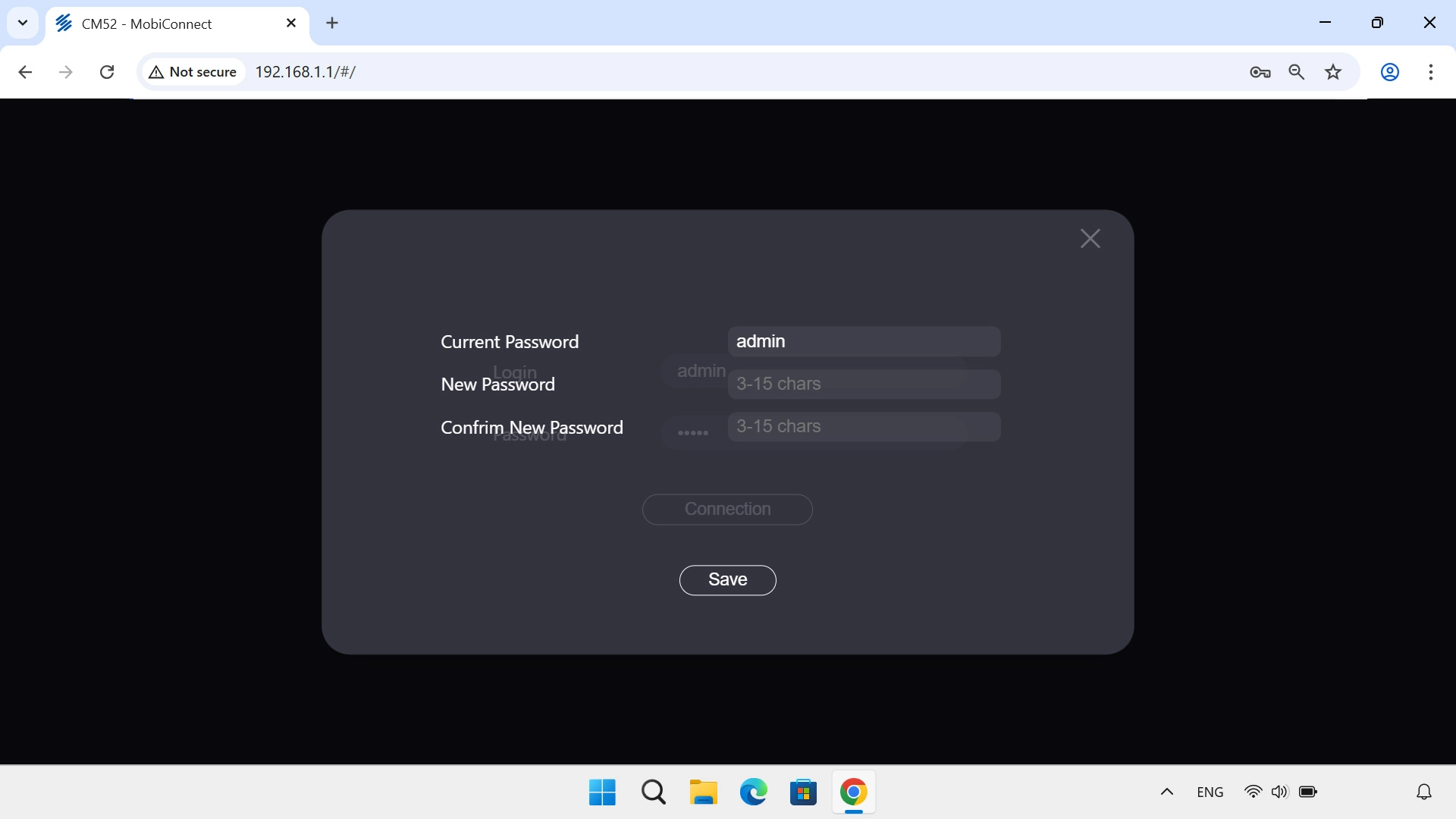
Click the field next to "New Password" and key in the required password.
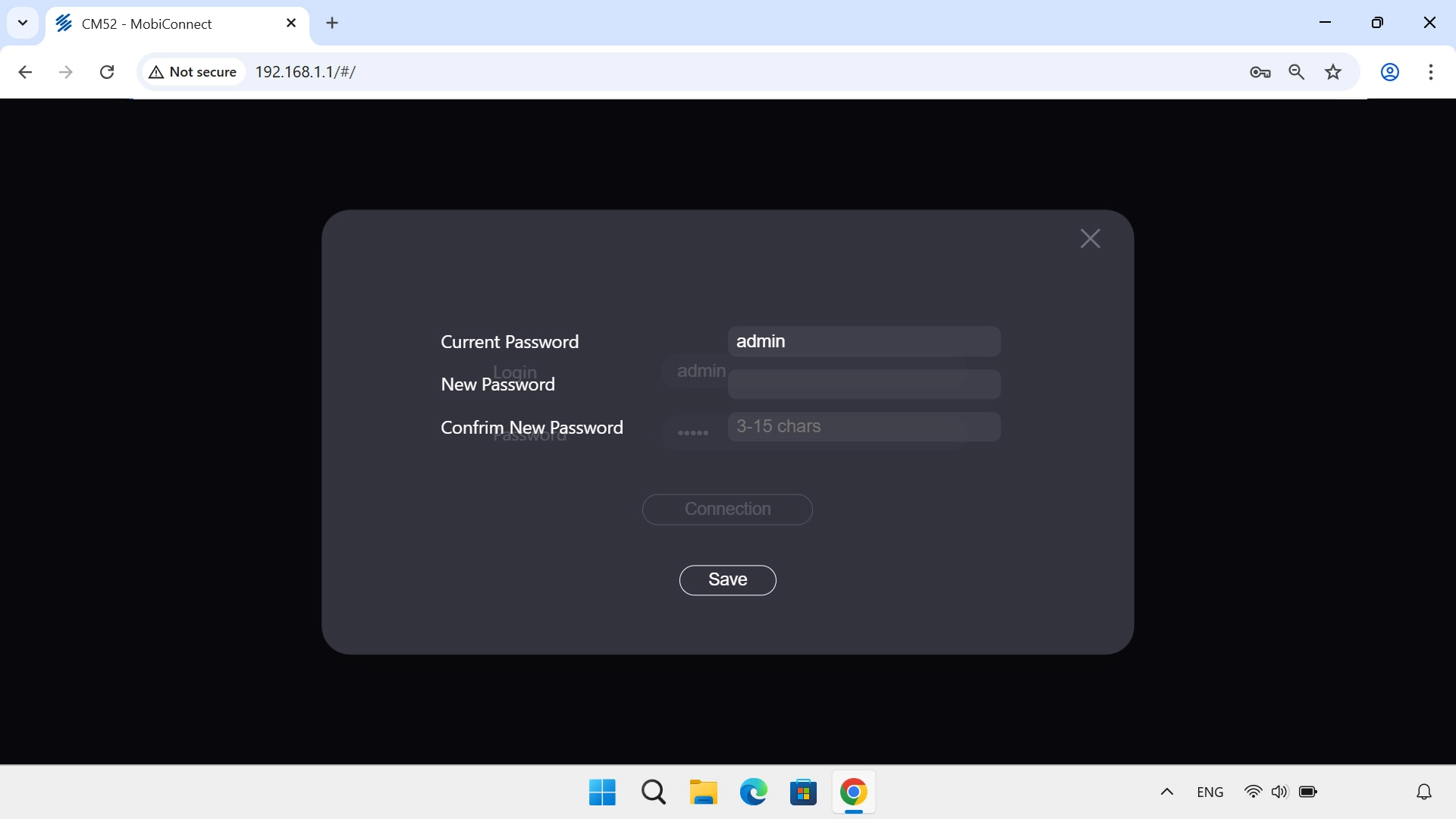
Click the field next to "Confirm New Password" and key in the selected password again.
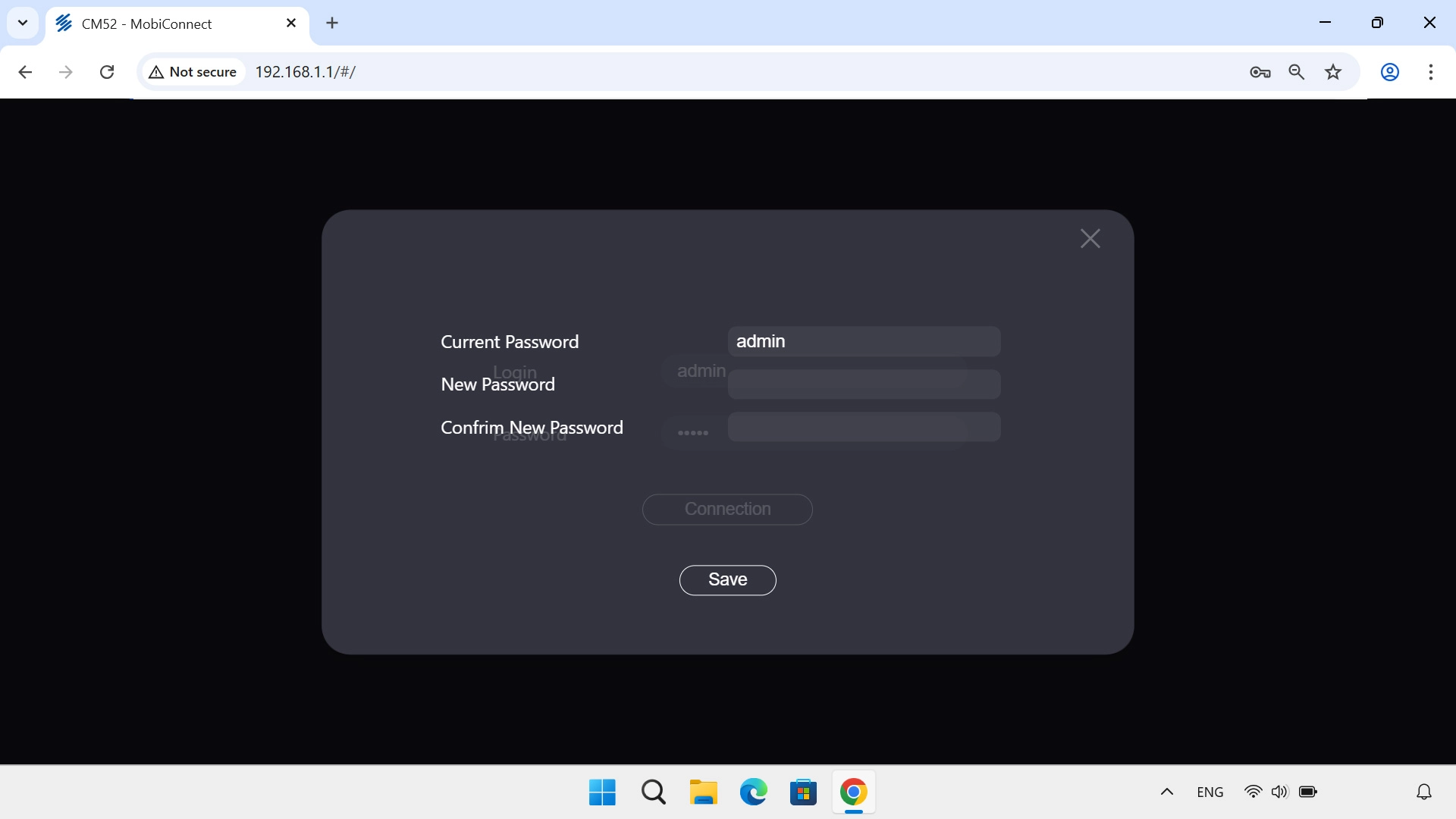
Click Save.

10 Establish a connection to your router's web interface

Click the field next to "Password" and key in the new password.
Click Connection.

Did this solve the problem?

Yes - All solved No - Go to next cause

Get information on...

Or select...

Another device