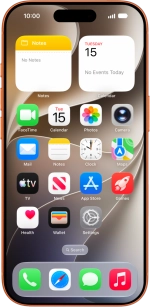

1. Use Siri AI for voice control
Press and hold the Side button.
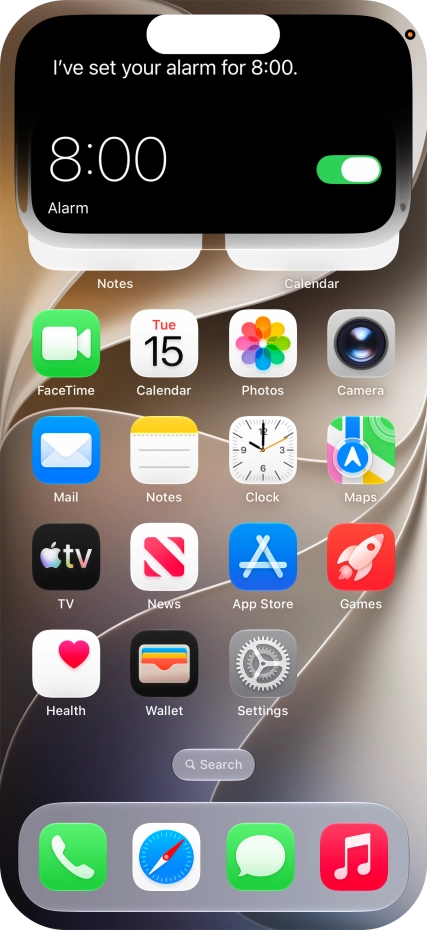
1. Use Siri AI for voice control
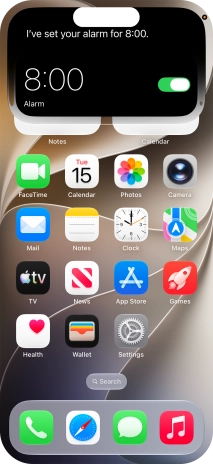
Say, in your own words, what you would like your phone to do, e.g.: OPEN CAMERA or SET AN ALARM. It's not necessary to use a specific command for each function.
![If an app is open on your phone, such as Messages, you can also use the functions available here, e.g.: REPLY [text].](https://cdn.sp-selfservice.com/ml/7180926-f-7242e119-9bd0-4659-9bca-81cd69b5ef58.png?width=428&height=930 "If an app is open on your phone, such as Messages, you can also use the functions available here, e.g.: REPLY [text].")
![If an app is open on your phone, such as Messages, you can also use the functions available here, e.g.: REPLY [text].](https://cdn.sp-selfservice.com/ml/7180926-f-7242e119-9bd0-4659-9bca-81cd69b5ef58.png?width=338&height=734 "If an app is open on your phone, such as Messages, you can also use the functions available here, e.g.: REPLY [text].")
![If an app is open on your phone, such as Messages, you can also use the functions available here, e.g.: REPLY [text].](https://cdn.sp-selfservice.com/ml/7180926-f-7242e119-9bd0-4659-9bca-81cd69b5ef58.png?width=222&height=482 "If an app is open on your phone, such as Messages, you can also use the functions available here, e.g.: REPLY [text].")
1. Use Siri AI for voice control
If an app is open on your phone, such as Messages, you can also use the functions available here, e.g.: REPLY [text].
1. Use Siri AI for voice control
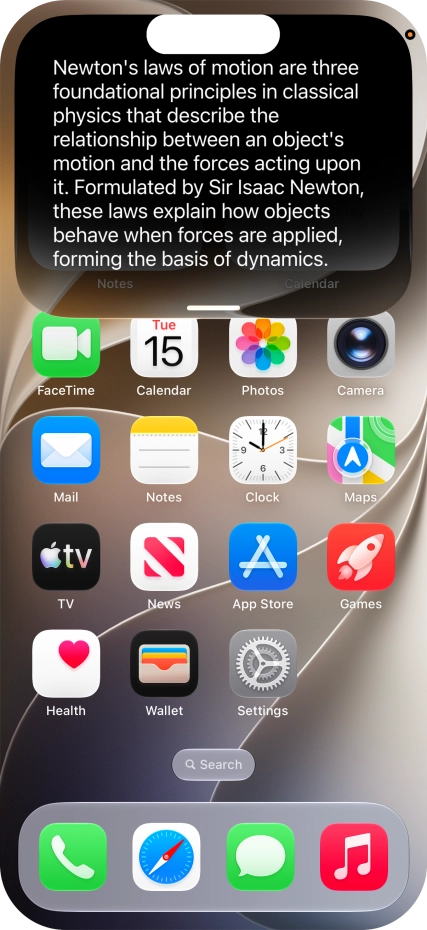
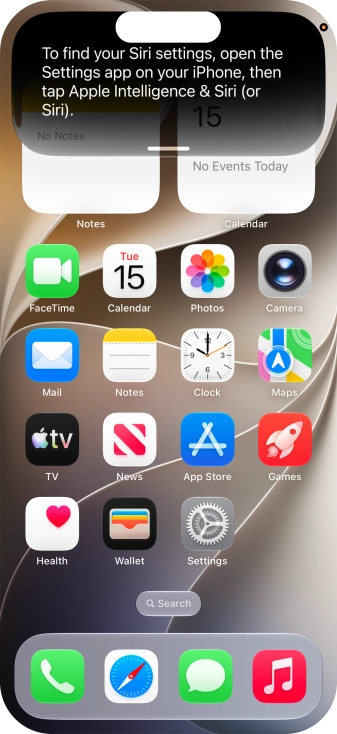
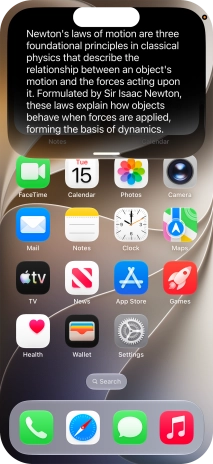
Ask questions or ask Siri to find information on the internet.
1. Use Siri AI for voice control
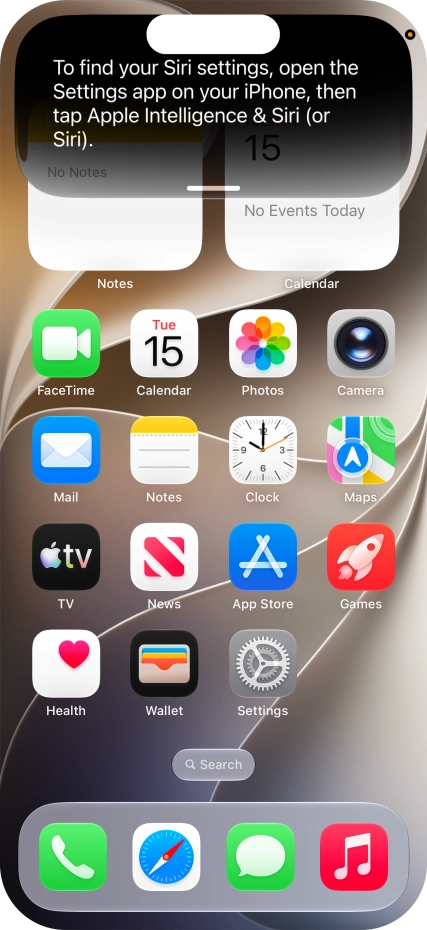
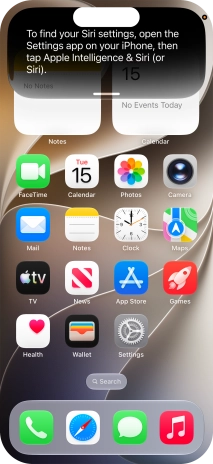
Ask questions about functions and settings on your phone.



1. Use Siri AI for voice control
Ask questions about the content on your screen.
1. Use Siri AI for voice control
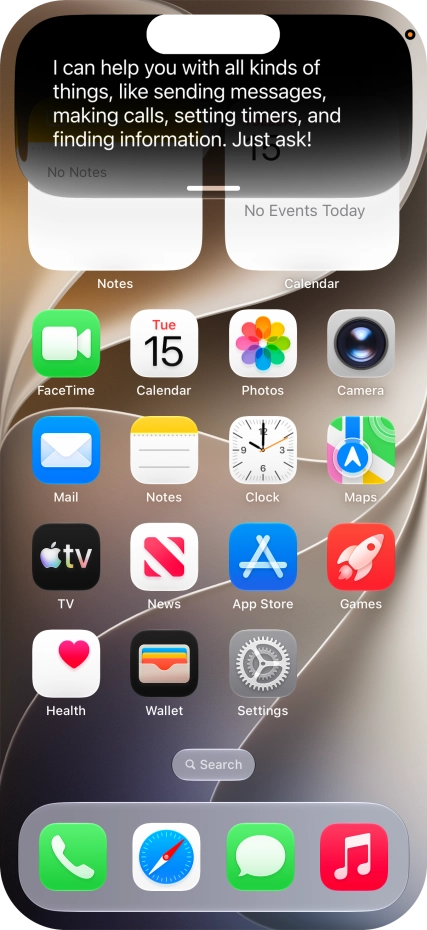
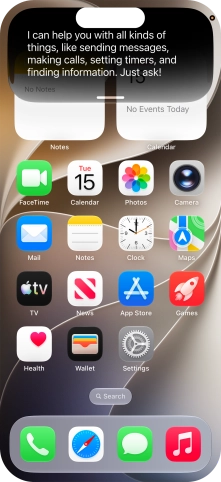
Slide your finger downwards starting from the top of the screen for more information or to continue your Siri conversation.
1. Use Siri AI for voice control
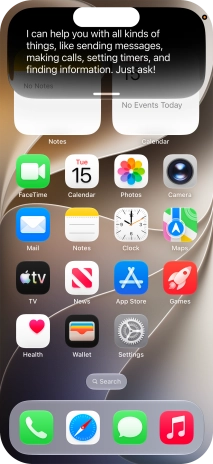
Say "WHAT CAN YOU DO?” and slide your finger downwards starting from the top of the screen for more examples.
2. Use Siri AI app
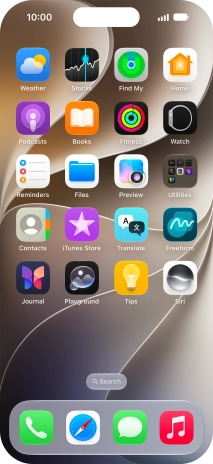
Press Siri.



2. Use Siri AI app
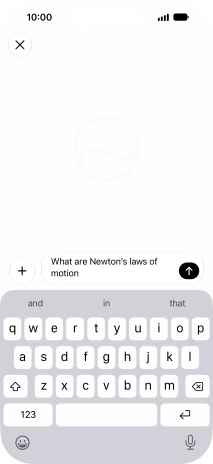
Press the new conversation icon.
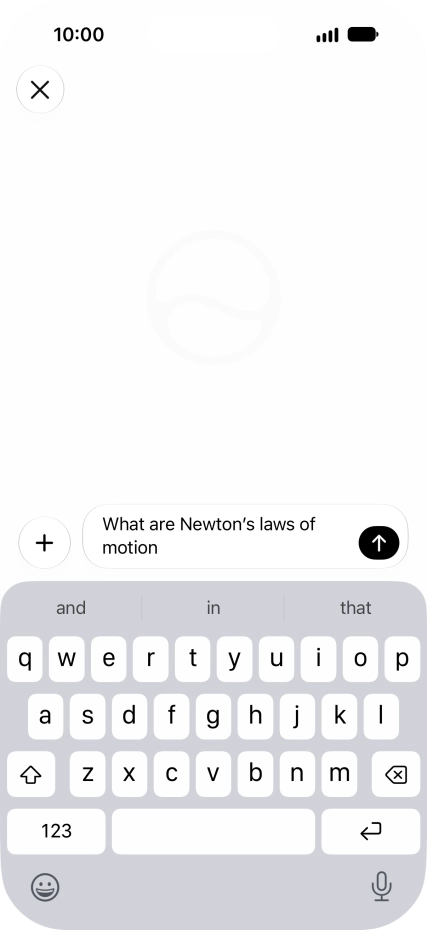
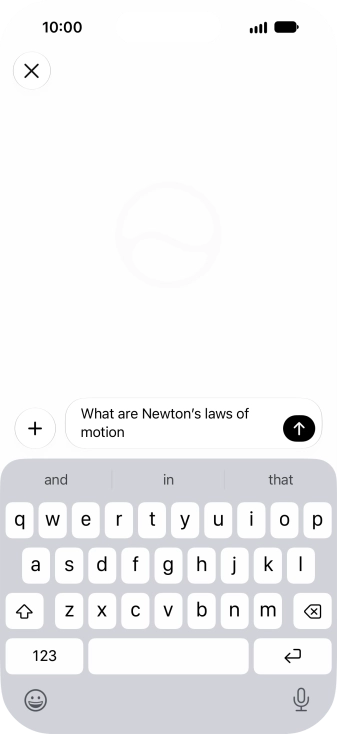
2. Use Siri AI app
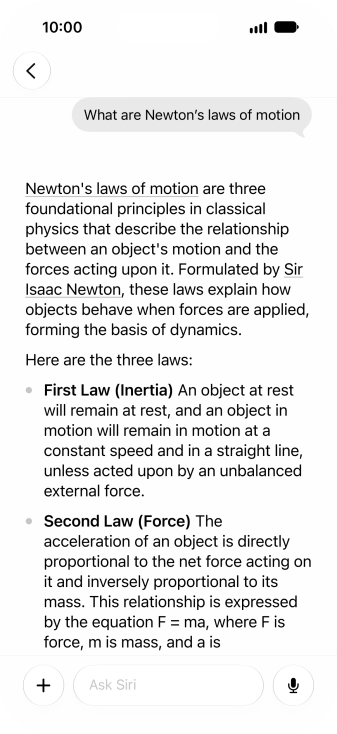
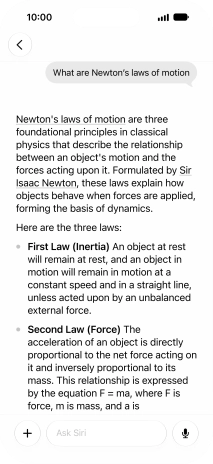
Follow the instructions on the screen to type or speak the required question. You can also attach pictures or documents and ask questions to them.
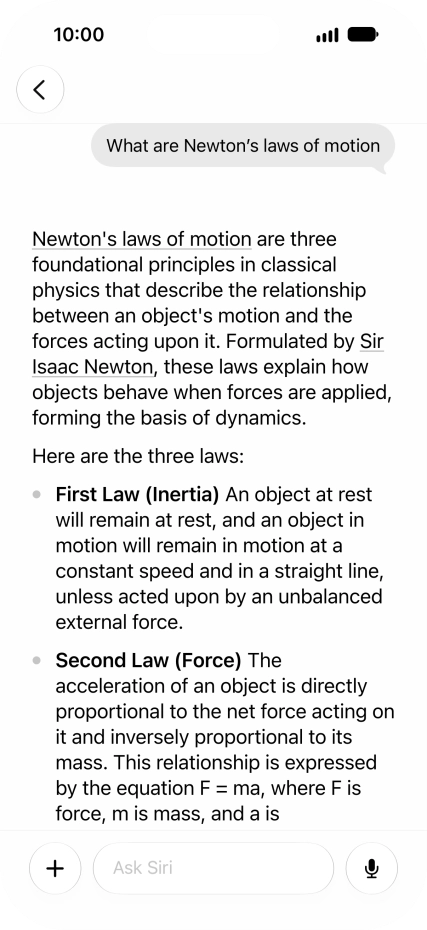
2. Use Siri AI app
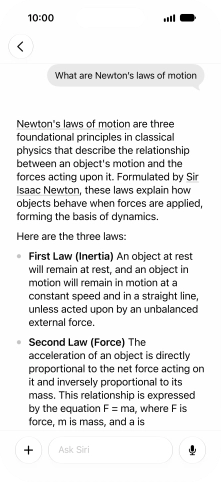
Press arrow left to leave the conversation.


2. Use Siri AI app
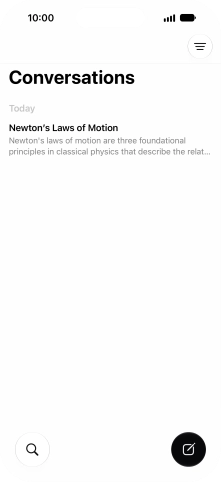
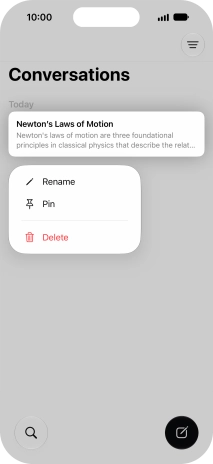
Press the required conversation to return to the conversation.
2. Use Siri AI app
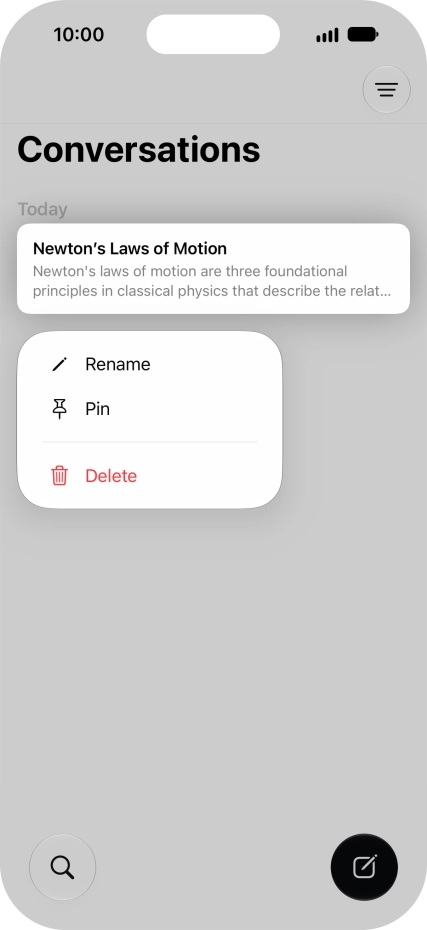
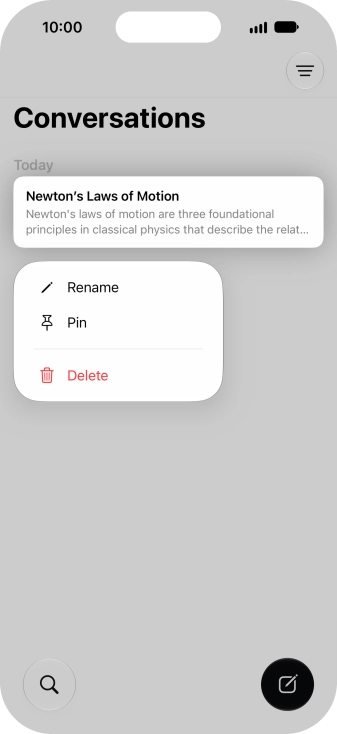
Press and hold the required conversation.
2. Use Siri AI app
Press Rename and follow the instructions on the screen to rename the conversation.
2. Use Siri AI app
Press Pin to pin the conversation.
2. Use Siri AI app
Press Delete and follow the instructions on the screen to delete the conversation.
2. Use Siri AI app
Press the search icon and follow the instructions on the screen to search your conversations.
3. Use visual intelligence with Siri AI
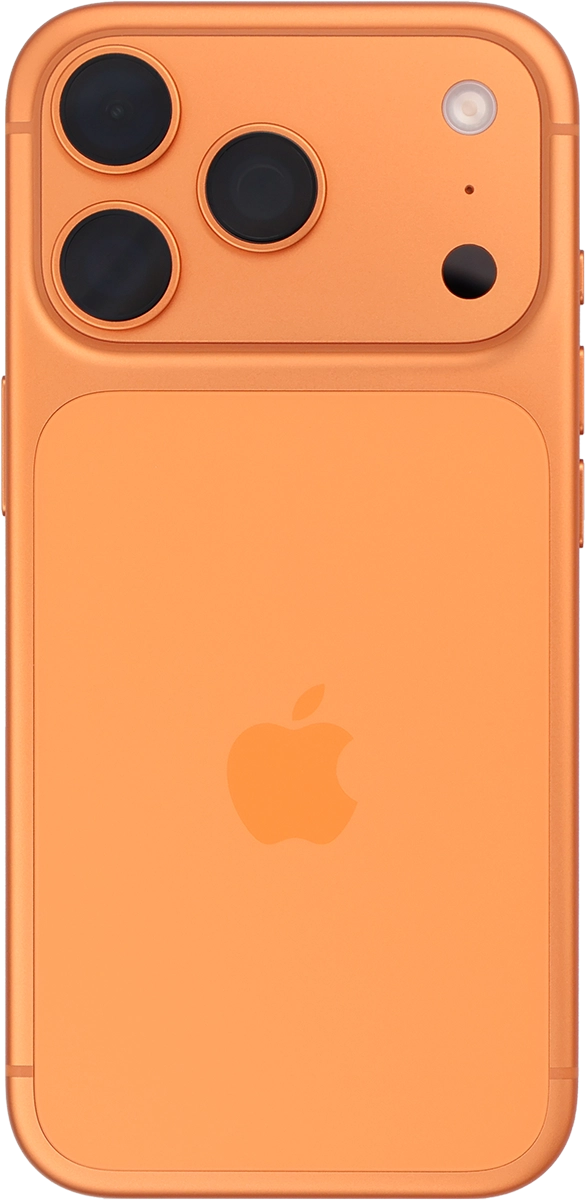
Press and hold the Camera button to activate visual intelligence.
3. Use visual intelligence with Siri AI
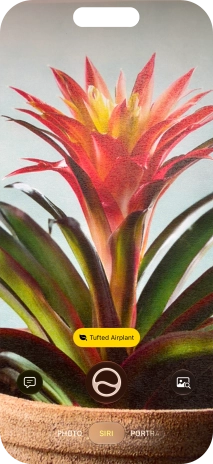
Point the camera lens at the back of your phone at the required object.



3. Use visual intelligence with Siri AI
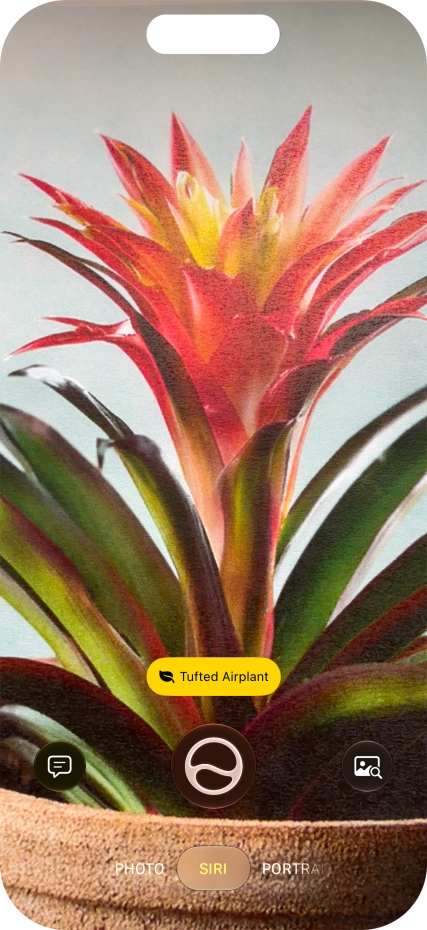
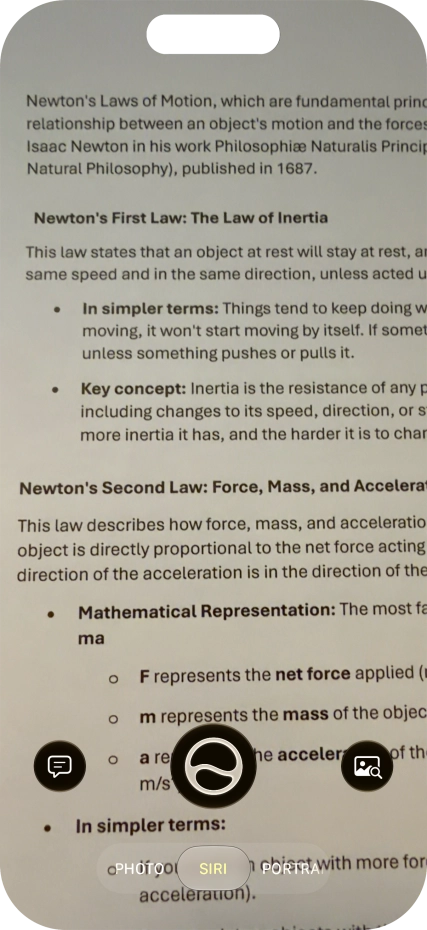
For information about objects, press the search icon and follow the instructions on the screen to use the search results.
3. Use visual intelligence with Siri AI
To use ChatGPT to find information about the object, press the speech bubble and follow the instructions on the screen to use the function.
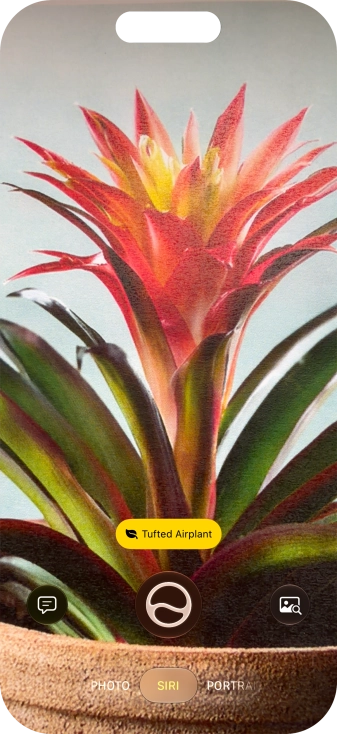
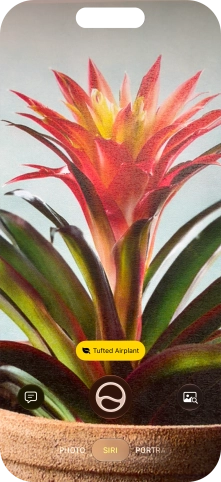
3. Use visual intelligence with Siri AI
For information about animals and plants, press the information field.
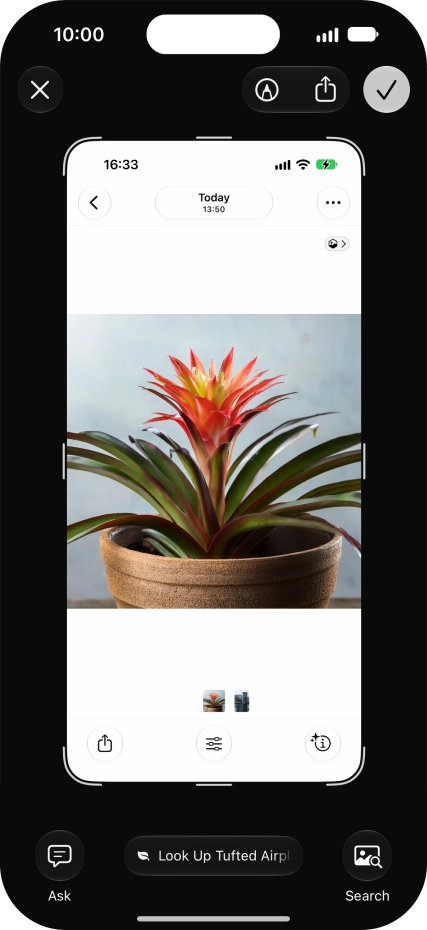
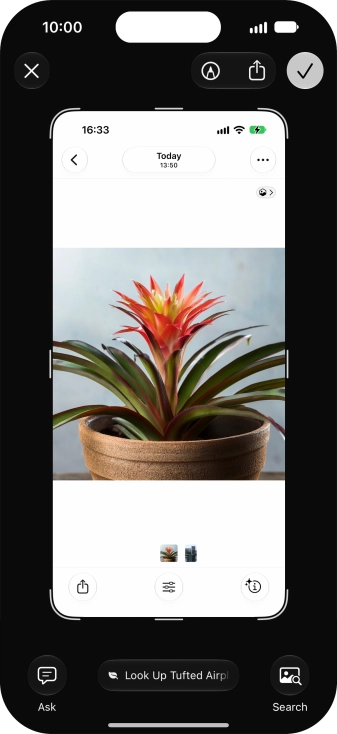
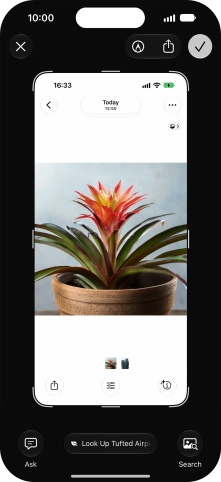
3. Use visual intelligence with Siri AI
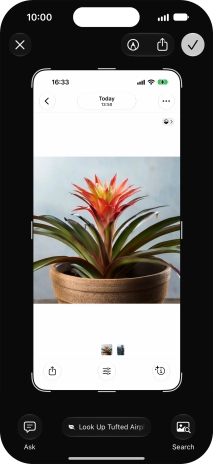
To use visual intelligence via screenshot, take a screenshot and follow the instructions on the screen to use the function.
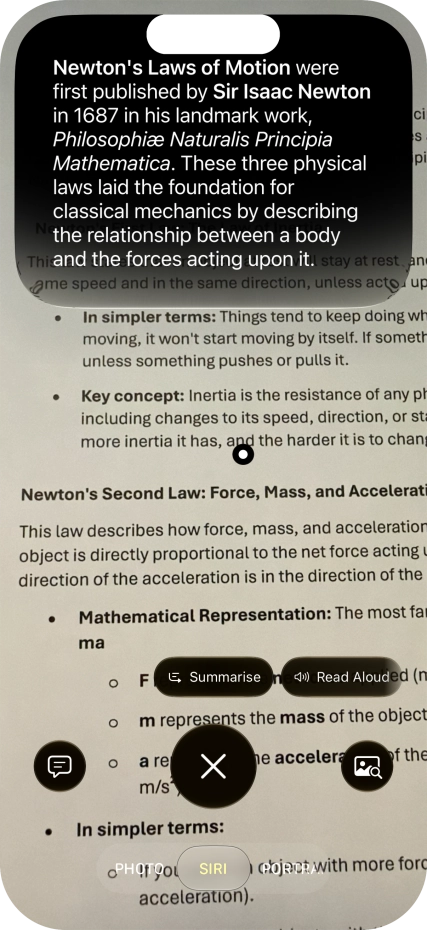
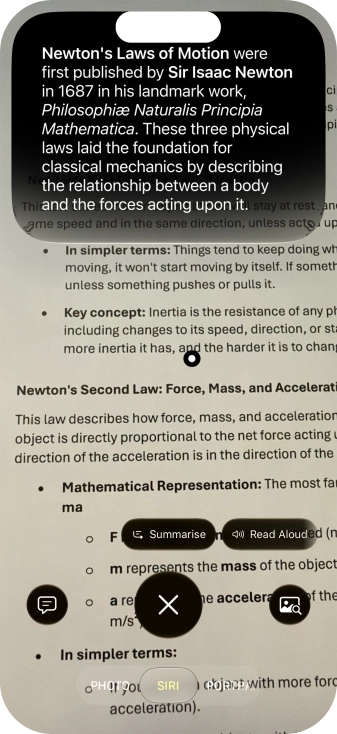
3. Use visual intelligence with Siri AI
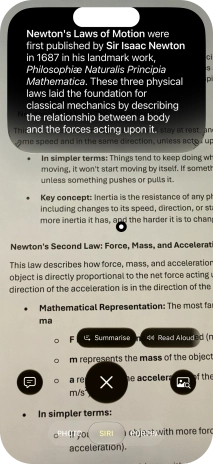
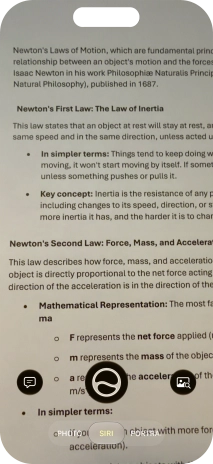
To use visual intelligence on a text, take a picture of the text, press the required setting and follow the instructions on the screen to use the function.
3. Use visual intelligence with Siri AI
Press the Siri icon to start a Siri conversation.
3. Use visual intelligence with Siri AI
Press the end icon to return to the visual intelligence mode.
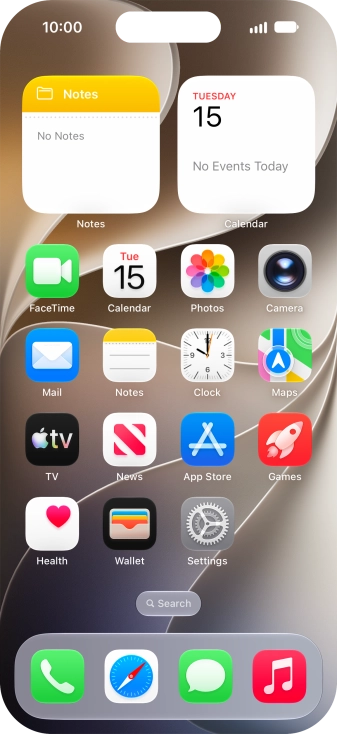
4. Use Writing Tools with Siri AI
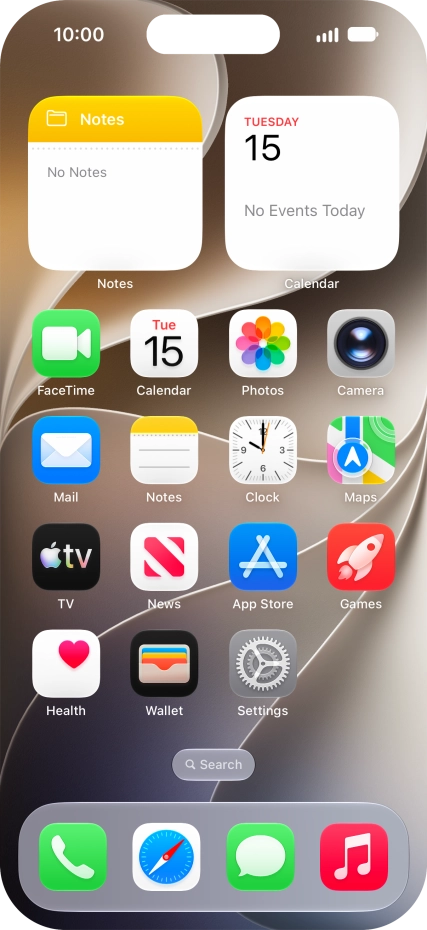
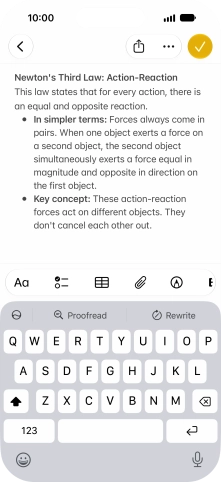
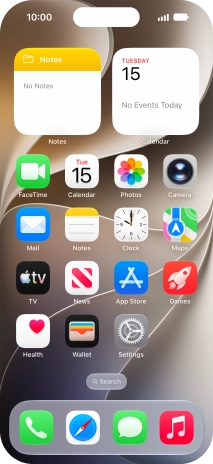
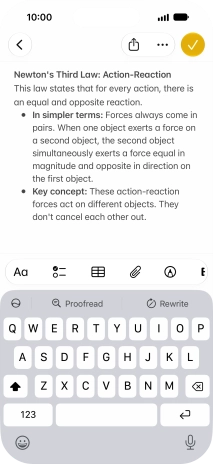
Open a supported app, such as Notes, and key in the required text.
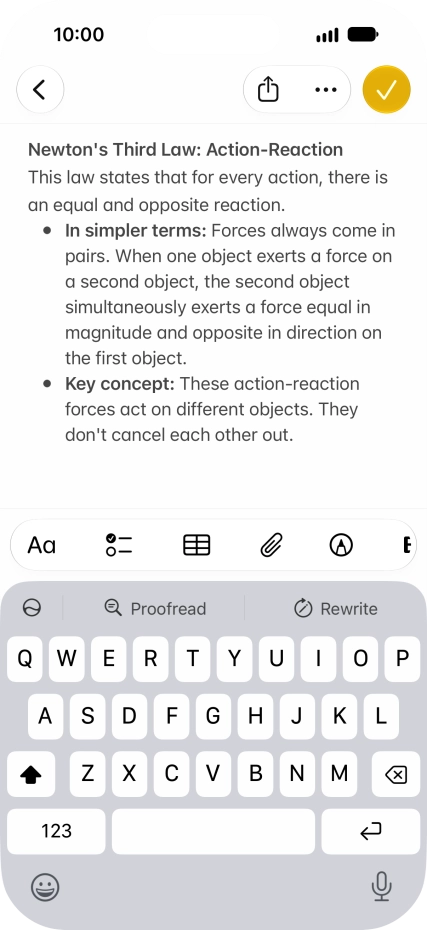
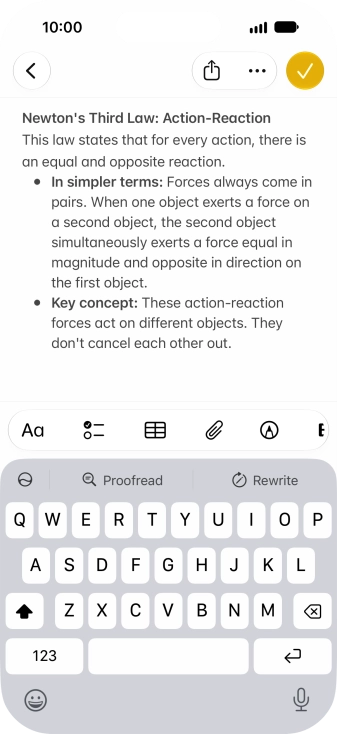
4. Use Writing Tools with Siri AI
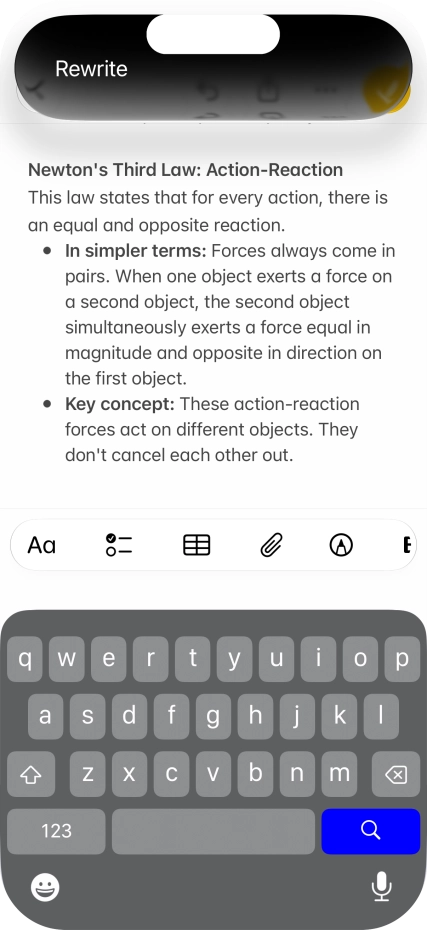
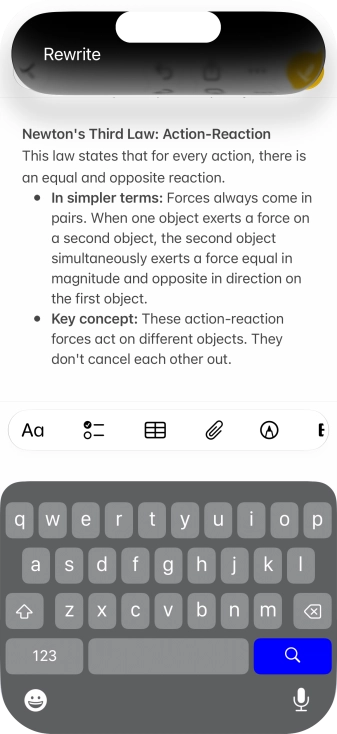
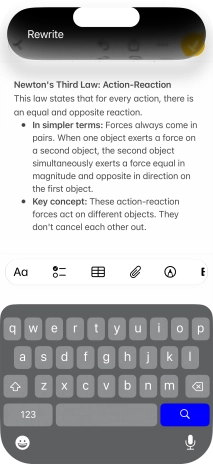
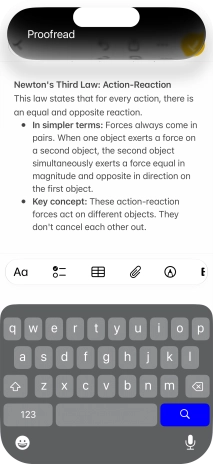
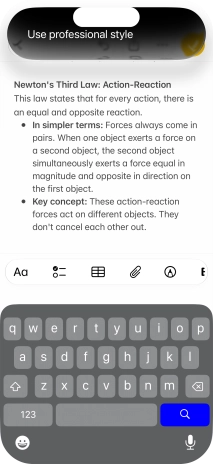
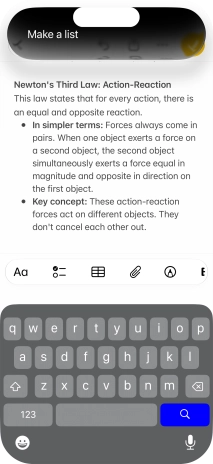
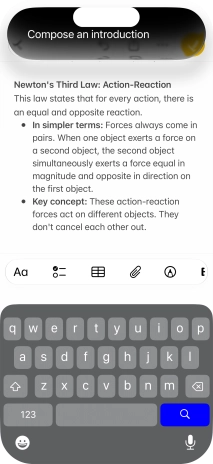
Press the Siri AI icon and follow the instructions on the screen to type or speak the required command.
4. Use Writing Tools with Siri AI
To automatically rewrite the text, use the command “Rewrite”.
4. Use Writing Tools with Siri AI
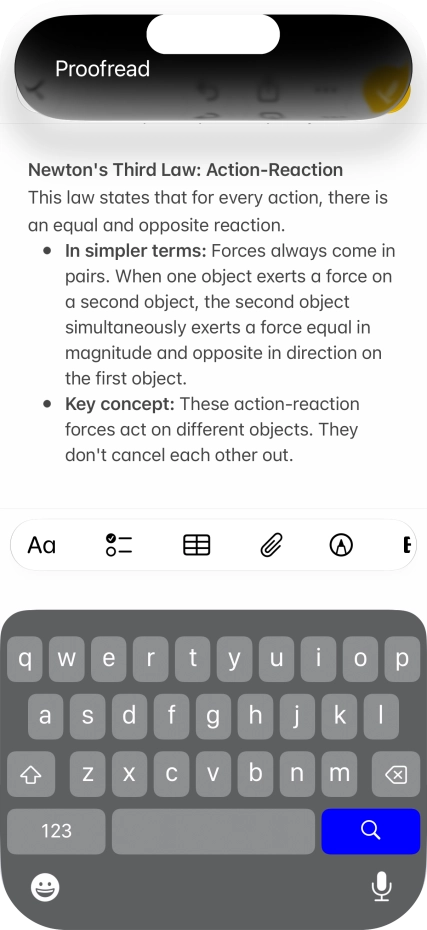
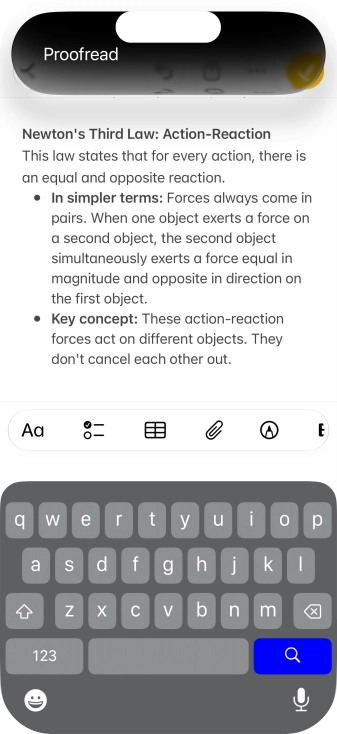
To check the text for grammatical and spelling errors, use the command “Proofread”.
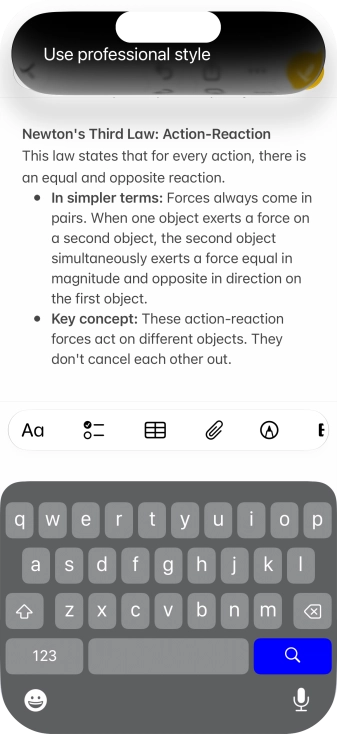
4. Use Writing Tools with Siri AI
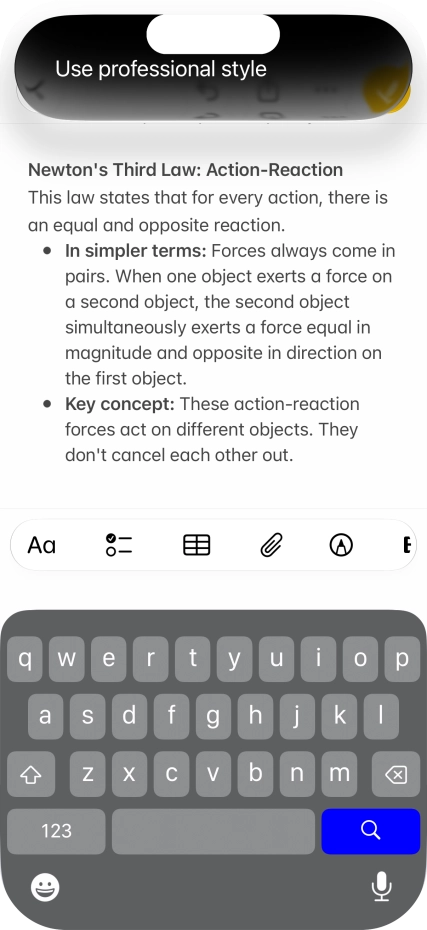
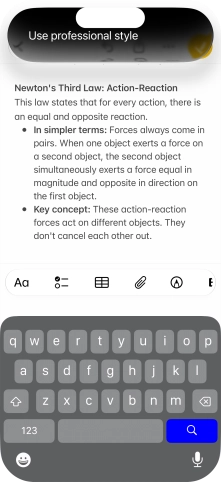
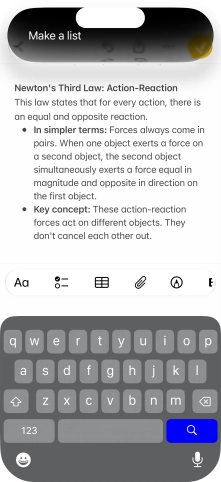
To change the writing style of the text, describe the required writing style.
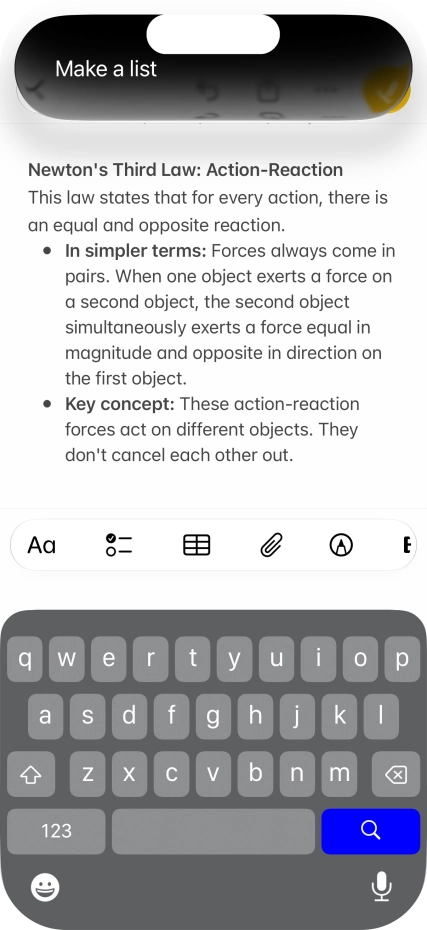
4. Use Writing Tools with Siri AI
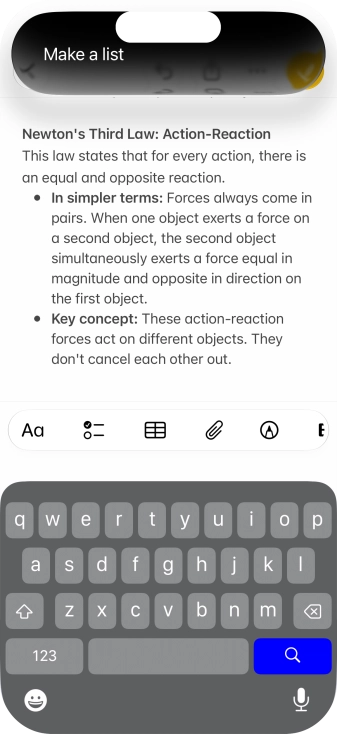
To format the text, describe the required format.
4. Use Writing Tools with Siri AI
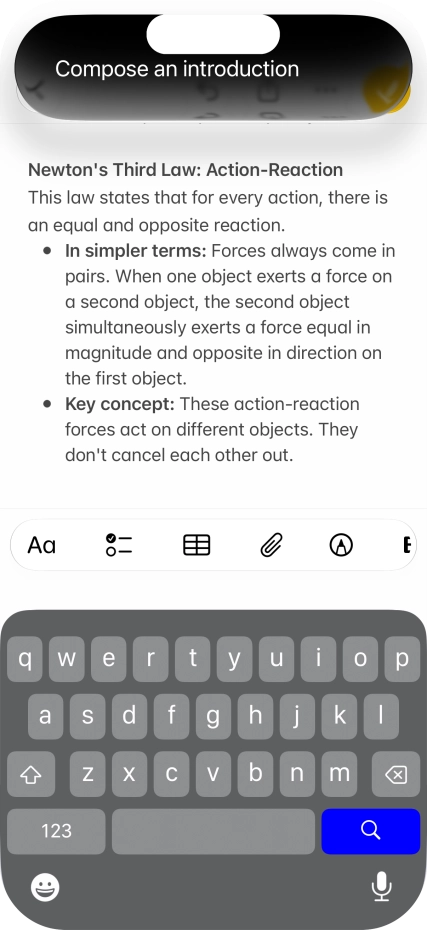
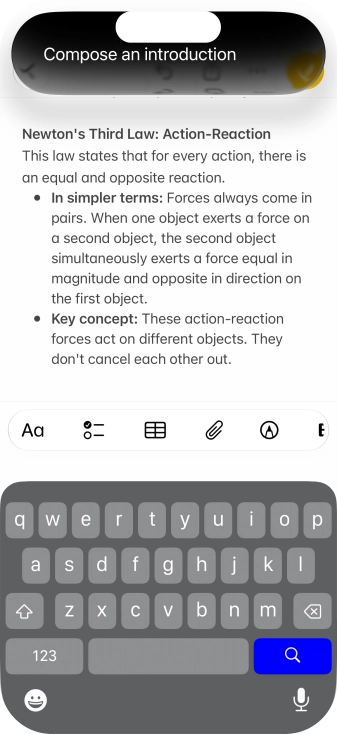
To generate a text using ChatGPT, describe your requests regarding the text.
5. Use Genmoji
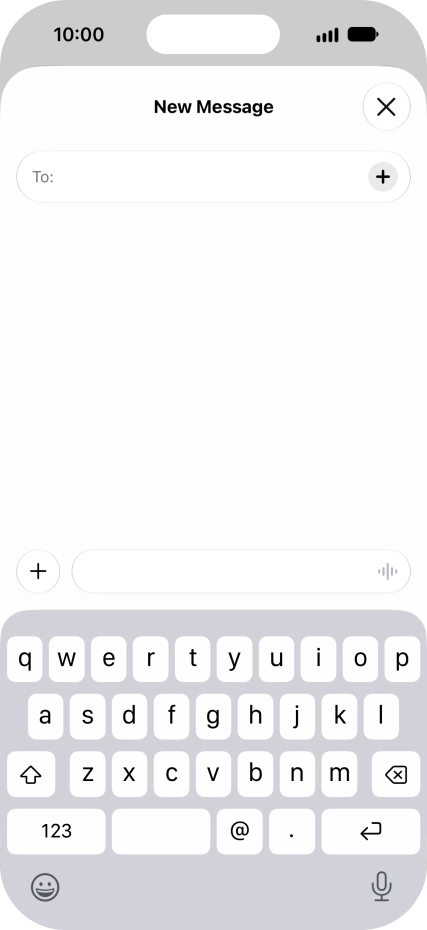
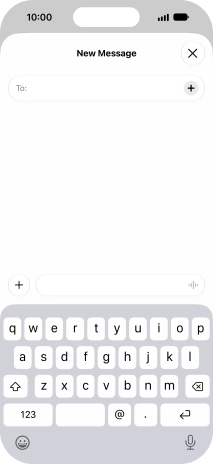
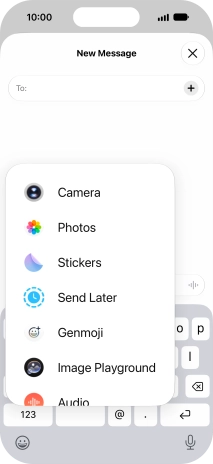
Open Messages and select an existing conversation or create a new message.
5. Use Genmoji
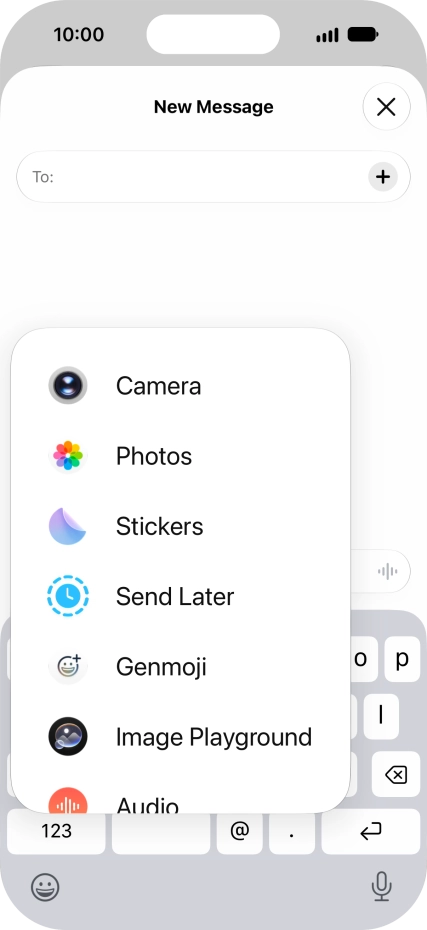
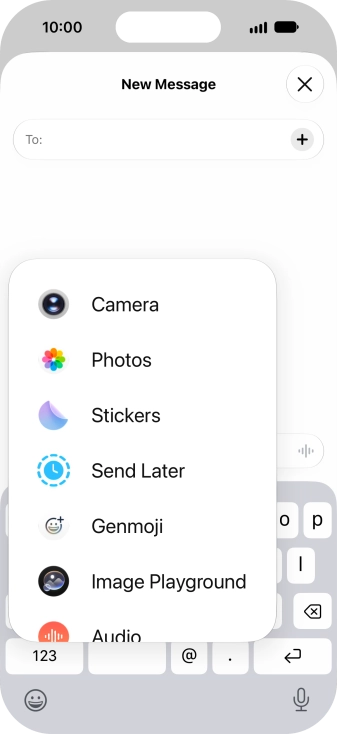
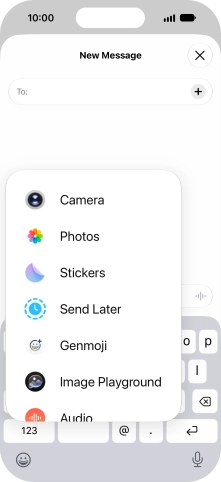
Press the add icon.
5. Use Genmoji
Press Genmoji.
5. Use Genmoji
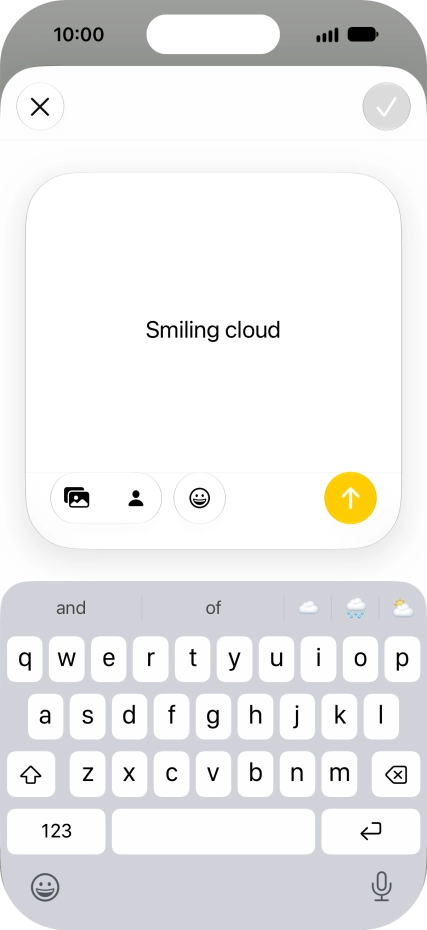
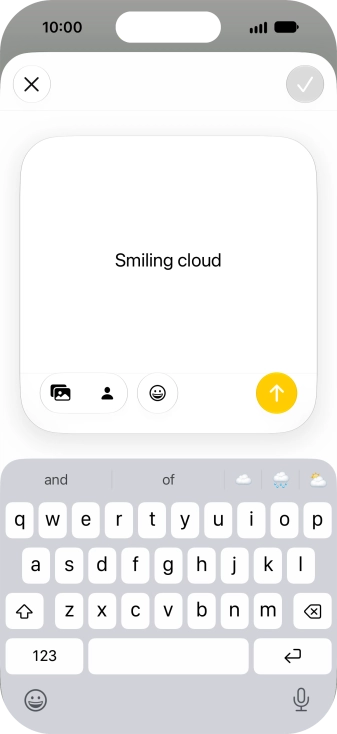
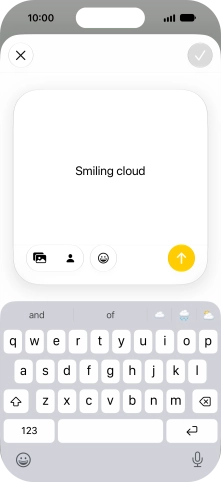
To use an existing media type as a template for your Genmoji, press the required media type and follow the instructions on the screen to select it.
5. Use Genmoji
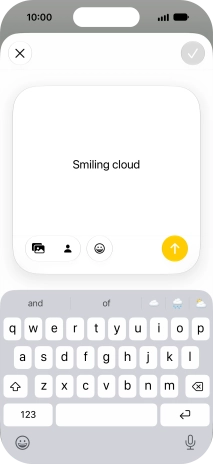
Write in your own words what you would like your Genmoji to look like, and press arrow up.
5. Use Genmoji
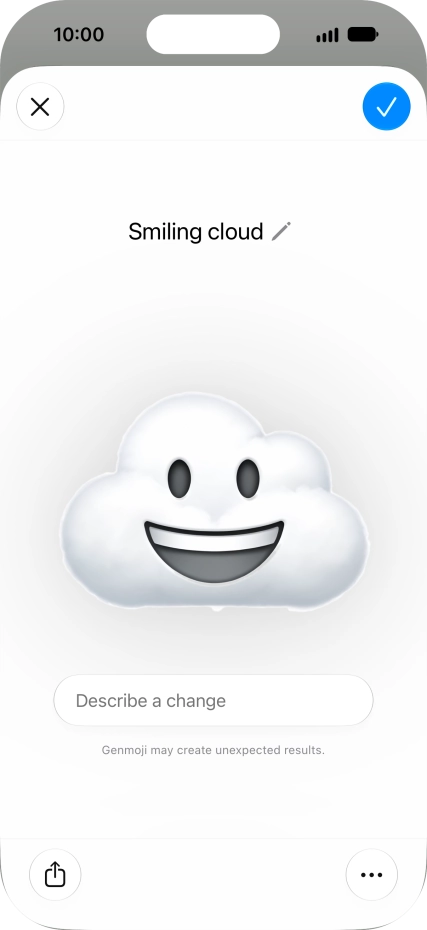
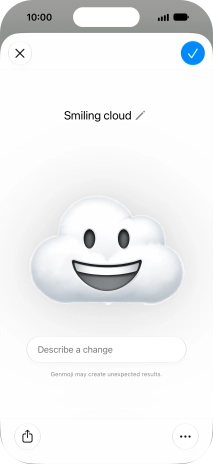
To add or change something about your Genmoji, press Describe a change and follow the instructions on the screen to describe the required changes.
5. Use Genmoji
To use the selected Genmoji in your message, press the confirm icon.
5. Use Genmoji
To access more functions for the selected Genmoji, press the menu icon and follow the instructions on the screen to use them.
1. Use Siri AI for voice control


2. Use Siri AI app


3. Use visual intelligence with Siri AI

4. Use Writing Tools with Siri AI
5. Use Genmoji
Thank you for your evaluation!

Thank you for your evaluation!