Apple iPhone 4S (iOS6)

Apple iPhone 4S

Add reminder - Apple iPhone 4S (iOS6)

Read help info

Follow these instructions to add a reminder.

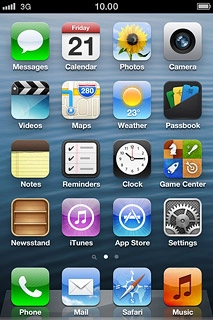
Press Reminders.
Step 1 of 26

Find "Reminders"

Press Reminders.
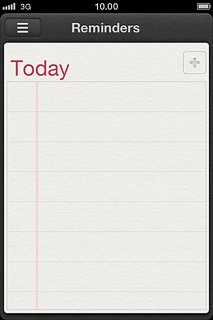
Press the new reminder icon.
Step 2 of 26

Create new reminder

Press the new reminder icon.

Key in the required text and press Done.
Step 3 of 26

Create new reminder

Key in the required text and press Done.

Apple iPhone 4S (iOS6)
Step 4 of 26

Select option

You have a number of other options after you've created a reminder.
Select one of the following options:
Add alarm, go to 3a.
Set priority, go to 3b.
Mark reminder as complete, go to 3c.
View completed reminders, go to 3d.

Press the required reminder.
Step 5 of 26

3a - Add alarm

Press the required reminder.

You need to turn on GPS before you can select Remind Me At a Location. Click here for information on how to turn on GPS.
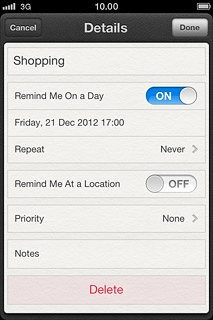
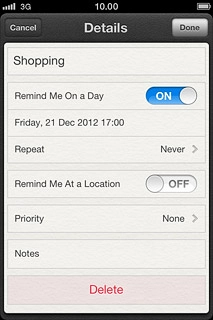
Press the indicator next to Remind Me On a Day or Remind Me At a Location to turn on the function.
Step 6 of 26

3a - Add alarm

Press the indicator next to Remind Me On a Day or Remind Me At a Location to turn on the function.

You need to turn on GPS before you can select Remind Me At a Location. Click here for information on how to turn on GPS.
If you select Remind Me On a Day:
Step 7 of 26

3a - Add alarm

If you select Remind Me On a Day:

You need to turn on GPS before you can select Remind Me At a Location. Click here for information on how to turn on GPS.
Press the date.
Step 8 of 26

3a - Add alarm

Press the date.

You need to turn on GPS before you can select Remind Me At a Location. Click here for information on how to turn on GPS.
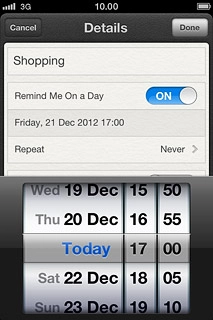
Drag the wheels to set the date and time.
Step 9 of 26

3a - Add alarm

Drag the wheels to set the date and time.

You need to turn on GPS before you can select Remind Me At a Location. Click here for information on how to turn on GPS.
If you select Remind Me At a Location:
Step 10 of 26

3a - Add alarm

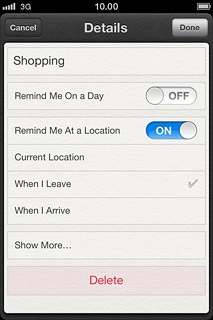
If you select Remind Me At a Location:

You need to turn on GPS before you can select Remind Me At a Location. Click here for information on how to turn on GPS.
Press the field below Remind Me At a Location.Follow the instructions on the display to select the required location.
Step 11 of 26

3a - Add alarm

Press the field below Remind Me At a Location.
Follow the instructions on the display to select the required location.

You need to turn on GPS before you can select Remind Me At a Location. Click here for information on how to turn on GPS.
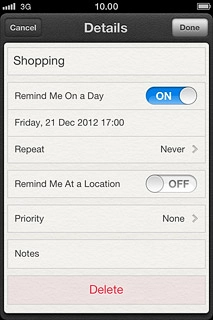
Press Details.
Step 12 of 26

3a - Add alarm

Press Details.

You need to turn on GPS before you can select Remind Me At a Location. Click here for information on how to turn on GPS.
Press Done to return to the list of reminders.
Step 13 of 26

3a - Add alarm

Press Done to return to the list of reminders.

You need to turn on GPS before you can select Remind Me At a Location. Click here for information on how to turn on GPS.
Press the required reminder.
Step 14 of 26

3b - Set priority

Press the required reminder.

Press Show More....
Step 15 of 26

3b - Set priority

Press Show More....

Press Priority.
Step 16 of 26

3b - Set priority

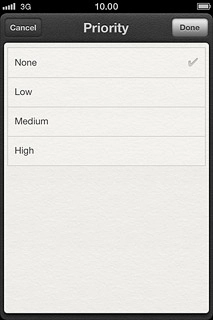
Press Priority.

Press None or the required priority.
Step 17 of 26

3b - Set priority

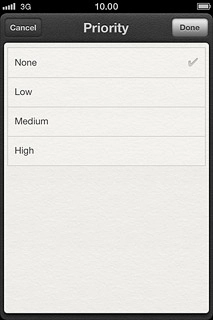
Press None or the required priority.

Press Done to save.
Step 18 of 26

3b - Set priority

Press Done to save.

Press Done to return to the list of reminders.
Step 19 of 26

3b - Set priority

Press Done to return to the list of reminders.

Press the box next to the reminder.
Step 20 of 26

3c - Mark reminder as complete

Press the box next to the reminder.

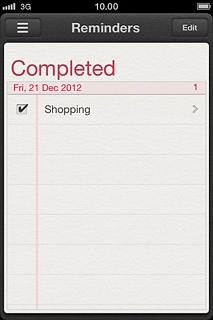
When the box next to the reminder is ticked (V), the reminder is marked as complete.
Step 21 of 26

3c - Mark reminder as complete

When the box next to the reminder is ticked (V), the reminder is marked as complete.

Press the menu icon.
Step 22 of 26

3d - View completed reminders

Press the menu icon.

Press Completed.
Step 23 of 26

3d - View completed reminders

Press Completed.

Press the required reminder to see it.
Step 24 of 26

3d - View completed reminders

Press the required reminder to see it.

Press Done.
Step 25 of 26

3d - View completed reminders

Press Done.

Press the Home key to return to standby mode.
Step 26 of 26

Exit

Press the Home key to return to standby mode.

Find "Reminders"

Press Reminders.

Create new reminder

Press the new reminder icon.
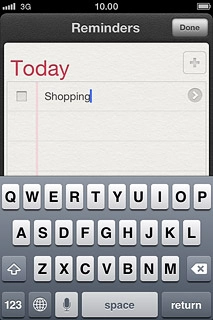
Key in the required text and press Done.
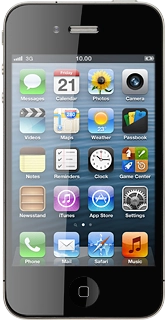
Select option

You have a number of other options after you've created a reminder.
Select one of the following options:
Add alarm, go to 3a.
Set priority, go to 3b.
Mark reminder as complete, go to 3c.
View completed reminders, go to 3d.
Apple iPhone 4S (iOS6)

3a - Add alarm

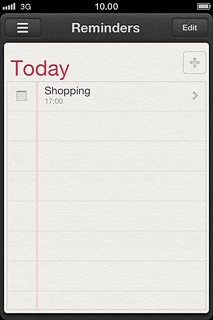
Press the required reminder.
You need to turn on GPS before you can select Remind Me At a Location. Click here for information on how to turn on GPS.
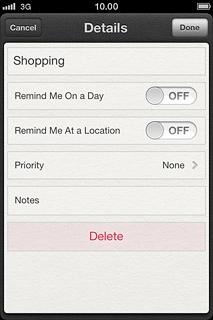
Press the indicator next to Remind Me On a Day or Remind Me At a Location to turn on the function.
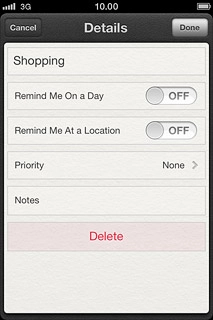
You need to turn on GPS before you can select Remind Me At a Location. Click here for information on how to turn on GPS.
If you select Remind Me On a Day:
You need to turn on GPS before you can select Remind Me At a Location. Click here for information on how to turn on GPS.
Press the date.
You need to turn on GPS before you can select Remind Me At a Location. Click here for information on how to turn on GPS.
Drag the wheels to set the date and time.
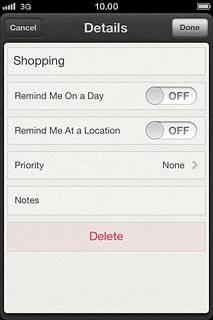
You need to turn on GPS before you can select Remind Me At a Location. Click here for information on how to turn on GPS.
If you select Remind Me At a Location:
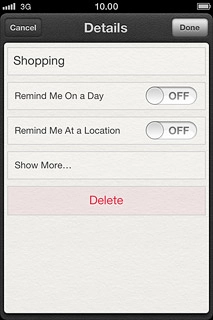
You need to turn on GPS before you can select Remind Me At a Location. Click here for information on how to turn on GPS.
Press the field below Remind Me At a Location.
Follow the instructions on the display to select the required location.
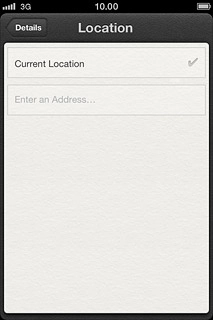
You need to turn on GPS before you can select Remind Me At a Location. Click here for information on how to turn on GPS.
Press Details.
You need to turn on GPS before you can select Remind Me At a Location. Click here for information on how to turn on GPS.
Press Done to return to the list of reminders.
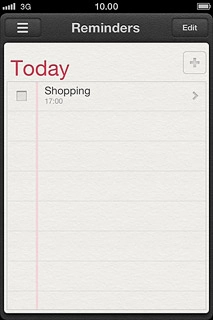
You need to turn on GPS before you can select Remind Me At a Location. Click here for information on how to turn on GPS.

3b - Set priority

Press the required reminder.
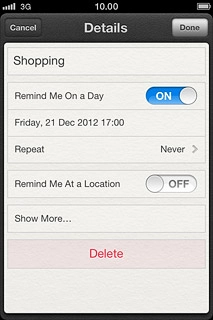
Press Show More....
Press Priority.
Press None or the required priority.
Press Done to save.
Press Done to return to the list of reminders.
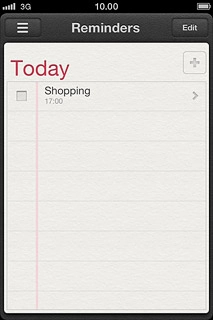
3c - Mark reminder as complete

Press the box next to the reminder.
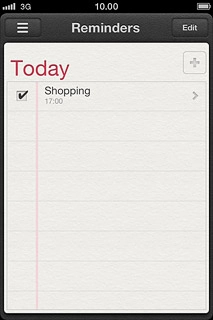
When the box next to the reminder is ticked (V), the reminder is marked as complete.
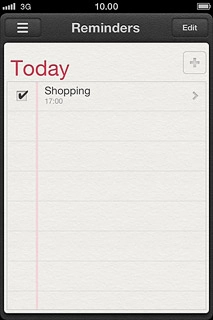
3d - View completed reminders

Press the menu icon.
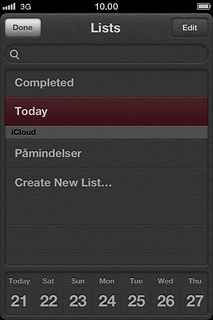
Press Completed.
Press the required reminder to see it.
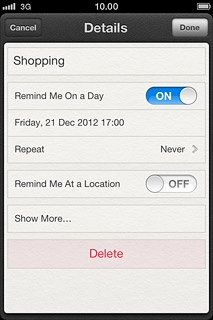
Press Done.

Exit

Press the Home key to return to standby mode.

Thank you for your evaluation!

Get information on...

Or select...

Another device