Apple Watch Series 12

Apple Watch Series 12

watchOS 27

Read email message on your Apple Watch Series 12 watchOS 27

Read help info

You can receive email messages from your email accounts on your Apple Watch.

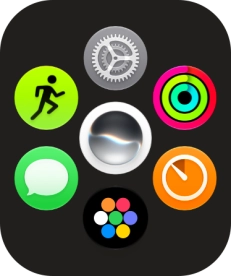
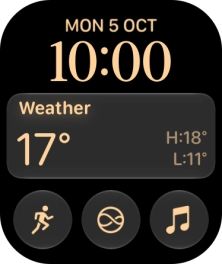
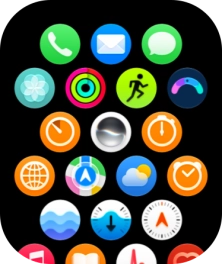
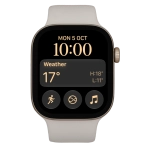
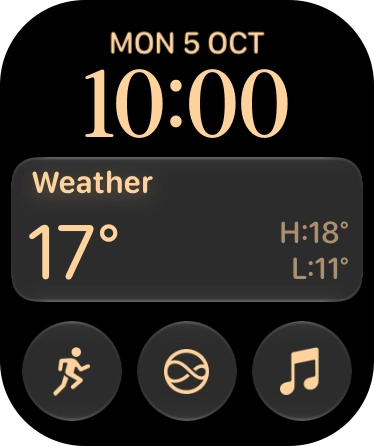
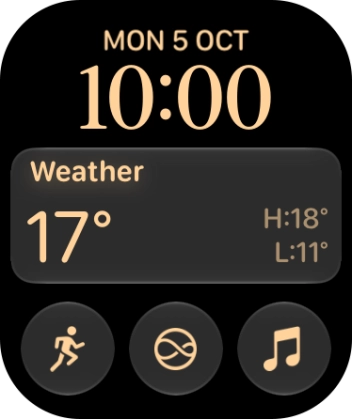
Press the Digital Crown.
Step 1 of 21

1. Select email account

Press the Digital Crown.
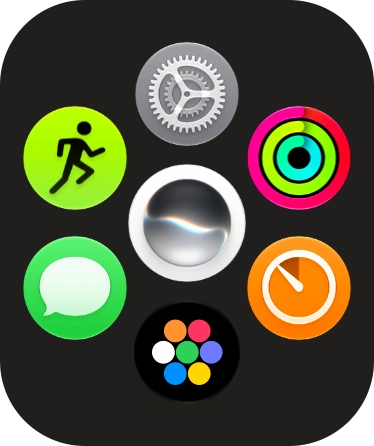
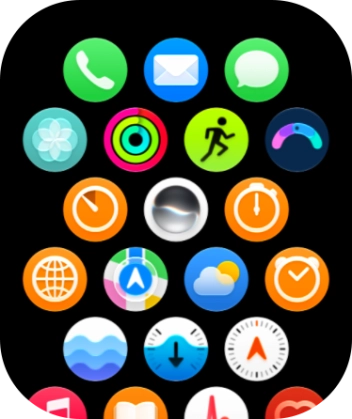
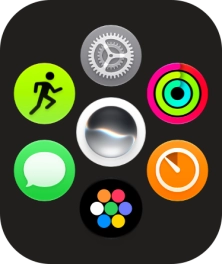
Slide your finger upwards on the screen.
Step 2 of 21

1. Select email account

Slide your finger upwards on the screen.

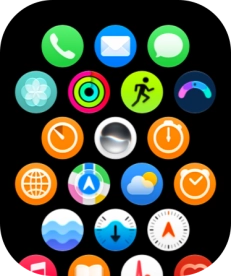
Press the email message icon.
Step 3 of 21

1. Select email account

Press the email message icon.

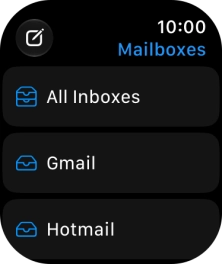
Press arrow left.
Step 4 of 21

1. Select email account

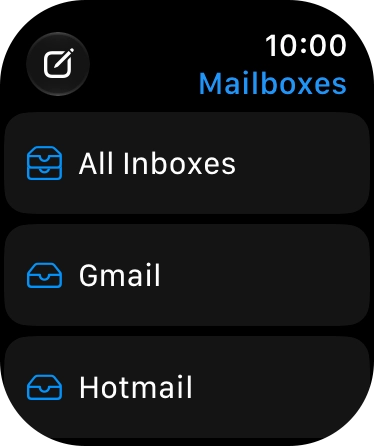
Press arrow left.

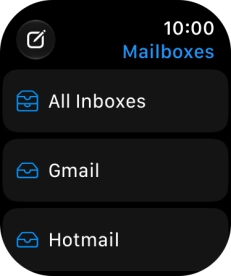
Press the required email account.
Step 5 of 21

1. Select email account

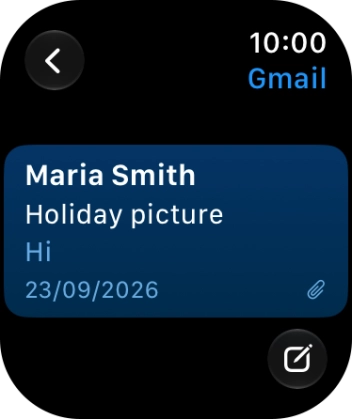
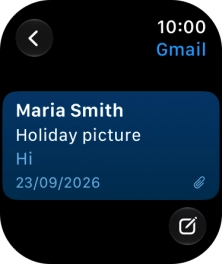
Press the required email account.

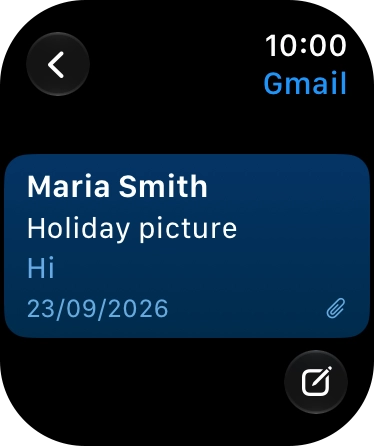
Press the required email message.
Step 6 of 21

2. Read email message

Press the required email message.

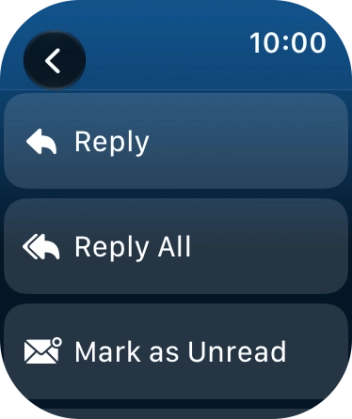
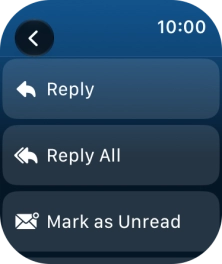
Press Reply.
Step 7 of 21

3. Reply to email message using voice input

Press Reply.

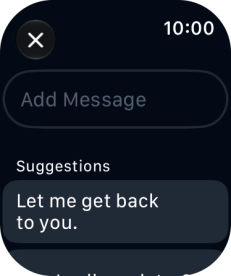
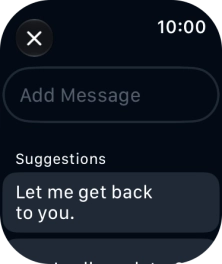
Press Add Message.
Step 8 of 21

3. Reply to email message using voice input

Press Add Message.

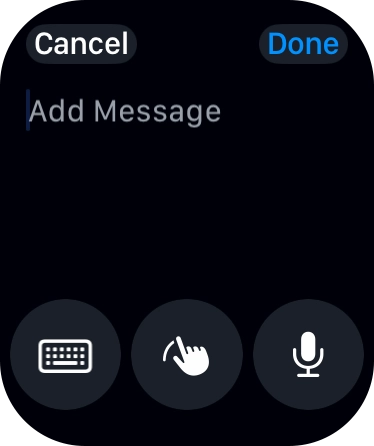
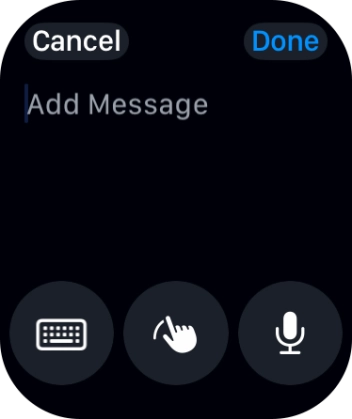
Press the input icon.
Step 9 of 21

3. Reply to email message using voice input

Press the input icon.

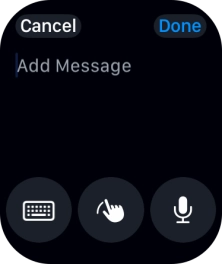
Press the microphone icon and record the message.
Step 10 of 21

3. Reply to email message using voice input

Press the microphone icon and record the message.

To use voice input, you need to turn on dictation.
Press Done.
Step 11 of 21

3. Reply to email message using voice input

Press Done.

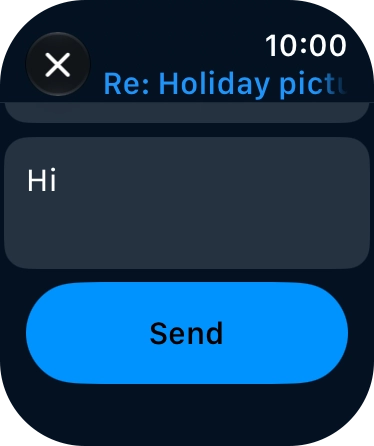
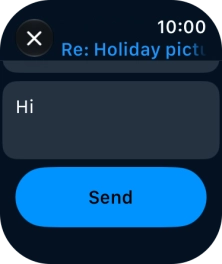
Press Send.
Step 12 of 21

3. Reply to email message using voice input

Press Send.

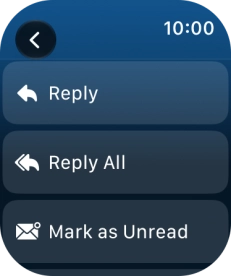
Press Reply.
Step 13 of 21

4. Reply to email message using text input

Press Reply.

Press Add Message.
Step 14 of 21

4. Reply to email message using text input

Press Add Message.

Press the input icon.
Step 15 of 21

4. Reply to email message using text input

Press the input icon.

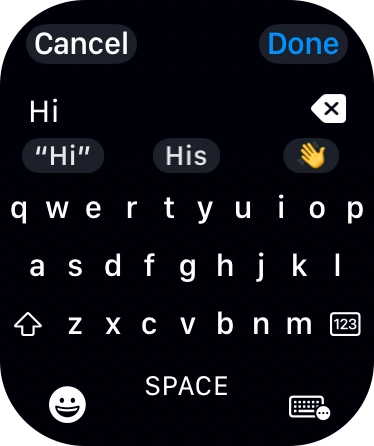
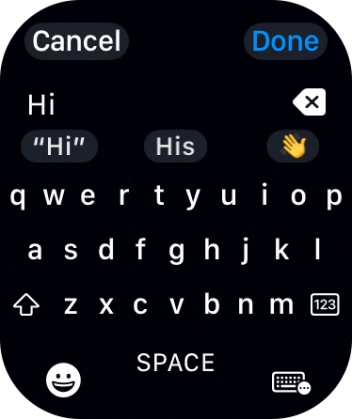
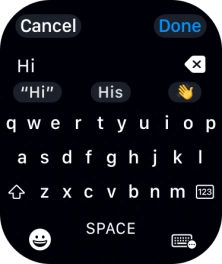
Press the keypad icon and key in the required text.
Step 16 of 21

4. Reply to email message using text input

Press the keypad icon and key in the required text.

Press Done.
Step 17 of 21

4. Reply to email message using text input

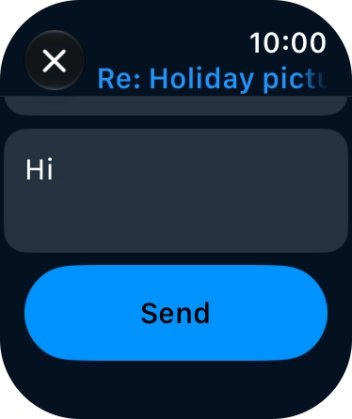
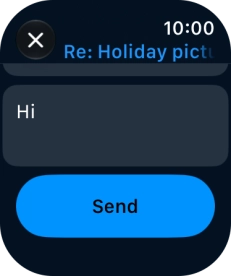
Press Done.

Press Send.
Step 18 of 21

4. Reply to email message using text input

Press Send.

Press Reply.
Step 19 of 21

5. Reply to email message using quick reply

Press Reply.

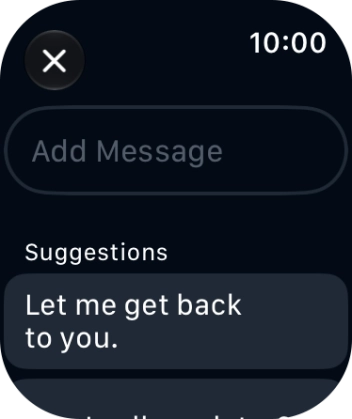
Press the required quick reply.
Step 20 of 21

5. Reply to email message using quick reply

Press the required quick reply.

Press the Digital Crown several times to return to standby mode.
Step 21 of 21

6. Return to the home screen

Press the Digital Crown several times to return to standby mode.

1. Select email account

Press the Digital Crown.
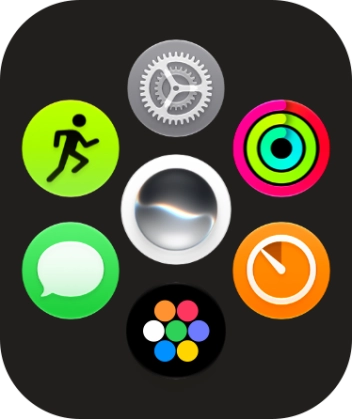
Slide your finger upwards on the screen.
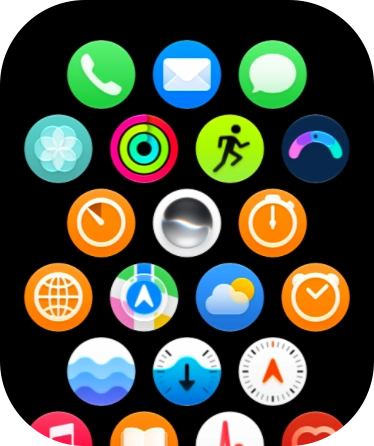
Press the email message icon.
Press arrow left.
Press the required email account.

2. Read email message

Press the required email message.
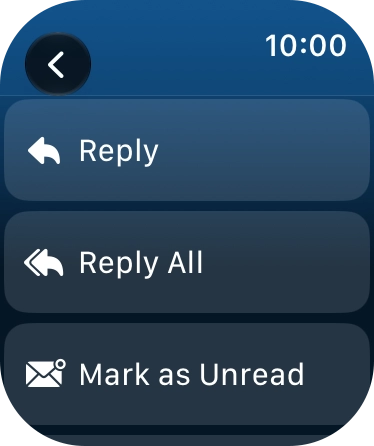
3. Reply to email message using voice input

Press Reply.
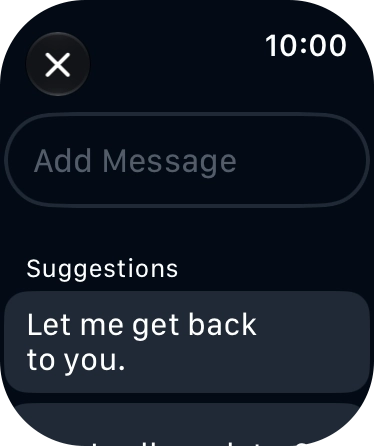
Press Add Message.
Press the input icon.
Press the microphone icon and record the message.
To use voice input, you need to turn on dictation.
Press Done.
Press Send.

4. Reply to email message using text input

Press Reply.
Press Add Message.
Press the input icon.
Press the keypad icon and key in the required text.
Press Done.
Press Send.

5. Reply to email message using quick reply

Press Reply.
Press the required quick reply.

6. Return to the home screen

Press the Digital Crown several times to return to standby mode.

Thank you for your evaluation!

Get information on...

Or select...

Another device