Google Pixel 11

Google Pixel 11

Android 17

Extend the battery life on your Google Pixel 11 Android 17

Read help info

Some functions on your phone use a lot of power and therefore significantly reduce the battery life. You can reduce the power consumption by turning on low power mode.

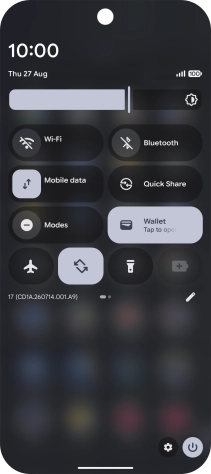
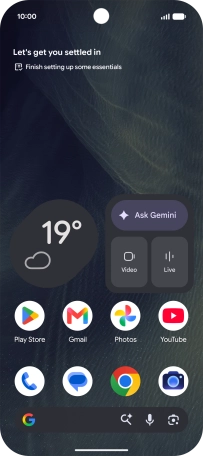
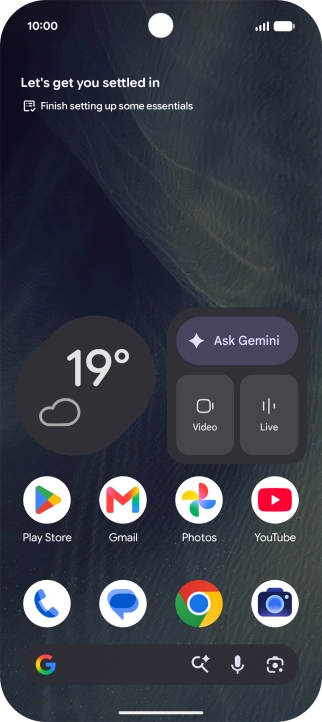
Slide two fingers downwards starting from the top of the screen.
Step 1 of 7

1. Find "Battery Saver"

Slide two fingers downwards starting from the top of the screen.
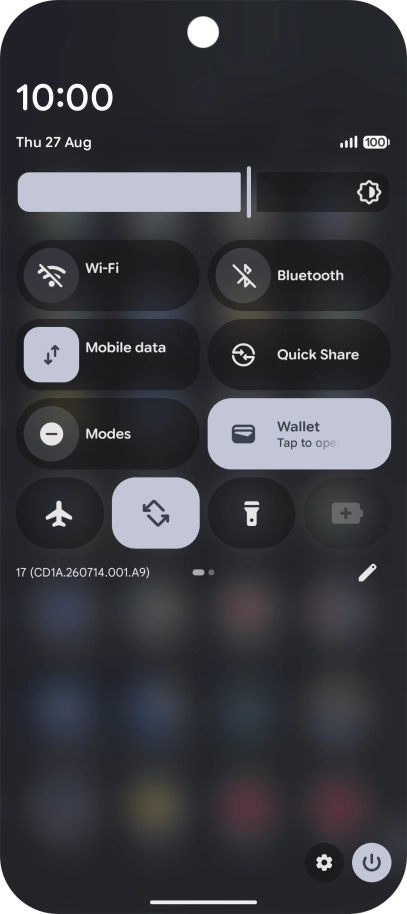
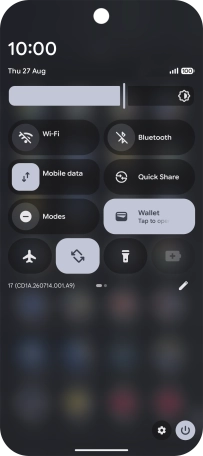
Press the settings icon.
Step 2 of 7

1. Find "Battery Saver"

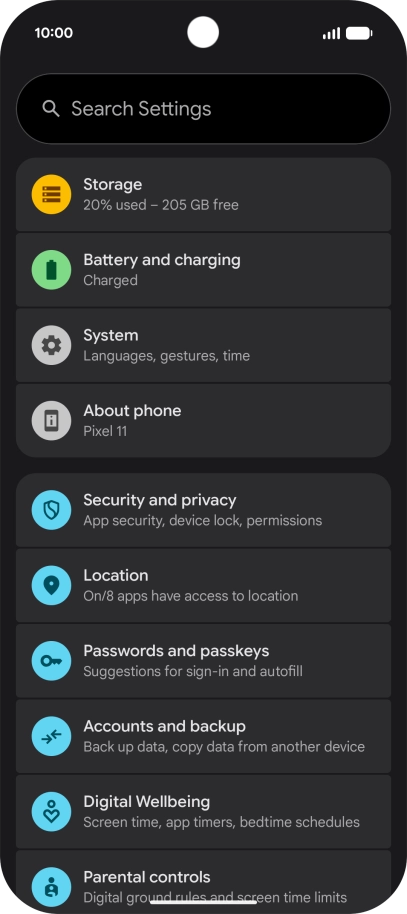
Press the settings icon.

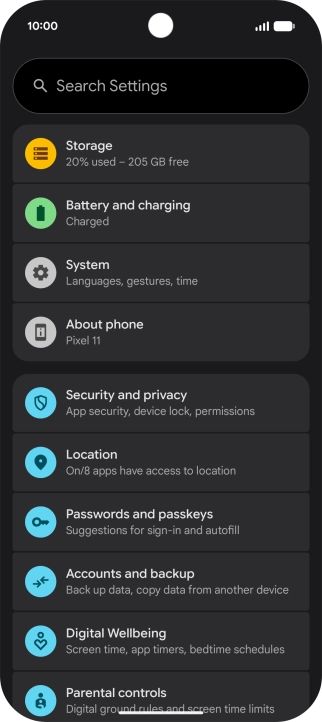
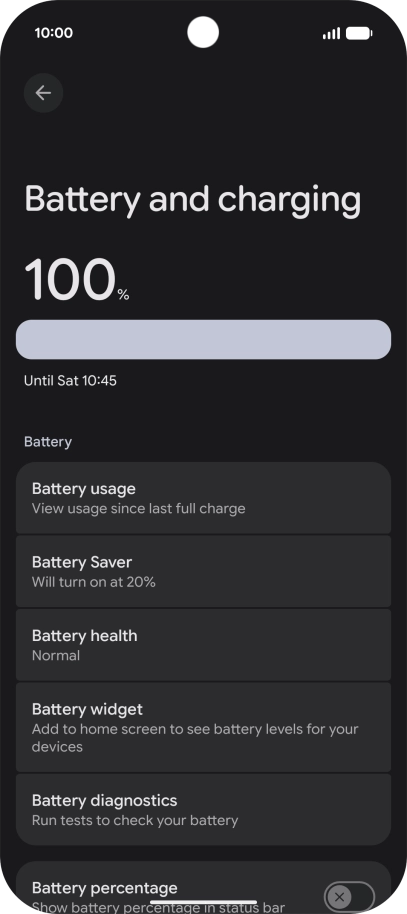
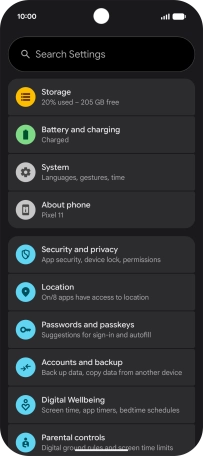
Press Battery and charging.
Step 3 of 7

1. Find "Battery Saver"

Press Battery and charging.

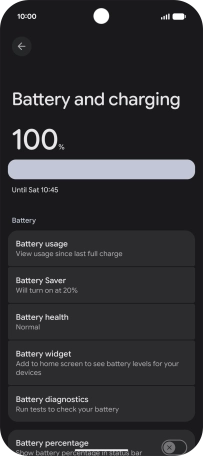
Press Battery Saver.
Step 4 of 7

1. Find "Battery Saver"

Press Battery Saver.

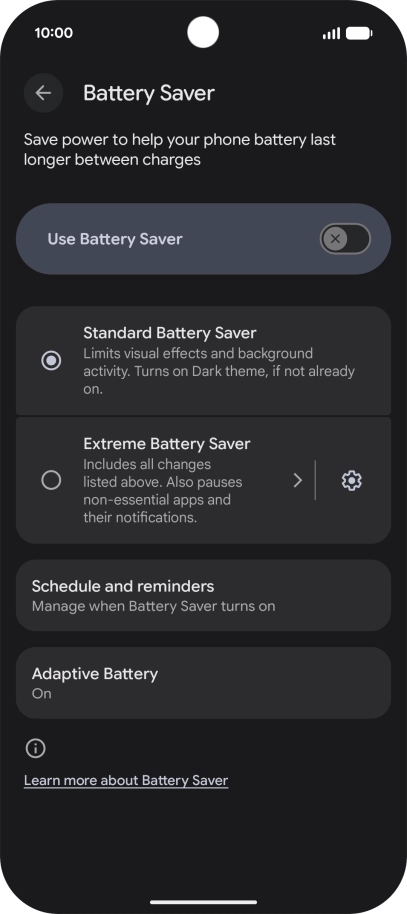
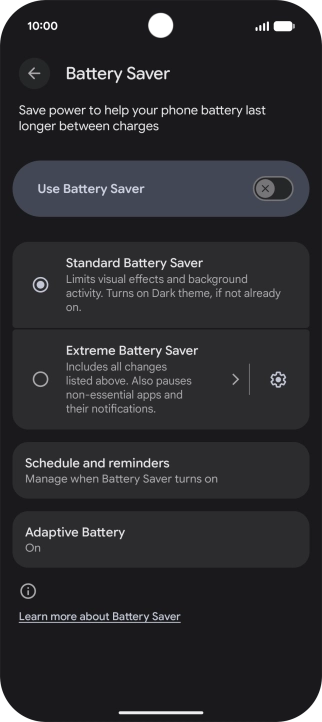
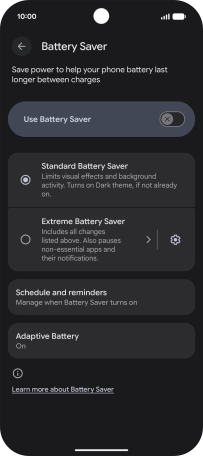
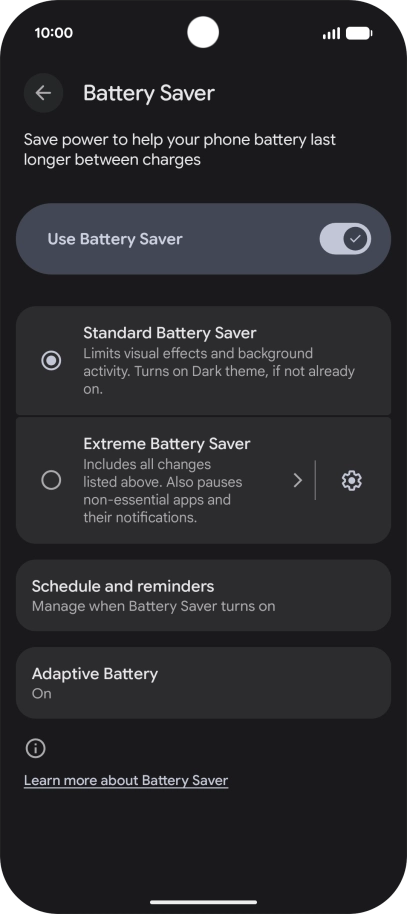
Press the required setting.
Step 5 of 7

2. Extend the battery life

Press the required setting.

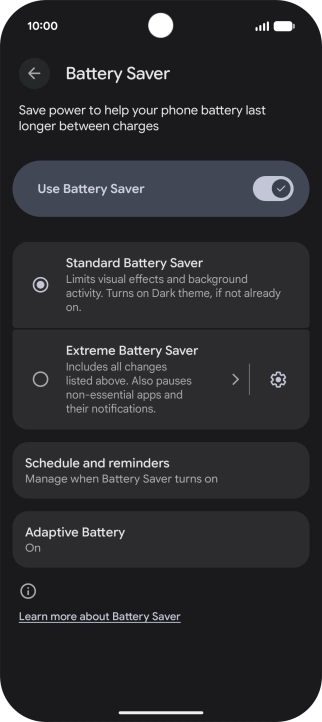
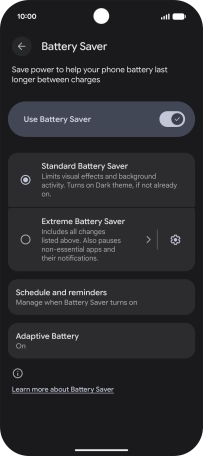
Press the indicator next to
Step 6 of 7

2. Extend the battery life

Press the indicator next to "Use Battery Saver" to turn on the function.

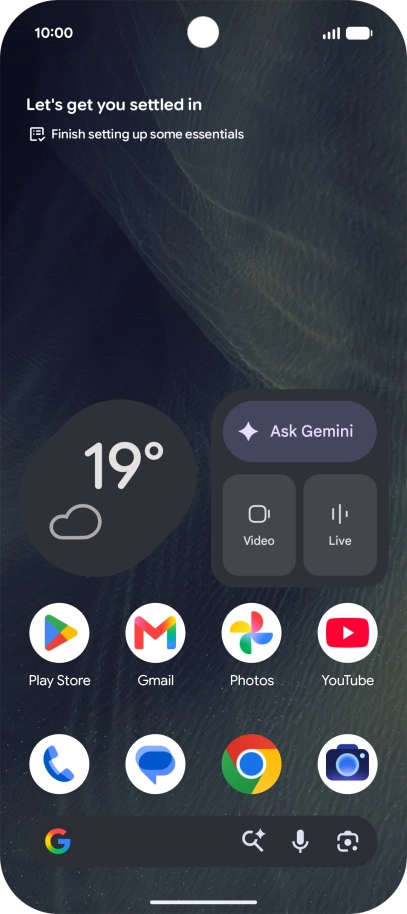
Slide your finger upwards starting from the bottom of the screen to return to the home screen.
Step 7 of 7

3. Return to the home screen

Slide your finger upwards starting from the bottom of the screen to return to the home screen.

1. Find "Battery Saver"

Slide two fingers downwards starting from the top of the screen.
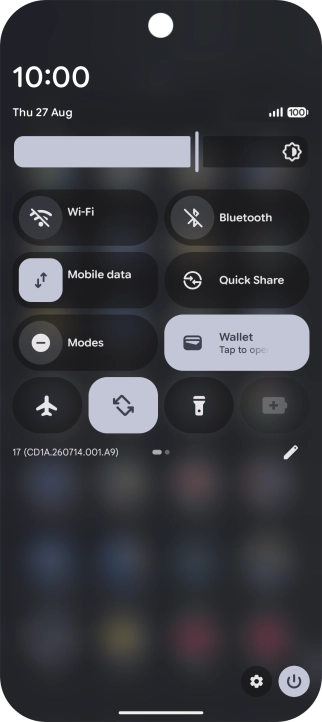
Press the settings icon.
Press Battery and charging.
Press Battery Saver.

2. Extend the battery life

Press the required setting.
Press the indicator next to "Use Battery Saver" to turn on the function.
3. Return to the home screen

Slide your finger upwards starting from the bottom of the screen to return to the home screen.

Thank you for your evaluation!

Get information on...

Or select...

Another device