Google Pixel 8 Pro

Google Pixel 8 Pro

Android 14

Update software on your Google Pixel 8 Pro Android 14

Read help info

It's recommended that you update your phone with the newest software, as the manufacturer continuously corrects errors. It's a good idea to back up the phone memory first. Before you can update the phone software, you need to set up your phone for internet. You may need to update the software multiple times in sequence to get to the latest version and your phone states that "Your software is up to date".

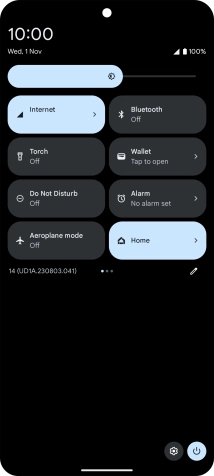
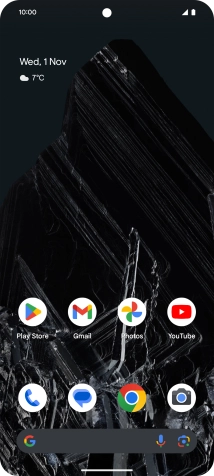
Slide two fingers downwards starting from the top of the screen.
Step 1 of 4

1. Find "System"

Slide two fingers downwards starting from the top of the screen.
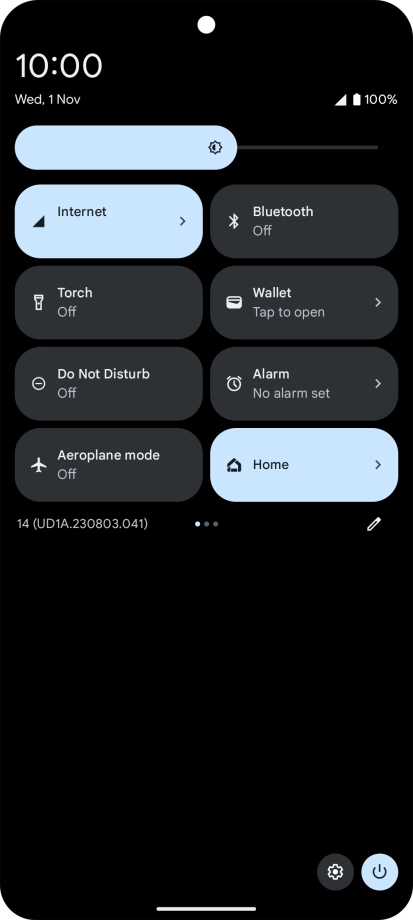
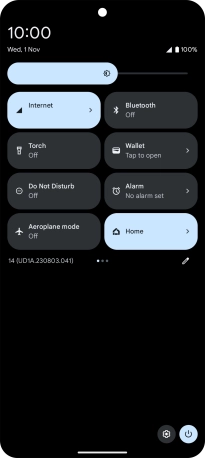
Press the settings icon.
Step 2 of 4

1. Find "System"

Press the settings icon.

Press System.
Step 3 of 4

1. Find "System"

Press System.

Press System update. If a new software version is available, it's displayed. Follow the instructions on the screen to update the phone software.
Step 4 of 4

2. Update phone software

Press System update. If a new software version is available, it's displayed. Follow the instructions on the screen to update the phone software.

1. Find "System"

Slide two fingers downwards starting from the top of the screen.
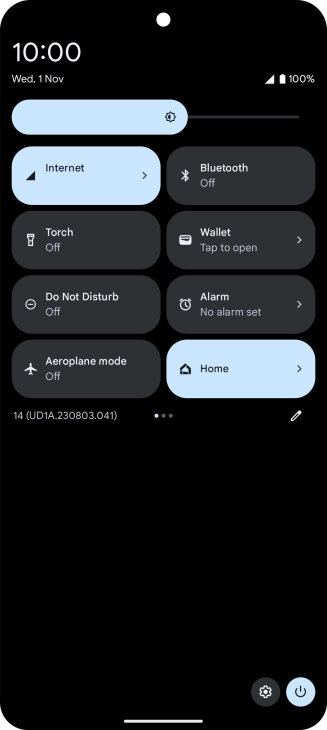
Press the settings icon.
Press System.

2. Update phone software

Press System update. If a new software version is available, it's displayed. Follow the instructions on the screen to update the phone software.

Thank you for your evaluation!

Get information on...

Or select...

Another device