LG Velvet

LG Velvet

Android 10.0

Back up pictures and videos on your LG Velvet Android 10.0 to Google Drive

Read help info

You can back up pictures and videos to Google Drive to ensure that no data is lost when you update your phone's software or if you lose your phone. To back up your pictures and videos, you need to activate your Google account on your phone and set up your phone for internet.

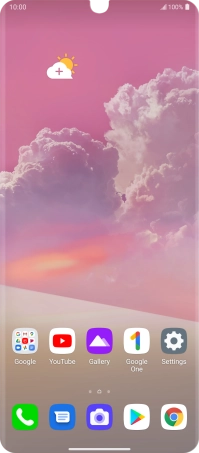
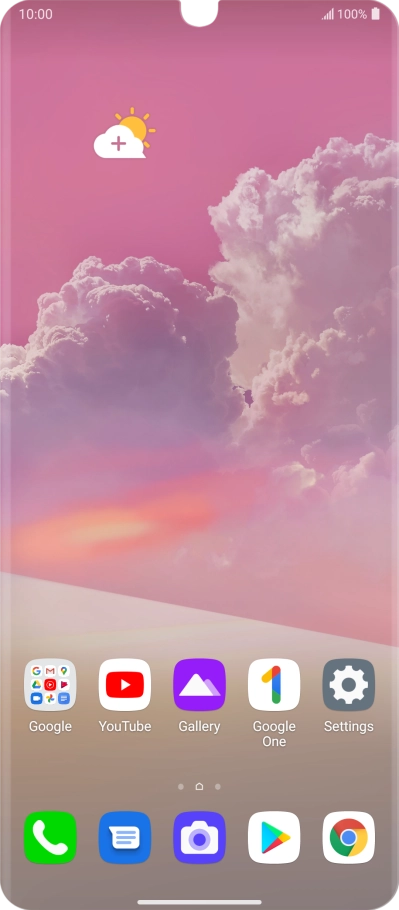
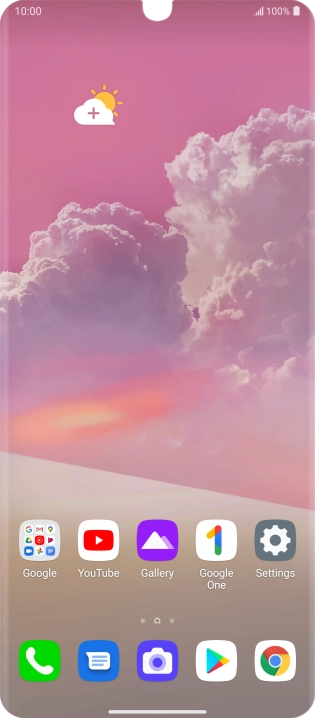
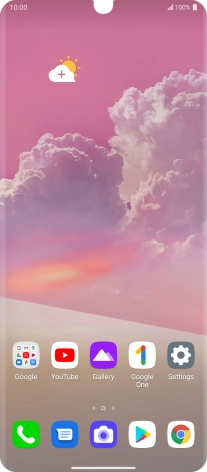
Press Gallery and go to the required folder.
Step 1 of 10

1. Find "Gallery"

Press Gallery and go to the required folder.

Press and hold any picture or video clip.
Step 2 of 10

2. Select pictures or video clips

Press and hold any picture or video clip.

Press the required pictures or video clips to add them.
Step 3 of 10

2. Select pictures or video clips

Press the required pictures or video clips to add them.

Press Share.
Step 4 of 10

2. Select pictures or video clips

Press Share.

Press Save to Drive.
Step 5 of 10

2. Select pictures or video clips

Press Save to Drive.

Press the field below
Step 6 of 10

3. Select location

Press the field below "Folder" and go to the required folder.

To create a new folder, press the new folder icon and follow the instructions on the screen to create a new folder.
Step 7 of 10

3. Select location

To create a new folder, press the new folder icon and follow the instructions on the screen to create a new folder.

Press Select.
Step 8 of 10

3. Select location

Press Select.

Press Save.
Step 9 of 10

4. Back up pictures and video clips

Press Save.

Slide your finger upwards starting from the bottom of the screen to return to the home screen.
Step 10 of 10

5. Return to the home screen

Slide your finger upwards starting from the bottom of the screen to return to the home screen.

1. Find "Gallery"

Press Gallery and go to the required folder.

2. Select pictures or video clips

Press and hold any picture or video clip.
Press the required pictures or video clips to add them.
Press Share.
Press Save to Drive.

3. Select location

Press the field below "Folder" and go to the required folder.
To create a new folder, press the new folder icon and follow the instructions on the screen to create a new folder.
Press Select.

4. Back up pictures and video clips

Press Save.

5. Return to the home screen

Slide your finger upwards starting from the bottom of the screen to return to the home screen.

Thank you for your evaluation!

Get information on...

Or select...

Another device