


Find "Lock screen and security"
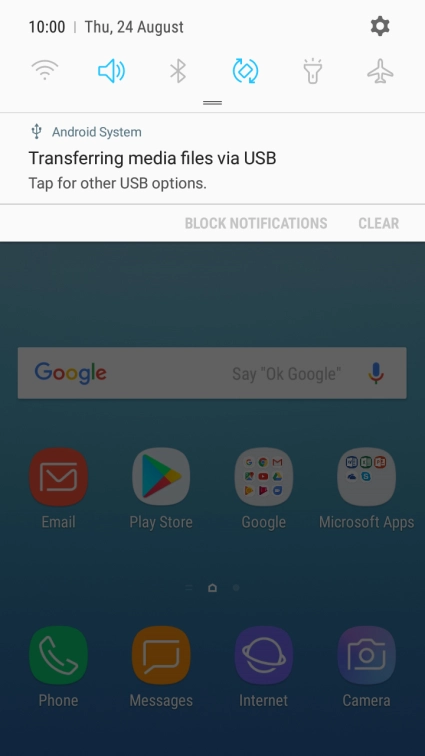
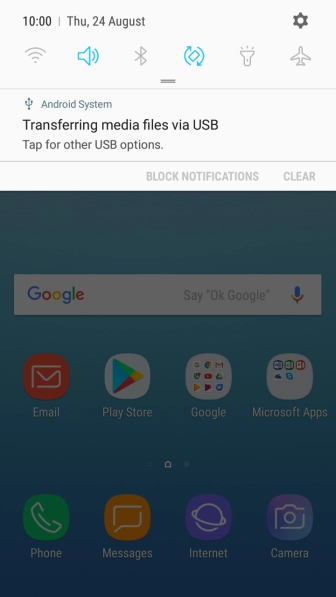
Slide your finger downwards starting from the top of the screen.
Find "Lock screen and security"
Press the settings icon.


Find "Lock screen and security"
Press Lock screen and security.


Create phone lock code using a fingerprint
Press Fingerprint Scanner.


Create phone lock code using a fingerprint
Press CONTINUE and follow the instructions on the screen to create an additional phone lock code.


Create phone lock code using a fingerprint
Follow the instructions on the screen to create the phone lock code using your fingerprint.


Create phone lock code using a fingerprint
Press the required setting.
Create phone lock code using a fingerprint
Press DONE.
Turn off use of phone lock code
Press Screen lock type and key in the current phone lock code.


Turn off use of phone lock code
Press REMOVE FINGERPRINTS.


Turn off use of phone lock code
Press REMOVE.


Return to the home screen
Press the Home key to return to the home screen.
1 Find "Lock screen and security"


2 Create phone lock code using a fingerprint


3 Turn off use of phone lock code


4 Return to the home screen
